Bunny.net Storage Setup
This guide walks you through configuring Better Messages to store chat attachments on Bunny.net. Bunny is a global CDN that pairs a low-cost Storage Zone (where the bytes live) with a Pull Zone (the CDN edge that serves them), and offers built-in HMAC-SHA256 Token Authentication at the edge if you want per-download access control.
By the end of this guide:
- Attachments will be uploaded server-side from your WordPress server to Bunny Storage (Bunny's Storage API uses an
AccessKeyheader — there are no presigned PUTs like S3). - Downloads serve directly from the Pull Zone — your PHP server never streams the file body.
- You'll have picked between two delivery modes that the plugin supports.
Two delivery modes — pick one
Better Messages supports two completely separate ways to serve files from Bunny. The plugin's Protect Downloads toggle (in Settings → Attachments → Storage) decides which one is used.
| Mode | Protect Downloads | Pull Zone Token Auth | Download URL | Best for |
|---|---|---|---|---|
| A — Public Pull Zone | OFF | OFF | https://<zone>.b-cdn.net/<path> — clean, cacheable, no signature | Communities where access is gated by who can see the message. Simplest setup, fastest delivery, browser-cacheable. |
| B — Token Authenticated | ON | ON | https://<zone>.b-cdn.net/<path>?token=<sha256>&expires=<ts> — Pull Zone validates per-download | Sites that need per-conversation access protection: people who scrape a URL out of a logged-in browser still can't share it with non-members. |
Pick Mode A if you don't need download-time access control. Pick Mode B if you do. You can switch later by flipping both toggles (Bunny dashboard and plugin) and filling in the Token Authentication Key — no migration of existing files needed.
Unlike R2 (which uses two completely different download URLs for its public/Worker modes), Bunny uses the same Pull Zone hostname for both modes. Switching between Mode A and Mode B is a runtime change that takes effect on the next URL the plugin signs.
Architecture
┌────────────────────────────┐    ┌───────────────────────────┐    ┌──────────────┐
│  Bunny Storage Zone        │ ←─ │  Bunny Pull Zone (CDN)    │ ←─ │  End user    │
│  bm-attachments            │    │  yoursite.b-cdn.net       │    │  (browser)   │
│  (region: Frankfurt/NY/…)  │    │  + optional Token Auth    │    │              │
│                            │    │                           │    │              │
│  AccessKey-based PUT/DEL   │    │  HMAC-SHA256 validation   │    │              │
└────────────────────────────┘    └───────────────────────────┘    └──────────────┘
        ↑                                                                   ↑
        │ AccessKey: <api_key>                                              │
        │                                                                   │
┌──────────────────────────┐                                  ┌──────────────────────┐
│  WordPress / PHP server  │ ─────── upload (server-side) ──→ │  Plugin signs URLs  │
│  Better Messages plugin  │                                   │  with token_key     │
└──────────────────────────┘                                  └──────────────────────┘
Two zones, one secret per direction:
- Storage API key (a long UUID-like string) authenticates uploads / deletes / listing from your WordPress server. Lives in
storageBunnyApiKey. - URL Token Authentication Key (a different UUID) authenticates the download URL signature at the Pull Zone edge. Lives in
storageBunnyTokenKey. Only used when Token Authentication is on.
These are two unrelated secrets — don't paste one into the other.
Prerequisites
- An active WebSocket License (cloud storage is a premium-only feature).
- A Bunny.net account (free trial credits work for evaluation).
- WordPress 7.4+, Better Messages 2.15.1+.
1. Create the Storage Zone
In the Bunny dashboard, click + Add Storage Zone.
Fill in:
- Storage zone name — globally unique across all Bunny customers. Examples:
acme-bm-attachments,yoursite-com-chat. (Plainbm-attachmentswill be taken; namespace it with your site.) The zone name becomes part of the Storage API URL — letters, numbers, dashes only. - Storage tier — Standard is fine for chat attachments.
- Main storage region — pick the region closest to your WordPress server. Frankfurt (DE) is the default; other options are New York (NY), Los Angeles (LA), Singapore (SG), Sydney (SYD), Stockholm (SE), São Paulo (BR), Johannesburg (JH).
- Geo replication — optional. Replication regions cannot be removed later; only add them if you need multi-region durability. For a single-region site, leave the defaults.
Click Add Storage Zone.
2. Copy the Storage API key
After the zone is created, click into it and go to Access in the left sidebar. You'll see:
- Password — the full read/write API key. Click the eye icon to reveal it. This is what goes into the plugin as
API Key. - Read-only password — a separate key with read-only access. The plugin needs read/write, so don't use this one.
- Storage Zone Region Endpoint — e.g.
https://storage.bunnycdn.com/<zone-name>for Frankfurt, orhttps://ny.storage.bunnycdn.com/<zone-name>for New York. The plugin builds this URL itself from the Region field — you'll fill that in below.
Copy the Password value. You'll paste it into the plugin in step 5.
The region prefix part of the endpoint URL is what goes into the plugin's Region field:
| Endpoint host | Plugin Region value |
|---|---|
storage.bunnycdn.com | empty (default for Frankfurt) |
ny.storage.bunnycdn.com | ny |
la.storage.bunnycdn.com | la |
sg.storage.bunnycdn.com | sg |
syd.storage.bunnycdn.com | syd |
se.storage.bunnycdn.com | se |
br.storage.bunnycdn.com | br |
jh.storage.bunnycdn.com | jh |
3. Create the Pull Zone
The Storage Zone holds the bytes; the Pull Zone serves them through Bunny's CDN edge. From the Storage Zone page, click + Connect Pull Zone → Add Pull Zone.
Fill in:
- Pull Zone name — globally unique. The hostname will be
<name>.b-cdn.net. Examples:acme-bm-cdn,yoursite-chat-cdn. - Origin type — Storage Zone (pre-selected). Don't change to Origin URL.
- Storage Zone — auto-selected to the zone you just came from.
- Tier — Standard Tier is fine for chat attachments. High Volume Tier only matters at multi-TB scale.
- Pricing zones — leave all enabled unless you want to cap geographic reach for cost.
- Bunny Shield — optional WAF/bot protection layer. Free up to 25M requests/month, then $0.70/M. Enable it if you want extra DDoS protection on the CDN; the plugin works either way.
Click Add Pull Zone.
After creation, the Pull Zone landing page shows the hostname under Linked hostnames, e.g. acme-bm-cdn.b-cdn.net. Copy this value — it goes into the plugin's Pull Zone Hostname field.
You can also attach a custom domain later (e.g. cdn.yoursite.com) by adding a CNAME to acme-bm-cdn.b-cdn.net and pasting the custom domain into Bunny's Hostnames page. The plugin's Pull Zone Hostname field accepts either the b-cdn.net default or a custom domain.
4. (Mode B only) Turn on Token Authentication
Skip this step if you're going with Mode A (public Pull Zone). For Mode B:
In the Pull Zone, go to Security → Token Authentication:
- Toggle Token authentication to ON. Bunny generates a Url token authentication Key automatically. (You can regenerate it any time, but doing so invalidates every URL the plugin has already signed for the next ~15 minutes — see the TTL bucketing section below.)
- Click the eye icon to reveal the key, then click the copy icon. This is what goes into the plugin as
Token Authentication Key. - Token IP validation — leave OFF unless your users always access from a fixed IP. With it on, signed URLs become bound to the requesting IP; mobile users on the move will get 403s.
5. Configure the plugin
In WordPress admin, go to Better Messages → Settings → Attachments → Storage.
Set Active Storage to Bunny.net Storage and fill in the Bunny section:
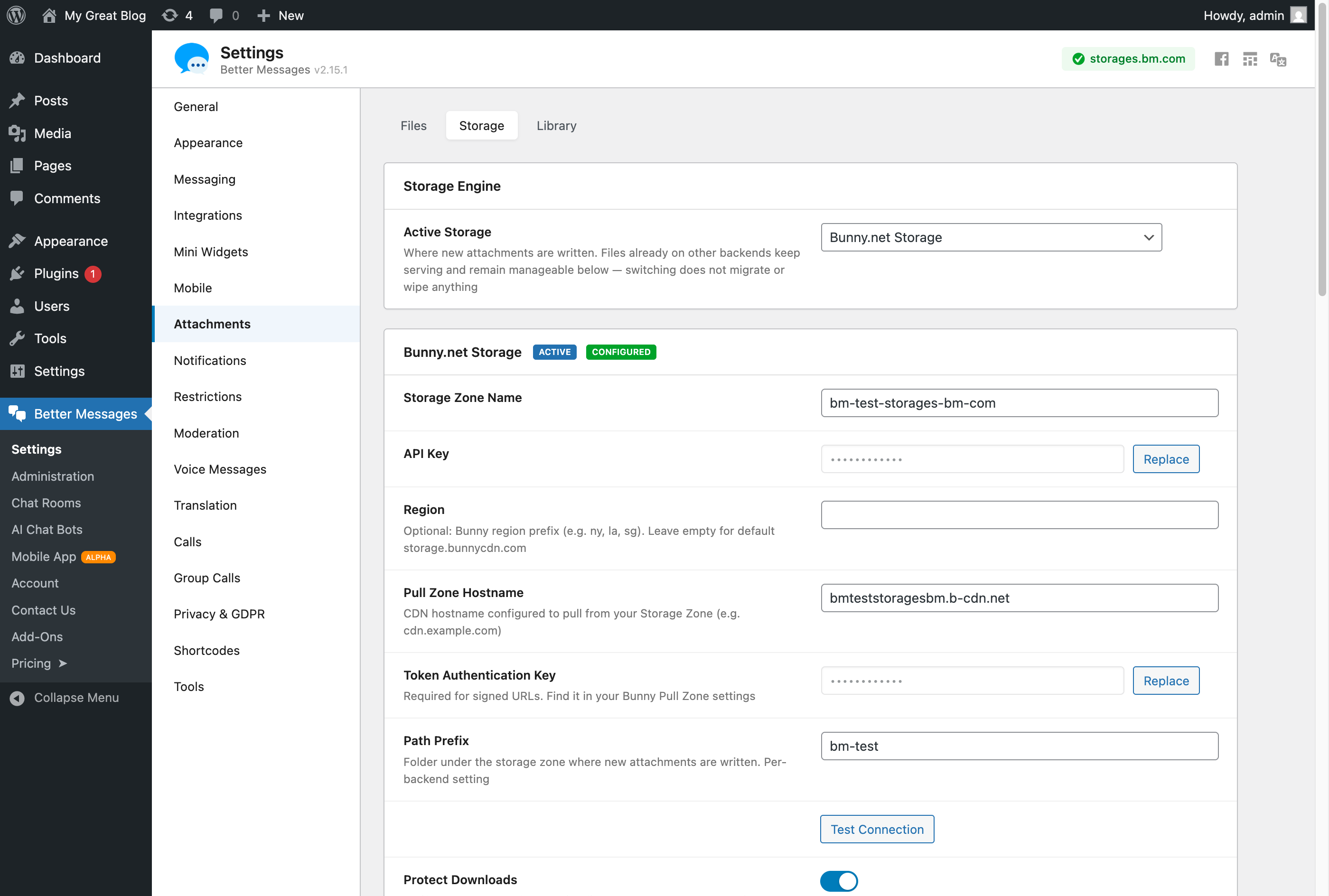
| Plugin field | Value |
|---|---|
| Storage Zone Name | the zone name from step 1 |
| API Key | Storage zone Password from step 2 |
| Region | region prefix from the table in step 2 (empty for Frankfurt) |
| Pull Zone Hostname | the hostname from step 3 |
| Token Authentication Key | only for Mode B — the key from step 4 |
| Path Prefix | folder under the Storage Zone where attachments are written. Default bm. Per-backend setting; doesn't affect other backends. |
Toggle Protect Downloads:
- Mode A: leave OFF.
- Mode B: turn ON.
Click Save Settings.
6. Test the connection
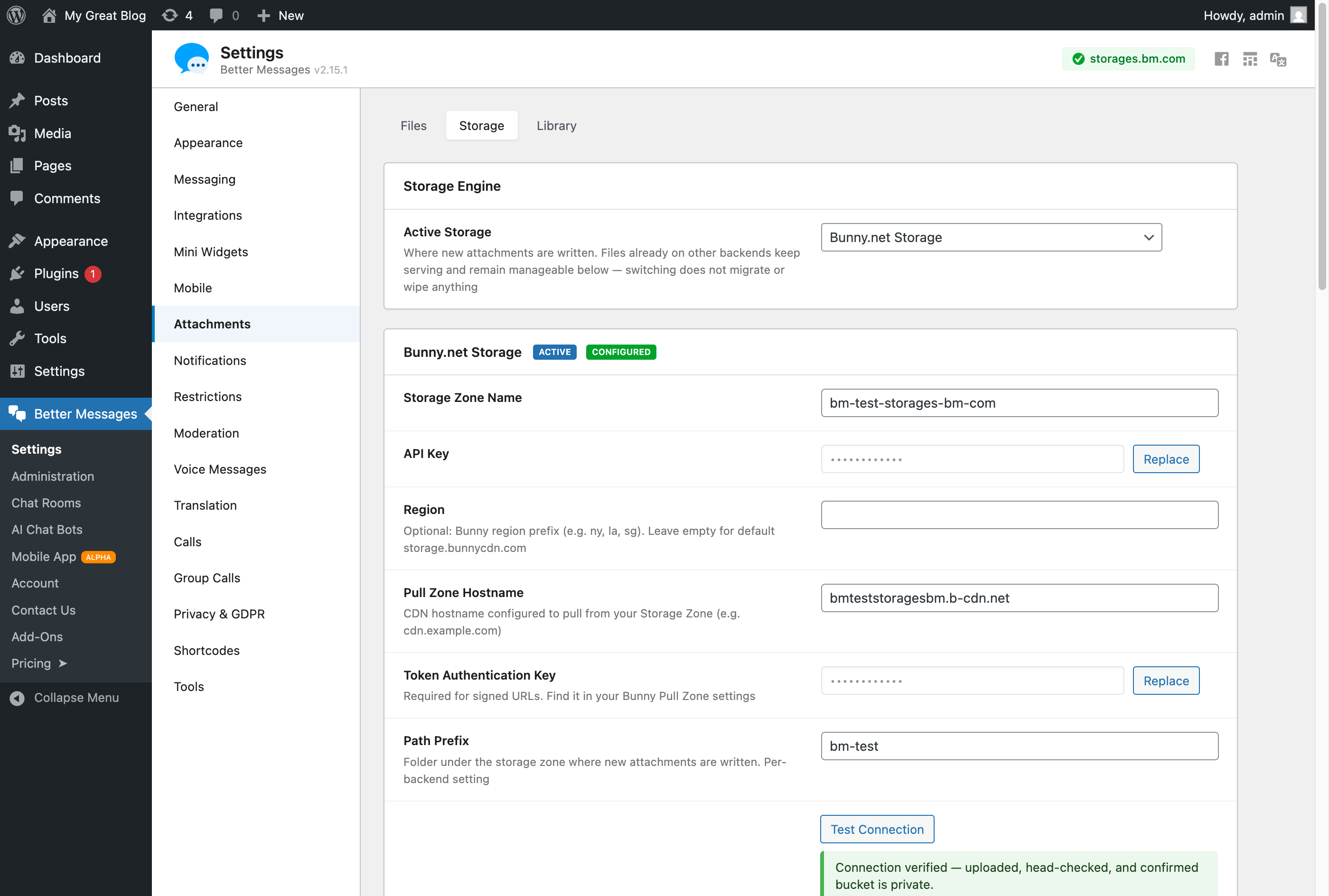
Click Test Connection. The plugin uploads a tiny probe object, head-checks it via Bunny's directory listing endpoint, runs an anonymous fetch to confirm whether the bucket is publicly readable, then deletes the probe.
For Mode A (public Pull Zone, Token Auth OFF), expect:
Bucket or zone is publicly readable. Disable public access to enforce per-conversation privacy.
This is informational, not an error. It's telling you that anyone who knows a file's URL can fetch it without a token — which is exactly what Mode A is supposed to do. The Connection verified part of the upload-and-head probe still passed.
For Mode B (Token Auth ON), expect:
Connection verified — uploaded, head-checked, and confirmed bucket is private.
If it fails:
| Symptom | Cause |
|---|---|
Failed to upload test object | Wrong API Key, wrong Storage Zone Name, or wrong Region (zone lives in NY but plugin set to default Frankfurt). |
Uploaded test object but could not verify it | Older plugin versions used HEAD for verification, which Bunny Storage doesn't support. Update to the latest plugin (this guide's adapter uses Bunny's directory-listing endpoint). |
| Probe times out | Network egress blocked between WordPress server and *.storage.bunnycdn.com. |
7. Send a test message
Open a chat in your front-end, attach an image, send. The image should render inline like any other attachment.
Confirm via the URL filter in the browser DevTools network tab — the image's URL should be:
- Mode A:
https://<your-zone>.b-cdn.net/bm/2026/MM/<thread>/<uuid>/<filename>(no query string) - Mode B:
https://<your-zone>.b-cdn.net/bm/2026/MM/<thread>/<uuid>/<filename>?token=<base64url>&expires=<unix-ts>
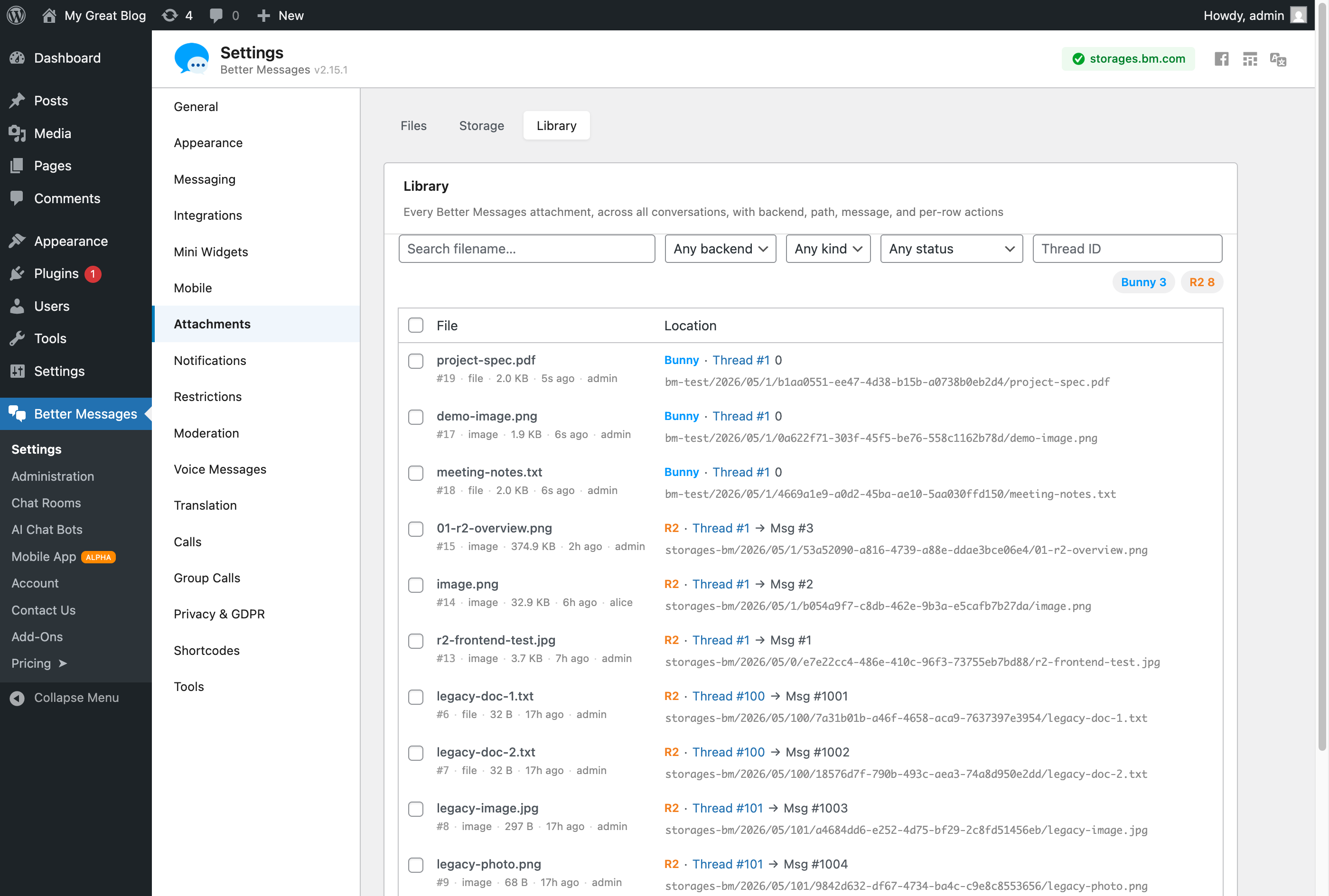
In WP admin under Attachments → Library, the new row shows a Bunny chip:
Verification — attack-vector matrix
The plugin has been verified end-to-end against the following attack vectors. If you want to repeat any of these on your own setup, run the matching curl command and confirm the HTTP status.
Mode A — Public Pull Zone
| # | Vector | Expected | Notes |
|---|---|---|---|
| A1 | curl -I '<full URL>' | 200 | direct CDN fetch |
| A2 | curl -I 'https://<zone>.b-cdn.net/some-non-existent-path' | 404 | random path |
| A3 | curl -I vs curl | matching status | HEAD/GET parity |
Mode B — Token Authentication
| # | Vector | Expected | Notes |
|---|---|---|---|
| B1 | curl -I '<full signed URL>' | 200 | valid signature |
| B2 | curl -I '<URL with ?token… stripped>' | 403 | unsigned access blocked |
| B3 | curl -I '<URL with one char of token swapped>' | 403 | tampered signature |
| B4 | curl -I '<URL with expires=<past timestamp>>' | 403 | expired |
| B5 | curl -I '<token signed for /path/A used on /path/B>' | 403 | path-bound |
| B6 | curl -I '<URL with /../ injected into path>' | 403 | traversal blocked |
All six Mode B vectors must return 4xx — never 200. If any vector returns 200, something is misconfigured:
- 200 on B2 (no token) → Bunny Pull Zone Token Authentication is OFF in the dashboard. Re-check step 4.
- 200 on B3 (tampered) → impossibly unlikely; would indicate the Pull Zone is mis-configured to accept any token.
- 200 on B4 (expired) → the request happened to land in the same TTL bucket as a still-valid clock window. Wait an hour and re-test.
TTL bucketing — why two requests get the same URL
The plugin signs URLs with a bucketed signing time, not the raw time(). This means if a user reloads a page, requesting the same attachment twice within a 15-minute window yields the same signed URL — and therefore the same CDN cache key, so the second hit is served from cache.
Math:
ttl          = 3600                        # 1 hour, default
bucket_size  = max(60, floor(ttl / 4))    # 900 seconds = 15 minutes
signing_time = floor(now / bucket_size) * bucket_size
expires      = signing_time + ttl
Both signing_time and bucket_size are filterable (better_messages_storage_signed_url_ttl, better_messages_storage_signed_url_bucket) if you need to tune this for your use case.
Soft-delete behavior
When a message is deleted, Better Messages does not synchronously delete the cloud object — that would block the request on a 100–500 ms Bunny API call per file. Instead:
- The DB row is flipped to
status='deleting'andwp_postsis removed immediately. The chat shows the message gone instantly. - Within ~5 minutes, the
better_messages_cleaner_jobcron runsBM_File_Sweeper::sweep_deletions(), which calls$adapter->delete()for each queued row. If the cloud delete succeeds, thebm_filesrow is removed. - Failures bump a
delete_attemptscounter and stay in the queue for the next tick. After 10 failures, the row is flagged withmismatch_state='delete_failed'and surfaces a red badge in the Library tab so you can re-try.
Admins can force immediate cleanup via Library → Delete now (per-row or bulk up to 50 rows), which calls the same sweeper synchronously instead of waiting for cron.
Troubleshooting
"Storage zone name is already taken"
Storage zone names are globally unique across all Bunny customers. Pick something namespaced to your site, e.g. yoursite-bm-attachments instead of bm-attachments.
Signed URLs return 403 even with valid Token Auth Key
Check that the key in the plugin matches the one in the Bunny dashboard exactly. Bunny's Token Authentication uses plain SHA-256 (sha256(key + path + expires)), not HMAC-SHA256. Older plugin versions used HMAC and would silently fail; the current adapter uses the correct plain-SHA-256 formula.
If you've recently regenerated the key in Bunny, give the dashboard ~30 seconds to propagate, then re-paste it into the plugin and save.
Files served from old cache after switching from Mode A to Mode B
When you flip from public to Token Authenticated, the Pull Zone may keep serving cached unsigned responses for up to the cache TTL. To flush:
In the Bunny dashboard, go to the Pull Zone and click Purge Cache at the top right, then Purge in the confirm dialog. This clears the entire CDN cache for that Pull Zone — the next request lands on Bunny Storage with the new (token-required) ruleset.
Region mismatch silently returns 404 on uploads
If the plugin's Region field doesn't match the actual Storage Zone's main region, every upload PUT goes to a non-existent endpoint and returns 404. The plugin treats that as a generic upload failure. The fix: re-check the Region table in step 2 and make sure the prefix matches your zone's Main storage region. Test Connection will catch this.
head_object returns null on a known-existing file
Bunny Storage's HTTP API does not support HEAD — only GET, PUT, DELETE, POST, and DESCRIBE. The plugin's adapter uses Bunny's directory-listing endpoint (GET /<zone>/<parent>/) to fetch metadata for a single file. If you see this on a recent plugin version, file an issue; on older versions, this was a bug that's now fixed.
FAQ
Q. Can I have R2 and Bunny configured at the same time?
Yes. Each backend keeps its own credentials independently. Switching the Active Storage dropdown only changes where new uploads land — files already on R2 continue to serve from R2 (because their bm_files.backend row says r2), and files on Bunny continue to serve from Bunny.
Q. What's the difference between Storage Zone region and Pull Zone pricing zones?
Different things. The Storage Zone region is where the bytes are stored (one main region + optional replicas). Pull Zone pricing zones are where the CDN serves from — they map to per-GB egress pricing tiers. Pricing zones don't move data; they just enable/disable serving from each geographic edge.
Q. Is there a way to use Bunny without a Pull Zone (just Storage)?
Yes, but downloads then go through https://storage.bunnycdn.com/<zone>/<path> which requires the AccessKey header on every request — useless for public download URLs. The plugin's Test Connection uses this direct path internally, but for end-user downloads you need a Pull Zone. Without one, leave Pull Zone Hostname empty and the plugin will fall back to the legacy delivery path (PHP-proxied) for serving — much slower and consumes WP server bandwidth.
Q. What about Bunny Edge Storage (SSD)?
The Edge SSD tier has a different SLA and pricing model. The plugin works with both Standard and Edge zones — pick whichever fits your access pattern. Cold attachments rarely accessed: Standard. Hot, latency-sensitive media: Edge.
Q. Does the plugin support Bunny multipart uploads?
No. Bunny Storage doesn't expose multipart endpoints, so files always upload as a single PUT. For attachments under ~100 MB this is fine; for very large files consider R2 or S3 (both support multipart) instead.