Stickers
Better Messages includes a built-in sticker system with a curated catalog of sticker packs, multi-language support, role-based access control, and inline typing suggestions.
How it works
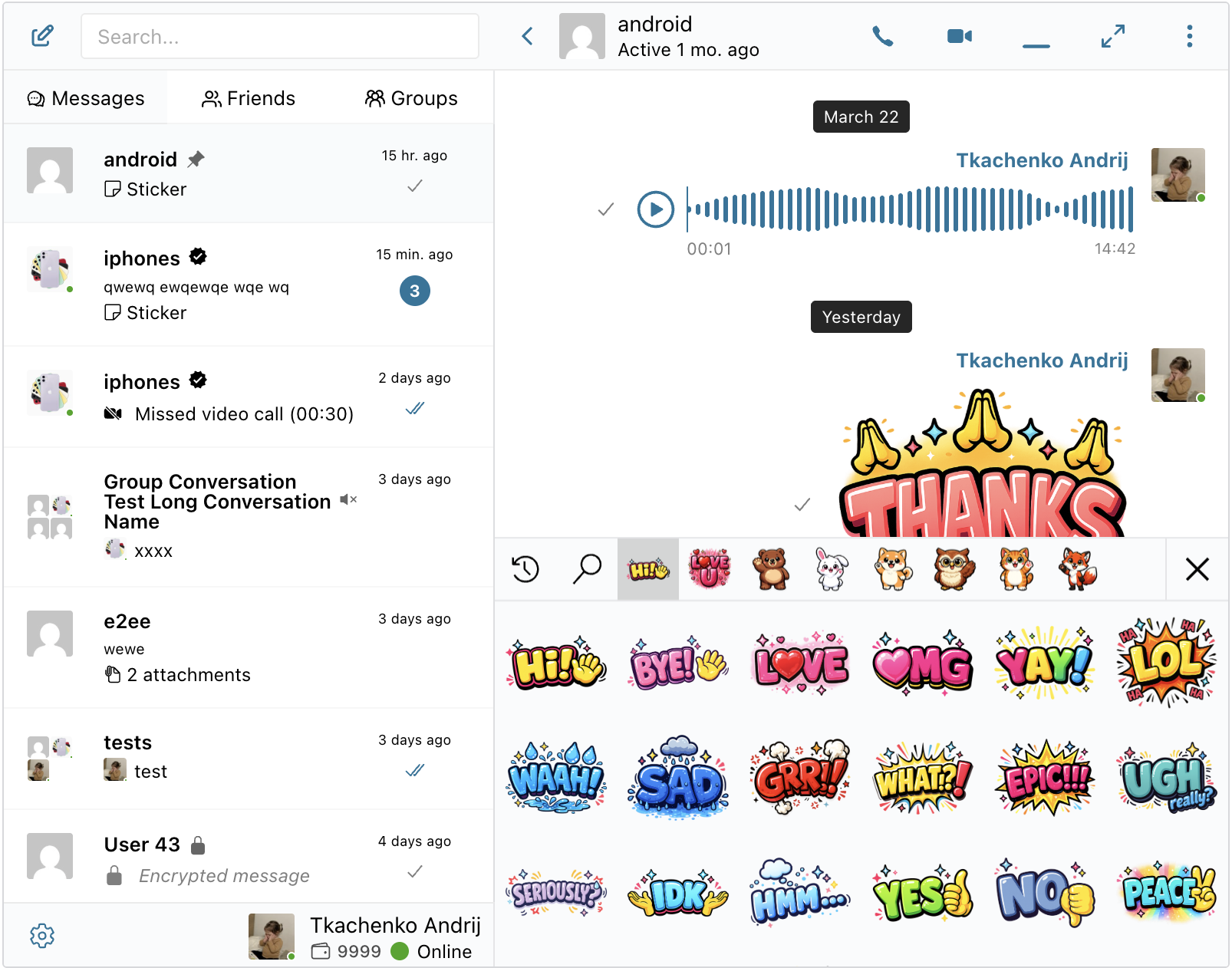
When enabled, a sticker button appears next to the message input area. Clicking it opens a full-width picker where users can browse installed sticker packs, search by keyword, and send a sticker with a single tap. The picker closes instantly after selection for a snappy experience.
If Inline suggestions is turned on, typing a short keyword like "hi" or "thanks" in the composer will pop up a horizontal strip of matching stickers above the input — similar to how mentions work. The user can pick one with a click, arrow keys, or Tab.
Key capabilities
- Built-in sticker catalog with one-click installation from the Better Messages sticker library
- Multi-language packs — packs with text-based images (e.g. "LOL", "HOLA") can ship different images per language; packs with universal images (e.g. cute characters) ship translated search keywords so stickers are findable in any language
- Custom packs — create your own packs by uploading PNG, WebP, or animated WebP images
- Role-based access — restrict individual packs to specific WordPress roles (including Guests)
- Inline suggestions — type a keyword and matching stickers appear above the composer (per-pack opt-in)
- Per-locale cover and sticker images — the picker automatically shows the viewer's language variant
- Recent stickers tab for quick re-sending
- Search across all packs by sticker name or keyword
Setting up stickers
1. Choose a provider
Navigate to Settings → Integrations → Stickers.
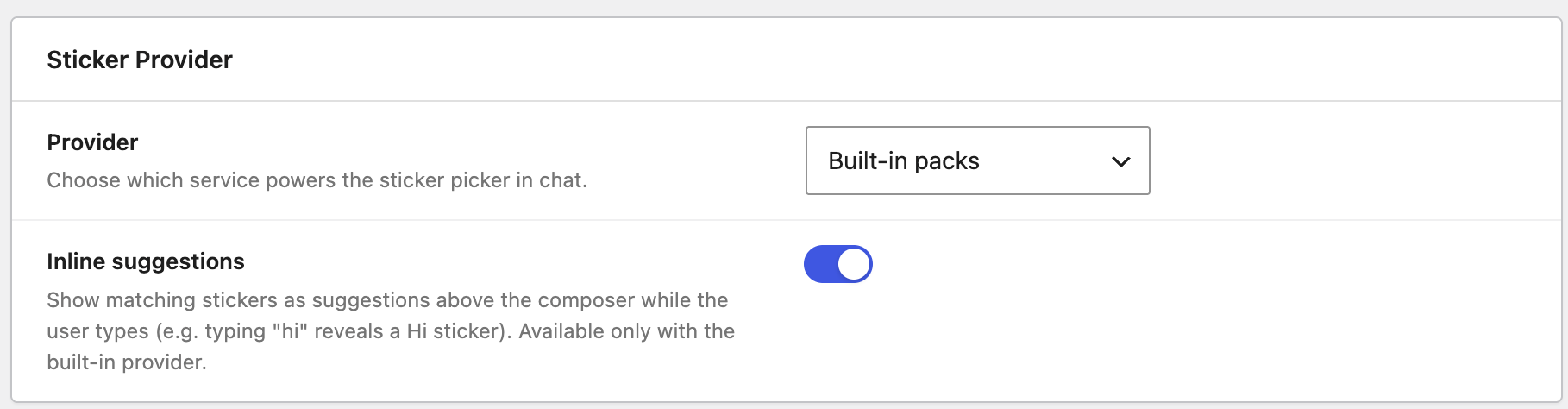
Select Built-in packs from the Provider dropdown. This enables the catalog-powered sticker system.
Optionally, enable Inline suggestions to show sticker matches as the user types.
The legacy Stipop provider is still available but is no longer recommended. Stipop changed their free plan to allow only 20 monthly active users. We recommend switching to Built-in packs.
2. Install packs from the catalog
Scroll down to the Available sticker packs section. The catalog lists all packs published by Better Messages.
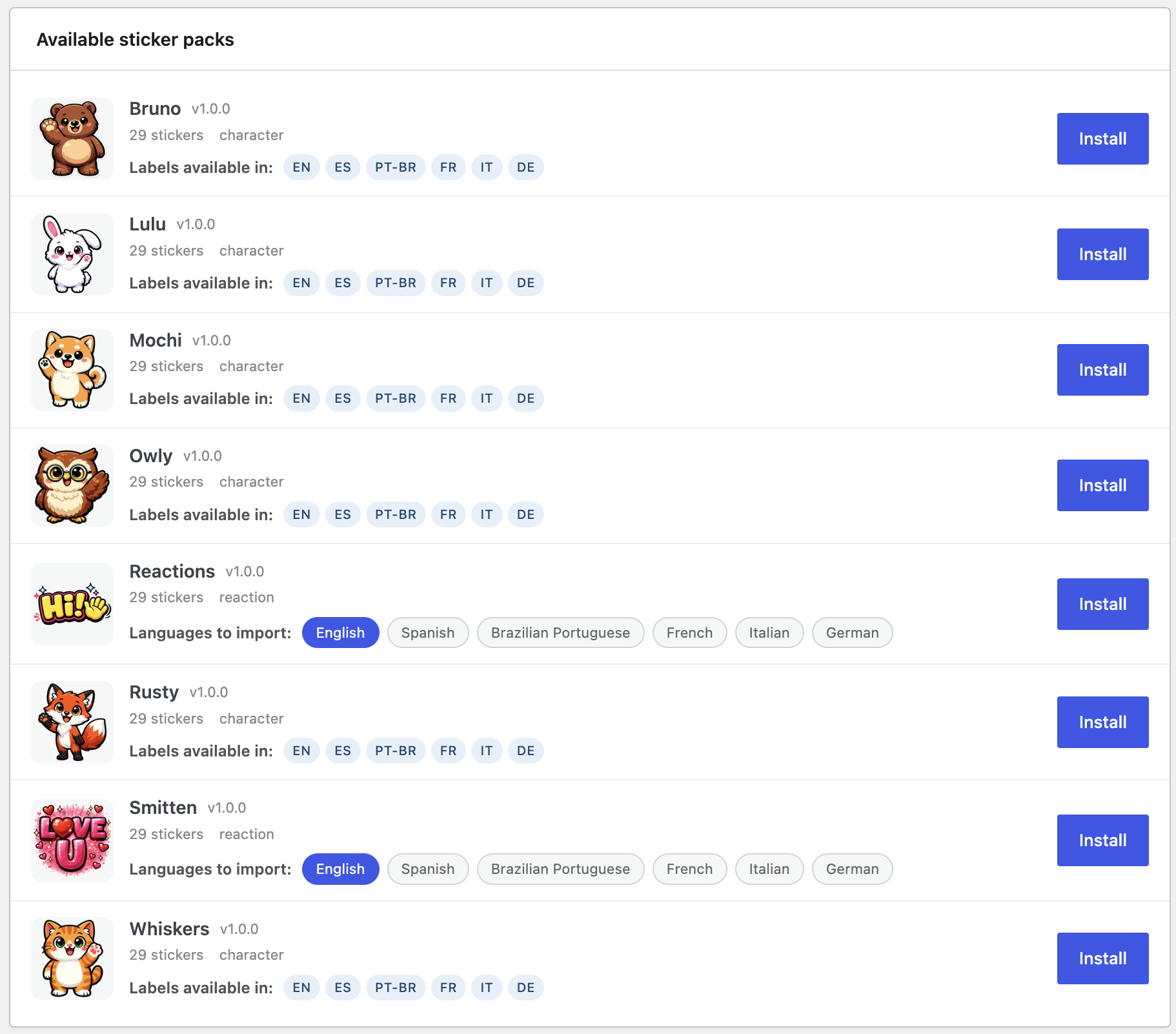
Each pack shows:
- Cover image and name
- Version and sticker count
- Pack type —
reaction(text-based typographic stickers) orcharacter(illustrated character stickers) - Available languages — for text-based packs, select which image languages to import using the language chips; for character packs, label translations are included automatically
Click Install to download and activate a pack. You can install multiple packs simultaneously — each shows its own progress indicator.
3. Manage installed packs
Installed packs appear in the Installed sticker packs section above the catalog.
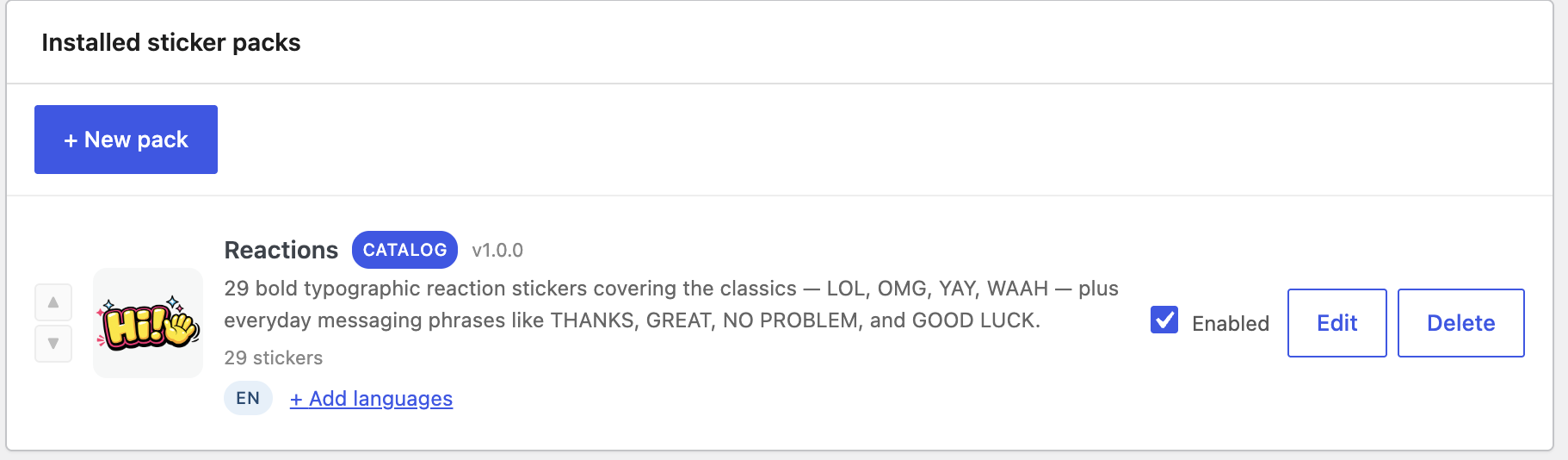
Each pack row provides:
- Enabled toggle — show or hide this pack in the chat picker
- Suggestions toggle — include or exclude this pack from inline typing suggestions (only visible when the global Inline suggestions setting is on)
- Language badges — which languages are currently imported
- + Add languages — add more image-language variants from the catalog without reinstalling
- Edit — open the pack editor
- Delete — permanently remove the pack and its images
Use the arrow buttons on the left to reorder packs — the order determines the tab order in the sticker picker.
4. Edit a pack
Click Edit on any pack to open the full pack editor.
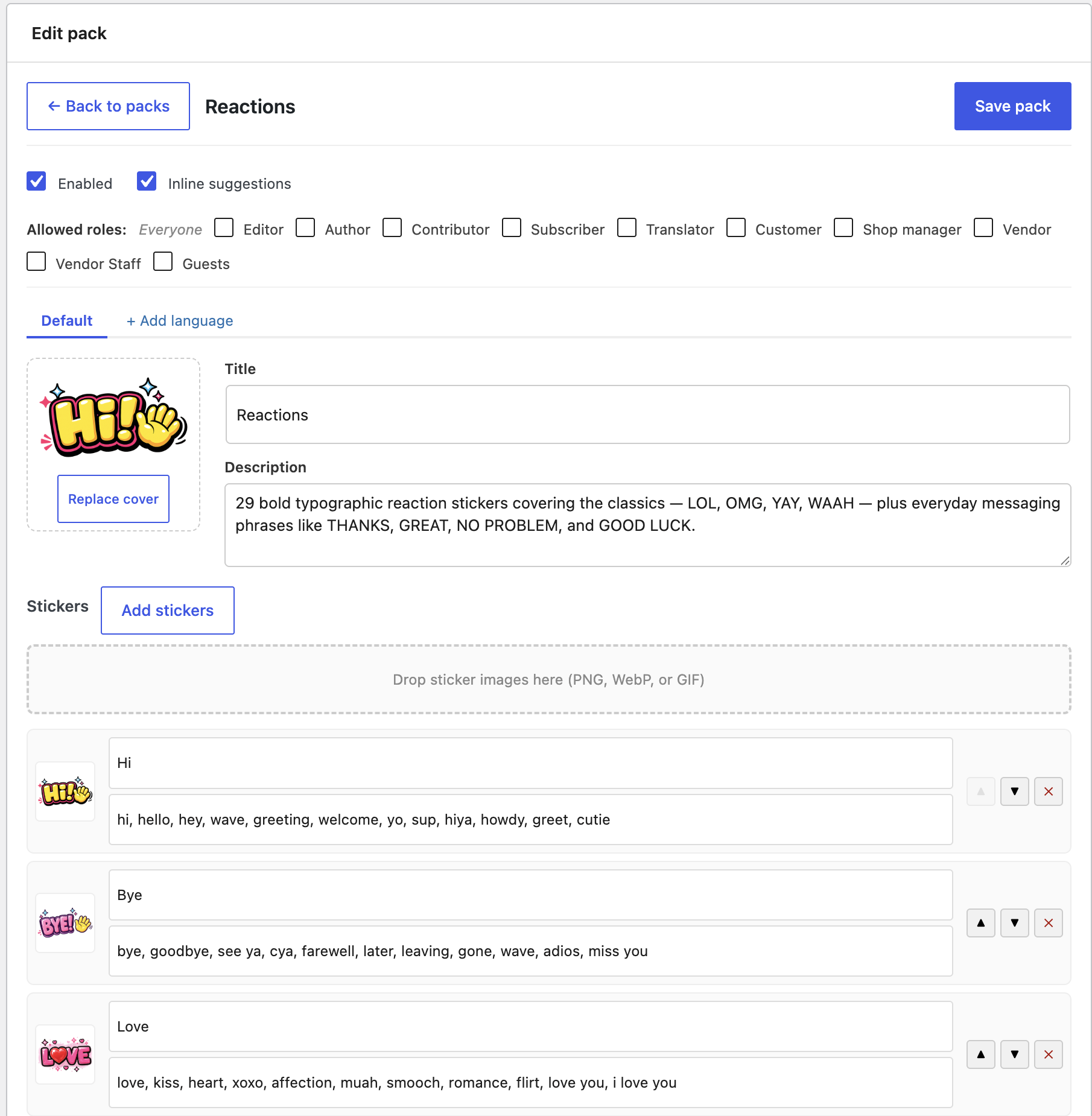
The editor allows you to:
- Toggle Enabled / Inline suggestions at the top
- Set allowed roles — restrict this pack to specific WordPress roles (leave unchecked for "Everyone")
- Edit cover image — upload or replace the pack's cover shown in the picker tabs
- Edit title and description — displayed in the picker and admin
- Manage stickers — reorder with arrow buttons, rename, edit keywords, or delete individual stickers
- Upload new stickers — drag and drop or click "Add stickers" (PNG, WebP, or animated WebP)
Translations
Use the locale tabs at the top of the editor to manage per-language content:
- Default tab — the primary language (title, description, sticker names, keywords)
- Language tabs (e.g.
es,fr,de) — translated title, description, and per-sticker name + keywords for that language - Per-language images — on a non-default tab, each sticker row shows an "Upload image" button to provide a language-specific version of that sticker (e.g. text-based stickers with translated text baked into the image)
- Per-language cover — replace the cover image on a language tab to show a localized cover to viewers on that locale
- Click + Add language to add translations for additional installed site languages
Creating a custom pack
Click + New pack in the Installed section to create a pack from scratch. Enter a name, then use the editor to upload sticker images, set keywords, and configure access roles. Custom packs work exactly like catalog packs — they appear in the picker, support translations, and respect role restrictions.
How the picker looks in chat
The sticker picker opens as a slide-up panel at the bottom of the chat area:
- Pack tabs along the top — one icon per installed pack, plus Recent and Search
- Search bar — filters stickers across all packs by name or keyword
- Sticker grid — click any sticker to send it instantly
- Close button in the top-right corner
When only a single pack is installed, the picker simplifies: pack tabs and the recent tab are hidden, replaced by a persistent search bar. The full sticker list is shown immediately.
Inline suggestions
When enabled globally and per-pack, typing a single word (2-20 characters) in the message composer triggers a horizontal suggestion strip above the input:
- Suggestions are scored by match quality (exact name > exact keyword > starts-with > contains)
- Up to 8 matches are shown
- Click or press Tab to pick a suggestion and send it
- Press Escape to dismiss, or just keep typing — adding a space hides suggestions immediately
- The sticker manifest loads lazily on the first keystroke, so it never delays the chat UI
Role-based access
Each pack has an Allowed roles setting with checkboxes for every WordPress role plus Guests. When no roles are checked, the pack is visible to everyone. When one or more roles are checked, only users with a matching role can see and use that pack.
If a user doesn't have access to any enabled pack, the sticker button is hidden entirely from their chat interface.
Multi-language support
Better Messages stickers support two types of localization:
Text-based packs (reaction type)
Packs like "Reactions" and "Smitten" have text baked into the sticker images (e.g. "LOL", "THANKS"). These packs ship separate image sets per language. When installing, select which image languages you want. Each language variant has its own sticker images, cover, and translated keywords.
Character packs (universal images)
Packs like "Whiskers", "Mochi", and "Bruno" use illustrated characters without language-specific text. These packs have a single set of images that works in any language, with translated sticker names and search keywords shipped for multiple languages automatically. All label translations are included in a single install.
The sticker picker automatically serves the correct language variant based on the viewer's WordPress locale setting.