Tutor LMS Student & Instructor Messaging Plugin
Better Messages adds a real-time chat layer to Tutor LMS sites — students and instructors message each other directly from the course page, the dashboard, or the public profile. The integration hooks into every Tutor LMS surface: a Message Instructor button on every course page, a Messages tab inside the Tutor LMS dashboard, auto-managed Course Group Chat, and Send Message buttons on both the public instructor and student profiles.
This guide covers what Better Messages adds to a Tutor LMS site, how the auto-managed course chats stay in sync with enrollment, and what the difference is between the free and WebSocket versions.
What Better Messages adds to Tutor LMS
Once Tutor LMS is detected and the integration is enabled under Better Messages → Settings → Integrations → LMS, the following become available:
- Message Instructor button on every Tutor LMS course page — students DM the instructor with one click.
- Send Message button on the public instructor profile (
/profile/<username>/?view=instructor). - Send Message button on the public student profile — peer-to-peer student messaging.
- Course Group Chat — a group conversation auto-created per course, with the instructor (and any co-instructors) plus every enrolled student auto-joined.
- Messages tab inside the Tutor LMS dashboard (
/dashboard/messages/) for both students and instructors. - Use the Tutor LMS dashboard as the primary messages location — every internal Messages link can be routed to the Tutor LMS dashboard tab.
Message Instructor button on course pages
Adds a Message Instructor button to every Tutor LMS course page, styled to match the native Tutor LMS course buttons. The button is hidden for the instructor on their own course.
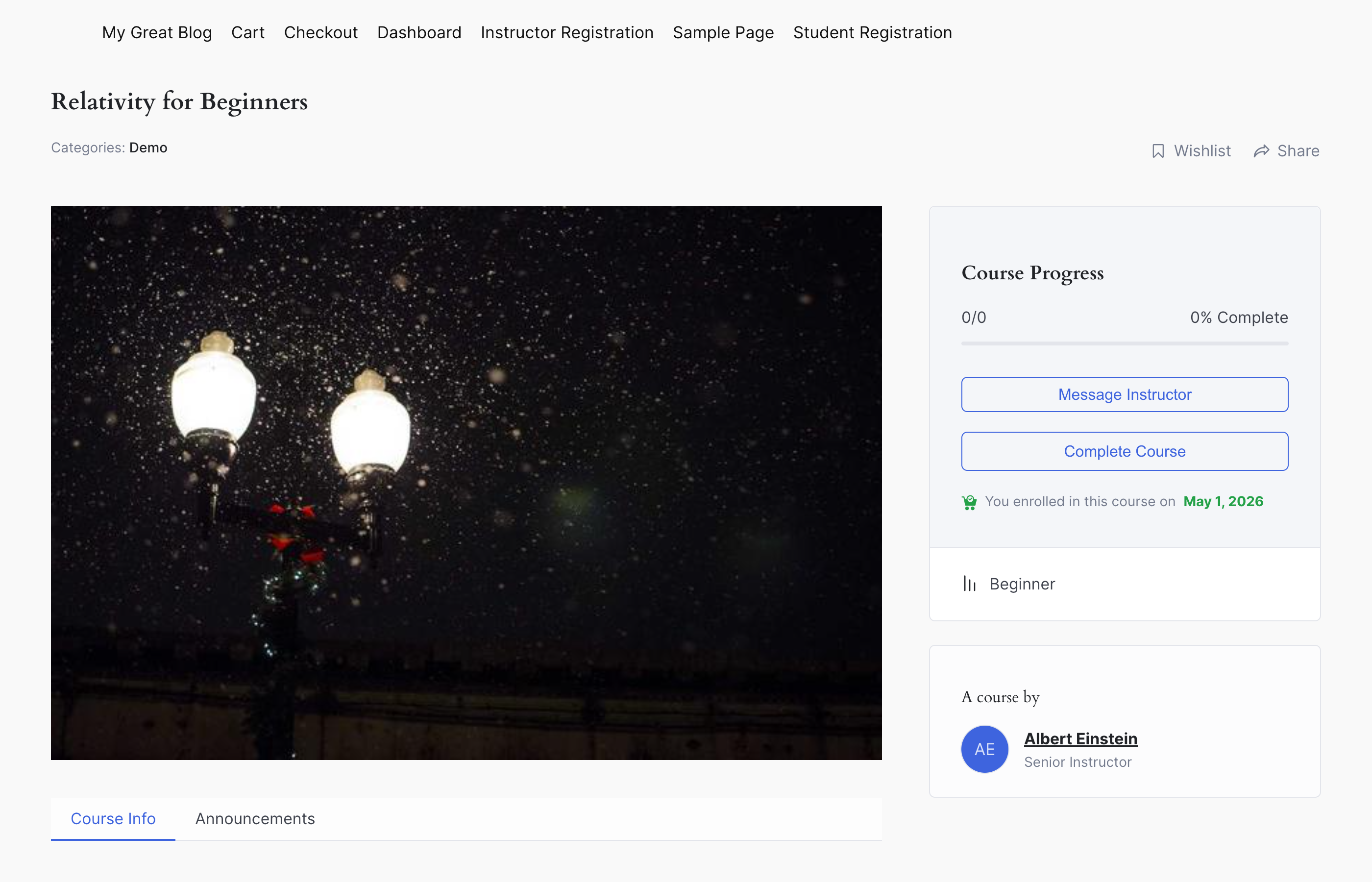
For sites with a custom course template that breaks the auto-injection, the same button can be placed manually:
[better_messages_tutorlms_course_button]
[better_messages_tutorlms_course_button course_id="123"]
[better_messages_tutorlms_course_button text="Ask the instructor"]
Course Group Chat — auto-managed enrollment
When Course Group Chat is enabled, opening a course in the messenger creates a group conversation that the instructor and every enrolled student can join. Students are added on enrollment and removed when their enrollment ends or is cancelled.
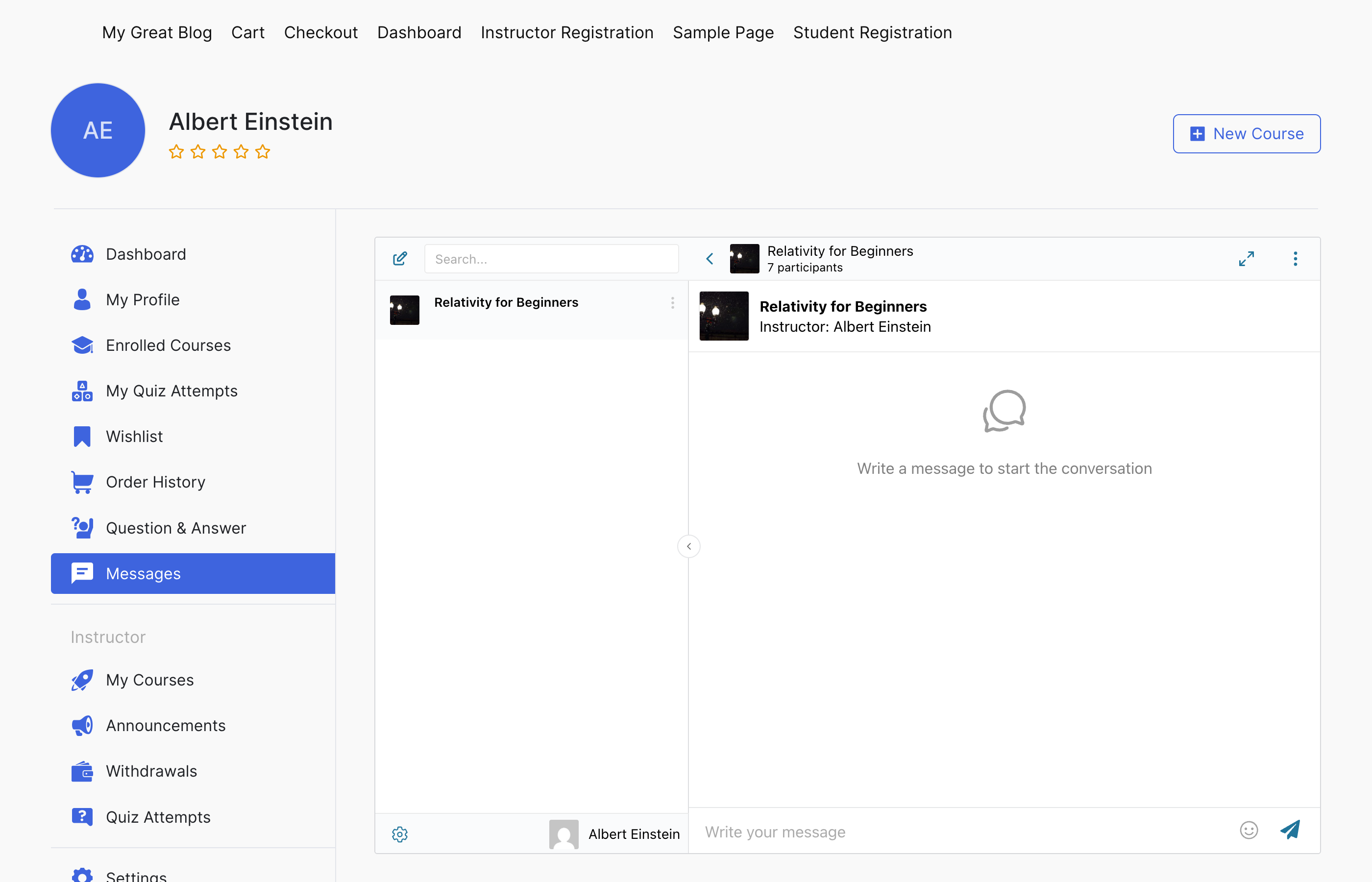
The conversation header shows the course thumbnail, title, and instructor name. The card is rendered automatically above every course conversation, including private DMs opened through the Message Instructor button. Co-instructors are auto-joined as instructors of the chat.
To hide the course info card across all LMS conversations, toggle off Better Messages → Settings → Integrations → LMS → Shared Course Settings → Course Info Card.
Messages tab inside the Tutor LMS dashboard
Adds a Messages tab to the Tutor LMS dashboard for both students and instructors. The tab embeds the full Better Messages inbox so users can read and reply to conversations without leaving the dashboard.
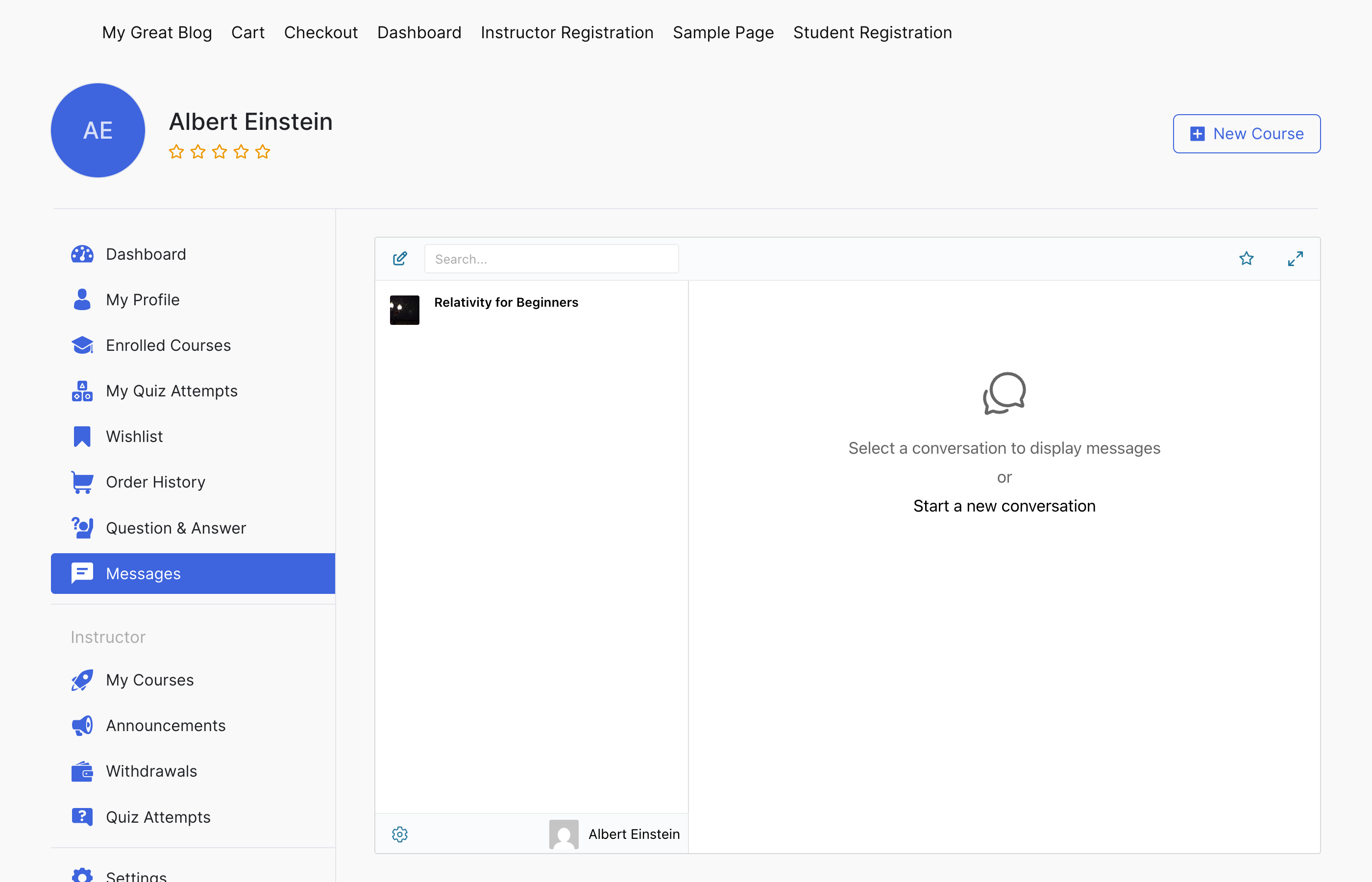
If you want every internal Messages link (notification emails, the All messages link in mini-chats, etc.) to route to the dashboard tab, set Better Messages → Settings → General → Messages Location to Show in Tutor LMS Dashboard. The Messages Dashboard Tab toggle is then locked on automatically — without it the redirect would have no destination.
Shared LMS settings
Three toggles under Better Messages → Settings → Integrations → LMS → Shared Course Settings apply across every LMS integration (LearnDash, LearnPress, Tutor LMS, MasterStudy LMS, FluentCommunity Courses):
- Course Info Card (on by default) — banner with course title, image, and instructor name above each course conversation.
- Email Notifications (on by default) — standard new-message email for course chat activity.
- Push Notifications (off by default, WebSocket version) — integration-level real-time push for course-chat events.
Installing Better Messages on a Tutor LMS site
- Install Better Messages from WordPress.org and activate it.
- Open WP Admin → Better Messages → Settings → Integrations → LMS → Tutor LMS Integration.
- Toggle on the features you want: Message Instructor Button, Course Group Chat, Messages Dashboard Tab, Send Message Button on Instructor Profile, Send Message Button on Student Profile.
Free vs WebSocket version for Tutor LMS sites
| Feature | Free version | WebSocket version |
|---|---|---|
| Message Instructor button on course page | yes | yes |
| Auto-managed Course Group Chat | yes | yes |
| Send Message button on instructor / student profiles | yes | yes |
| Messages Dashboard Tab inside Tutor LMS | yes | yes |
| Courses widget on the Mini Widgets bar | yes | yes |
| Real-time delivery | polling | instant |
| One-on-one voice and video calls inside course threads | — | yes |
| Group voice and video calls inside course threads (cohort office hours, study sessions) | — | yes |
| Web push notifications for new messages | — | yes |
| Push notifications for course messages | — | yes |
| Read receipts | — | yes |
| End-to-end encryption (optional per thread) | — | yes |
The WebSocket version turns each course thread into a Discord-style space for the cohort: instant message delivery, group voice / video calls for office hours, and web push that reaches students when their Tutor LMS dashboard tab is closed.
Frequently asked questions
Will students from different courses end up in the same chat?
No — each Tutor LMS course has its own Course Group Chat. Students enrolled in multiple courses see multiple separate threads.
What happens when a student's enrollment ends?
Tutor LMS fires its standard enrollment hooks; Better Messages listens and removes the student from the Course Group Chat. Their previous messages stay in history.
Does it work with Tutor LMS Pro features?
Yes — the integration listens to Tutor LMS core hooks, which Pro features extend rather than replace. WooCommerce-based payments, subscriptions, and certificates are all compatible.
Can co-instructors be added to the course chat?
Yes — anyone marked as a co-instructor on the Tutor LMS course is auto-joined as an instructor of the matching course chat.
Does it work alongside LearnDash / LearnPress / MasterStudy?
Yes — sites running multiple LMS plugins (rare but it happens) see all course chats together inside the Courses widget. Each LMS integration loads independently.
See also
- Tutor LMS integration documentation — full setup reference
- WordPress LMS chat plugin — comparing LearnDash, LearnPress, Tutor LMS, MasterStudy LMS, FluentCommunity Courses
- LearnDash student messaging plugin
- Group conversations — how group chats work in general
- Real-time messaging — what changes with the WebSocket version