System Messages
System messages are the small inline notes you sometimes see in a group conversation, like "Alice joined the conversation" or "Bob changed the subject to Project Sync". They keep everyone in the loop about what's changed, without anyone having to type a normal message.
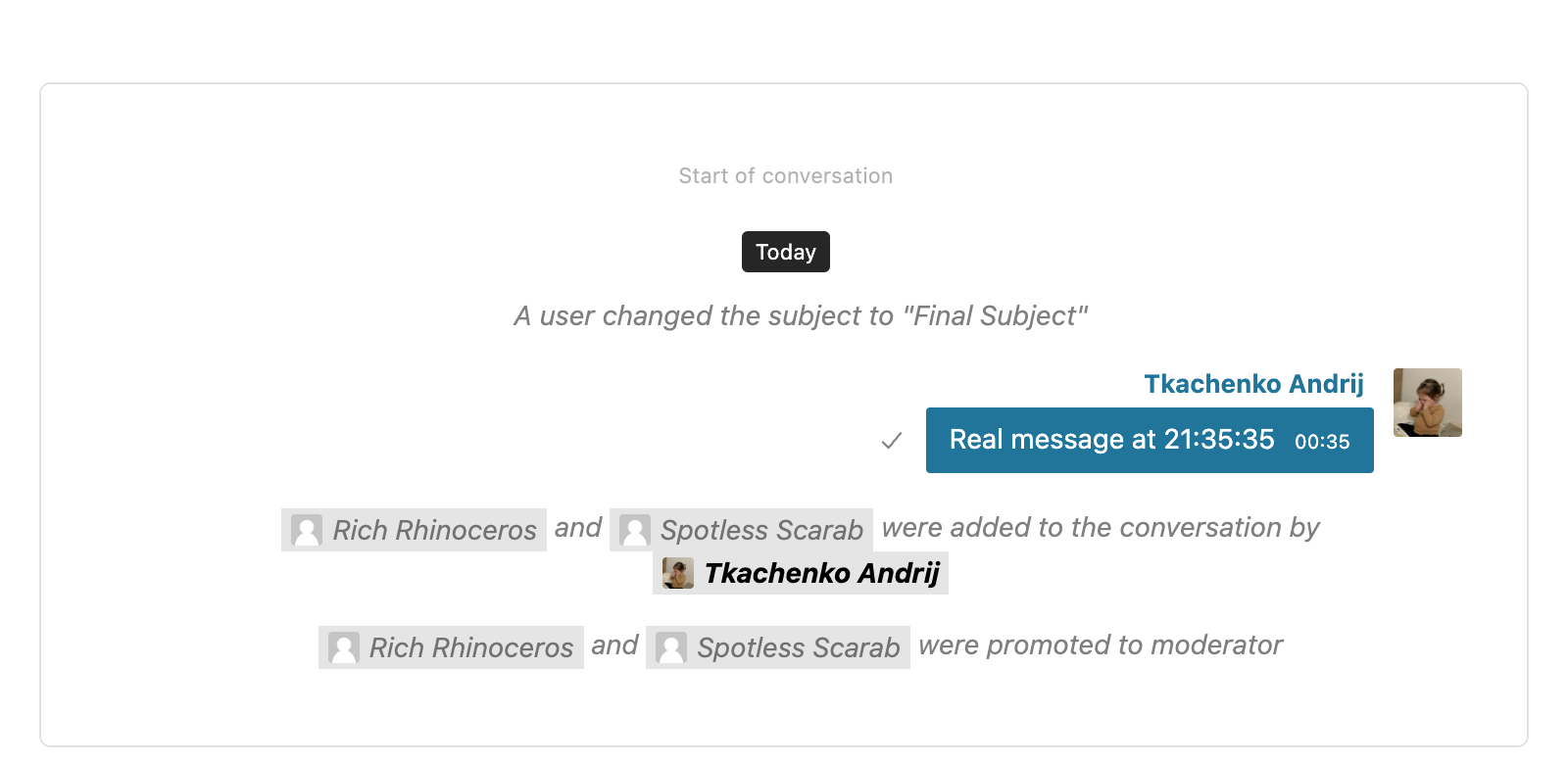
System messages are styled differently from regular chat — italic, centered, and without the usual avatar or message bubble — so they're easy to skim past.
What can trigger a system message
| Event | Example text |
|---|---|
| Someone joins on their own | Alice joined the conversation |
| Someone is added by another participant | Alice was added to the conversation by Bob |
| Someone leaves | Alice left the conversation |
| The subject is changed | Bob changed the subject to "Project Sync" |
| A chat-room cover image is changed | Conversation image was changed |
| Someone is promoted to moderator | Alice was promoted to moderator |
| Someone is removed as moderator | Alice was removed as moderator |
| A moderator removes someone | Alice was removed from the conversation |
| A moderator mutes someone | Alice was muted |
| A moderator bans someone | Alice was banned |
| Someone starts a group call | Alice started a group video call |
Each event has its own admin toggle, so you can keep the ones you care about and silence the rest.
System messages never make sounds, send push notifications, raise browser pop-ups, or send emails — they only update what you see inside the conversation.
Guest visitors are treated exactly like logged-in users — when a guest joins or leaves, the message uses their display name (e.g. Graceful Gecko). AI chat-bots are skipped so bot threads stay clean.
Smart grouping — fewer "joined / left" walls
Better Messages is smart about how it stacks system messages so the conversation never fills up with a wall of identical lines. While no one is actively chatting, the plugin keeps merging and trimming related events:
- Same person joins twice in a row — the second one is silently ignored (they're already announced).
- Several people join one after another — they're combined into one line: "Alice joined" becomes "Alice and Bob joined", and so on. Up to three names are shown by name; beyond that you see "Alice, Bob and 5 others joined the conversation".
- Someone joins and immediately leaves before the chat picks up — both events disappear. They leave no trace.
- Someone is promoted then demoted — both lines are removed.
- The subject is changed three times in a row — only one line stays, showing the change from the original subject to the final one.
- The cover image is changed twice — only one "Conversation image was changed" line stays.
- Someone says something — as soon as a real message arrives, everything above it is locked in as historical record. Any new join, leave, or change after that starts a fresh group below the message.
- Someone is kicked or banned right after joining — the join announcement is dropped (they're not really joining), and the kick/ban line is shown instead.
The end result: in a busy room you see one tidy "Alice, Bob and 3 others joined the conversation" instead of five separate "joined" lines, and a quick join-and-leave never spams the history.
Enabling system messages
Go to WP Admin → Better Messages → Settings → Messaging → System Messages.
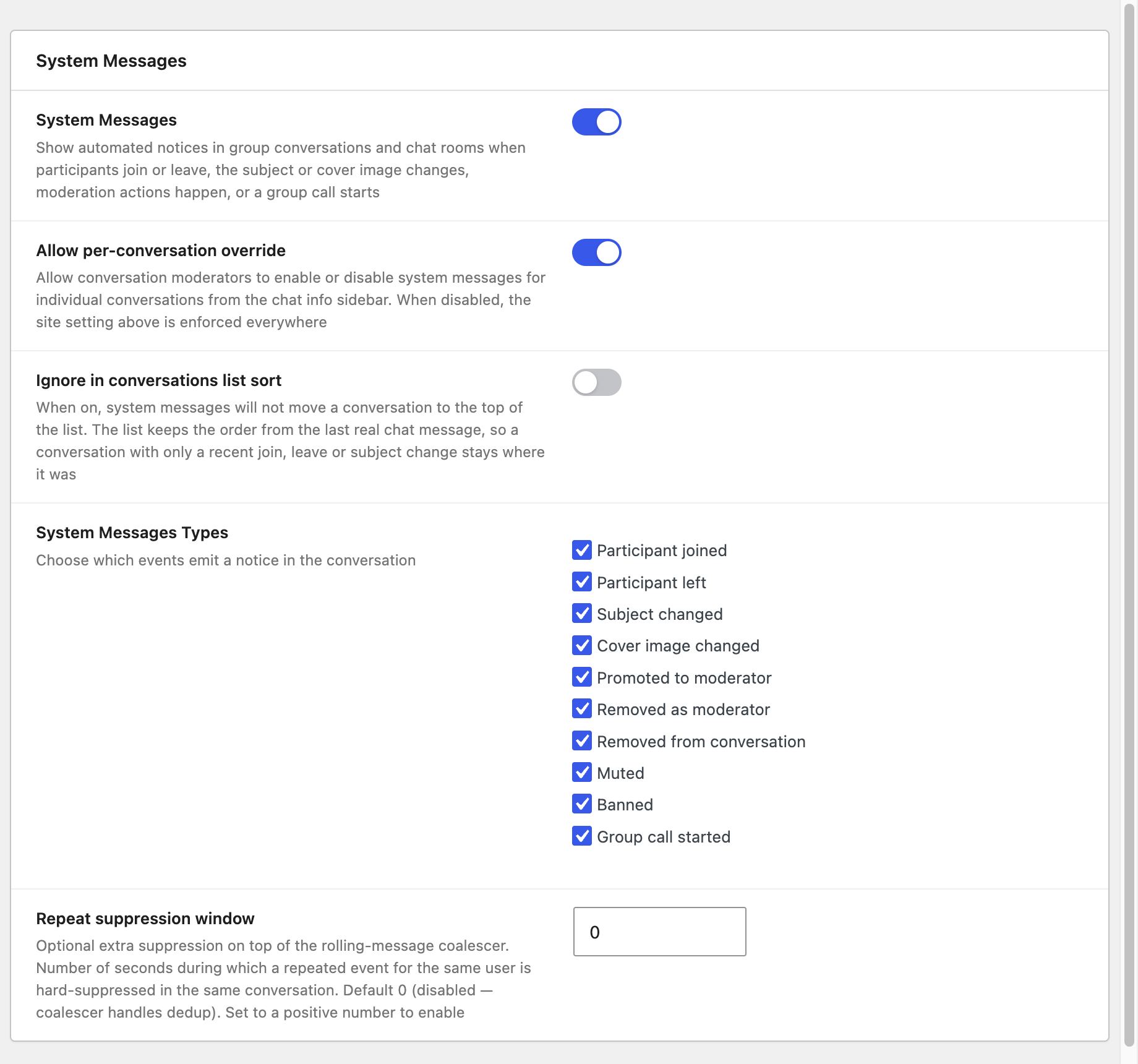
- System Messages — turn the whole feature on or off site-wide.
- Allow per-conversation override — when on, conversation moderators can flip system messages on or off for their own thread.
- Ignore in conversations list sort — when on, a system message will not move a conversation to the top of the list. See Keep the conversations list calm below.
- System Messages Types — pick exactly which events should produce a notice. All are on by default.
- Repeat suppression window — an extra safety net (advanced, optional). If you set it to a number of seconds, a repeat event for the same person within that window is dropped completely. Most sites can leave this at
0— the smart grouping above already handles repetition cleanly.
The Group call started event needs the WebSocket version of Better Messages. On the free / AJAX build it's disabled with a Get WebSocket License link beside it.
Keep the conversations list calm
By default a system message — someone joining, the subject changing, a quick promotion — bumps the conversation to the top of the inbox just like a real chat message. In a busy chat-room that means quiet "joined" notices keep pushing your actual conversations down.
Turn on Ignore in conversations list sort to make the inbox sort by the last real chat message instead. The system messages still appear inside the conversation and in the preview line, but they no longer reorder the list.
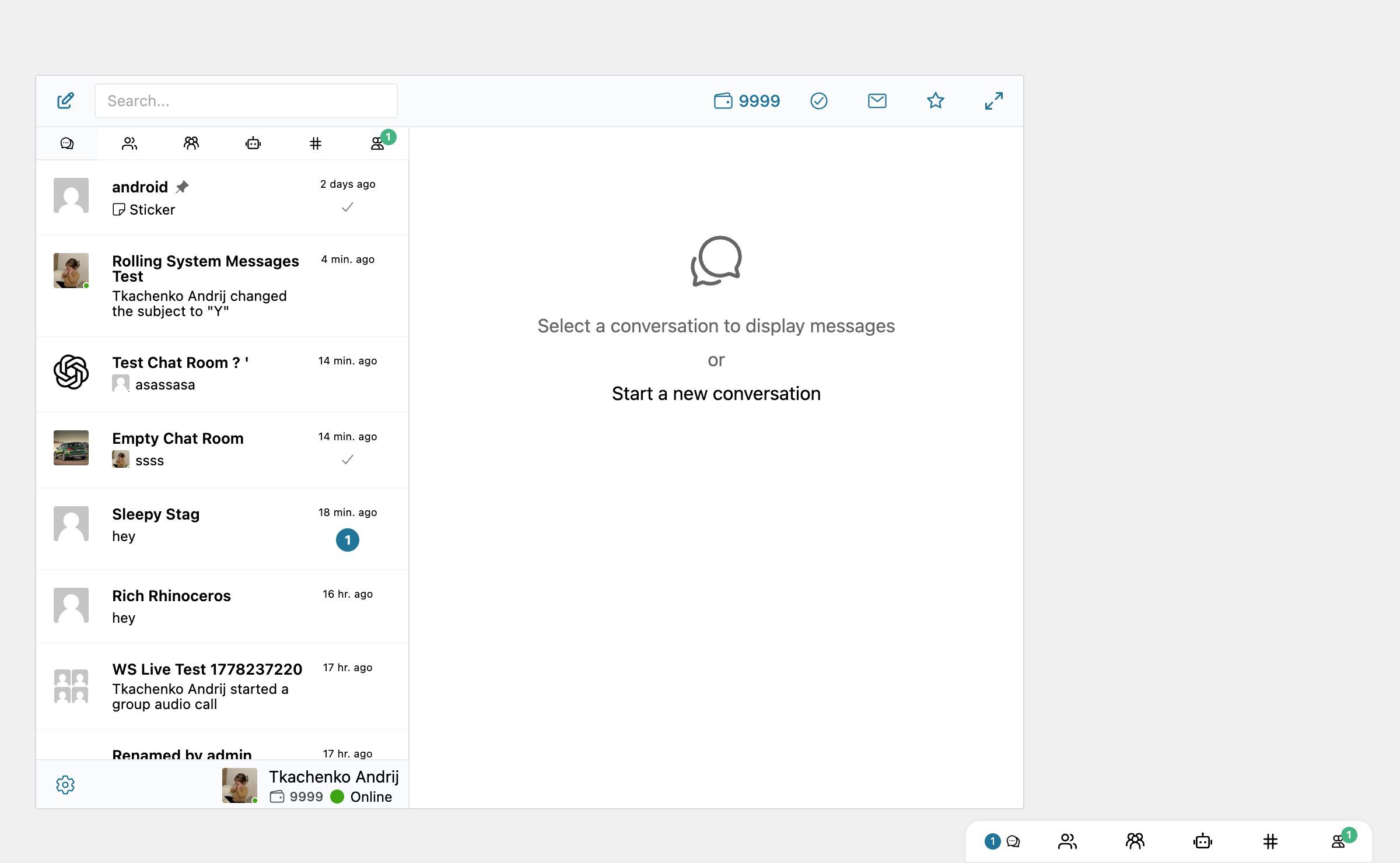
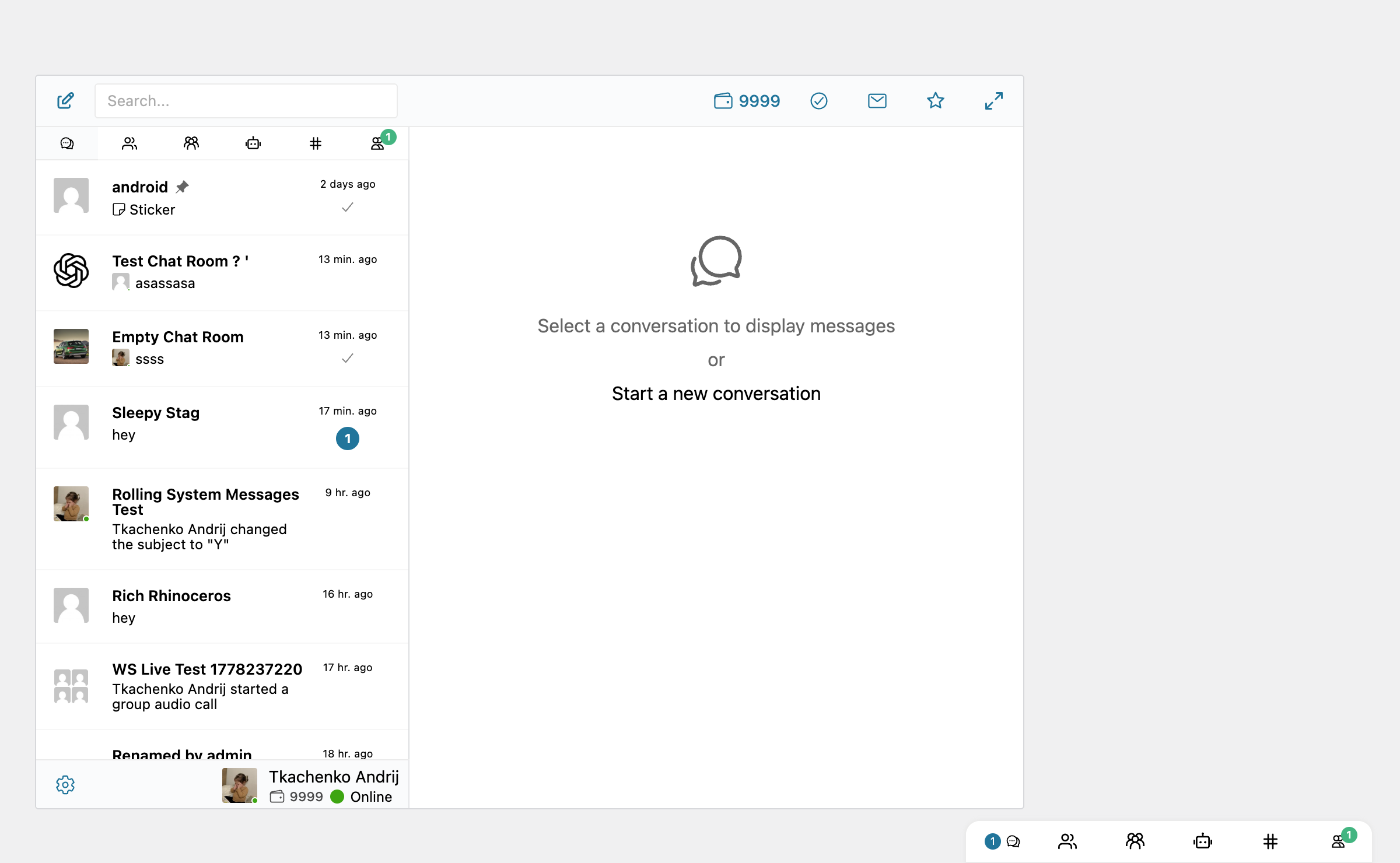
This is purely a sort-order setting — it doesn't suppress system messages, doesn't change the preview text, and doesn't affect unread counters. A real chat message sent later still bumps the conversation to the top. Conversations whose only activity is system messages sink to the bottom of the list (they stay visible).
The toggle works independently of the master System Messages switch, so you can leave it on as a permanent preference even on sites where system messages are otherwise disabled.
Per-conversation override
When Allow per-conversation override is on, moderators of a group conversation can toggle system messages just for that thread:
- Open the conversation.
- Click the conversation header to open the Conversation Information sidebar.
- Find Show system messages, toggle it, and click Save.
Once a moderator changes it, that conversation keeps the override no matter what the site default is. Conversations without an explicit override fall back to the site setting.
The override toggle is not shown:
- in one-on-one conversations (those always use the site default);
- inside chat rooms (chat rooms have their own admin-side picker — see below);
- to anyone if Allow per-conversation override is turned off.
A group conversation can use its toggle to silence system messages, but it cannot force them on when the site setting is off — only chat rooms can do that.
Chat-room defaults
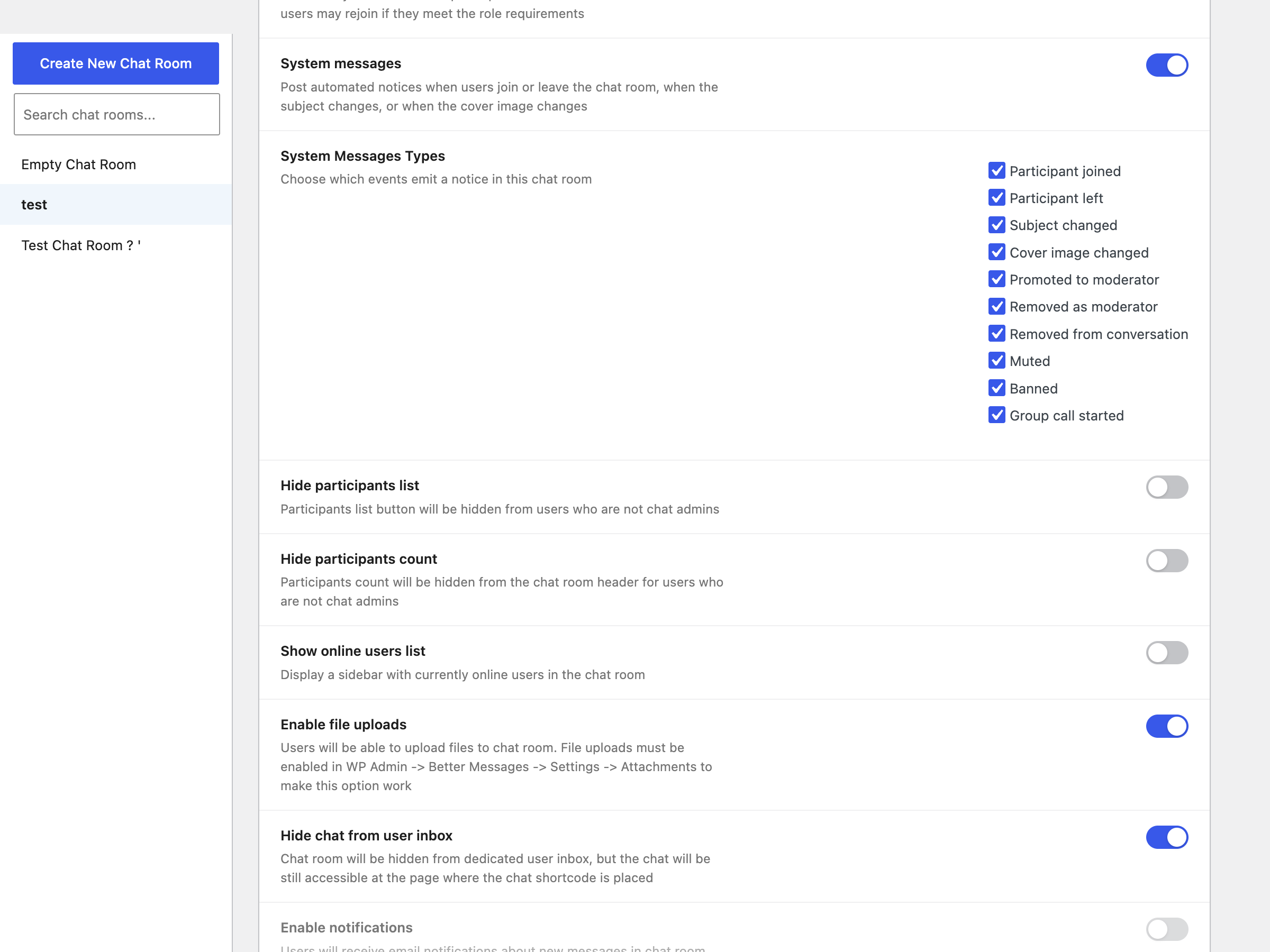
Each chat room has its own system-message settings, configured from WP Admin → Better Messages → Chat Rooms → select chat room → Chat Room Settings → System messages:
- System messages — when on, this chat room shows system messages even if the global setting is off. Useful when you want clean inboxes for private conversations but full visibility inside chat rooms.
- System Messages Types — same per-event picker as the global setting, but applied just to this chat room. Untick a type to silence it here only.
Changes take effect immediately for everyone in the room.
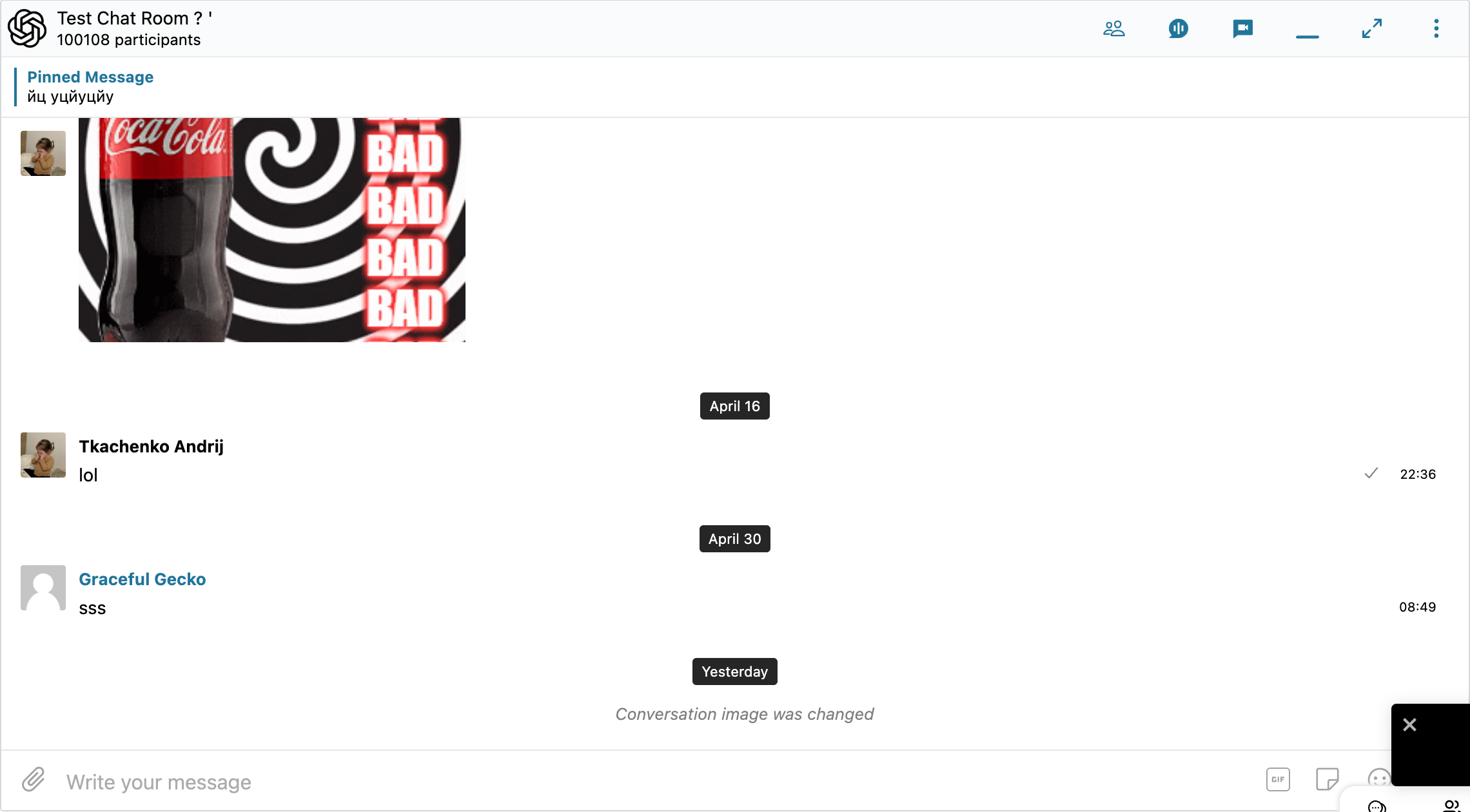
Chat rooms are the only place where you can force-enable system messages past a site-wide off setting. Group and private conversations always respect the global toggle.
Good to know
- Removed vs. left — when a moderator removes someone, the conversation shows "Alice was removed from the conversation", not "Alice left the conversation". The "left" line is reserved for voluntary leaves.
- Banned vs. left — a ban also removes the participant under the hood, but only the "was banned" line is shown — there's no extra "left" line cluttering the history.
- Group calls aren't repeated — once "Alice started a group audio call" appears, the same call type stays silent for the next five minutes. Audio and video are tracked separately, so a video call right after an audio one still gets its own line.
- Inviter attribution — when someone is added by another participant, the line shows "Alice was added to the conversation by Bob". If multiple people are added at once by the same person, you get "Alice and Bob were added to the conversation by Carol".
- History is preserved — turning a setting off later doesn't remove past system messages. It only stops new ones from being created.