Amazon S3
Better Messages can keep the files members send in an Amazon S3 bucket instead of your server's uploads folder. Browsers upload files straight to the bucket, and files open from the bucket instead of from your server.
Cloud storage works in the free version and in the WebSocket version, from Better Messages 3.1. Amazon S3 is connected through the Amazon S3 or S3-compatible storage, the same one that connects Backblaze B2 and other S3-compatible providers.
What you need#
- An AWS account, with access to the S3 and IAM consoles.
- A bucket, kept private for members-only files.
- An access key of an IAM user whose policy covers that bucket only.
Choose how files open#
| How files open | Who can open a file | What the bucket needs |
|---|---|---|
| Members of the conversation only (default) | Only members, through links Better Messages signs for each of them | A private bucket |
| Anyone with the link | Anyone who has a file's link | A bucket of its own that anyone can read, optionally behind CloudFront on your own domain |
1. Create the bucket#
In the AWS console, open S3, choose the region at the top and click Create bucket. Pick a region close to most of your members. Keep General purpose.
Under Bucket namespace, AWS recommends Account Regional namespace: it adds your account number and region to the name you enter. Either namespace works. What you enter in Better Messages is the name shown under Full bucket name. Use letters, numbers and dashes, and no dots: Amazon S3 cannot serve a bucket name with dots over HTTPS.
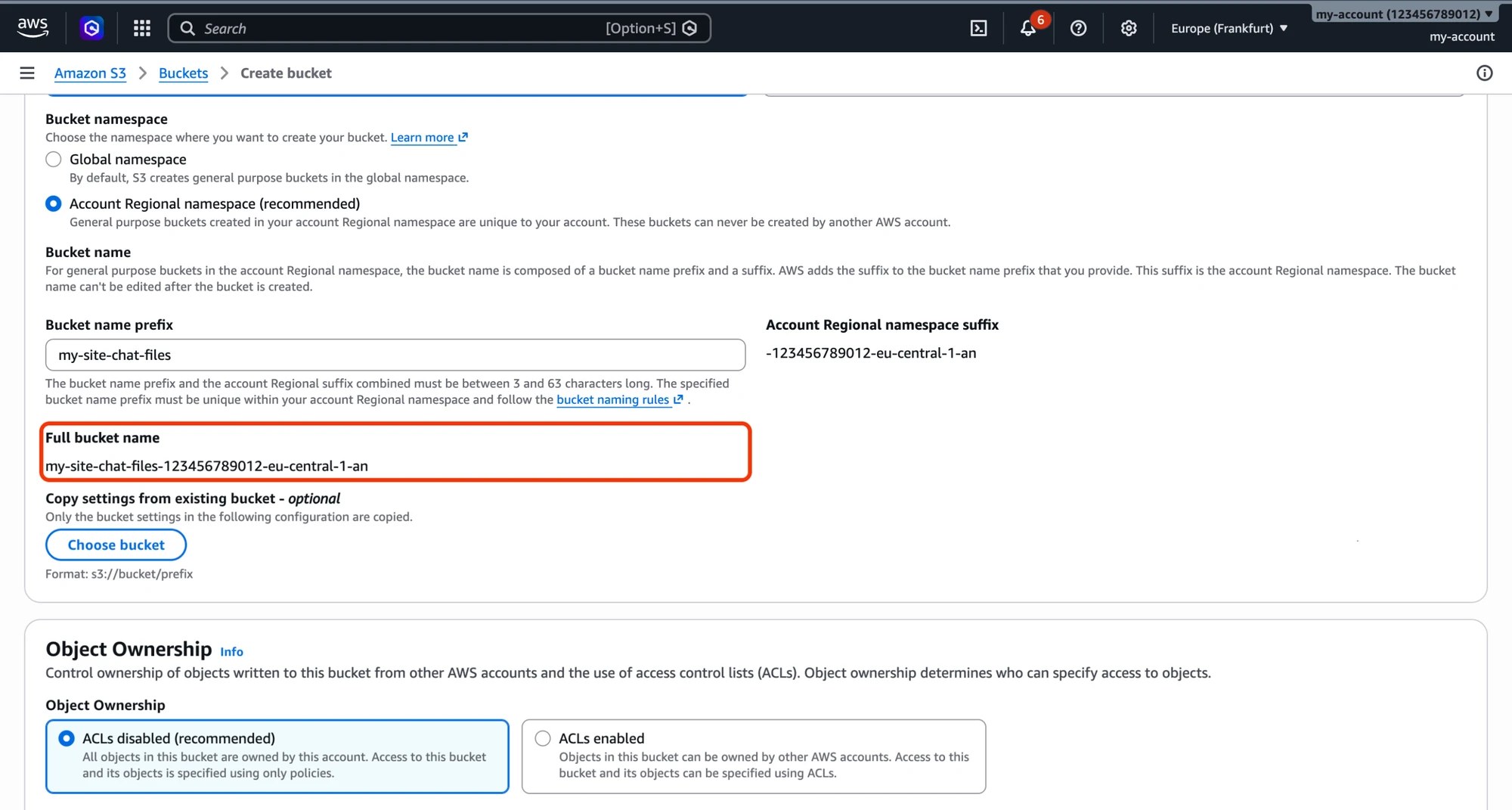
Leave ACLs disabled and Block all public access on, and click Create bucket.
2. Create the policy#
The key needs to:
- upload, read and delete files (
s3:PutObject,s3:GetObject,s3:DeleteObject,s3:AbortMultipartUpload,s3:ListMultipartUploadParts) - list the bucket (
s3:ListBucket). Without it, Amazon S3 answers "access denied" instead of "not found" for a deleted file, and Better Messages cannot confirm that a file is gone. - read and set the bucket's CORS rule (
s3:GetBucketCORS,s3:PutBucketCORS), so Configure CORS can set it up for you. You can leave these out and add the rule yourself, see Uploads straight to the bucket.
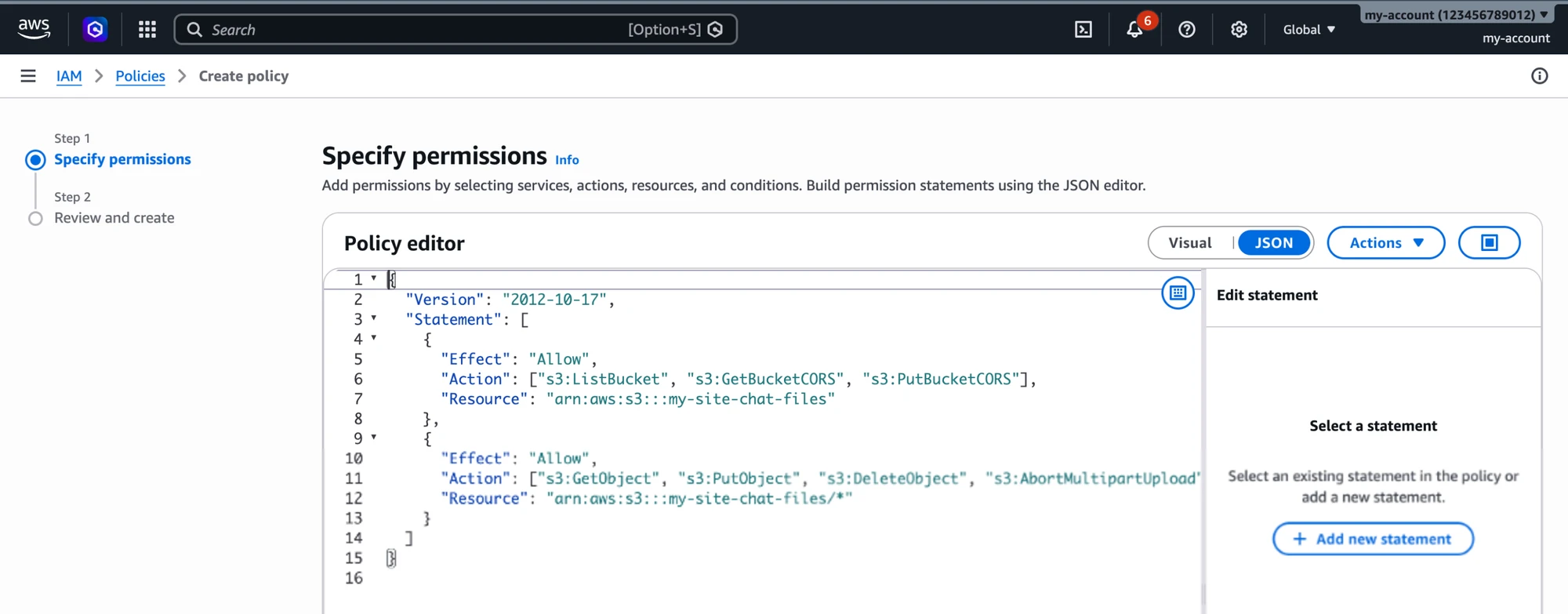
Open IAM → Policies → Create policy, switch the Policy editor to JSON and paste this, with your bucket's full name in both places:
{
  "Version": "2012-10-17",
  "Statement": [
    {
      "Effect": "Allow",
      "Action": ["s3:ListBucket", "s3:GetBucketCORS", "s3:PutBucketCORS"],
      "Resource": "arn:aws:s3:::my-site-chat-files"
    },
    {
      "Effect": "Allow",
      "Action": ["s3:GetObject", "s3:PutObject", "s3:DeleteObject", "s3:AbortMultipartUpload", "s3:ListMultipartUploadParts"],
      "Resource": "arn:aws:s3:::my-site-chat-files/*"
    }
  ]
}
Click Next, name the policy, for example better-messages-chat-files, and click Create policy.

3. Create the user and its access key#
Open IAM → Users → Create user. Enter a name, for example better-messages, leave console access off and click Next. Choose Attach policies directly, tick the policy you created, click Next, then Create user.
Open the new user, go to Security credentials and click Create access key. Choose Application running outside AWS, click Next, then Create access key. Copy the Access key and the Secret access key: AWS shows the secret only once.
4. Connect the bucket in Better Messages#
In WordPress, go to Better Messages → Settings → Attachments. In the Storage section, click Connect next to Amazon S3 or S3-compatible, and fill in:
- Endpoint: leave it empty.
- Region: the bucket's region code, for example
eu-central-1. - Bucket: the bucket's full name.
- Folder: where in the bucket this site keeps its files,
bmby default. Give each site its own folder if several sites share one bucket. - Access Key ID and Secret Access Key, from step 3.

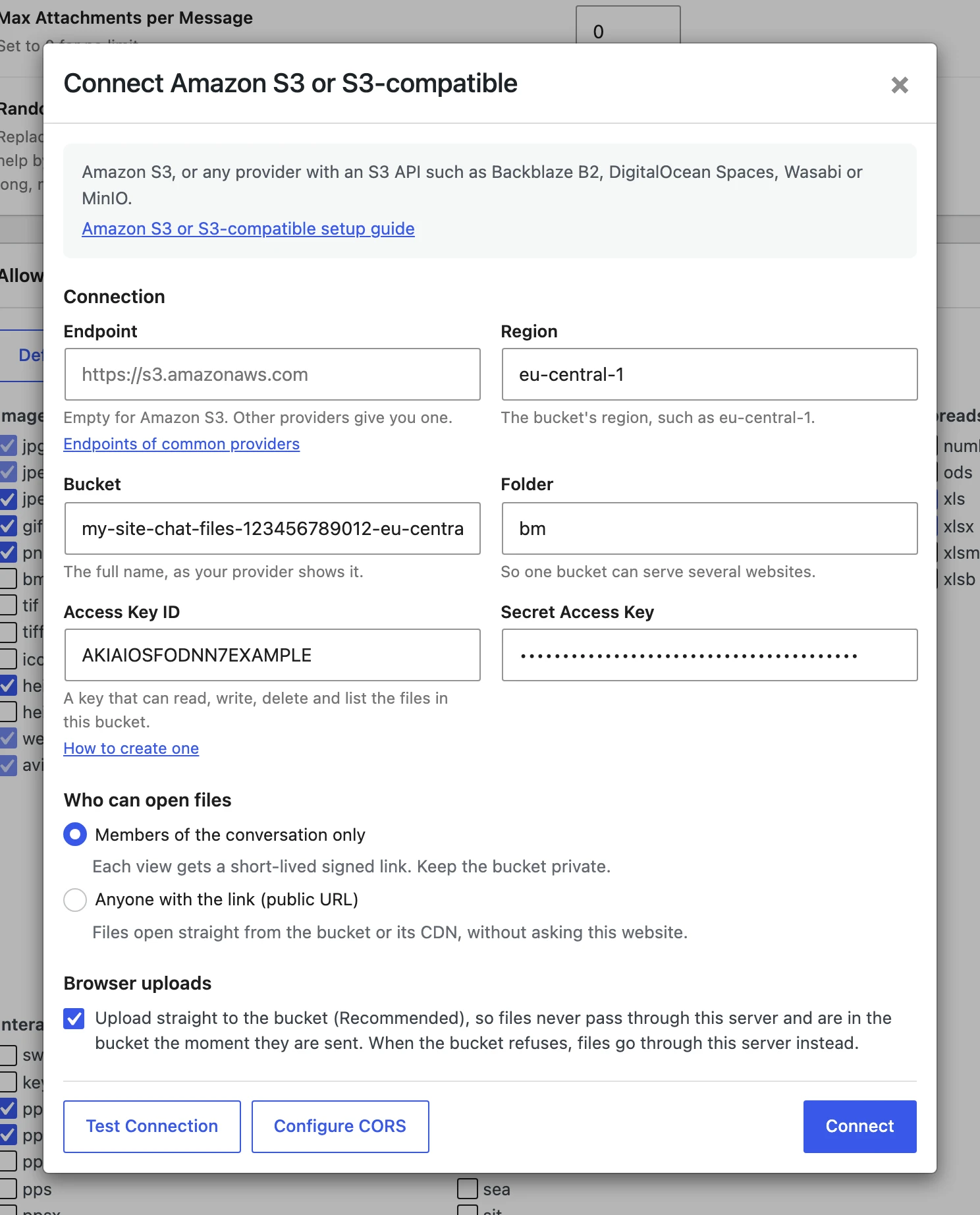
Click Configure CORS, then Test Connection. The test uploads a small file, reads it back, opens it the way members will, checks that the bucket refuses anyone else, checks that browsers can upload to it, deletes the file and checks it is gone. Every line should say Passed.
Click Connect. It runs the same test and saves the storage when the test passes. When a check fails, nothing is saved: fix what the check says, or click Save Anyway.
5. Choose which files go to the bucket#
Under File Groups, choose Amazon S3 or S3-compatible for each kind of file you want there, then click Save Settings. The choice applies to files sent after you save. Files in end-to-end encrypted conversations stay encrypted wherever they are kept.
Who can open files#
Members of the conversation only#
This is the default. The bucket stays private, and every member gets links to the files that Better Messages signs for them. A link works for one to one and a half days, and the messenger renews links on its own while the member keeps the conversation open. Someone who is not a member of the conversation gets no link, and without one the bucket opens nothing.
Anyone with the link#
Files open from a public address with no check: anyone who has a file's link can open it, and your site does no work when a file is viewed. Use this only for files that are not private, and keep them in a bucket of their own, because a public bucket opens every file in it.
Create a bucket for public files. In Block Public Access settings for this bucket, turn off Block all public access and tick the acknowledgement.

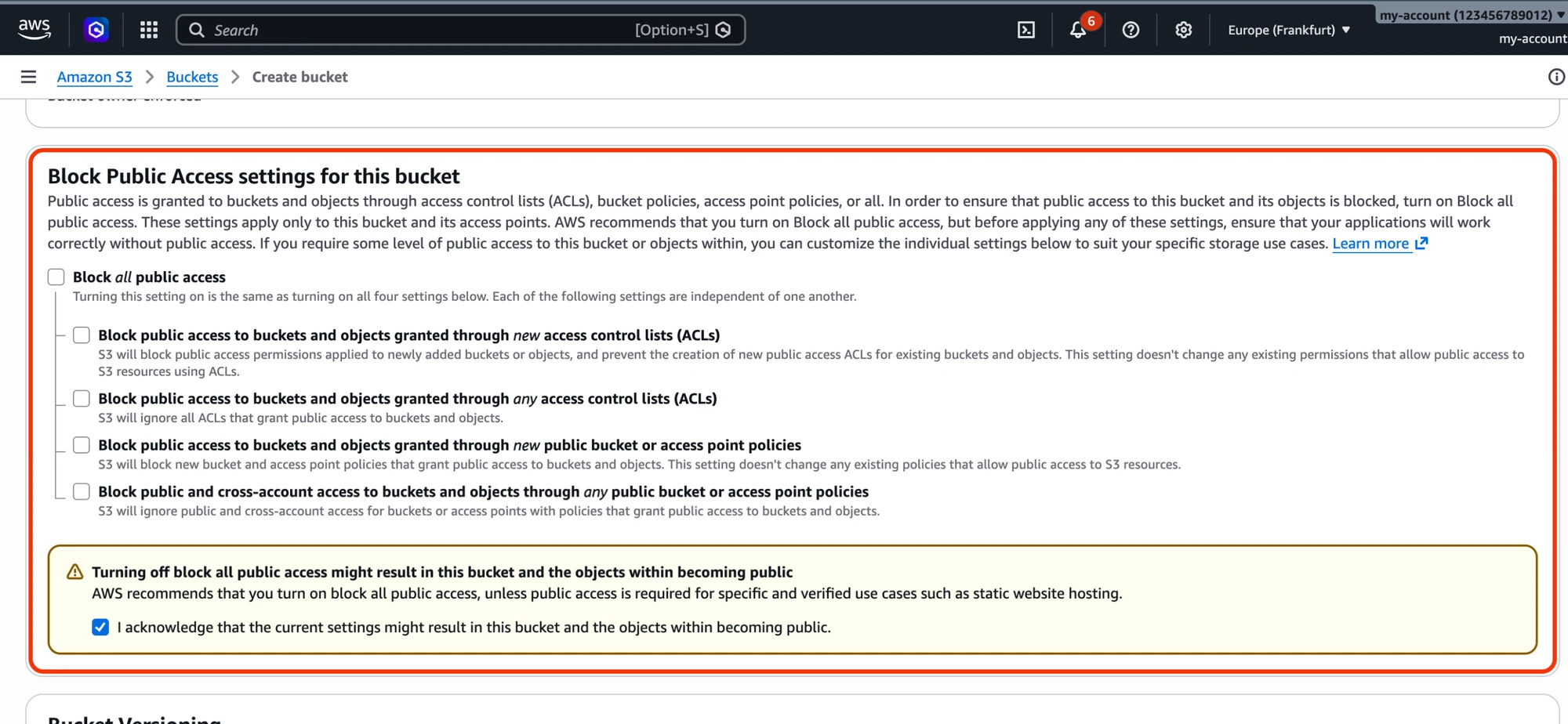
Then open the bucket's Permissions tab, click Edit under Bucket policy and paste this, with the bucket's full name:
{
  "Version": "2012-10-17",
  "Statement": [
    {
      "Effect": "Allow",
      "Principal": "*",
      "Action": "s3:GetObject",
      "Resource": "arn:aws:s3:::my-site-public-files/*"
    }
  ]
}

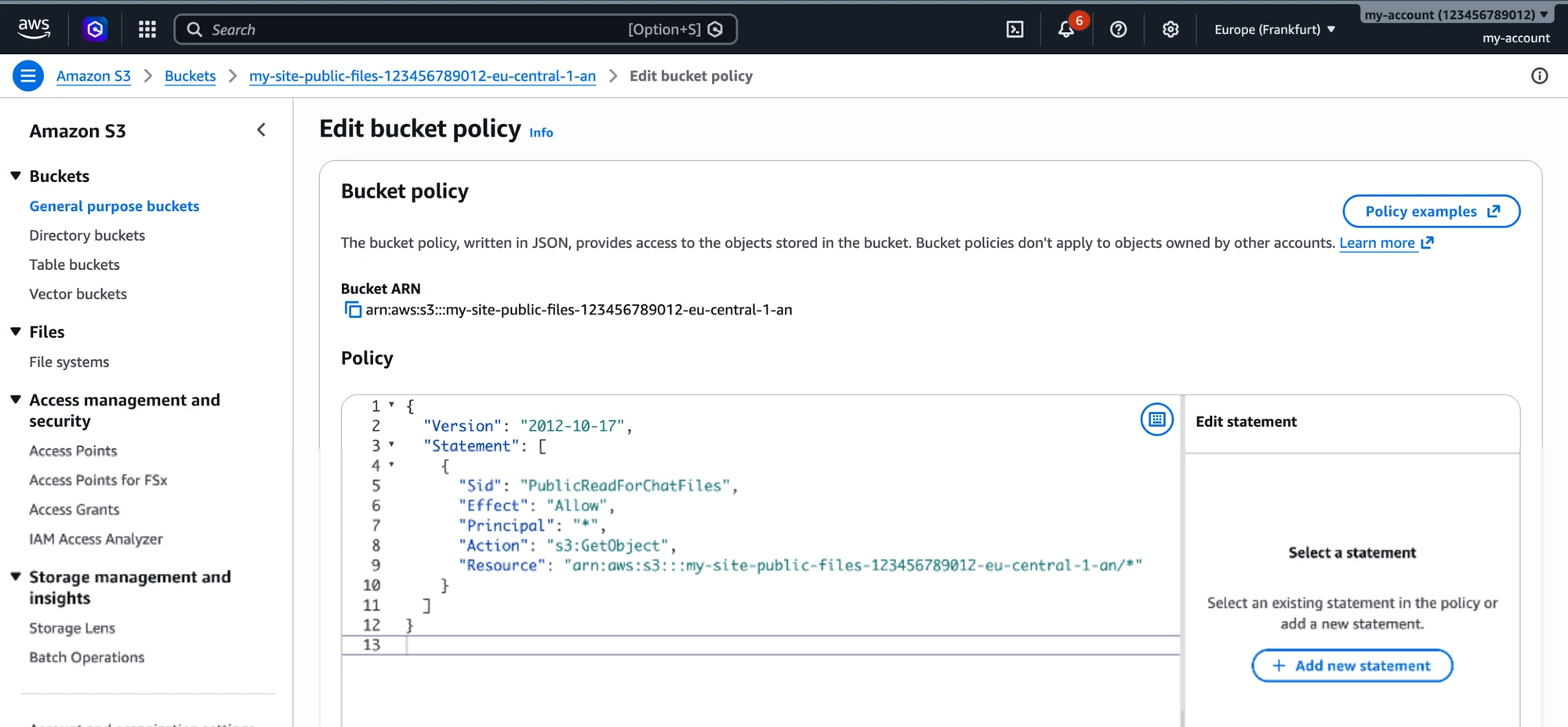
Add the public bucket to the access key's policy too, in both places. In Better Messages, choose Anyone with the link (public URL) and enter https://<bucket>.s3.<region>.amazonaws.com as the Public URL. Test Connection checks that a file opens from it.
Public files on your own domain#
To serve public files from an address such as https://files.my-site.com, put Amazon CloudFront in front of the public bucket:
- In AWS Certificate Manager, switch to the US East (N. Virginia) region and request a public certificate for
files.my-site.com. Add the CNAME record it shows to your domain's DNS and wait until the certificate is issued. - In CloudFront, click Create distribution and choose the public bucket as the origin.
- Under Alternate domain name (CNAME), add
files.my-site.com, and choose the certificate from step 1. - When the distribution is deployed, add a CNAME record for
files.my-site.comthat points to the distribution's domain name, which ends incloudfront.net.
Enter https://files.my-site.com as the Public URL in Better Messages. CloudFront keeps a copy of each file, and a deleted file can keep opening from it until its cache expires.
Uploads straight to the bucket#
With Upload straight to the bucket on, the default, a member's browser or the mobile app sends a file straight to the bucket, using a link Better Messages signs for that one file. Files never pass through your server, and large files are sent in parts.
The bucket has to allow uploads from your site, with a CORS rule. Configure CORS adds one, named better-messages, for your site's address and the mobile app, and keeps any other rule the bucket has.
If the key cannot set CORS, add the rule yourself: open the bucket's Permissions tab, click Edit under Cross-origin resource sharing (CORS) and paste this, with your site's address:
[
  {
    "AllowedOrigins": ["https://my-site.com", "capacitor://localhost", "https://localhost"],
    "AllowedMethods": ["GET", "HEAD", "PUT"],
    "AllowedHeaders": ["*"],
    "ExposeHeaders": ["ETag"],
    "MaxAgeSeconds": 3600
  }
]
capacitor://localhost and https://localhost are the Better Messages mobile app. Leave them out if you do not use the app.
While the bucket does not allow uploads from your site, files go through your server instead, so sending never fails because of CORS. With Upload straight to the bucket off, every file is uploaded to your server first and copied to the bucket after its message is sent.
The same rule lets members open files in end-to-end encrypted conversations. The messenger downloads such a file itself to decrypt it, and without the rule the browser refuses and shows Could not download media. So keep the rule even with Upload straight to the bucket off. With encryption on, Test Connection checks this too. The mobile app is not affected.
Moving files you already have#
Files sent before you connected the bucket stay where they are and keep opening. To move them, click Move all files from one storage to another under File Groups, or move single files in Better Messages → Administration → Files. Moves run in the background, so you can leave the page while they run.
When a file is deleted#
When a file is deleted in Better Messages, it is marked Pending deletion in Administration → Files, and a background job deletes it from the bucket within a few minutes. The file leaves the list once the bucket confirms it is gone. If the bucket refuses, the job tries again later.
If you turn on Bucket Versioning, a deleted file is only hidden and its old version stays in the bucket. Add a lifecycle rule that permanently deletes noncurrent versions, or leave versioning off.
Keeping the keys out of the database#
You can put the keys in wp-config.php instead of the settings. The dialog then shows those fields as set in wp-config.php.
define( 'WORDPLUS_S3_ACCESS_KEY', 'your-access-key-id' );
define( 'WORDPLUS_S3_SECRET_KEY', 'your-secret-access-key' );
Troubleshooting#
"The provider does not recognise this access key." The Access Key ID is wrong, or the key was deleted or deactivated.
"The secret key does not match the access key." The Secret Access Key does not belong to that Access Key ID.
"The key is not allowed to do this in the bucket." The user's policy does not cover this bucket, or misses one of the rights in step 2.
"The bucket does not exist at this endpoint." Check the bucket's full name, with the account number and region the Account Regional namespace adds.
"The bucket is in another region. Check the region and the endpoint." Enter the region the bucket was created in, and leave Endpoint empty.
"The key cannot tell a deleted file is gone: the bucket answers 403 for it instead of 404."
The policy misses s3:ListBucket on the bucket, see step 2.
"CORS does not allow uploads from … yet." Click Configure CORS. A new rule can take a few seconds to apply, so run Test Connection again if the first check still warns.
"Encrypted files will not open in browsers on …" The bucket has no CORS rule for your site. Click Configure CORS, or add the rule from Uploads straight to the bucket yourself, then run Test Connection again.
"Anyone can read files in this bucket without a link." The bucket is public while files are set to members only. Turn Block all public access back on, or keep members-only files in another bucket.
"The file does not open from its public URL." Check the Public URL, that Block all public access is off and that the bucket policy lets anyone read.
"This server's clock is … seconds off the provider's." Signed links stop working when your server's clock is more than 15 minutes off. Ask your host to fix the server time.