Bunny.net
Better Messages can keep the files members send in a Bunny.net storage zone instead of your server's uploads folder. Browsers upload files straight to the storage zone, and files open from the zone's Pull Zone, Bunny's CDN, instead of from your server.
Cloud storage works in the free version and in the WebSocket version, from Better Messages 3.1.
Better Messages talks to Bunny through its S3 API. That API only exists on storage zones created with S3 Compatibility on, and Bunny cannot turn it on for a zone that already exists. If your files are in an older zone, create a new one for Better Messages. Bunny still calls its S3 API a public preview, so Better Messages labels Bunny "preview" too.
Choose how files open#
Pick this first, because it decides how you set up the Pull Zone. You can change it later.
| How files open | Who can open a file | What you set up in Bunny |
|---|---|---|
| Members of the conversation only (default) | Only members, through links Better Messages signs for each of them | A storage zone, a Pull Zone with token authentication on |
| Anyone with the link | Anyone who has a file's link | A storage zone of their own, a Pull Zone with token authentication off |
1. Create a storage zone#
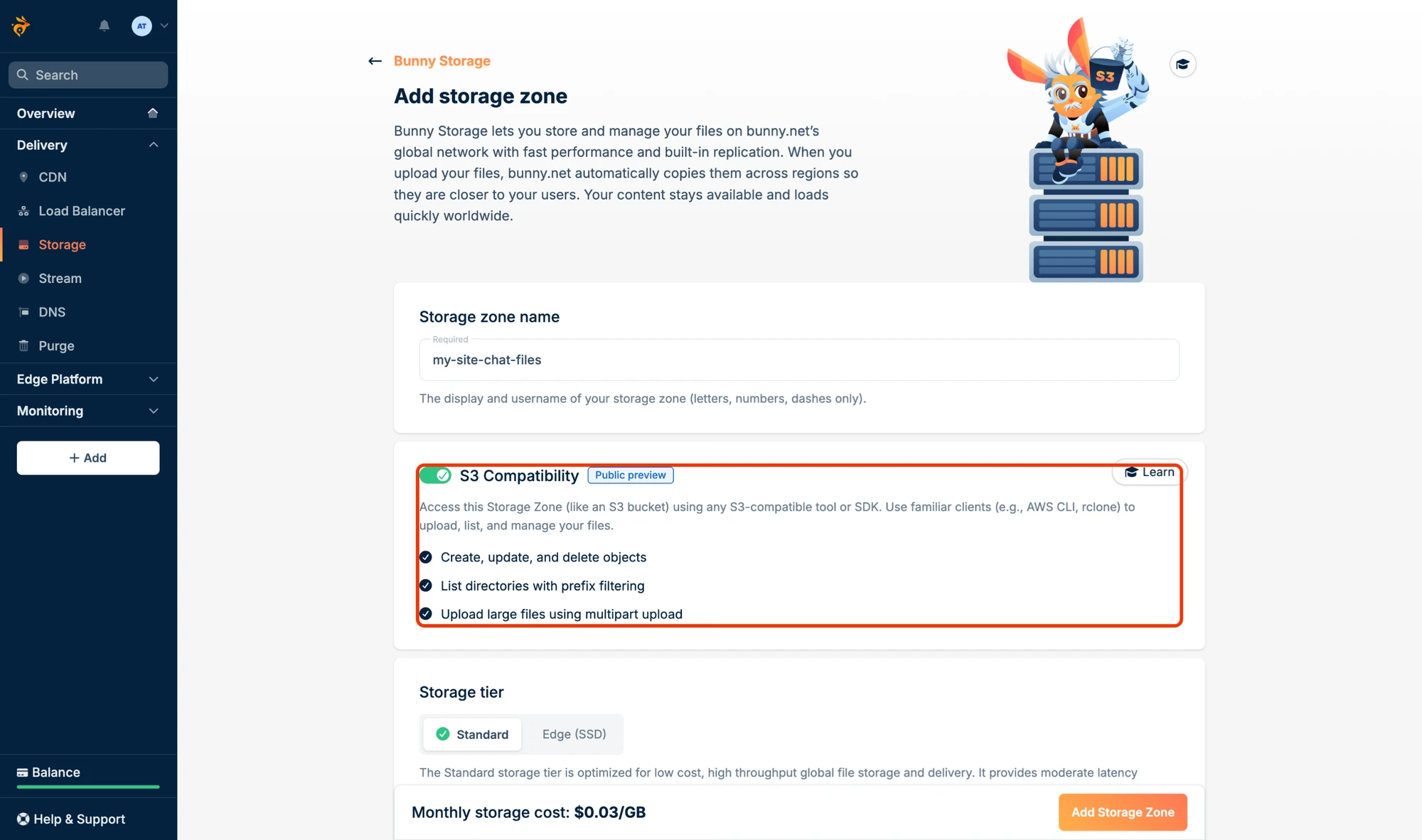
In the Bunny dashboard, open Storage and click Add Storage Zone.
Enter a name, for example my-site-chat-files, and turn on S3 Compatibility. Choose the Standard tier and the main region closest to most of your members. Bunny suggests some replication regions: keep them or change them, but you cannot remove a replication region once the zone exists. Click Add Storage Zone.
2. Copy the storage zone's S3 password#
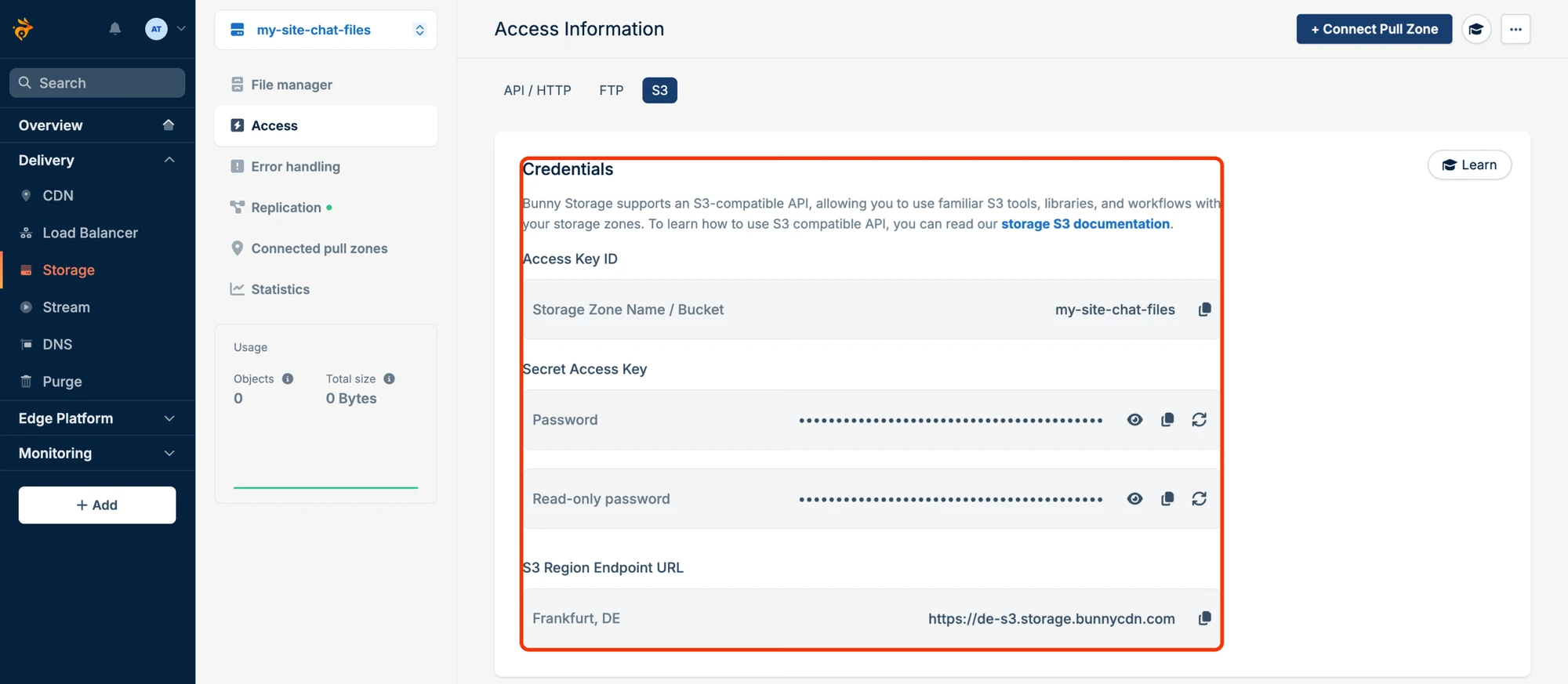
Open the new storage zone, go to Access and choose the S3 tab. You need:
- the Password under Secret Access Key: click the copy icon next to it. Use the password, not the read-only password, because Better Messages also uploads and deletes files.
- the region shown under S3 Region Endpoint URL, for example Frankfurt, DE.
The Access Key ID is the storage zone's name, so Better Messages fills it in for you.

3. Add a Pull Zone#
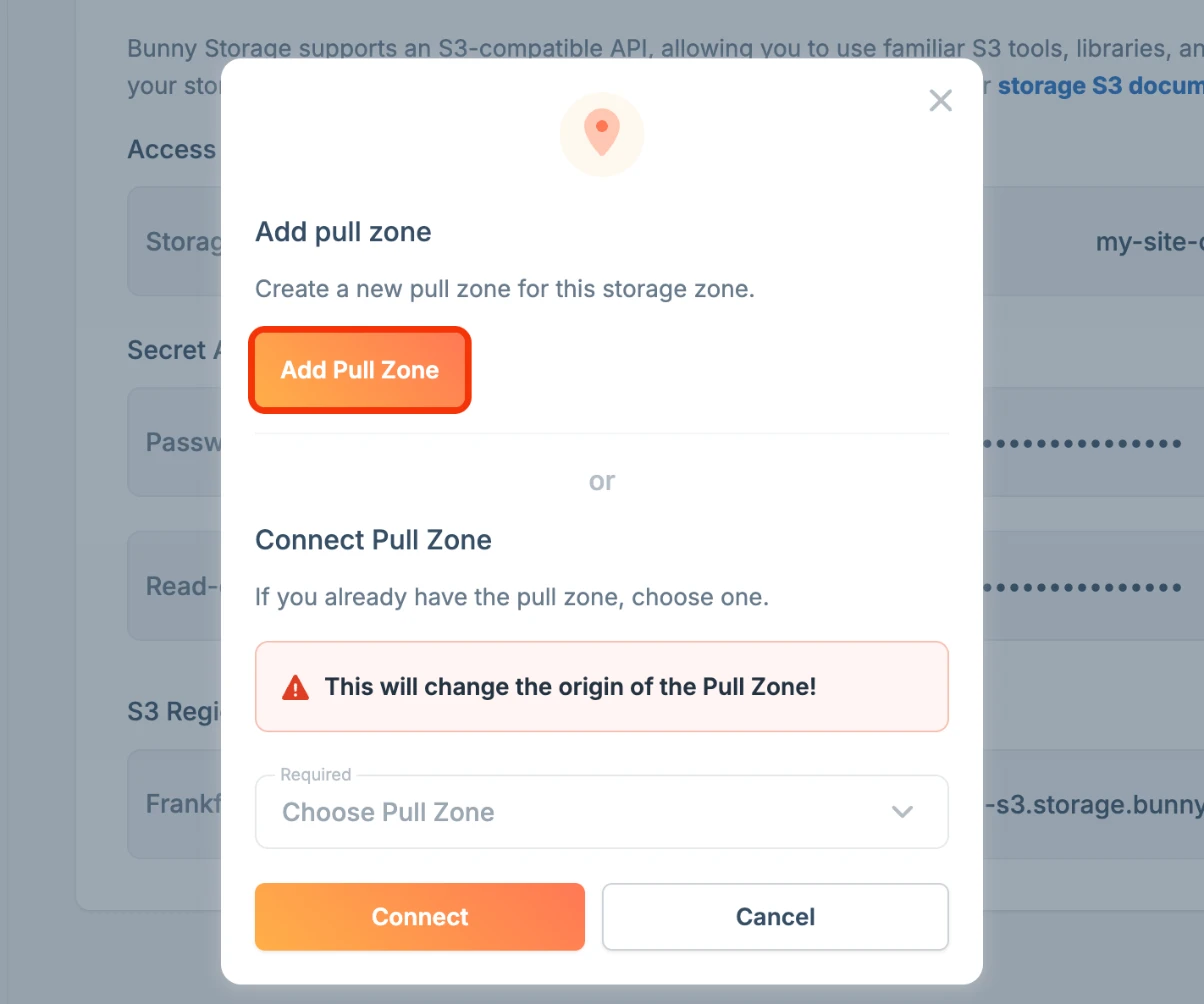
Files open from a Pull Zone, Bunny's CDN in front of the storage zone. On the storage zone's Access page, click Connect Pull Zone, then Add Pull Zone.

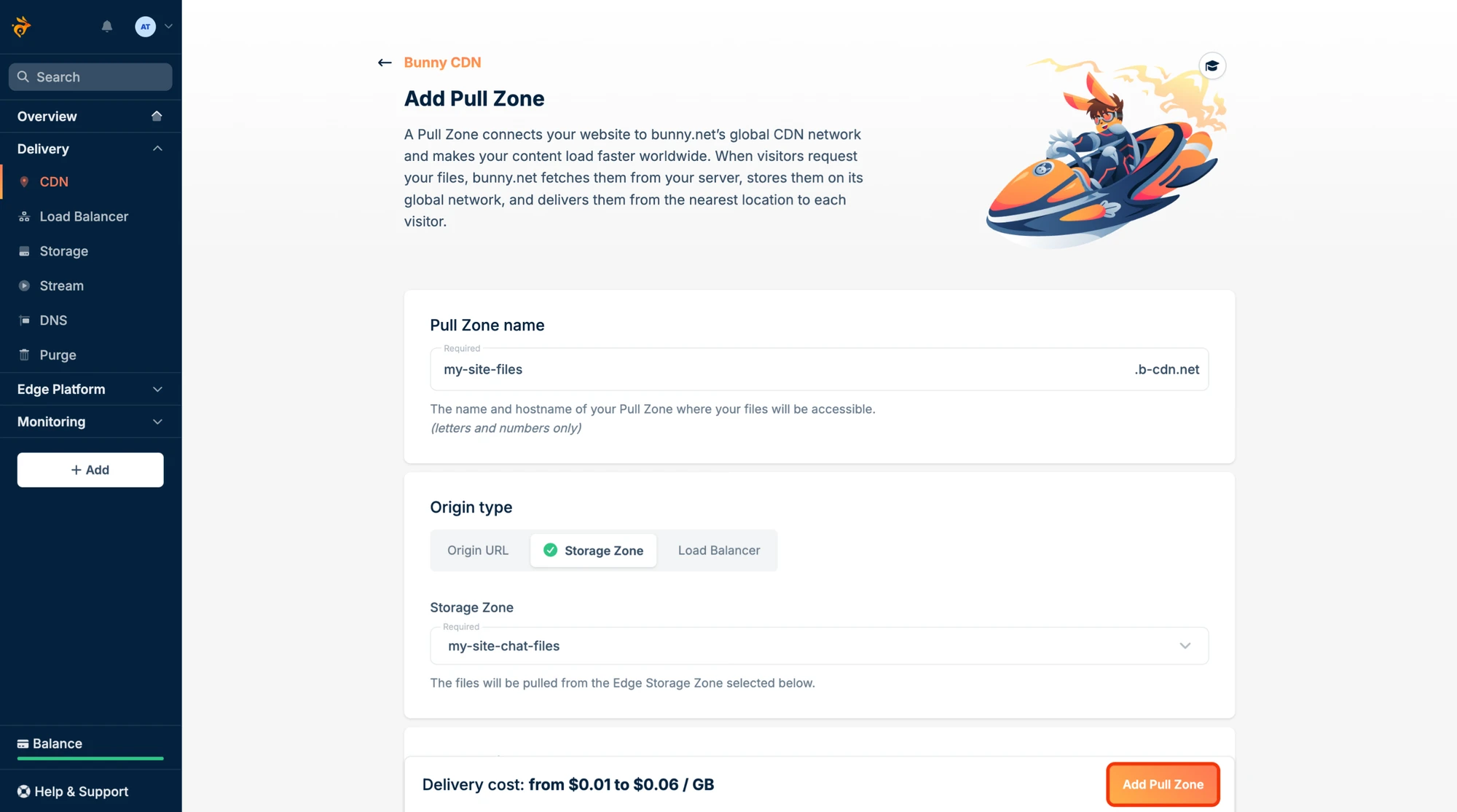
Enter a name, for example my-site-files. It becomes the Pull Zone's address, my-site-files.b-cdn.net. The origin is already your storage zone. Click Add Pull Zone.

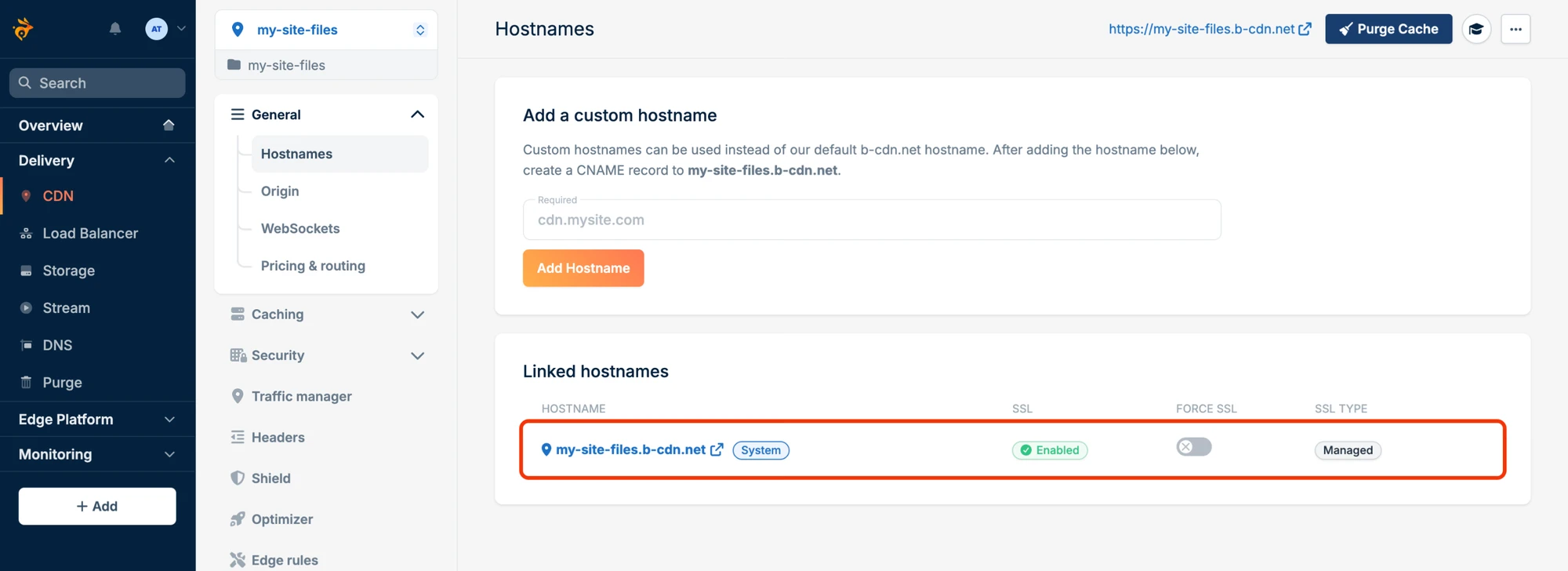
The Pull Zone opens on its Hostnames page. Its b-cdn.net address is listed under Linked hostnames. To use your own domain instead, such as files.my-site.com, add it under Add a custom hostname and point a CNAME record at the b-cdn.net address.

4. Turn on token authentication#
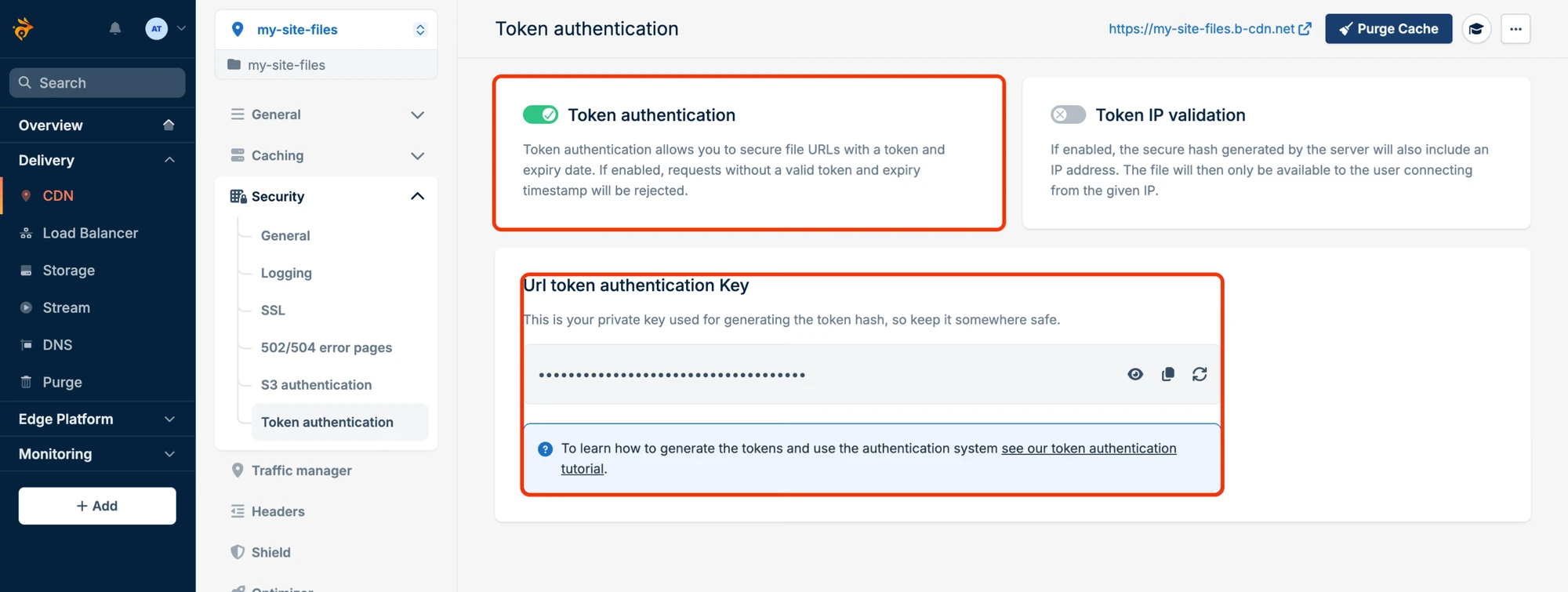
For members-only files, the Pull Zone must refuse every link Better Messages did not sign. In the Pull Zone, open Security → Token authentication and turn on Token authentication. Leave Token IP validation off: a member's address changes as they move between networks, and the links would stop working.
Copy the Url token authentication Key with the copy icon.

5. The API key, so deleted files stop opening#
The Pull Zone keeps a copy of each file in its cache, by default for 30 days, and Bunny does not clear it when a file is deleted from the storage zone. Without help, a deleted file keeps opening from the cache for anyone who already has its link: with members-only files, until that link expires, up to a day and a half after it was given out.
With your Bunny API key, Better Messages clears each deleted file from the Pull Zone's cache, then checks that it no longer opens. Find the key under Account → API key in Bunny.

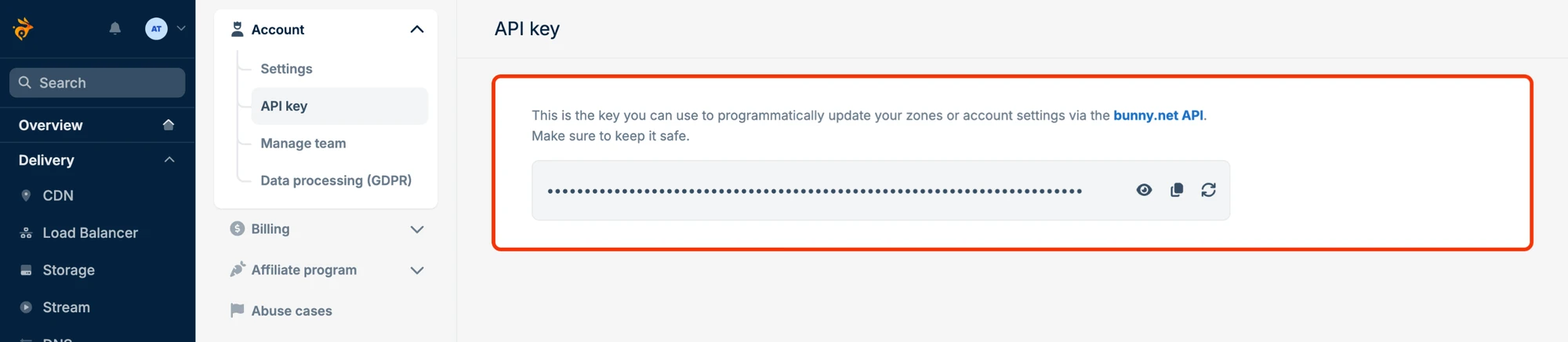
The API key is optional. It gives full access to your Bunny account, and Better Messages uses it for nothing but clearing the cache. You can keep it out of the database, see Keeping the keys out of the database.
6. Connect Bunny in Better Messages#
In WordPress, go to Better Messages → Settings → Attachments. In the Storage section, click Connect next to Bunny.net, and fill in:
- Region: the storage zone's main region.
- Storage Zone Name and Storage Zone Password, from step 2.
- Folder: where in the storage zone this site keeps its files,
bmby default. Give each site its own folder if several sites share one zone. - Pull Zone Hostname: the Pull Zone's
b-cdn.netaddress, or its custom hostname. - API Key, if you added one in step 5.
- Token Authentication Key, under Members of the conversation only, from step 4.

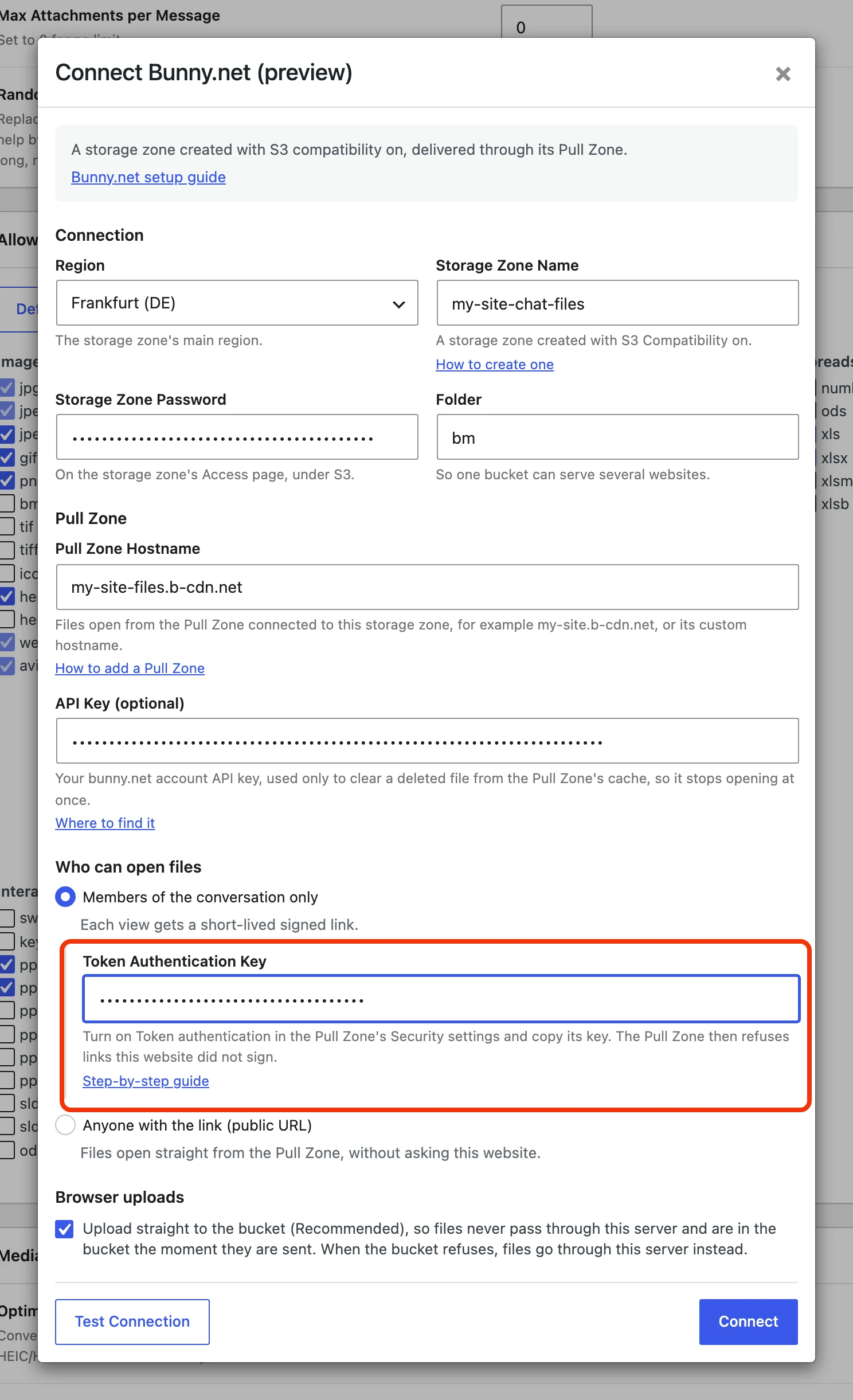
Click Test Connection. It uploads a small file, reads it back, opens it through a signed Pull Zone link, checks that the Pull Zone refuses the file without a token, checks that browsers can upload to the storage zone, deletes the file and clears it from the cache. Every line should say Passed.

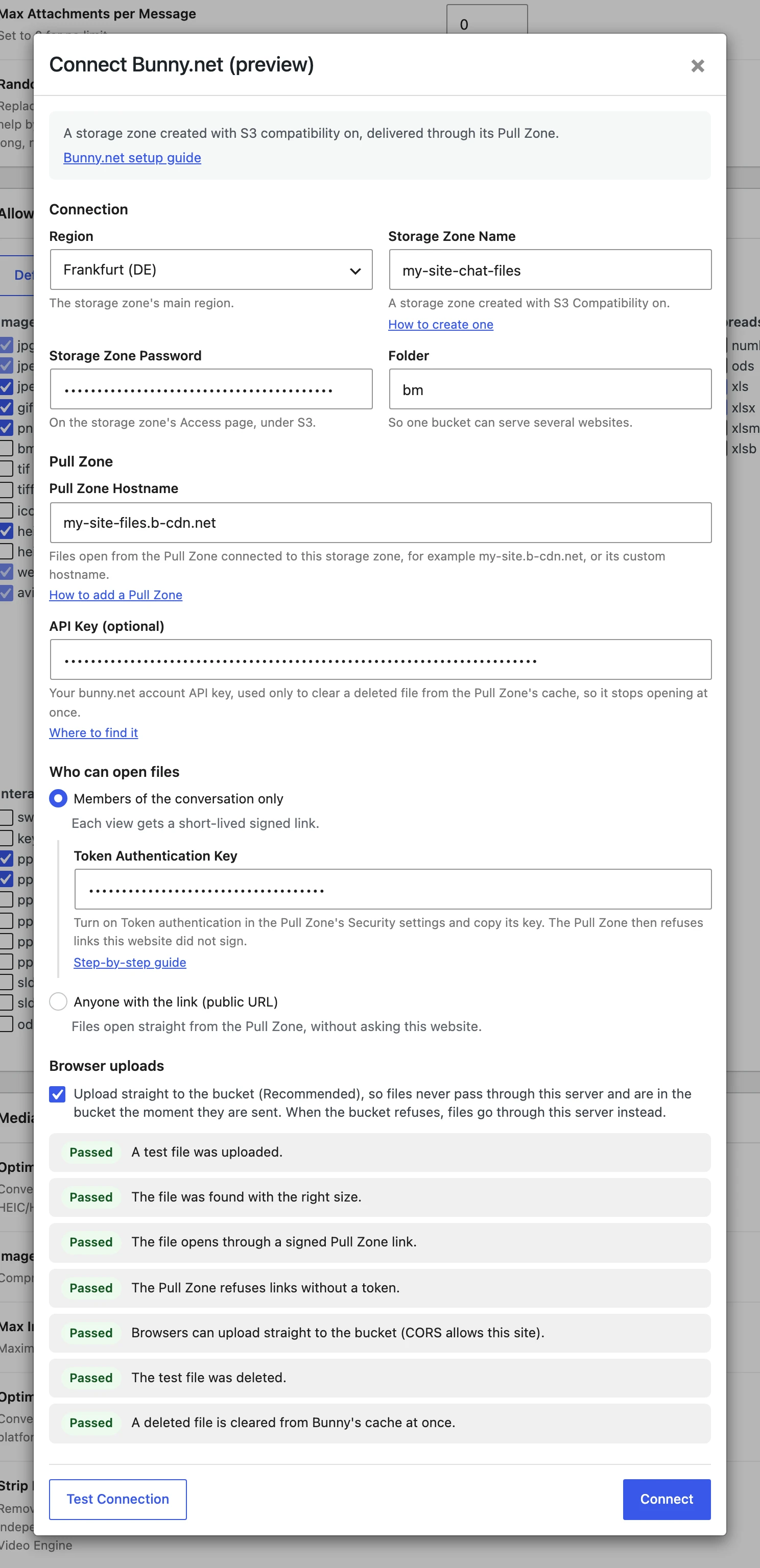
Click Connect. It runs the same test and saves Bunny when the test passes. When a check fails, nothing is saved: fix what the check says, or click Save Anyway.
Then, under File Groups, choose Bunny.net for each kind of file you want there and click Save Settings. The choice applies to files sent after you save.
Anyone with the link#
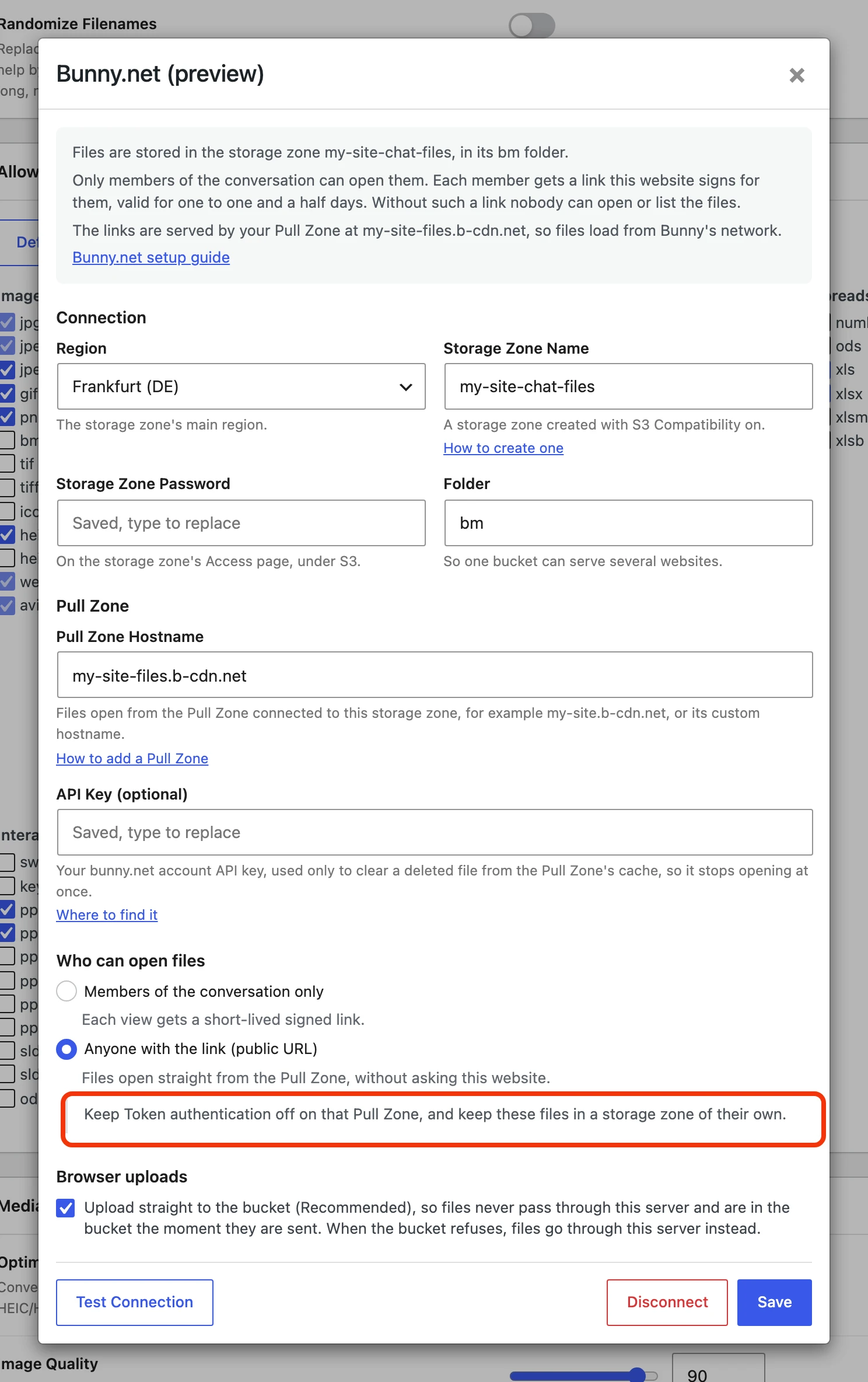
Files open from the Pull Zone's address with no check: anyone who has a file's link can open it, and your site does no work when a file is viewed. Use this only for files that are not private.
Keep these files in a storage zone of their own, with a Pull Zone of its own that has token authentication off. A Pull Zone without a token opens every file in its storage zone, so it must never be connected to the zone that holds members-only files.
In Better Messages, choose Anyone with the link (public URL). Files open from the Pull Zone Hostname, and Test Connection checks that a file opens from it.

Uploads straight to the storage zone#
With Upload straight to the bucket on, the default, a member's browser or the mobile app sends a file straight to the storage zone, using a link Better Messages signs for that one file. Files never pass through your server, and they are in the storage zone the moment they are sent. Large files are sent in parts.
Bunny allows uploads from every site on its S3 API, so there is no CORS rule to set up. With Upload straight to the bucket off, every file is uploaded to your server first and copied to the storage zone after its message is sent.
Bunny's S3 API takes up to 500 requests a second per storage zone. That limit applies to uploads only, since files open from the Pull Zone.
Encrypted files#
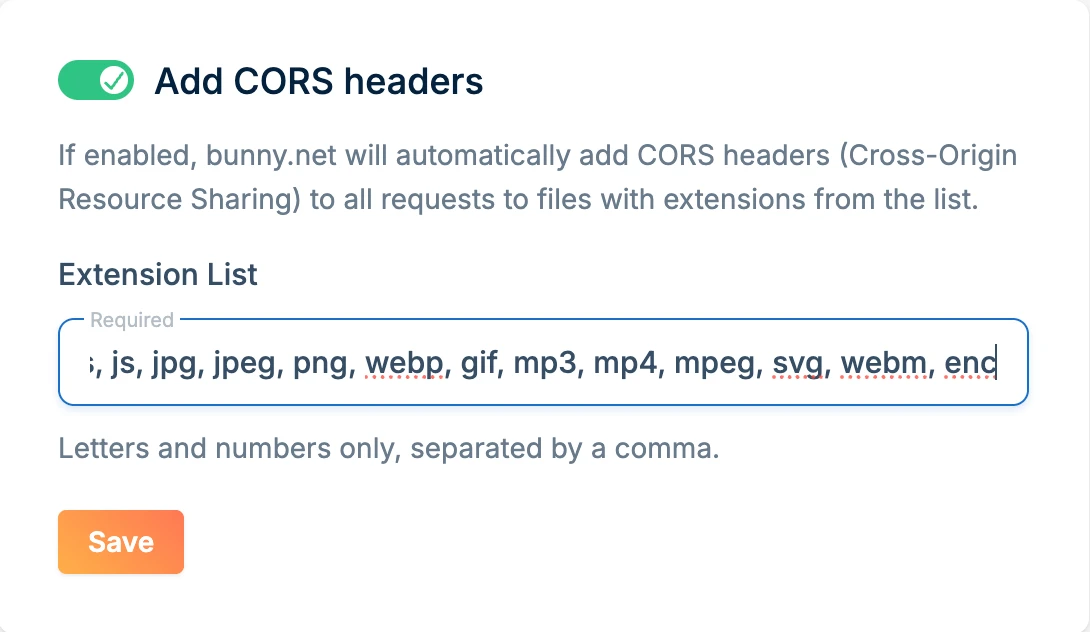
If your site uses end-to-end encryption, the messenger downloads each encrypted file from the Pull Zone itself to decrypt it. The browser allows that only when the Pull Zone sends a CORS header, and Bunny sends one only for the file extensions in its list, which leaves out the enc of encrypted files. Without it, members see Could not download media. The mobile app is not affected.
Open the Pull Zone's Headers settings, leave Add CORS headers on and add enc at the end of the Extension List, then click Save. Do the same on each Pull Zone you use with Better Messages. With encryption on, Test Connection checks this.

Moving files you already have#
Files sent before you connected Bunny stay where they are and keep opening. To move them, click Move all files from one storage to another under File Groups, or move single files in Better Messages → Administration → Files. Moves run in the background, so you can leave the page while they run.
When a file is deleted#
When a file is deleted in Better Messages, it is marked Pending deletion in Administration → Files, and a background job deletes it from the storage zone within a few minutes. With an API key, the job also clears it from the Pull Zone's cache. The file leaves the list once Bunny confirms it no longer opens. If Bunny refuses, the job tries again later.
Downloads#
Bunny cannot give a download a different name from the one the file is stored under. A file is stored under its original name with spaces and other special characters replaced by dashes, so a download of Holiday photo.jpg is named Holiday-photo.jpg.
Keeping the keys out of the database#
You can put the keys in wp-config.php instead of the settings. The Bunny dialog then shows those fields as set in wp-config.php.
define( 'WORDPLUS_BUNNY_SECRET_KEY', 'your-storage-zone-password' );
define( 'WORDPLUS_BUNNY_TOKEN_KEY', 'your-token-authentication-key' );
define( 'WORDPLUS_BUNNY_API_KEY', 'your-account-api-key' );
Troubleshooting#
"This storage zone was created without S3 compatibility, and Bunny cannot turn it on later." Create a new storage zone with S3 Compatibility on and use that one.
"Bunny refused the request. Choose the storage zone's main region as the Region." The region must be the storage zone's main region, the one shown on the S3 tab of its Access page.
"The password does not match the storage zone." Copy the password again from the S3 tab. If you reset it in Bunny, enter the new one.
"There is no storage zone with this name." Check the spelling of the Storage Zone Name.
"The Pull Zone refuses the signed link (HTTP 403)." The Token Authentication Key does not match the Pull Zone's key, or Token IP validation is on. Copy the key again and turn IP validation off.
"The Pull Zone does not find the file (HTTP 404)." The Pull Zone is connected to another storage zone. Connect a Pull Zone whose origin is this storage zone.
"The Pull Zone opens files without a token, so anyone can open them." Token authentication is off on the Pull Zone while files are set to members only. Turn it on, see step 4.
"The Pull Zone refuses the file without a token (HTTP 403)." Files are set to anyone with the link, but the Pull Zone has token authentication on. Use a Pull Zone without it, see Anyone with the link.
"Without your Bunny API key, a deleted file keeps opening from Bunny's cache…" This is a warning, not an error. Add the API key to clear deleted files at once, see step 5.
"Bunny refused the API key." Copy the key again from Account → API key. If you reset it in Bunny, enter the new one.
"Encrypted files will not open in browsers: the Pull Zone sends them without a CORS header."
Add enc to the Pull Zone's CORS extensions, see Encrypted files.