Backblaze B2
Better Messages can keep the files members send in a Backblaze B2 bucket instead of your server's uploads folder, through B2's S3-compatible API. Browsers upload files straight to the bucket, and files open from the bucket instead of from your server.
Cloud storage works in the free version and in the WebSocket version, from Better Messages 3.1. B2 is connected through the Amazon S3 or S3-compatible storage.
What you need#
- A Backblaze account with B2 Cloud Storage.
- A bucket, kept private for members-only files.
- An application key limited to that bucket. The master application key does not work with B2's S3 API.
- For public files only: a verified email address, and a payment history on the account or a one-time 1 USD payment. Backblaze asks for these before it lets an account make a bucket public.
Choose how files open#
| How files open | Who can open a file | What the bucket needs |
|---|---|---|
| Members of the conversation only (default) | Only members, through links Better Messages signs for each of them | A private bucket |
| Anyone with the link | Anyone who has a file's link | A public bucket of its own, optionally behind Cloudflare on your own domain |
1. Create the bucket#
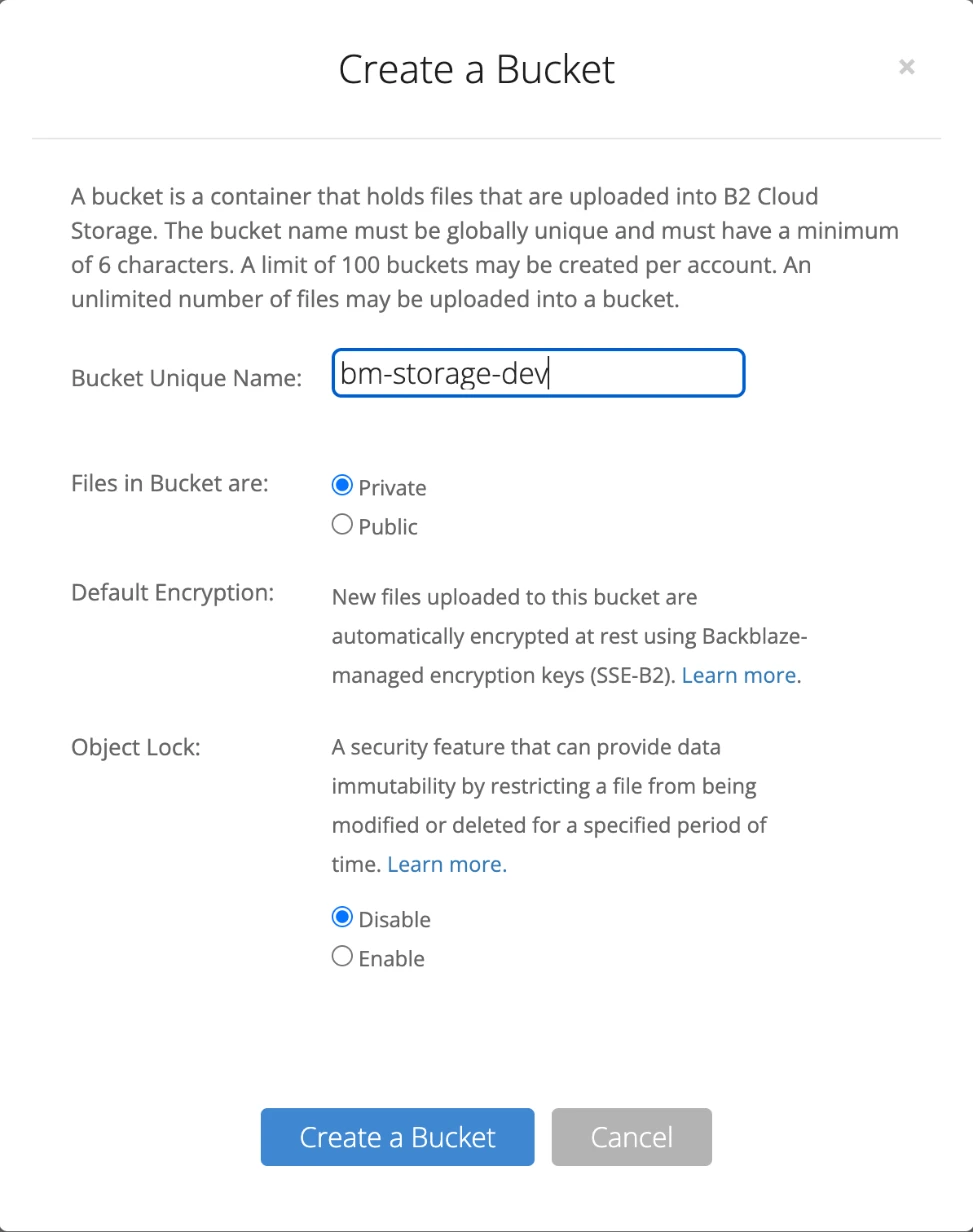
In the Backblaze dashboard, open B2 Cloud Storage → Buckets and click Create a Bucket. Bucket names are unique across all of B2, so add something of your own to the name, for example my-site-chat-files. Keep Private, leave encryption and Object Lock as they are and click Create a Bucket.
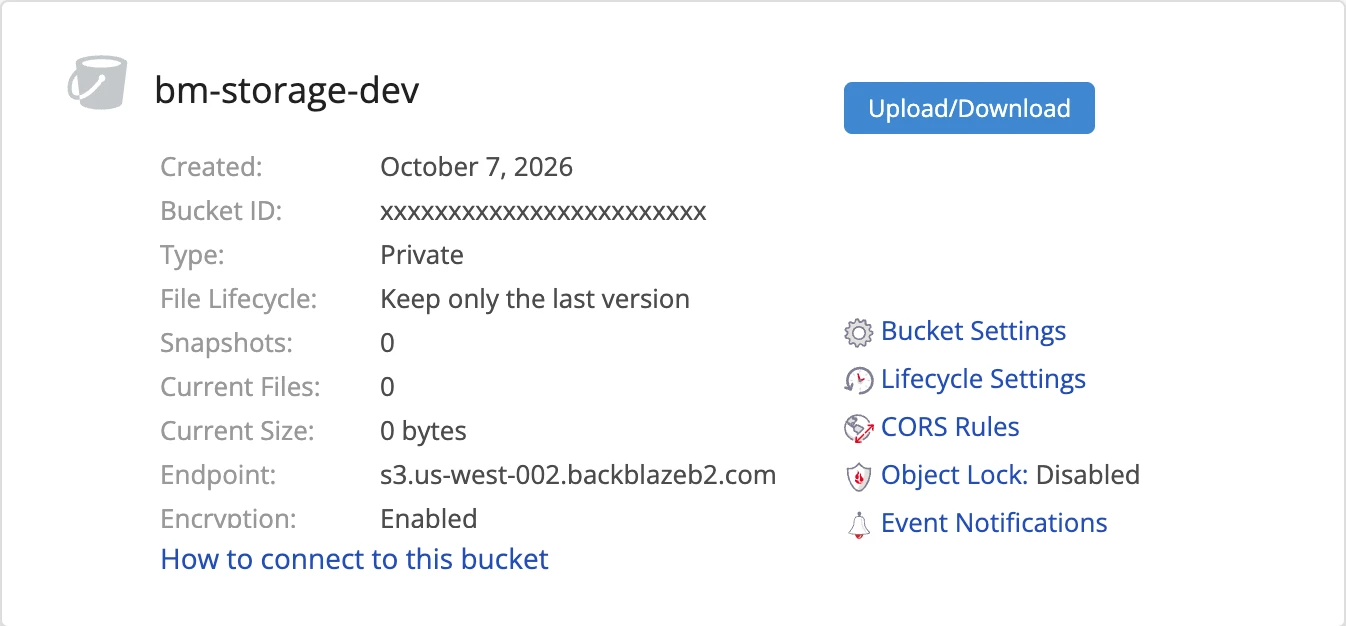
The new bucket's card shows its Endpoint, for example s3.us-west-002.backblazeb2.com. Better Messages needs it, and the part after s3. is the region, us-west-002 here. Every bucket of an account is in the region the account was created in.

2. Keep only the last version#
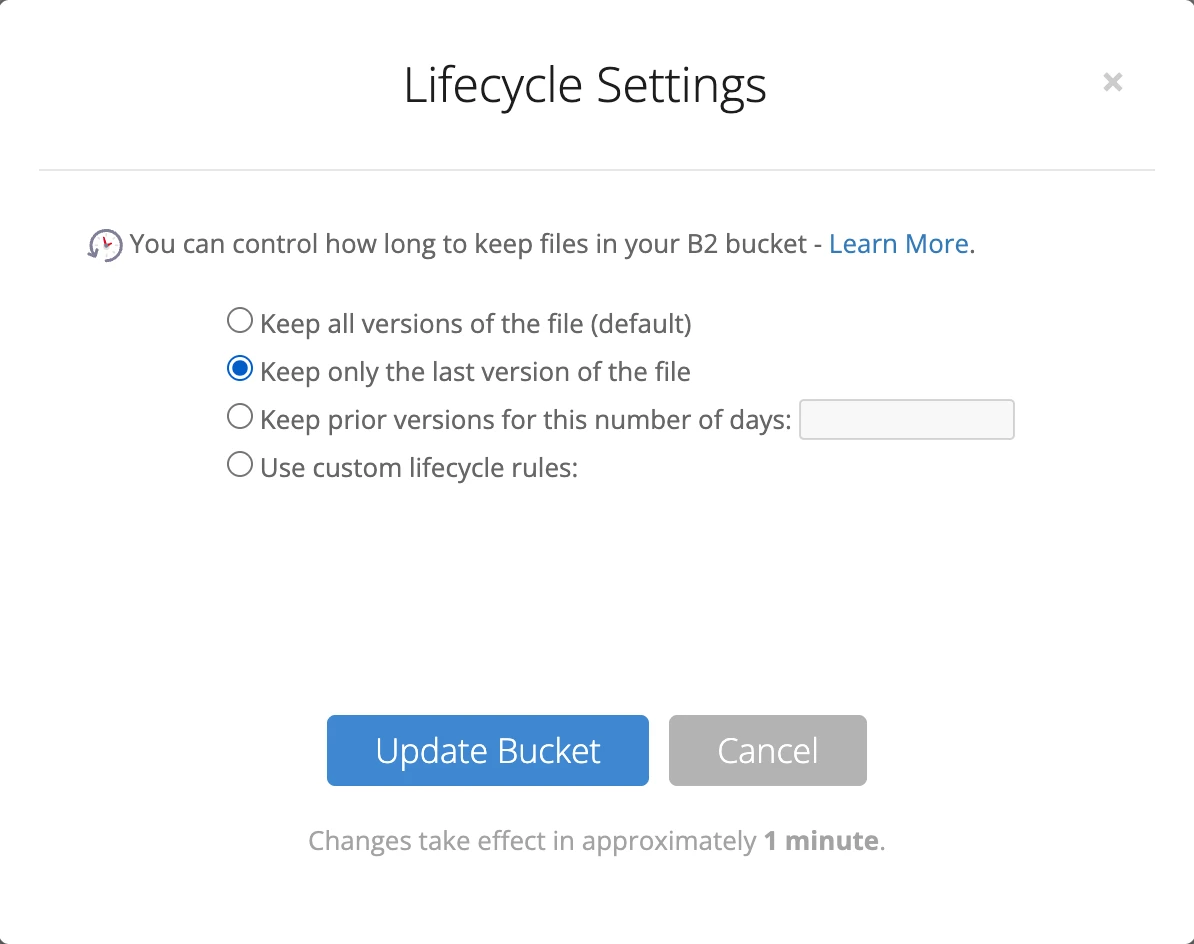
B2 keeps every version of a file by default, and a file deleted through the S3 API is only hidden: it stops opening, but it stays in the bucket and is billed. Click Lifecycle Settings on the bucket's card, choose Keep only the last version of the file and click Update Bucket. A deleted file is then removed for good a day after it is hidden.

3. Create an application key#
Open Application Keys and click Add a New Application Key:
- Name of Key: for example
better-messages. - Allow access to Bucket(s): the new bucket only.
- Type of Access: Read and Write.
- Leave Allow List All Bucket Names, File name prefix and Duration empty.
Click Create New Key. Copy the keyID and the applicationKey: Backblaze shows the applicationKey only once. A Read and Write key for one bucket can also set the bucket's CORS rule, so Configure CORS works with it.
4. Connect the bucket in Better Messages#
In WordPress, go to Better Messages → Settings → Attachments. In the Storage section, click Connect next to Amazon S3 or S3-compatible, and fill in:
- Endpoint: the bucket's Endpoint from step 1, for example
https://s3.us-west-002.backblazeb2.com. - Region: the part of the endpoint after
s3., for exampleus-west-002. - Bucket: the bucket's name.
- Folder: where in the bucket this site keeps its files,
bmby default. Give each site its own folder if several sites share one bucket. - Access Key ID: the keyID.
- Secret Access Key: the applicationKey.
Leave Path-style URLs on. Click Configure CORS, then Test Connection. Every line should say Passed.

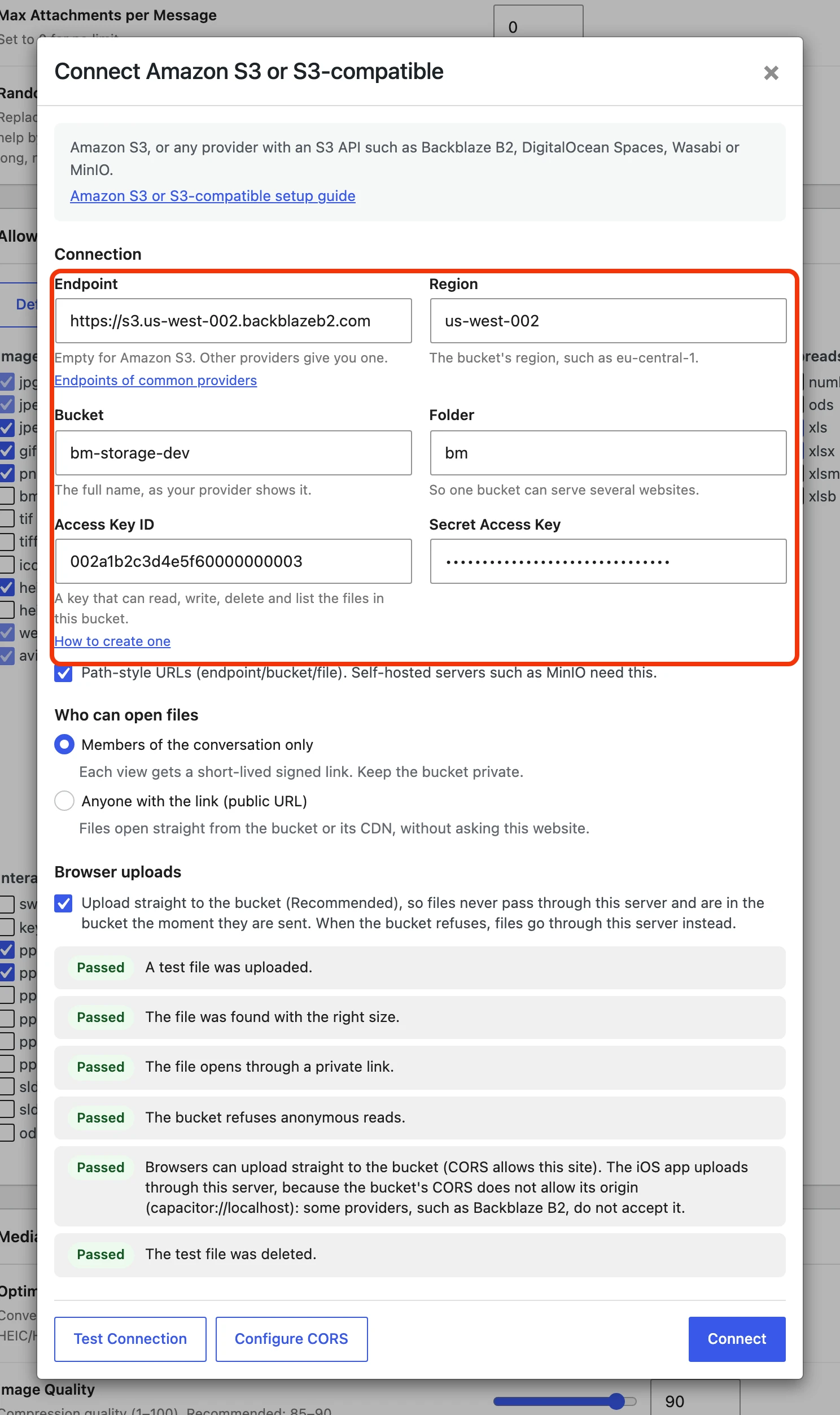
Click Connect. It runs the same test and saves the storage when the test passes. When a check fails, nothing is saved: fix what the check says, or click Save Anyway.
5. Choose which files go to the bucket#
Under File Groups, choose Amazon S3 or S3-compatible for each kind of file you want in B2, then click Save Settings. The choice applies to files sent after you save. Files in end-to-end encrypted conversations stay encrypted wherever they are kept.
Who can open files#
Members of the conversation only#
This is the default. The bucket stays private, and every member gets links to the files that Better Messages signs for them, on the bucket's S3 address. A link works for one to one and a half days, and the messenger renews links on its own while the member keeps the conversation open. Someone who is not a member of the conversation gets no link, and without one the bucket opens nothing.
Anyone with the link#
Files open from a public address with no check: anyone who has a file's link can open it, and your site does no work when a file is viewed. Use this only for files that are not private, and keep them in a bucket of their own, because a public bucket opens every file in it.
Create a bucket for public files and choose Public under Files in Bucket are. If Backblaze asks to verify your email address, click verify now and confirm with the link in the email first, then open Create a Bucket again. Without a payment history, the dialog then takes the one-time payment before it creates the bucket.

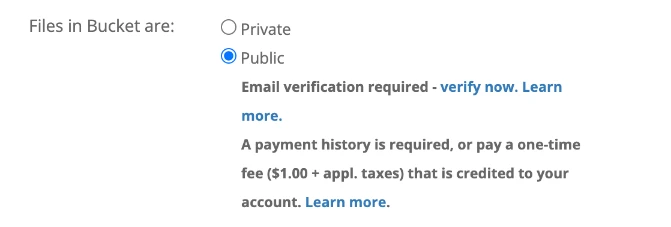
Set Keep only the last version of the file on this bucket too, and create an application key for it as in step 3. In Better Messages, choose Anyone with the link (public URL) and enter the bucket's public address as the Public URL: https://s3.<region>.backblazeb2.com/<bucket>, for example https://s3.us-west-002.backblazeb2.com/my-site-public-files. Test Connection checks that a file opens from it.
Public files on your own domain#
B2 cannot attach a domain to a bucket itself. Backblaze's way is to put Cloudflare in front of the public bucket, and downloads from B2 through Cloudflare are not billed. With your domain on Cloudflare:
-
Find your bucket's download host: upload any file to the public bucket in Browse Files, open it and look at its Friendly URL, for example
https://f002.backblazeb2.com/file/my-site-public-files/photo.png. The download host isf002.backblazeb2.com. -
In Cloudflare, open your domain's DNS → Records and add a CNAME record named
fileswith the download host as its target, Proxied. -
Open Rules → Overview, click Create rule → URL Rewrite Rule and choose the Rewrite path for object storage bucket template. Set Request URL to
https://files.my-site.com/*, Target path to*and Rewrite to tofile/my-site-public-files/${1}, with your bucket's name, then click Deploy. Without it, the address would not find your files, because B2 serves them under/file/<bucket>/. -
B2 answers HTTPS only. Look at SSL/TLS → Overview: if the encryption mode is Flexible, Cloudflare reaches B2 over plain HTTP and the address answers with error 521. Rather than change the mode for your whole domain, click Create rule → Configuration Rule, match
https://files.my-site.com/*, click + Add next to SSL and choose Strict, then Deploy. -
If your site uses end-to-end encryption, encrypted files need a CORS header on this domain, and B2 does not send one for files served this way: the bucket's CORS rule covers its S3 address only. Click Create rule → Response Header Transform Rule, match
https://files.my-site.com/*, choose Set static, enterAccess-Control-Allow-Originas the Header name and*as the Value, then Deploy. The files are public anyway, so*opens nothing new.

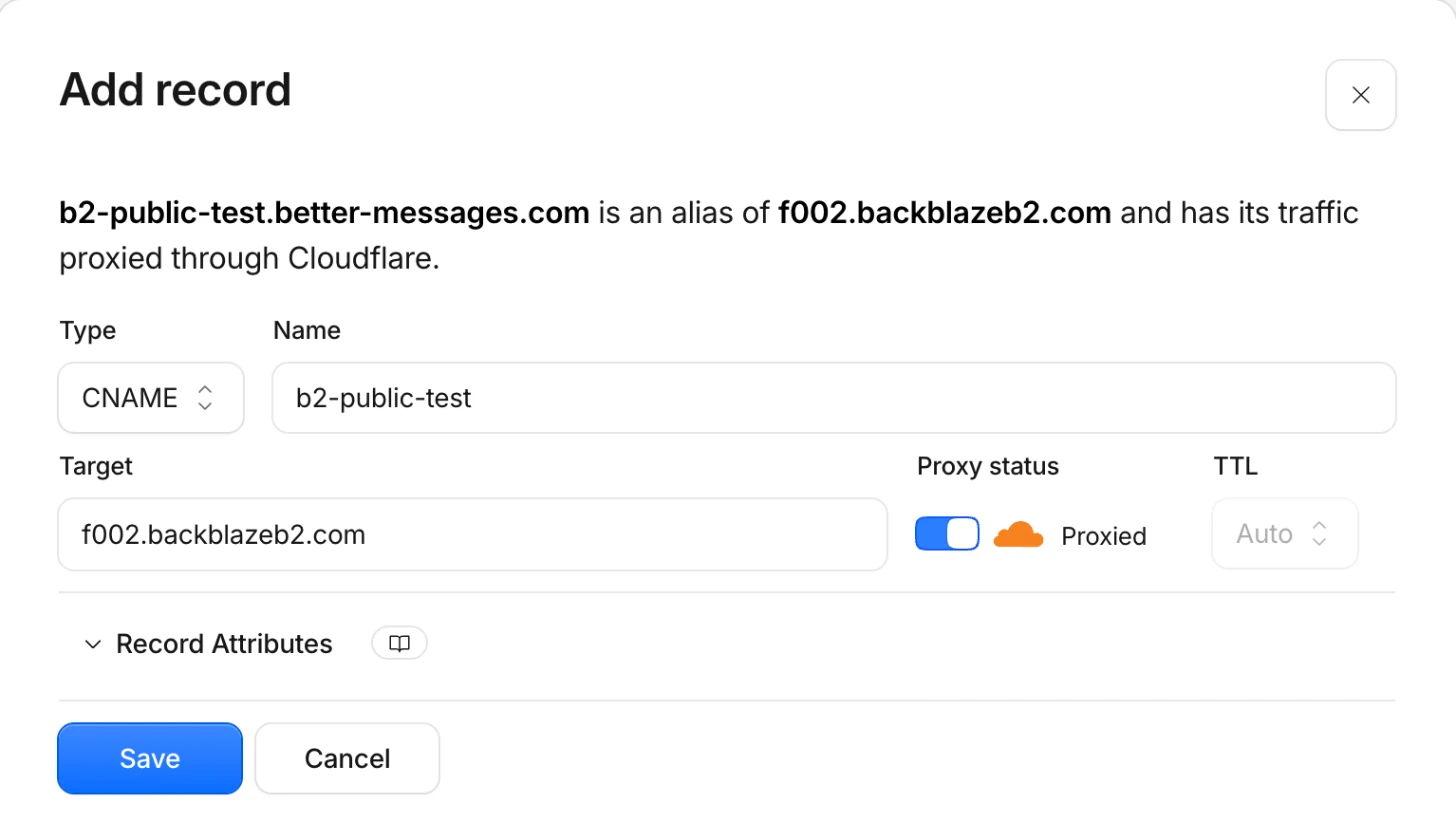

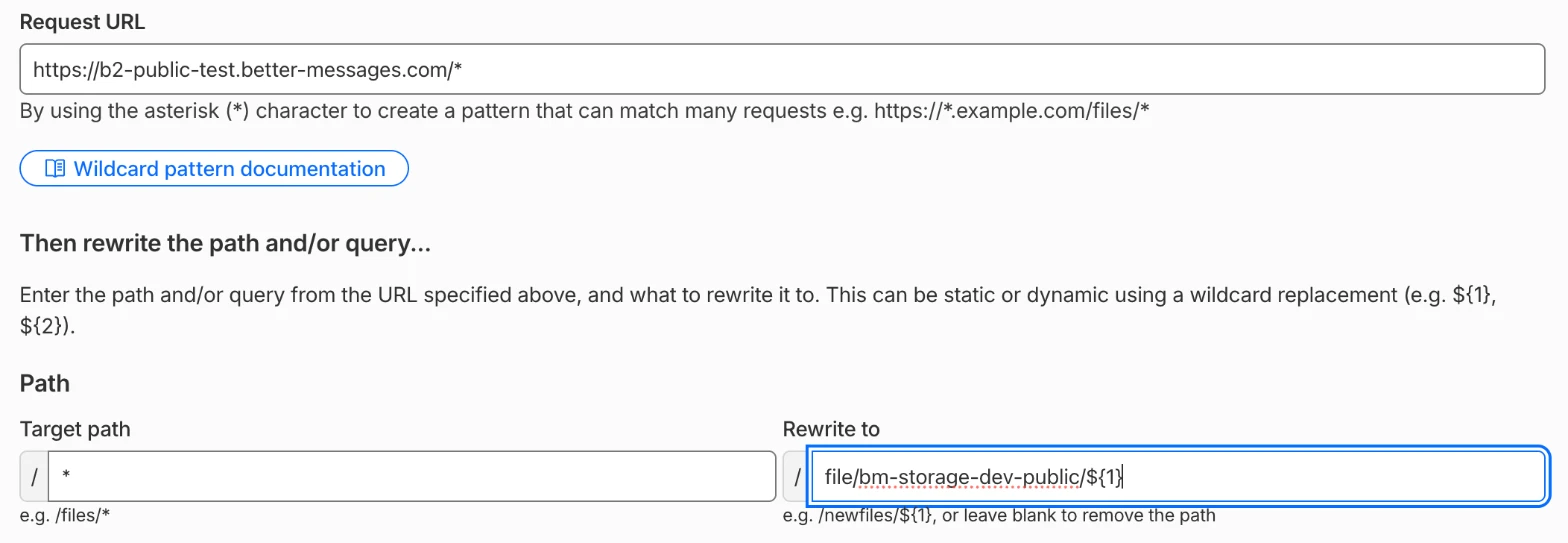



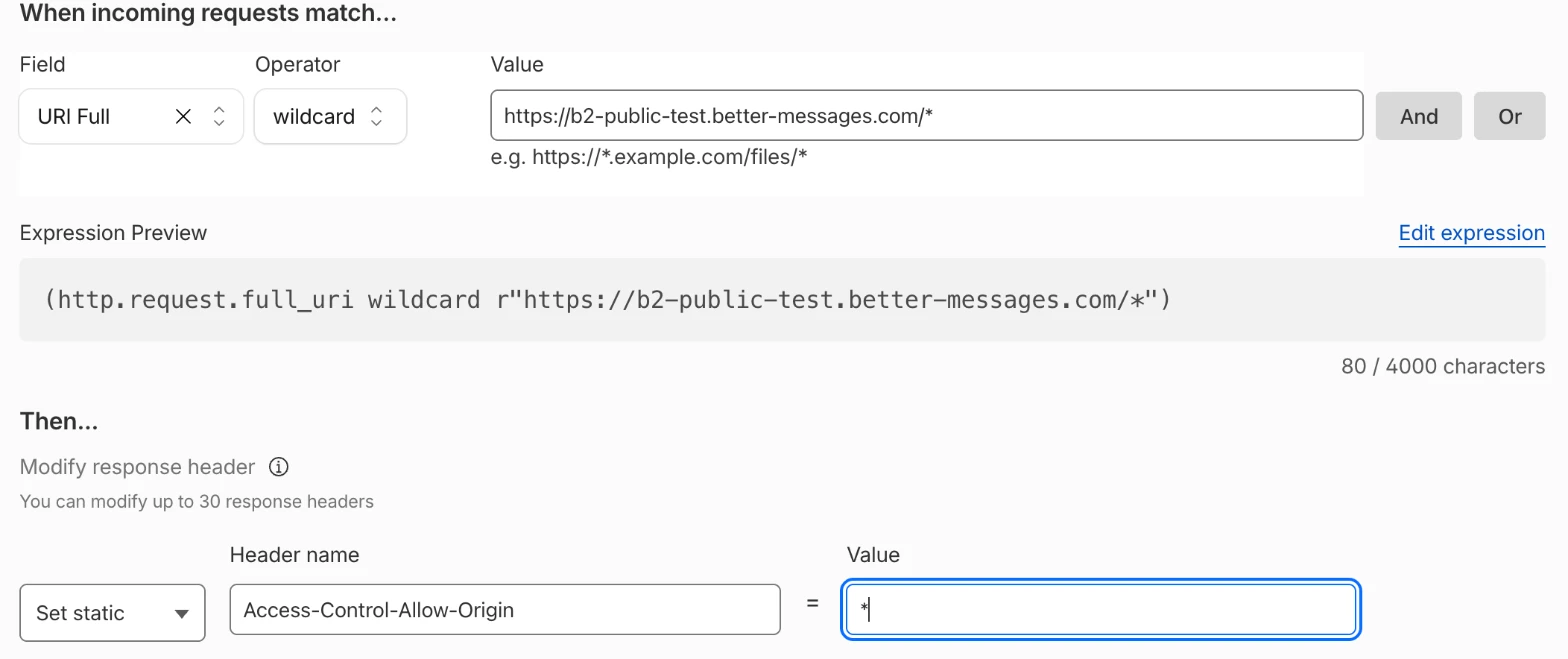
Enter https://files.my-site.com as the Public URL in Better Messages, and Test Connection checks that a file opens from it. Cloudflare keeps a copy of each file, and a deleted file can keep opening from it until its cache expires.
Uploads straight to the bucket#
With Upload straight to the bucket on, the default, a member's browser or the mobile app sends a file straight to the bucket, using a link Better Messages signs for that one file. Files never pass through your server, and large files are sent in parts.
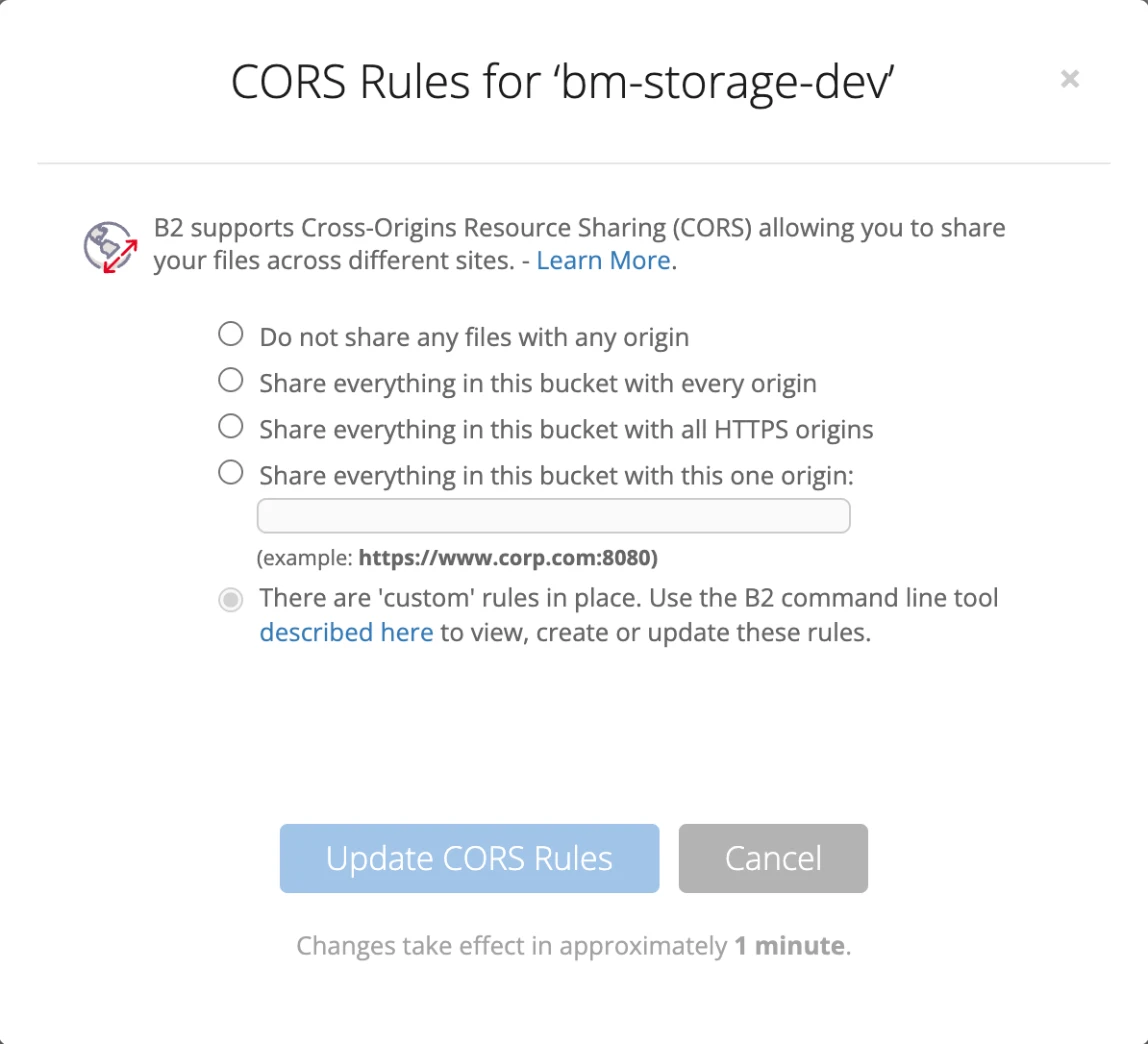
The bucket has to allow uploads from your site, with a CORS rule. Configure CORS saves one, named better-messages. B2's CORS Rules dialog then says there are custom rules in place. Leave it as it is: choosing another option there replaces the rule Better Messages saved. If that happens, click Configure CORS again.

B2 does not accept the iOS app's origin, capacitor://localhost, in a CORS rule, so Configure CORS leaves it out. The iOS app then uploads its files through your server, and Test Connection says so. Browsers and the Android app upload straight to the bucket.
While the bucket does not allow uploads from your site, files go through your server instead, so sending never fails because of CORS. With Upload straight to the bucket off, every file is uploaded to your server first and copied to the bucket after its message is sent.
The same rule lets members open files in end-to-end encrypted conversations. The messenger downloads such a file itself to decrypt it, and without the rule the browser refuses and shows Could not download media. So keep the rule even with Upload straight to the bucket off. With encryption on, Test Connection checks this too. The mobile app is not affected. Public files on your own domain need one more rule in Cloudflare, see Public files on your own domain.
Moving files you already have#
Files sent before you connected the bucket stay where they are and keep opening. To move them, click Move all files from one storage to another under File Groups, or move single files in Better Messages → Administration → Files. Moves run in the background, so you can leave the page while they run.
When a file is deleted#
When a file is deleted in Better Messages, it is marked Pending deletion in Administration → Files, and a background job deletes it from the bucket within a few minutes. The file leaves the list once the bucket confirms it is gone. If the bucket refuses, the job tries again later.
B2 hides the deleted file at once, and the lifecycle rule from step 2 removes it a day later.
Keeping the keys out of the database#
You can put the keys in wp-config.php instead of the settings. The dialog then shows those fields as set in wp-config.php.
define( 'WORDPLUS_S3_ACCESS_KEY', 'your-key-id' );
define( 'WORDPLUS_S3_SECRET_KEY', 'your-application-key' );
Troubleshooting#
"The provider does not recognise this access key." The keyID is wrong, the key was deleted, or the endpoint belongs to another region than the bucket's. Copy the endpoint from the bucket's card.
"The secret key does not match the access key." The applicationKey does not belong to that keyID. If it was not copied when the key was created, create a new key.
"The key is not allowed to do this in the bucket." The key is limited to another bucket, or it is Read Only. Create a Read and Write key for this bucket.
"The bucket does not exist at this endpoint." Check the bucket's name.
"Could not connect to …"
Check the endpoint. It starts with https://s3. and ends with backblazeb2.com.
"InternalError: internal incident" B2 failed to answer that once. Run Test Connection again.
"CORS does not allow uploads from … yet." Click Configure CORS. A new rule can take a minute to apply on B2, so run Test Connection again if the first check still warns.
"Encrypted files will not open in browsers on …: the bucket's CORS does not allow it." Click Configure CORS, then run Test Connection again.
"Encrypted files will not open in browsers on …: Backblaze serves files on your own domain from its download address." Add the Cloudflare rule from step 5 of Public files on your own domain.
"Anyone can read files in this bucket without a link." The bucket is public while files are set to members only. Make it private in Bucket Settings, or keep members-only files in another bucket.
"The file does not open from its public URL." Check the Public URL, and that the bucket is Public.
"This server's clock is … seconds off the provider's." Signed links stop working when your server's clock is more than 15 minutes off. Ask your host to fix the server time.