WP Job Manager: Candidate ↔ Employer Chat
WP Job Manager is the most-installed WordPress job-board plugin, but candidates and employers cannot talk to each other on the platform — applications are typically handled by email, leaving the site as a middleman that loses every conversation that happens after the apply click. Better Messages adds a Send Message button to every active job listing, so candidates start a private thread with the employer directly on the site, and the conversation history stays inside the platform.
This guide shows what the WP Job Manager integration adds, how it handles filled and expired listings, and what the differences are between the free and WebSocket versions.
What the WP Job Manager integration adds
Once Better Messages is installed and the WP Job Manager integration is enabled, every active job listing renders a Send Message button after the job description.
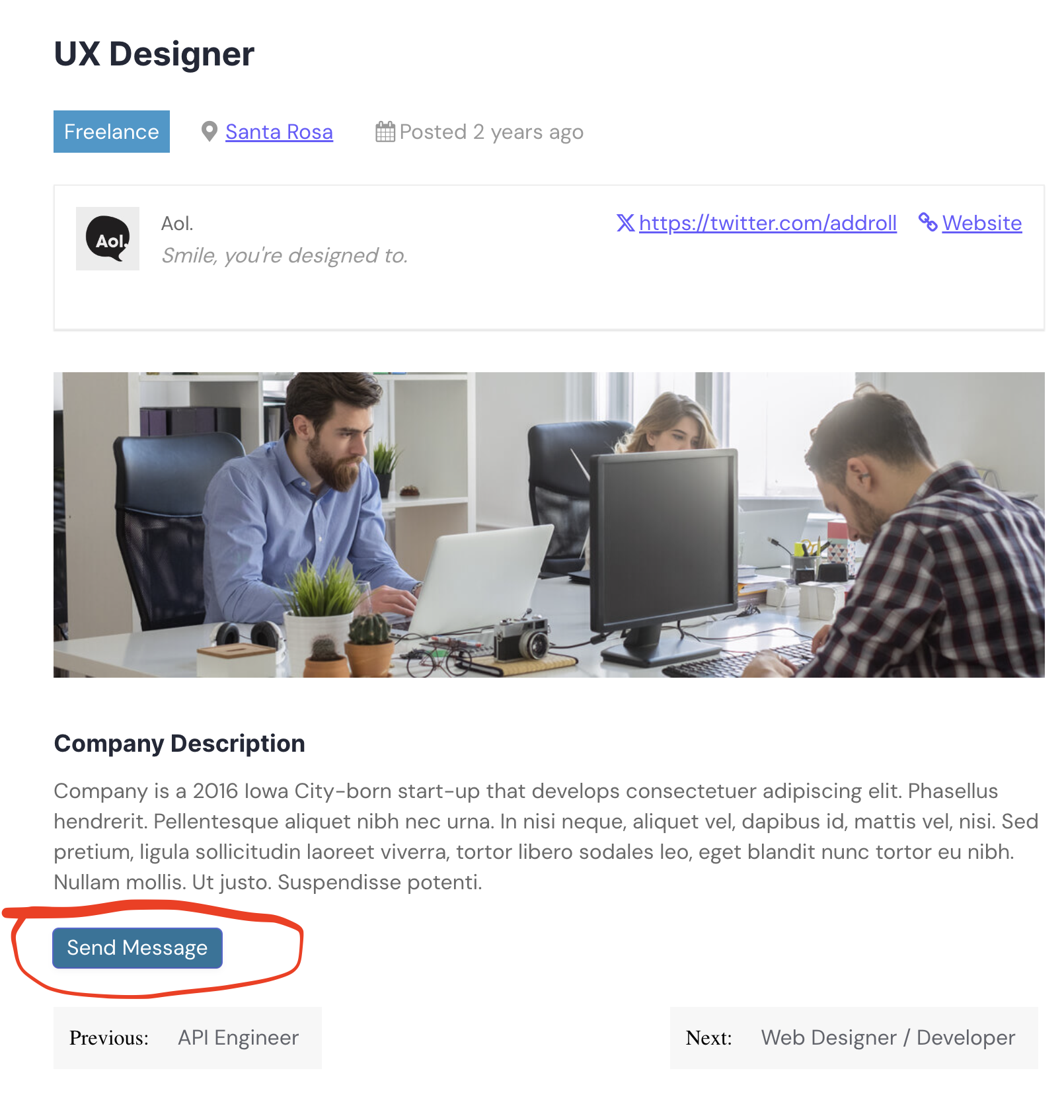
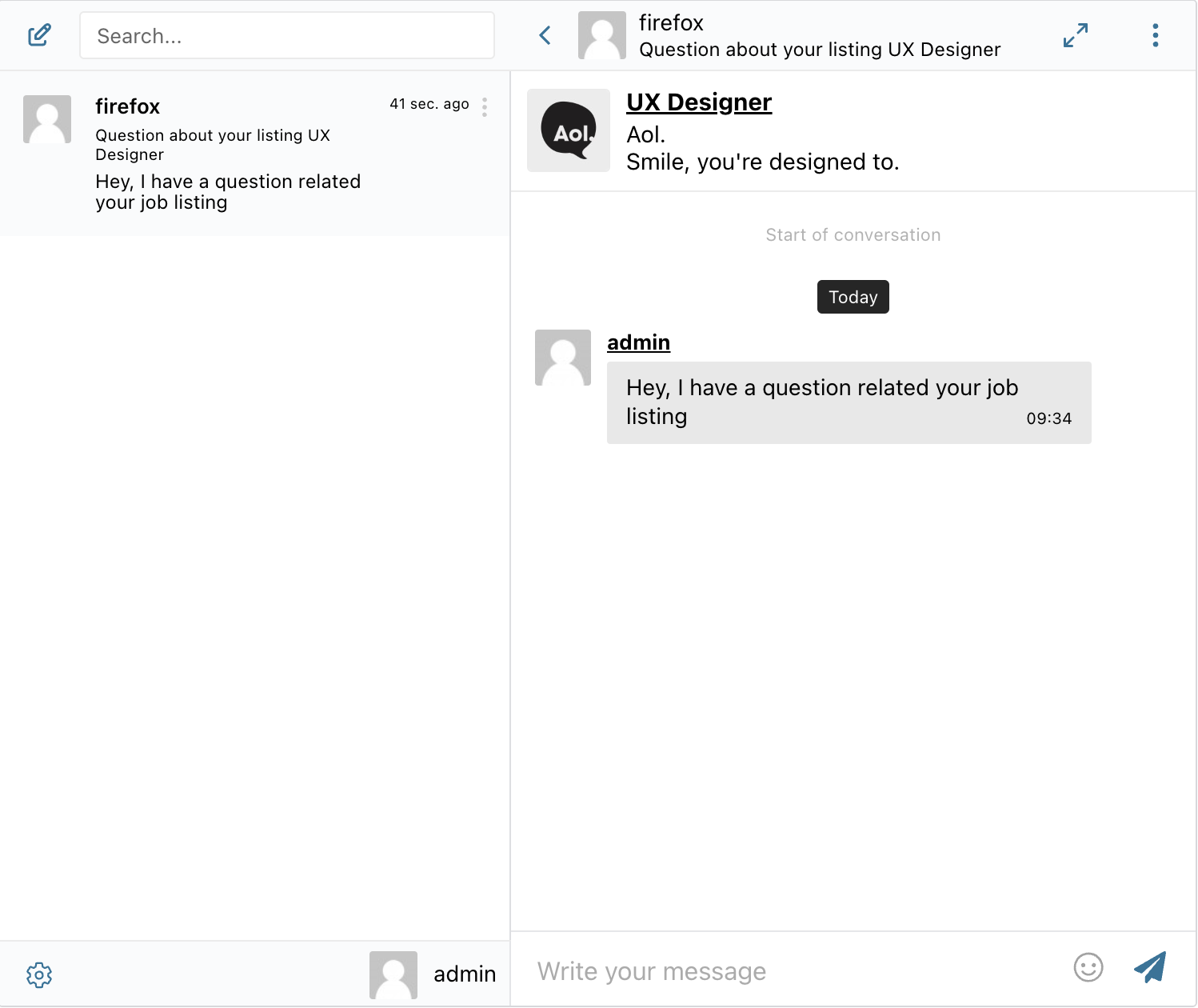
Clicking it opens a private conversation with the job listing's author — the employer who posted the role. From the candidate's side, the thread looks like any other Better Messages conversation: shared history, file uploads, reactions, the messenger's full feature set.
Automatic gating on filled and expired jobs
Job boards routinely have listings that should not receive new applications — the role is filled, or the listing has expired. The WP Job Manager integration handles both cases automatically:
- Filled jobs — once the employer marks the job as filled, the Send Message button stops rendering and existing thread participants cannot send new messages to that thread. The thread history is preserved.
- Expired jobs — same behavior on the expiry timestamp. Candidates who started a thread before the listing expired keep the history but cannot continue the conversation.
The intent is to let employers close out a hiring cycle without manually muting every thread.
Settings
The integration lives under Better Messages → Settings → Integrations → Directories → WP Job Manager.
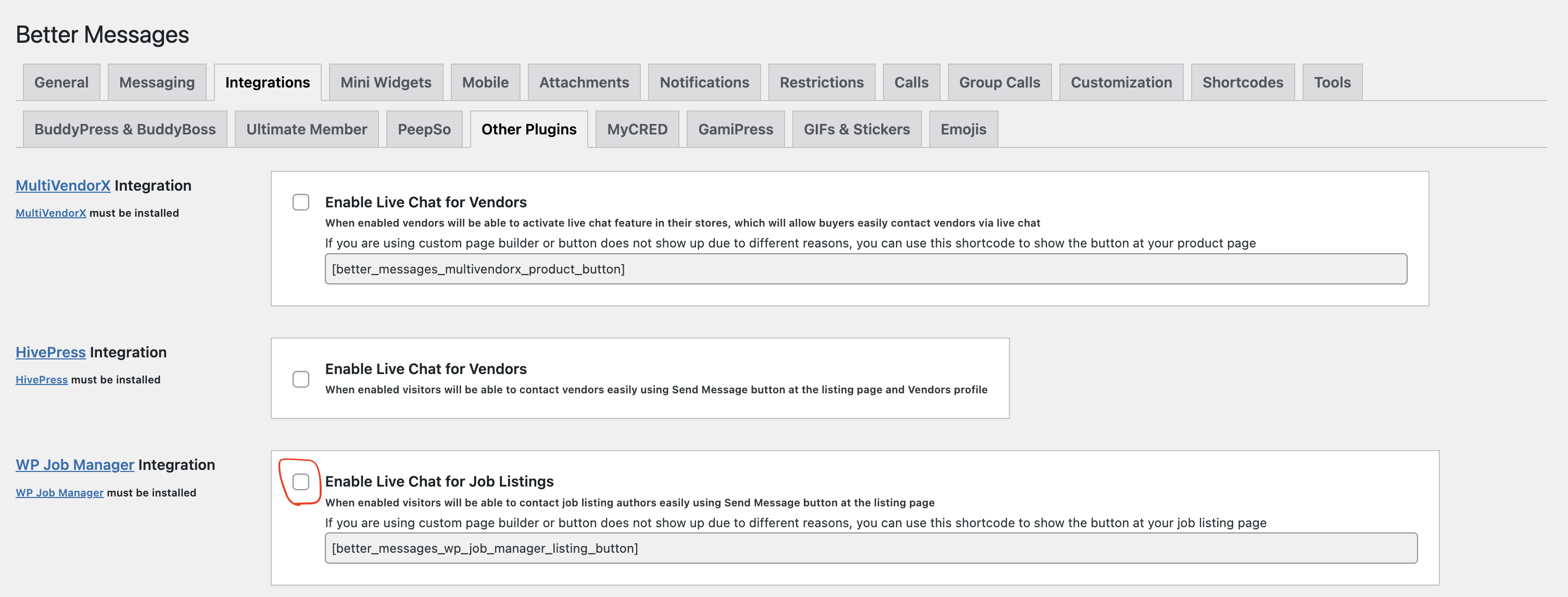
The toggle is Enable Live Chat for Job Listings. Once on, every active listing gets the button automatically — no per-listing setup is required.
Installing Better Messages on a WP Job Manager site
- Install Better Messages from WordPress.org and activate it.
- Install WP Job Manager if you have not already.
- Open WP Admin → Better Messages → Settings → Integrations → Directories.
- Find WP Job Manager Integration and toggle Enable Live Chat for Job Listings.
Free vs WebSocket version for job boards
| Feature | Free version | WebSocket version |
|---|---|---|
| Send Message button on active listings | yes | yes |
| Automatic gating on filled / expired jobs | yes | yes |
| Real-time delivery | polling | instant |
| Mini-widget popup (chat appears as an overlay on the listing) | — | yes |
| One-on-one voice and video calls inside the thread (mini interview) | — | yes |
| Group voice and video calls (panel interview with multiple hiring managers) | — | yes |
| Web push notifications for new messages | — | yes |
| Read receipts | — | yes |
For job boards monetizing employer subscriptions, the WebSocket version's voice / video call support effectively turns a job listing into a mini-interview platform — a candidate clicks the listing's Send Message button, the chat opens as an overlay, and the employer can start an audio or video call from inside the thread without redirecting either party to Zoom.
Frequently asked questions
Can candidates see other candidates' applications?
No — every thread is private between the candidate who started it and the employer who posted the listing.
Will the chat history be visible to the employer after the role is filled?
Yes — the messages stay readable on both sides. The integration only blocks new outgoing messages on filled and expired listings; existing history is preserved.
Can employers initiate the conversation?
Yes — once a candidate has started a thread, the employer can reply at any time. Employers can also send the first message from their own dashboard if they know the candidate's user.
Can guests (unregistered candidates) message employers?
Guest Chat is supported in Better Messages globally — whether it applies to WP Job Manager depends on whether your job board allows applications without registration. Most boards require a candidate account, in which case Guest Chat does not enter the picture.
Does it work with paid-listings extensions like WC Paid Listings?
Yes — the integration listens to WP Job Manager's listing-status hooks, which paid-listings extensions use to mark a listing active / filled / expired. The Send Message button behavior follows the listing status.
Can I move the button to a different position on the listing page?
Yes — the button is auto-rendered after the job description by default, but the position can be overridden with a custom hook priority, and the button can also be placed manually via shortcode if you prefer a custom template.
See also
- WP Job Manager integration documentation — full setup reference
- Real-time messaging — what changes with the WebSocket version
- Guest access — guest behavior in Better Messages
- Group conversations — for sites that need a group thread between a candidate and multiple hiring managers