Shortcode Builder: Live Chat Button on Any Custom Post Type, No PHP
Until this release, putting a Live Chat button onto a custom directory, a marketplace listing, or a real-estate agent profile that Better Messages didn't ship a dedicated integration for required PHP. You'd open the theme template, fetch get_the_ID(), look up a vendor user id from postmeta, build a unique tag per post, and finally call do_shortcode() with the right attributes. It worked, but every CPT meant another snippet to write and maintain.
Better Messages 2.15.9 ships a visual Shortcode Builder that does this for you. Point it at a sample listing, pick a few radio buttons, copy the resulting shortcode, paste it anywhere. The same shortcode then works for every listing of that shape — Better Messages resolves the target user, the conversation thread, and the in-chat banner against whichever listing the visitor is currently looking at.
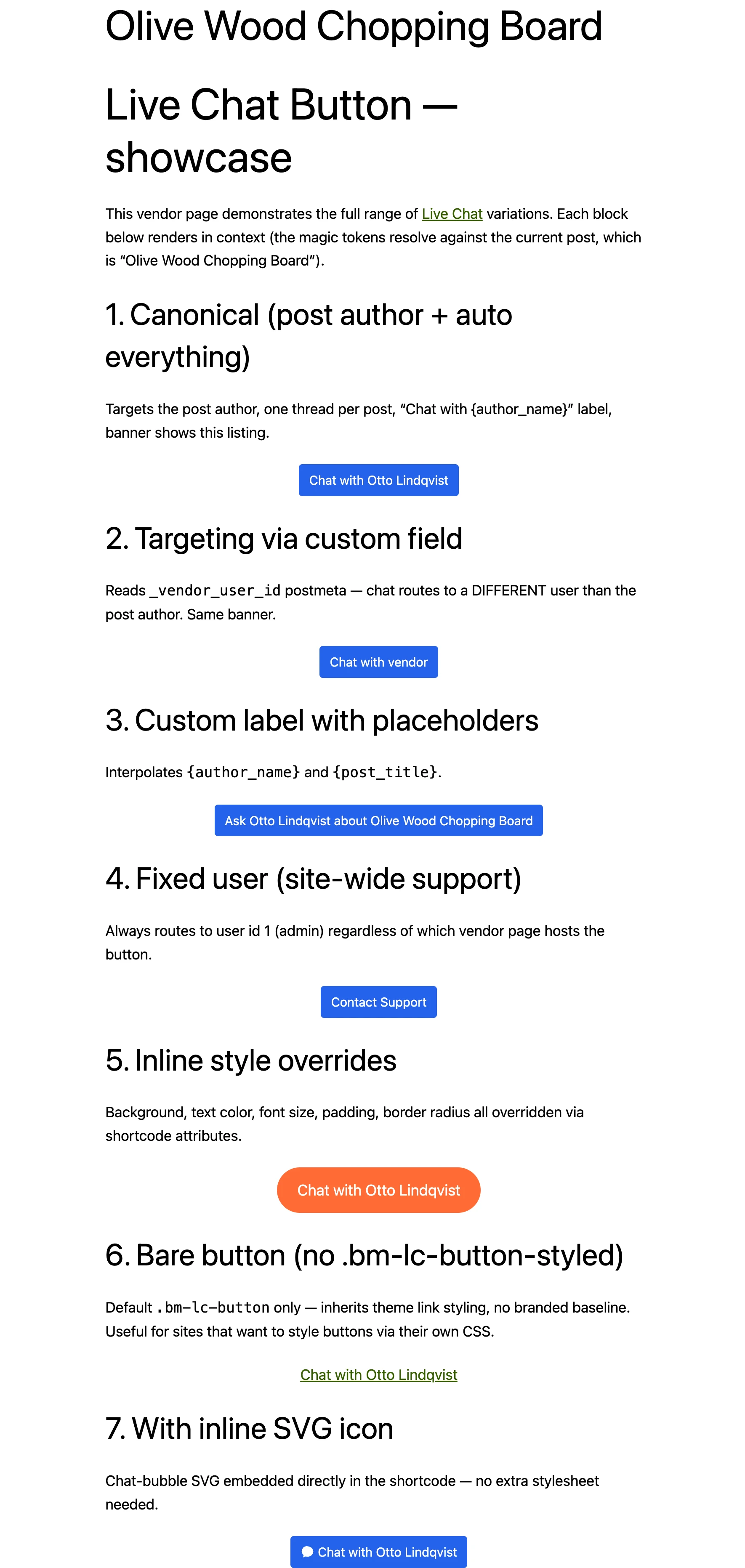
The Shortcode Builder#
Open WP Admin → Better Messages → Settings → Shortcodes. The first card is the new Builder.

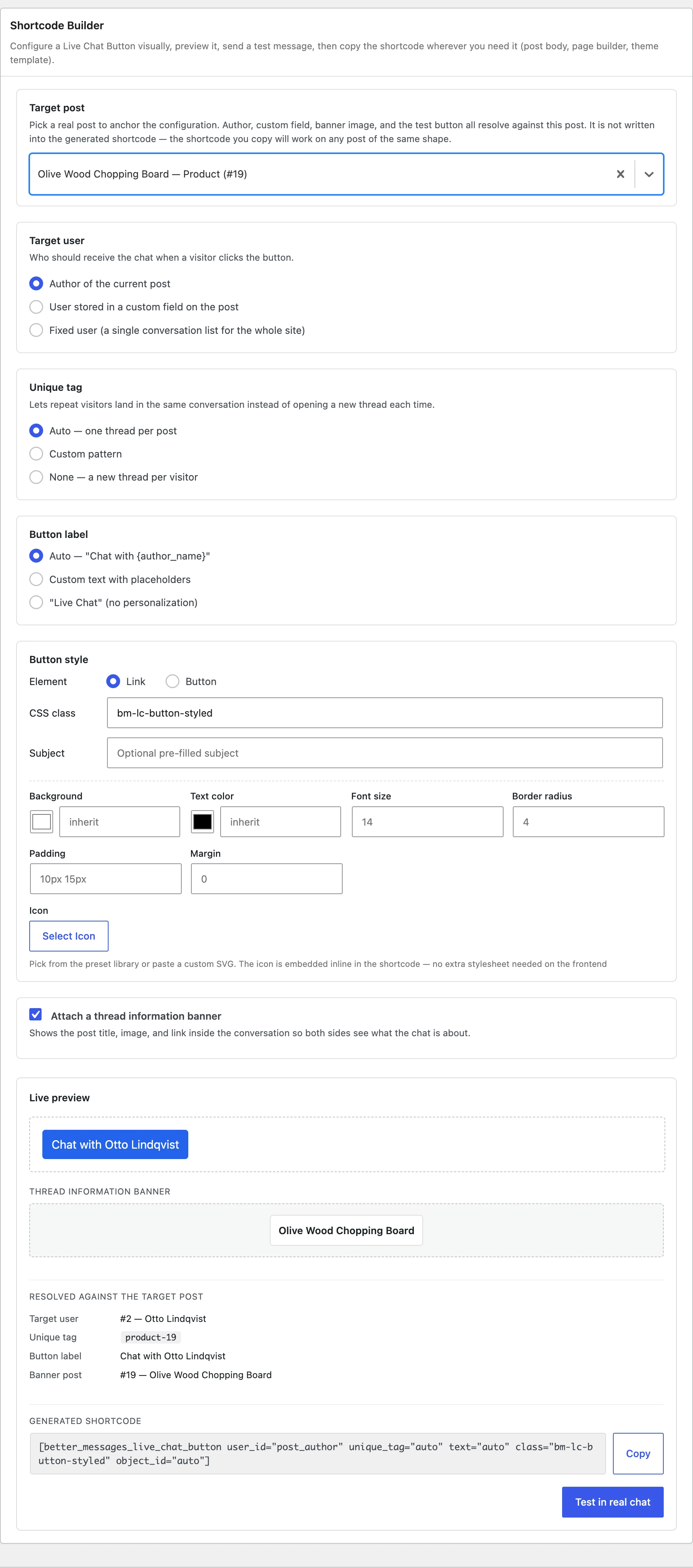
The flow:
- Pick a target post. This is just for previewing — a real listing whose values get plugged into the form so you can see exactly what visitors will see. It is not written into the generated shortcode. The shortcode you copy works on every post of the same shape.
- Choose how the target user is resolved. Three options:
- Author of the current post — chat goes to whoever wrote the listing. Works for blog posts, vendor profiles where the vendor is the WP author, agent CPTs, anything author-driven.
- User stored in a custom field on the post — chat goes to a user id stored in a postmeta key (e.g.
_vendor_user_id,agent_user_id,_listing_owner). The classic directory / marketplace pattern. - Fixed user (a single inbox for the whole site) — all visitors land in the same thread with one staff user. Site-wide support pattern.
- Pick a thread strategy.
Auto — one thread per postmeans repeat visitors to the same listing reopen the same conversation instead of starting fresh each time. Or set a custom pattern, or open a new thread per visitor. - Pick a label. Use
Auto — "Chat with {author_name}", write your own with placeholders like{post_title}and{author_name}, or stick to a plainLive Chat. - Tune the look — background color, text color, font size, padding, border radius, margin, an inline SVG icon. All optional. The default
bm-lc-button-styledclass already gives you a branded button out of the box, so most sites don't need to touch this section. - Attach a thread information banner — toggle on by default. More on this below.
- Click "Test in real chat" — opens the resolved conversation in a new tab so you can send a real message and see exactly what the visitor would see.
- Copy the generated shortcode and paste it into your post body, Gutenberg shortcode block, Elementor shortcode widget, or theme template.
The live preview on the right is an iframe that loads inside your active theme — fonts, colors, line heights all match what visitors will see on the frontend. Not a mockup.
The vendor-postmeta pattern, end to end#
A common case: you have a custom directory CPT (vendors, agents, businesses, freelancers, real-estate listings). Each listing has a postmeta key — say _vendor_user_id — pointing to the WordPress user account behind that listing. You want every listing page to have a "Chat with vendor" button that opens a thread with the right vendor — never the wrong one, never the listing author (which might be the site admin who imported the data).
Old way:
<?php
$vendor_user_id = get_post_meta( get_the_ID(), '_vendor_user_id', true );
$unique_tag     = 'vendor-' . get_the_ID();
echo do_shortcode(
    '[better_messages_live_chat_button '
    . 'user_id="' . esc_attr( $vendor_user_id ) . '" '
    . 'unique_tag="' . esc_attr( $unique_tag ) . '" '
    . 'text="Chat with vendor"]'
);
?>
New way — open the builder, switch Target user to User stored in a custom field on the post, type _vendor_user_id, hit Copy:
[better_messages_live_chat_button user_id="postmeta:_vendor_user_id" unique_tag="auto" object_id="auto" text="Chat with vendor" class="bm-lc-button-styled"]
Drop that shortcode into your vendor CPT's single template or post body once. On every listing page, the button automatically targets the user id stored in that listing's _vendor_user_id postmeta, opens or reuses a thread keyed by vendor-{post_id}, and attaches the listing as a banner.
Thread information banner — on any CPT#
Set object_id="auto" and the listing becomes a banner inside the conversation. Both participants see the listing's title, thumbnail, and link at the top of the thread — so there's no ambiguity about which property, which vendor, which job posting the chat is about.

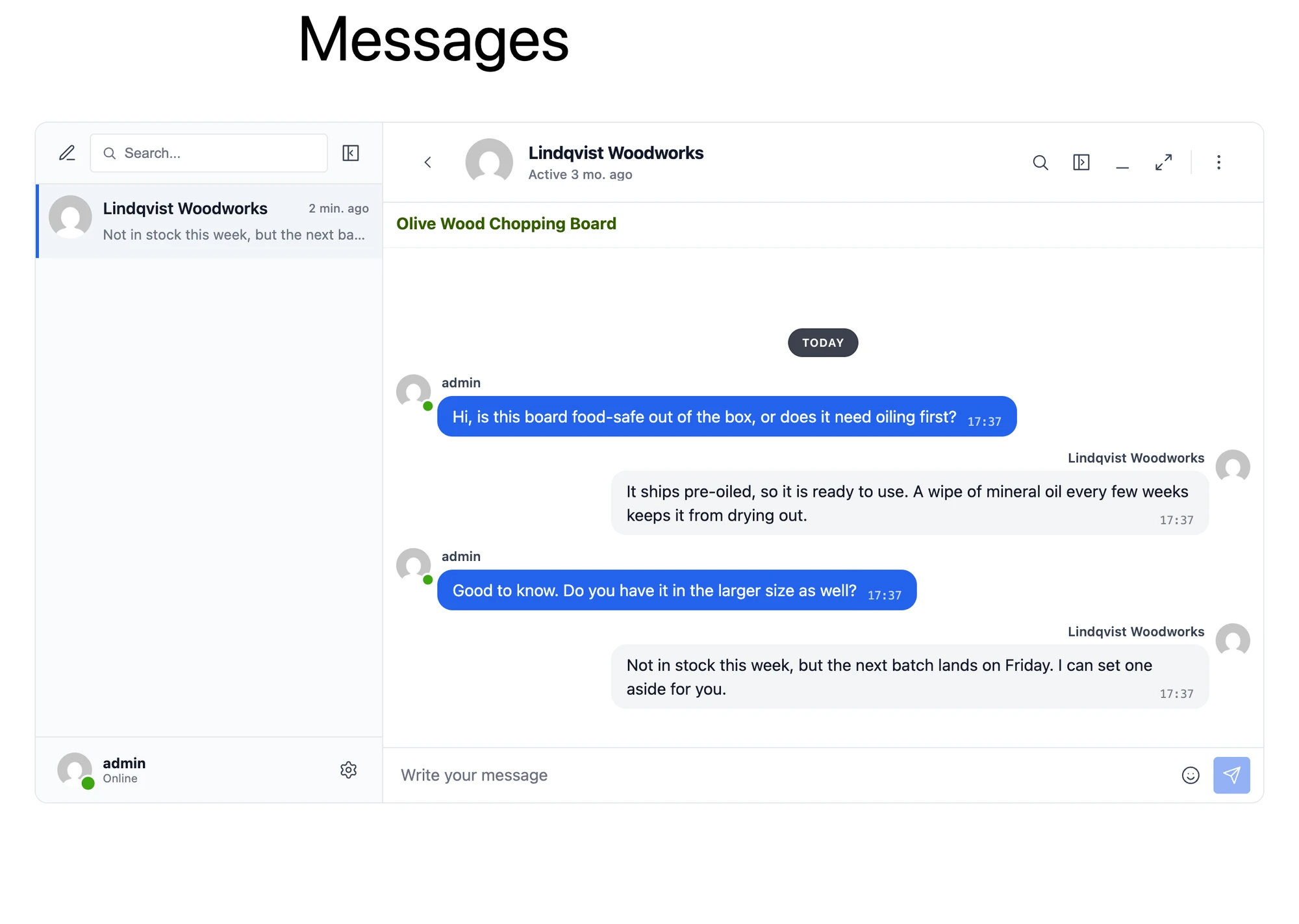
Until this release, the in-chat post banner only worked for the integrations Better Messages ships directly (WooCommerce, WP Job Manager, Houzez). For any other CPT, you had to write your own addon that hooked the better_messages_rest_thread_item filter. Now it works for any custom post type with no code — the post is published, the post id is attached at thread creation, the banner renders.
The banner is filterable via better_messages_thread_info_banner_html if you want to add custom fields (price, rating, availability, etc.) to the rendered banner.
Existing integration banners (WooCommerce product cards, WP Job Manager listings, Houzez property cards) continue to win when both are present — they hook the same filter at the default priority, the generic banner runs at priority 20.
Magic tokens, if you prefer writing shortcodes by hand#
The builder generates shortcodes that use a small set of "magic" attribute values. Each one resolves against the post the shortcode is rendered inside. You can hand-write them too:
| Attribute | Magic value | What it does |
|---|---|---|
user_id | post_author | Chat with the current post's author |
user_id | postmeta:KEY | Read a numeric user id from the named postmeta |
user_id | 5 | Hard-coded user id (existing behavior) |
unique_tag | auto | {post_type}-{post_id} — one thread per listing |
unique_tag | chat-{post_id}-{author_id} | Custom pattern with placeholders |
text | auto | Chat with {author_name} |
text | Ask {author_name} about {post_title} | Custom label with placeholders |
object_id | auto | Attach the current post as a banner |
The placeholders — {post_id}, {post_title}, {post_type}, {author_id}, {author_name} — work in text, subject, and the custom-pattern form of unique_tag. When the shortcode runs outside of a post (sidebar widget on the home page, for example), placeholders quietly collapse to safe defaults instead of leaking empty strings.
Style without writing CSS#
The Button style block in the Shortcode Builder includes color pickers and inline numeric inputs that map directly to CSS properties on the rendered button. Examples:
[better_messages_live_chat_button
    user_id="post_author"
    text="auto"
    class="bm-lc-button-styled"
    bg_color="#ff6b35"
    text_color="#ffffff"
    font_size="18px"
    padding="14px 24px"
    border_radius="999px"]
Renders an orange pill button. All values pass through WordPress's safecss_filter_attr — unsafe properties and javascript:-style URL values are stripped automatically.
The icon attribute takes inline SVG — picked from a preset library inside the builder, or pasted directly. The icon is embedded inside the shortcode itself, so no separate icon font (Dashicons, Font Awesome) needs to be loaded on the frontend. SVG content is sanitized: <script>, <foreignObject>, <iframe>, event handlers, and javascript: URLs are all stripped before render.
Backward compatibility#
Every shortcode you already wrote keeps working unchanged. Numeric user_id, plain text, the unique_tag you set six months ago, AI bot launchers with user_id="-3", type="button" versus the default link — all of it is preserved. The magic tokens are additive.
The bm-lc-button-styled class is opt-in. The raw [better_messages_live_chat_button] shortcode (no class) still renders an unstyled element so sites that style buttons themselves via CSS aren't disrupted.
Where to start#
If you maintain a custom post type and want a chat button on it, the Shortcode Builder is the fastest path. If you want every detail, the full docs page has the complete attribute reference, the placeholder grammar, and example shortcodes for every common pattern.
The Shortcode Builder ships in Better Messages 2.15.9 — available in both the free version on WordPress.org and the WebSocket version.