WooCommerce Customer Chat: Pre-Sales and Order Support
WooCommerce ships with the Contact form on the store page but no way for a shopper to ask a question about a specific product, ask whether items still fit in the cart, or follow up about an order they already placed. Better Messages adds a Contact button on each of those pages — product, cart, checkout, and order — and posts the cart contents or order details into the conversation as a rich context card so the support agent immediately sees what the customer is looking at.
This post covers what the WooCommerce integration adds, where each button shows up, and what the difference is between the free and WebSocket versions.
The four buttons WooCommerce gets
Each button is independent — enable any combination, choose where it appears, and pick a different support recipient for each.
Product page button
A Contact us about this product button on the single product page. When clicked, a thread opens with the recipient you have selected, and the product name, image, and price appear as a context card at the top of the conversation. Your agent immediately knows which product the customer is asking about.
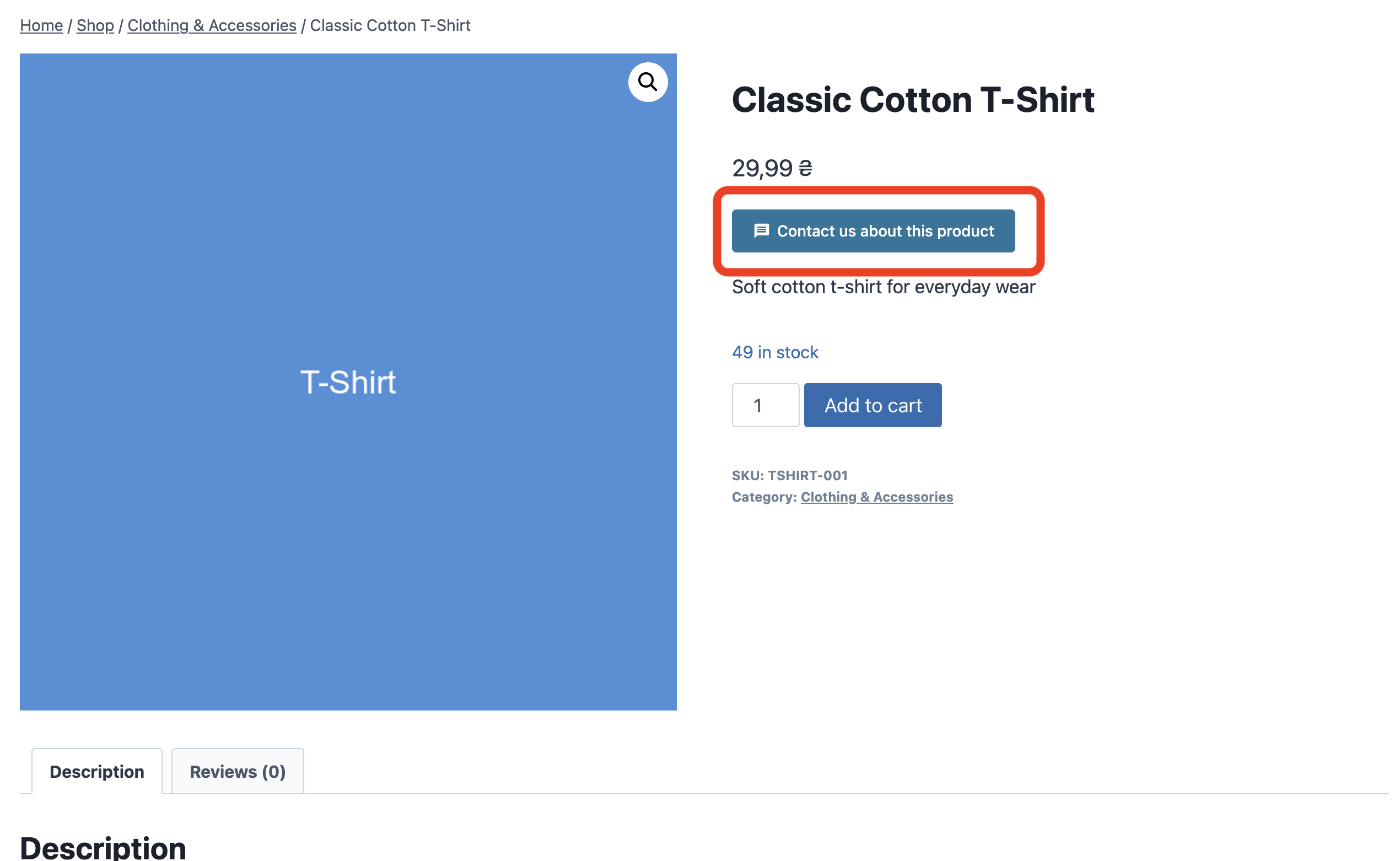
Four placements are supported (above summary, above add-to-cart, below add-to-cart, below summary) plus a manual [better_messages_woocommerce_product_button] shortcode for custom builders. A per-product override on the product edit screen lets you route specific products to different agents.
Cart and checkout pre-sales button
A Need help? Chat with us button on the cart and checkout pages. When the customer opens the chat, the contents of their cart are automatically posted as the first message — a rich card with each item, price, and a link back to its product page.
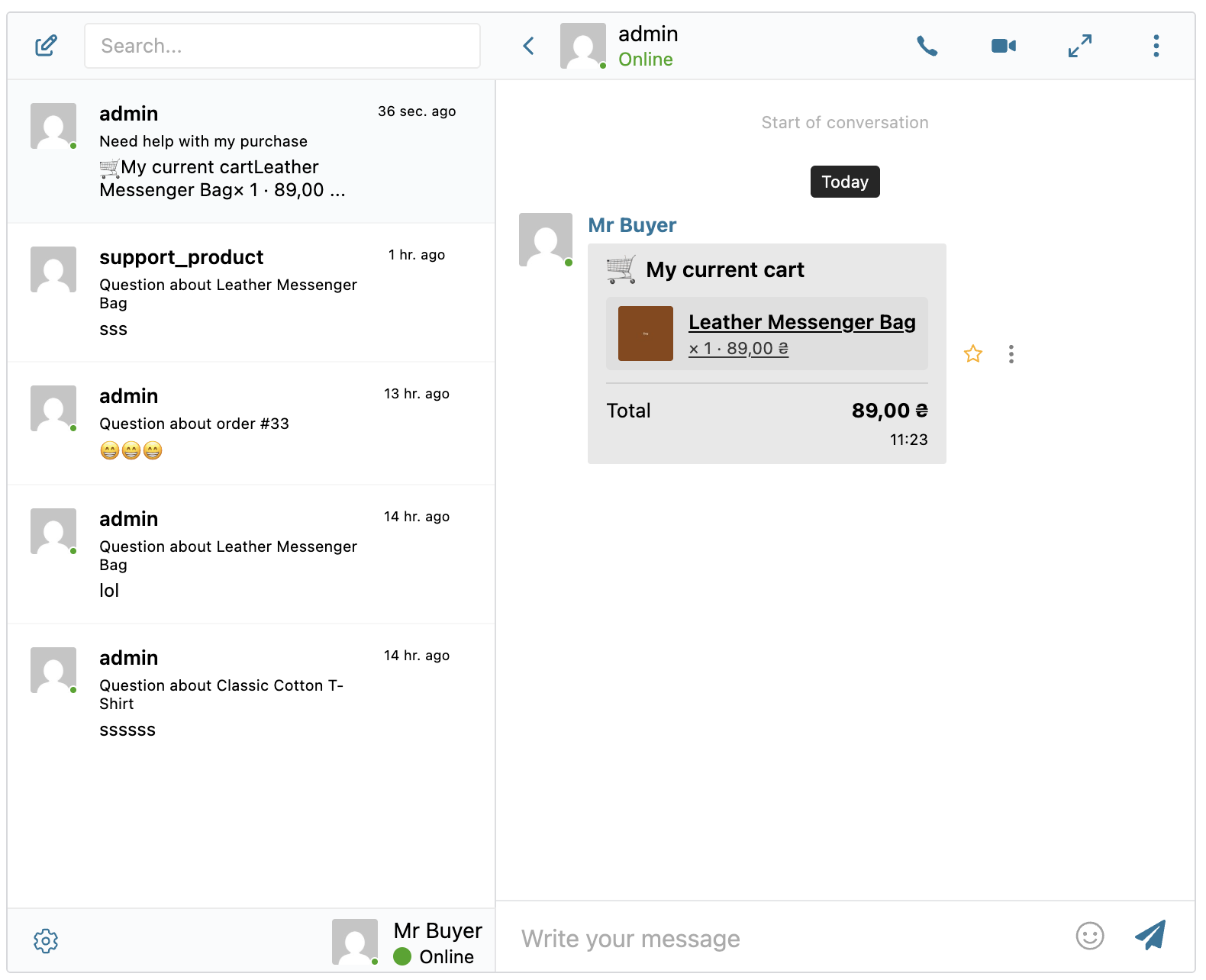
The cart snapshot is content-aware: if the cart changes and the customer reopens the chat, a new snapshot is posted; if the cart has not changed, no duplicate message is sent.
Five placements on cart, four on checkout, plus a [better_messages_woocommerce_pre_purchase_button] shortcode for manual placement.
Order page button
A Contact us about this order button on the My Account → View Order page. Only the customer who placed the order sees the button; the thread is tagged with the order, and the support agent sees order details (number, status, total, items) as a context card.
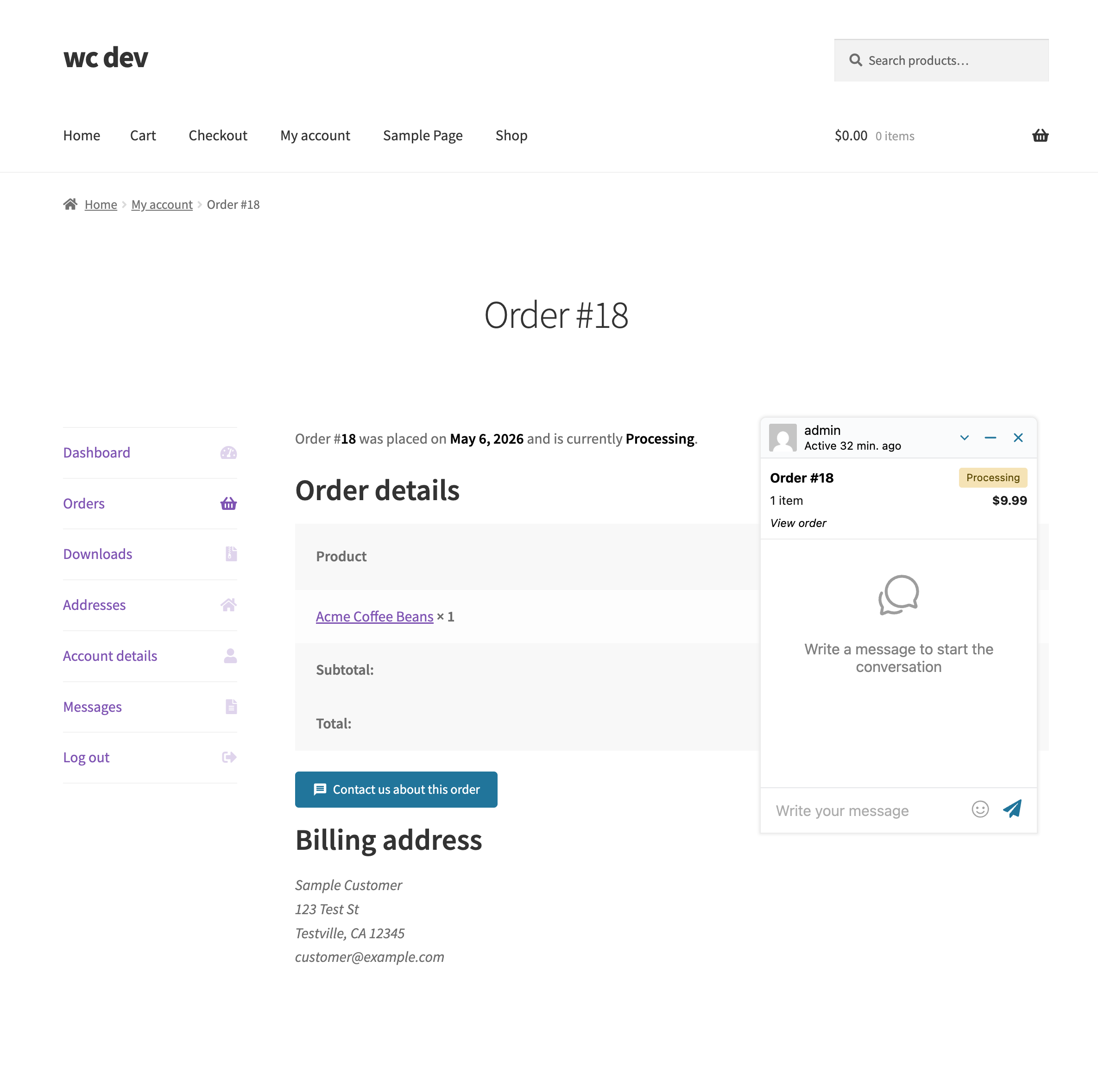
The thread sidebar also includes a View order link that is role-aware: admins and shop managers are routed to the wp-admin order edit screen, customers to their My Account → View Order page.
My Account inbox link (or full inbox embedded as a tab)
A Messages item is added to the WooCommerce My Account menu, linking to the customer's inbox. Optionally, the entire Better Messages inbox can be rendered as a tab inside My Account instead:
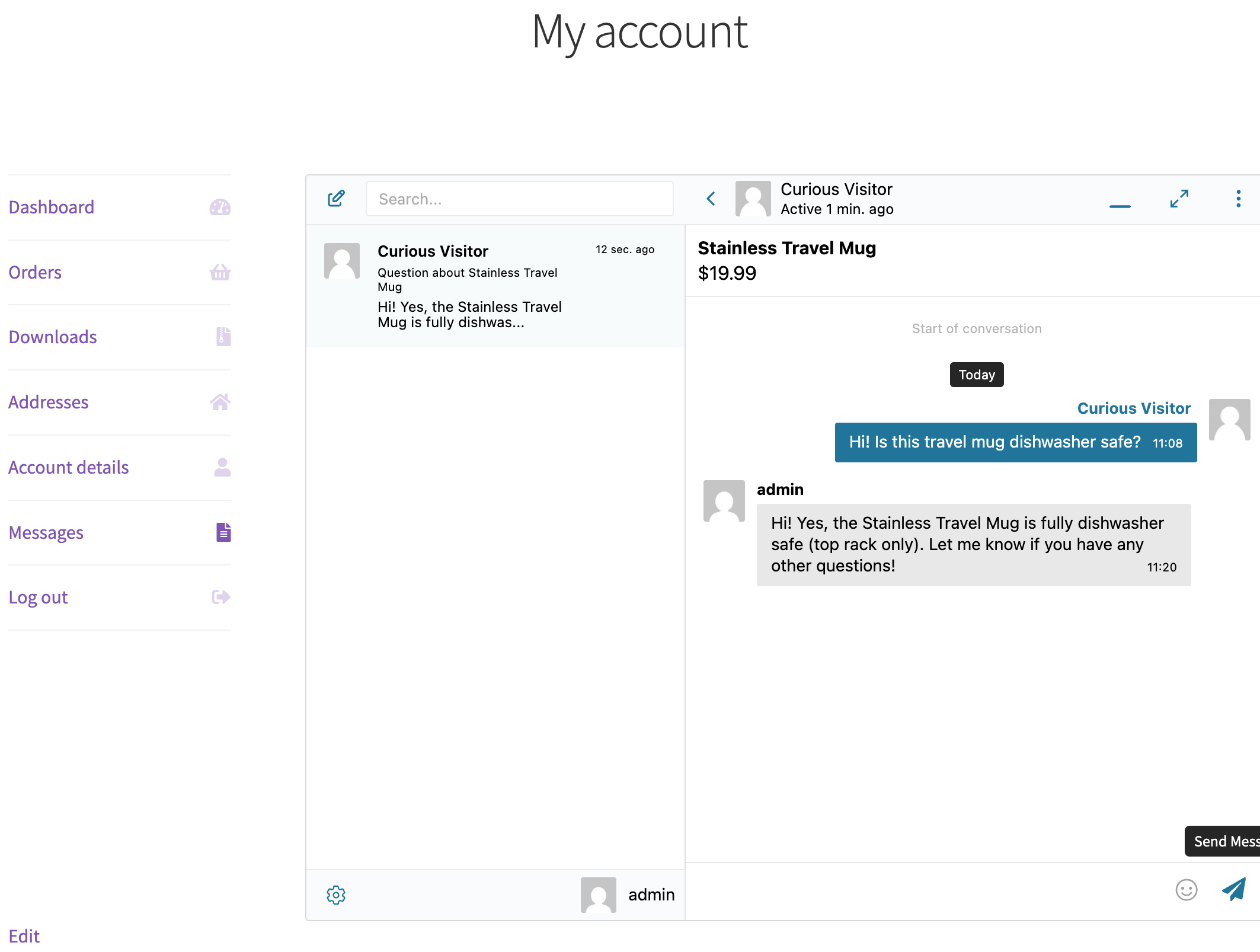
This is enabled at Better Messages → Settings → General → Messages Location → Show in WooCommerce My Account.
Settings
Every WooCommerce integration setting lives at Better Messages → Settings → Integrations → WooCommerce.
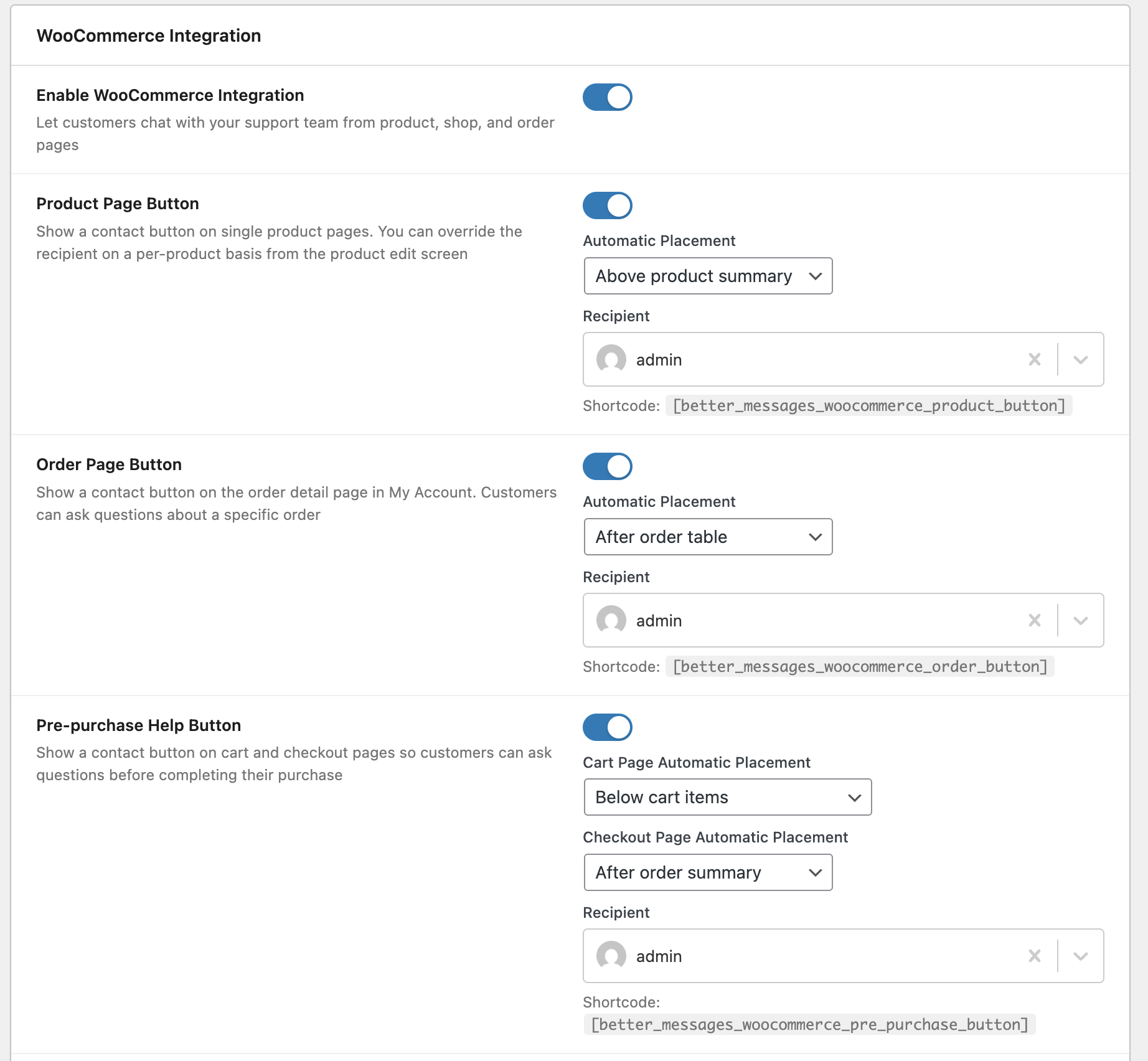
Each button has its own toggle, placement options, and recipient. A button is silently hidden if no recipient is assigned to it.
Installing Better Messages on WooCommerce
- Install Better Messages from WordPress.org and activate it.
- Open WP Admin → Better Messages → Settings → Integrations → WooCommerce and toggle Enable WooCommerce Integration.
- For each button you want active, pick a Recipient (the support user who receives the messages).
- Optionally pick placements for each button.
Free vs WebSocket version for WooCommerce stores
| Feature | Free version | WebSocket version |
|---|---|---|
| Product / Cart / Checkout / Order buttons | yes | yes |
| Cart snapshot as a rich message | yes | yes |
| Per-product recipient override | yes | yes |
| Rich product cards from pasted URLs | yes | yes |
| HPOS (High-Performance Order Storage) compatibility | yes | yes |
| Real-time replies | polling | instant |
| Mini-widget popup (chat appears as an overlay; the cart / checkout page stays visible) | — | yes |
| One-on-one voice and video calls from the support thread | — | yes |
| Group voice and video calls (e.g. customer + multiple agents) | — | yes |
| Web push notifications for new messages | — | yes |
| Guest fallback to mini widget when Messages Location is My Account | — | yes |
| End-to-end encryption (optional per thread) | — | yes |
The mini-widget popup is the single biggest UX change with the WebSocket version on WooCommerce. Without it, every click on a Contact button navigates to the messages page — useful, but it interrupts the shopping flow. With it, the conversation pops up as an overlay and the customer keeps their cart, checkout, or product page visible while chatting with support.
If guest checkout is enabled and Messages Location is set to Show in WooCommerce My Account (a logged-in-only page), the WebSocket version automatically falls back to the popup mini chat for guests — they get a clean inline chat experience without being redirected to wp-login. The free version requires you to either put the messages page on a public WordPress page or disable Guest Chat.
Frequently asked questions
Can different products go to different support agents?
Yes — set a global recipient in WooCommerce integration settings, then override it per product from the product edit screen using the Better Messages Contact sidebar metabox. Useful when different product categories are handled by different teams.
Does it work with HPOS?
Yes — High-Performance Order Storage is supported. Orders are read through WooCommerce's CRUD layer, so HPOS sites work without any extra configuration.
Does it work with the modern Cart and Checkout blocks?
Yes — both the legacy [woocommerce_cart] / [woocommerce_checkout] shortcodes and the modern WooCommerce Cart and Checkout blocks are supported.
Will the conversation be tied to the customer's order in wp-admin?
Yes — when a customer chats from the order page, the thread is tagged with the order and is reachable from the order screen via the View order sidebar link.
Can guests use the pre-sales chat?
Yes — Guest Chat must be enabled in Better Messages → Settings → General. Guests enter a name and email, then chat with support. The thread is preserved if they later register and place an order.
Does it work alongside other live-chat plugins like Tawk or Crisp?
It can — Better Messages handles on-site customer-to-support chat, and external live-chat widgets handle anonymous visitors. The two do not conflict, though most stores standardize on one to avoid two chat bubbles competing for the customer's attention.
See also
- WooCommerce integration documentation — full setup reference with every option
- Dokan vendor chat plugin — the marketplace counterpart for vendor ↔ customer chat
- Real-time messaging — what changes with the WebSocket version
- Guest access — how guest checkout customers chat