Better Messages for WooCommerce: Pre-Sales and Order Support Chat
The WooCommerce integration for Better Messages adds a Contact button to product, cart, checkout, and order pages, so customers can reach your support team in one click. When a customer starts a chat from the cart or checkout, the contents of their cart are auto-posted as a rich message. When they start from an order page, the order details appear as a context card. HPOS-compatible, block-theme-compatible, and works with guest checkout. Both the free and WebSocket versions support the integration.
To install the plugin ensure that your website running:
- WordPress 5.9 or newer
- PHP 7.4 or newer
The WooCommerce integration adds a contact button to product, cart, checkout, and order pages so customers can reach your support team in one click. When a customer starts a chat from the cart or checkout, the contents of their cart are automatically posted into the conversation as a rich message — your support agent immediately sees what the customer is looking at without having to ask. Plain product URLs pasted in any chat message are also expanded into rich product cards.
All four buttons, the cart snapshot, the product/order context cards, the rich product URL expansion, and the embedded inbox in My Account work on both the free and WebSocket versions.
The WebSocket version adds a popup mini-widget UX: clicking any contact button opens the conversation as a mini chat overlay instead of navigating to the configured chat page. The free version navigates to the configured chat page on every click. When the chat page is WooCommerce My Account (login-only), point guests at a separate Guest Messages Page — see Guest chat with WC My Account below.
Installation#
How to install WooCommerce#
Download WooCommerce from the WordPress.org plugin directory and install it through the Plugins → Add New screen, or upload the plugin files to /wp-content/plugins/woocommerce.
How to install Better Messages with WooCommerce#
- Install the Better Messages plugin through the WordPress plugins screen, or upload the plugin files to
/wp-content/plugins/bp-better-messages. - Activate the plugin through the Plugins screen.
- Go to Better Messages → Settings → Integrations → WooCommerce and enable the integration.
Settings#
All WooCommerce integration settings live in Better Messages → Settings → Integrations → WooCommerce.
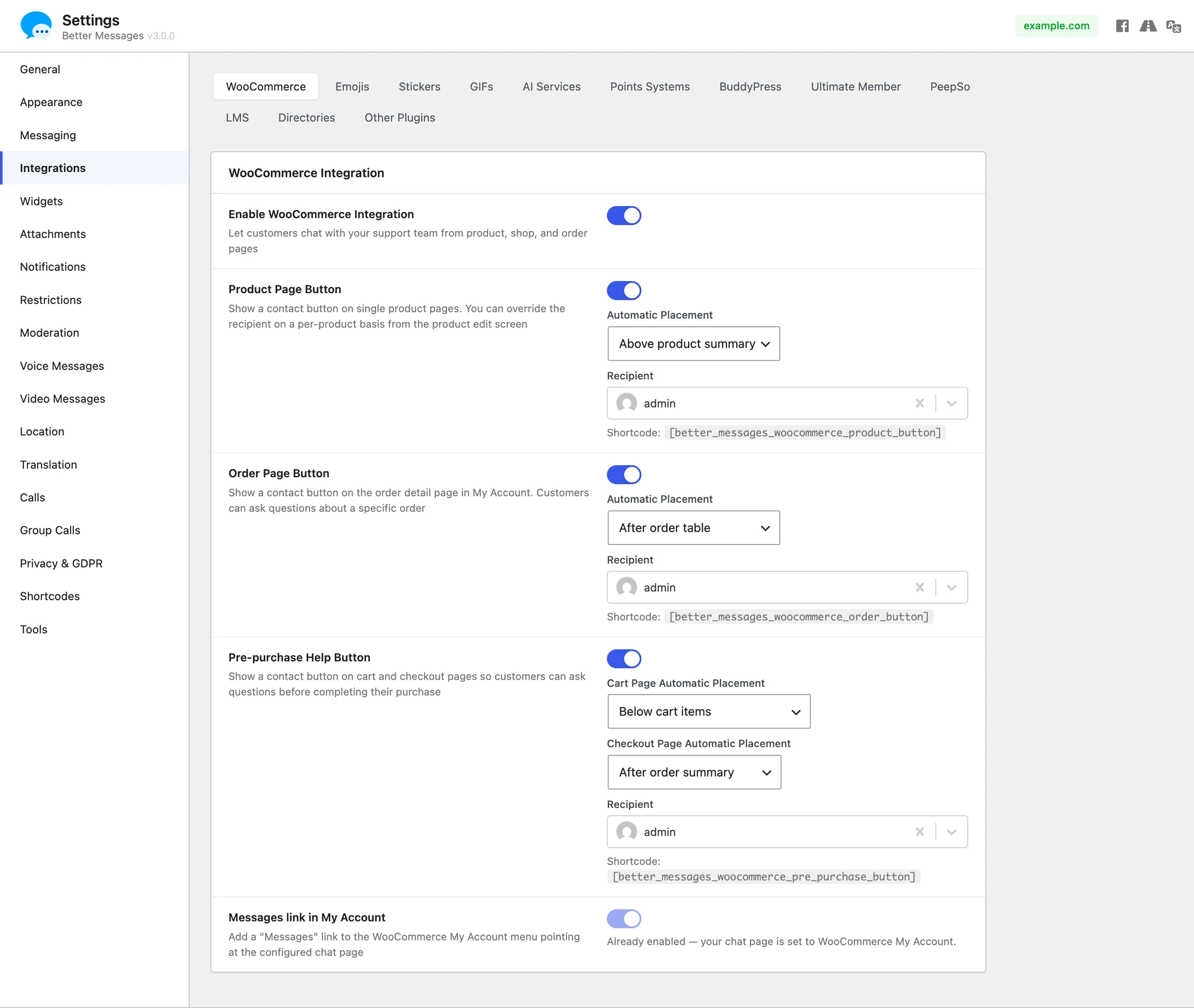
Each button is independent — you can enable any combination, choose where it appears, and pick a different recipient for each.
Enable WooCommerce Integration#
The master toggle for the entire integration. When off, none of the buttons appear and none of the WooCommerce-specific message features run.
Each button (Product / Order / Pre-purchase) requires a Recipient to be selected before it renders on the front end. Without a recipient the button is silently hidden. Product and Order buttons are enabled by default. The Pre-purchase button is off by default and must be enabled explicitly.
Product Page Button#
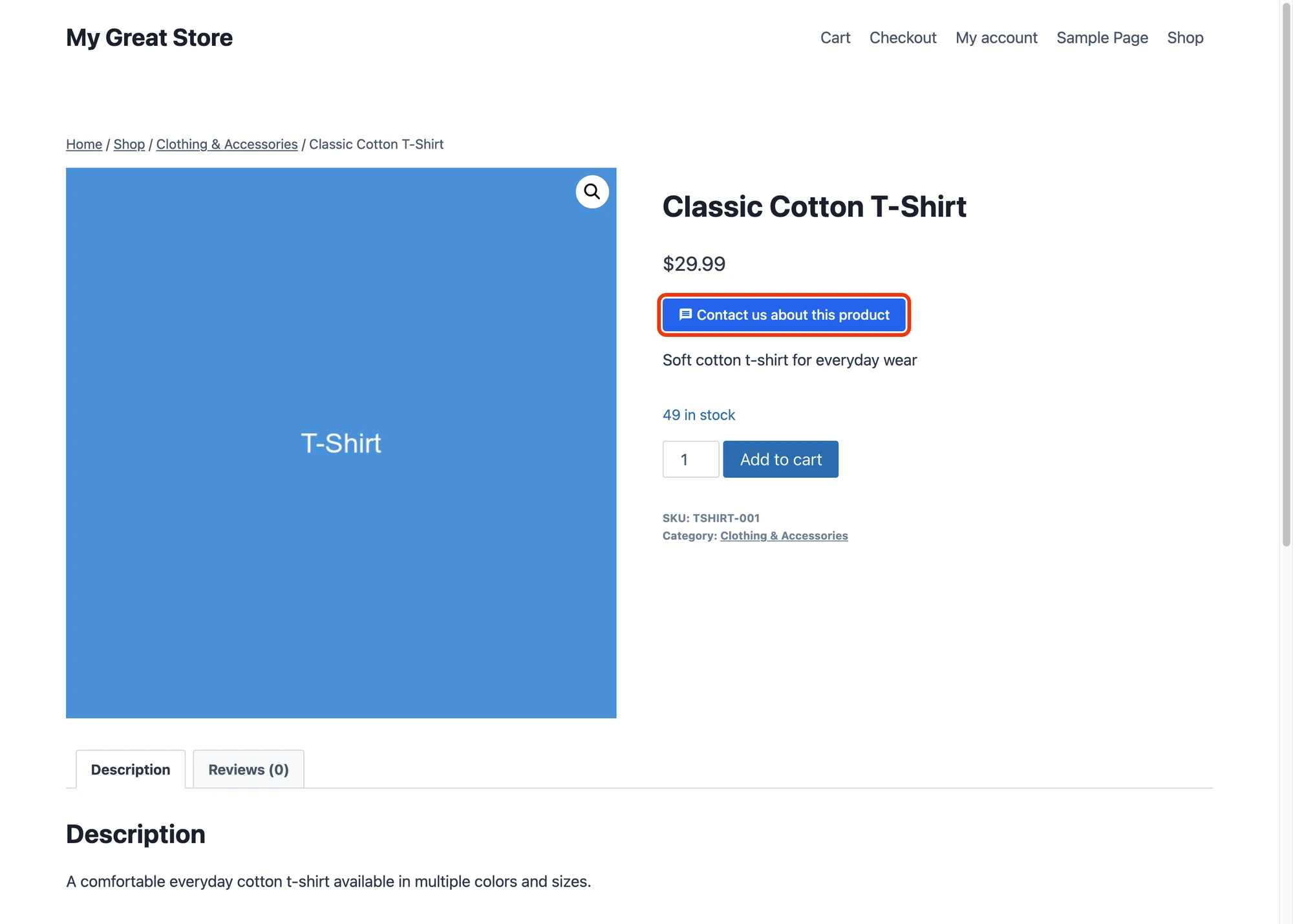
Adds a "Contact us about this product" button on single product pages. When a customer clicks it, a conversation opens with the recipient you've selected. The conversation thread shows the product name, image, and price as a context card so the support agent immediately knows which product the customer is asking about.
Automatic Placement#
Pick where the button appears on the product page:
- Above product summary — directly above the short description
- Above Add to Cart — between the short description and the add-to-cart form
- Below Add to Cart (default) — directly below the add-to-cart form
- Below product summary — at the bottom of the entire product summary block
- Disabled — the button is not auto-rendered. Use the shortcode below to place it manually
The placements work in both classic themes and modern block themes.
Recipient#
The user who receives messages from the product button. You can override this on a per-product basis from the product edit screen — useful when different products are handled by different support agents.
Per-product override#
On the product edit screen, the Better Messages Contact sidebar metabox lets you override the global recipient for that specific product. Leave it on "Use default" to fall back to the global setting.
Shortcode#
If you'd rather place the button manually (custom template, page builder, custom location), use:
[better_messages_woocommerce_product_button]
When placed on a single product page, the shortcode auto-detects the current product. You can also pass an explicit product_id attribute.

Order Page Button#
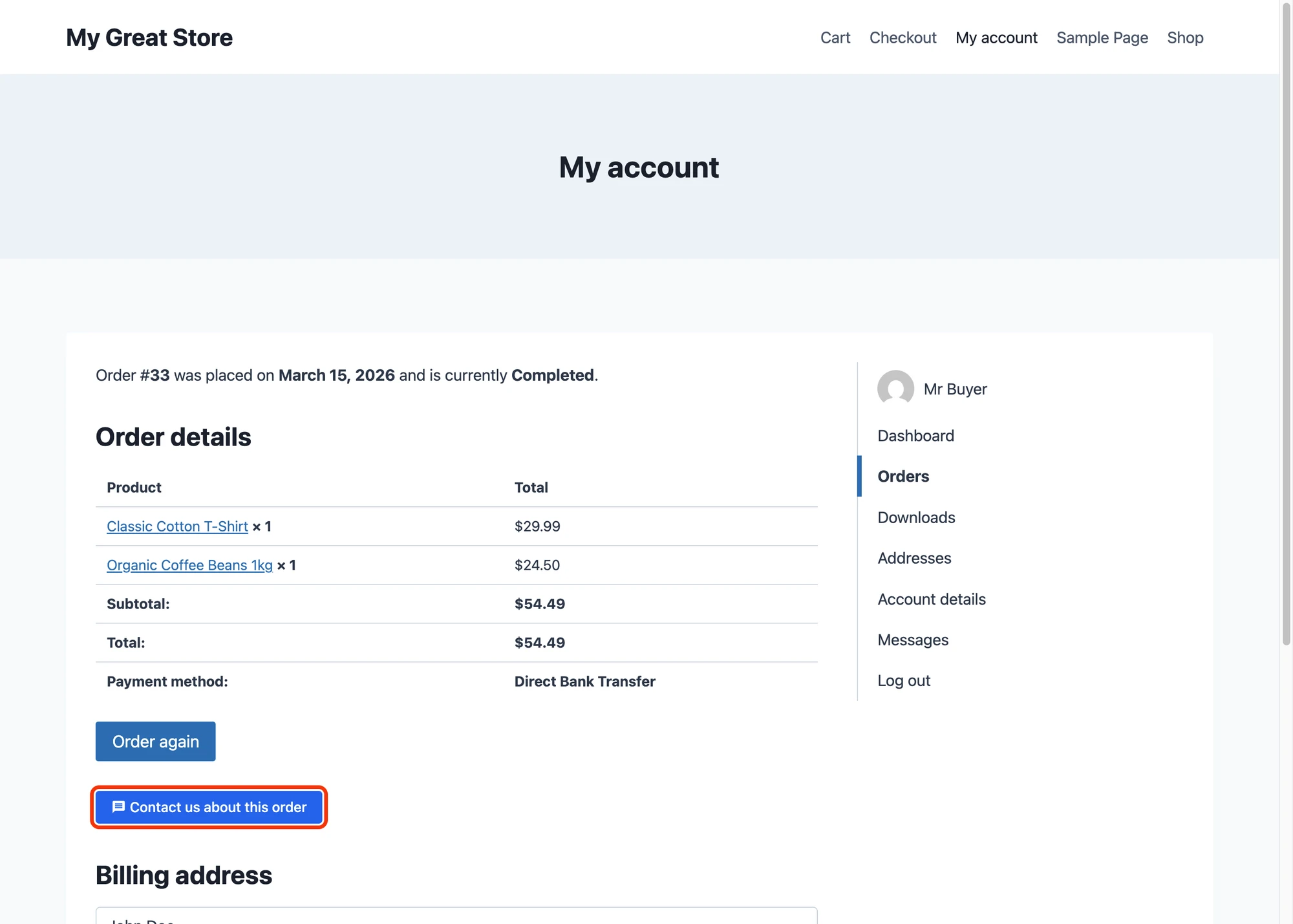
Adds a "Contact us about this order" button on the order detail page in My Account → View order. Only the customer who placed the order can see and use this button — the conversation thread is tagged with the order, and the support agent sees order details (number, status, total, items) as a context card.
Automatic Placement#
- Before order table — above the order items table
- After order table (default) — directly below the order items table
- After customer details — at the bottom of the View Order page
- Disabled — manual placement only
Recipient#
The user who receives messages from the order button. Typically a dedicated order/billing support team.
View order link#
The thread sidebar shows a "View order" link. The link is role-aware — it routes admins and shop managers to the wp-admin order edit screen, and customers to their My Account → View Order page. Same URL, different destinations.
Shortcode#
[better_messages_woocommerce_order_button]
Auto-detects the current order on the View Order endpoint. You can also pass order_id="123" explicitly.

Pre-purchase Help Button#
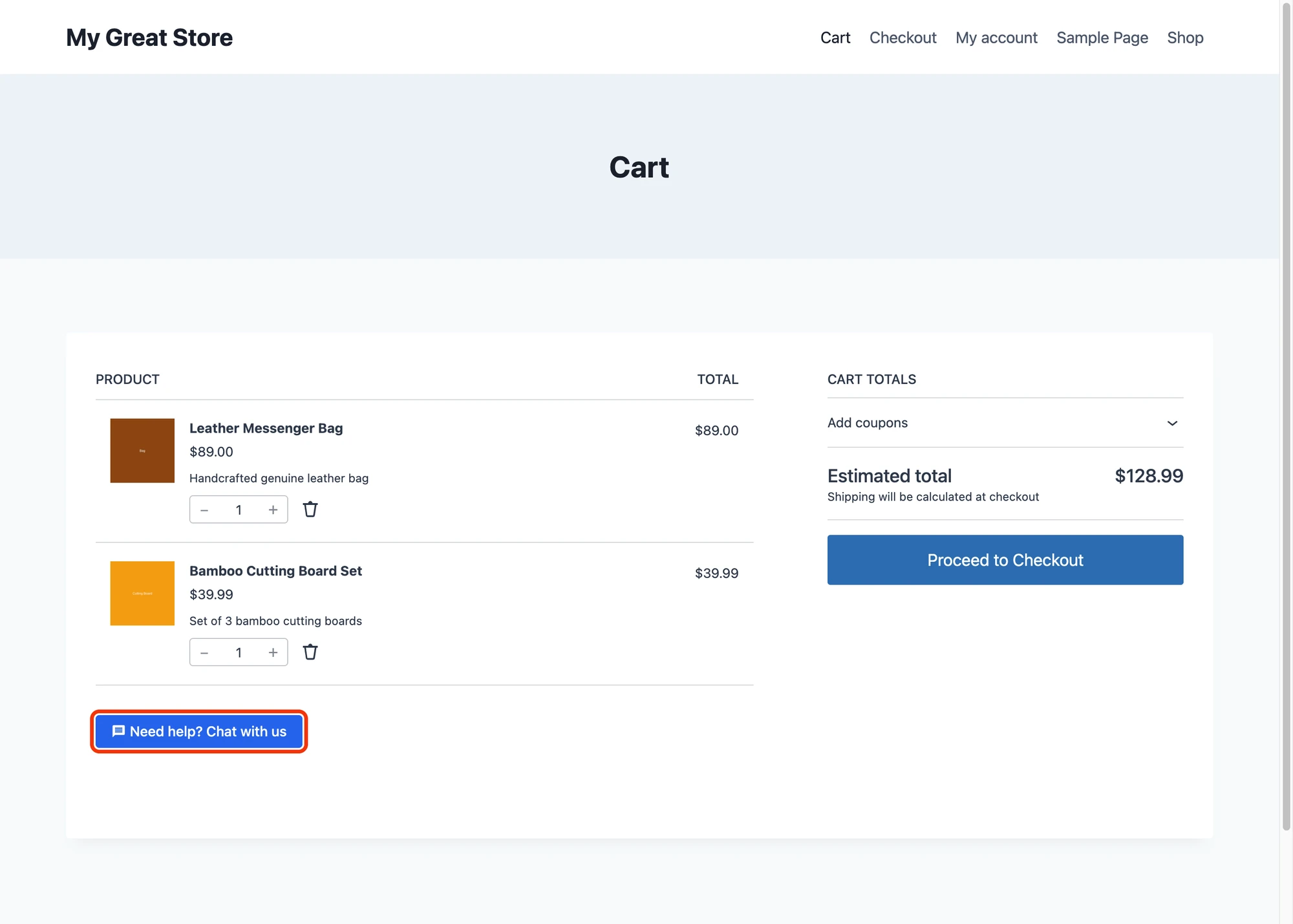
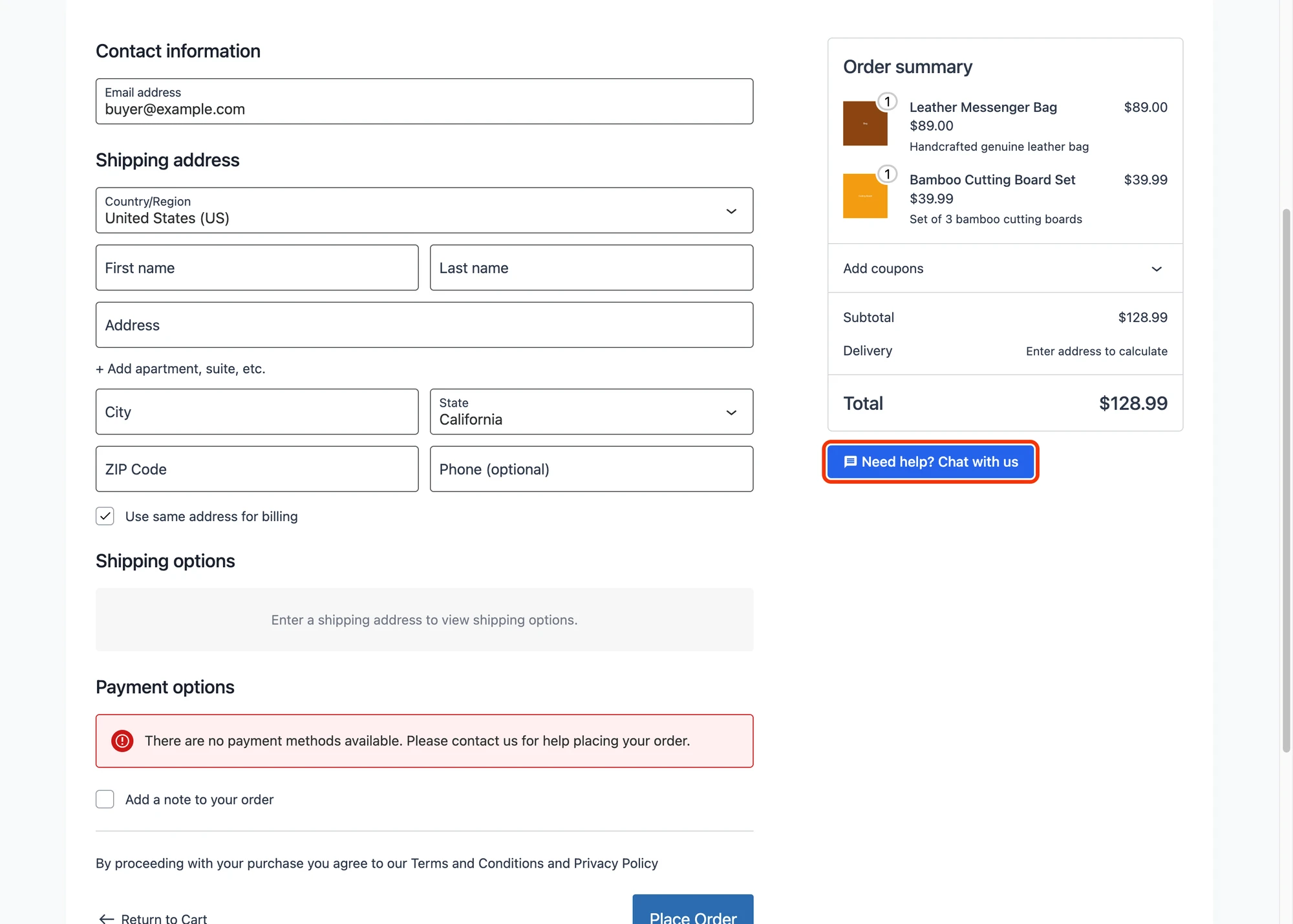
Adds a "Need help? Chat with us" button on the cart and checkout pages so customers can ask questions before completing their purchase. When the customer opens the chat, the contents of their cart are automatically posted as the first message — your support agent sees exactly what the customer is buying without having to ask.
The cart snapshot is content-aware: if the customer changes their cart and reopens the chat, a new snapshot is posted. If the cart hasn't changed since the last snapshot, no duplicate message is sent.
Cart Page Automatic Placement#
- Below cart items (default) — under the cart items table
- Top of cart page — above everything
- Near cart totals — alongside the totals/coupon area
- Next to "Proceed to checkout" — right beside the proceed button
- Bottom of cart page — at the very bottom
- Disabled — manual placement only

Checkout Page Automatic Placement#
- After order summary (default) — directly under the entire Order summary card
- Top of checkout page — above the checkout form
- Above order summary — between the form and the order summary
- Bottom of checkout page — below everything
- Disabled — manual placement only

Recipient#
The user who receives pre-purchase questions. Typically your front-line sales support.
Shortcode#
[better_messages_woocommerce_pre_purchase_button]
Place the shortcode anywhere on cart, checkout, or any other page where you'd like a pre-sales contact button.
Cart snapshot in the chat#
Once the customer opens the chat from the cart or checkout page, the cart contents appear in the thread as a rich message:

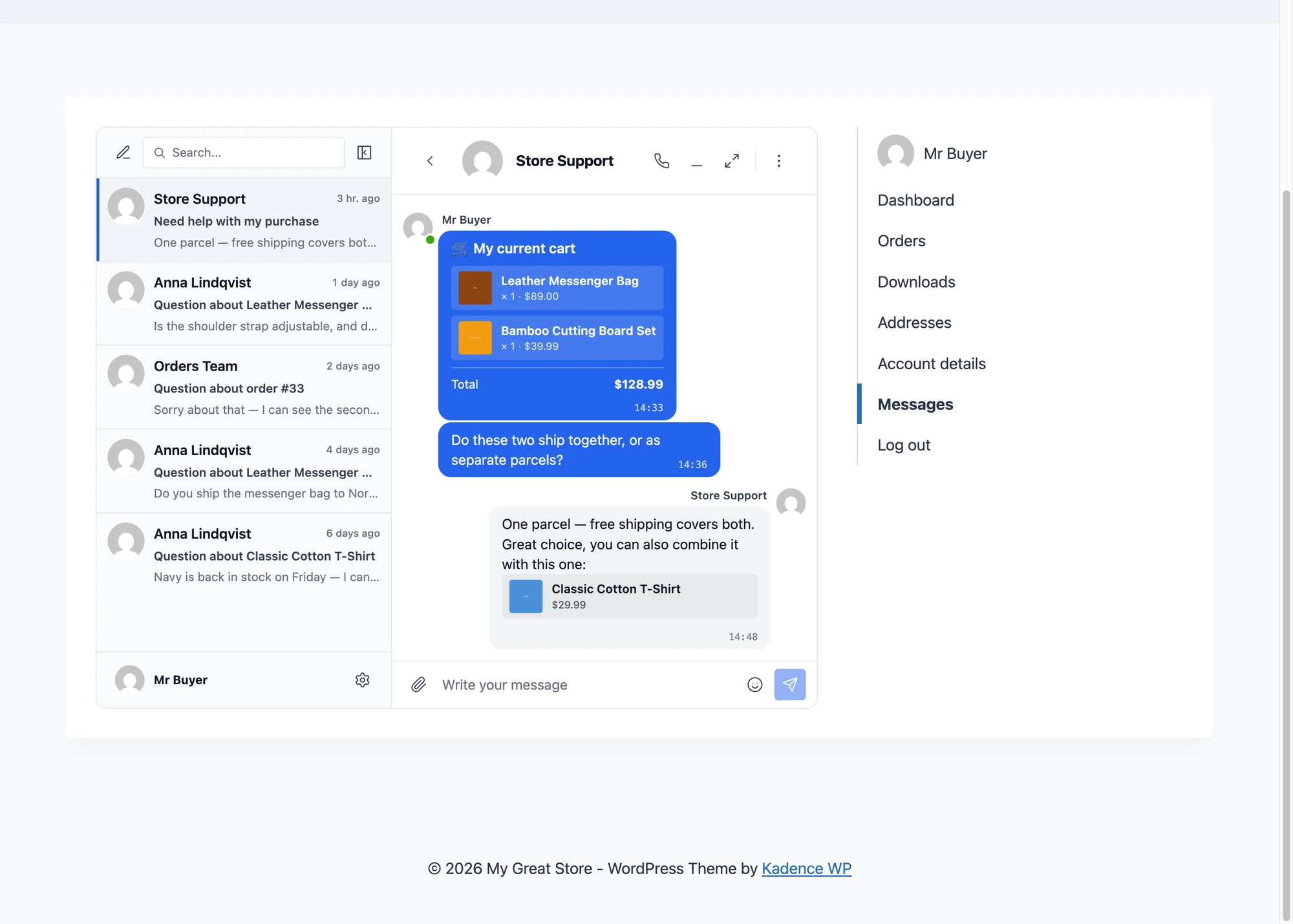
Each item is clickable and links back to its product page so the support agent can quickly inspect what the customer is looking at.
Messages link in My Account#
Adds a "Messages" item to the WooCommerce My Account menu that links to the Better Messages inbox. When this is enabled and your Messages Location (in the General tab) is set to a regular WordPress page, customers can quickly access their conversations from My Account without leaving the WooCommerce navigation.
This toggle is automatically disabled (and forced on) when your Messages Location is set to "Show in WooCommerce My Account" — see the next section.
Embedding the inbox inside WooCommerce My Account#
If you'd rather render the entire Better Messages inbox as a tab inside WooCommerce My Account (instead of a link to a separate page), go to Better Messages → Settings → General → Messages Location and pick "Show in WooCommerce My Account" from the dropdown.

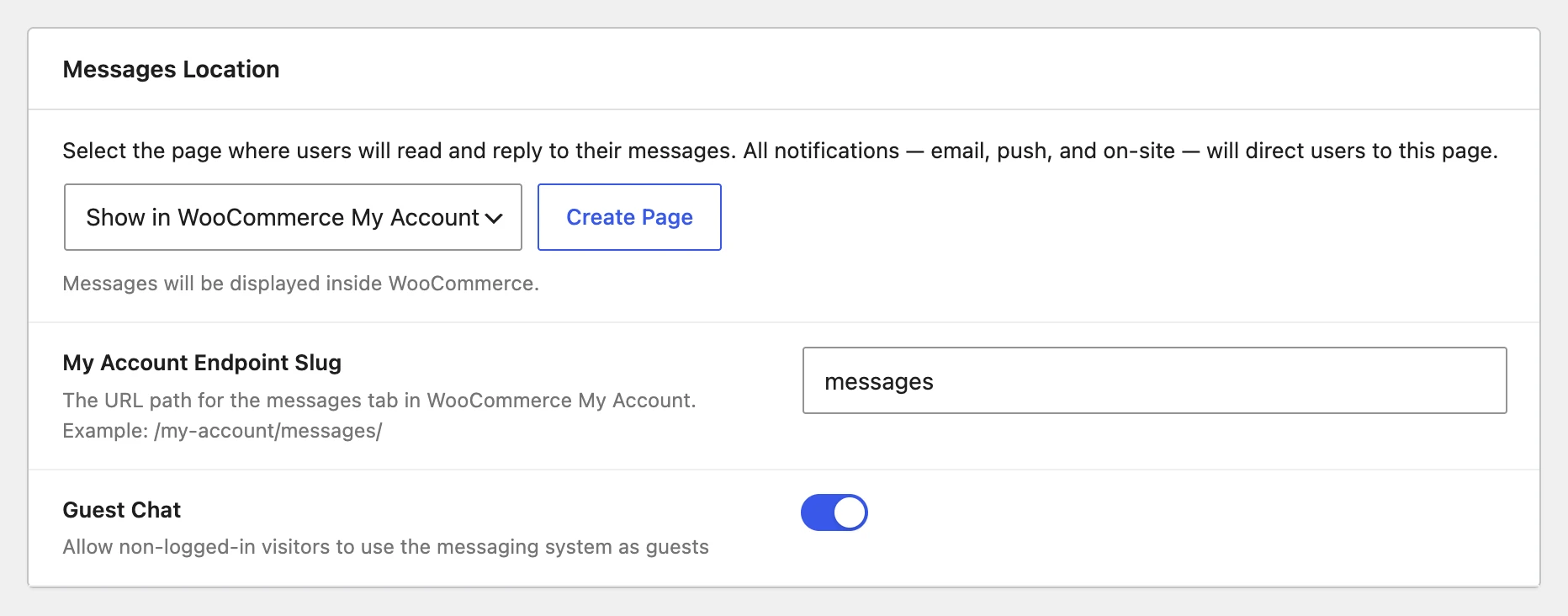
You can also customize the URL slug for the My Account messages tab — the default is messages, producing a URL like /my-account/messages/.
When this mode is selected:
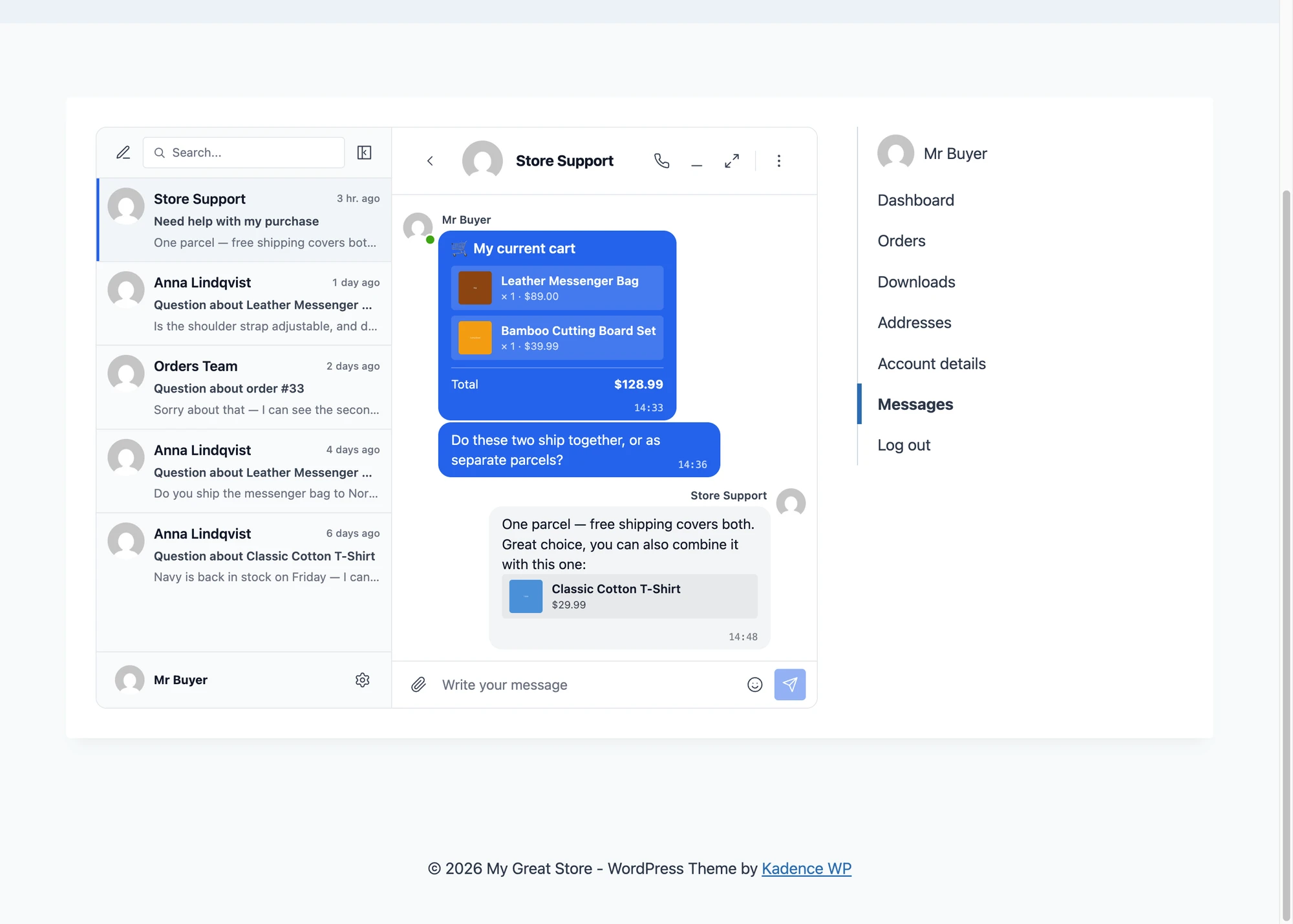
- The Better Messages inbox is rendered inside the WooCommerce My Account layout
- Notifications (email, push, on-site) link to the WooCommerce My Account messages URL
- The "Messages link in My Account" toggle in the WooCommerce integration tab becomes redundant (the link is added automatically)
Guest chat with WC My Account#
If you've enabled Guest Chat in Better Messages → Settings → General and set your Messages Location to WooCommerce My Account, there's an important UX consideration: the WooCommerce My Account page requires login, so guests can't actually open the inbox there.
The Guest Chat row in Settings → General then exposes a Guest Messages Page picker. Pick (or one-click create) a regular public WordPress page — guests reach that page from every chat trigger and notification link. Logged-in customers continue to use the embedded inbox inside My Account, and visiting the Guest Messages Page also renders the messenger for them, so the same page works for both audiences. This works on the free and WebSocket versions.
On the WebSocket version with mini widgets enabled, Better Messages also renders the mini-chat popup for guests on product / cart / order pages — guests can chat without ever leaving the page. The mini widget and the Guest Messages Page complement each other: the mini handles in-page conversations, the page handles email / push notification links. See Guest access → Guest Messages Page.
Rich product cards in chat#
When anyone pastes a link to one of your WooCommerce products into a chat message, the link is automatically expanded into a rich card showing the product image, title, and price. This works in any conversation — between customers and support, between customers and other users, anywhere.

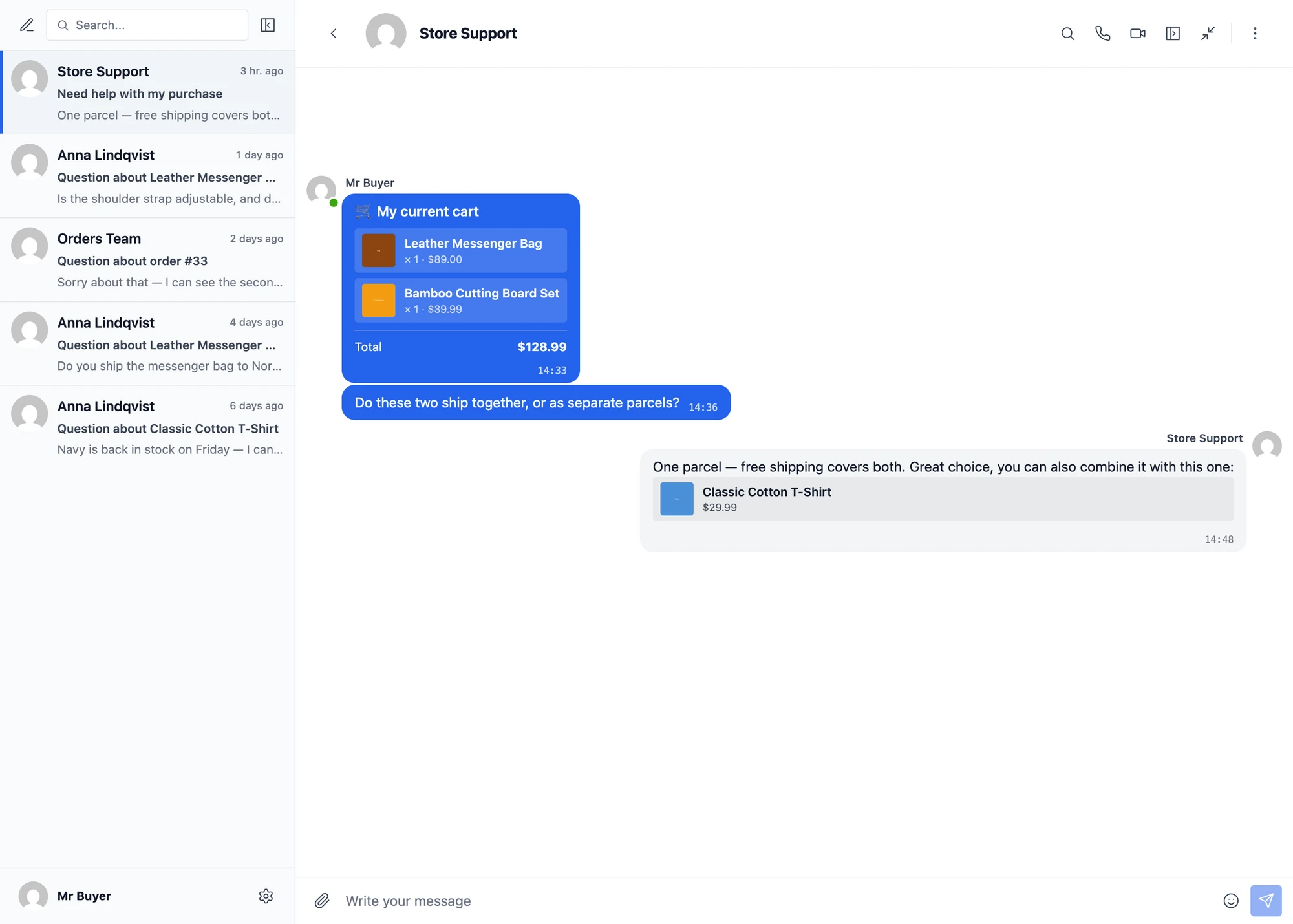
The detection works on links that point to your site (matching the configured home_url) and resolve to a product post type. Cross-site product links are left as plain links.
Supported features summary#
When you install Better Messages with WooCommerce:
- Adds a Contact us about this product button on single product pages with 4 placement options + manual mode
- Per-product recipient override from the product edit screen
- Adds a Need help? Chat with us button on cart and checkout pages with 5 cart and 4 checkout placement options
- Auto-posts the customer's current cart contents as a rich message when they start a chat from cart or checkout
- Adds a Contact us about this order button on the order detail page in My Account
- Order, product, and pre-purchase chats each have their own configurable recipient
- Universal "View order" link in the thread sidebar — routes admins to wp-admin and customers to My Account
- Optional Messages link in the WooCommerce My Account menu
- Optional embedding of the entire inbox as a My Account tab
- Plain WooCommerce product URLs pasted in any chat message are auto-expanded into rich product cards
- HPOS (High-Performance Order Storage) compatible
- Block themes and classic themes both supported
- Modern WooCommerce Cart and Checkout blocks supported alongside the legacy
[woocommerce_cart]/[woocommerce_checkout]shortcodes - Guest checkout supported when guest chat is enabled
WebSocket-only enhancements#
The following behaviors require the WebSocket version:
- Mini widget popup — clicking any of the four buttons opens the conversation as an inline popup overlay rather than navigating away. The cart, checkout, product, and order pages stay visible while the customer chats.
- Real-time replies — the customer sees the agent's reply appear in the popup the instant it's sent, without polling.
- Automatic guest fallback to mini widget when Messages Location is WooCommerce My Account (a logged-in-only page). Without this fallback the guest is redirected to wp-login on the post-auth navigation.
- Voice / video calls initiated from the chat sidebar (when Calls are enabled).
- End-to-end encryption of message content (opt-in per thread).
Frequently asked questions#
Can different products go to different support agents?#
Yes — set a global recipient in WooCommerce settings, then override per product from the product edit screen's Better Messages Contact sidebar metabox.
Does it work with HPOS?#
Yes — High-Performance Order Storage is supported. Orders are read through WooCommerce's CRUD layer.
Does it work with the modern Cart and Checkout blocks?#
Yes — both the legacy [woocommerce_cart] / [woocommerce_checkout] shortcodes and the modern WooCommerce Cart and Checkout blocks are supported.
Can guests use the pre-sales chat?#
Yes — enable Guest Chat in Better Messages → Settings → General → Guest Chat. Guests enter a name and email, then chat with support.
Does it work alongside Dokan / WCFM / MultiVendorX / WC Vendors?#
Yes — the WooCommerce integration handles store-level support chat. The multi-vendor integration handles buyer ↔ vendor chat. They coexist.
See also#
- WooCommerce customer chat — full feature write-up
- WordPress marketplace chat — comparing Dokan, WCFM, WC Vendors, MultiVendorX
- Dokan integration
- WCFM integration
- WC Vendors integration
- MultiVendorX integration
- WordPress guest chat — guest pre-sales chat