Native iOS Messenger App for WordPress
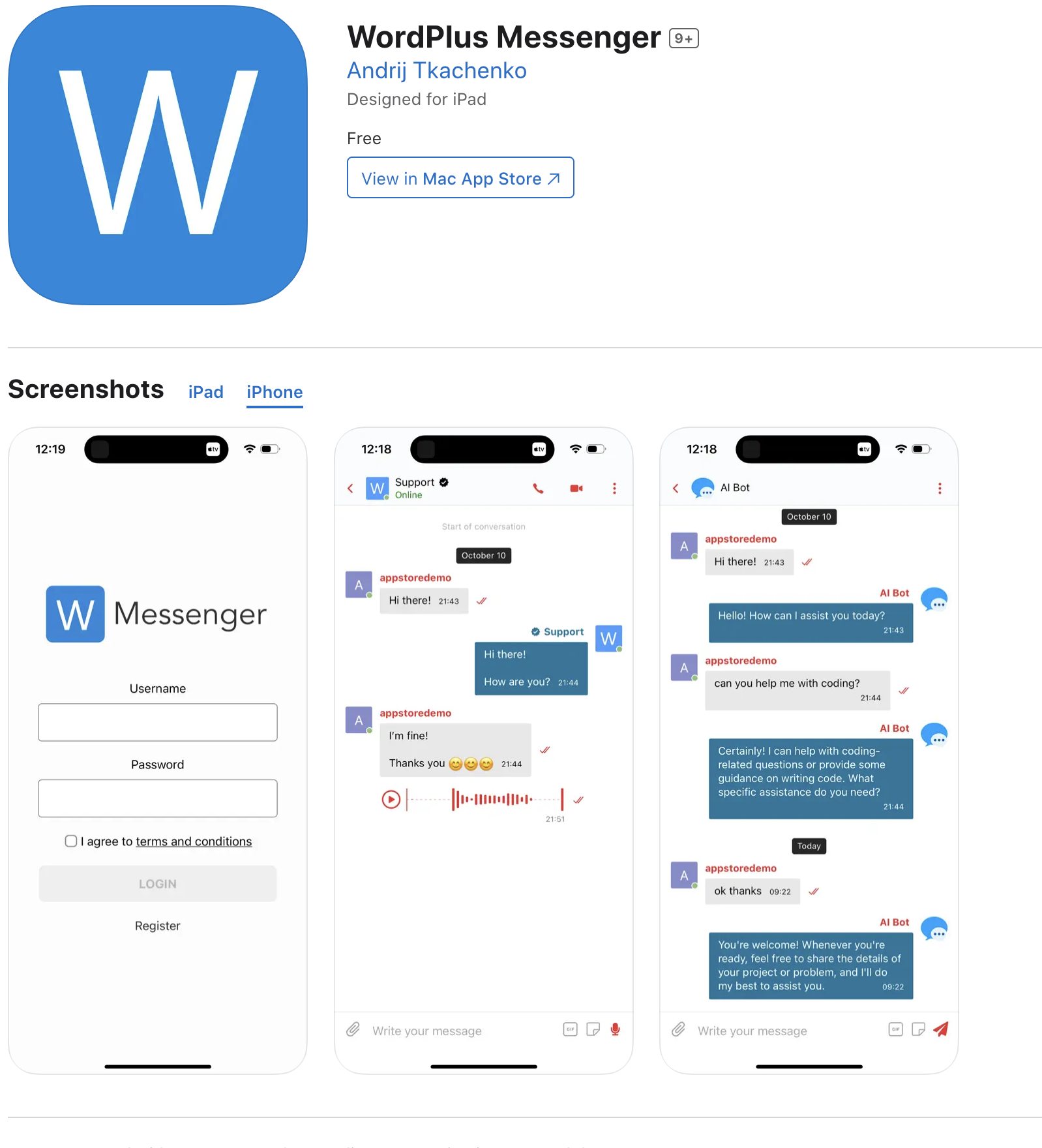
iOS application feature allows you to generate native iOS messenger application for your website, which allows you to send push and call notifications and can be published to the Apple App Store.
Example of such application here: https://apps.apple.com/us/app/wordplus-messenger/id1598803821?platform=iphone
Requirements#
-
Apple Developer Program Account#
To be able to generate and publish iOS application, you need to have paid (99 USD /year) Apple Developer Program Account.
-
iOS Device#
To be able to build an iOS application, you need to have at least one active iOS device added to Apple Developer Devices List.
To add one, open Register a New Device, pick the iOS, iPadOS, tvOS, watchOS, visionOS platform, and give the device a Device Name and its Device ID (UDID). You can also upload a file to register up to 100 devices at once.
noteApple counts a removed device against your device limit until the start of your next membership year, so register deliberately rather than experimentally.
The Overview tab#
Better Messages → Mobile App → Overview checks everything below for you, so you can see what a build still needs before starting one rather than reading it out of a failure.
Each row reads Ready or Missing, and its label links straight to the field that sets it. A missing row explains what it is for — "The app this site builds carries a screen sharing extension — it needs its own App ID with the App Group, or the build cannot be signed" — rather than only naming the gap.
The tab is grouped as:
- App version — which app revision the build server is on, and whether each platform and build type is carrying it. A plugin update reaches the installed app on its own. A change to the app itself does not, so a row here reading Carries an older app means you need to build again.
- Before you build — what every build reads, whichever platform it is for: application icon, splash screen, splash screen background, login logo.
- iOS and Android — the per-platform requirements covered on this page and the Android page.
- Builds — a shortcut to start one.
A build is ready to start when every row for the platform and type you are building reads Ready.

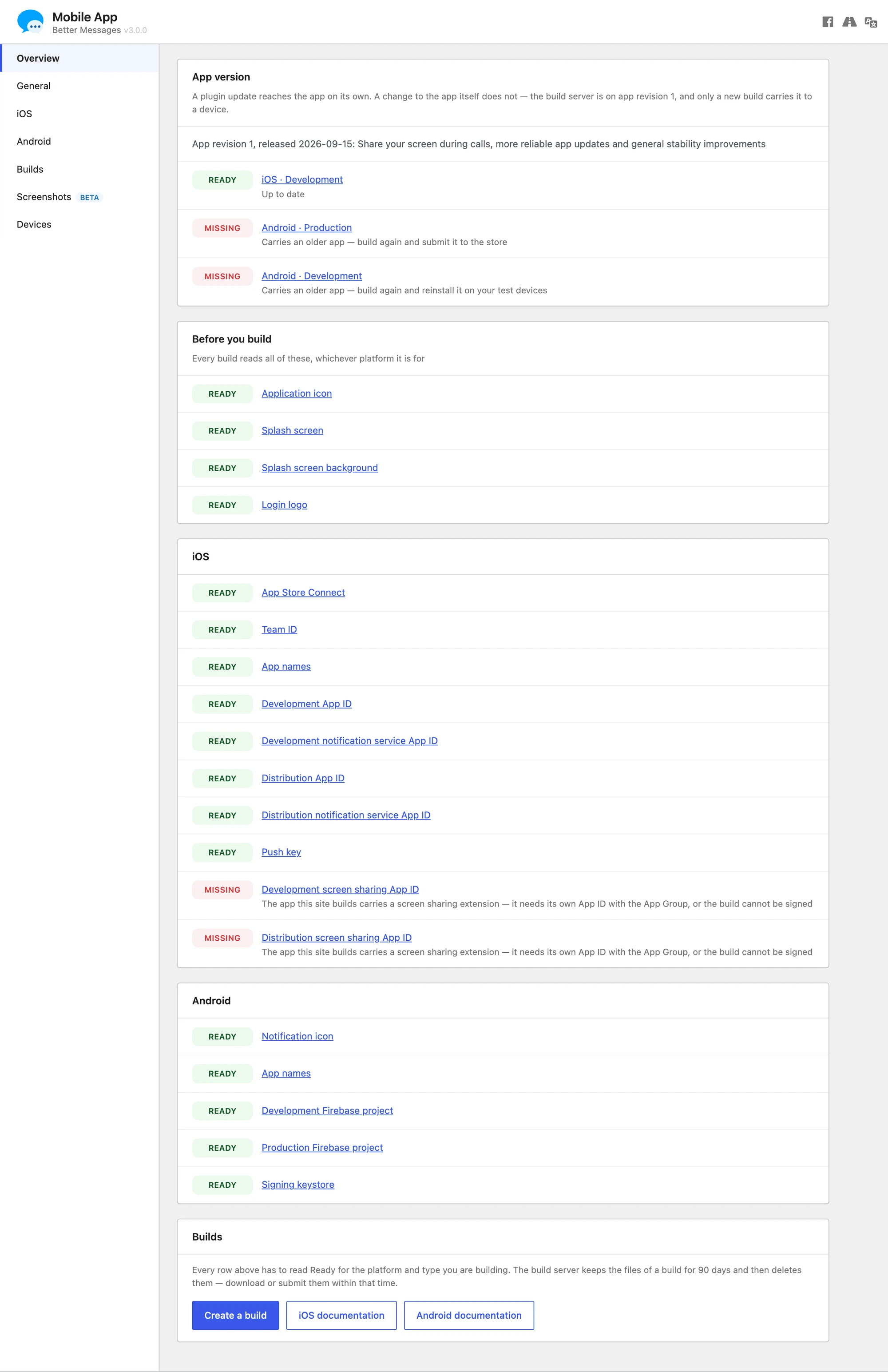
The build server keeps a build's files for 90 days and then deletes them — download or submit them within that time.
How an update reaches an installed app#
There are two separate paths, and only one of them goes through the App Store.
Plugin updates arrive on their own. The app carries the site's scripts, styles and settings rather than baking them in, so updating Better Messages on the site updates every installed copy. What the member sees depends on what changed:
| What the update changed | What the app does |
|---|---|
| Settings only | Applied live, in place. No prompt, no restart |
| Stylesheets | Swapped in immediately. No prompt |
| Application code | A notice reads "A new version of the application has been downloaded." with an Update now action that restarts the app into it |
Dismissing that notice costs nothing — the downloaded version is already stored, and it starts being used at the next launch whether the member tapped Update now or not.
App updates need the store. Anything built into the shell itself — the icon, the splash screen, the App ID, a Capacitor plugin, a native call or push change — only reaches members through a new build that you submit. Once per launch the app asks whether a newer build of itself is published. If one is, a notice reads "A new version of the app is available in the App Store." with an Update action that opens the store page. Dismissing it snoozes that particular version for 24 hours.
This is the same split the Overview tab's App version rows describe: a row reading Carries an older app means the store copy is behind, and no amount of updating the plugin will fix it.
App branding#
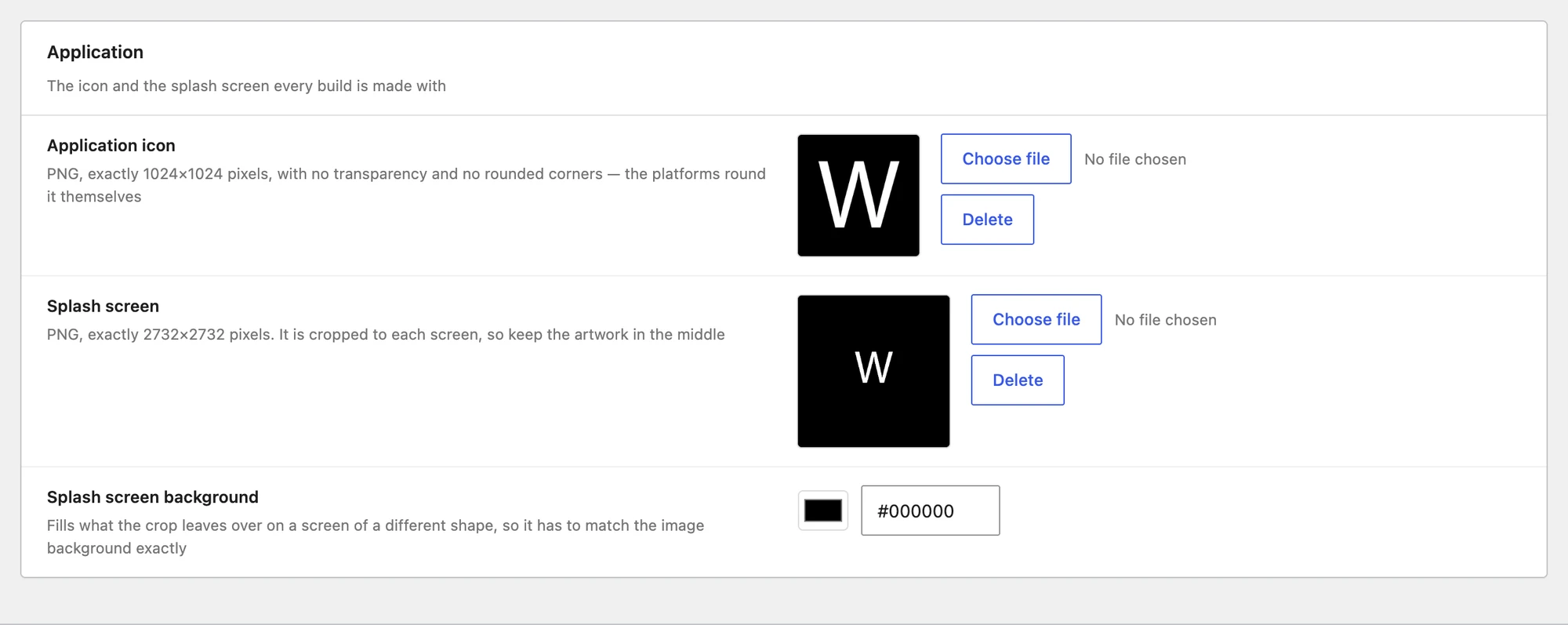
Better Messages → Mobile App → General holds the assets every build is made with, whichever platform it is for. These are the Before you build rows on the Overview tab.
Application#
| Field | Requirement |
|---|---|
| Application icon | PNG, exactly 1024×1024, no transparency and no rounded corners — the platforms round it themselves |
| Splash screen | PNG, exactly 2732×2732. It is cropped to each screen, so keep the artwork in the middle |
| Splash screen background | Fills what the crop leaves over on a screen of a different shape, so it has to match the image background exactly. A build needs it set even when the artwork fills the screen |

Login screen#
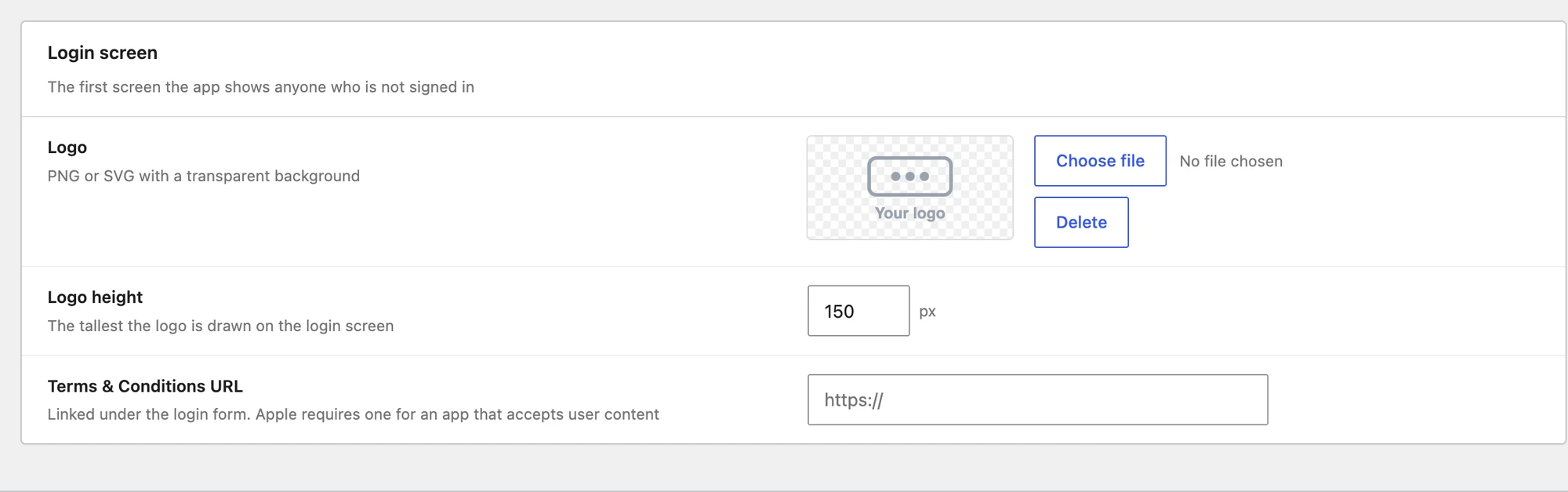
The first screen the app shows anyone who is not signed in.
| Field | Requirement |
|---|---|
| Logo | PNG or SVG with a transparent background |
| Logo height | The tallest the logo is drawn on the login screen |
| Terms & Conditions URL | Linked under the login form. Apple requires one for an app that accepts user content |

Connection to Apple Developer Account#
After you have Apple Developer Program Account, to be able to generate Better Messages iOS app, you need to connect Better Messages to your App Store Connect API.
-
Go to App Store Connect and login with your Apple Developer Account.
-
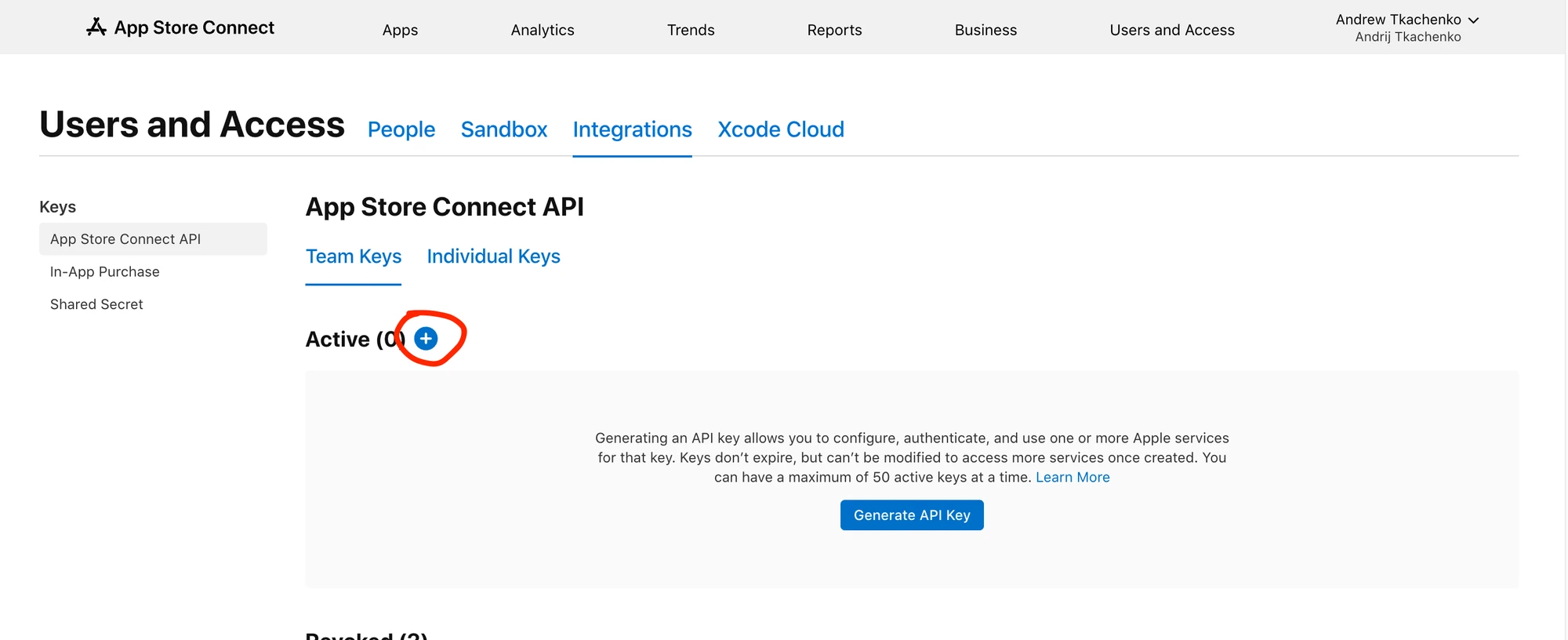
Under the Team Keys section, click on + button to create new key.
-
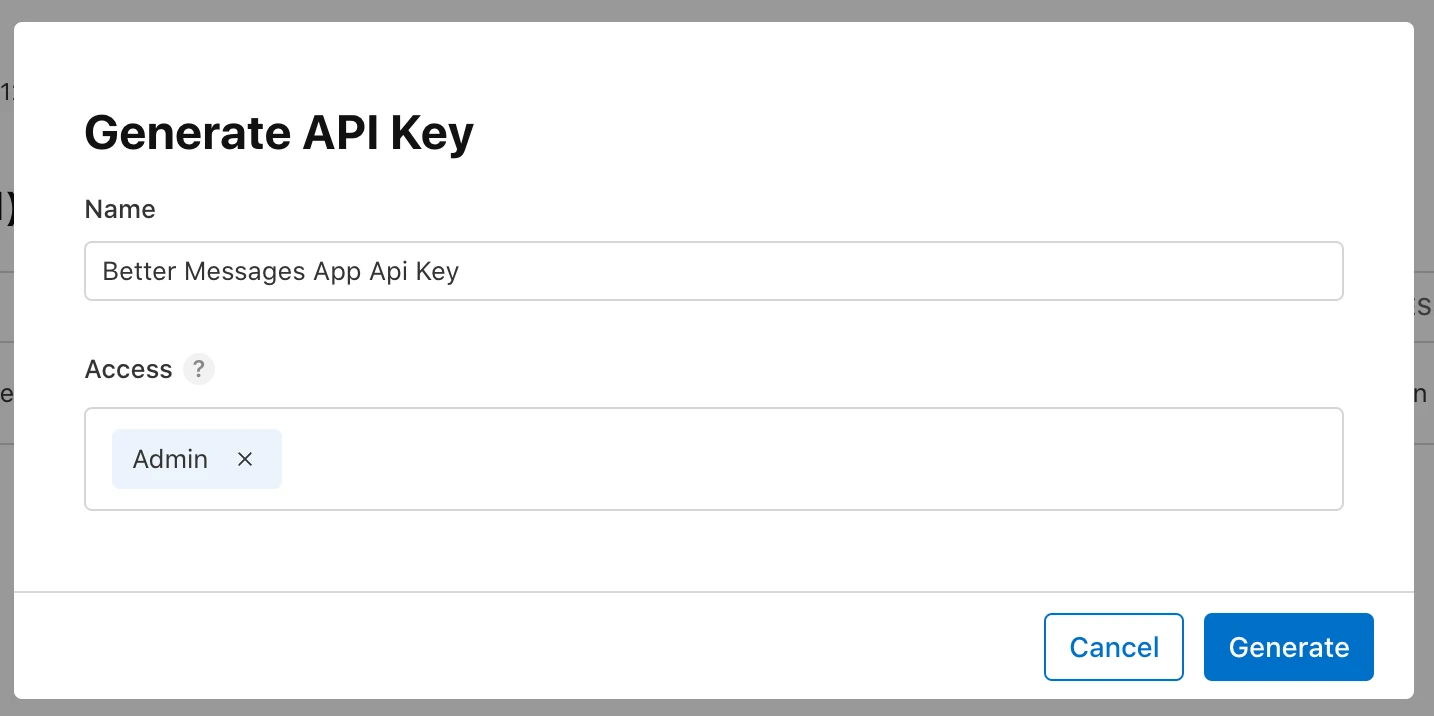
Generate API Key with the Admin access, like at the screenshot:
-
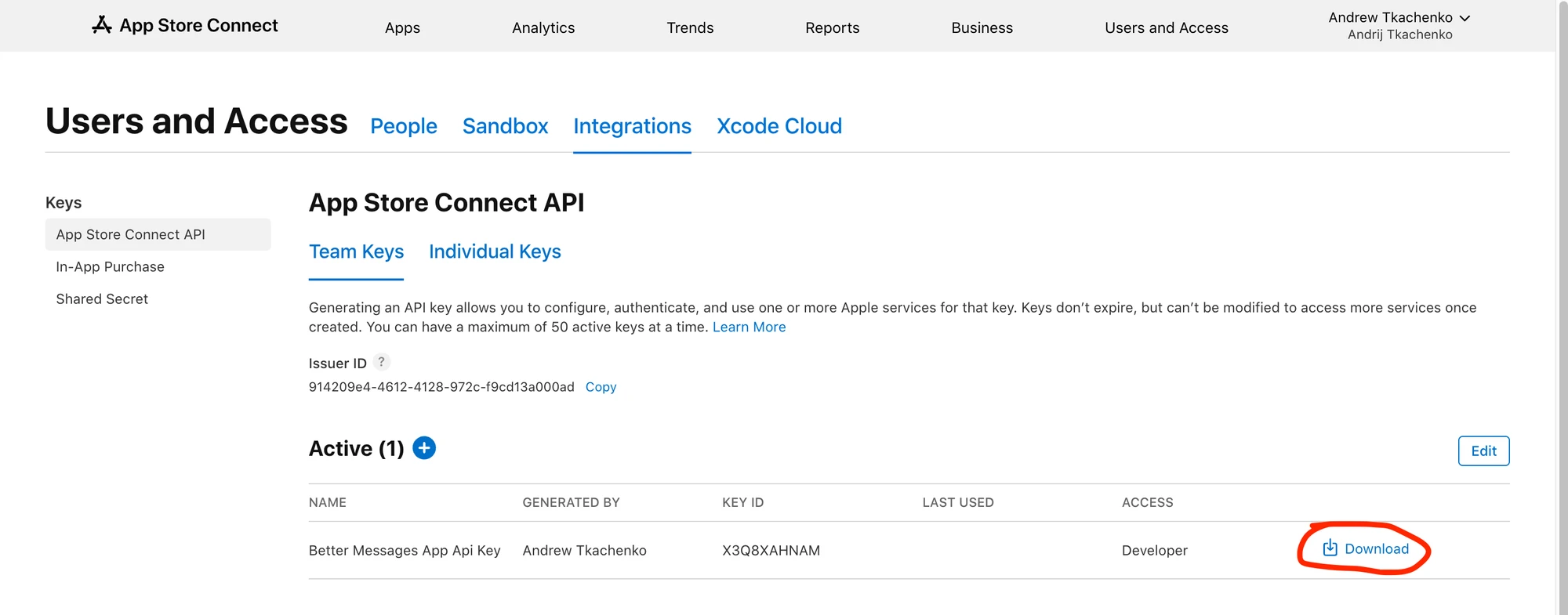
After you generate the key, you will see the Key ID, Issuer ID and Download API Key button. Click on the Download API Key button to download the key. It is only possible to download the key once, so make sure to store it in a safe place.
You will need these values to connect Better Messages to your App Store Connect API.
-
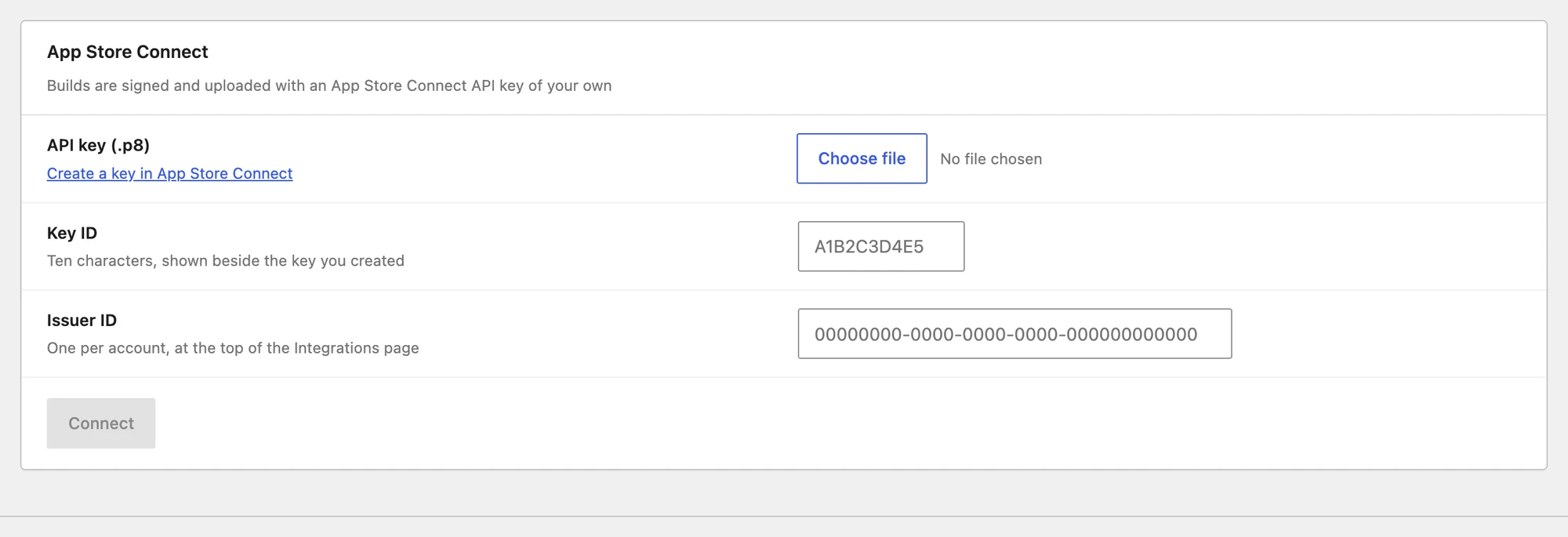
Navigate to your website WP Admin → Better Messages → Mobile App → iOS. Under App Store Connect, upload the downloaded key to API key (.p8), fill in the Key ID (ten characters, shown beside the key you created) and the Issuer ID (one per account, at the top of the Integrations page), then press Connect.
-
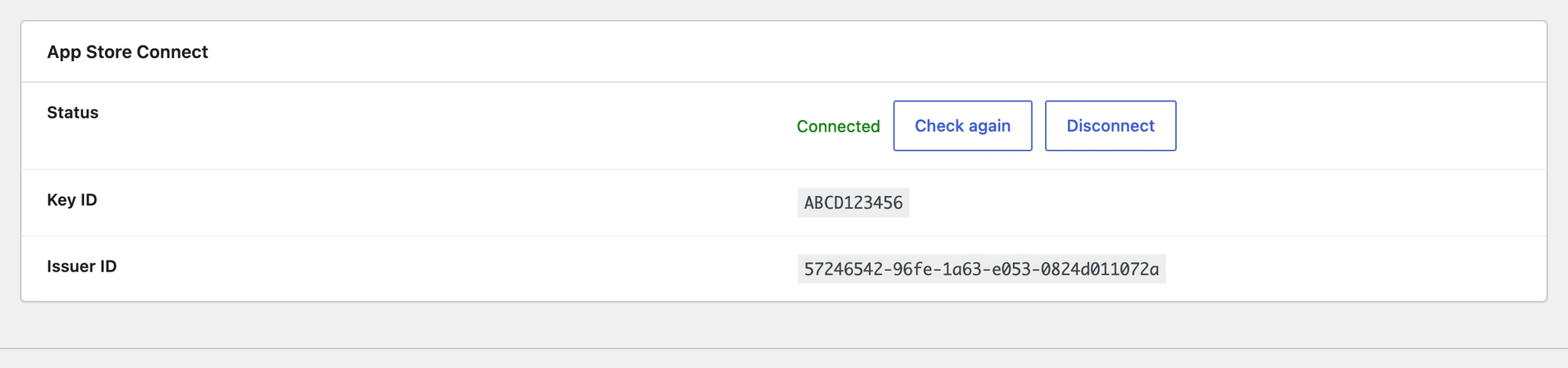
If everything is done correctly, Status turns to a green Connected, the Key ID and Issuer ID are shown back to you, and the rest of the tab unlocks. Check again re-tests the connection, and Disconnect removes the key.




Configure Apple Development Team ID#
-
Go to Apple Developer Account and login with your Apple Developer Account.
-
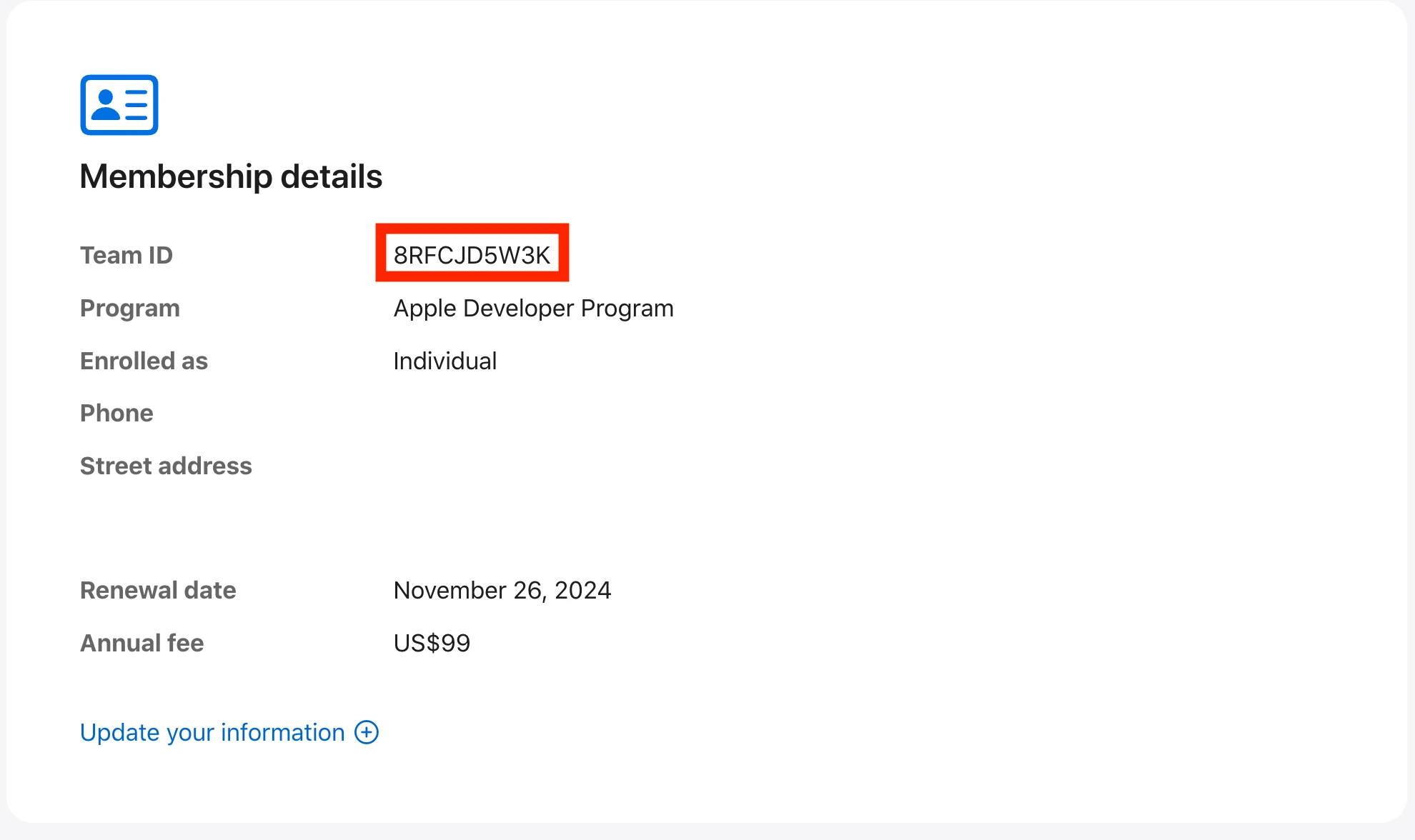
Scroll down to the Membership details section and copy the Team ID.
-
Navigate to your website WP Admin → Better Messages → Mobile App → iOS and fill the Team ID under Developer account.



Push notifications key#
Without a push key the app installs and runs, but receives no notifications. One key serves every app on the team, for both development and production — you only do this once.
-
Go to Register a New Key in the Apple Developer portal.
-
Give the key a Key Name (no special characters such as
@ & * ' "). -
Tick Apple Push Notifications service (APNs) and press its Configure button.
-
Set Environment to Sandbox & Production, and leave Key Restriction on Team Scoped (All Topics). Press Save.
This choice is permanentApple states plainly that "the APNs configuration for accessible environment and key restriction type can't be changed once saved". The Environment field defaults to Sandbox, which only covers development builds — a key saved that way will not deliver notifications to your App Store build, and the only fix is to create another key.
-
Press Continue, then Register.
-
Download the
.p8file. Apple lets you download it once. -
Note the Key ID shown beside the key — you need it in the next step. It is also listed on the Keys page, along with the APNs config and environment you chose, so you can check an existing key without recreating it.
-
In WP Admin → Better Messages → Mobile App → iOS, scroll to Push notifications and press Upload a key.
-
Enter your Team ID, the Key ID from the previous step, and upload the
.p8file.



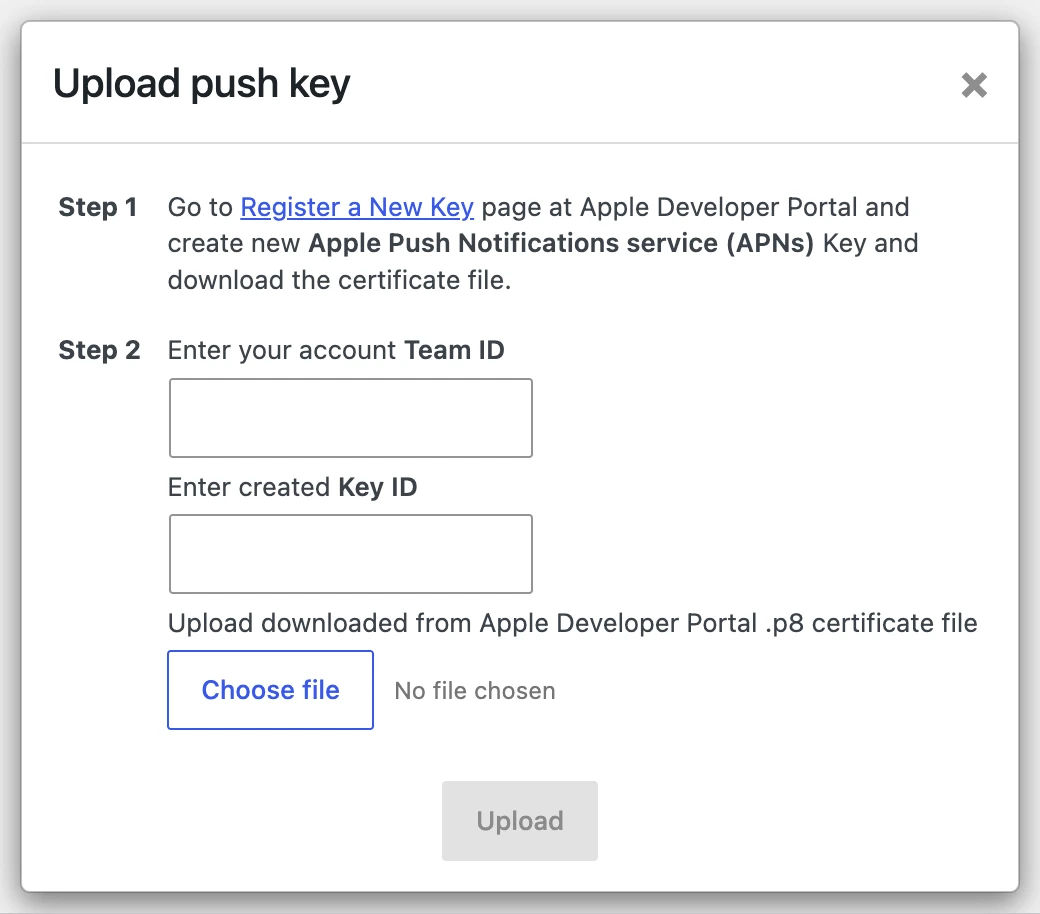
The row then reads Uploaded. To rotate the key later, the same button becomes Replace the key.
Development & Production Builds#
To generate Better Messages iOS App Build, its required to configure for each type of build separately:
- App name
- App ID
- Notification service App ID
- Screen sharing App ID, if you want screen sharing in calls

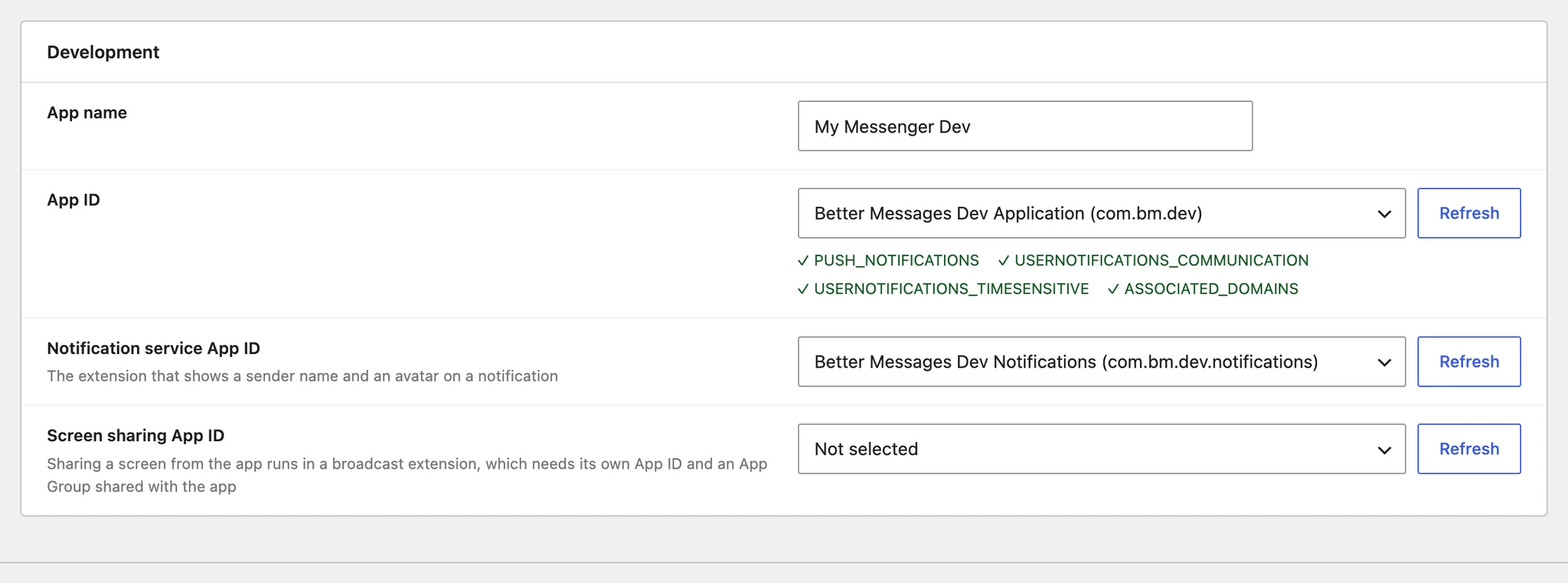
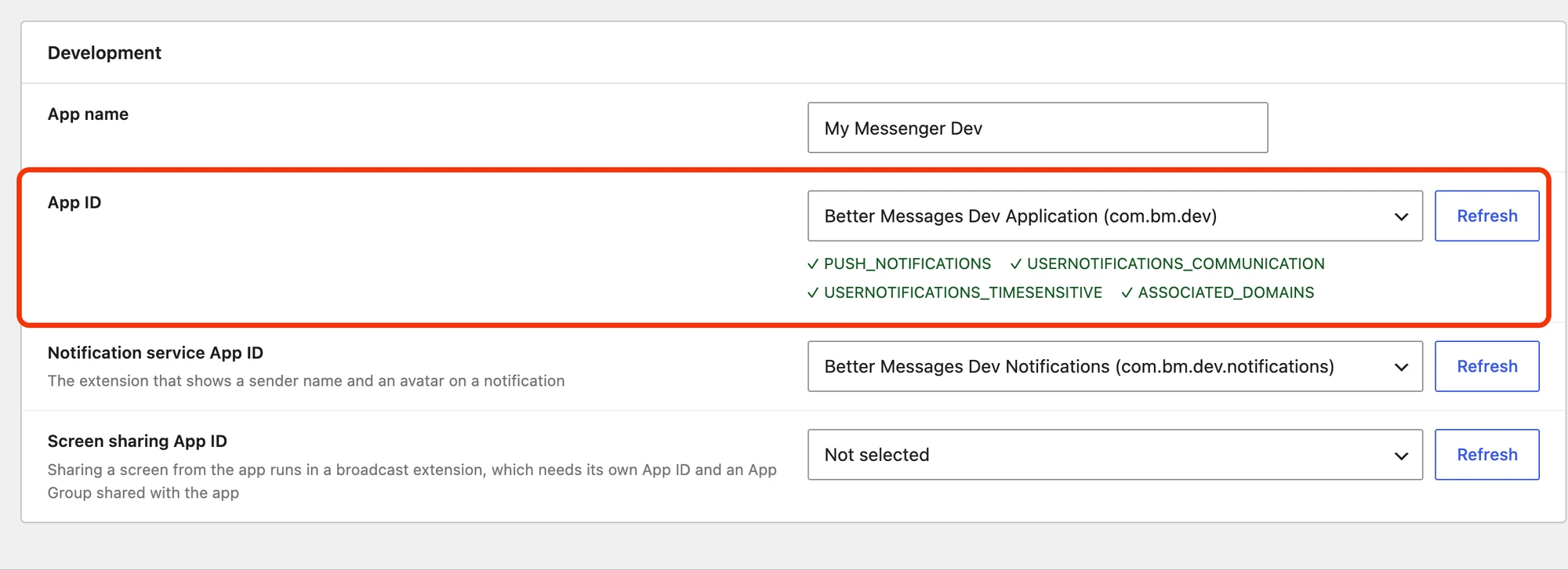
Once an App ID is selected, Better Messages reads its capabilities back from Apple and lists them under the field — so you can see that Push Notifications, Communication Notifications, Time Sensitive Notifications and Associated Domains are actually enabled on it, rather than finding out from a failed build.
App name#
This name will be used as primary mobile application name. Application name is limited to 30 characters, but only 12 characters will show under the icon at the mobile device applications list.
App ID#
The App ID is the unique identifier for your application.
It must be unique and match the application identifier in the Apple Developer Account.
It is recommended to use the reverse domain name notation e.g.:
Development build Application Identifier - com.yoursitename.messenger.dev
Registering Application Identifiers#
-
Go to Apple Developer Account and login with your Apple Developer Account.
-
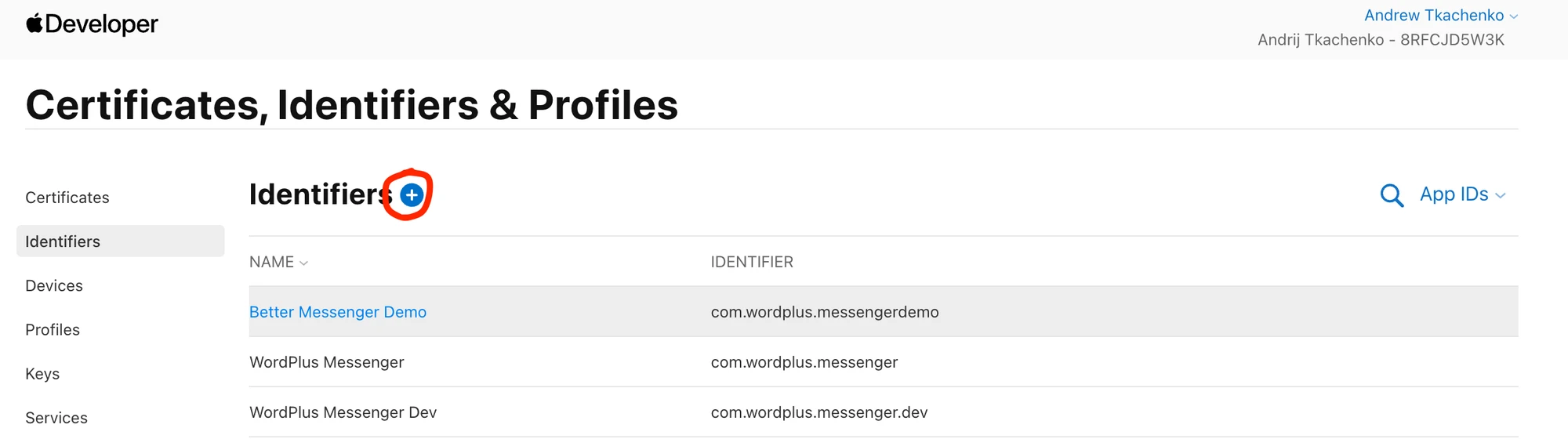
Go to Identifiers section and click on + button to create a new identifier.
-
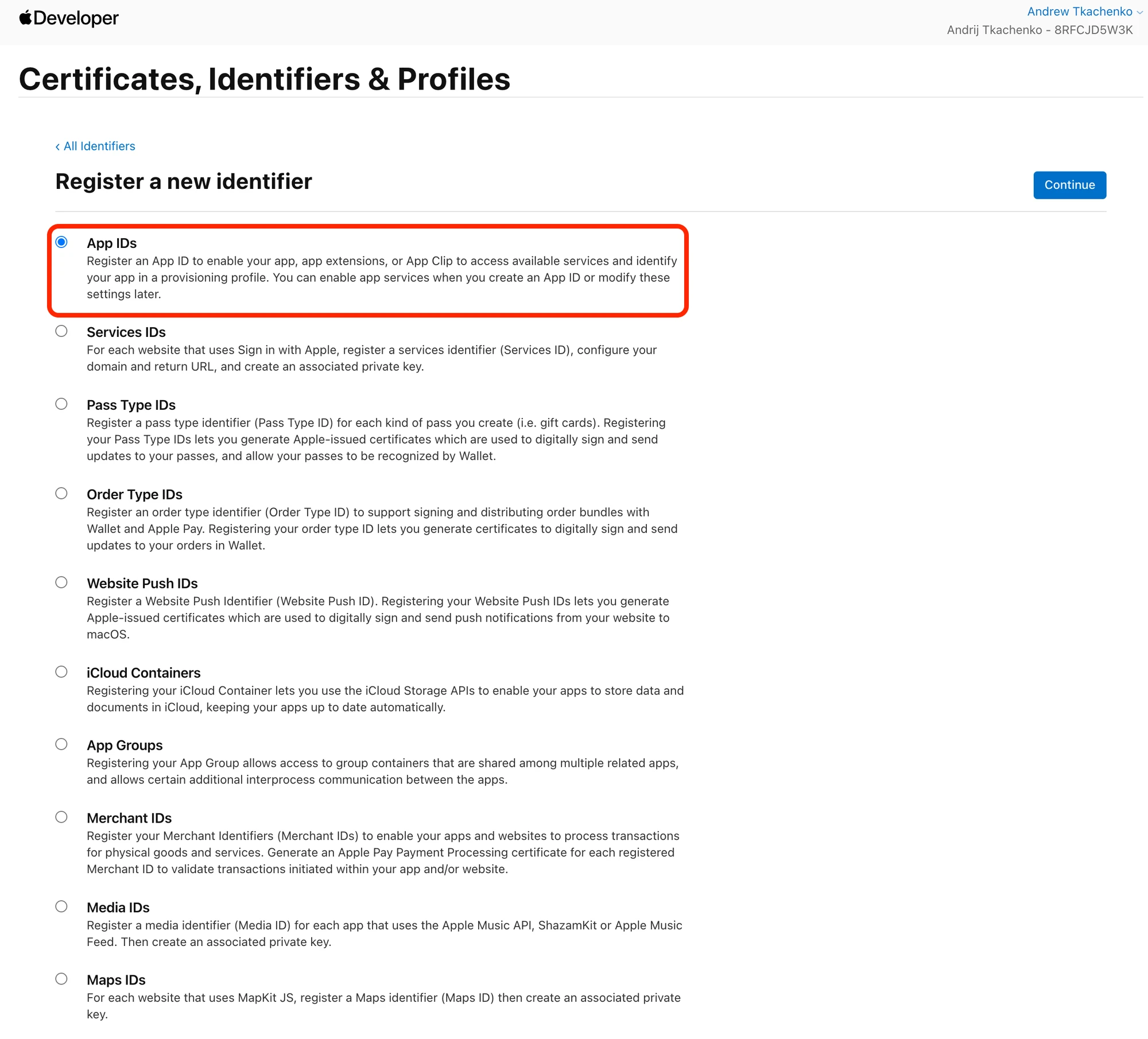
Select App IDs and press Continue.
-
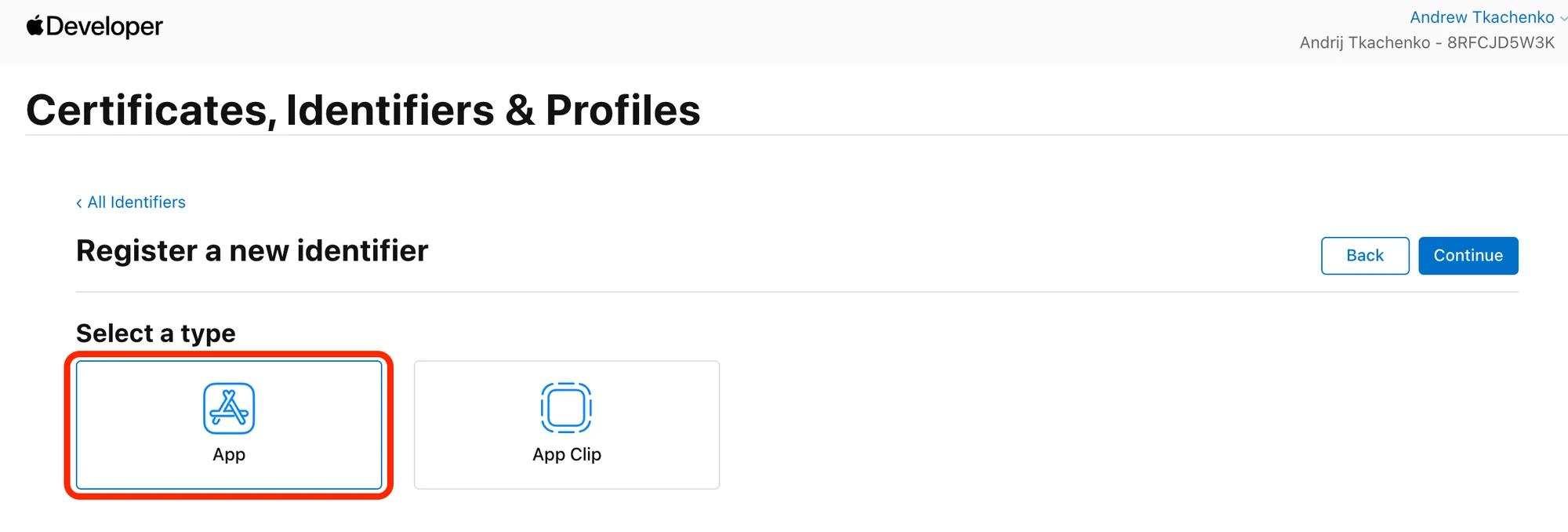
Select App when asked for the type of identifier and press Continue.
-
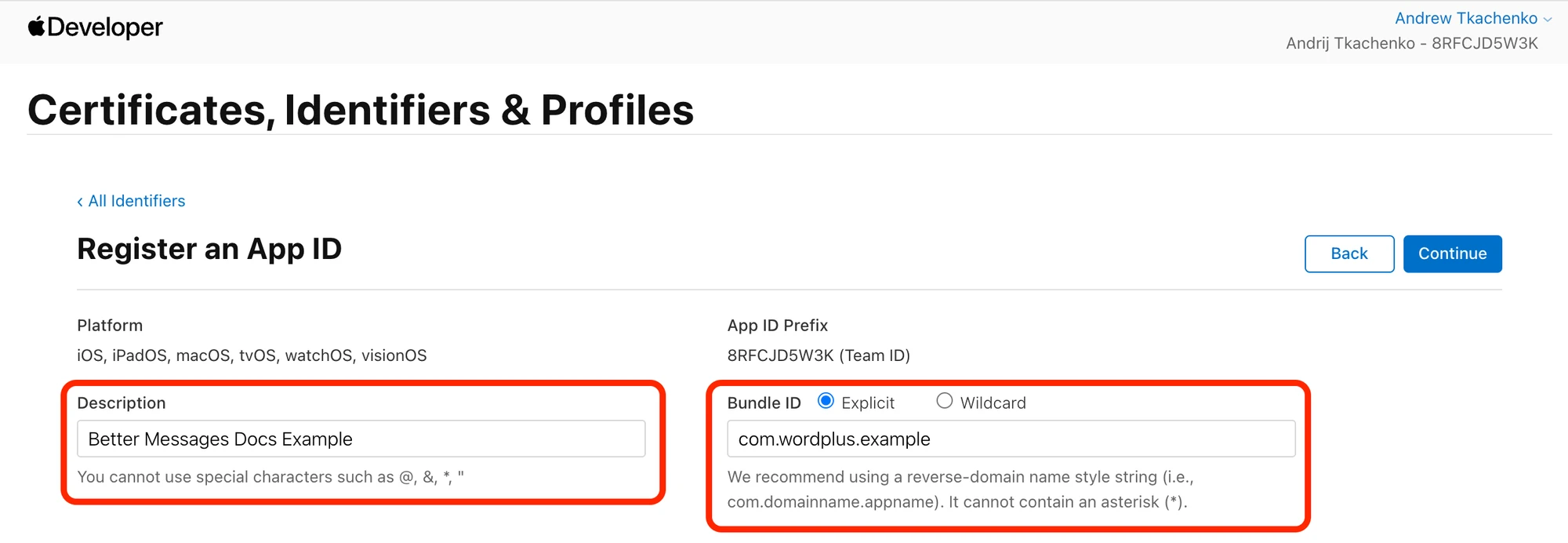
Fill the Description field with your application name and fill the Bundle ID field with your application identifier (e.g. com.yoursitename.messenger).
-
The following capabilities must be enabled:
- Associated Domains
- Push Notifications
- Communication Notifications
- Time Sensitive Notifications
-
Press Register button to create the identifier.
-
After the identifier is created, you will need to go to Better Messages settings and press refresh list button to get the new identifier list, then select the identifier which is applicable for your development build.





Screen sharing App ID#
Sharing a screen from the app runs in a separate broadcast extension, which needs an Application Identifier of its own and an App Group shared with the app. Skip this if you do not need screen sharing in calls — the rest of the app works without it.
-
Repeat the steps for App ID for a second identifier. Its Bundle ID must start with your app's Bundle ID followed by a dot — Xcode refuses to embed an extension otherwise, and Better Messages stops the build before it starts if it does not. Use .broadcast:
com.yoursitename.messengergivescom.yoursitename.messenger.broadcast. -
Enable the App Groups capability on it. That is the only capability this identifier needs.
-
Enable App Groups on your main application identifier too. Both sides of a group have to declare it before the extension can hand frames to the app, and the build checks both — a missing one fails with "App Groups is missing on: …".
-
Register the group itself under Identifiers → App Groups.
Name it after the app, not the extensionThe group is
group.followed by the app's Bundle ID for the build type you are setting up — forcom.yoursitename.messengerthat isgroup.com.yoursitename.messenger. It is not named after the.broadcastidentifier, even though that is the one you enable the capability on. -
Back in Better Messages, press Refresh beside Screen sharing App ID and select the new identifier. Once it is selected the field confirms ✓ APP_GROUPS and prints the exact group name it expects, as "This App ID needs the App Group" followed by a copyable value — worth checking it against what you registered.

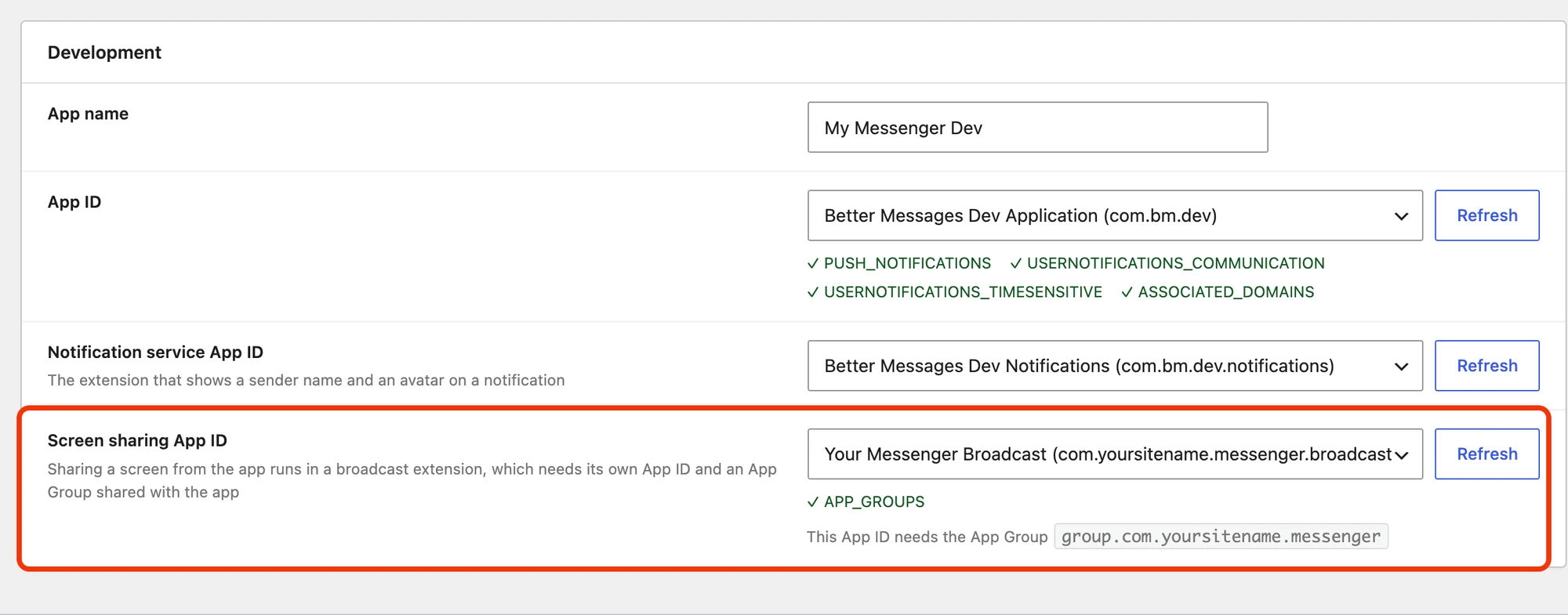
If the picker reports missing capabilities instead of a green tick, enable them on that App ID in the Apple Developer portal and press Refresh again.
The group name is written into the app's entitlements when the build is compiled, as group.
followed by the Bundle ID of the app being signed, and the app reads it back the same way at
runtime. A Development build and a Distribution build are signed with different Bundle IDs, so
they read different groups. Register one for each:
| Build type | App Bundle ID | App Group to register |
|---|---|---|
| Development | com.yoursitename.messenger.dev | group.com.yoursitename.messenger.dev |
| Distribution | com.yoursitename.messenger | group.com.yoursitename.messenger |
Assign each group to that build type's app identifier and its .broadcast identifier —
both sides have to carry it.
Each Screen sharing App ID field prints the group for its own half of the page: the one under Development is built from the Development App ID, the one under Distribution from the Distribution App ID. Copy the value shown beside the field you are filling in. A build signed without its own group still installs, but screen sharing is simply absent from calls.
Adding a capability invalidates that identifier's existing provisioning profiles. Nothing has to be done about it — the next build regenerates them.
Notification service App ID#
Please repeat all the steps for App ID but add the suffix to the Bundle ID with .notifications.
For example, if your main application bundle ID is com.yoursitename.messenger.dev, then the Notification Service Identifier should be com.yoursitename.messenger.dev.notifications.
The notification service does not require any capabilities to be enabled. Like the screen sharing identifier, its Bundle ID must start with the app's Bundle ID followed by a dot — the build refuses to start otherwise, because Xcode will not embed an extension whose identifier sits outside the app's.
Distribution#
The Distribution section below Development carries exactly the same four fields — App name,
App ID, Notification service App ID and Screen sharing App ID — and they are configured the same
way. Use identifiers without the .dev suffix, since these are the ones that go to the App Store:
| Development | Distribution |
|---|---|
com.yoursitename.messenger.dev | com.yoursitename.messenger |
com.yoursitename.messenger.dev.notifications | com.yoursitename.messenger.notifications |
com.yoursitename.messenger.dev.broadcast | com.yoursitename.messenger.broadcast |

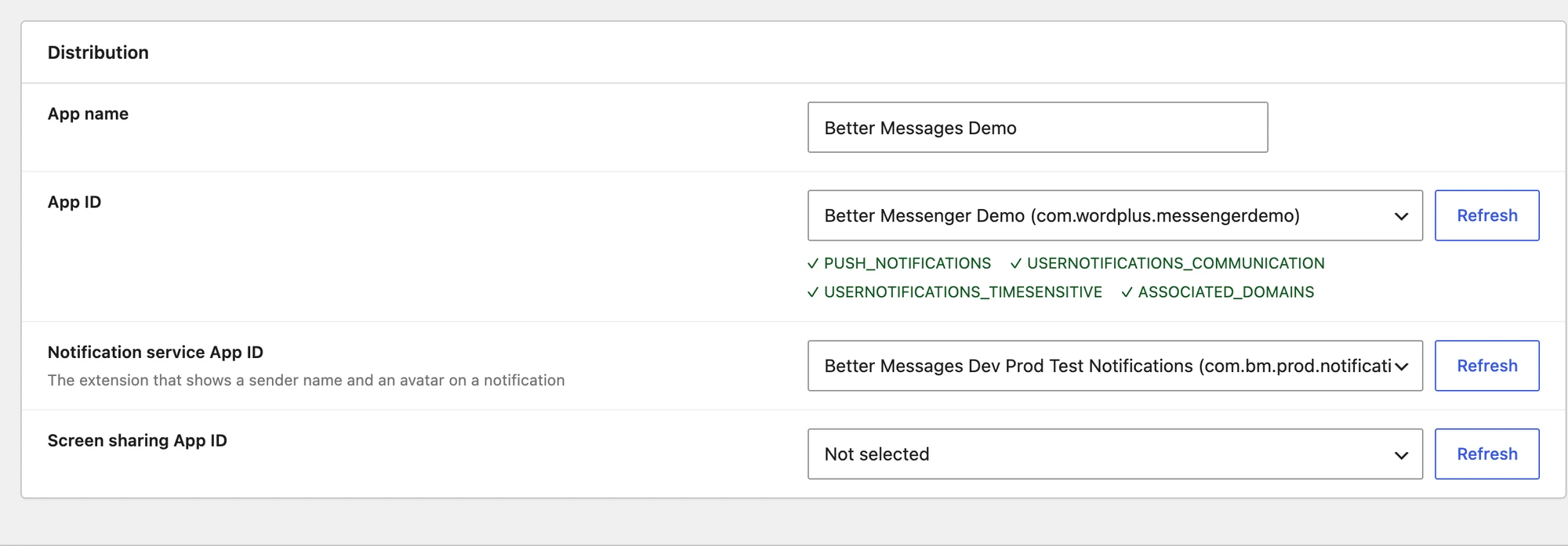
You only need to fill in the section for the build type you are actually making. The Overview tab marks rows for the other one as missing, which is expected until you build it.
Application Builds#
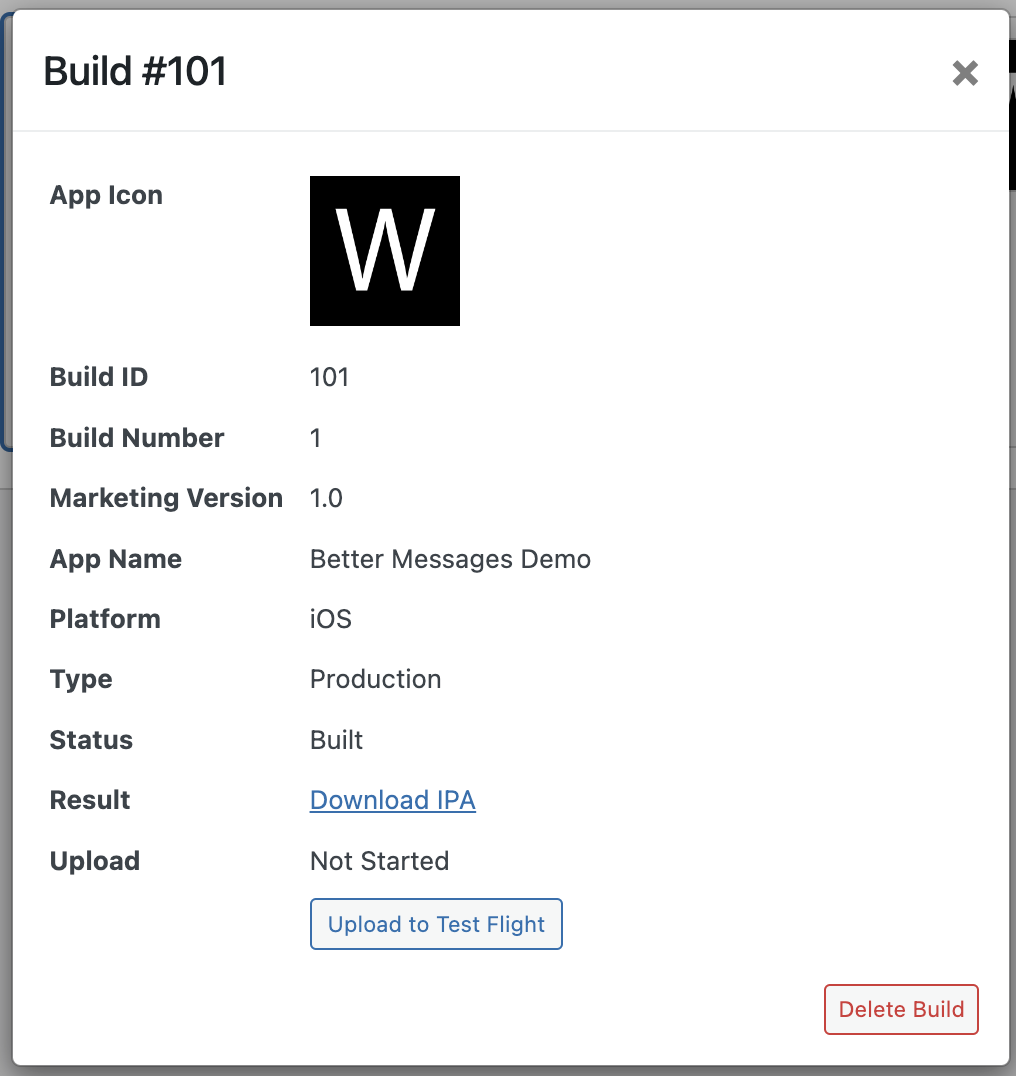
Once the settings are in place, go to the Builds tab and press New build.

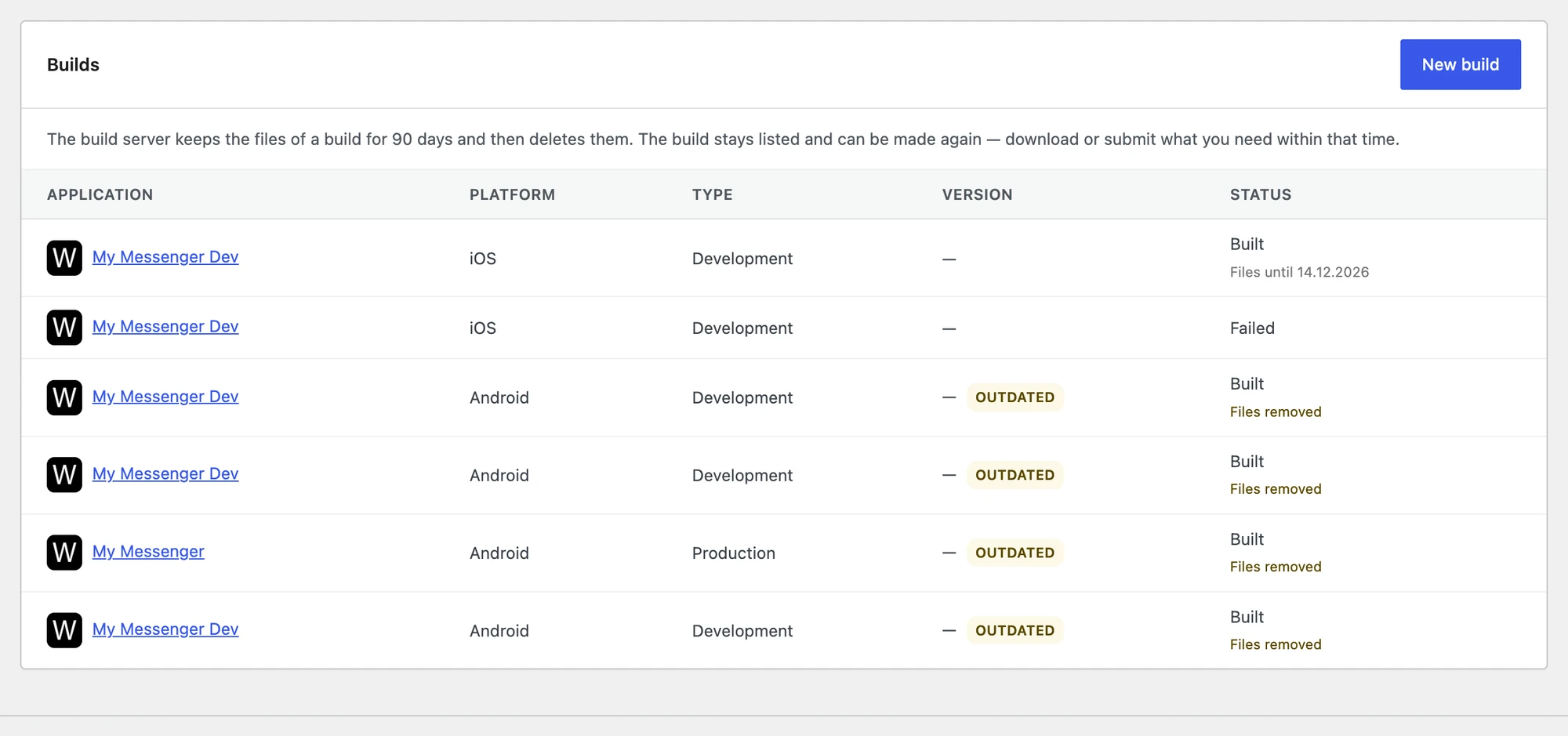
The flow asks two questions:
-
Platform — the store the build is made for: iOS or Android.
-
Build type — Development installs on registered devices, Production goes to the store.
-
Better Messages then shows a Create New Build summary of what the build will be made with — site ID, platform, domain, API URL, type and the app's own settings — so you can read it back before starting. Press Create Build to send it to the build server.

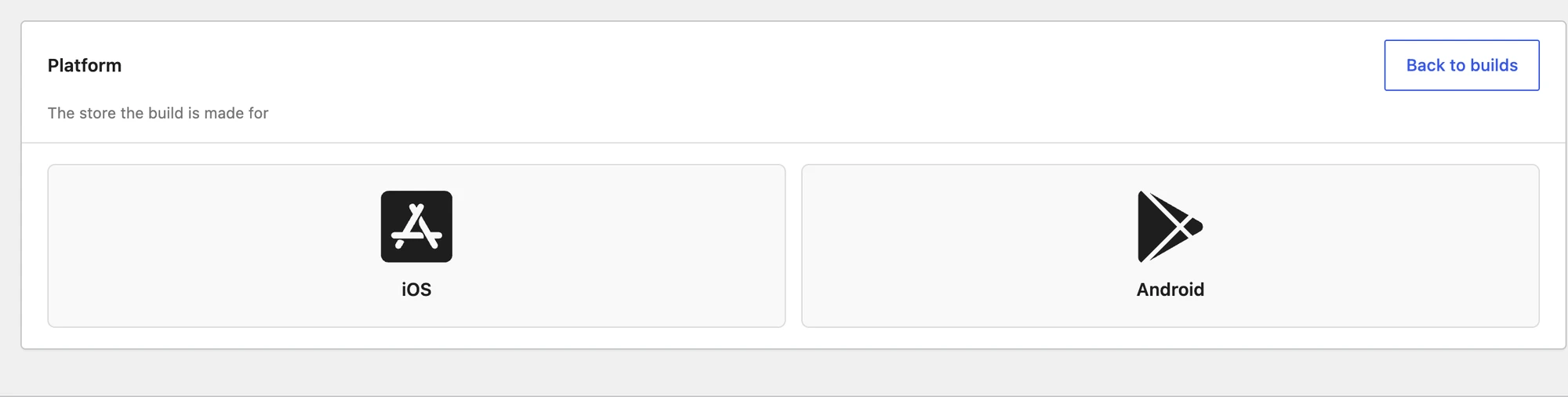

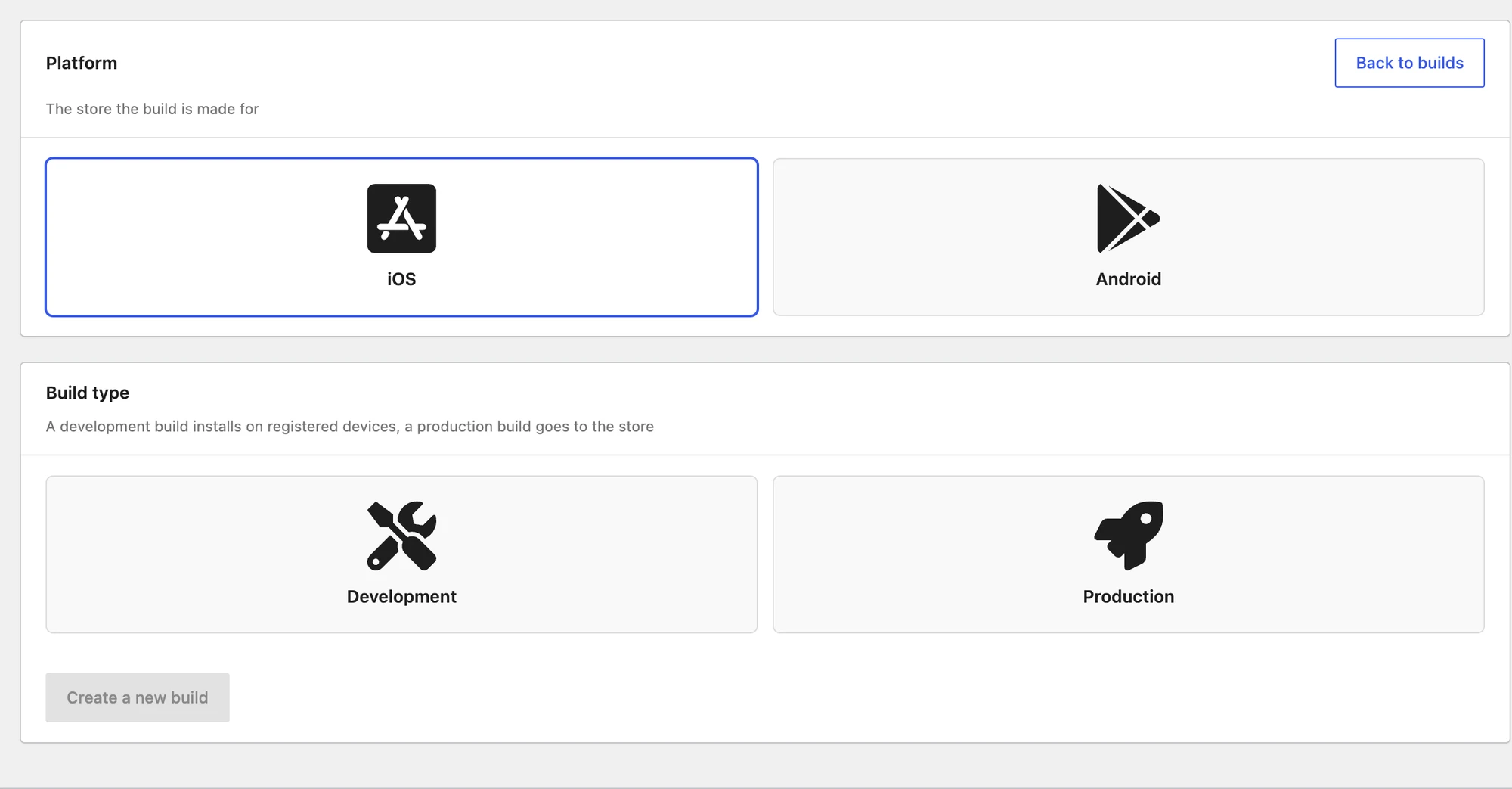

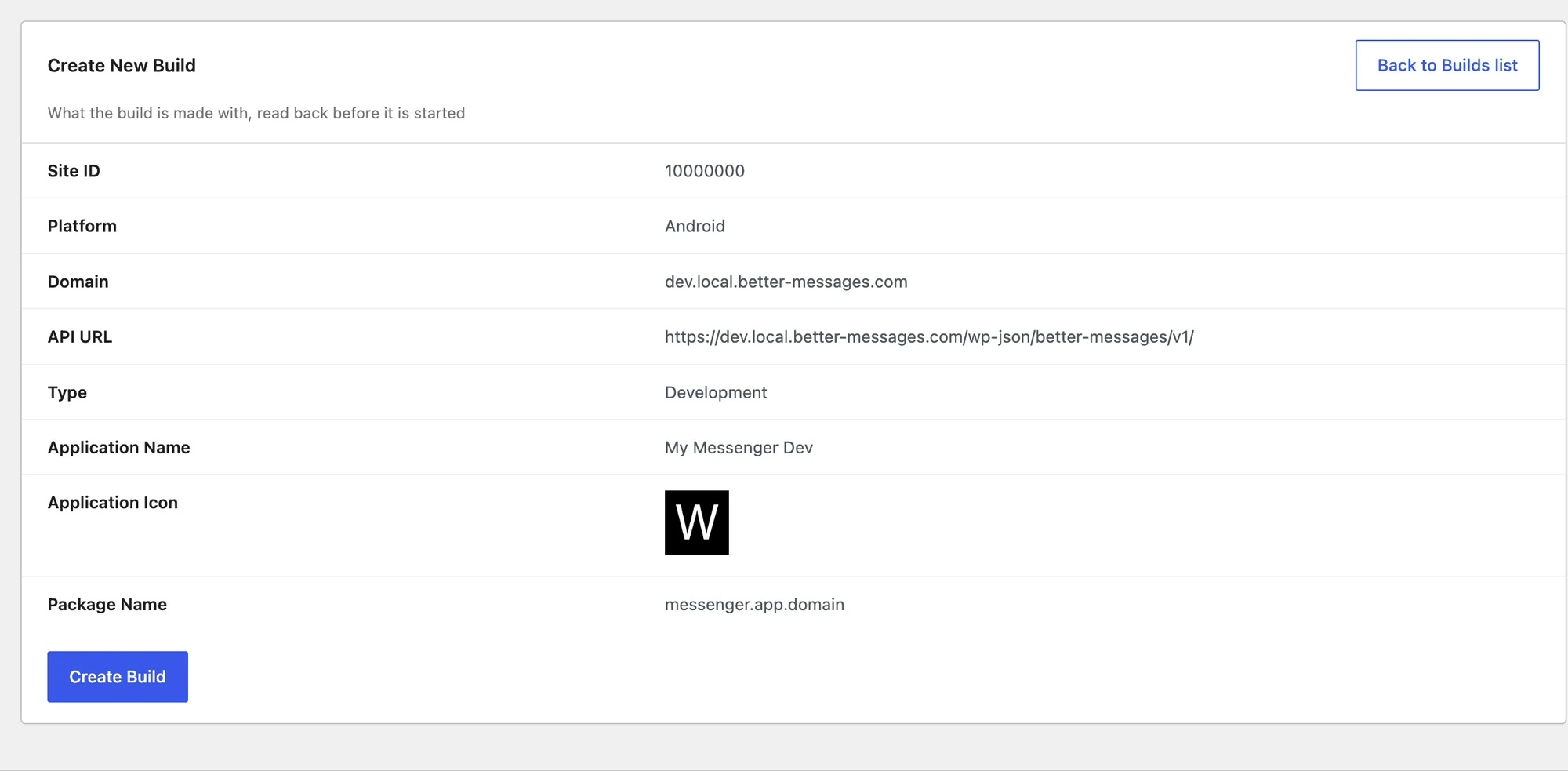
If anything required is still missing, this screen says so instead of showing the summary, and the build cannot be started until you fix it.
A development build installs only on devices registered in your Apple Developer account. Register them before building. The Devices tab in Better Messages is a different list — it shows devices already signed in to the app, not the ones a build is signed for.
Development Build#
Development build is used for testing purposes and can be installed only to iOS devices, which were added to your Apple Developer Account Devices List.
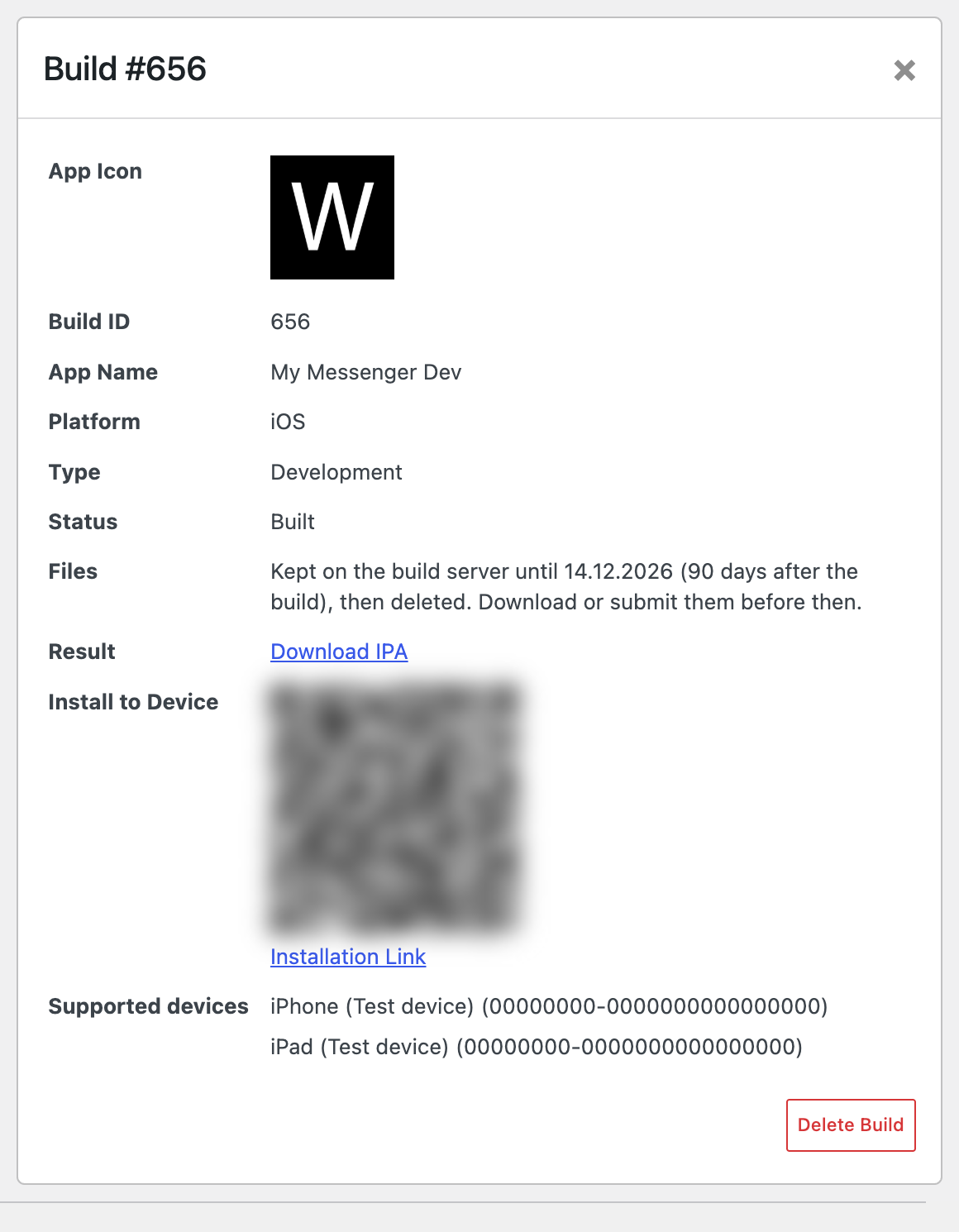
You can install the development build to your iOS device by scanning QR code with camera.
Production Build#
Production build is only possible to upload to App Store Test Flight.
There you will be able to test by users which are added to your Test Flight testers list or submit the application to the App Store for review.
Store screenshots#
Better Messages → Mobile App → Screenshots generates the screenshots for your App Store listing, at the exact pixel sizes Apple accepts, without you having to run the app and capture them by hand.
Screenshot generation is new. The files are the right size and format, but check each one before you upload it — a screen the generator renders badly is still a screen a reviewer sees.
What to show — pick from Inbox, Conversation and Group chat. Each screen becomes one screenshot per device size, and they appear on the listing in the order shown here. Each carries a caption drawn on the framed version, which you can edit or clear.
Sizes — both stores reject a file that is not one of their exact sizes, so each is written at the size named:
| Size | Pixels |
|---|---|
| iPhone 6.9" | 1290 × 2796 |
| iPad 13" | 2064 × 2752 |
The App Store takes 1 to 10 screenshots per size and scales every smaller iPhone and iPad from these, so those two sizes cover the whole listing.
Framing — under Versions you can generate a plain capture, a framed version, or both. A plain capture is what the app really looks like. A framed one reads better at the size a store page shows it. The framed version has three settings of its own:
| Setting | What it does |
|---|---|
| Background | Two colours. Set both to the same value for a flat background, or different ones for a gradient |
| Caption colour | The colour the caption is drawn in |
| Device outline | Draws a generic rounded bezel around the screen. Apple does not allow a frame that imitates a specific device, so the bezel is deliberately generic |

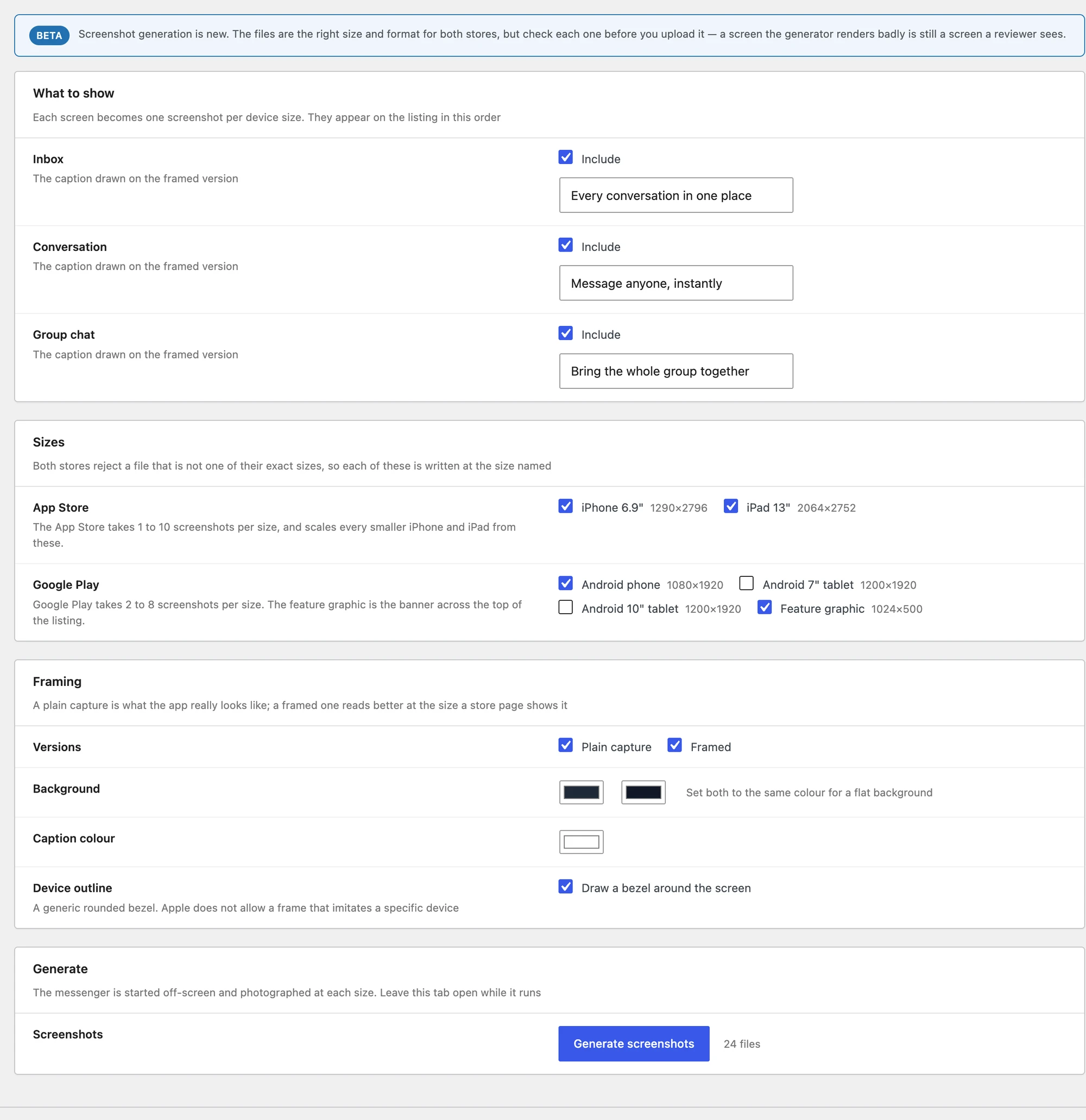
Generating starts the messenger off-screen and photographs it at each size, in the browser tab you started it from. Navigating away before it finishes cancels the run — and switching to another tab stalls it, because browsers stop painting a background tab and each shot needs a frame to be drawn. Leave the Screenshots tab in the foreground until the count reaches the end.
The shots are held in the page, not on the server: the Download buttons appear only in the result list after a run, and reloading the tab discards them. Download the ZIP before you navigate away, or you will have to generate again.
Devices#
Better Messages → Mobile App → Devices lists every device that has registered with your site from the app — searchable and paginated.
| Column | What it shows |
|---|---|
| User | The WordPress user signed in on that device |
| Device | Model and OS, marked Simulator where applicable |
| Application | Which build it is running — hover for the application identifier |
| Notifications | Subscribed or Not Subscribed for push |
| Last Active | When the app last checked in |
It is the quickest way to answer "why is this user not getting push notifications" — a device showing Not Subscribed never registered for them.

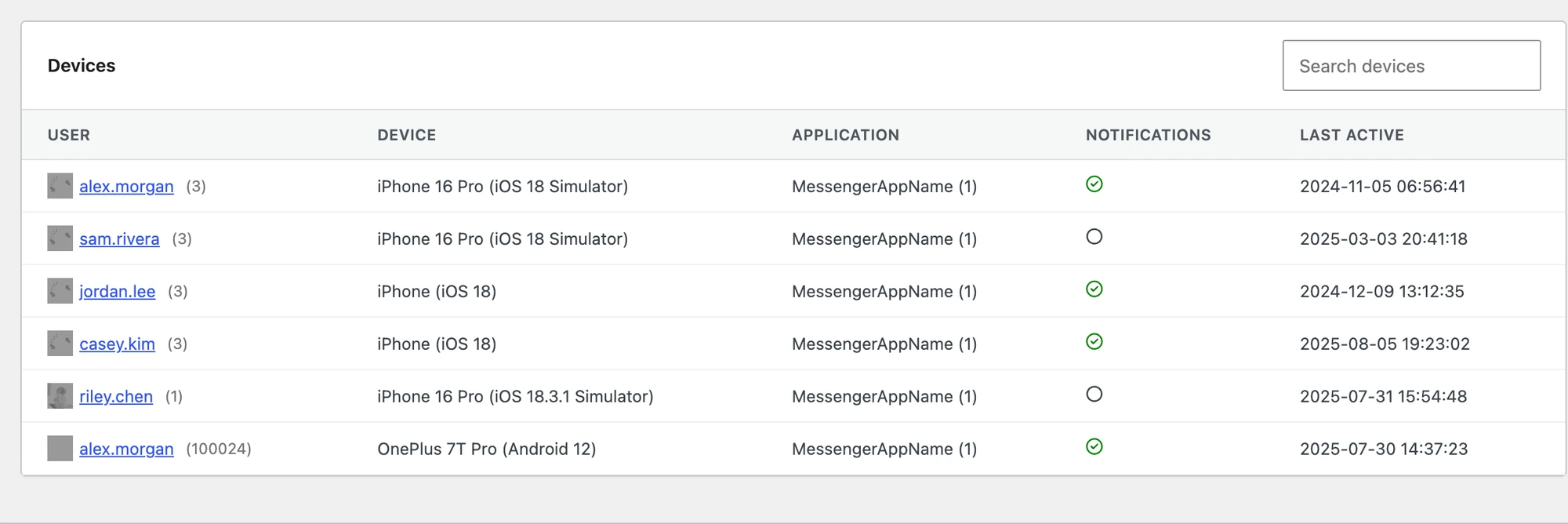
This list is not the Apple Developer devices list. It shows devices that have signed in to your app. The Apple list decides which devices a development build can be installed on at all.