Sign-in and Two-Factor Authentication
The mobile app signs members in two ways:
- Log in through the website opens the login page of your site in the secure browser of the phone. Everything that page does works there too: two-factor authentication, a CAPTCHA, social login (Nextend Social Login, FluentAuth and others) and plugins that send a code by text message or email.
- The password form in the app checks the username or email and the password of the member.
Better Messages → Mobile App → General → Login screen → Sign-in methods chooses which of them the app offers.

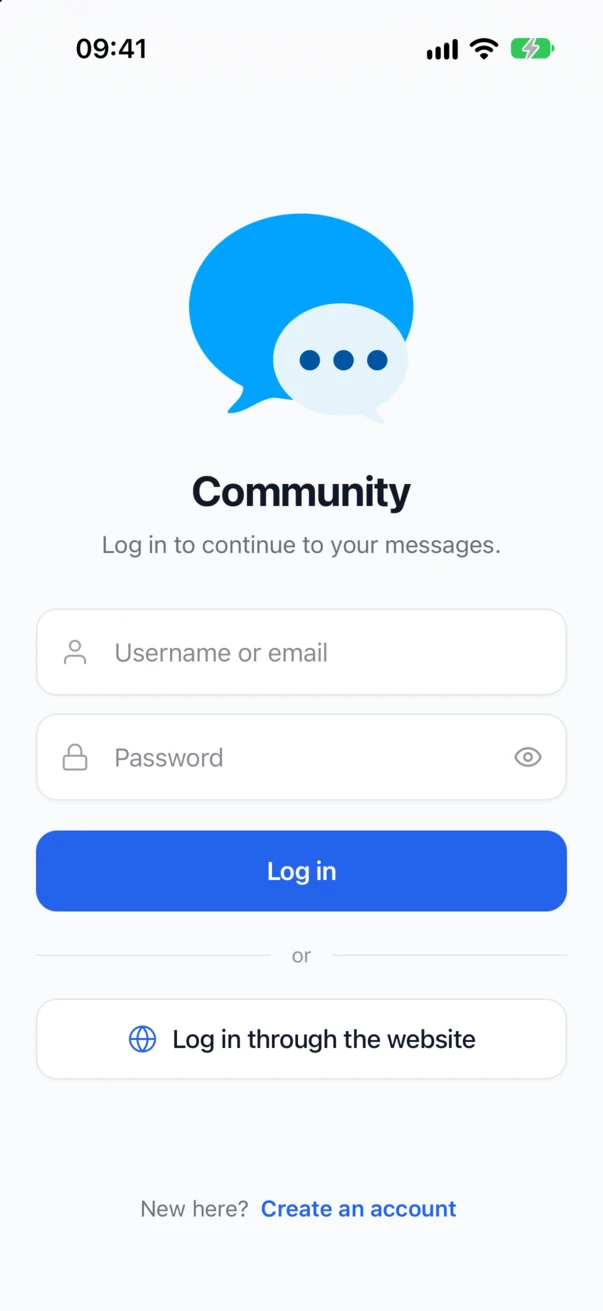

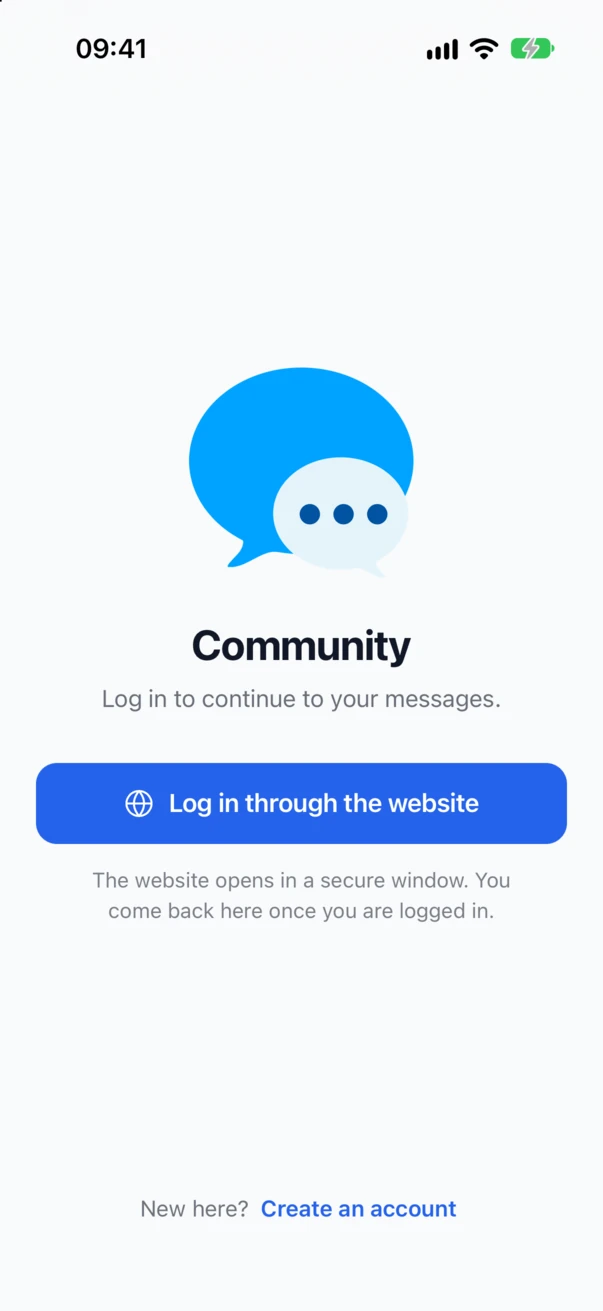
Sign-in methods#
| Choice | What the app shows |
|---|---|
| Website and password (the default) | The password form, and Log in through the website under it |
| Website only | Log in through the website as the only button, with a line saying that the website opens in a secure window |
| Password only | The password form alone, as before 3.2 |
The password form checks the password alone. It does not run the login plugins of your site, so a member with two-factor authentication on their account could sign in to the app without the second step. Website only turns the password form off on the site as well as in the app: the site refuses a password sign-in from any build of the app.
The same choice also suits:
- sites where members sign in with social login only and have no password they know
- sites with a CAPTCHA, a phone code or any other step on their login page
- sites that sign members in on another login page than
wp-login.php
What a member sees#
- The member taps Log in through the website.
- On iPhone, iOS asks whether the app may use your site to sign in, and names the site. The member taps Continue.
- The login page of your site opens in the secure browser of the phone, the same page the member knows from the website.
- Once the member is logged in, the browser closes by itself and the app opens the conversations.
A member who is already logged in to the website on that phone does not log in again. The site shows Sign in to the app with Continue as and the name of the member, and one tap signs the app in. Use another account logs out of the website first and shows the login page.

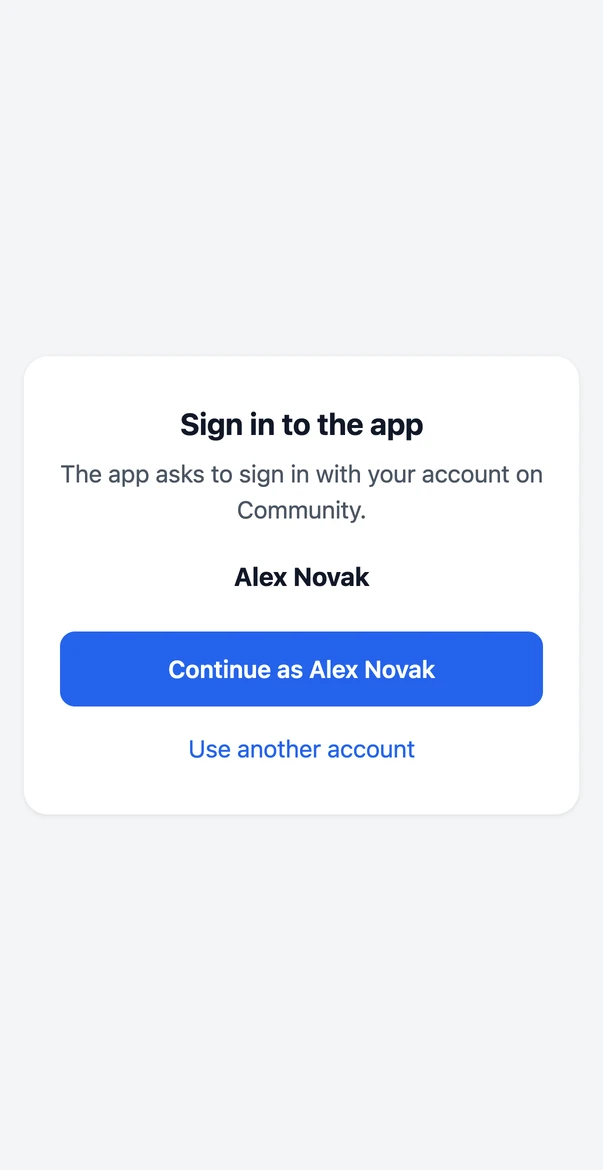
The member always sees this page when they were logged in before, so they know which account the app signs in with: the secure browser shares its login with the browser of the phone, which may hold another account than the one they mean. A member who logs in during the sign-in has just chosen the account and comes straight back.
When the app and the site are linked with the association files described in Links that open the app, the code returns to the app over the site's own address, which only that app can receive. This needs iOS 17.4 or newer, or on Android a browser that offers the Auth Tab, such as a recent Chrome. When the phone could not verify the files, the app falls back to its own address by itself.
Closing the browser before logging in takes the member back to the login screen of the app, with no error.
How it stays safe#
- The site gives the app a code that works once, for two minutes, and only together with a secret that never left the app.
- The code goes back to the app through the address of that app only. The confirmation step also keeps another app on the phone from asking for a sign-in in its name.
- A login page that ignores where to return to after login is caught too: the site remembers for ten minutes that the login started in the app, and sends the member back on the next page they open.
Password sign-in#
The password form is protected on the site:
- Failure limits. After 5 failed attempts for one account from one address, that account is locked out of the app from that address for 15 minutes. After 30 failed attempts from one address, for any accounts, that address is locked out. The app then says how long to wait. The limit per account counts only failures from the same address, so someone who guesses the password of a member from elsewhere cannot lock that member out of the app.
- Security plugins see the failures. Every failed attempt fires the WordPress action
wp_login_failed, the same one the login page fires, so Wordfence, Limit Login Attempts Reloaded and similar plugins count app failures and can block the address. - Members the messenger refuses cannot sign in. A member whose access to the messages of the
site was revoked, or whom the
better_messages_user_can_connectfilter refuses, is told that the account cannot sign in to the app. This applies to website sign-in too.
The address of a request is the address that connects to the server, unless that address is a
private or local one. Then the first public address in X-Forwarded-For, or else in X-Real-IP, is
used. A client can put any address first in X-Forwarded-For, so behind such a proxy the limits
stop only a client that does not try to hide. A site that knows its proxy can set the address with
the better_messages_mobile_app_login_ip filter.
Older builds of the app#
Website sign-in needs an app built with Better Messages 3.2 or newer, because the secure browser is a native part of the app.
| Sign-in methods | An app built before 3.2 |
|---|---|
| Website and password | Shows the password form only, as before |
| Website only | Shows Update the app in place of the form, with a button to the store |
| Password only | Works as before |
So before you choose Website only, publish a new build in the stores and give members time to update.
For developers#
| Hook | Type | What it does |
|---|---|---|
better_messages_mobile_app_login_methods | filter | The sign-in methods in use: both, website or password |
better_messages_mobile_app_login_url | filter | The login page that website sign-in opens for a visitor. Gets the address of that page and the address to return to after login |
better_messages_mobile_app_authenticate | filter | Runs before the password check of the password form. Return a WP_User to sign that user in, a WP_Error to refuse with its message, or null to go on with the password check |
better_messages_mobile_app_login_limits | filter | The failure limits: account (5), ip (30) and window in seconds (900) |
better_messages_mobile_app_login_ip | filter | The address the failure limits count by |
better_messages_mobile_app_can_login | filter | true to let a member sign in, or a WP_Error whose message the app shows. Gets the WP_User, the device and the method, password or website |
better_messages_mobile_app_login | action | After a member signs in. Gets the user id, the device and the method |
The password form does not run the WordPress authenticate filters, because CAPTCHA and
two-factor plugins hook there and would refuse every app sign-in. To add a check of your own to
the password form, use better_messages_mobile_app_authenticate. To check every way in, use
better_messages_mobile_app_can_login:
add_filter( "better_messages_mobile_app_can_login", function( $allowed, $user, $device, $method ) {
    if ( $method === "password" && user_can( $user, "manage_options" ) ) {
        return new WP_Error( "website_only", "Administrators sign in to the app through the website." );
    }

    return $allowed;
}, 10, 4 );