Calls in the Mobile App
The mobile app answers and places calls in call screens of its own, native to iOS and Android, for audio calls, video calls, group video chat and group audio chat. Incoming calls ring like phone calls, on a locked phone too, and a call keeps going when the member switches to another app.
Better Messages 3.2 brings the app's call screens to what the website has, in the same words and with the same rules. Everything on this page needs a build of the app made with Better Messages 3.2 or newer (see iOS app and Android app). An app built before keeps its earlier call screens until it is built again.
Device settings#
The settings button in the call controls opens Device Settings over the call, in one-to-one and group calls alike, as on the website (see device settings):
- Camera: Preview shows the camera only to the member, never sent and never mirrored, and the list switches between the front and the back camera
- Microphone: Test shows its level on a meter while the member speaks, and the list picks the phone's microphone or a headset
- Speaker: Test plays three short notes, and the list picks where the sound goes, such as the speaker, the earpiece or Bluetooth headphones
- A line under the camera and the microphone says whether everyone sees and hears the member, or in a call between two the other person by name
Nothing in Device Settings opens a device before the member presses a button, and nothing in it is sent to the call. The camera and the microphone go live only from the buttons of the call controls.
Joining a group call#
A group call being joined looks like one: the call grid with the member's own tile, and only Show Chat and Exit Chat in the controls, with a spinner before them until the call connects.
As the call connects, a card over the controls tells the member that their microphone and camera are off and that the controls turn them on, with Preview in a video call or Test Microphone in an audio call. It goes after ten seconds. It follows WP Admin → Better Messages → Settings → Group Calls → Joining → Notice on Join, as the website does (see joining a group chat).
A full call that turns someone away tells them why, in the app as in the browser (see how many people can join).
The call controls#
- Show Chat / Hide Chat is a button of the controls, after Answer and before the settings, lit while the conversation shows beside the call. It replaces the small handle under the controls.
- In a group call the tiles end above the controls, with the connection status at the start of the bar, so the controls never cover the bottom tile.
- The buttons have the size and spacing of the website's call controls, a little smaller on phones.
Host Controls for moderators#
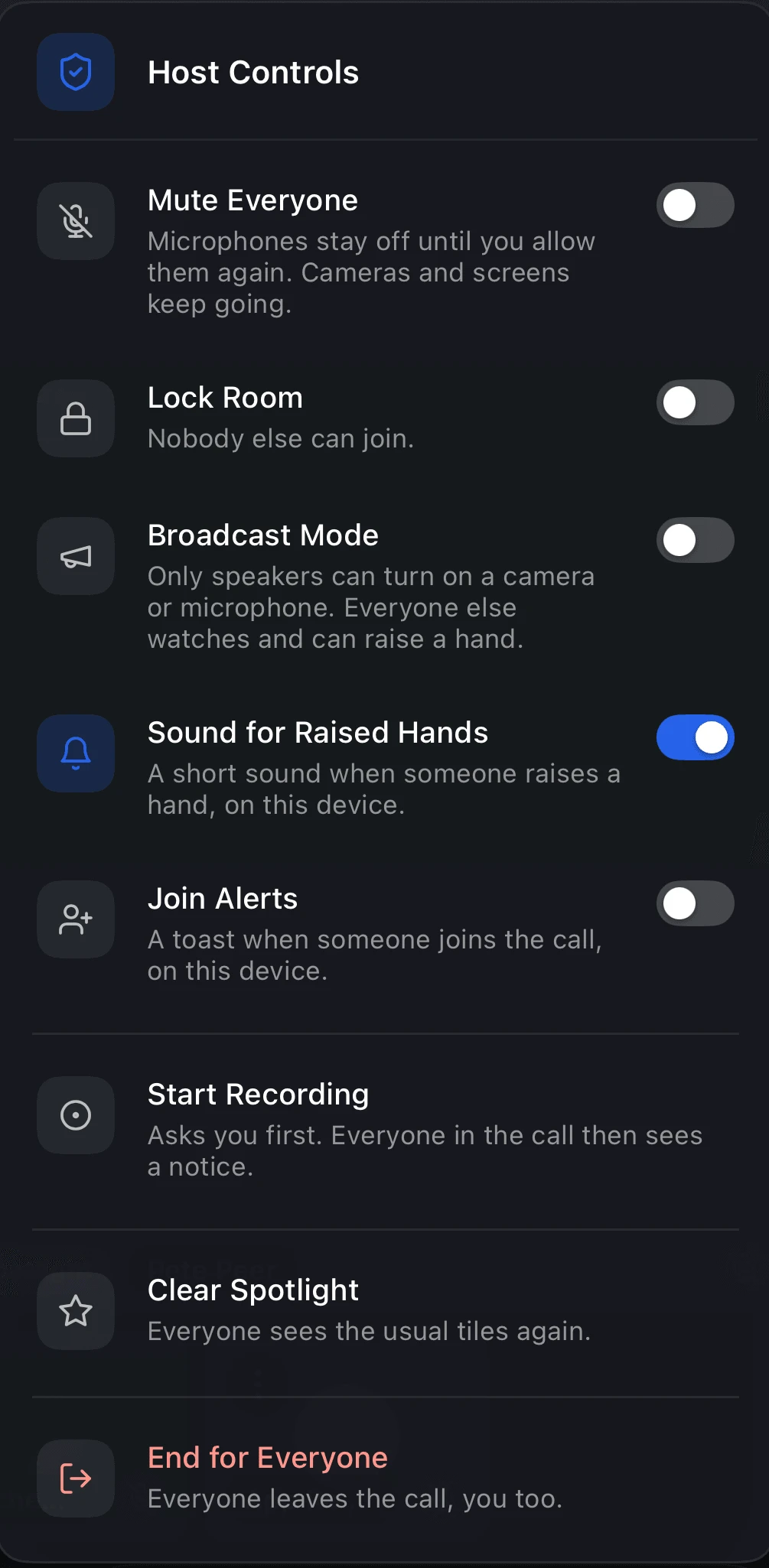
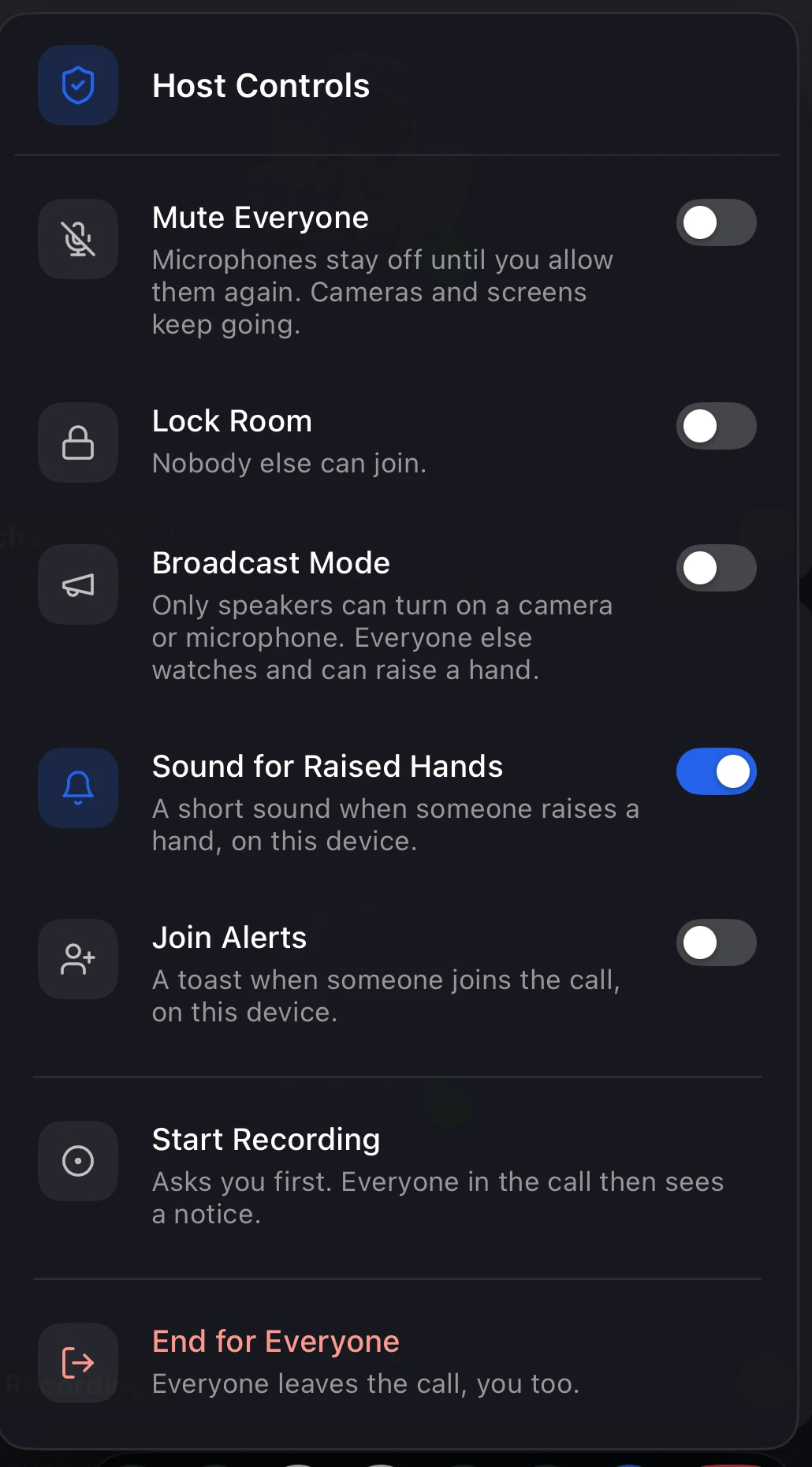
The moderators of the conversation, and site administrators, have Host Controls in the controls of a group call, as on the website (see Host Controls):
- Mute Everyone mutes microphones only, while cameras and screens keep going, and people who join while it is on come in muted
- Lock Room and Broadcast Mode as switches, each with what it does under it
- Lower All Hands while a hand is raised
- Clear Spotlight while someone is in the spotlight, see Spotlight and Pin for Me
- Start Recording and Stop Recording, where the site records group calls, see Recording
- End for Everyone, asked again on a card first. Everyone leaves the call, the moderator too, and the others read that a moderator ended the call for everyone
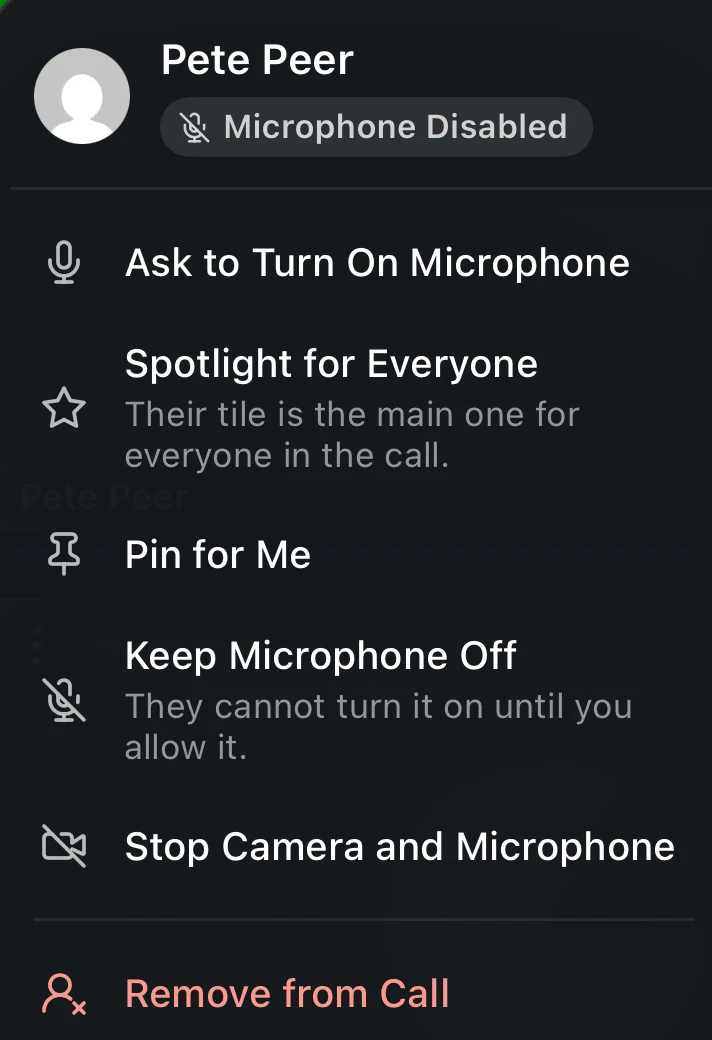
The ⋯ on a tile opens the menu of that person, at their tile: Spotlight for Everyone or Remove Spotlight, Pin for Me, Mute Microphone or Allow Microphone, Stop Camera and Microphone or Allow Camera and Microphone (in broadcast mode and in audio calls, Demote to Viewer or Promote to Speaker), Lower Hand and Remove from Call. For someone who has them off already, the rows read Keep Microphone Off and Keep Camera and Microphone Off, as nothing is on to stop. A microphone a moderator muted shows a silenced icon on every tile and on the controls of the muted person, who is told so, until the moderator allows it again.
Toasts for raised hands and joins#
A moderator gets a toast with the name and picture of whoever raises a hand, with a short chime, and of whoever joins once Join Alerts is on. Both are switched in Host Controls and kept on that phone. See join alerts and raised hands.
Asking someone to turn on their camera or microphone#
A moderator in the app can ask someone in a group call to turn on their camera or microphone, or both in one ask when both are off, from the menu of that person. The person asked, in the app or in the browser, answers on a card over the controls:
- Turn On: the phone asks for the camera or the microphone first if it has not allowed it yet (on iOS one question for each, on Android one for both). Where the member refused it before, the card tells them how to allow it, with Open Settings.
- Preview: opens Device Settings to check the camera first.
- Not Now: puts the card away.
The moderator reads in a toast, and in the menu they asked from, what came of it. See ask to turn on camera or microphone.
Spotlight and Pin for Me#
Group video calls in the app follow Spotlight for Everyone as the website does:
- Spotlight for Everyone in a person's menu puts their tile on the main tiles for everyone in the call, marked Spotlight. Up to four people can be in the spotlight at once, and a fifth is refused with "Up to four people can be in the spotlight." Remove Spotlight takes one person out of it, and Clear Spotlight in Host Controls takes everyone out
- A member who joins while someone is in the spotlight sees the spotlight at once, and the app follows it as a moderator in the browser or in another app changes it
- Pin for Me puts a person large on the member's own screen only. A tap on a tile shows its pin for a few seconds, and moderators also have Pin for Me in the person's menu. While someone is in the spotlight, a pin waits and applies once the spotlight is cleared. Unpin for Me takes it off


Recording#
Where the site records group calls, the app's call screens show it as the website does:
- REC with the time beside the controls while a call is recorded
- the notice, or the question to stay or leave, that the site chose in Tell People a Call Is Recorded, with Do Not Show Again on the notice
- where the site keeps everyone muted until they agree, the microphone and camera stay off, the phone's own mute button included, until the member presses I Agree or leaves the call
- Saving recording… for a moment after the recording stops
Moderators start a recording from Start Recording in Host Controls, which asks first, as on the website. They stop it with Stop Recording in Host Controls, or by pressing REC, with a confirmation. The recording itself is the same as one started in the browser, with its card in the conversation.



Members need a build of the app made with Better Messages 3.2 or newer. An app built before does not show that a call is recorded.
When someone's video stops#
When the video or sound of someone stops arriving, their tile says it within seconds, as on the website (see video interrupted and reconnecting):
- Video interrupted over their blurred last picture when only their camera stopped
- Reconnecting... when nothing of theirs arrives, their sound included
- in a call between two, "The other side lost connection" when nothing arrives
Before 3.2 a frozen picture could pass for a live one until the call dropped them.
Steadier one-to-one calls#
- Clearer sound on a weak connection. The microphone is sent with redundant audio, so a lost packet is played from the next one instead of breaking up the voice.
- Holding on through a stall. When the connection of one side stalls for a while, as on a weak mobile network, or moves while the call rings, the call waits for it and stays directly between the two instead of moving to the call server.
What stays in the browser#
Some parts of the website's call screens are not in the app's call screens yet:
- video effects: background blur, virtual backgrounds and AI Noise Removal
- keyboard shortcuts
- layouts and the Participants panel
- Remove and Ban from Calls
- talking while muted: muting in the app turns the microphone off completely, so there is nothing to notice talking with
Members in the app still join calls where these are used, and the others see their camera as the app sends it.
Frequently asked questions#
Do the new call screens need a new build of the app?#
Yes. The call screens are native code inside the app, so a member gets them once the app is built again with Better Messages 3.2 or newer and the new build reaches their phone through the App Store, Google Play or TestFlight.
Does an older app follow Spotlight for Everyone?#
No. An app built before 3.2 does not follow the spotlight: its members keep seeing the usual tiles while a moderator spotlights someone, and have no Pin for Me. Members on the website and in an app built with 3.2 or newer see the spotlight as it is set.
Do the app's calls follow the site's call settings?#
Yes. Notice on Join, the moderators of each conversation, Mute Everyone, Lock Room, Broadcast Mode, the spotlight, the size of group calls and the restrictions on who may start and join are the site's, so the app and the browser follow the same rules in the same call.
Can members in the app and in the browser be in the same call?#
Yes. A call is one call whichever app or browser each person uses, and a moderator in the browser manages people in the app the same way.
See also#
- iOS app and Android app — building and publishing the app
- Video calls and Audio calls — one-to-one calls
- Group video chat and Group audio chat — group calls and Host Controls
- Screen sharing — sharing the phone's screen in a call