MultiVendorX Vendor Chat: Buyer ↔ Seller Messaging Plugin
MultiVendorX (formerly WC Marketplace) is one of the older multi-vendor plugins for WooCommerce — it has been through a major rewrite to the 5.0+ branch while the legacy 4.x branch still runs on a large installed base. Better Messages adds a Live Chat layer to both: vendors get a Messages entry in their dashboard sidebar, customers get a Live Chat button on every product and vendor storefront, and the messenger uses MultiVendorX vendor avatars and shop-profile links throughout.
Better Messages ships separate integrations for MultiVendorX 4.x and 5.0+, so you do not have to migrate to the new MultiVendorX version just to get vendor chat. The integration auto-detects which version is active.
What Better Messages adds to MultiVendorX#
Once Better Messages is installed and the MultiVendorX integration is enabled under Better Messages → Settings → Integrations → WooCommerce → MultiVendorX:
- Per-vendor toggle — vendors enable Live Chat from their dashboard store settings. A matching site-wide option, Hide Messages tab when vendor disables live chat, also removes the Messages tab from the dashboard sidebar of any vendor who turns it off, so the two stay consistent.
- Messages tab in the MultiVendorX Vendor Dashboard — vendors stay inside their dashboard to reply.
- Live Chat button on every product page sold by a vendor.
- Live Chat button on the vendor storefront.
- Vendor avatars and links in the messenger come from the MultiVendorX shop profile, not the raw WordPress user.
Messages tab on the Vendor Dashboard#
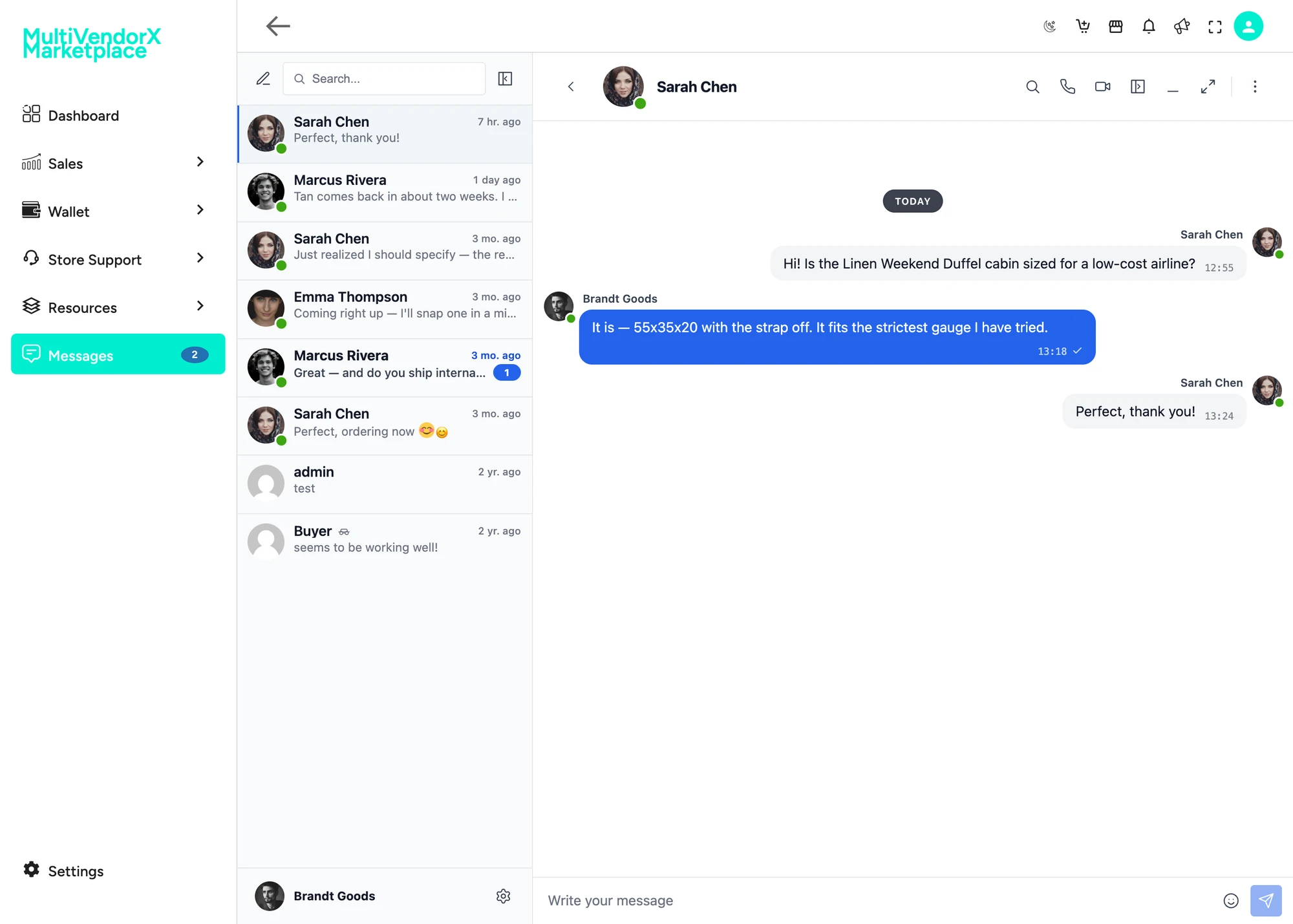
Embeds the full Better Messages inbox inside the MultiVendorX dashboard. Vendors do not switch contexts to reply — every customer thread, with a product card attached, lives one click away from sales and orders.
Live Chat button on product pages#

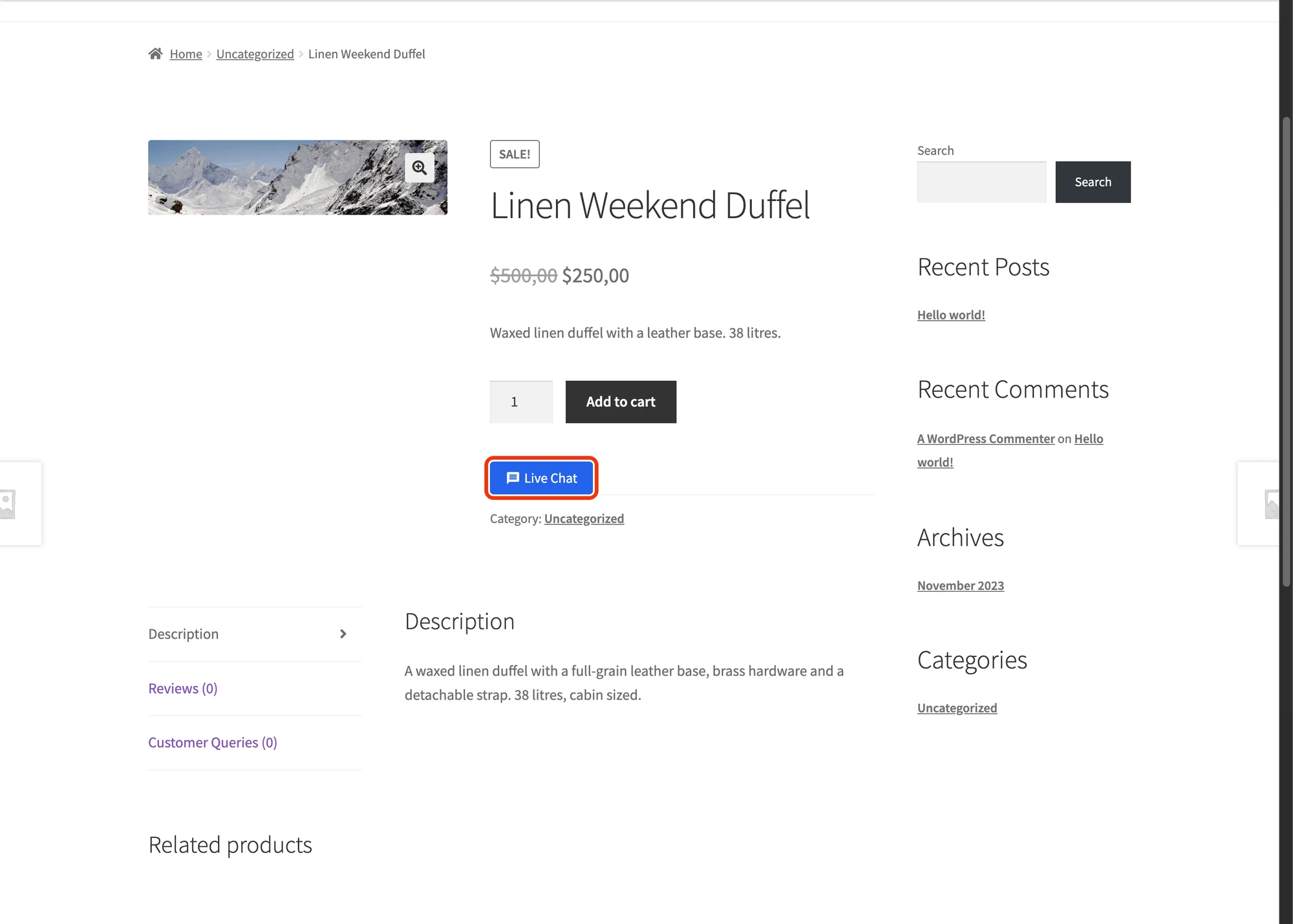
Adds a Live Chat button to every product sold by a vendor. For custom page builders or non-standard templates, the shortcode works:
[better_messages_multivendorx_product_button]
Live Chat button on the vendor storefront#

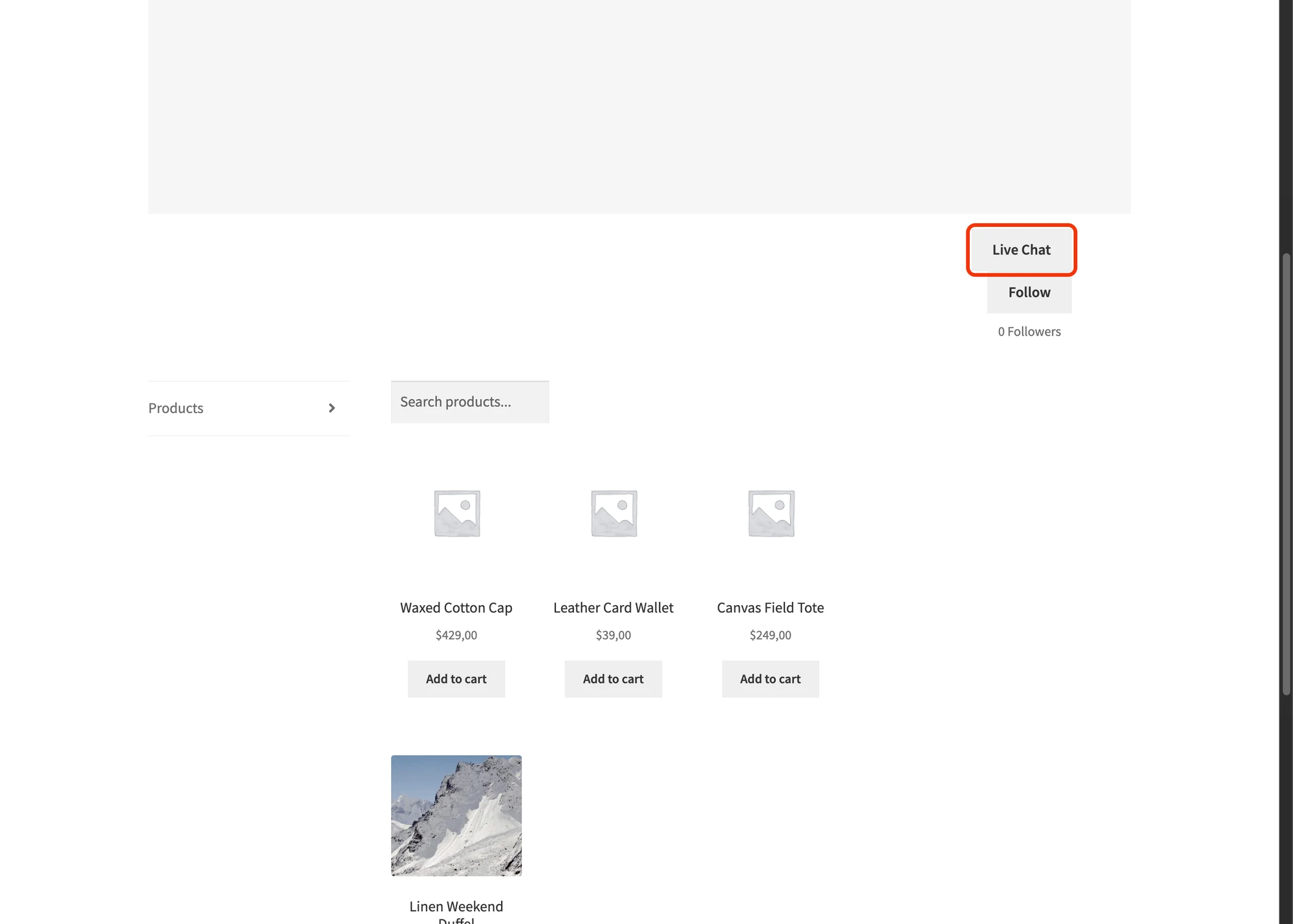
For custom layouts:
[better_messages_multivendorx_store_button]
Video walkthrough#
Installing Better Messages on a MultiVendorX site#
- Install Better Messages from WordPress.org and activate it.
- Make sure MultiVendorX is active (4.x or 5.0+).
- Open WP Admin → Better Messages → Settings → Integrations → WooCommerce.
- Scroll to MultiVendorX Integration and toggle Vendor Live Chat on. When MultiVendorX is the active marketplace plugin, this section is sorted to the top of the WooCommerce sub-tab.

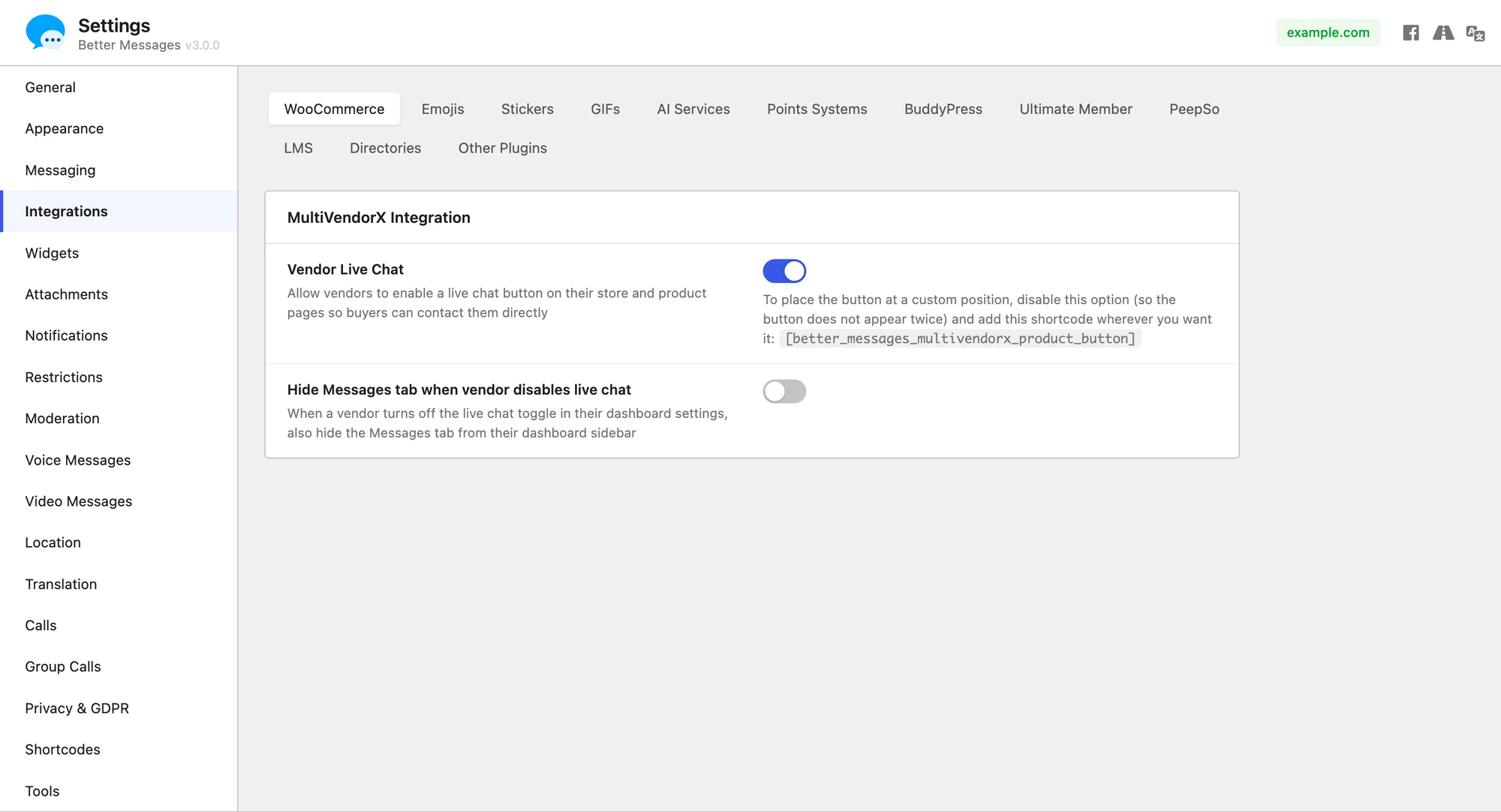
Right below the Vendor Live Chat toggle is Hide Messages tab when vendor disables live chat — off by default. With it off, the Messages tab stays visible to every vendor regardless of their personal live chat preference. Flip it on if you want the tab to disappear for vendors who have switched live chat off in their store settings.
Vendors then enable Live Chat for their own shop under their dashboard's store configuration.
Free vs WebSocket version for MultiVendorX stores#
| Feature | Free version | WebSocket version |
|---|---|---|
| Live Chat on product / storefront / dashboard | yes | yes |
| Per-vendor enable / disable | yes | yes |
| Vendor avatars and profile links from MultiVendorX | yes | yes |
| Support for MultiVendorX 4.x and 5.0+ | yes | yes |
| Real-time delivery | polling | instant |
| Mini-widget popup chat | — | yes |
| One-on-one voice and video calls inside the thread | — | yes |
| Group voice and video calls (vendor team) | — | yes |
| Web push notifications for new messages | — | yes |
| Read receipts | — | yes |
| End-to-end encryption (optional) | — | yes |
For MultiVendorX marketplaces where buyers expect responses inside minutes, the WebSocket version's instant delivery plus web push pulls vendors in even when they have the dashboard closed — and the mini-widget popup keeps the buyer on the product page while they wait for a reply.
Frequently asked questions#
Does it work with both MultiVendorX 4.x and 5.0+?#
Yes — Better Messages ships separate integrations for both branches. The plugin auto-detects which version is active and loads the matching integration. Migrating between branches keeps the chat history.
Can customers chat without an account?#
Optional. With Guest Chat enabled in Better Messages → Settings → General → Guest Chat, unregistered customers can start a thread by typing a name and email.
Can vendors disable Live Chat for their own shop?#
Yes — the per-vendor toggle in the dashboard store settings is independent of the global setting. By default, disabling it just hides the customer-facing Live Chat buttons. The Messages tab itself stays in the vendor's sidebar. Admins who want the tab to disappear too can flip on Hide Messages tab when vendor disables live chat under MultiVendorX Integration in WP Admin.
What if my theme overrides the product template?#
Use the manual shortcode [better_messages_multivendorx_product_button] placed wherever the Live Chat button should appear. The shortcode auto-detects the current product.
Does it work alongside other marketplace plugins?#
Technically yes — Better Messages supports having multiple marketplace plugins active simultaneously. Rare in practice, but each integration loads independently.
See also#
- MultiVendorX integration documentation — full setup reference
- WordPress marketplace chat — comparing Dokan, WCFM, WC Vendors, MultiVendorX
- Dokan vendor chat plugin
- WCFM Marketplace chat
- WC Vendors chat