@Mentions
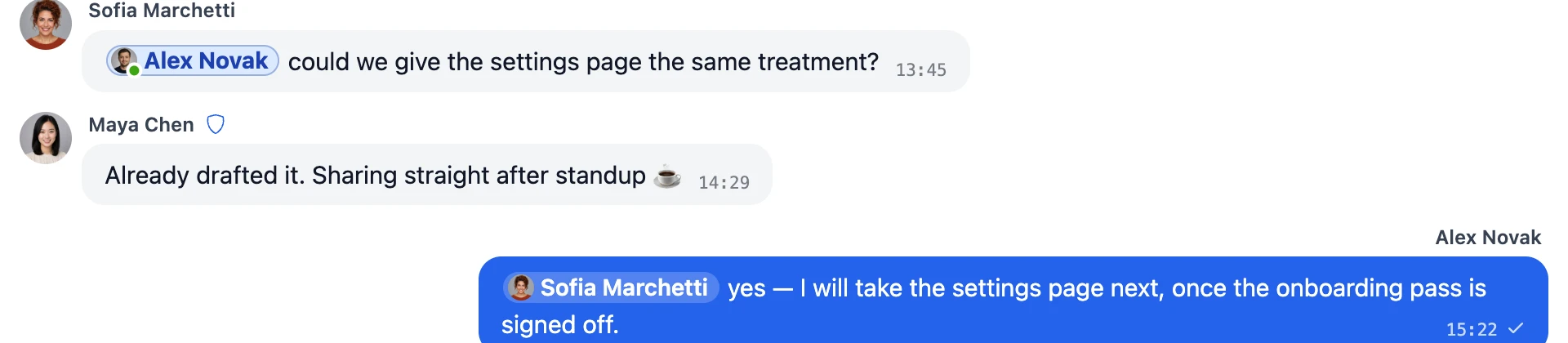
Better Messages supports @ mentions in every conversation — type @, pick a participant from the autocomplete dropdown, and that user's name is highlighted in the message + they get a priority notification. The Slack / Discord / community-platform standard, built into every Better Messages thread.

What it adds#
- Type
@to open the mention autocomplete picker - Live-filtered dropdown showing matching participants from the conversation
- Mentioned users get a per-thread "mentions" badge in their inbox, on top of normal unread counts
- Mentioned text is visually highlighted in the rendered message
- Mention picker shows user avatars and online-presence dots (WebSocket version)
- Each mention is a clickable link to the user's profile, opened in the same tab
How it works#
When the user types @ in the message input, an inline picker appears. As they keep typing, the picker filters participants whose name or username matches the input. Tab or click to insert — the user is added to the message as a mention token tied to the user's ID.
| Action | Outcome |
|---|---|
User types @an | Picker shows participants whose name starts with "an" (Anna, Andy, etc.) |
| User selects "Anna" | Message text becomes "Hi @Anna, ..." with Anna's name highlighted |
| Message sends | Anna's inbox shows a mention badge in addition to the unread count |
| Anna clicks the mention | She's taken to her profile page |
| Anna opens the conversation | The mention is cleared on read |
The mention token stores the user ID, so renaming a user later still resolves correctly. Display text uses the user's current display name.
When mentions matter most#
| Scenario | Why mentions help |
|---|---|
| Large group chat | Direct addresses cut through the noise — only the mentioned person is alerted |
| Community announcements | Tag specific contributors for follow-up |
| Bug-triage threads | Tag the developer responsible for a specific area |
| LMS discussions | Tag the instructor when a question needs their input |
| Cross-team coordination | Tag specific people across teams to pull them into a thread |
How to enable#
Mentions are enabled by default. No setting to flip — the feature is built into the message input.
Force notify on @-mention#
To alert mentioned users even when they have muted the conversation, turn on Settings → Notifications → General → Force Notifications for Mentions. An @-mention then bypasses the mute for that one message — useful for community managers reaching specific people in noisy threads. It is off by default. See conversation muting.
Frequently asked questions#
Can I mention everyone in a conversation with @everyone?#
Not in the default UI — only individual users can be mentioned. A global @everyone / @channel token isn't part of the picker today.
Can users mention themselves?#
Yes — but no mention badge is set for the sender (you don't notify yourself). Useful for highlighting your own past comments by reference.
What happens if I mention someone who isn't in the conversation?#
The picker only shows current participants, so this normally can't happen.
Can I mention AI bots?#
Yes — @bot mentions trigger the AI bot to respond. In a 1-on-1 conversation the bot already replies to every message. In a group conversation it only replies when explicitly @-mentioned (to avoid spamming the group).
See also#
- Group conversations — where mentions are most useful
- AI chat bots — bot invocation via @-mention
- Conversation muting — context for the "force notify" override
- Notifications — overview of notification channels