Mini Widgets
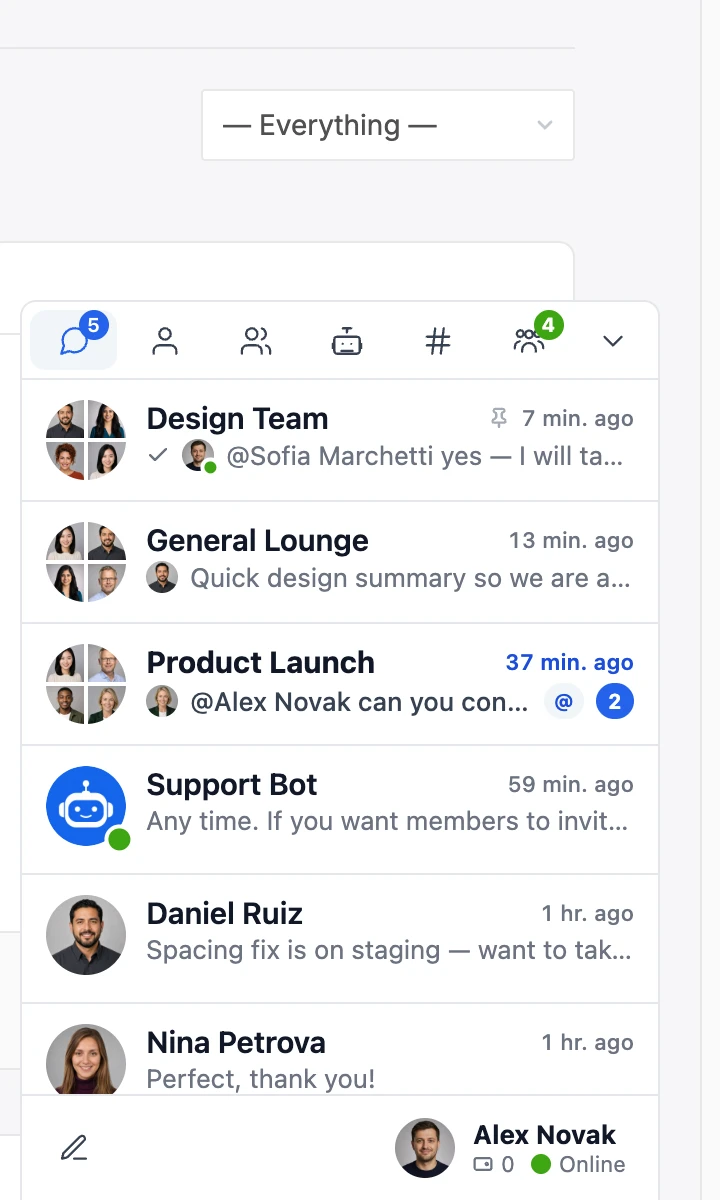
Better Messages provides mini chat widgets fixed to the bottom of the screen — giving users quick access to conversations, friends, groups, courses, AI bots, and chat rooms from anywhere on the site. Two display styles available: Classic Bar (tab bar at the bottom) or Floating Bubble (Intercom-style circular button).

How it works#
Mini widgets are small panels anchored to the bottom of the browser window that remain visible as users browse your website. They provide quick access to conversations, friends lists, and group lists without navigating to the main messaging page. Each widget type can be independently enabled and restricted by user role.
Available widgets#
Better Messages ships seven widget types, each with its own settings panel:
- Conversations — compact list of recent conversations with unread counts. On the Mini Bar this one tab needs the WebSocket version. On the Side Panel and the Mobile Bar it is always present
- Friends — list of friends with online status (requires BuddyPress, Ultimate Member, or PeepSo)
- Groups — list of social groups with quick access to group conversations (requires BuddyPress, Ultimate Member, PeepSo, or FluentCommunity Spaces)
- Courses — list of courses the user is enrolled in or instructs (requires Tutor LMS, LearnPress, or LearnDash). LearnDash Group cohorts also appear here, alongside the actual courses
- AI Bots — start or continue conversations with configured AI chat bots. Supports "all enabled bots" or a curated subset. The row stays switched off until at least one bot exists
- Chat Rooms — browse public chat rooms with an optional online-count badge. The row stays switched off until at least one room exists
- Users — browse and message any site member. Optional online-only filtering, online-first ordering, sort by last activity or registration date, and three display modes (all users, by role, or a hand-picked list)
A widget whose requirement is not met — no friends plugin, no bot created yet, no chat room yet — is listed in the order but cannot be switched on, and the row says why.
Key capabilities#
- Three placement surfaces per widget — Mini Bar (bottom of screen), Side Panel, and Mobile Bar — each independently toggleable and role-restrictable
- Two display styles for the Mini Bar: Classic Bar (tab bar at the bottom) or Floating Bubble (circular button that expands into a panel)
- Custom Bubble Icon — choose from preset icons or paste your own SVG
- Per-widget icon picker — customize the icon shown on the Mini, Side Panel, and Mobile bars
- Per-widget Search Box toggle — show or hide the inline search field above each list
- "Hide Tab When Empty" — hide the Friends / Groups / Courses / AI Bots / Chat Rooms / Users tab entirely when the current user has nothing to show, instead of rendering an empty list
- Smooth open/close animations (toggleable)
- Close button for each widget
- Role-based visibility restrictions per placement
- Customizable widget display order (drag-and-drop)
- First tab opens by default — drag any tab first, on any of the three surfaces, and the messenger opens on it, so a rooms-first or people-first community does not start on the conversations list
- Points balance display when a points system (MyCred/GamiPress) is configured
- Works alongside other page content
Mini Chats (popup chat windows), Combined Mini Chat widget, and Bubble Chat Heads require the WebSocket version.
Display Styles#
Better Messages supports two ways of displaying mini widgets:
Classic Bar#
A tab bar fixed to the bottom of the browser window. Clicking a tab expands the corresponding panel above it. This is the traditional layout used in messaging widgets.
Floating Bubble#
A circular floating button anchored to the corner of the screen, similar to chat widgets used by services like Intercom and Messenger. Clicking the bubble expands it into a chat panel. The bubble icon can be customized from a curated set of preset icons or by pasting custom SVG markup.
How to enable#
The settings live in two places since 3.0 — what each widget does and how the bar looks:
WP Admin → Better Messages → Settings → Widgets has one sub-tab per widget: Conversations / Friends / Groups / Courses / AI Bots / Chat Rooms / Users. Each exposes the widget's icon, the "Hide Tab When Empty" and "Show Search Box" toggles, role restrictions for the Mini / Side Panel / Mobile placements, and any widget-specific settings (display mode, online filtering, hand-picked lists).
WP Admin → Better Messages → Settings → Appearance → Mini widgets has the look and placement: the bar's display style, the Bubble launcher group, the Widget bar corners, Mini chat windows, and Widgets on the bar — the drag-and-drop order whose first entry is the tab the messenger opens on.
There is no Mini Widgets → Layout sub-tab any more. Everything that was on it moved to
Appearance → Mini widgets, and the tab itself is now called Widgets. Old links to
#/widgets/layout redirect there.
Choosing which tab the messenger opens on#
The messenger opens on whichever tab is first in the order — the same rule on all three surfaces. By default that is the conversations list. If your community lives somewhere else — chat rooms, the member directory — drag that tab to the first position instead.
Conversations is draggable like every other tab of the Side Panel and the Mobile Tab Bar (it just cannot be switched off there), and each surface keeps its own order. Whenever the first tab is not available to a particular visitor — a guest, or a widget that was later switched off — the next available tab opens instead.
The collapsed (compact) side panel keeps the tab switcher too: tabs stack vertically as icons in the narrow column, with names shown as tooltips.
Remember Last Tab#
Remember the last tab at Settings → Appearance → Layout changes the rule for members who have already been using the messenger: instead of the first tab, it reopens on whichever tab that member used last. New visitors, and anyone who has not opened a tab yet, still start on the first tab in your order.
The choice is stored in the member's own browser, so it survives a reload and is shared between the tabs they have open. It applies to the Side Panel and the Mobile Tab Bar. The mini widgets bar has always worked this way. If the remembered tab is no longer on offer — the widget was switched off, or the member is now a guest who cannot see it — the first available tab opens instead.
Available since Better Messages 2.15.28.
Links to a conversation#
A link that points at a particular conversation always opens the tab that conversation belongs to, whatever your order says and whatever the member last used. A link to a chat room opens the chat rooms list, and a link to a private or group conversation opens the conversations list.
A link that starts a conversation counts too. A "Send message" button in a forum profile or member directory carries no conversation yet — it opens the screen for writing one — and the conversations list opens beside it just the same.
This is what makes those buttons behave, so a member following one sees their conversations next to the message rather than an unrelated list.
Available since Better Messages 2.15.28.
Customization#
The bubble button and chat heads are customized at WP Admin → Better Messages → Settings → Appearance → Mini widgets, under Bubble launcher:
| Control | What it does | Default |
|---|---|---|
| Icon | Which glyph the bubble carries — a preset, or your own SVG | — |
| Size | Diameter of the floating bubble button | 56px |
| Roundness | Corner radius of the bubble | — |
| Close on outside click | Collapse the panel when the visitor clicks away | — |
| Chat heads | Show recently closed conversations as avatar bubbles above the button | — |
| Chat heads limit | How many of them | — |
| Chat heads size | Diameter of those avatar bubbles | 50px |
These were in the WordPress Customizer under Better Messages → Mini Widgets & Mini Chats. That panel was removed in 3.0 — the values you had set are migrated across automatically.
Where the widgets sit is a group above Bubble launcher, in the same Mini widgets section:
| Control | What it does | Default |
|---|---|---|
| Display style | Classic bar or Floating bubble | Classic bar |
| Screen corner | Left or Right | Right |
| Distance from the side | Horizontal offset from that corner | 20px |
| Distance from the bottom | Vertical offset | 0px |
Colours of the bubble#
The launcher is painted from colours of its own, at Settings → Appearance → Colors → Mini widgets, under Bubble launcher. They are there so the button can carry a colour the rest of the widget bar does not: setting one leaves the bar, its tabs and its list exactly where they were.
| Control | What it paints | Follows until you set it |
|---|---|---|
| Background | The round button itself | Widget bar → Accent |
| Icon | The glyph on it | The widget bar's accent text while it reads on the button, white or dark otherwise |
| Border | The ring around the button | The background, which leaves no ring to see |
| Unread badge | The pill with the unread count, on the button and on the chat heads | — |
| Badge text | The digits in that pill | White or dark, whichever reads on the badge |
Each has a light and a dark value, like every other colour on that tab. In dark the button starts as a quiet card with a ring rather than a filled disc, which is what it has always looked like there — now as values you can move. The group is available while the display style is Floating bubble, and says so while it is not.
Frequently asked questions#
Can I hide the mini widget on specific pages?#
Yes — the per-widget role restrictions handle most cases (e.g. hide for guests). To hide every widget on specific pages (checkout, immersive course videos, etc.), add custom CSS scoped to those pages that targets the mini-widget container.
Does the bubble icon support animated GIFs or only static images?#
The Bubble Icon picker accepts SVG markup. For animated icons, use animated SVG (works in all modern browsers). GIFs aren't supported in the icon slot.
Are mini widgets visible to guest users?#
Yes — guests see the widget if guest chat is enabled. Use the role-based visibility settings to restrict if needed (e.g., hide for guests to encourage sign-up).
How does the Floating Bubble interact with other sticky elements?#
Position the bubble (left/right) and tune the bottom margin to avoid overlap with cookie banners, live-chat plugins, or sticky footers. Test on mobile and desktop separately.
Does the AI Bots widget work on the free version?#
Yes, and so do the bots. AI Chat Bots run on the free version using your own OpenAI, Anthropic or Gemini API key. What the WebSocket licence adds is the Cloud AI side — message translation and the Better Messages moderation provider — plus the live presence dot on a bot.
See also#
- WordPress chat widget blog post — feature deep-dive
- Mini chats (WebSocket) — popup chat windows that pair with mini widgets
- Floating chat / mini chats blog post — UX overview
- Easy customization — visual customization options
- Enhanced mobile — mobile-specific behaviors