Live streaming in chat rooms
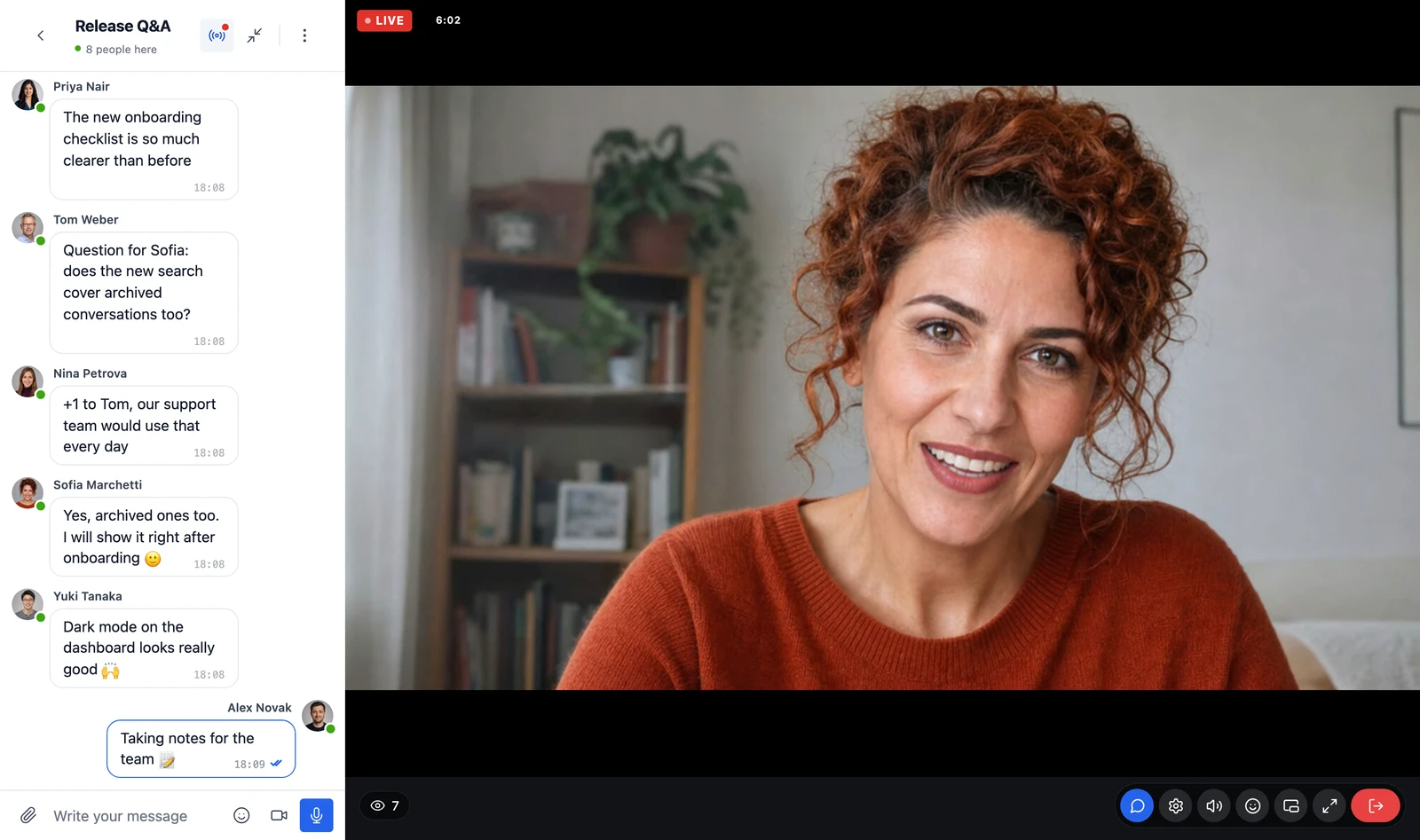
From Better Messages 3.1, a chat room can host a live stream. A host broadcasts from the browser or from OBS, the stream shows in the room the way a group video call does, beside the messages, and the room is the chat of the stream: members talk about what they watch, with everything a Better Messages chat room has.

The streams come from Live Stream, a separate WordPress plugin on the same WordPlus Cloud subscription as the WebSocket version. Better Messages carries nothing of it until Live Stream is installed.
Streaming in chat rooms needs Better Messages 3.1 or later with the WebSocket version.
What members see#
- The stream beside the messages. While the stream of a room is live it opens by itself, where a group video call would, and a Live banner over the messages and a button in the room header bring it back after someone closes it.
- A player in the call controls: sound and volume, picture quality, reactions, picture-in-picture and full screen.
- On phones, the stream sits on top and the chat under it, with the handle at the bottom to show or hide the chat, as in group calls.
- The chat of the room as usual: history, files, GIFs, stickers, mentions, and the moderation and notifications of the room. A viewer who closes the stream stays in the chat and is not counted as watching.
Going live from the room#
Administrators host streams. In the room, the host has the call controls for the stream: camera, microphone and screen sharing, Go live with a 3, 2, 1 countdown, and End stream. While live, the host sees how the stream goes out and how many watch, and a summary when it ends.
Hosts can also go live from Live Stream → Studio, or stream from OBS and other encoders that speak WHIP, with the server address and key the studio gives.
Setting up the stream of a room#
- Install and activate Live Stream (stream.wordplus.cloud has it). A site whose Better Messages already runs on a WordPlus Cloud licence is connected without entering a key again.
- Open Better Messages → Chat Rooms and edit the room.
- Below the group call settings, choose Stream in this room. The room then has a Live streaming section near the top of its settings, with Go live, Stream settings, Always on screen in the room and Stop streaming here.
Always on screen in the room keeps the stream open for viewers while it is live: they cannot close it.
A stream can also be made in Live Stream first, with a Better Messages chat room as its chat. Live Stream creates the room when the stream is saved.
Without Live Stream installed, the room editor shows a row about it in the same place, on the WebSocket version.
Who can watch#
Each stream chooses who watches: everyone, logged-in members only, or chosen roles. On a public stream, visitors who are not logged in chat in the room as guests, when the room allows guests. Reactions can be turned off at any time, during the stream too.