HivePress Listing Chat: Direct Messaging for Directory Sites
HivePress turns WordPress into a directory / marketplace / booking platform — a single plugin that handles listings, bookings, vendors, requests, reviews. Better Messages adds a modern real-time messenger that hooks into every HivePress surface: every listing item in a list, every listing page, every booking, and every vendor profile. If you are using HivePress's own Messages add-on, deactivate it after installing Better Messages to avoid a double-messenger conflict.
What Better Messages adds to HivePress#
Once Better Messages is installed and the HivePress integration is enabled under Better Messages → Settings → Integrations → Directories:
- Send Message button on listing items in lists — start a thread from the archive grid without first opening the listing.
- Send Message button on the listing detail page.
- Send Message button on booking lists and booking pages — for HivePress sites with the Bookings add-on.
- Send Message button on vendor lists and vendor pages.
- Vendor avatars and links in the messenger come from HivePress vendor profiles.
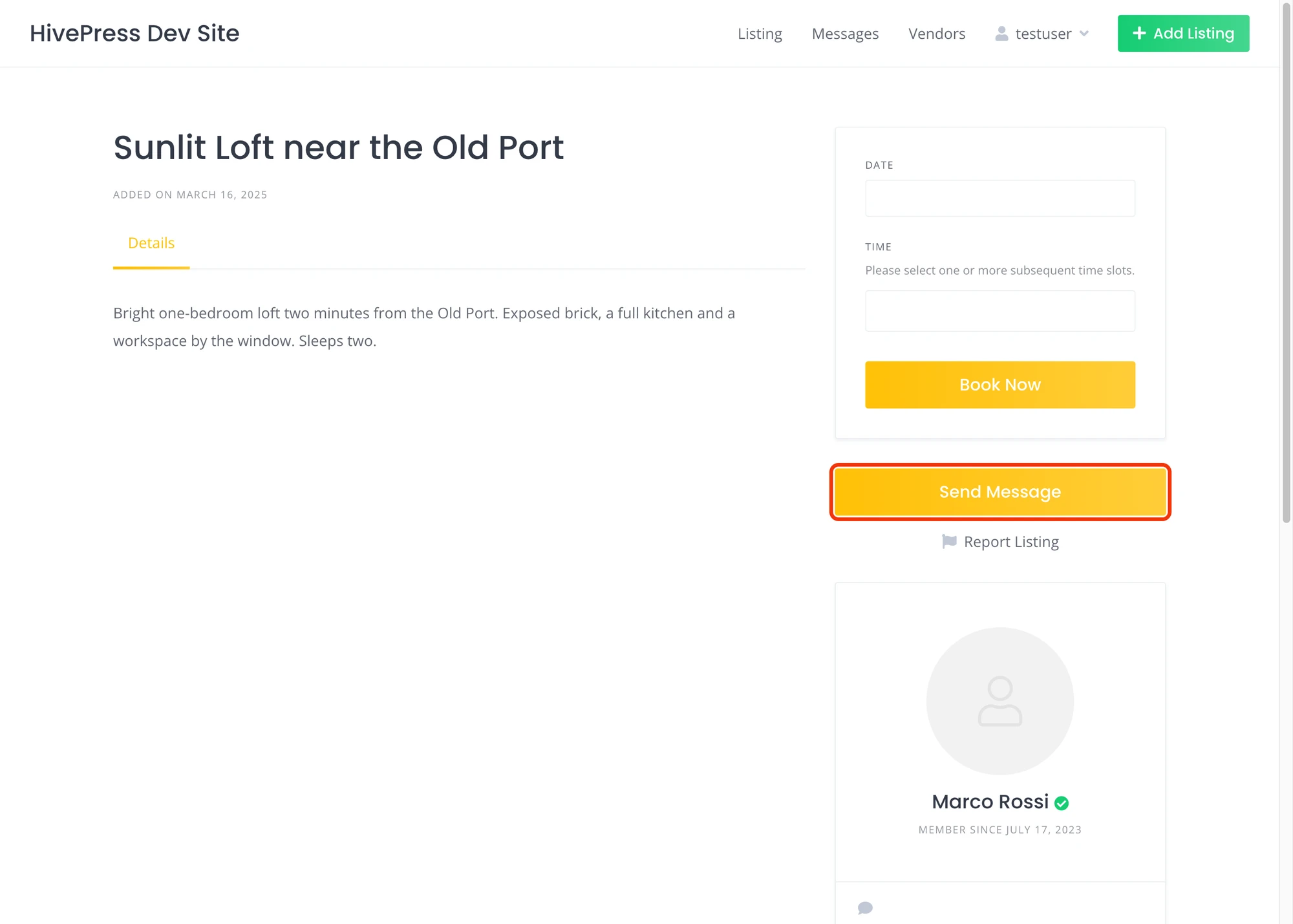
On listing archive items#

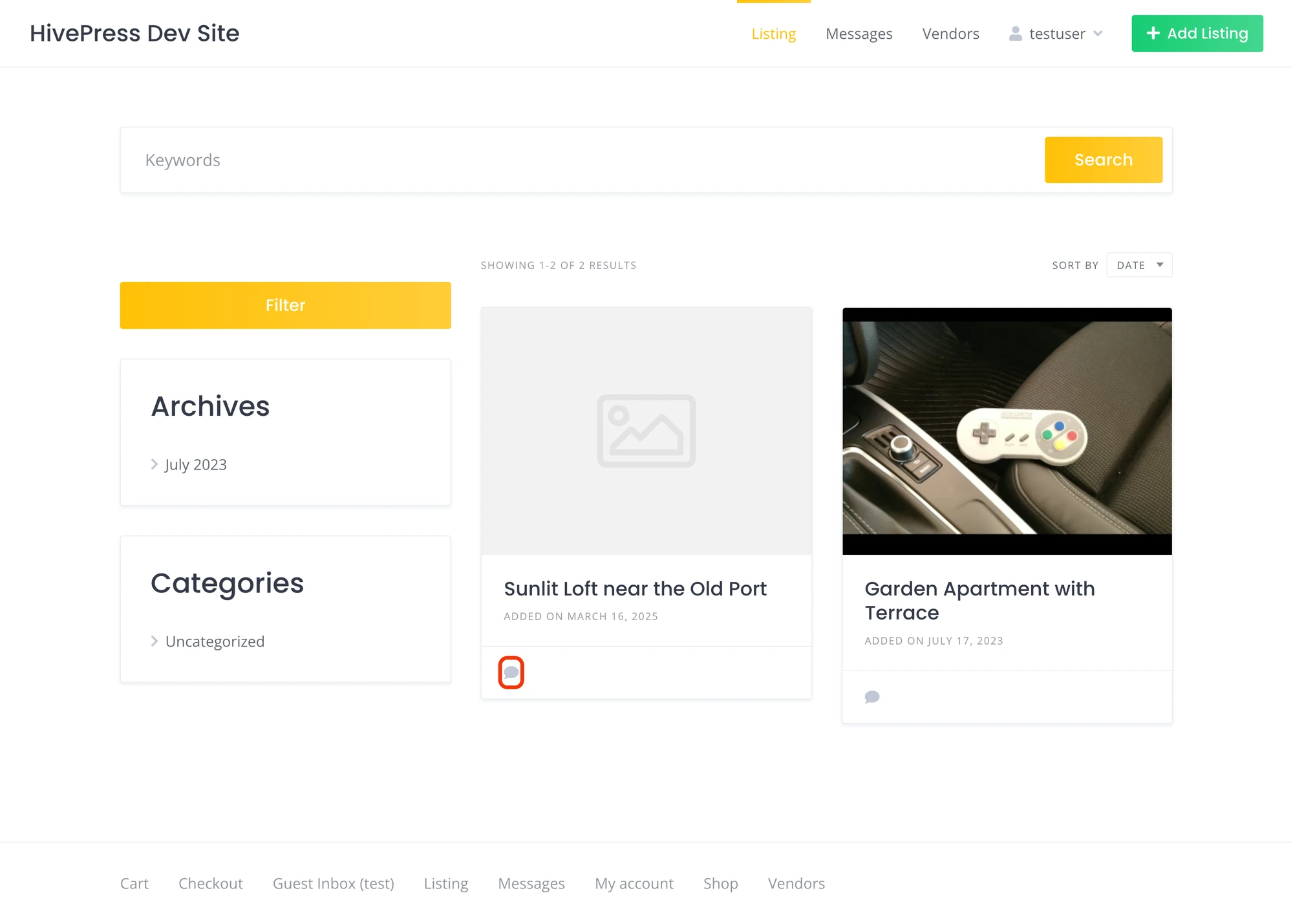
Customers do not have to open each listing to start a conversation — the Send Message button is on every archive item, inline with HivePress's native actions.
On vendor pages#

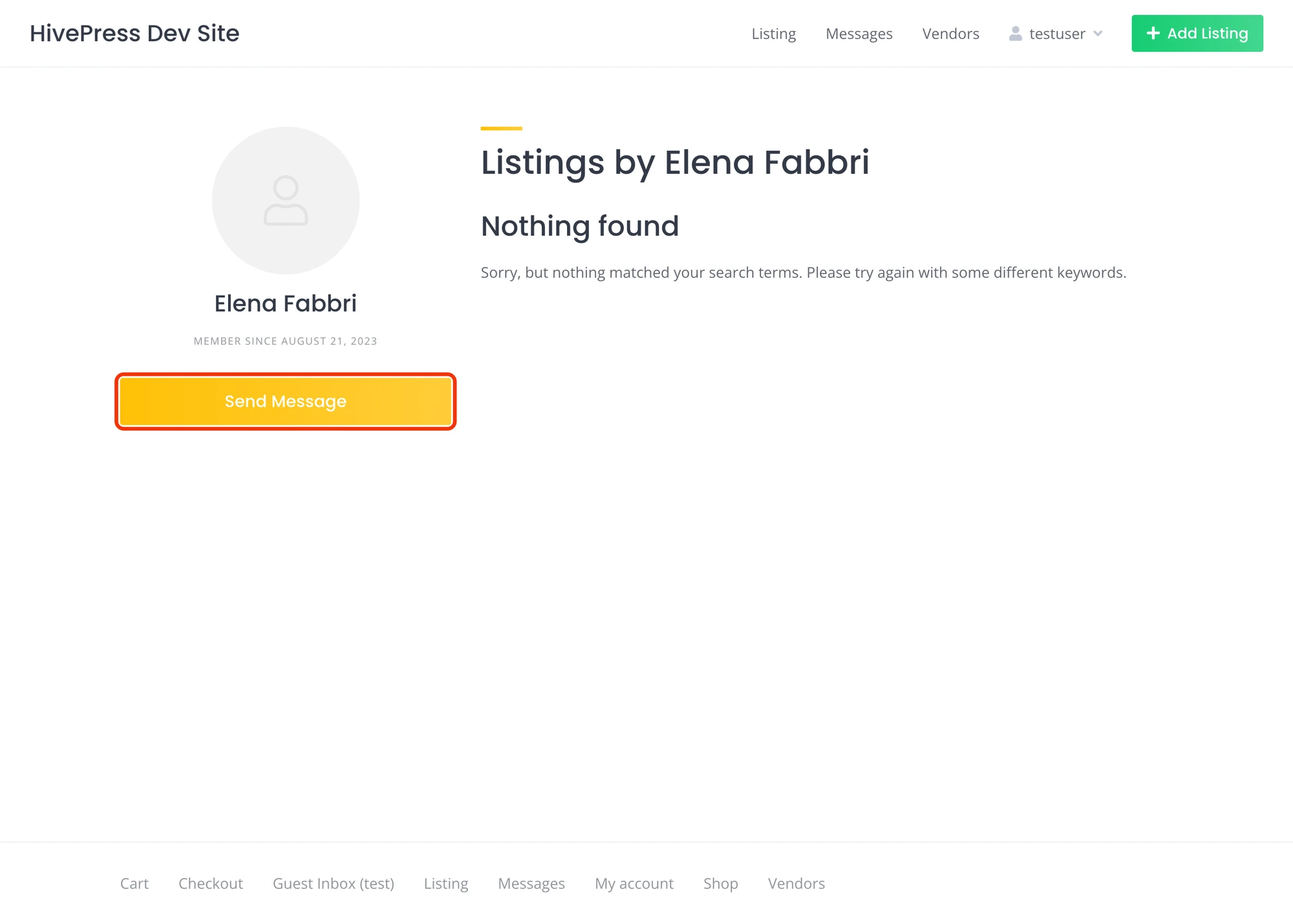
Vendor profiles get a dedicated button so buyers can talk to a vendor about their full catalog rather than a specific listing.
On bookings#

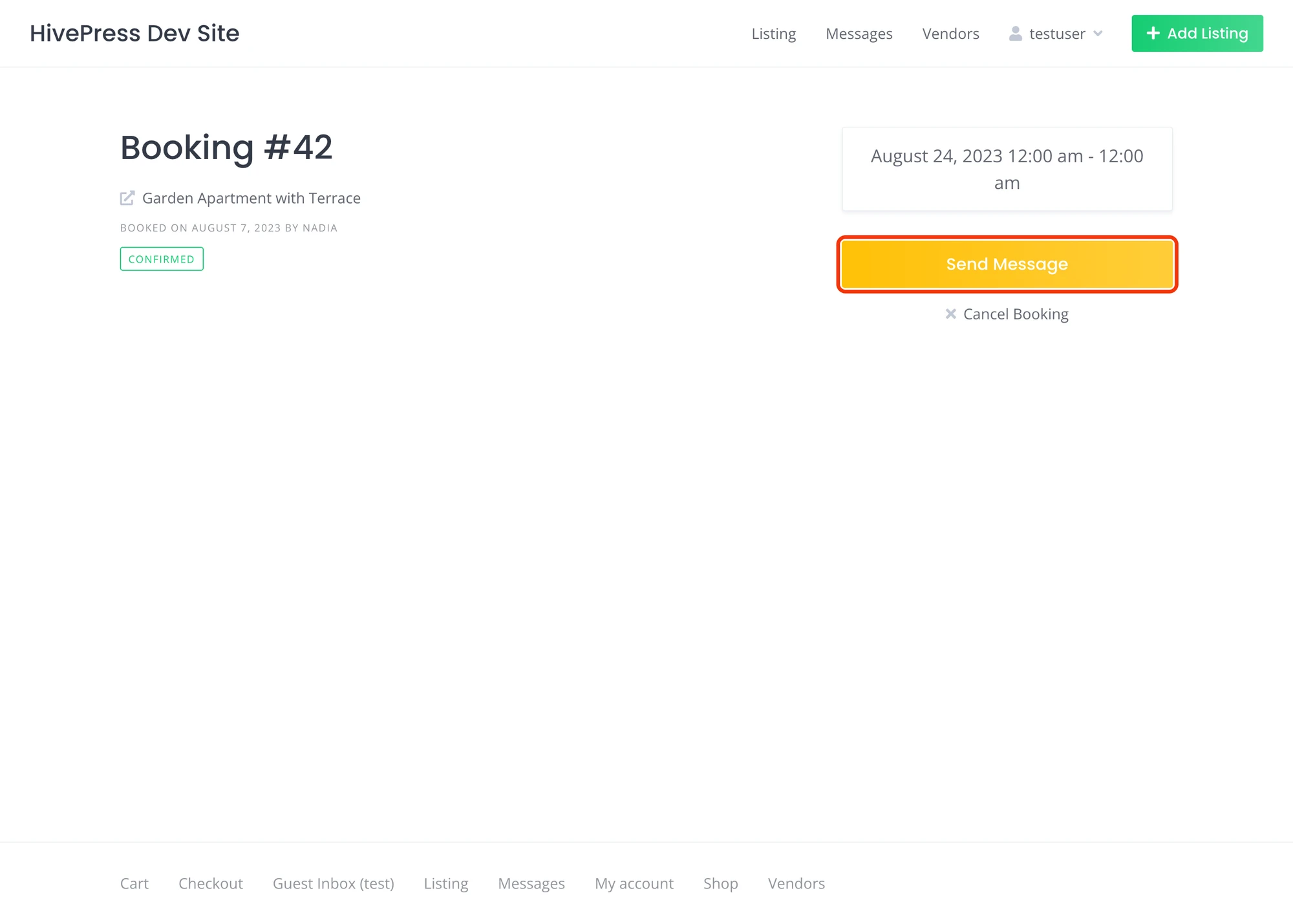
For HivePress sites running the Bookings add-on, every booking gets a Send Message button — both buyer and seller can message about a confirmed booking.
Video walkthrough#
Installing Better Messages on a HivePress site#
- Install Better Messages from WordPress.org and activate it.
- Make sure HivePress is active.
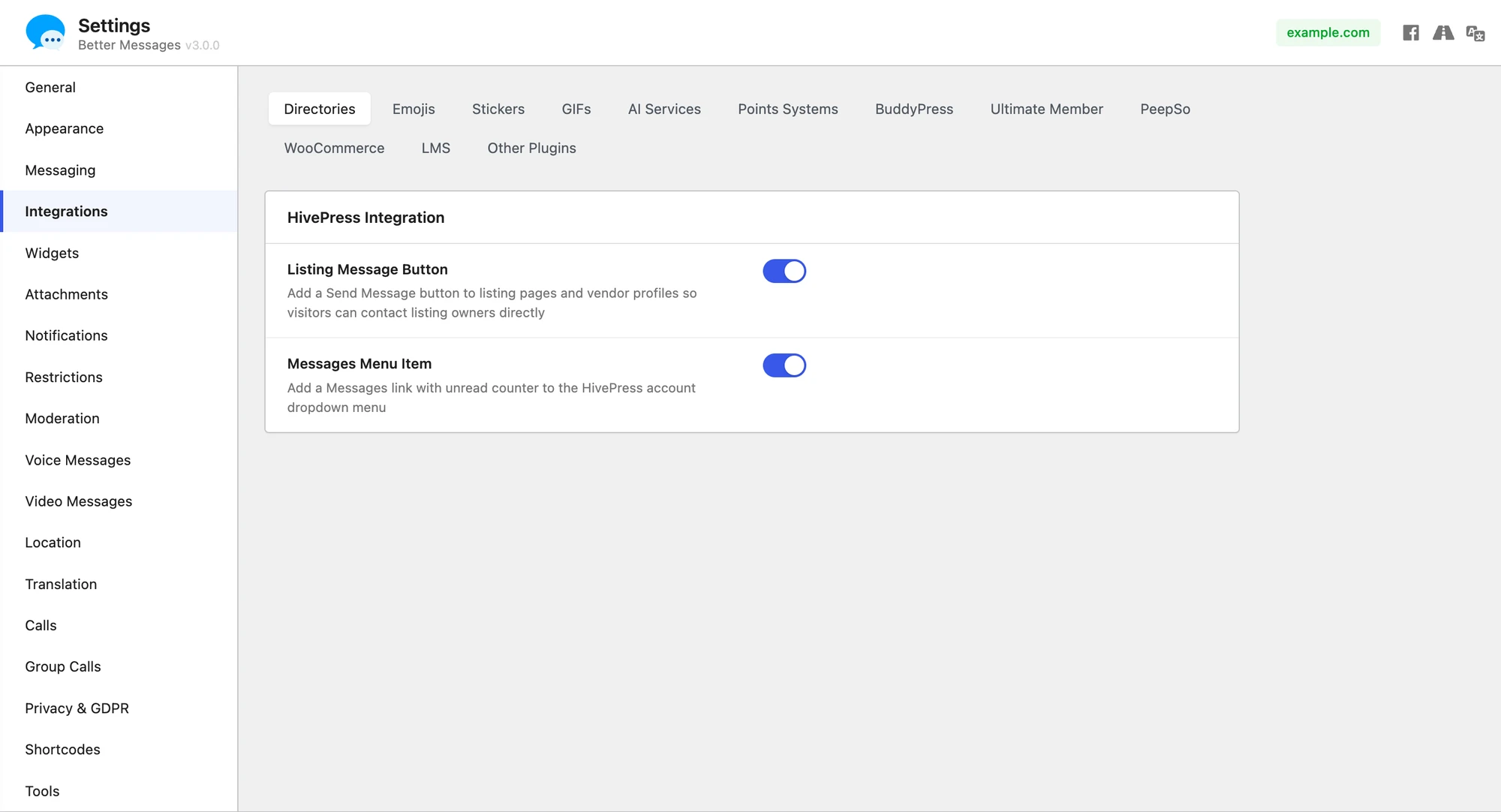
- Open WP Admin → Better Messages → Settings → Integrations → Directories.
- Find HivePress Integration and turn on Listing Message Button. There is a second toggle, Messages Menu Item, which adds a Messages link with an unread counter to the HivePress account dropdown.

Free vs WebSocket version for HivePress sites#
| Feature | Free version | WebSocket version |
|---|---|---|
| Send Message buttons on listings, bookings, vendor pages | yes | yes |
| Vendor avatars and links from HivePress profiles | yes | yes |
| Listing info card inside threads | yes | yes |
| Real-time delivery | polling | instant |
| Mini-widget popup chat (buyer stays on the listing) | — | yes |
| One-on-one voice and video calls inside the thread | — | yes |
| Group voice and video calls (vendor teams) | — | yes |
| Web push notifications for new messages | — | yes |
| Read receipts | — | yes |
| End-to-end encryption (optional) | — | yes |
For HivePress sites running paid vendor subscriptions, the WebSocket version's mini-widget popup keeps buyers on the listing while they ask their question — they do not get redirected away from the page they were considering. Vendors with instant delivery and web push notice and reply in minutes, not hours.
Frequently asked questions#
Does it work with HivePress's own Messages add-on?#
Better Messages takes over the same surfaces. The HivePress Messages add-on can be left active or disabled — Better Messages does not require disabling it, but having only one messenger active is cleaner for visitors.
Does it work with HivePress Bookings?#
Yes — the integration adds Send Message buttons on both booking lists and individual booking pages so the buyer and the vendor can message about a confirmed booking.
Does it work with HivePress Marketplace?#
Yes — vendor pages get the Send Message button, listing pages get it, and conversations show the listing's image / title / price inside the thread context card.
Can listings be messaged anonymously?#
Optional. With Guest Chat enabled, unregistered visitors can start a thread from a listing by typing a name and email.
Will it work with custom HivePress themes?#
Most HivePress themes use the standard HivePress template hooks, so the buttons auto-render. For heavily customized themes, the integration's settings expose toggles per placement so you can disable auto-injection and place the button manually with a shortcode.
See also#
- HivePress integration documentation — full setup reference
- Real-time messaging — what changes with the WebSocket version
- Guest access — for anonymous listing inquiries