WordPress Chat Attachments in Cloudflare R2, Amazon S3 or Bunny.net
A busy messaging site collects files fast. Every photo, screen recording, voice message and PDF that members send lands in your uploads folder, where it grows your backups, eats your hosting plan's disk and goes out through your server's bandwidth every time someone opens it. On a community with a few thousand active members that can add up to gigabytes a month.
Better Messages 3.1 can keep those files in cloud storage instead: Cloudflare R2, Bunny.net, Amazon S3, or any storage with an S3 API such as Backblaze B2, DigitalOcean Spaces or Wasabi. Members see no difference. Their files simply stop living on your server.
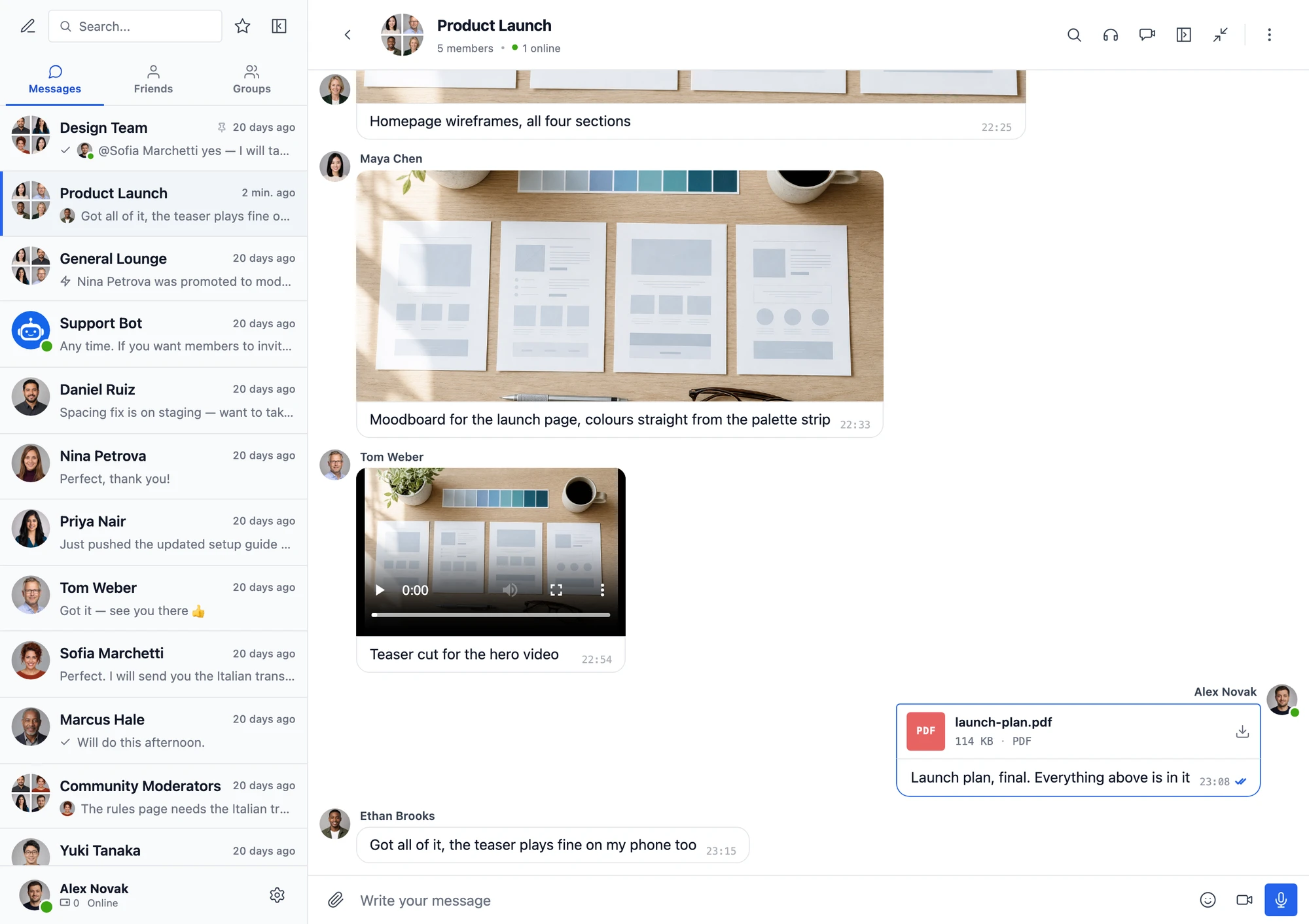
Cloud storage works in the free version and in the WebSocket version. Everything is set up under Better Messages → Settings → Attachments.
Which storage to pick#
| Storage | Good to know |
|---|---|
| Cloudflare R2 | No fees for downloads, however often a file is opened. Members-only files can come from your own domain through a Cloudflare Worker |
| Bunny.net | Files come from Bunny's CDN through a Pull Zone. Needs a storage zone created with S3 compatibility on |
| Amazon S3 | The original S3, in any AWS region |
| Backblaze B2 | Public files can come from your own domain through Cloudflare, which B2 does not bill downloads for |
| DigitalOcean Spaces | Public files can come from your own subdomain through the Spaces CDN |
| Wasabi | Every file is billed for at least 90 days, even if it is deleted sooner |
| Any other S3-compatible storage | Scaleway, Hetzner Object Storage, OVHcloud, or a MinIO server you run yourself |
Each one has a step-by-step guide, from creating the bucket to connecting it.
Choose where each kind of file goes#
Files are split into seven groups: images, videos, audio, voice messages, video messages, files from end-to-end encrypted conversations, and documents with everything else. Each group goes to the place you pick. Send photos and videos to R2 and keep documents on your own server, or send everything to the cloud. It is one dropdown per group.

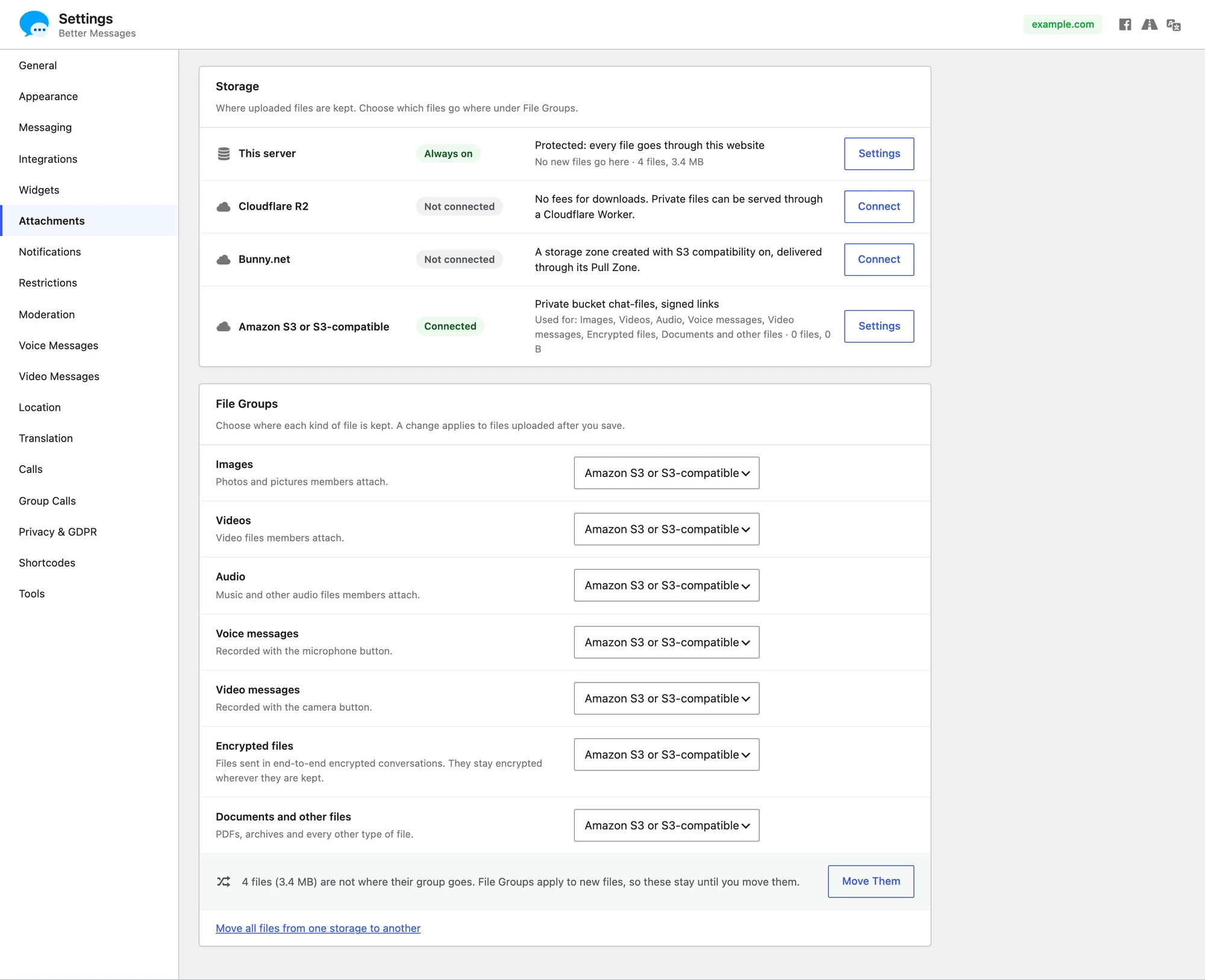
Your server is always on the list. With File Protection on, files kept there still go through your website, which checks that the person opening one is a member of the conversation.
Private by default#
Chat files are private, so cloud files are too. By default the bucket stays private, and each member gets links that your website signs for them. A link works for a day or so and is renewed automatically. Without one, nobody can open or list the files, even with the bucket's name.
For files that are not private, a storage can serve them from a public address instead, such as a CDN on your own domain, and your website does no work at all when a file is opened.
Uploads that skip your server#
When a member sends a file, the browser or the mobile app uploads it straight to the storage, through a link your website signs for that one file. The file never passes through your server, so even a large video costs your hosting nothing, and it is in the storage the moment the message is sent. Large files go up in parts, several at a time.
The storage has to allow uploads from your site, which takes one CORS rule. On Cloudflare R2 and S3-compatible storages, the Configure CORS button saves it for you. Bunny.net needs none. If a storage ever refuses, uploads quietly go through your server instead, so sending never fails, and the storage's line on the settings page says so.
Bring the files you already have#
Changing where a group goes only affects new files. The settings page counts the files that are not where their group goes now, and Move Them moves them. To empty one storage into another, for example everything on your server into R2, choose Move all files from one storage to another.

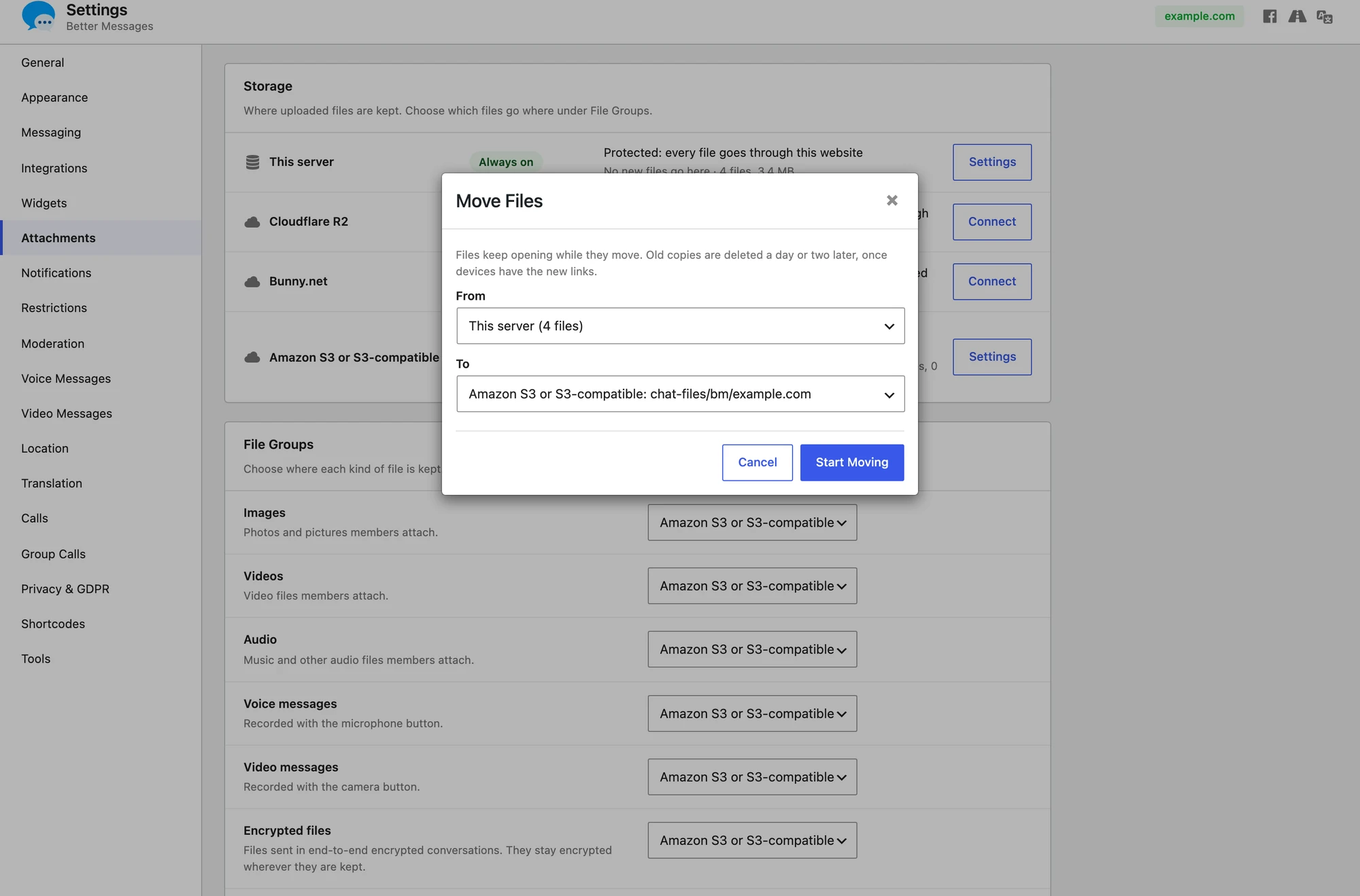
Moves run in the background, with pause, resume and stop. Files keep opening the whole time, and the old copies are deleted a day or two after each file moves, once every device has the new links.
Every file in one place#
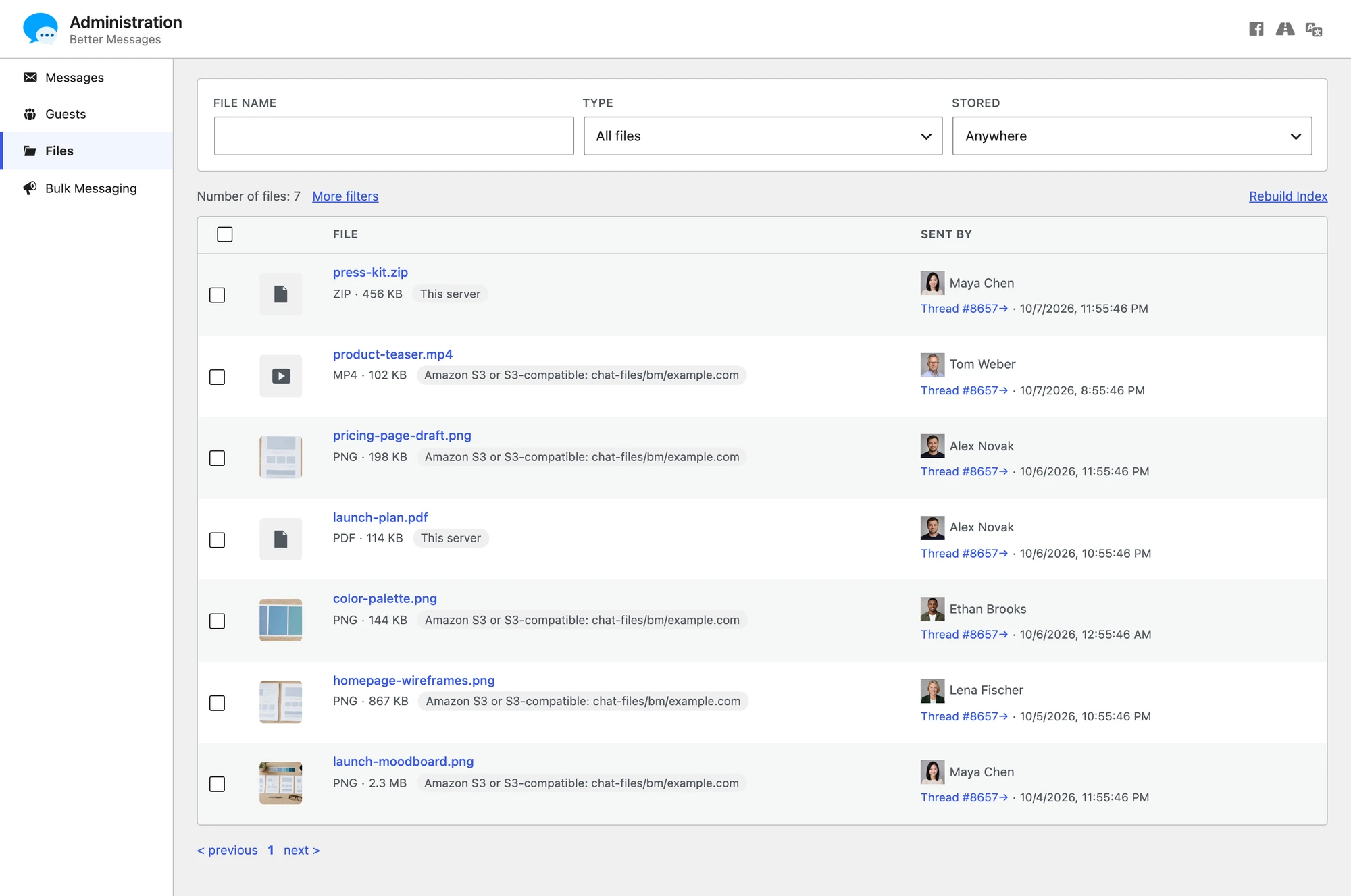
Better Messages → Administration → Files lists every file members have sent, wherever it is kept. Filter it by type, storage, sender, conversation or date, search by name, open or download any file, and delete what should not be there. A deleted file disappears from its message, and a message left with nothing in it goes too.

Safe with staging sites and backups#
A staging site is a copy of your site, storage settings included. Without care, deleting a test message on staging would delete the live site's file from the shared bucket. Better Messages marks each storage folder with the site that owns it. A copy that finds the live site's files there writes nothing to that storage and deletes nothing from it, and asks whether it is a copy or the site really moved.

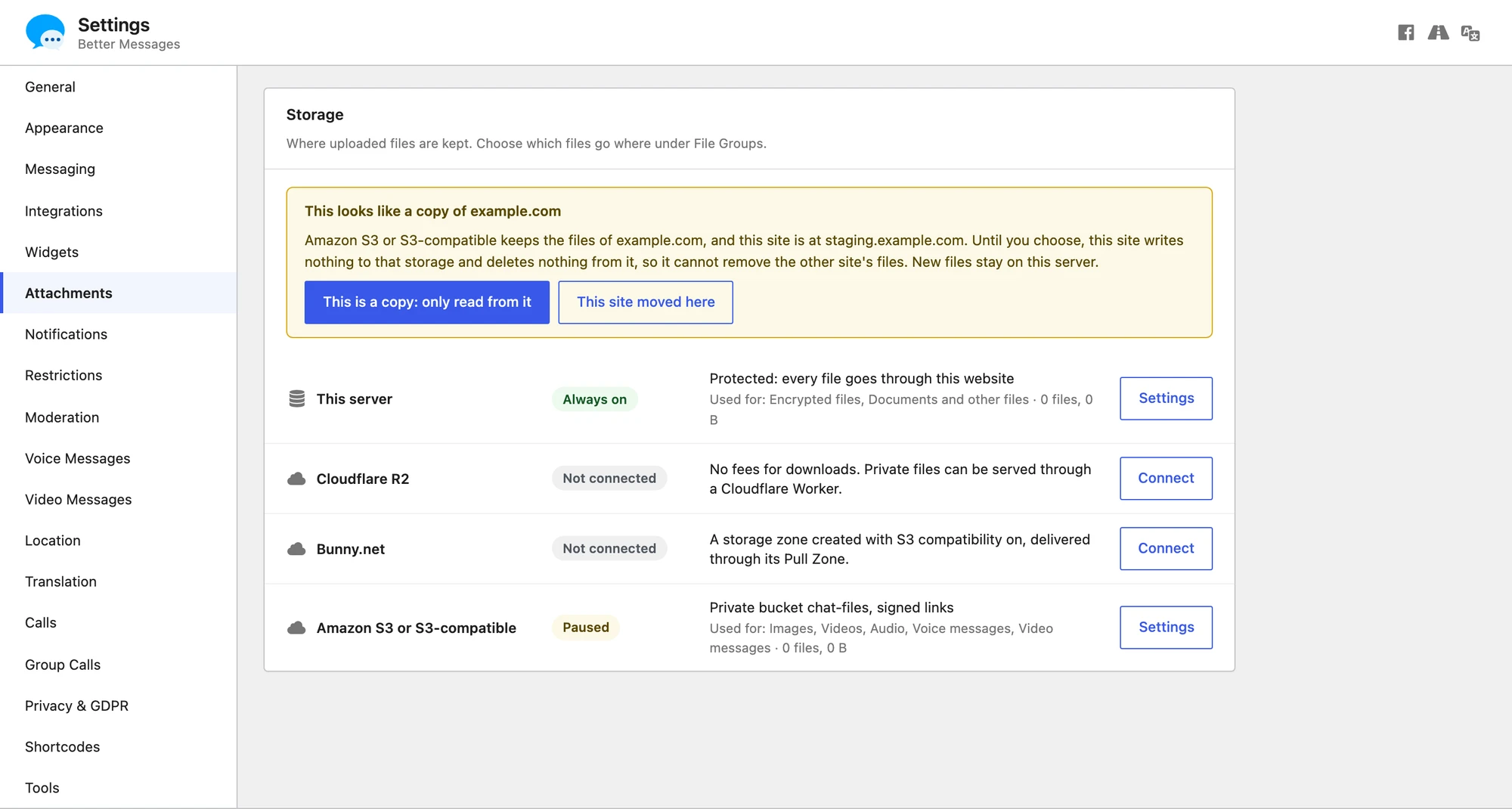
Deletes are careful in the other direction too. A file deleted in Better Messages stays listed as pending until the storage confirms it is gone, and the delete is retried if the storage refuses. Once a week, Better Messages also looks for files in its storage folder that no message knows any more, such as files left after a database backup was restored, and removes them only after seeing them twice, a week apart.
Works with the rest of Better Messages#
- Mobile apps. The iOS and Android apps upload straight to the storage as well.
- Voice and video messages. With the Voice and Video Messages add-on 2.1, recordings move to the storage right after they are sent and play from there.
- AI chat bots. Bots read images and documents kept in cloud storage, so a member can still ask a bot about a file they shared.
- End-to-end encrypted conversations. Encrypted files are stored encrypted, wherever they are kept. Only the devices of the members can read them.
- Keys outside the database. Every key can be set in
wp-config.phpinstead of the settings.
Getting started#
Update to Better Messages 3.1, open Settings → Attachments, and click Connect next to the storage you want. Then read Where files are kept for the full picture, or go straight to the guide for your provider.