Better Messages 3.2: Upgraded Group Video Calls, Call Recording and Mobile App Sign-in
Better Messages 3.2 is out, and it is a release about calls. Group video calls on your WordPress site now let people check their camera and microphone before anyone sees or hears them, blur or replace what is behind them, take the noise out of their microphone, and meet in calls with no fixed size. Moderators can record a call with a transcript, put a speaker in the spotlight and end a call for everyone. The mobile app signs members in through the login page of your site, two-factor authentication included, and locks with Face ID or a fingerprint.
Your conversations, settings and licence carry across. The mobile apps need a new build for their part of the release, and the few things worth checking are at the bottom, in Updating from 3.1.
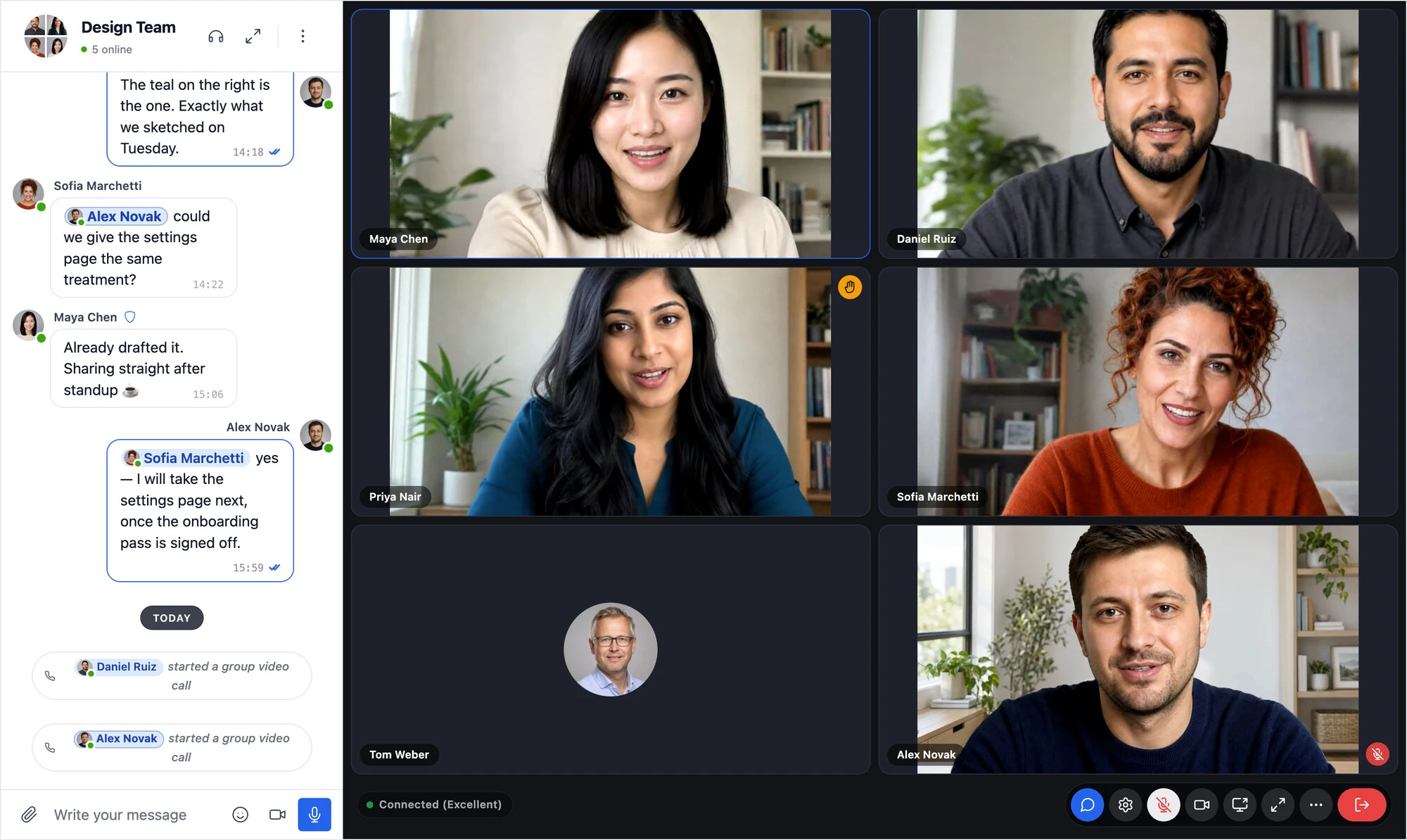
WordPress group video calls, upgraded#
Most of 3.2 is in group video and audio calls, in group conversations, chat rooms and the groups of community plugins. Device settings, video effects, keyboard shortcuts and the hint for talking while muted work in one-to-one calls too. Calls are part of the WebSocket version.
Check your camera and microphone before anyone sees you#
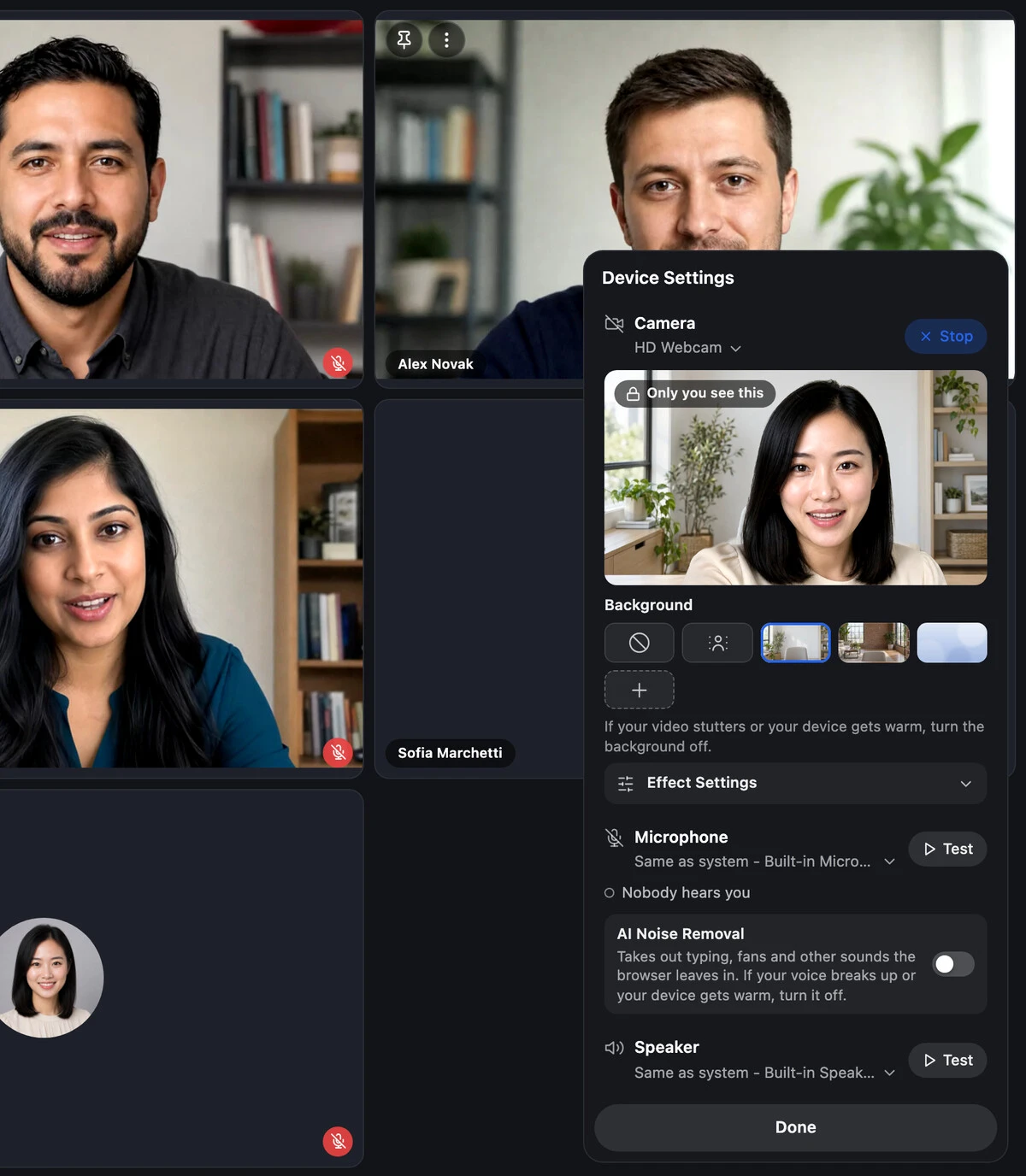
People join a group call with the camera and microphone off, and a short notice tells them the call controls turn them on. Before they do, Preview shows their camera only to them. The device settings test the microphone, play a test sound through the speaker, let them choose each device, say plainly whether the others see and hear them right now, and show how to allow a camera or a microphone the browser blocks. Nothing goes live until the person turns it on from the call controls, and the browser asks for the camera or the microphone only when they press a button.
The same device settings open from every call, one-to-one calls included. Settings → Group Calls → Joining → Notice on Join turns the notice off, and each person can stop it with Do Not Show Again. Device settings has the details.

Background blur, virtual backgrounds and AI noise removal#
In the same device settings, people choose what is behind them: nothing, a blur or a picture. AI Noise Removal takes keyboard typing, fans and hiss out of their microphone, and the microphone test plays the same seconds back without it and with it, so the difference is easy to hear. Each browser keeps the choice for the next call.
You choose the pictures on offer: built-in backgrounds from WordPlus Cloud, and pictures from your Media Library, such as a picture of your office or your brand. With Personal Backgrounds on, people, guests included, can pick a picture from their own device. Their browser keeps it, and it is never uploaded to your site.
The effects run in the browser of each person, before the camera and the microphone go into the call, so no video or sound is sent anywhere to be processed. They are not part of the plugin download: get them once in Settings → Calls → Video Effects, where AI Noise Removal is a download of its own, then tick the built-in backgrounds you want. Video effects walks through it.
Group calls without a fixed size#
Group calls used to stop at 32 people on video and 50 on audio. In 3.2 a call has no fixed size. Your site includes 32 people on video or 50 on audio at once across all its group calls, and more people join with WordPlus Cloud credits, one credit a minute for each person above on video and half on audio. The credits left show in the licence status at the top of the settings, and someone a full call has to turn away is told why.
Big calls stay quick. Each browser receives the video of only the people on its screen while everyone is still heard, and the tiles and the Participants list keep up with hundreds of people. How many people can join explains the counting.
Record group calls, with a transcript#
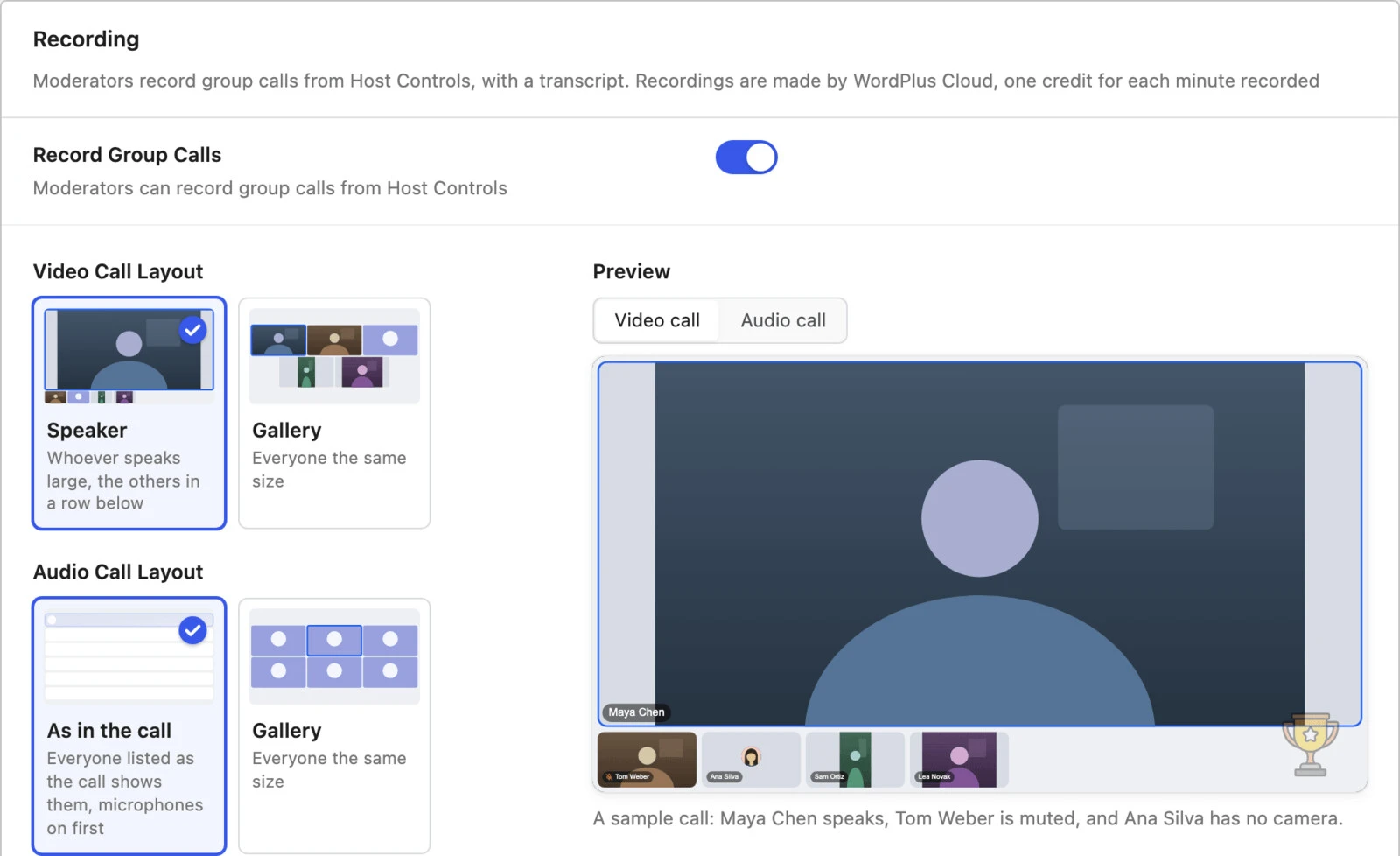
Moderators record a group call from Host Controls. A recording is one video of the call as everyone saw it, in the layout, background and logo you choose, and its transcript says who said what and when. The transcript is searchable beside the video and shows as captions while it plays.
You decide how people are told, from a REC indicator beside the call controls to asking everyone to stay or leave before anything is recorded. A recording can be posted in the conversation as a card its members watch, and every recording is listed in the settings to play, download or delete. The files go to the cloud storage you use for attachments, or to the uploads folder of your site, and you choose what else to keep, such as the sound alone or each shared screen, and for how long.
Recording is off until you turn it on in Settings → Group Calls → Recording. A recorded minute costs one WordPlus Cloud credit, the transcript included. Calls between two people and group calls with end-to-end encryption on are not recorded. Recording works in the mobile app too, with a new build of your app: members in an app call see REC and the notice or question you chose, and moderators start and stop recordings from Host Controls there. Call recording has every setting.

Spotlight, layouts and Participants#
- Spotlight for Everyone. A moderator puts up to four people on the main tiles for everyone, and anyone can still pin a person on their own screen with Pin for Me.
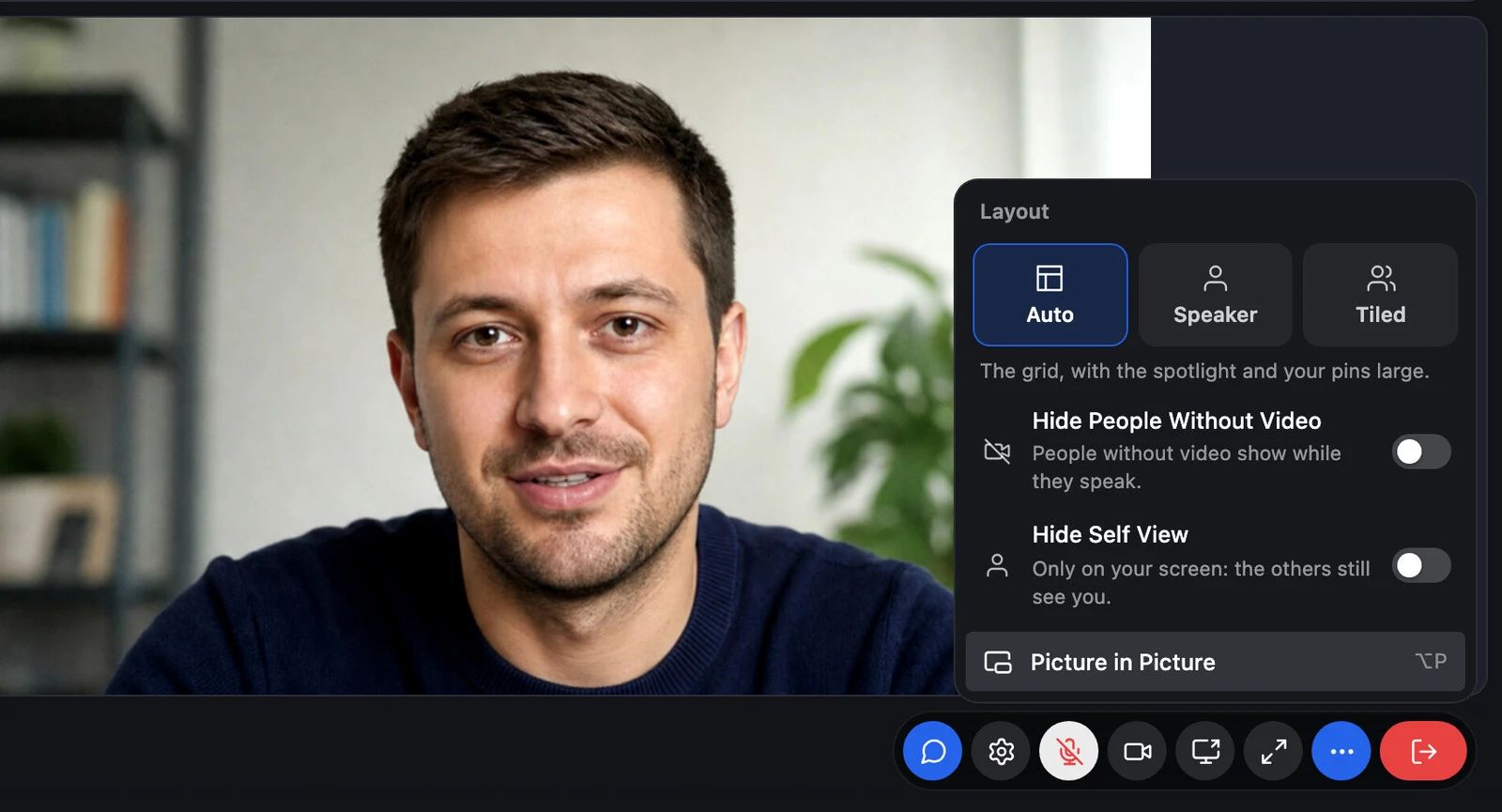
- Layouts. More in the call controls switches between Auto, Speaker, with a shared screen or whoever speaks large, and Tiled, with equal tiles. Switches hide the people without video, who still show while they speak, and your own picture.
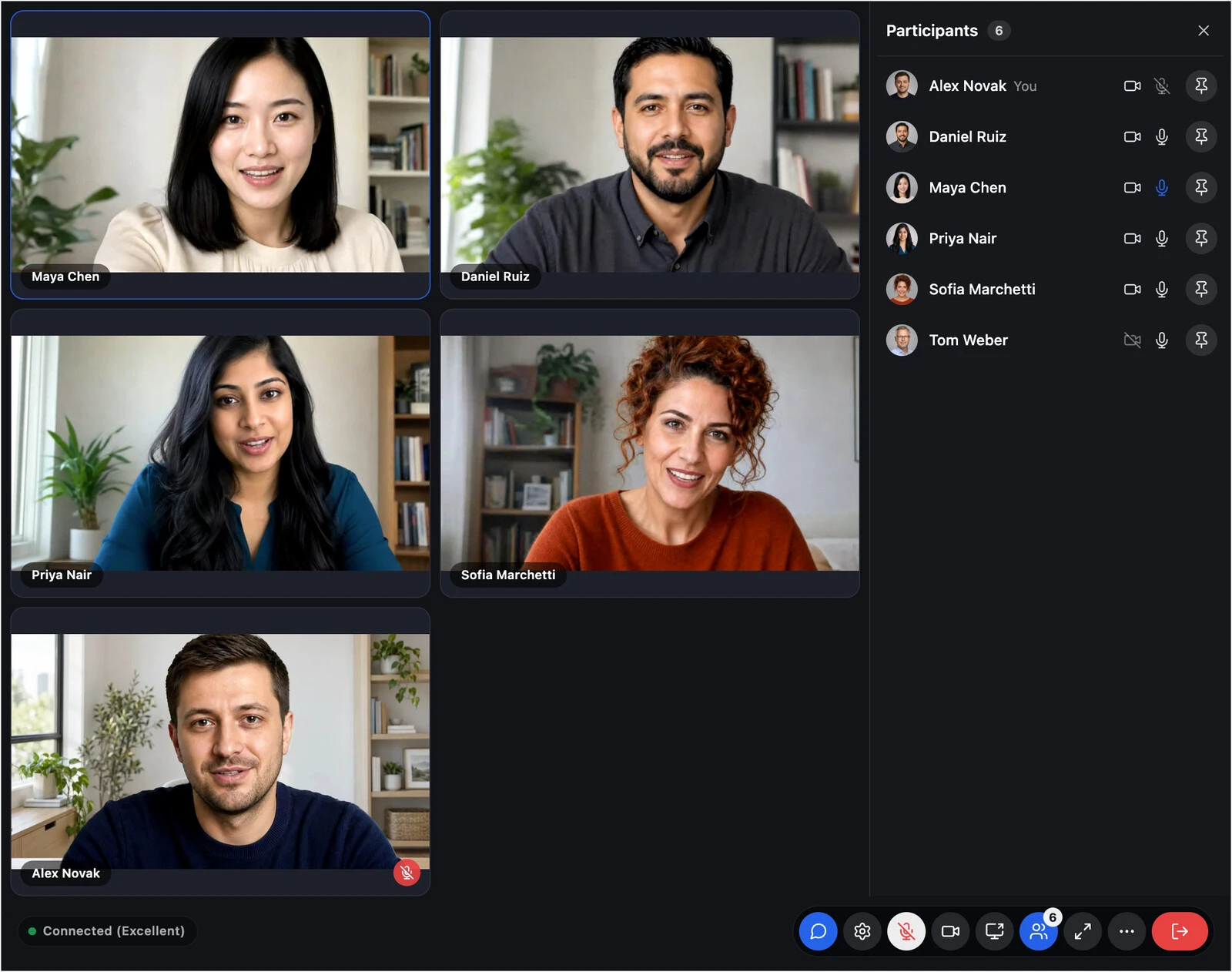
- Participants. When a call cannot show everyone at once, the Participants panel lists everyone with their microphone, camera, raised hand and connection, with a search, and gives moderators Mute Everyone, Lower All Hands and the actions for each person.

On phones and tablets in the browser, pages of six or sixteen tiles swipe sideways, every camera is shown whole, and the menus open from the bottom. See Layouts, Spotlight and pin and Participants.
Picture in picture#
On a computer, Picture in Picture keeps a group call in a small window above your other tabs and apps. It shows the person in the spotlight or pinned, a shared screen or whoever speaks, and in Chrome and Edge it has its own Mute, Camera and Leave buttons. It is in More of the call controls, beside the layouts, and with Settings → Group Calls → During the Call → Open Picture in Picture When Leaving the Tab it opens by itself when someone switches to another tab. Picture in picture has the browsers it works in.

Host Controls for moderators#
Mute Everyone, Lock Room and Broadcast Mode are switches in one Host Controls panel, with Join Alerts, a sound for raised hands, Lower All Hands and End for Everyone, which ends the call for everyone once confirmed. Mute Everyone now mutes microphones only, and people who join while it is on come in muted. Start Recording is there too, where recording is turned on.

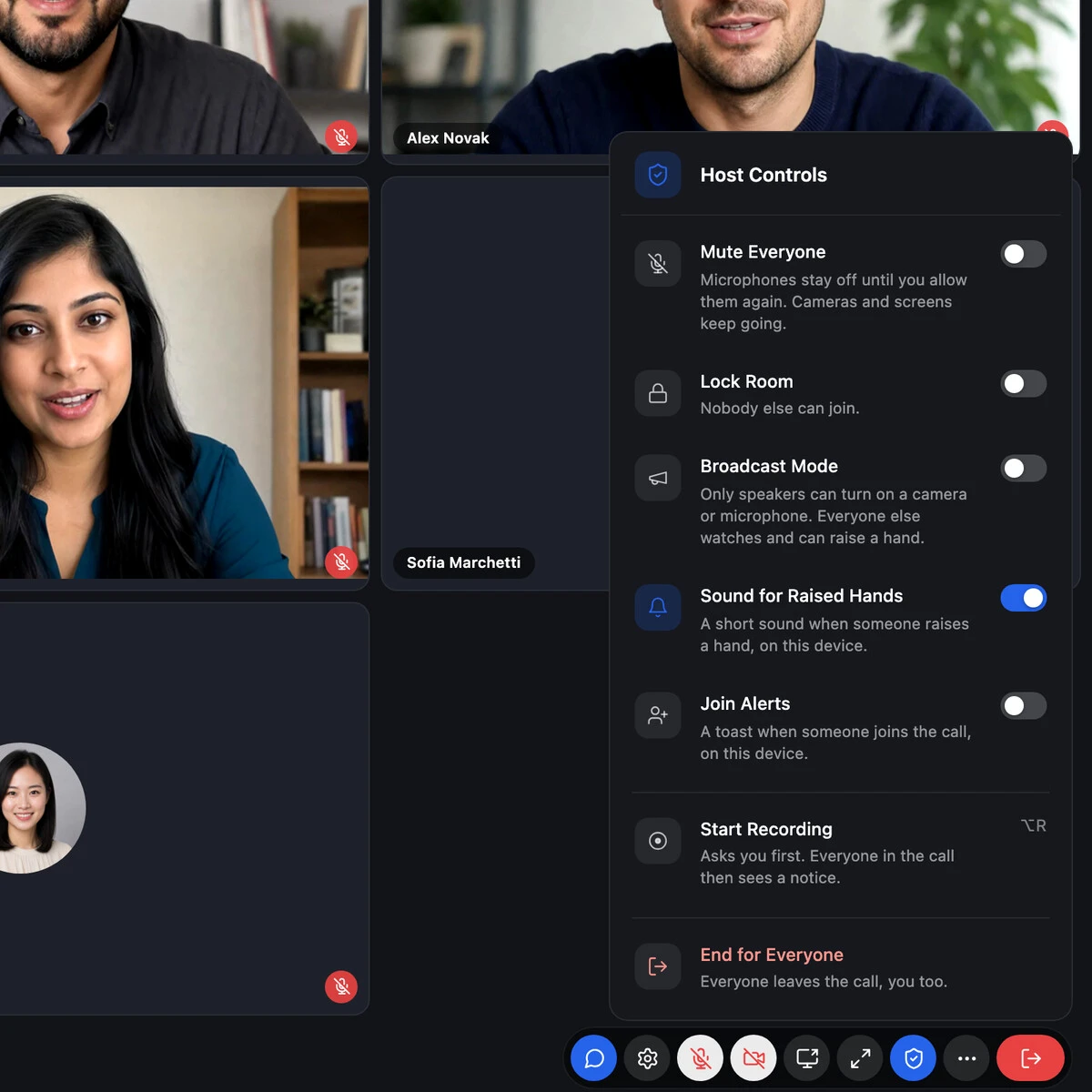
For a single person, the ⋯ on their tile opens what a moderator can do, each action named for what it does:
- Ask to Turn On Camera and Ask to Turn On Microphone, which the person accepts with one tap, and which shows them how to allow it where their browser blocks it
- Mute Microphone and Stop Camera and Microphone, with the silenced icon on every tile until the moderator allows it again
- Remove and Ban from Calls, for minutes, hours or days, and from the chat too in group conversations and chat rooms
Host Controls lists every control.
Smaller things that make calls easier#
- Talking while muted. Someone who talks with their microphone muted is told so, with an Unmute button. It is on by default, with a switch in Settings → Calls → Private Calls for one-to-one calls and one in Settings → Group Calls → During the Call for group calls.
- Keyboard shortcuts. Alt (Option on a Mac) and a letter run every control: A for the microphone, V for the camera, Y to raise a hand, S to share the screen and Q to leave. Each is named in the tooltip of its button. See Keyboard shortcuts.
- Better one-to-one calls on weak networks. The voice is sent with redundant audio, so a lost packet no longer breaks it up, the video plays smoothly on an uneven connection, and a call stays directly between the two when one side stalls on a weak mobile network.
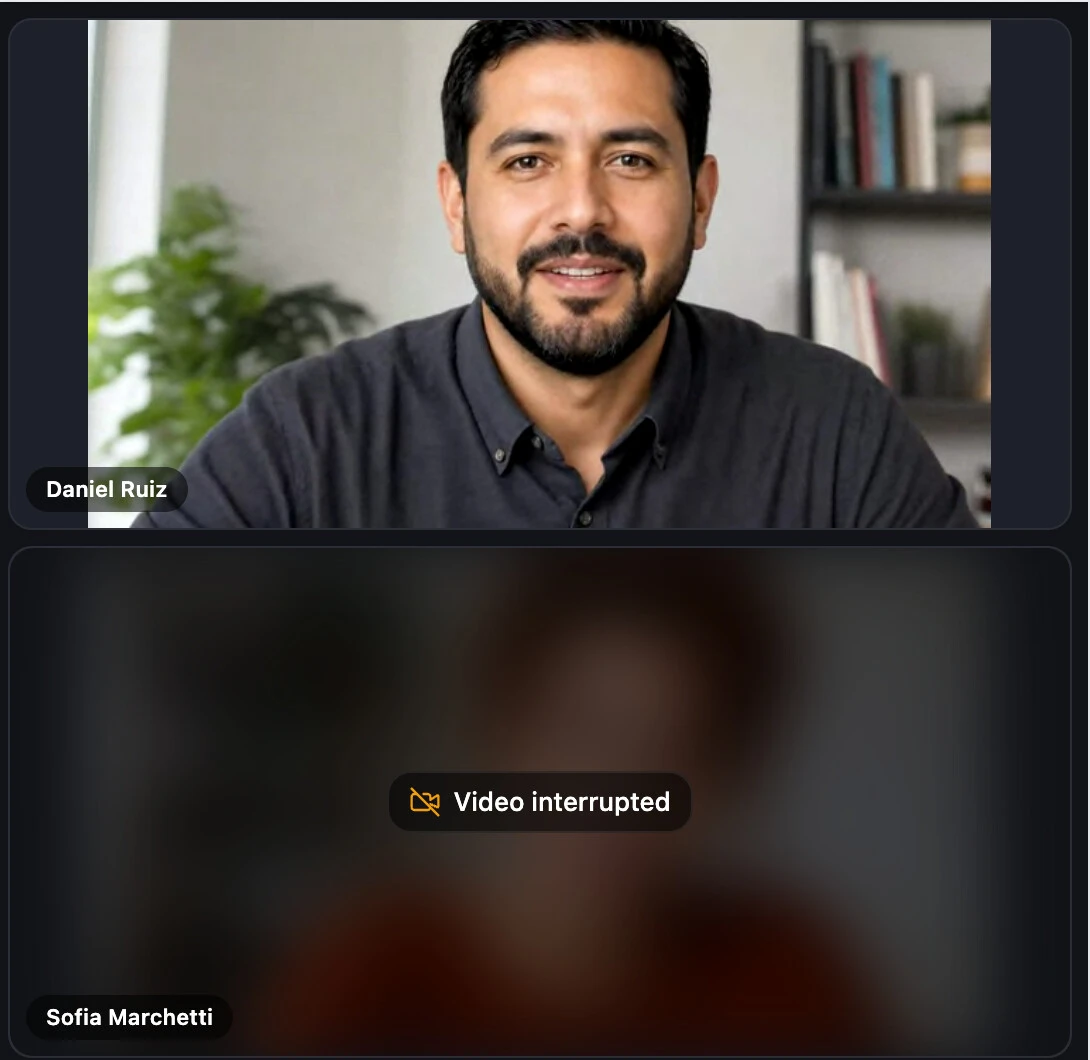
- A clear sign when someone drops. Within seconds their tile says "Video interrupted" over their blurred last picture, and "Reconnecting..." when their sound stopped too, instead of a frozen picture.
- Expand and Show Chat. Expand fills the browser window first, also on iPhone, and the Show Chat button shows and hides the chat on phones as on a computer.

The WordPress chat app: website sign-in, app lock and more#
The iOS and Android apps you build on the Mobile App page get their largest update since they left alpha. Your members get it with a new build of your app.

Sign in through your website, two-factor included#
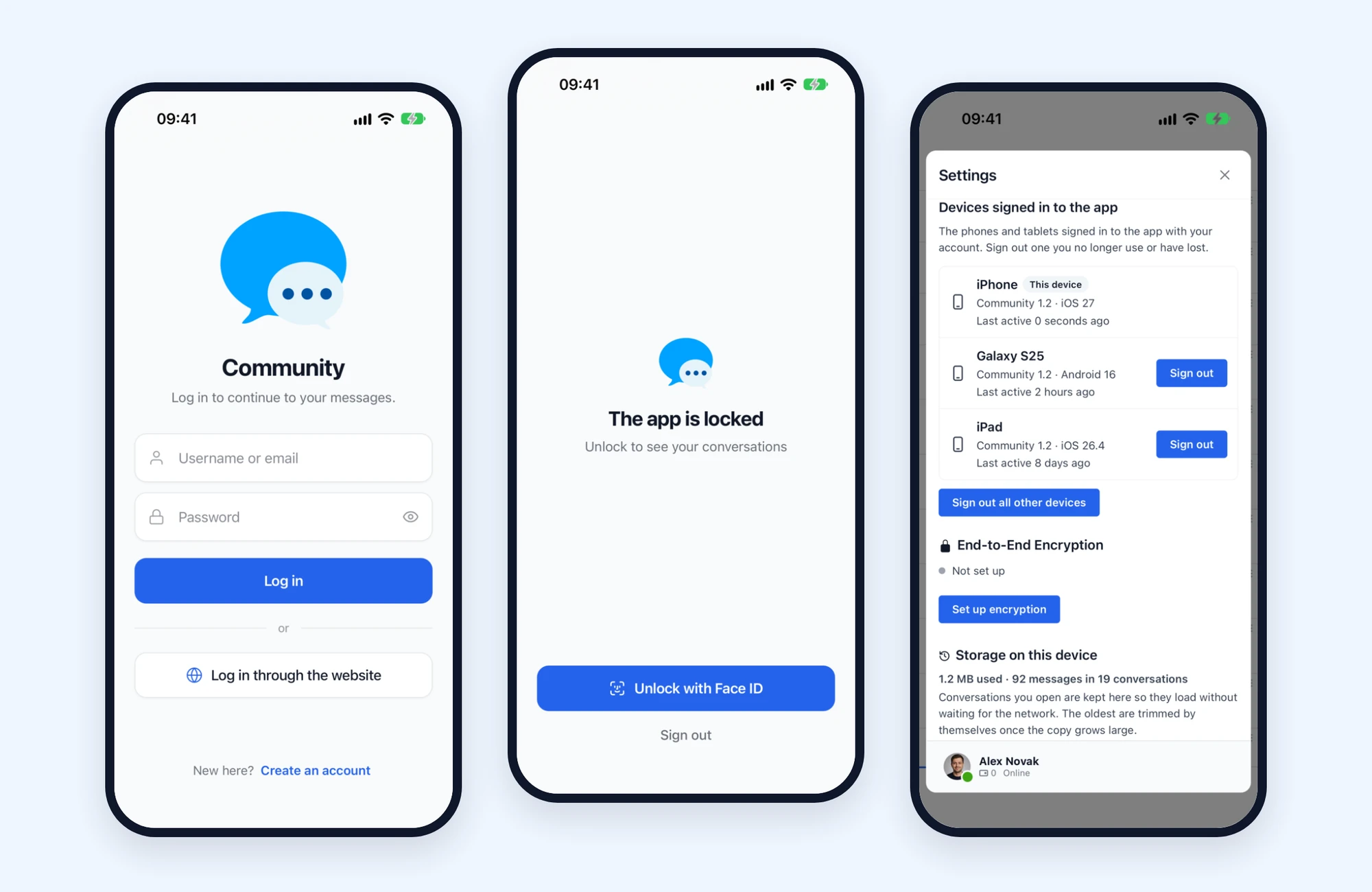
Members can log in on the login page of your site from the app, with its two-factor authentication, social login and other login plugins. Mobile App → General → Sign-in methods can make it the only way in, the right choice for sites that require two-factor authentication. Password sign-in, where you keep it, now limits failed attempts for each account and address and reports them to security plugins. Sign-in and 2FA
App lock with Face ID or a fingerprint#
The app can lock with Face ID, Touch ID or a fingerprint, with the passcode of the phone as the fallback, when it opens and when it comes back from the background, and it hides the conversations in the app switcher. Each member turns it on in the settings of the app, or you require it for everyone in Mobile App → General → Security → App lock. App lock
Links that open the app#
A link to the messages, a conversation or a member on your site opens the app when it is installed, and the messenger in the browser when it is not. Your site serves the files iOS and Android need for it by itself. Links into the app
Signed-in devices and Delete Account#
Members see every phone signed in with their account in the settings of the messenger, and sign out a lost one or all the others at once. Phones are signed out by themselves when a member is deleted, banned or changes the password. Delete Account is now in the app on every site, as App Store and Google Play reviewers require: the account is deleted at once, or you get a request, as Mobile App → General → Account deletion says. See Signed-in devices and Delete Account.
A new login screen#
The login screen has a new design with your logo, the site icon or its name, fields that offer saved passwords, and errors on the screen itself. Mobile App → General → Login screen adds a logo for dark mode, an optional soft glow, and a preview of the login, splash and lock screens before you build. Login screen
Calls in the app#
The call screens of the app catch up with the website. They get the device settings, the notice as a group call is joined, the Show Chat button, and for moderators Join Alerts, End for Everyone, Ask to Turn On Camera and Microphone, and the menu on each tile with each action named for what it does. Mute Everyone mutes microphones only there too. A group call opens on its grid with your own tile while it connects, the tiles end above the controls, and one-to-one calls hold up better on a weak mobile network.
Recording works in the app as on the website. Members see REC and the notice or the stay-or-leave question your site chose, and where the site asks, their microphone and camera stay off until they agree. Moderators start and stop recordings from Host Controls in the app. See Recording in the app.
Video effects, layouts, Spotlight, Participants, and Remove and Ban from Calls are in the browser only for now, on computers and phones. Members in the app still join those calls. Calls in the mobile app has the full list.
Moderation and chat rooms#
- A flag for moderators. Everyone who can open the Administration page sees a flag beside Settings in the messenger, with the number of reported messages and messages waiting for approval, and it opens the Administration page on them. See Administration flag.
- Show who did it. With Settings → Messaging → System Messages → Show who did it, the lines that say someone was removed, muted or banned name the moderator, as in "Anna was muted by John". See Show who did it.
- Bans with an end. Someone banned from a chat room reads that they are banned and until when, in their own time zone, and the room offers to join again once the ban ends. See Banned members.
- Sharp room pictures. The picture of a chat room is sharp in the conversation header and the info panel on phones and high-density screens, without uploading it again.
Mark as unread#
Members can mark a conversation they have read as unread from its menu. It waits in the list with a dot, without counting in the unread counters, until they open it or a new message arrives, and the mark follows them to their other devices. It is on by default and in the free version too, with a switch in Settings → Messaging → Conversation Features → Mark as Unread. Mark as unread has the details.
AI chat bots#
- Bots in the online list. An AI bot that is a member of a chat room shows in its online list while it can answer, and every member list marks a bot with a bot icon.
- Up-to-date costs. Bot costs are counted from a newer price list of the models, and Settings → Integrations → AI Services → Check for new prices gets the latest list from WordPlus Cloud.
- Keys kept safer. The AI keys are sealed in a keychain that all WordPlus plugins on a site share, and are no longer kept in the settings, which show a saved key by its last four characters.
For developers#
- Tabs of your own in the messenger. A plugin can add a tab drawn by its own script, know when it is in front, open it from its own buttons, add its unread messages to the total, play the new message sound, open it to visitors before they sign in, and offer it to the administrator in Appearance, Integrations and Get started. Custom navigation tabs has the code.
- Mark as unread has the Mark conversation as unread REST route and the
better_messages_thread_marked_unreadaction. - LearnDash groups get a Group Chat switch each, with the
better_messages_learndash_group_chat_enabledfilter for groups without a choice saved. - The mobile app brings filters and actions for website sign-in, the app lock, app links, signed-in devices and Delete Account, listed under Mobile App in the PHP filters and PHP actions.
- Guests get their id from the visitors that all WordPlus plugins on a site share, so one browser is the same visitor to each of them.
Smaller things#
- The picker button of the reply box shows a sticker or a GIF badge for what it opens on phones, and on sites with the emoji picker off.
- A chat room that hides its members has no Info panel button, as its panel had nothing to show.
- Hide from Media Library keeps chat uploads out of the Media Library on sites with SureMembers and other plugins that filter it their own way.
- Moving attachments between two cloud storages of different accounts no longer stops at the first file.
3.2 also fixes calls for users in mainland China, one-to-one calls from Firefox counted as relayed, and a long list of small things in calls and the mobile app. The changelog has every change.
Updating from 3.1#
The update is in place. Six things to check:
- People join group calls with the camera and microphone off. A notice tells them that the call controls turn them on. Settings → Group Calls → Joining → Notice on Join turns the notice off.
- Build your mobile apps again. Website sign-in, the app lock, app links, recording and the other call changes reach your members only with a new build from the Mobile App page.
- Download the video effects. Background blur, backgrounds and AI Noise Removal show in calls once you get them in Settings → Calls → Video Effects.
- Large group calls use credits. More than 32 people on video or 50 on audio at once across the group calls of your site join with WordPlus Cloud credits. Keep an eye on the credits in the licence status at the top of the settings if your site holds large calls.
- AI keys move to the keychain. The keys of your AI bots keep working. A site that goes back to 3.1 finds them empty and must save them again.
- Mute Everyone mutes microphones only. It used to turn off cameras too.
If anything looks wrong after updating, please tell us at support@better-messages.com, or on the support forum if you use the free version.
Where to look next#
- Video effects: background blur, virtual backgrounds and AI Noise Removal
- Call recording
- Group video chat: layouts, spotlight, Participants and Host Controls
- Video calls: device settings and keyboard shortcuts
- Mobile app sign-in and 2FA
- How to add video chat to a WordPress site: every way to do it, compared