How to Add Video Chat to a WordPress Site
"Video chat on a WordPress site" can mean two different things, and the right tool depends on which one you need.
- A meeting. Someone hosts a call at a set time and sends people a link: a webinar, a class, a consultation.
- Members calling each other. The people on your site, members of a community, buyers and sellers on a marketplace, students of a course, start a video call with each other whenever they want, the way they already send each other messages.
Most WordPress video chat plugins are built for the first. This guide walks through every way to add video chat to WordPress, what each one takes to set up and to run, and which one fits which kind of site.
The five ways at a glance#
| Way | Best for | What people need | What it costs |
|---|---|---|---|
| Send a Zoom or Google Meet link | Scheduled meetings you host | The app of that service, often an account | Free plans limit how long a group meeting lasts |
| Embed a video room on a page | One fixed room on one page | A browser | Usage billing from the video service above a free allowance |
| A meeting plugin | Meetings and webinars created in wp-admin | Whatever the service behind it needs | The plugin plus the service |
| Video calls inside the chat of your site | Members calling each other, one-on-one and in groups | Their account on your site | One license, servers included |
| Build your own on WebRTC | A product where video is the product | A browser | Months of development and your own servers |
1. Send a Zoom or Google Meet link#
The simplest way needs nothing installed. Create a meeting in Zoom, Google Meet or Microsoft Teams and put the link where people will find it: on a page, in a booking confirmation, in an email to members.
Good: everyone knows these apps, they handle large meetings and recordings, and there is nothing to maintain.
Not so good:
- People leave your site for the call, and the meeting knows nothing about your members. Anyone with the link can join unless you set a passcode or a waiting room.
- Members cannot call each other. Every call is a meeting that someone has to create and share first.
- The free plans cap how long a group meeting can last.
Fits: a weekly webinar, a scheduled class, a consultation booked through a form.
2. Embed a video room on a page#
Hosted video services give you a room that you embed into a page with an iframe, pasted into a Custom HTML block. Jitsi Meet is the open source option, and Whereby Embedded and Daily Prebuilt are hosted services built for this.
Good: the call happens on your page, in the browser, with no app to install.
Not so good:
- A room is a URL. Anyone who has it can join unless you build a sign-in on top, and the room does not know which of your members is in it.
- Hosted services bill by usage, usually per participant minute, once you pass their free allowance.
- The free public Jitsi server, meet.jit.si, no longer supports embedding. For an embedded Jitsi room you use Jitsi as a Service from 8x8, or run a Jitsi server of your own.
- It is still one room on one page. A member cannot call a specific person.
Fits: a consultation page with one host, a support page with a "talk to us" room, a small team room.
3. A meeting plugin for WordPress#
WordPress.org has plugins that connect your site to Zoom or Jitsi. You create meetings and webinars in wp-admin and show them on pages with a shortcode, and some plugins add booking or calendar sync.
Good: meetings are managed where your content is, and some plugins tie a meeting to a course lesson or a booking.
Not so good: these are still meetings with a host, like the first two ways. Check when a plugin was last updated before you install it, because several video chat plugins on WordPress.org have not been tested with recent WordPress versions.
Fits: course platforms with live lessons, coaches who sell scheduled sessions.
4. Video calls inside the chat of your site#
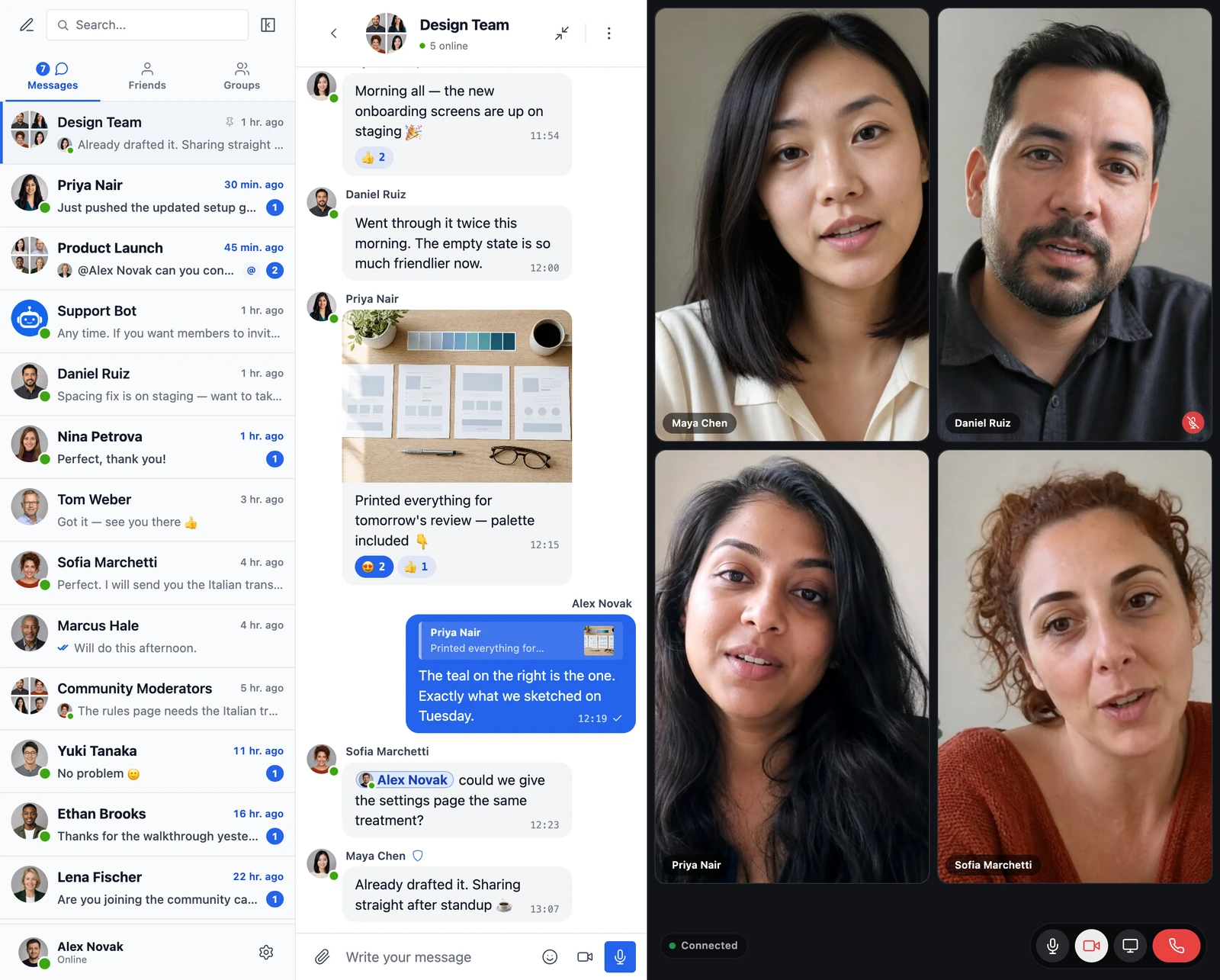
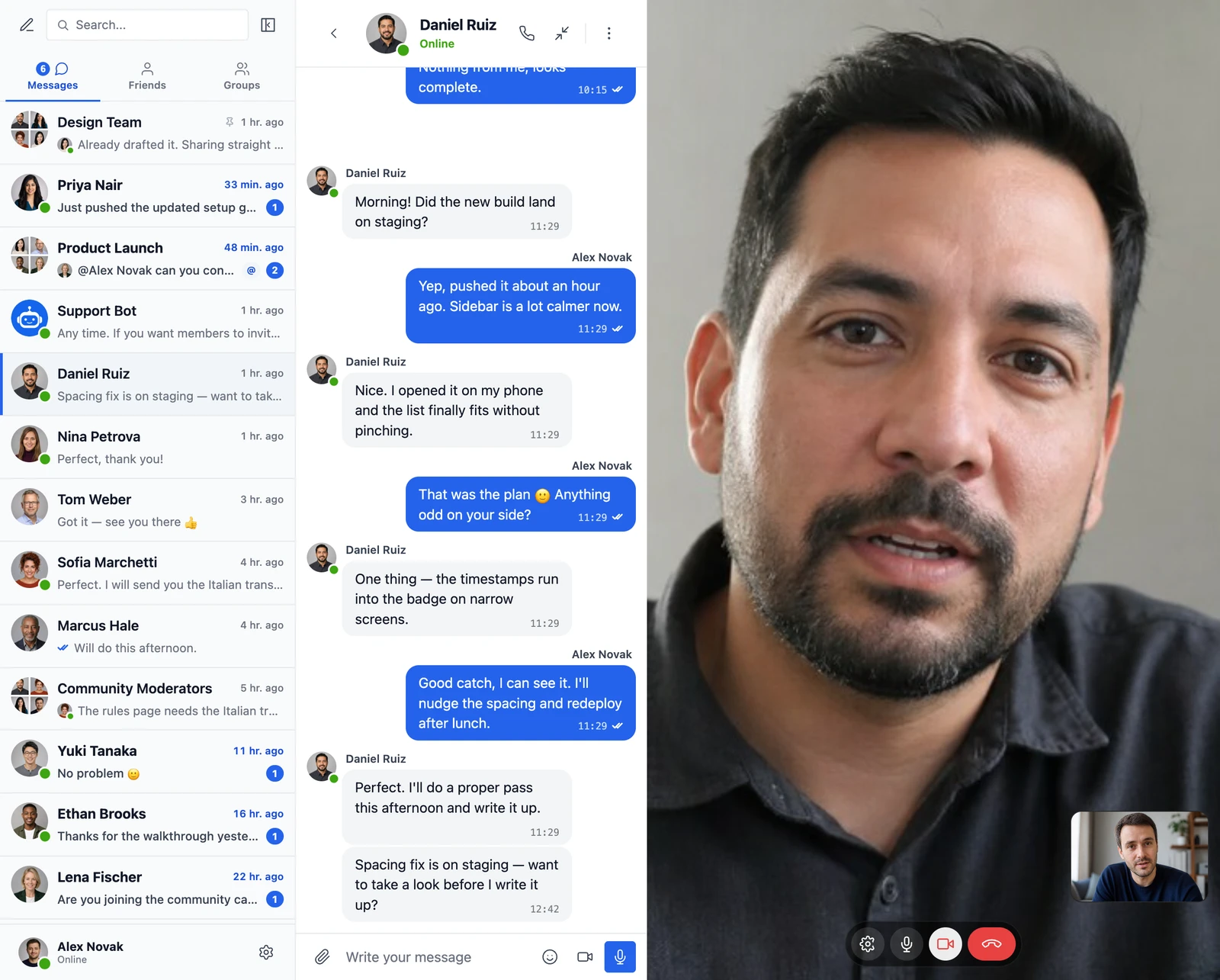
This is what Better Messages does. Members already message each other on your site. With the WebSocket version, every conversation also gets a video call and an audio call button, and group conversations and chat rooms get group calls.

What members get:
- One-on-one video and voice calls in any private conversation. The other person hears a ring in the browser, and with web push on, a notification reaches them even when your site is closed. Calls go directly between the two browsers whenever the network allows, encrypted by WebRTC.
- Group video chat for up to 32 people and group voice calls for up to 50, inside group conversations and chat rooms. Group calls can be encrypted end to end, and in Broadcast mode only moderators speak while everyone else watches.
- Screen sharing during any call.
- Calls on phones, in the mobile browser and in your own branded iOS and Android apps.
What you control:
- Who can call. Call Restrictions lists the roles that cannot place calls, and Friends Only limits calls to friends on sites with a friends feature, such as BuddyPress.
- Who can start or join a group call, by role, and for each chat room whether it has calls at all.
- Guests. Visitors without an account can call too, when guest chat is on and they are part of the conversation.
- A call button on any page. The
[better_messages_video_call_button]shortcode puts a button for a video call with a given member on a profile, a listing or a sales page.
It works with the plugins your site already runs, such as BuddyPress, BuddyBoss, PeepSo, Ultimate Member, FluentCommunity, Dokan, WCFM, LearnDash, Tutor LMS, HivePress and Directorist, and members reach the messenger from the profiles, stores, courses and listings those plugins show.
Good:
- Calls happen between people who already have accounts on your site, with the permissions you set, and without links to share.
- The chat goes on during the call and after it. When a call ends, the conversation keeps a note that it took place and how long it lasted.
- The video servers are included in the license. There is no Zoom, Twilio or Daily account to open, and video and sound never pass through your WordPress server.
Not so good:
- Calls need the WebSocket version. The free version on WordPress.org has private messages, group chats and chat rooms, but no calls.
- Calls are not recorded.
- Group calls stop at 32 cameras. A webinar for hundreds of viewers needs a webinar tool.
Fits: communities and social networks, marketplaces, dating sites, membership sites, course platforms with office hours, coaching and telemedicine where clients have accounts.
5. Build your own on WebRTC#
Browsers have video calling built in through WebRTC, so building it yourself looks tempting. The browser part is the small part. You also need:
- a signaling server that tells two browsers how to reach each other,
- STUN and TURN servers for the many networks where browsers cannot connect directly,
- a media server for any call with more than two people, such as LiveKit, mediasoup or Janus,
- a call screen that works in every desktop and phone browser, and ringing for people who are not on the page.
Video APIs such as Agora, Daily, Twilio and Vonage run the servers for you and bill by the minute. Either way, you write and maintain the rest.
Fits: a product where video is the product, with a developer team behind it.
Setting up video chat with Better Messages#
- Install Better Messages from WordPress.org and activate it.
- Get a WebSocket version license. The WebSocket version is a separate download from your account, and it replaces the free version with all messages and settings kept.
- Activate the license in Better Messages → Account.
- Open Better Messages → Settings → Calls and turn on Video Calls and Audio Calls. Both are off on a new install.
- For group video chat, open Settings → Group Calls and turn on Group Video Chat for groups, conversations or chat rooms.
- Optionally, choose the roles that cannot place or join calls under Call Restrictions and Group Call Restrictions.
Your site must use HTTPS, because browsers give camera and microphone access only to secure pages.
Which way fits your site#
| Your site | The way that fits |
|---|---|
| Community or social network on BuddyPress, BuddyBoss, PeepSo or FluentCommunity | Calls inside the chat |
| Marketplace or directory where buyers talk to sellers | Calls inside the chat, with a call button on vendor or listing pages |
| Dating site | Calls inside the chat, so members talk face to face before they meet |
| Course platform | Group calls in the course chat for office hours, a meeting tool for large live lessons |
| Coach or consultant | Calls inside the chat when clients have accounts, a meeting link when they do not |
| Company webinar for hundreds of people | A webinar tool, not video chat |
Frequently asked questions#
Is there a free video chat plugin for WordPress?#
Jitsi Meet is open source and free when you run your own Jitsi server, and some WordPress plugins connect to it. Hosted video services have free allowances. The free version of Better Messages covers private messages, group chats and chat rooms, and calls come with the WebSocket version.
Does video chat slow down my WordPress site?#
Not with Better Messages. Video and sound go between the browsers or through the media servers that come with the license, never through your WordPress server. Your site only decides who may join a call.
Can visitors without an account use video chat?#
Yes, when guest chat is on. A guest who is part of a conversation or a chat room can place and join calls, and the Guests entry in the call restrictions turns that off.
How many people can join a video chat?#
Two in a one-on-one call, up to 32 in a group video call and up to 50 in a group voice call.
Does video chat work on phones?#
Yes, in mobile browsers and in the iOS and Android apps you can build for your site with Better Messages.
Can I record calls?#
No. Better Messages does not record calls. If you need recordings, use a meeting tool for those sessions.
See also#
- WordPress video chat plugin — calls in Better Messages in detail
- Video calls — one-on-one video calls
- Group video chat — up to 32 people, restrictions and encryption
- Video call button shortcode — a call button on any page
- How to add a chat room to WordPress — rooms with group calls