Background Blur, Virtual Backgrounds and AI Noise Removal
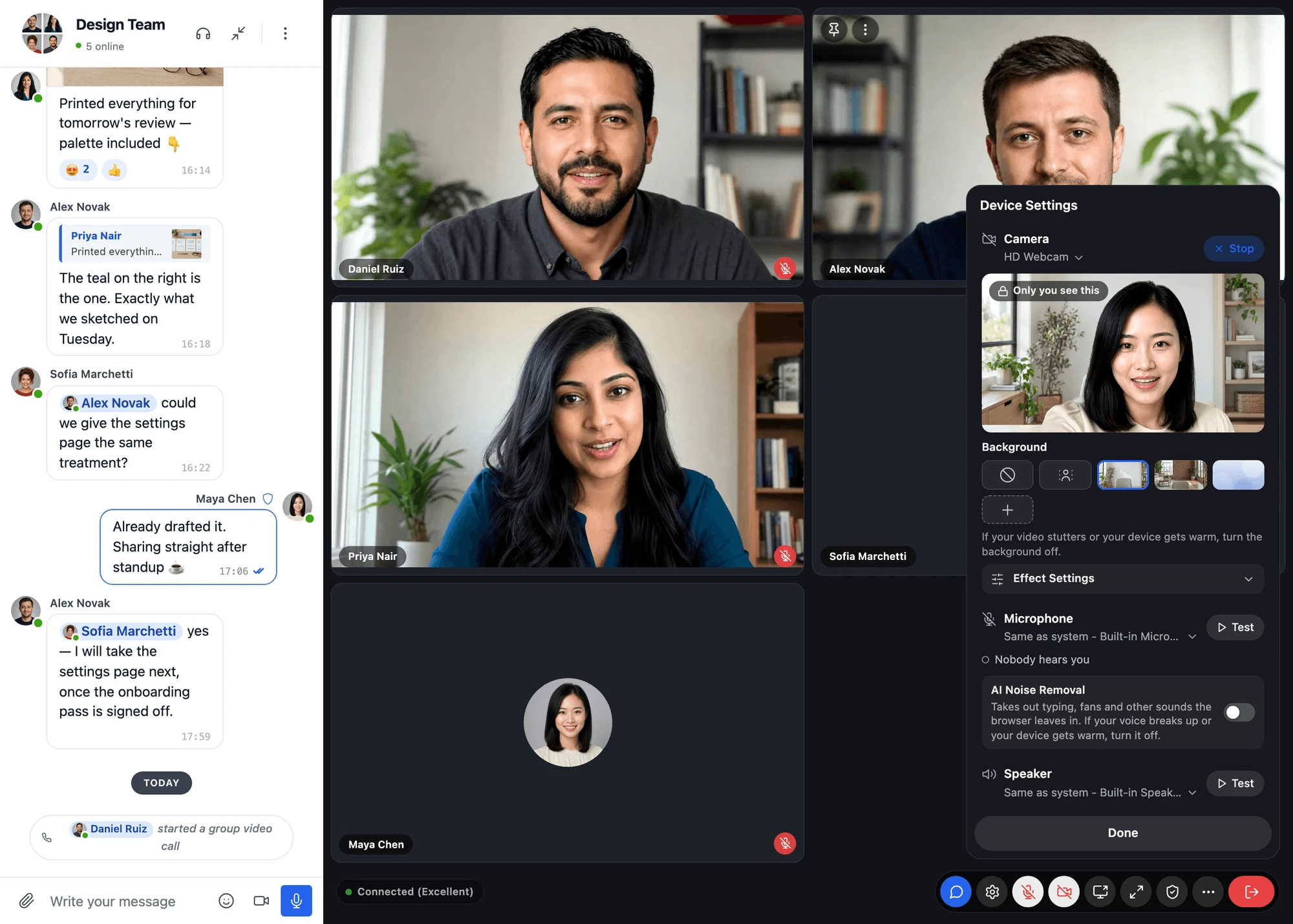
In a video call, everyone chooses what is behind them: their own room, a blurred room or a picture. AI Noise Removal takes keyboard typing, fans, hiss and other sounds around the voice out of their microphone. All of it works in one-to-one calls and in group calls, in the browser, and is chosen by each person in the call's device settings.
Video effects are part of the WebSocket version. They work in the browser on computers, phones and tablets. The native call screens of the mobile app do not offer them.
What members get#
- Background blur: the room behind them is blurred and they stay sharp
- Virtual backgrounds: a picture behind them, from the built-in backgrounds the site picked and the site's own pictures
- Personal Backgrounds: a picture from their own device, where the site allows it
- AI Noise Removal: their voice without the noise around it, with a test that plays the same seconds without and with it
- Effect Settings: the outline, the edge, the steadiness and the strength of the blur, tuned for their room
- The choice is kept by their browser, so the next call starts with the same background
Everything runs on the person's own device. Their camera and microphone are processed in their browser before anything is sent, so no picture, video or sound goes to a server for it.
Choosing a background in a call#
Each person opens the device settings from the gear in the call controls (Device Settings, or Alt+C, ⌥C on a Mac). Under the camera's picture, Background lists:
- None: the camera as it is
- Blur: the room blurred
- the built-in backgrounds and the site's pictures, in that order
- Add Your Own, last, where the site turns on Personal Backgrounds

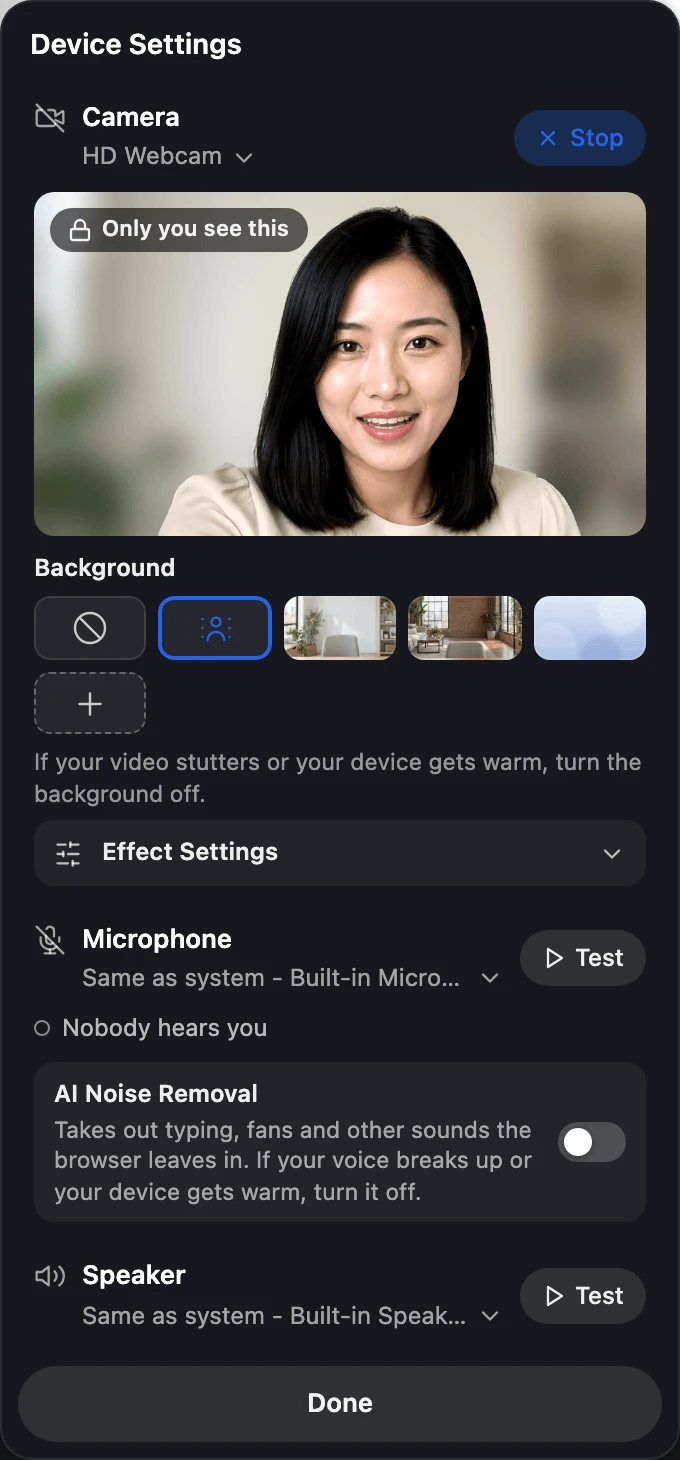
A choice applies at once, to the preview and to what the others see. The camera's picture shows it as everyone sees it, with Everyone sees this while the camera is on in the call and Only you see this while it is a private preview.
Background blur#
Blur keeps the person sharp and blurs everything around them. Blur Strength in Effect Settings goes from Light to Strong.
Virtual backgrounds#
A picture replaces the room. The pictures come from two places, both chosen by the site administrator in the settings:
- Built-in backgrounds: pictures from WordPlus Cloud, each downloaded to the site
- Site backgrounds: pictures from the Media Library, offered after the built-in ones
Effect Settings#
Once a background or the blur is on, Effect Settings opens under the backgrounds. It tunes the effect for the person's room, and their browser keeps it:
| Setting | From | To |
|---|---|---|
| Outline | Tighter | Wider |
| Edge | Sharp | Soft |
| Steadiness | Quick | Steady |
| Blur Strength (with Blur) | Light | Strong |
Reset puts them back. Even light on the face and a plain wall behind help most.
Preparing the backgrounds#
The first time the device settings open on a computer, they prepare the backgrounds for a few seconds and say Preparing backgrounds… under them. The first background chosen in a call then goes on at once. While a chosen background gets ready, the settings say Preparing your background….
When a background slows the device#
Backgrounds use the same person detection on every device that can run it, a phone held upright too. No device switches by itself to a quicker detection that draws a rougher outline. Instead, the person decides:
- While a background is on, the device settings say under the backgrounds to turn it off if the video stutters or the device gets warm.
- Where a background slows the device for several seconds during a call, the call says Your background is slowing this device over the call controls, once a call. Turn Off takes the background off, and the × keeps it.
When a device cannot run backgrounds#
Where the device cannot run them, for example in a browser with hardware acceleration turned off, the device settings show the backgrounds faded and say Backgrounds are not available on this device. None of them can be chosen, and the others see the camera as it is. AI Noise Removal does not depend on it and stays available.
Personal Backgrounds#
With Personal Backgrounds on, Add Your Own lets people, guests too, pick a picture from their own device as their background. The picture:
- stays in their browser and is never uploaded to the site
- is kept for their next calls, in browsers that keep site data (a private window keeps it for that call only, and says so)
- is removed with Remove This Picture on its tile
The others in the call see it behind them, and so does a recording of the call. Nobody can check the picture first, so turn this on only where you trust the people in your calls. It is off by default.
AI Noise Removal#
AI Noise Removal is a switch in the device settings, under the microphone. With it on, the person's microphone carries their voice without keyboard typing, fans, hiss and other sounds the browser's own noise suppression leaves in.
To hear the difference, the person presses Test on the microphone and speaks. Nobody else hears the test. Play Back then plays the same seconds twice: Without AI Noise Removal and With AI Noise Removal.
If the voice breaks up or the device gets warm, the person turns it off. Their browser keeps the choice for the next calls.
Setting up video effects#
The effects are not part of the plugin. Each is downloaded to your site once, from WordPlus Cloud, and calls offer it from then on. Open WP Admin → Better Messages → Settings → Calls → Video Effects:
| Row | What it does |
|---|---|
| Effects Download | Downloads what blurs or replaces the background, a download of about 5 MB that takes about 14 MB on the site. Until then, calls offer no blur and no backgrounds. No built-in background comes with it: tick the ones you want under Built-in Backgrounds. |
| AI Noise Removal | Downloads AI Noise Removal, a download of its own of about 12 MB that takes about 23 MB on the site. Until then, calls do not offer it. |
| Built-in Backgrounds | The pictures from WordPlus Cloud that calls offer. Tick the ones you want: each is downloaded to the site, and one you untick is deleted from it. |
| Site Backgrounds | Pictures from the Media Library, offered after the built-in ones. Landscape pictures of at least 1280 by 720 pixels look best. |
| Personal Backgrounds | Lets people pick a picture from their own device, see Personal Backgrounds. Off by default. |

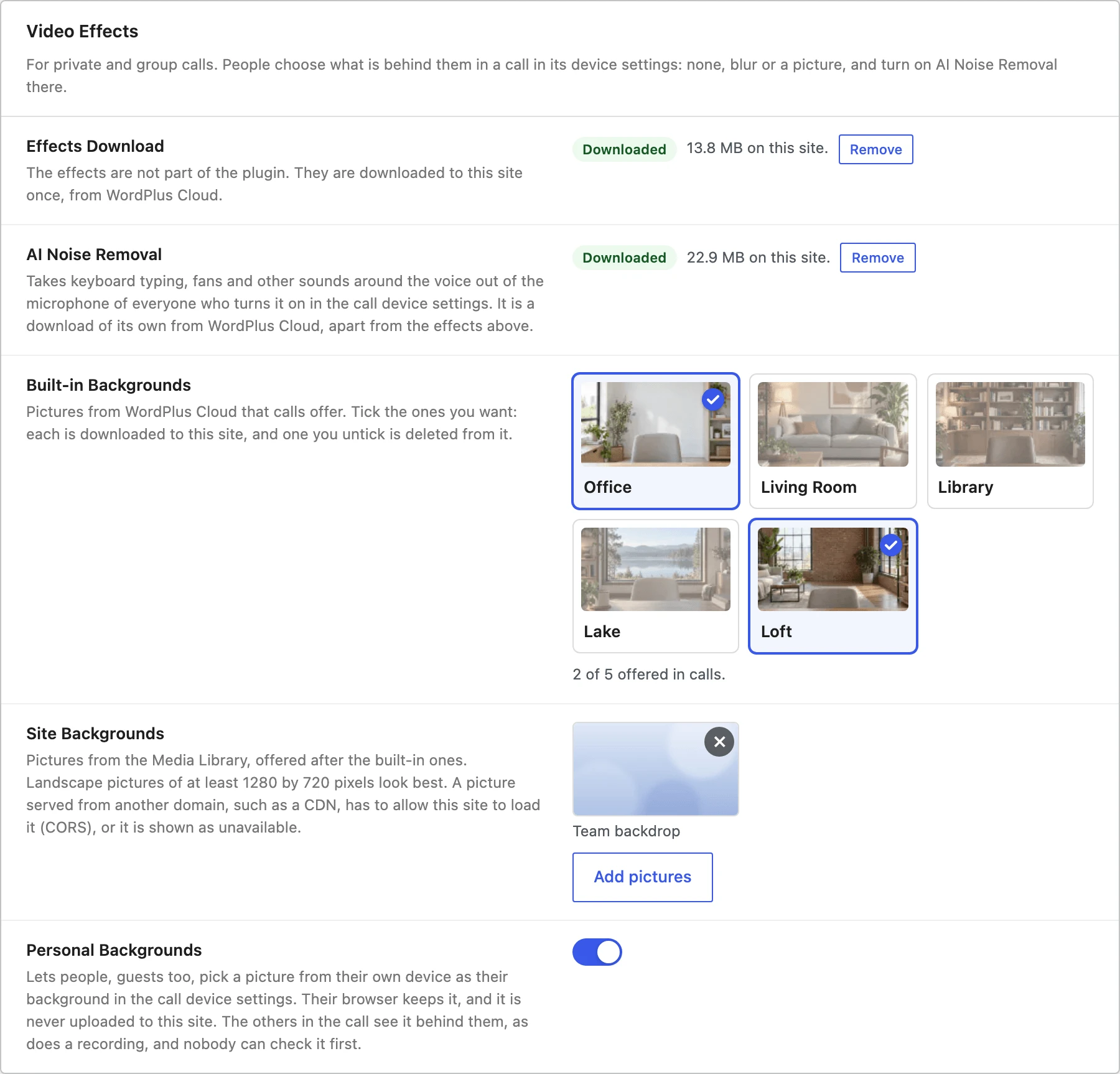
Each download shows its size and Remove, which deletes it from the site. When an update of Better Messages needs a newer download, it downloads by itself shortly after the update, and calls offer the effect again once it is there.
The same settings serve group calls. Settings → Group Calls → During the Call → Video Effects has a Video Effects Settings button that opens them.
A site background served from another domain, such as a CDN, must allow your site to load it (CORS). Otherwise the call shows it as unavailable.
Requirements#
- The WebSocket version with an active licence, and the effects downloaded in Settings → Calls → Video Effects
- A browser with WebGL 2 and WebAssembly SIMD, which current Chrome, Edge, Firefox and Safari have
- For background blur and pictures, a device with at least four processor cores, and a browser that draws with the graphics card (hardware acceleration on). Without WebGL 2, WebAssembly SIMD or four cores, the device settings do not offer backgrounds. Where the browser draws in software or the person detection cannot start, they say Backgrounds are not available on this device. An effect that fails to start says This effect could not start on this device.
Frequently asked questions#
Does a background or noise removal send my video or sound anywhere?#
No. Both run in the browser of the person who turns them on, before their camera and microphone go into the call. The call carries the picture as it already looks, with the background in place, and the voice without the noise.
Can I add my own company backgrounds?#
Yes. Add them under Site Backgrounds from the Media Library. Calls offer them after the built-in backgrounds you ticked.
Can members use a photo of their own?#
Yes, with Personal Backgrounds on. The photo stays in their browser and is never uploaded to your site.
Why don't I see Background in the device settings?#
Either the effects are not downloaded yet (Settings → Calls → Video Effects → Effects Download), or the browser or device cannot run them. Where Background is there but the device cannot run it, for example with hardware acceleration turned off, its choices are faded, with Backgrounds are not available on this device. under them. Turning hardware acceleration on in the browser settings and restarting the browser brings them back. The microphone works the same way for AI Noise Removal, which has a download of its own.
Do the effects work in the mobile app?#
Not in the native call screens of the app. They work in the browser on phones and tablets.
Is there a cost?#
No. The effects are part of the WebSocket version, and the downloads are free.
See also#
- Video calls (1-on-1) — device settings, keyboard shortcuts and talking while muted
- Group video chat — layouts, spotlight, Participants and Host Controls
- Group audio chat — AI Noise Removal works in audio calls too
- Call recording — recordings show backgrounds as everyone saw them
- Screen sharing — share a screen during any call