Call Recording
The moderators of a conversation record its group calls, video and audio, from Host Controls. Each recording is one video of the call as everyone saw it, in the layout and look you choose, with a transcript of who said what and when. Everyone in the call is told it is recorded, in the way you choose, and the recording can be posted in the conversation for its members to watch.
Call recording is part of the WebSocket version, with an active licence. It is off on every site until an administrator turns it on. Recordings are made by WordPlus Cloud and use WordPlus Cloud credits, see Credits. In the free version, the Recording settings are shown locked.
What it does#
- Records group video chats and group audio chats in group conversations and chat rooms
- One video of the call, with each person's camera, or their picture where the camera is off, their name and a ring while they speak
- A transcript with every line, who said it and when, searchable beside the video and shown as captions
- Your logo over every recording, placed and sized on a live preview
- Five ways of telling people, from a REC mark to asking everyone to agree first
- A card in the conversation where the call took place, which its members can watch with one click
- Every recording of the site in one list in WP Admin, to play, download or delete
- Optional extra files: the sound alone, each shared screen as its own video, and everyone separately for editing
- Kept in your uploads folder or in your cloud storage, for as long as you choose
Calls between two people, and group calls with end-to-end encryption on, cannot be recorded. The recorder would receive only encrypted media.
Turning on recording#
Open WP Admin → Better Messages → Settings → Group Calls → Recording and turn on Record Group Calls. While it is off, Host Controls offers no recording and nothing is sent to the recorder. Recordings made before stay in the list.
The settings that follow are described below: how recordings look, the transcript, the recording files and who sees recordings.
With Settings → Group Calls → End-to-End Encryption → Encrypt Group Calls on, recording is not possible, and the Recording section says so. Turn encryption off to record group calls.
Recording a call#
Who can record: the moderators of the conversation, such as the moderators of a chat room, and site administrators. They are the people who have Host Controls in a group call.
- In the call, open Host Controls and choose Start Recording (or press Alt+R, ⌥R on a Mac)
- Start recording? sums up what the recording will be: its layout, the picture, the transcript, who can watch it and how long it is kept, and how the others in the call are told
- Start Recording starts it. REC, with the time, appears beside the call controls

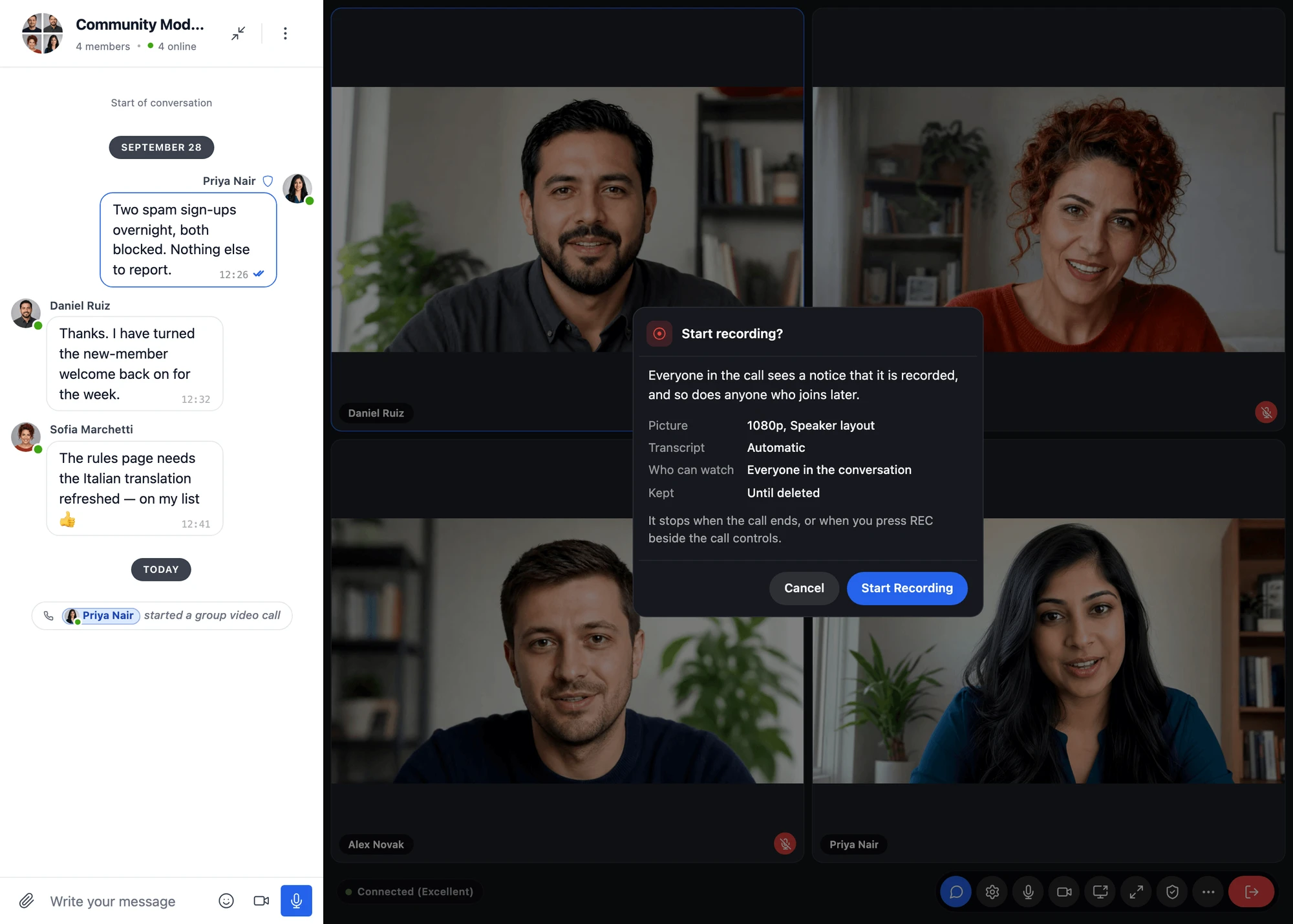
The recording stops when the call ends, or when a moderator presses REC beside the call controls (or Stop Recording in Host Controls) and confirms Stop recording?. It is ready to watch a few minutes after it stops.

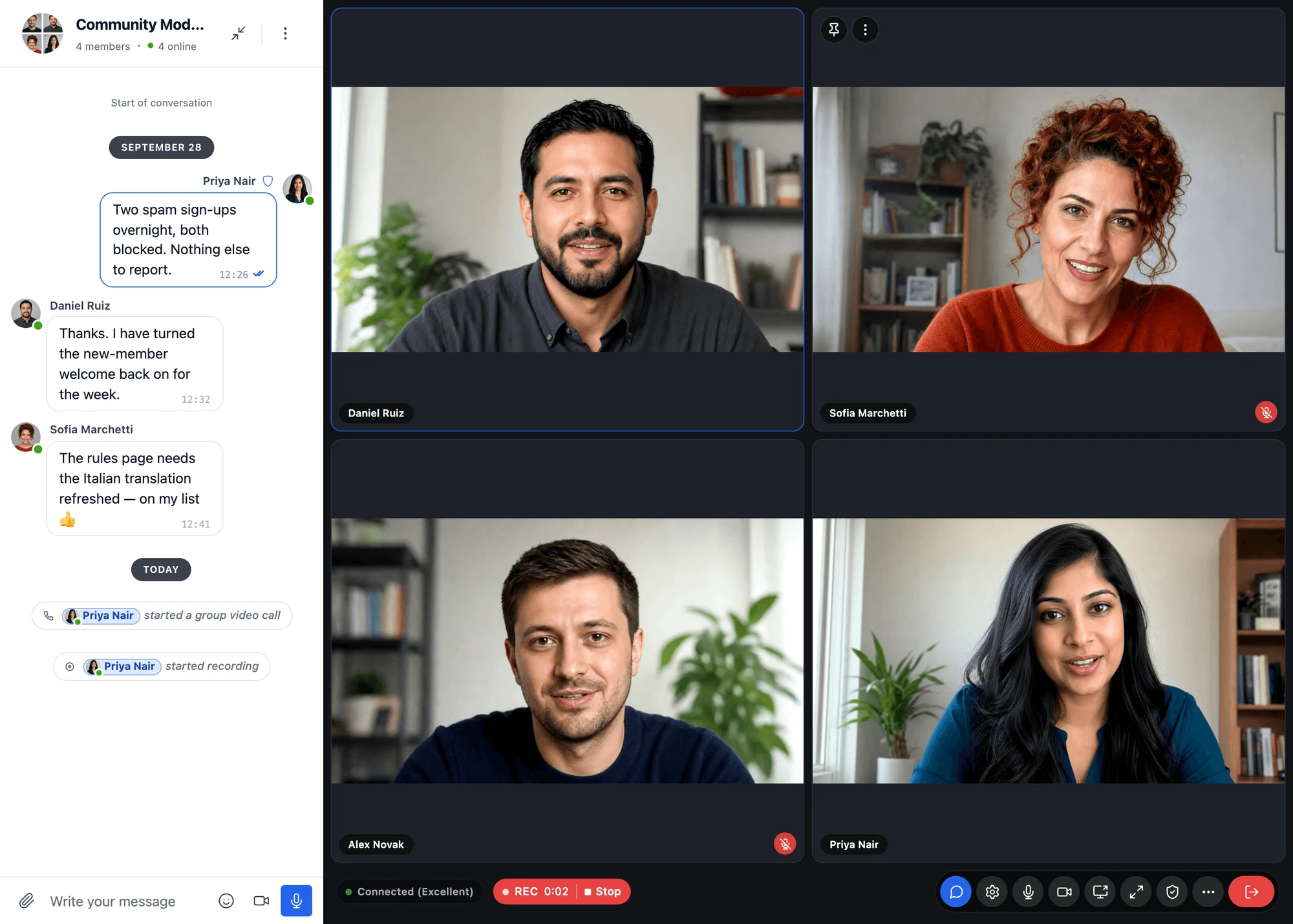
Unless only moderators are told, the conversation also says who started and who stopped the recording, as "Anna started recording" and "Anna stopped recording".
Telling people#
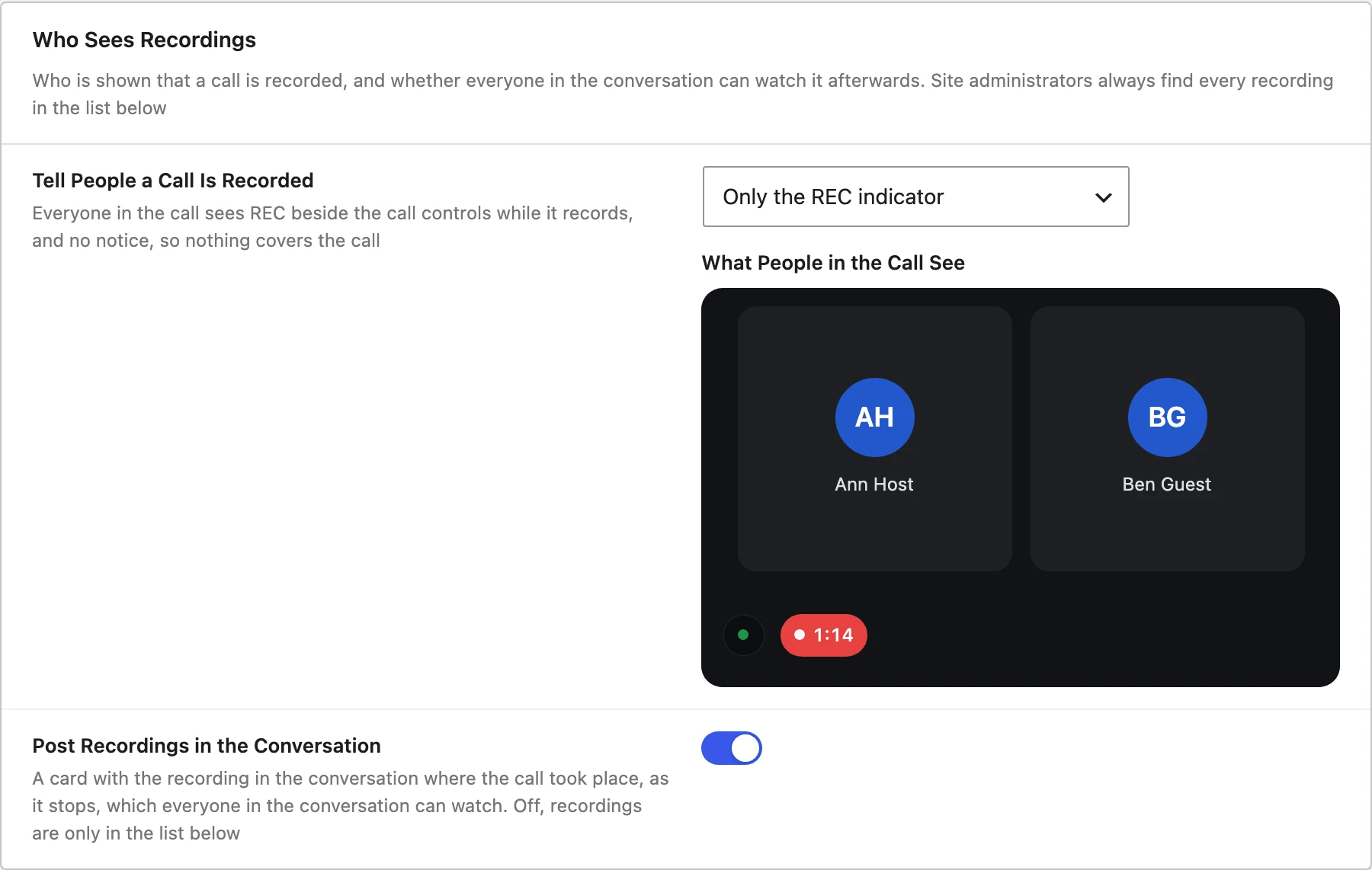
Settings → Group Calls → Who Sees Recordings → Tell People a Call Is Recorded sets what everyone else in the call is told, beside a preview of what they see:
| Choice | What people in the call see |
|---|---|
| Only the REC indicator (default) | REC beside the call controls while it records, and no notice, so nothing covers the call |
| Everyone sees a notice | A notice as recording starts, "This call is being recorded", and to anyone who joins later, as they join. REC stays beside the call controls. Anyone can choose Do Not Show Again and from then on sees only REC |
| Everyone is asked to stay or leave | A question with Stay in Call and Leave Call. Staying means they agree to be recorded. Anyone who joins later is asked too |
| Everyone stays muted until they agree | Their microphone and camera stay off until they press I Agree, or they leave the call. Anyone who joins later is held the same way |
| Only moderators know | Nobody else is told. Only moderators see REC, nothing about the recording is posted in the conversation, and recordings are only in the list in WP Admin |

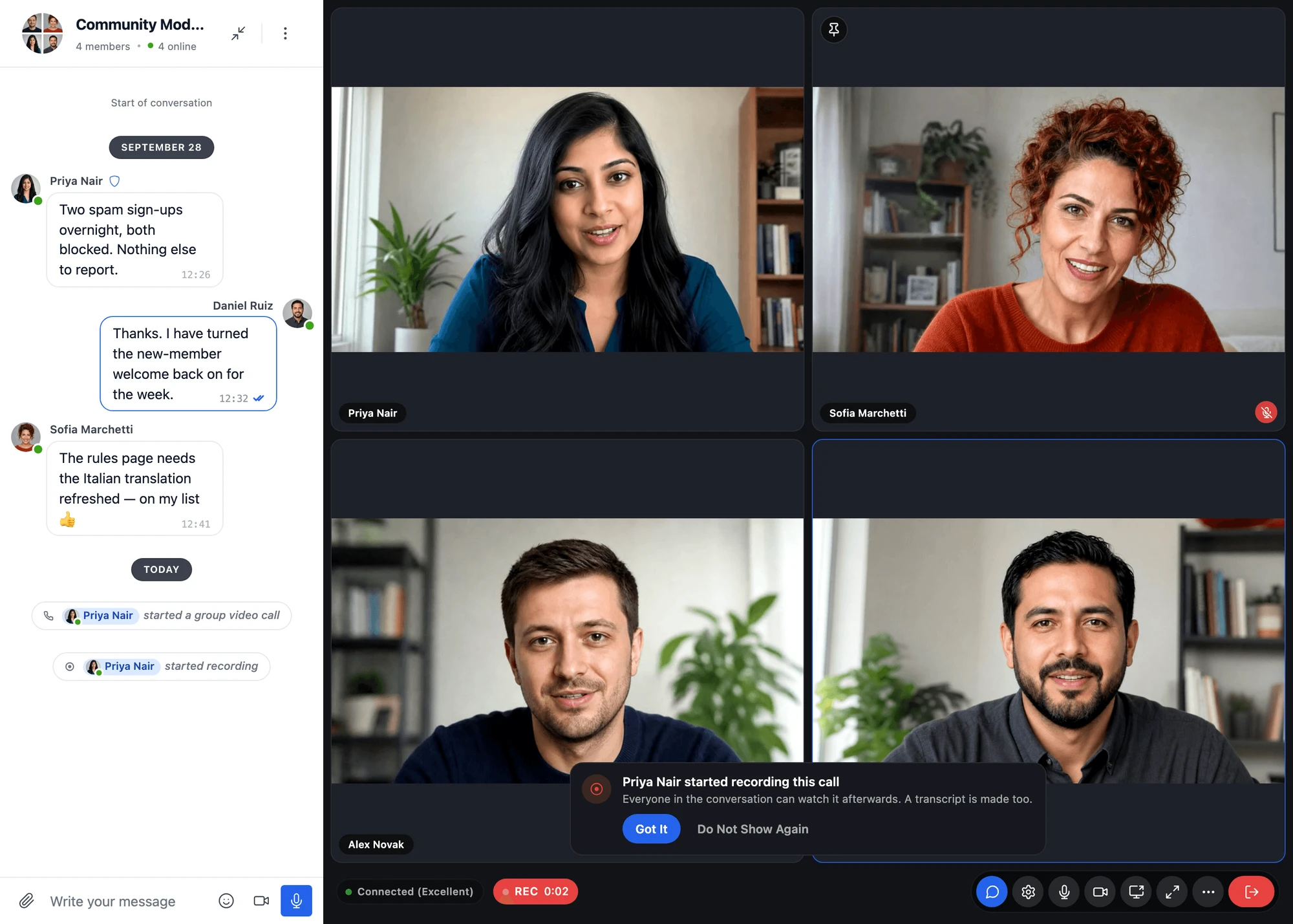

A member who chose Do Not Show Again brings the notice back in the Calls section of their own settings in the messenger: Show a notice when a call I am in is recorded. Guests keep the choice too.
Recording people can need their consent where you and they live. When in doubt, choose Everyone is asked to stay or leave or Everyone stays muted until they agree, and say in your privacy policy that calls can be recorded, by WordPlus Cloud on your behalf.
The call screens of the mobile app show a recording as the website does: REC beside the controls, the notice or the question you chose, and the microphone and camera held off until the person agrees where you ask for that. Moderators start and stop a recording from Host Controls in the app too, or stop it by pressing REC, with a confirmation. This needs an app built with Better Messages 3.2 or newer. An app built before does not show that a call is recorded, so publish the new build before you turn recording on.
Where recordings appear#
In the conversation#
Settings → Group Calls → Who Sees Recordings → Post Recordings in the Conversation puts a card with the recording in the conversation where the call took place, as it stops. It is off by default, and off while only moderators know of recordings.

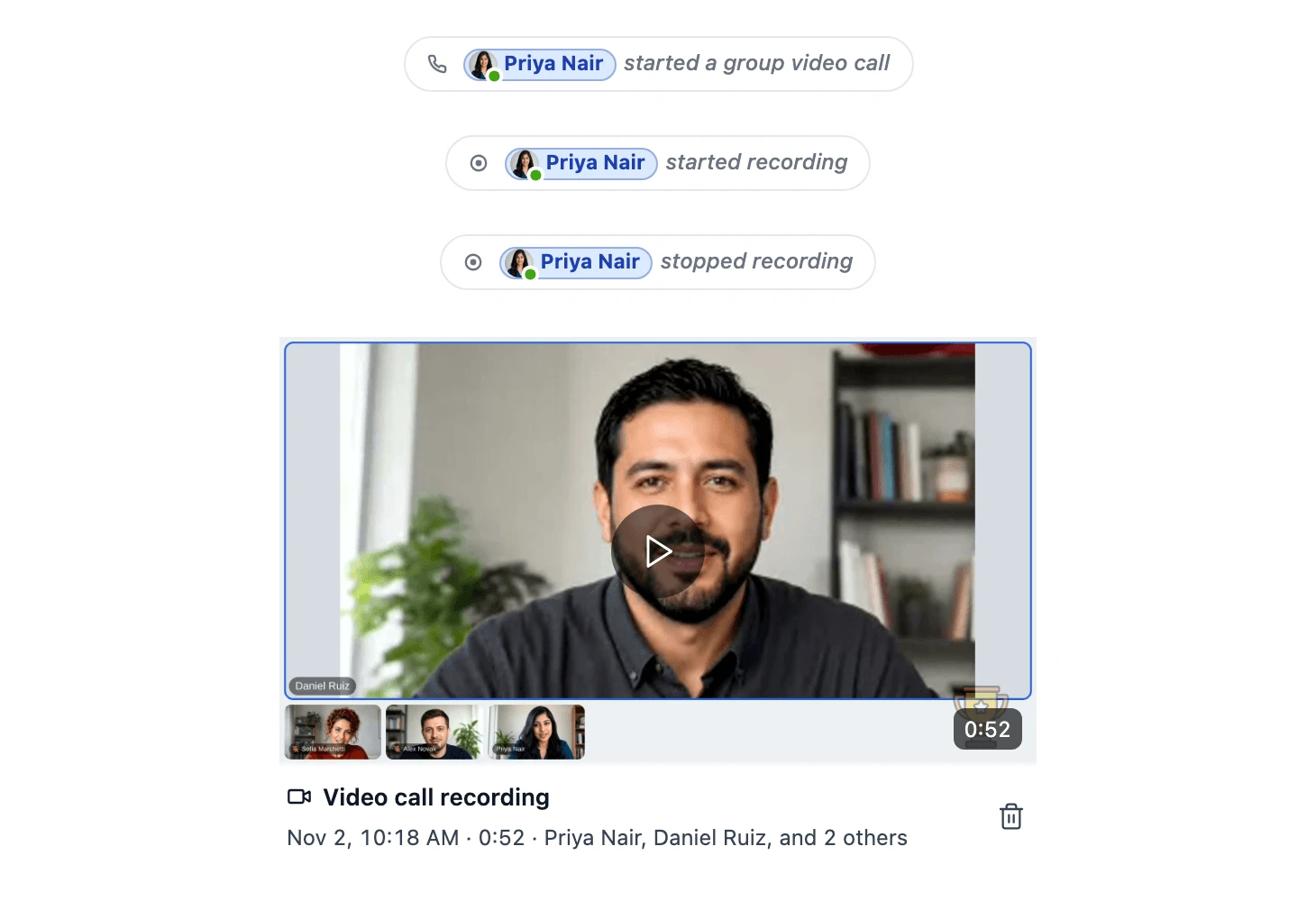
The card says Video call recording or Audio call recording. While the recording is made it reads Being prepared. It can be watched in a few minutes., and then one click on it plays the recording with its sound. Everyone in the conversation can watch it. The card arrives quietly: no notification, email or push is sent for it.
Moderators of the conversation can delete a recording from its card with Delete Recording. Its video, sound and transcript are deleted for everyone, and this cannot be undone.
The player and the transcript#
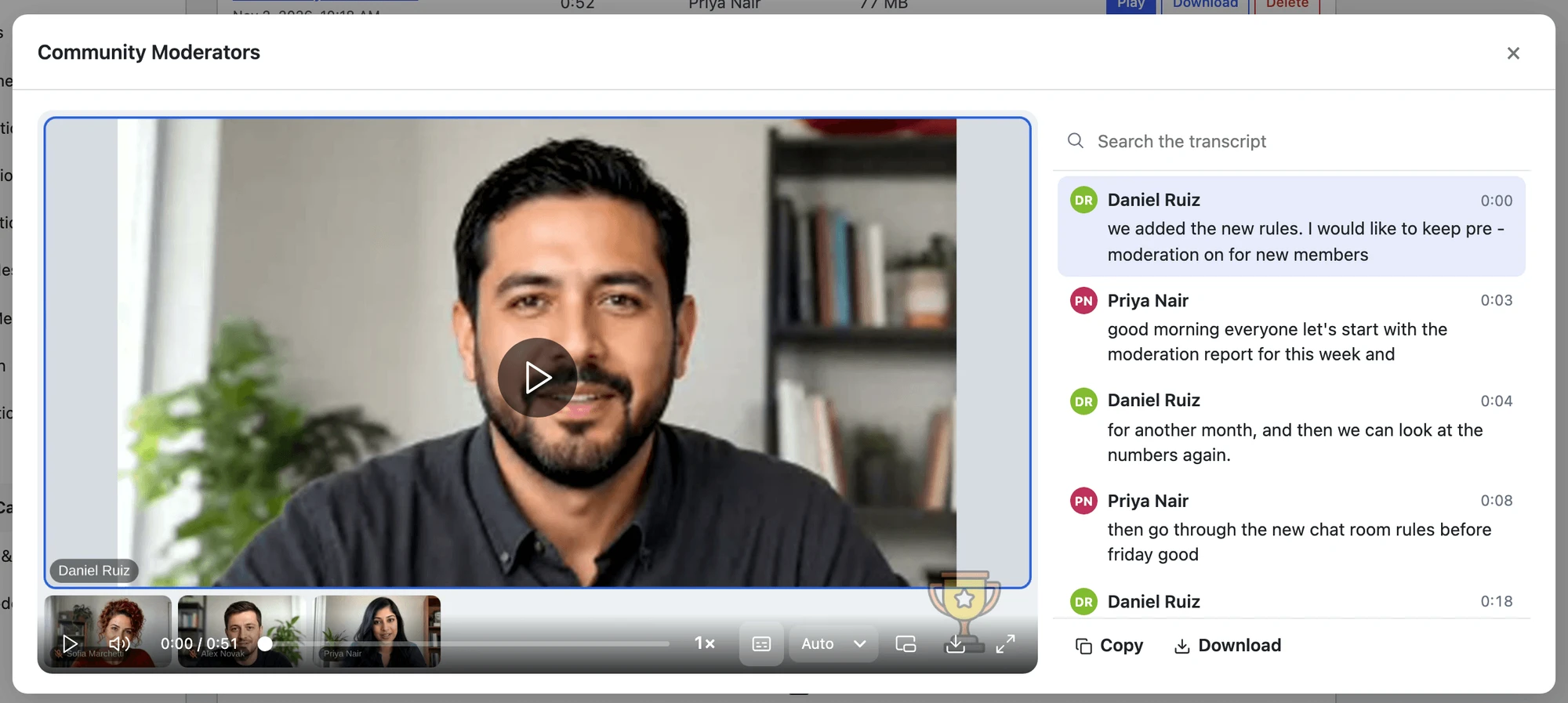
The player has play and pause, seeking, the playback speed, Captions, Quality (Auto or the sizes the recording was made in), picture in picture, full screen and Download. Where the recording has a transcript, it is beside the video: every line with who said it and when, Search the transcript, Copy and Download. A click on a line plays the video from there.

In WP Admin#
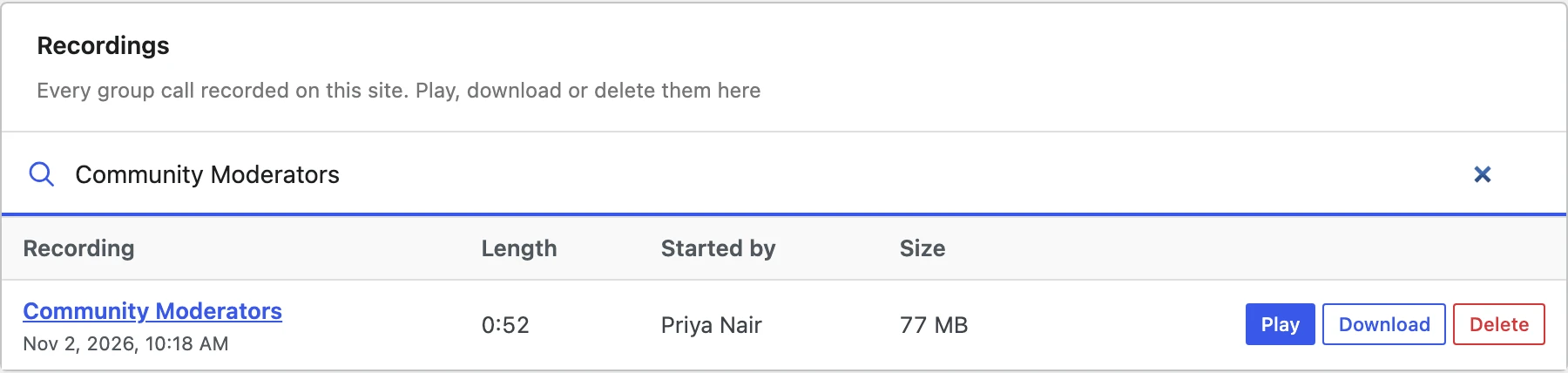
Site administrators always find every recording in Settings → Group Calls → Recordings, whatever the other settings say. The list has a search by title, and each recording can be played, downloaded with each of its files, or deleted. A recording that failed says why in words, such as "The recording server could not make the video."

| Who can watch a recording | When |
|---|---|
| Site administrators | Always, from the list in WP Admin |
| Everyone in the conversation | When it is posted in the conversation |
| Moderators of the conversation can also delete it | When it is posted in the conversation |
How recordings look#
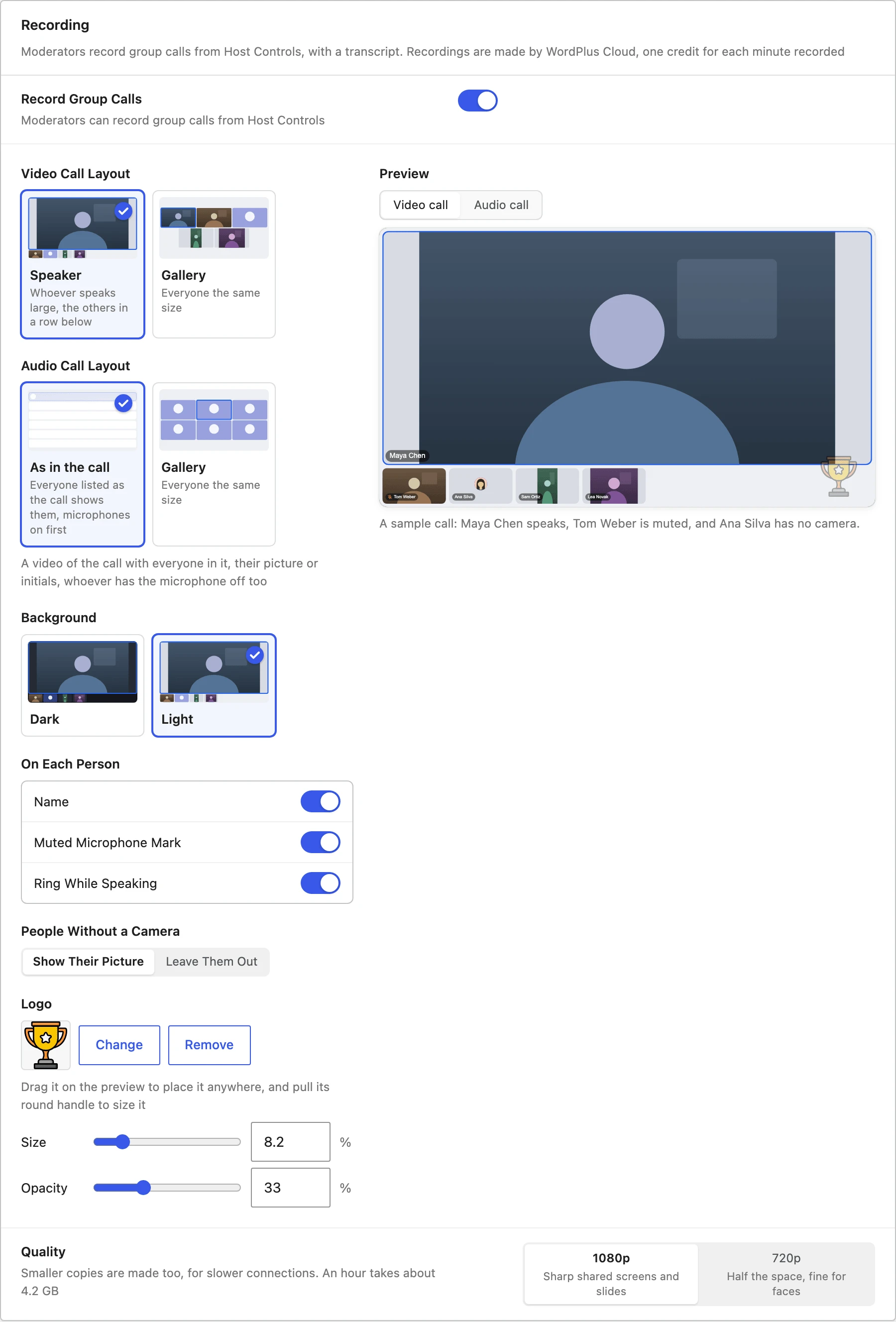
The Recording section draws a live preview of a recording beside its settings, so each change shows at once:

| Setting | Choices |
|---|---|
| Video Call Layout | Speaker (default): whoever speaks large, the others in a row below. Gallery: everyone the same size. Speaker only: whoever speaks, alone |
| Audio Call Layout | As in the call (default): everyone listed as the call shows them, microphones on first. Gallery |
| Background | Dark (default) or Light |
| On Each Person | Name, Muted Microphone Mark and Ring While Speaking, all on by default |
| People Without a Camera | Show Their Picture (default), or Leave Them Out |
| Logo | A picture from the Media Library, over every recording. Drag it on the preview to place it, pull its round handle to size it, and set Size and Opacity. Your site must be on https for it to show |
| Quality | 1080p (default), sharp shared screens and slides, with smaller copies in 720p and 480p for slower connections. 720p, half the space, fine for faces |
A group audio call is recorded as a video of its call screen too, so it plays like any recording and the transcript works the same.
Transcript#
Transcribe Recordings (on by default) writes down what was said in a recorded call, with who said it and when: every line searchable beside the video, and captions while it plays.
Language is Automatic by default: it takes the language each person uses the site in, or the one they are heard speaking. When everyone speaks one language, choose it for the best accuracy. The languages of your site are listed first.
Recording files#
Recording Files sets where recordings are kept, what each one saves and for how long.

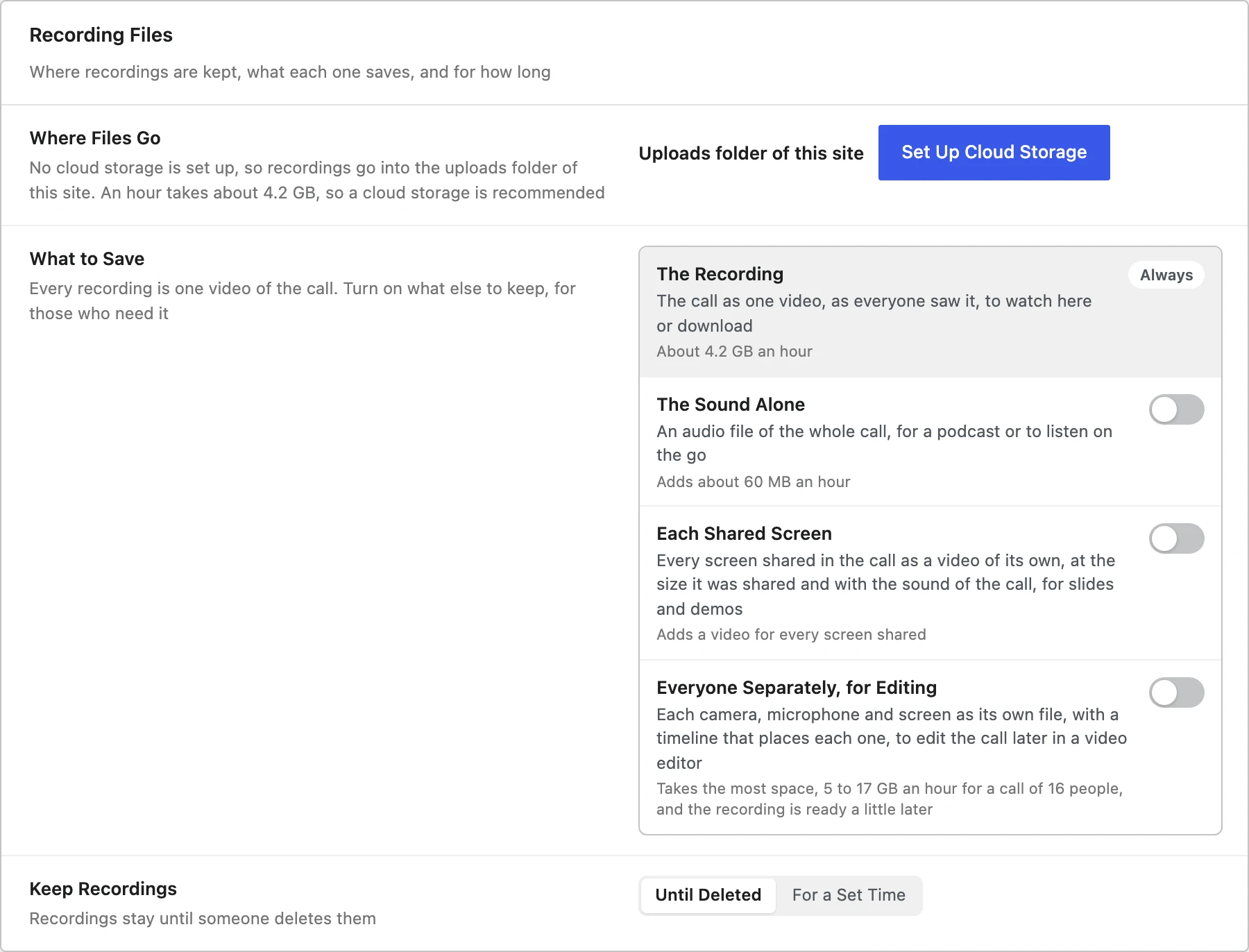
- Where Files Go: the uploads folder of the site, or a cloud storage you set up in Settings → Attachments. An hour of recording takes about 4 GB at 1080p, so a cloud storage is recommended. With a storage set up, recordings go straight into it as they are made
- What to Save: The Recording, the call as one video, is always saved. Turn on what else to keep:
- The Sound Alone: an audio file of the whole call, for a podcast or to listen on the go, adding about 60 MB an hour
- Each Shared Screen: every screen shared in the call as a video of its own, at the size it was shared and with the sound of the call, for slides and demos
- Everyone Separately, for Editing: each camera, microphone and screen as its own file, with a timeline that places each one, to edit the call later in a video editor. It takes the most space, 5 to 17 GB an hour for a call of 16 people, and the recording is ready a little later
- Keep Recordings: Until Deleted (default), or For a Set Time, after which each recording is deleted with its files
Recordings kept on your server are served through the same check as attachments, so only the people allowed to watch a recording can open its files. On Nginx, add the rules in File access protection.
Credits#
Recordings are made by WordPlus Cloud and use the WordPlus Cloud credits of the account your site belongs to: one credit for each minute recorded, the transcript included. A recording is counted only once its files are made, so a recording that failed costs nothing. The credits left show in the licence status at the top of Better Messages → Settings.
When the credits are used up, new recordings cannot start until there are credits again, and the Recording section says so with a Buy credits link. A recording that runs is never cut.
Frequently asked questions#
Can members record calls themselves?#
No. Only moderators of the conversation and site administrators have Host Controls, where recording starts.
Can I record a call between two people?#
No. Recording works in group video and audio chats only. To record a meeting of two people, start a group call in a group conversation and invite the other person.
Are the people in the call told?#
Yes, unless you choose Only moderators know. By default everyone sees REC beside the call controls, and you can show a notice, ask everyone to stay or leave, or keep everyone muted until they agree. See Telling people.
Who can watch a recording?#
Site administrators always, from the list in WP Admin. With Post Recordings in the Conversation on, everyone in the conversation, from the card.
Where are recordings stored?#
In the uploads folder of your site, or in your cloud storage. WordPlus Cloud makes the files and your site downloads them, so the recordings are kept by you.
Can a recording be deleted?#
Yes. Site administrators delete it from the list in WP Admin, and moderators of the conversation from its card. Keep Recordings → For a Set Time deletes recordings by themselves once they are that old.
Does recording work with encrypted group calls?#
No. With Encrypt Group Calls on, the recorder would receive only encrypted media, so recording is not offered.
How much does recording cost?#
See Credits.
See also#
- Group video chat — Host Controls, layouts and moderation in group calls
- Group audio chat — voice-only group calls, which can be recorded too
- Cloud storage — keep recordings with a cloud storage provider
- File sharing — how recordings and attachments are protected
- Video effects — backgrounds show in recordings as everyone saw them