AI Chat Bots for WordPress Private Messaging: OpenAI, Claude, Gemini
Building a WordPress site with AI chat bots is now a one-day project, not a six-month one. The hard parts — model selection, API key management, streaming responses, conversation context, system prompts — are commoditized across providers (OpenAI, Anthropic Claude, Google Gemini). What is still missing is the WordPress-native messenger layer that puts the bot in front of your members where conversations already happen, in the same UI as private DMs and group chats. Better Messages closes that gap: configure an OpenAI / Claude / Gemini bot once, and it shows up as a regular user inside the messenger, with streamed responses, custom personality, and the same UX members already use for human DMs.
How AI bots work in Better Messages#
AI bots are first-class participants in the messenger:
- They appear as regular users — same avatar, same display name, same DM row in the inbox.
- They respond when messaged — 1:1 with a bot opens a thread. Sending a message generates a response.
- They respond when mentioned in groups — add a bot to a group chat, then call it with
@botname. - Responses stream in real time — the bot's reply appears word-by-word as it generates (WebSocket version).
- They show a typing indicator while thinking (WebSocket version).
- They are excluded from end-to-end encrypted threads automatically — server-side AI cannot decrypt E2E content.
Three providers, choose per bot#
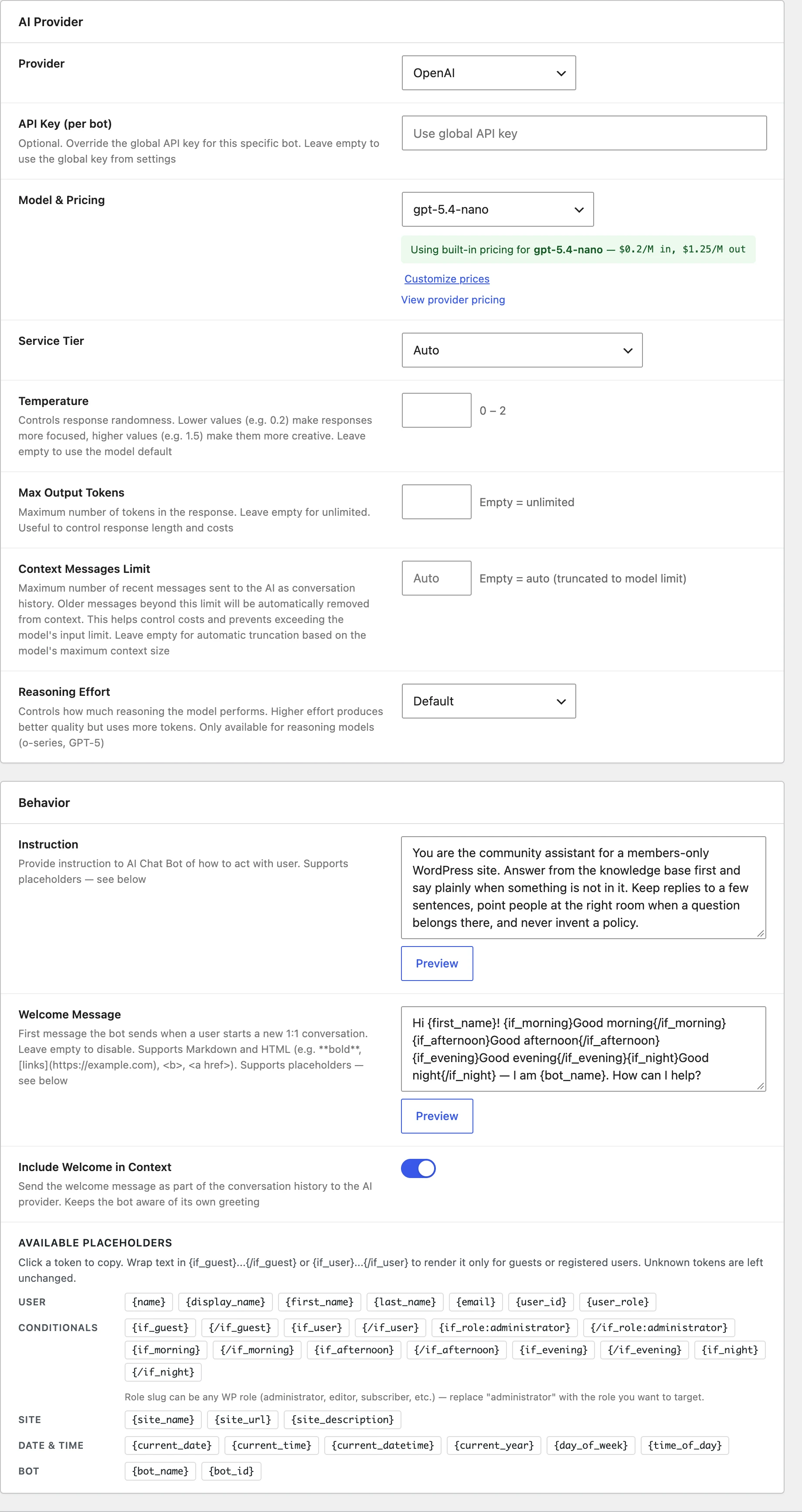
Each bot has its own provider and model — mix and match across bots:
- OpenAI — the only provider with file search, so a bot that answers from your own uploaded documents belongs here. Broadest model range.
- Anthropic (Claude) — long-context work, careful reasoning, tone-of-voice matching.
- Google Gemini — usually the cheapest per token, and image generation without an OpenAI account.
The model dropdown is fetched from the provider rather than hard-coded, so whatever each one has released is what you can pick — no plugin update needed to reach a new model. Pricing for cost tracking is built in for the models the plugin knows and typed in by hand for anything newer.
Set the global API keys once at Better Messages → Settings → Integrations → AI Services, then create individual bots that target the provider and model you want. A site can run a Claude-backed "support bot" alongside a Gemini-backed "translation bot" alongside an OpenAI-backed "knowledge-base bot" — all from the same messenger.
Custom system prompts and welcome messages#
Every bot has two key text fields:
- System Instruction — the AI provider's "you are an X assistant that helps with Y" preamble. The more specific, the better the bot performs.
- Welcome Message — the first message the bot sends when a user starts a new 1:1 conversation. Previewed virtually on the New Conversation screen before the thread even exists.

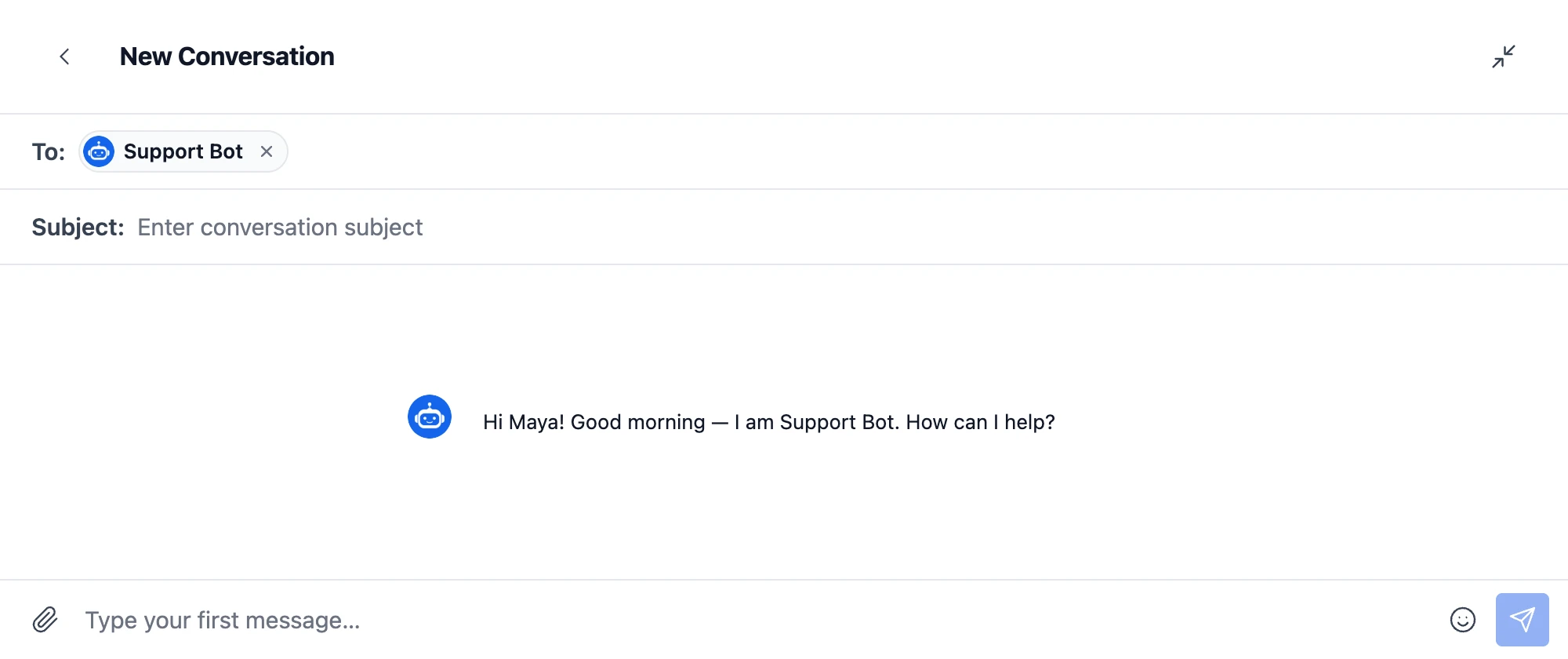
Both fields support placeholder tokens and conditional blocks:
{if_user}Welcome back, {first_name}!{/if_user}{if_guest}Hi! Create an account for a smoother experience.{/if_guest} It's {time_of_day} at {site_name} — how can I help?
Tokens include {name}, {first_name}, {email}, {user_role}, {site_name}, {current_date}, {day_of_week}, {time_of_day} and more. The admin UI shows every token as a clickable chip — no manual typing.
Conditionals ({if_user}, {if_guest}, {if_role:editor}, {if_morning}, etc.) render different content based on who is reading.
Bot capabilities you can toggle on#
Per bot, per provider:
- Web search — the bot can search the live web for current information, with a search context size dial because more context costs more input tokens.
- File search — the bot can search through uploaded knowledge-base files (OpenAI).
- Image generation — the bot can generate images, with an optional cap on how many per response. It needs an image-capable model. The editor says so when the chosen model cannot.
- Image understanding — members can send the bot a picture and have it answer about it.
- Voice input — members can send the bot a voice message. It is transcribed before the model sees it, so this works on any model, not only audio-capable ones. It needs the Voice and Video Messages add-on and a transcription provider configured on the Voice Messages tab.
- Conversation summarization — AI-generated summaries of long thread histories, configurable per conversation.
- Scheduled digests — a conversation's moderator picks the digest bot, and the bot posts on a schedule (hourly, twice daily or daily) at the clock times set for that conversation —
09:00by default. The digest gets its own model, prompt, language and token limit, and pulls from the live web when Web Search is on.
Group conversations#
Add a bot to a group chat and call it with @botname. The bot:
- Sees the recent conversation context.
- Responds to the user who mentioned it.
- Does not reply to messages that do not @-mention it (no chatty bot interruption).
This is the right shape for a "knowledge bot in a support group" or an "AI moderator in a community Q&A room."
Cost control: points charging and token tracking#
Free public AI bots have a known failure mode — costs balloon when a few power users discover them. Better Messages has two defences:
-
Token usage tracking per bot, with a cost estimate per response, in the bot's own Model & Pricing section. Models with built-in pricing are costed automatically. For anything newer you type the per-token prices yourself. Max tokens caps a single reply and context messages caps how much history is sent, which is the other half of cost control.
-
Points charging, set per bot under User Pricing, once a points plugin (MyCred or GamiPress) is active and configured on Integrations → Points Systems. Pricing Mode offers:
- Disabled — the default.
- Fixed per response — a flat Points per Response, and the user must hold at least that many to send.
- Based on API cost — Points per $1 of API cost, so the charge tracks what the reply actually cost. Set 100 and a point is a cent. Set 1000 and it is a tenth of one. Each message rounds up to a whole point.
A Minimum Balance Required sits under both, and there is a separate switch for whether group @-mentions get charged at all. See GamiPress pay-to-message and MyCred pay-to-message for the points side.
Installing AI Chat Bots#
- Install Better Messages from WordPress.org (the WebSocket version is recommended for streamed replies, but not required). Check the site runs PHP 8.1 or newer — the AI module does nothing below it.
- Paste your provider keys at WP Admin → Better Messages → Settings → Integrations → AI Services.
- Create bots at WP Admin → Better Messages → AI Chat Bots: name, avatar, provider, model, system instruction, welcome message.
- Publish.
There is nothing separate to buy — the AI module is part of the plugin. What you pay for is the provider's own usage.
Frequently asked questions#
Does this work on the free version of Better Messages?#
Yes. The AI module ships inside the plugin and is not licence-gated — the only prerequisites are PHP 8.1 or newer and an API key of your own. Bots answer, tokens are counted, points are charged, all on the free version.
What the WebSocket version adds here is the delivery, not the intelligence: streamed word-by-word replies and the typing indicator while the bot thinks both run off the relay, so on the free version the answer arrives whole, on the next poll. Better Messages Cloud AI — the no-key provider used for translation, moderation and transcription — is separately licence-gated, but it is not what runs a chat bot.
Can I use my own API key vs the global one?#
Yes — every bot can override the global key with a per-bot key. Useful for billing isolation (a bot for one client uses their key, not yours) or for testing.
Does the bot remember past conversations?#
Yes — the conversation thread is sent to the AI provider as context with each new message, up to the model's context-window limit. For long threads, conversation summarization keeps the relevant context in scope without exceeding the limit.
Will the bot show up in the user list / member directory?#
Yes — bots appear as regular users in the messenger. They are flagged as is_bot in the user API so themes can style them differently if desired.
Are bots subject to GDPR data-processing rules?#
The AI provider (OpenAI / Anthropic / Google) is a separate data processor. Your site's privacy policy needs to declare this and link to the provider's policy. The conversation content is sent to the provider's API. No third-party party tracks user identity beyond what your prompt includes.
Can a bot see end-to-end encrypted threads?#
No — bots are excluded automatically. E2E messages are decrypted only in the participants' browsers, and the bot's API call happens server-side, so the bot has no access to ciphertext. See End-to-end encrypted messaging on WordPress.
See also#
- AI Chat Bots feature documentation — full setup reference
- End-to-end encrypted messaging — why bots are excluded from E2E threads
- GamiPress pay-to-message — for charging points per AI response
- MyCred pay-to-message — for charging points per AI response