Better Messages for WCFM: Live Chat for WCFM Marketplace Vendors
The WCFM Marketplace integration for Better Messages adds a Live Chat button on every vendor product page, on the vendor store page, and a Messages menu inside the WCFM Vendor Dashboard with a live unread counter. Vendors enable Live Chat per store from their WCFM settings; products started from the chat show as rich product cards with image, title, and price. Works on both the free and WebSocket versions.
To install the plugin ensure that your website running:
- WordPress 5.9 or newer
- PHP 7.4 or newer
Installation#
How to install WCFM Marketplace#
Download WCFM Marketplace from the official website and install following the standard WordPress plugin installation process. The free WCFM – WooCommerce Frontend Manager and WCFM Marketplace plugins are both required.
How to install Better Messages with WCFM Marketplace#
- Install the plugin through the WordPress plugins screen directly or upload the plugin files to the
/wp-content/plugins/bp-better-messagesdirectory. - Activate the plugin through the Plugins screen in WordPress
- Use the Better Messages -> Settings menu to configure the plugin
- Go to Integrations -> WooCommerce and Enable Vendor Live Chat in the WCFM Marketplace Integration section

Supported features#
When you install the WCFM Marketplace plugin with Better Messages:
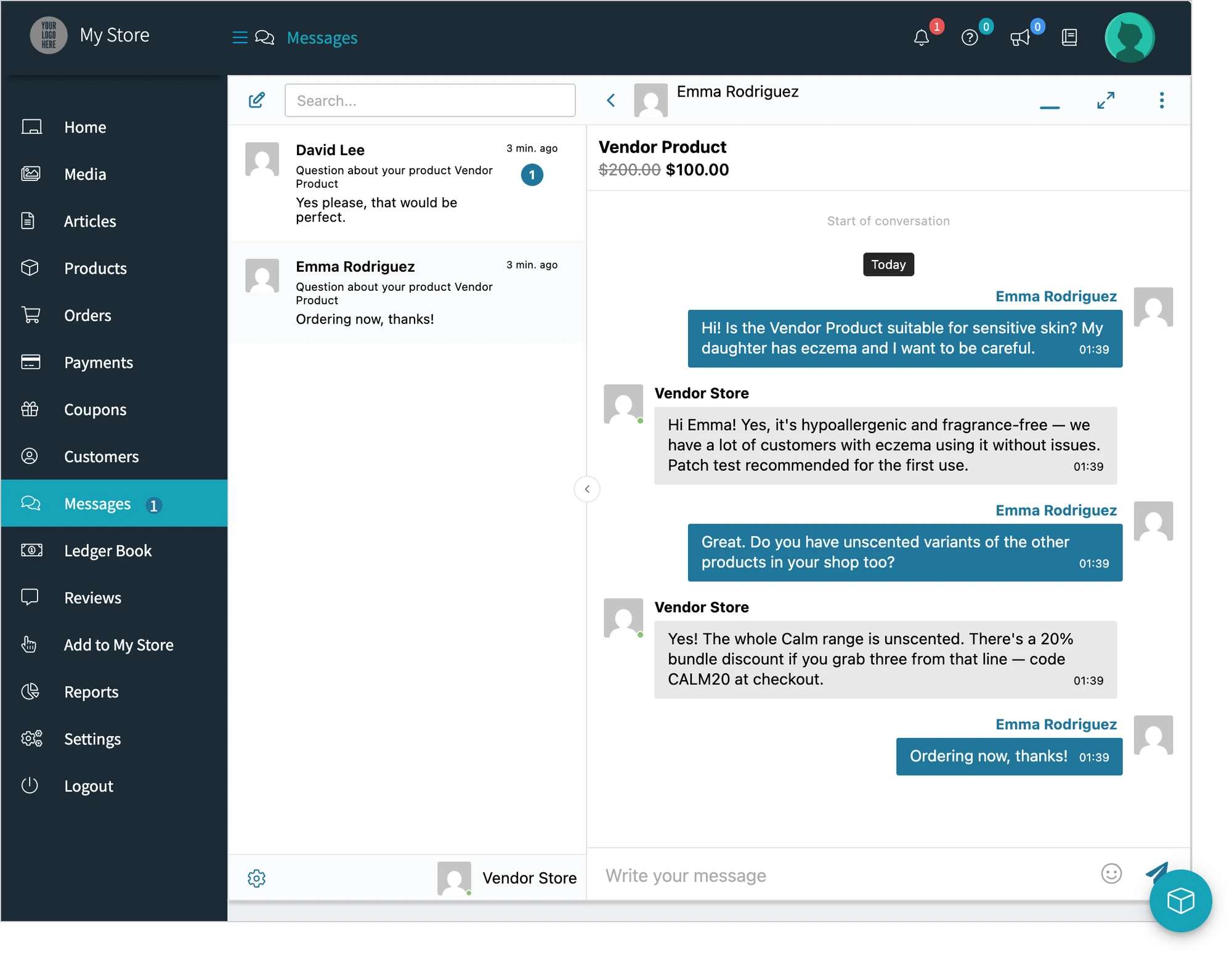
- Vendors get a new Live Chats section in their WCFM vendor Settings to enable Live Chat per store
- A Messages menu item appears in the WCFM Vendor Dashboard with an unread-message counter
- Vendor avatars in the Better Messages interface are automatically displayed from WCFM store profiles
- Vendor links in the Better Messages interface automatically point to WCFM store pages
- Conversations started from a product page show the product card (image, title, price) inside the thread
Adds a Messages menu to the Vendor Dashboard#

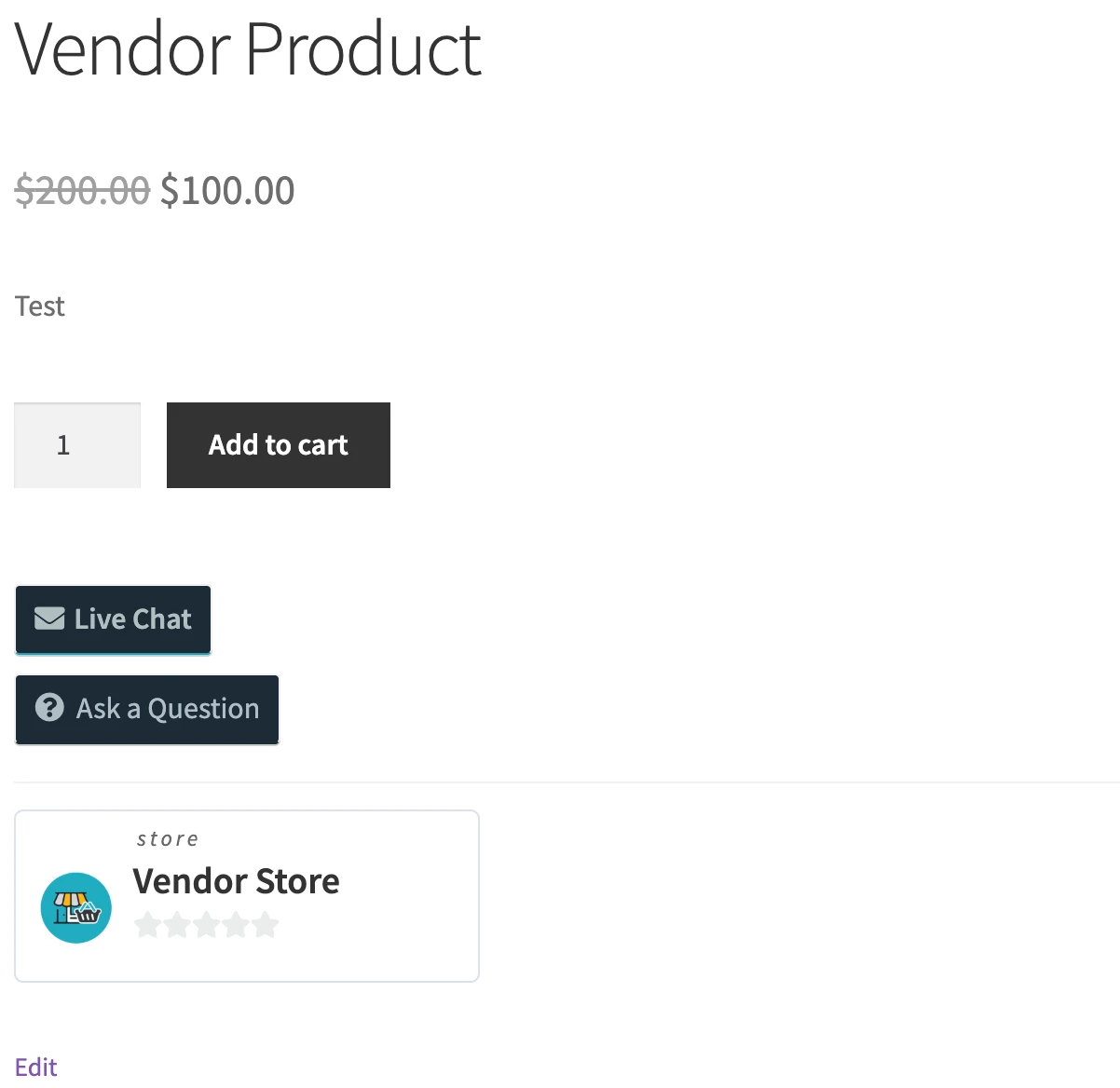
Adds a Live Chat button to vendor product pages#
If you are using a custom page builder or the button does not show up automatically, use this shortcode on your product page: [better_messages_wcfm_product_button]

Adds a Live Chat button to the vendor store page#
If you are using a custom page builder or the button does not show up automatically, use this shortcode on your store page: [better_messages_wcfm_store_button]


Free vs WebSocket version for WCFM Marketplace stores#
| Feature | Free version | WebSocket version |
|---|---|---|
| Live Chat on product / store / dashboard | yes | yes |
| Per-vendor enable / disable in WCFM settings | yes | yes |
| Vendor avatars and links from WCFM store profile | yes | yes |
| Product card context in threads | yes | yes |
| Real-time delivery + unread counter | polling | instant |
| Mini-widget popup chat | — | yes |
| One-on-one voice and video calls inside the thread | — | yes |
| Group voice and video calls (vendor team) | — | yes |
| Web push notifications for new messages | — | yes |
| Read receipts | — | yes |
| End-to-end encryption (optional) | — | yes |
For WCFM marketplaces where vendor responsiveness drives reviews, the WebSocket version's instant delivery plus web push keeps vendors engaged even when their dashboard is closed — the mini-widget popup lets buyers chat without leaving the product page.
Frequently asked questions#
Does it work with WCFM membership levels?#
Yes — Live Chat can be restricted to specific WCFM membership tiers via the role-based access controls.
Can customers chat without a WordPress account?#
Optional — enable Guest Chat in Better Messages → Settings → General → Guest Chat.
Will the unread counter update in real time?#
On the free version it polls; on the WebSocket version it updates instantly when a new message arrives.
Does it work alongside WCFM's own internal vendor-to-admin messaging?#
Yes — those are separate systems. Better Messages adds buyer ↔ vendor chat; WCFM's internal messaging stays for vendor-to-admin coordination.
What about WCFM Bookings / WCFM Auction?#
The integration works regardless of which WCFM add-ons are active.
See also#
- WCFM Marketplace chat — full feature write-up
- WordPress marketplace chat — comparing every marketplace integration
- Dokan integration
- WC Vendors integration
- MultiVendorX integration
- WooCommerce integration — for stores without a marketplace layer