Better Messages for Directorist: Real-Time Chat on Listings and Profiles
The Directorist integration for Better Messages adds a Send Message button on the listing page (inside the Author Info card), on archive listing cards (opt-in), on the author profile page, and a Messages tab inside the Directorist user dashboard. Conversations started from a listing show the listing's image, title, price, and address as a context card. Works on both the free and WebSocket versions.
To install the plugin ensure that your website running:
- WordPress 5.9 or newer
- PHP 7.4 or newer
Installation#
How to install Directorist#
Download Directorist from the WordPress.org plugin directory and follow the standard WordPress installation process.
How to install Better Messages with Directorist#
- Install the plugin through the WordPress plugins screen directly or upload the plugin files to the
/wp-content/plugins/bp-better-messagesdirectory. - Activate the plugin through the Plugins screen in WordPress.
- Use the Better Messages -> Settings menu to configure the plugin.
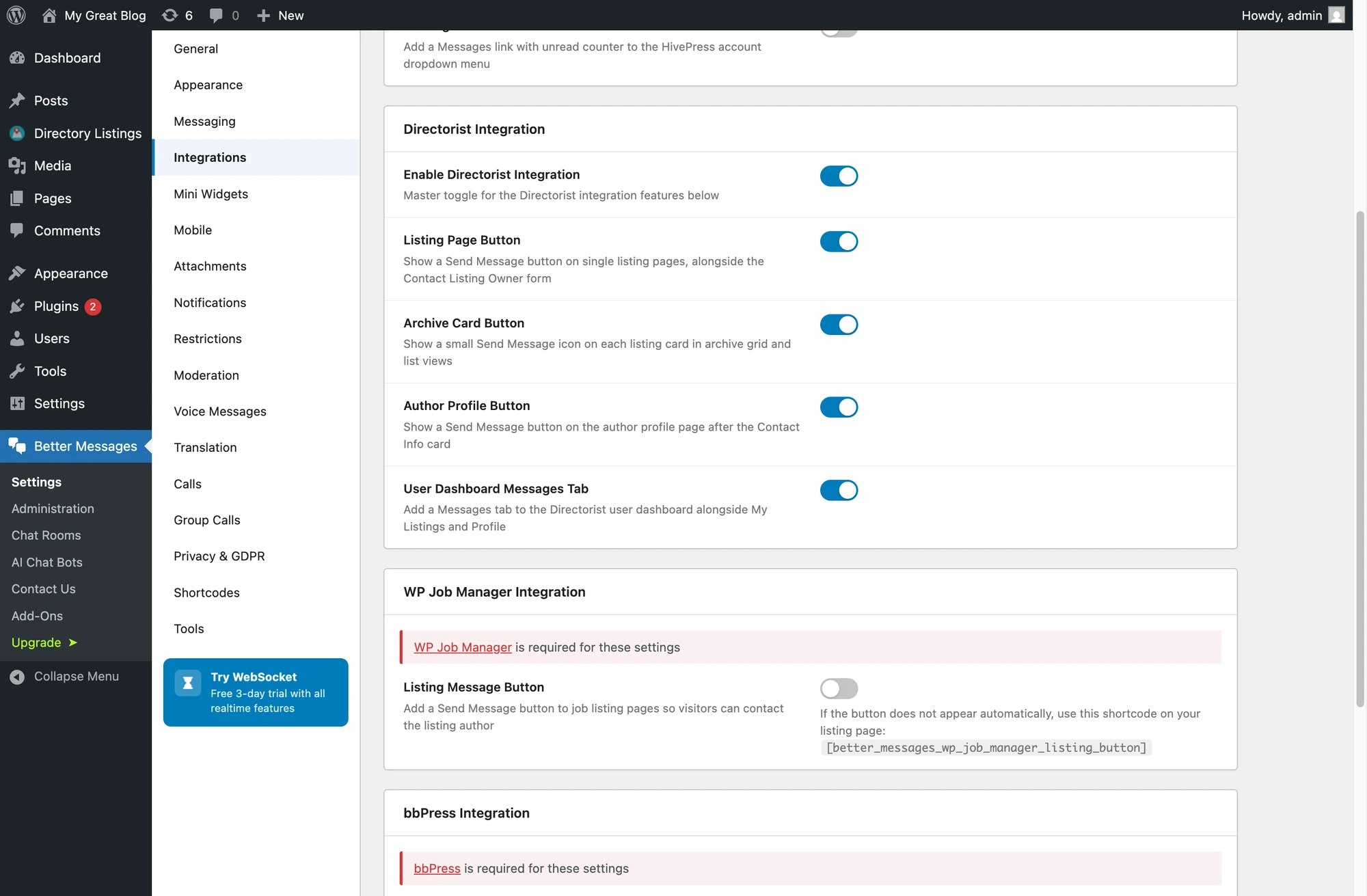
- Go to Integrations -> Directories and enable the Enable Directorist Integration toggle in the Directorist Integration section. Each placement below has its own toggle so you can enable only what you need.
Setting Directorist as the messages location#
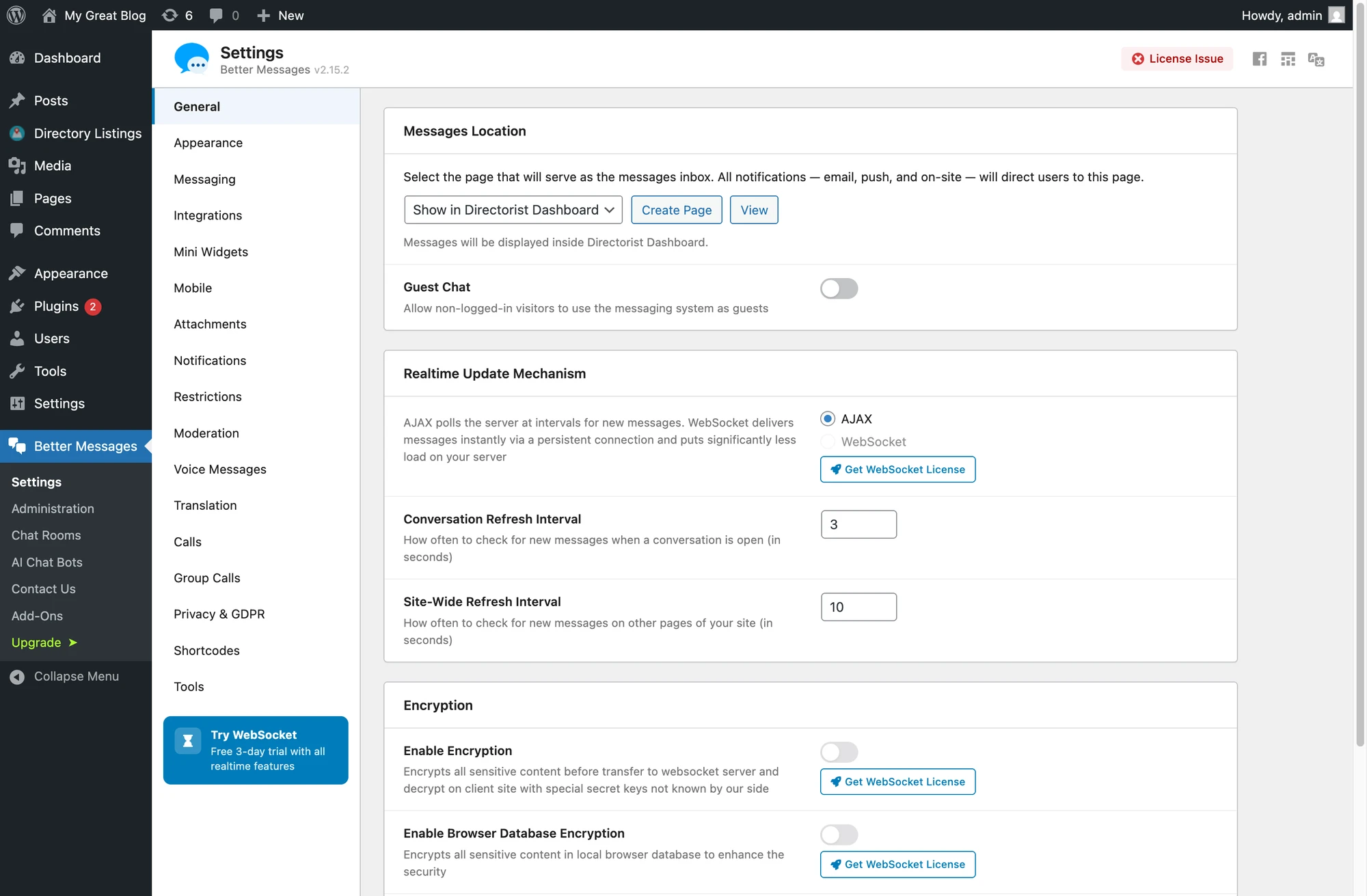
Better Messages → Settings → General has a Messages Location dropdown that controls which page hosts the user inbox. Selecting Show in Directorist Dashboard routes every "open inbox" link in the plugin (notification emails, on-site links, push notifications, the floating bubble, etc.) into the Directorist user dashboard's Messages tab. The tab is force-enabled and locked while this option is selected — change the Messages Location away from Directorist to unlock it again.

Supported features#
Send Message button on the listing page#
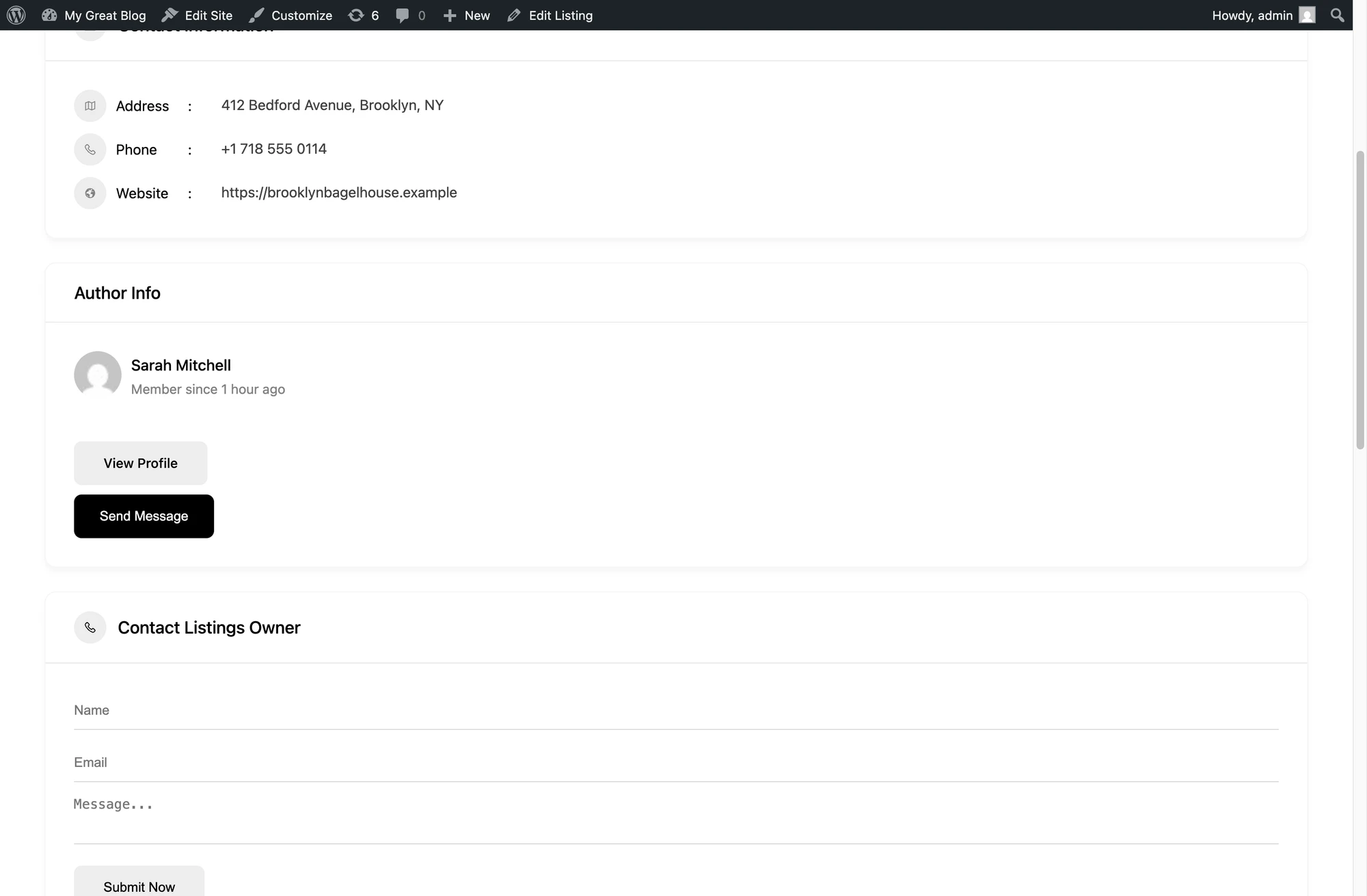
Renders inside the Author Info card, next to Directorist's existing View Profile button. The button is hidden when the listing is not published or when the visitor is also the listing's author.

Send Message button on archive listing cards#
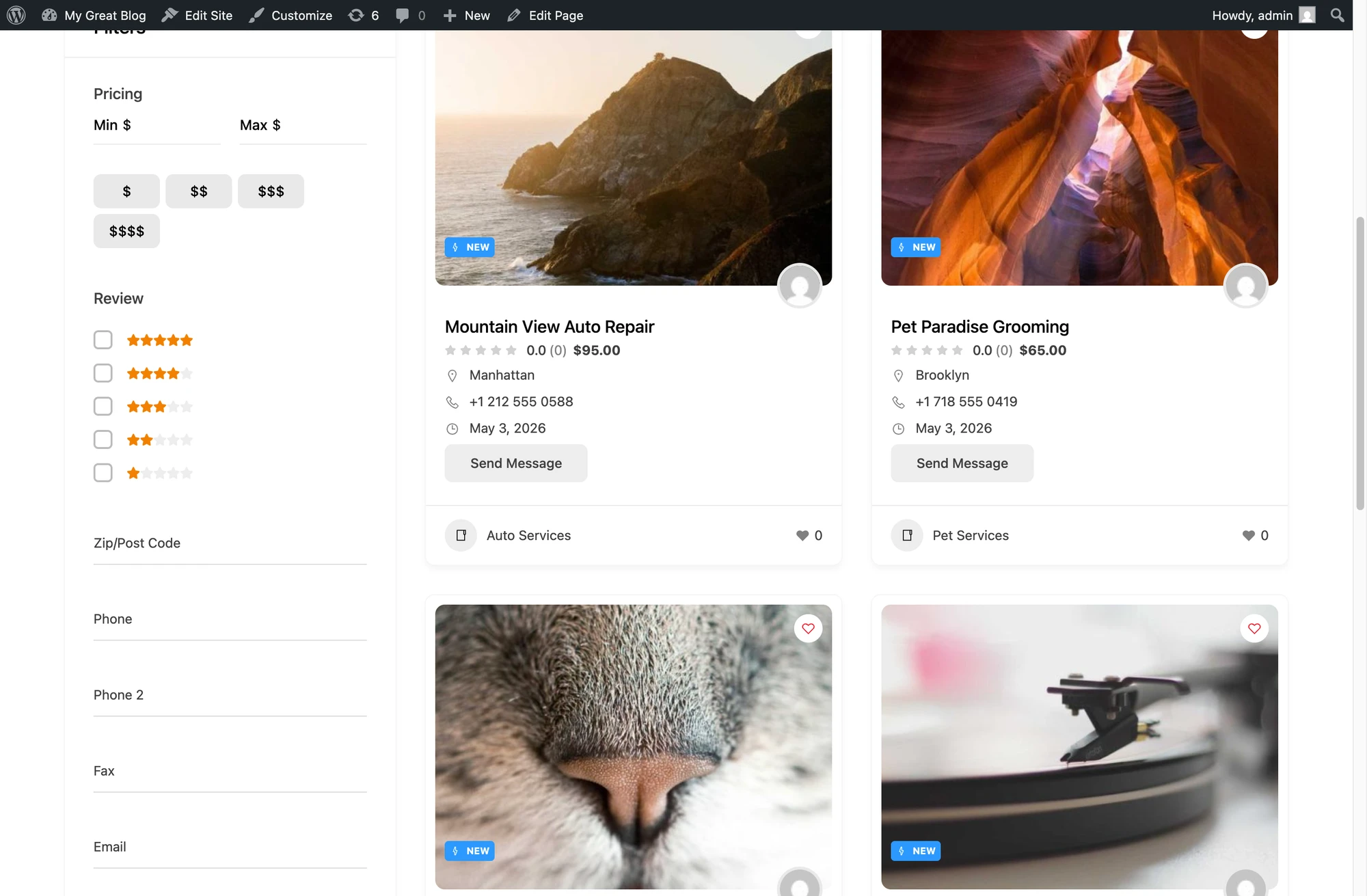
Adds a small icon button on each card in the archive grid and list views. Disabled by default — opt in via the Archive Card Button toggle.

Send Message button on the author profile page#
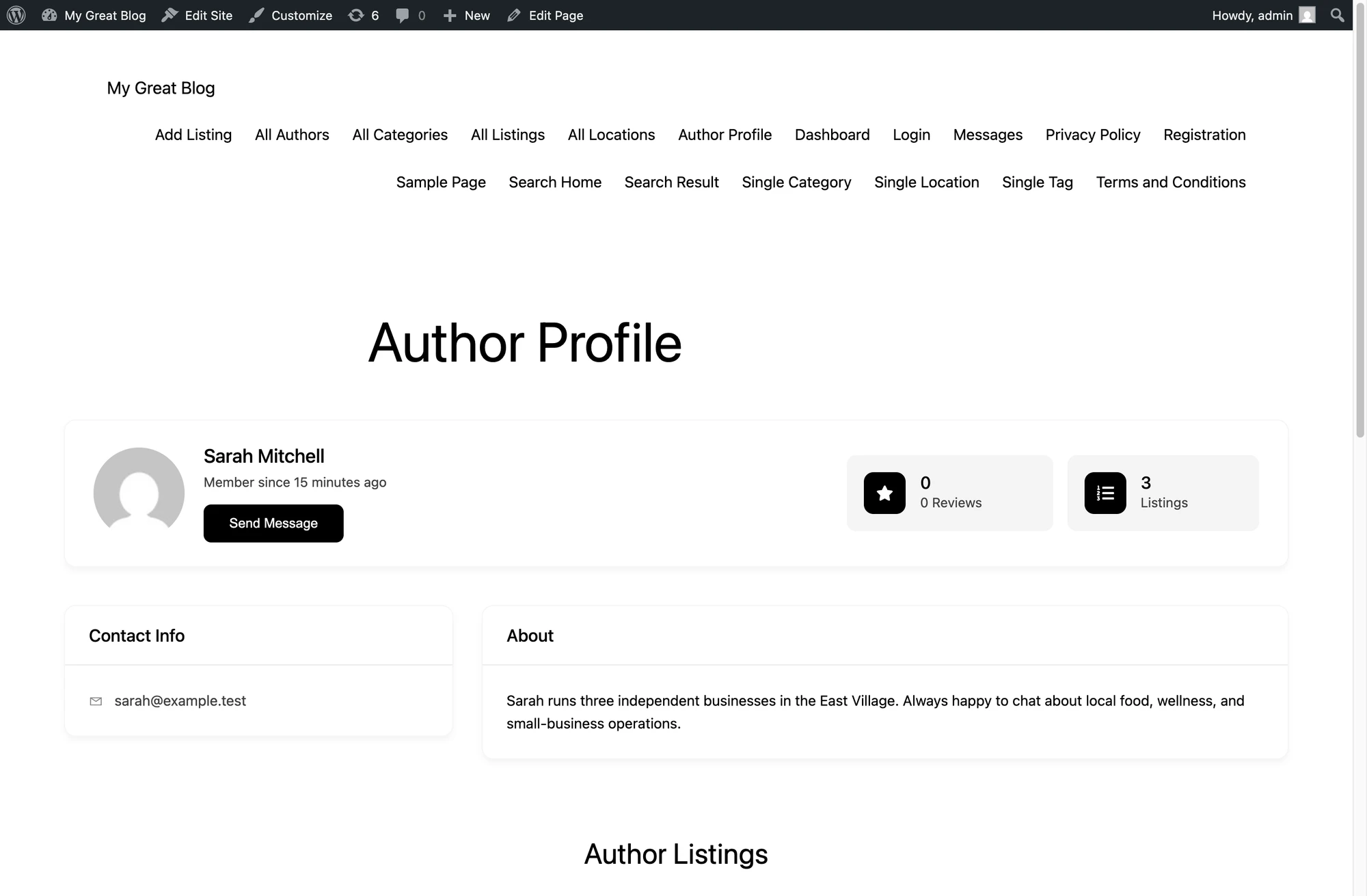
Adds a Send Message button below the author's name and "member since" line on Directorist's author profile page.

Messages tab inside the Directorist user dashboard#
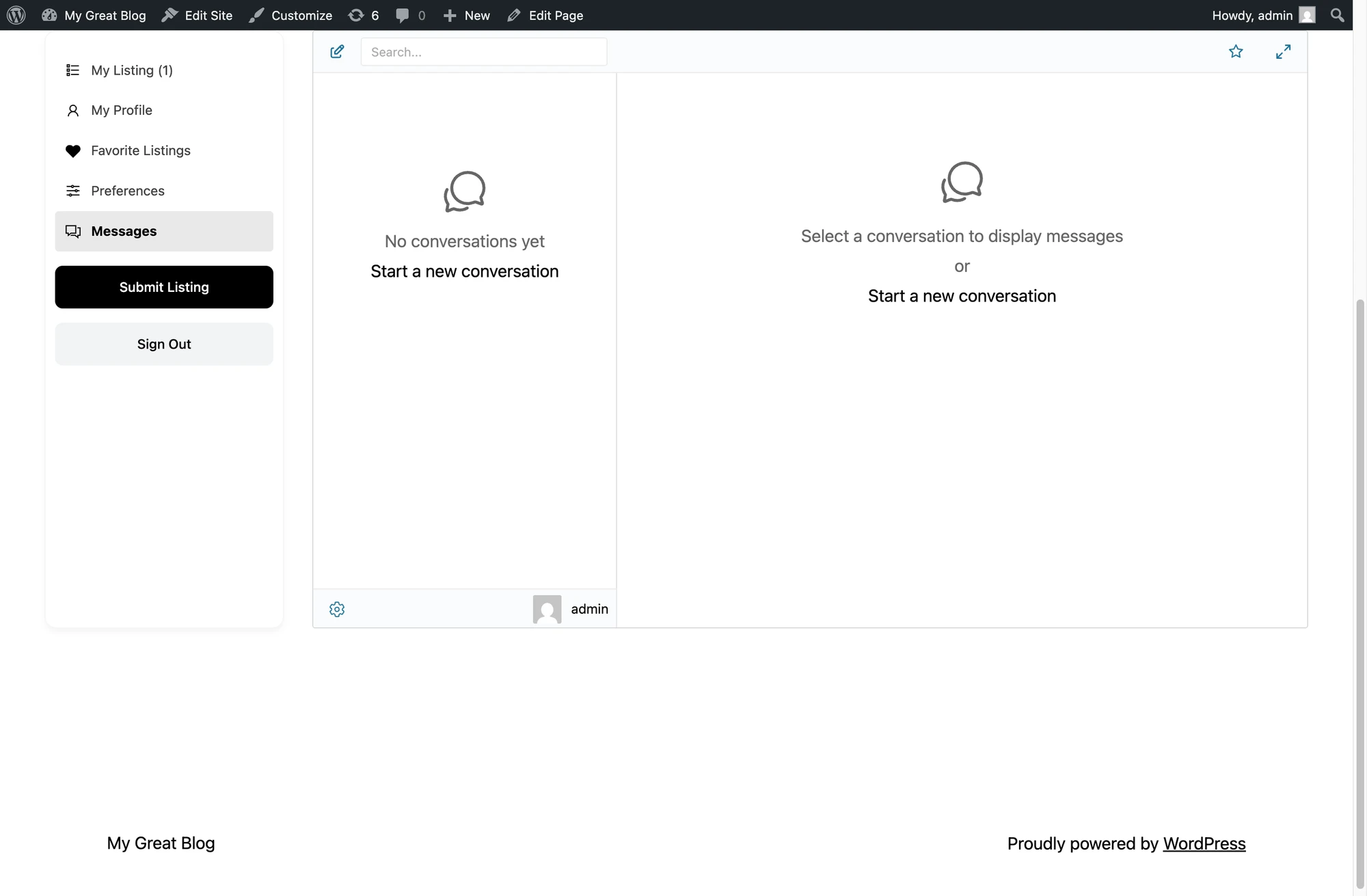
Adds a Messages tab next to My Listings, My Profile, and Favorite Listings in the Directorist user dashboard, so users can read and reply to conversations without leaving the dashboard.

Listing info card inside the conversation#
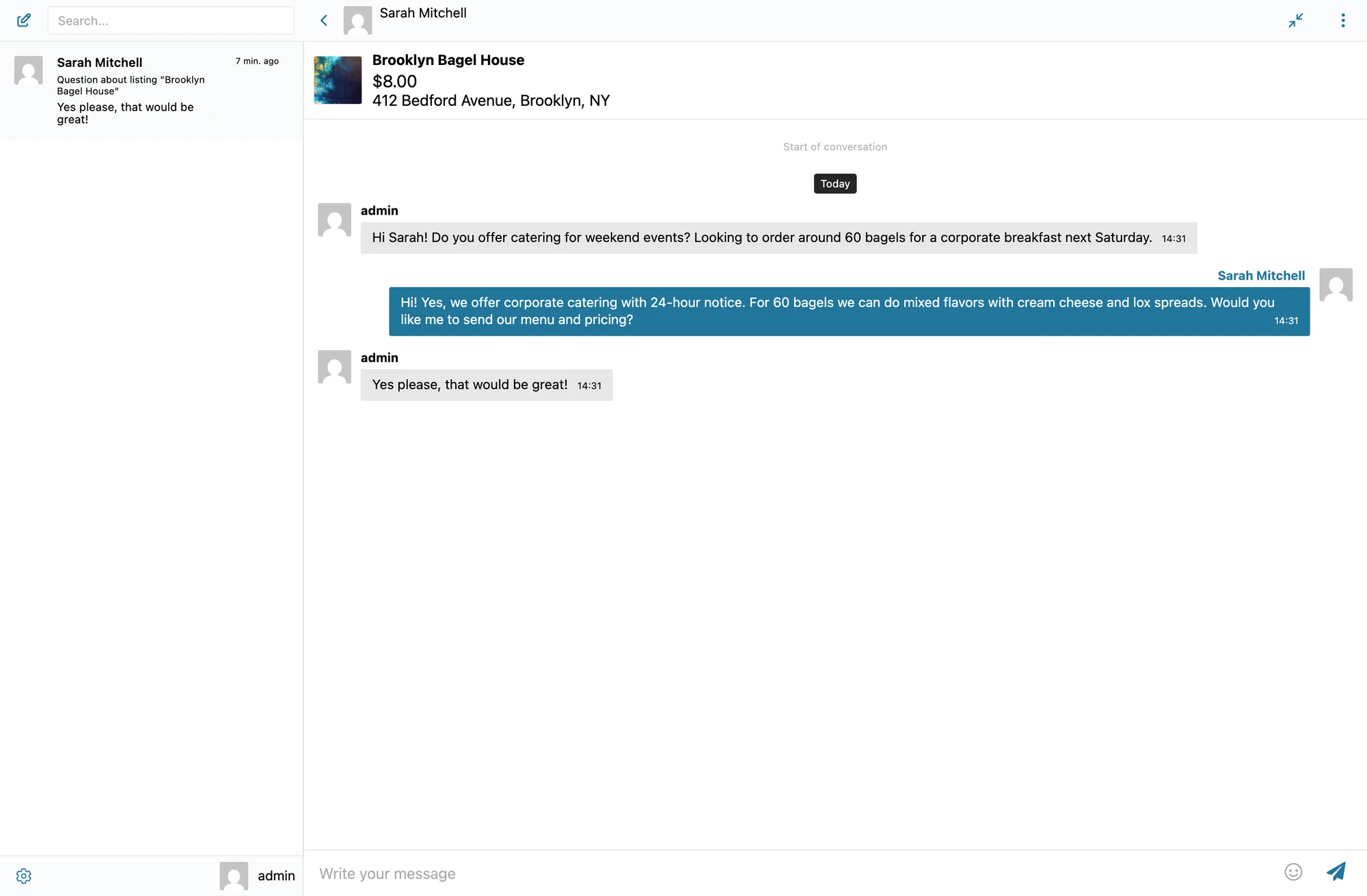
Conversations started from a Directorist listing show the listing's image, title, price and address inside the messages UI. Clicking the author's name or avatar in a conversation opens their Directorist author profile page rather than the default WordPress author archive.

Shortcodes for custom placement#
If the auto-injected buttons don't land where you want them (custom layout, sidebar widget, page builder, etc.), drop the matching shortcode wherever you need.
Disable the corresponding toggle (Listing Page Button / Author Profile Button) before placing the shortcode, otherwise the button will be rendered twice — once auto-injected and once by the shortcode.
[better_messages_directorist_listing_button]#
Renders the Send Message button targeted at the listing owner. Falls back to the current Directorist listing post when no listing_id is supplied.
| Attribute | Default | Notes |
|---|---|---|
listing_id | current post | Override the listing the button targets |
user_id | listing author | Override the message recipient |
class | Directorist primary button classes | Override CSS classes |
text | Send Message | Override the button label |
[better_messages_directorist_listing_button]
[better_messages_directorist_listing_button listing_id="42"]
[better_messages_directorist_listing_button text="Contact owner" class="directorist-btn directorist-btn-secondary"]
[better_messages_directorist_author_button]#
Renders the Send Message button on a Directorist author profile. Resolves the author from the author_id query var by default, falling back to the standard WordPress author archive when used in a sidebar.
| Attribute | Default | Notes |
|---|---|---|
user_id | author of profile | Override the message recipient |
class | Directorist primary button classes | Override CSS classes |
text | Send Message | Override the button label |
[better_messages_directorist_author_button]
[better_messages_directorist_author_button user_id="17"]
Frequently asked questions#
Does it work with Directorist Pro extensions?#
Yes — the integration listens to Directorist's core listing and author hooks, which Pro extensions extend rather than replace.
Can visitors message without registering?#
Optional — enable Guest Chat in Better Messages → Settings → General → Guest Chat.
Can I enable the archive-card button without the listing-page button?#
Yes — each placement has its own toggle. Enable archive cards, disable the listing page button (or vice versa).
Does it support multi-directory sites?#
Yes — the button appears for every listing regardless of which Directorist directory it belongs to.
Will it work with custom Directorist templates?#
Most Directorist themes use the standard template hooks. For heavily customized themes, place buttons manually via shortcode.
See also#
- Directorist chat — full feature write-up
- HivePress integration — for HivePress-driven sites
- GeoDirectory integration — for GeoDirectory sites
- Classified Listing integration — for RTCL classifieds
- Motors integration — for automotive listing sites