Better Messages for LearnDash: Student & Instructor Messaging
The LearnDash integration for Better Messages adds a Message Instructor button to every LearnDash course page, an auto-managed Course Group Chat that mirrors course enrollment, a LearnDash Group cohort chat for paid Group-Leader workflows, a Send Message button on the LearnDash Instructor Role public profile, and the dedicated Courses widget on the Mini Widgets bar. The integration works on both the free and WebSocket versions of Better Messages.
To install the plugin ensure that your website running:
- WordPress 5.9 or newer
- PHP 7.4 or newer
Installation#
How to install LearnDash#
Download LearnDash from learndash.com and install it through the standard WordPress plugin installation process.
How to install Better Messages with LearnDash#
- Install Better Messages through the WordPress plugins screen, or upload the plugin files to
/wp-content/plugins/bp-better-messages. - Activate the plugin through the Plugins screen.
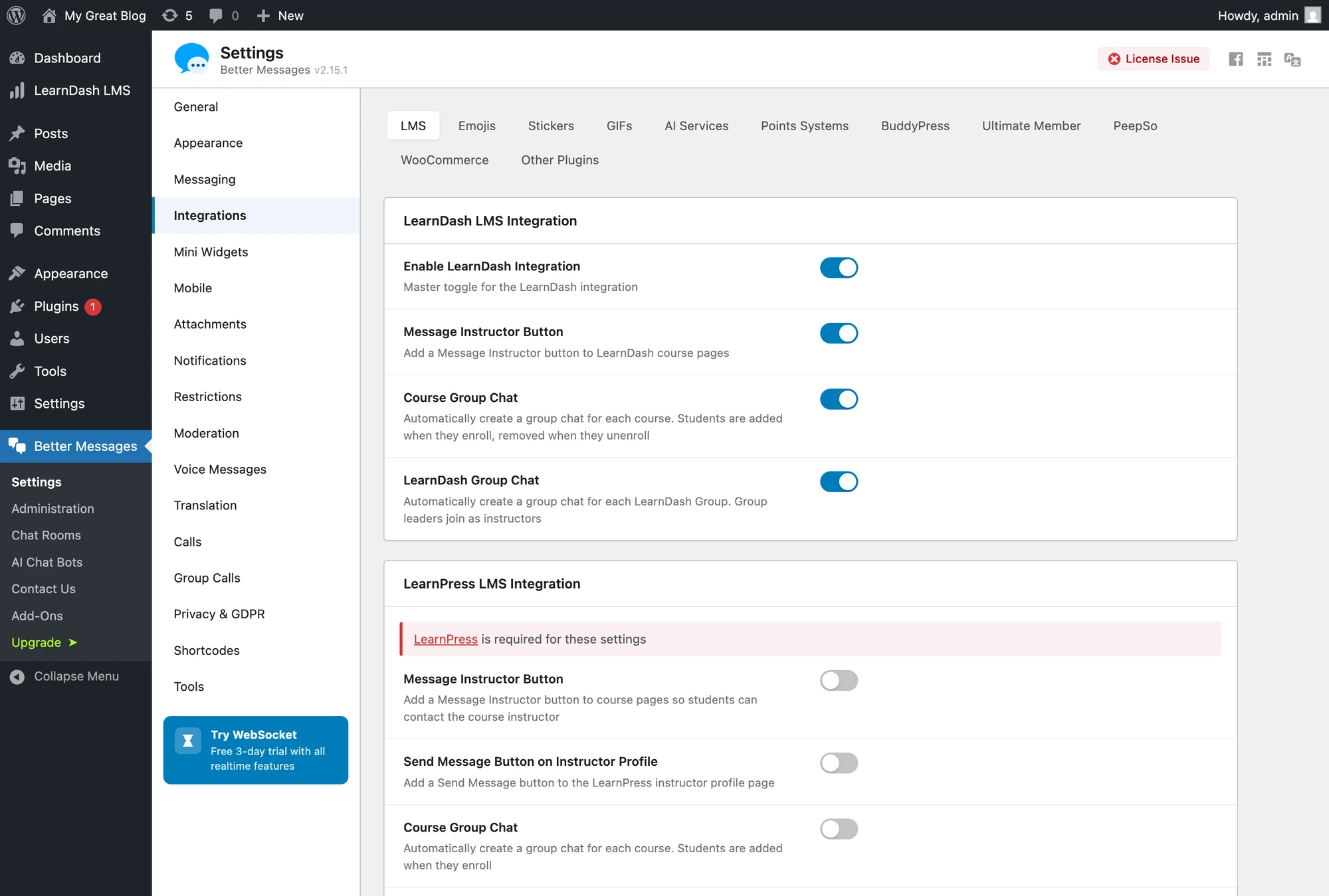
- Go to Better Messages → Settings → Integrations → LMS to enable the integrations you want.
Supported features#
Message Instructor button on course page#
Adds a Message Instructor button to every LearnDash course page. Students can open a private conversation with the course instructor with a single click.

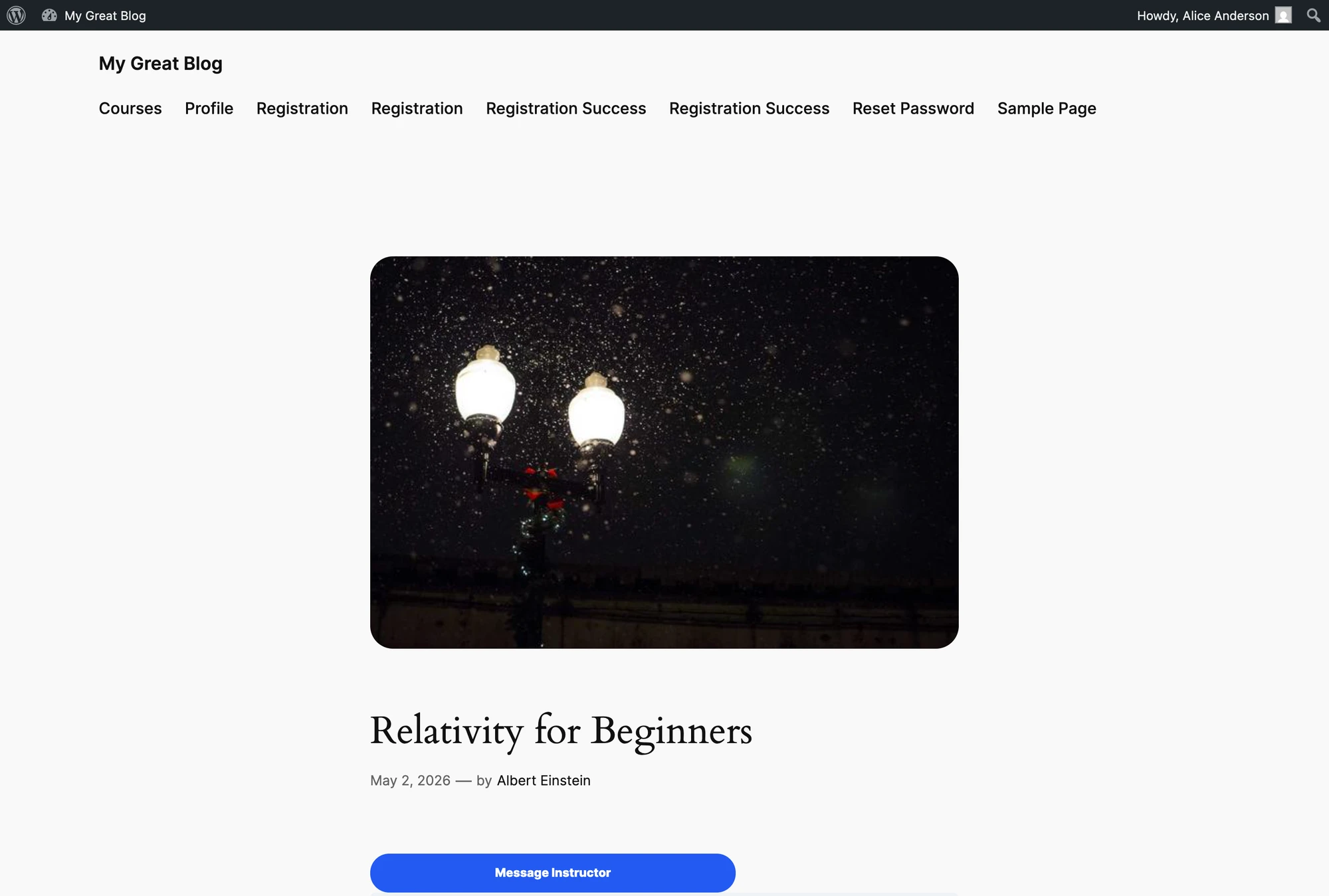
The button targets the user listed as the course author and is hidden for the instructor on their own course.
Enable in Better Messages → Settings → Integrations → LMS → LearnDash Integration → Message Instructor Button.
Course Group Chat#
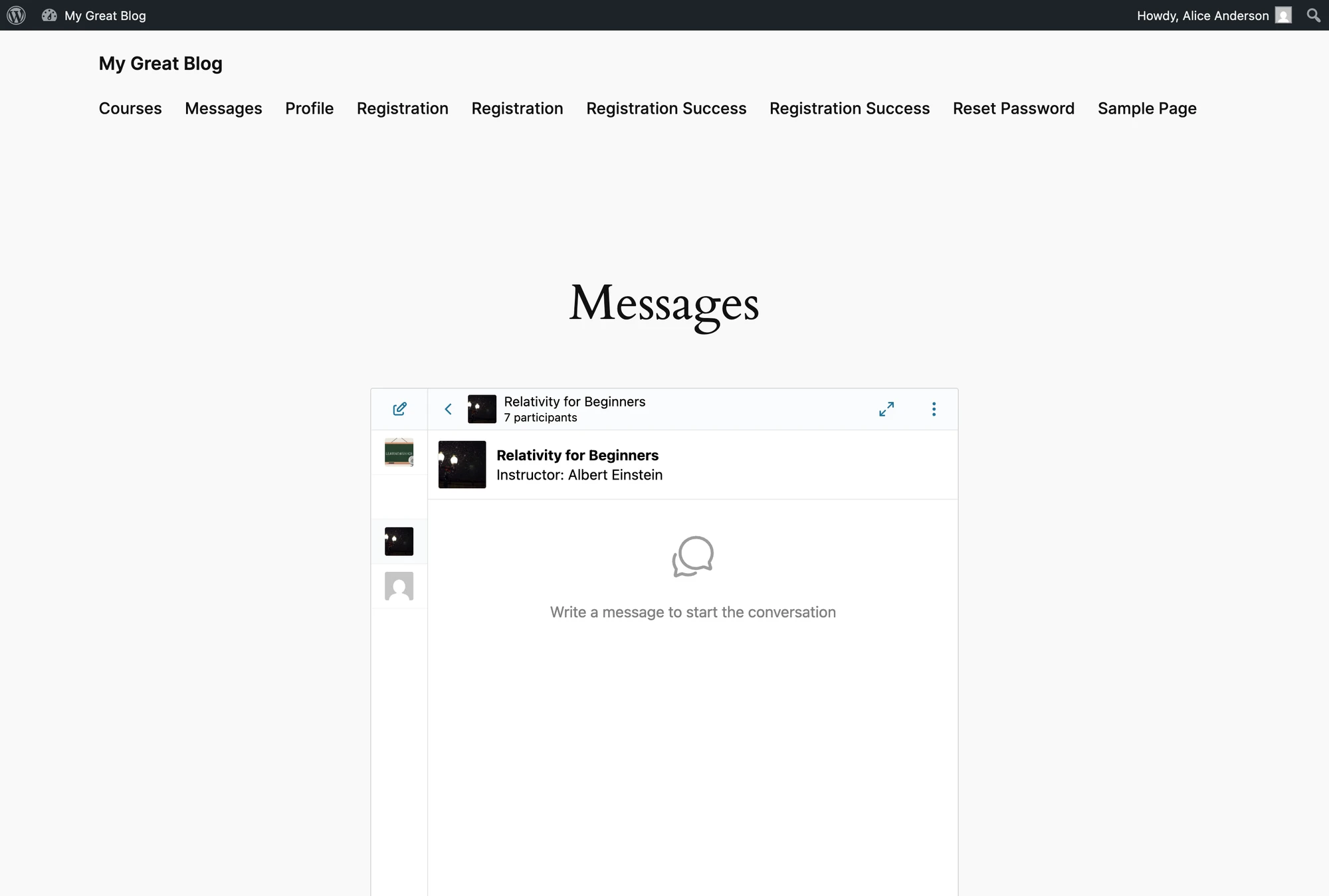
When a course is opened, Better Messages automatically creates a group conversation that the course author and every enrolled student can join. Students are added on enrollment and removed when their access is revoked.
The conversation header shows the course thumbnail, title, and instructor name, so students always know which course the discussion belongs to.

LearnDash exposes enrollment changes through learndash_update_course_access, which Better Messages listens to for both adds and removes — including the ones LearnDash performs automatically when a student is enrolled into a course via a group.
Enable in Better Messages → Settings → Integrations → LMS → LearnDash Integration → Course Group Chat.
The course / group info card pictured above is rendered automatically above the conversation, including on the LearnDash Group Chat below and on private DMs opened through the Message Instructor button. To hide it on every LMS course conversation, turn off Better Messages → Settings → Integrations → LMS → Shared Course Settings → Integrations → LMS → Course Info Card.
LearnDash Group Chat#
LearnDash Groups (/groups/<slug>/) are cohorts of students sharing access to one or more courses, managed by users with the Group Leader role. Better Messages mirrors that organisation by creating a dedicated chat for each LearnDash Group.

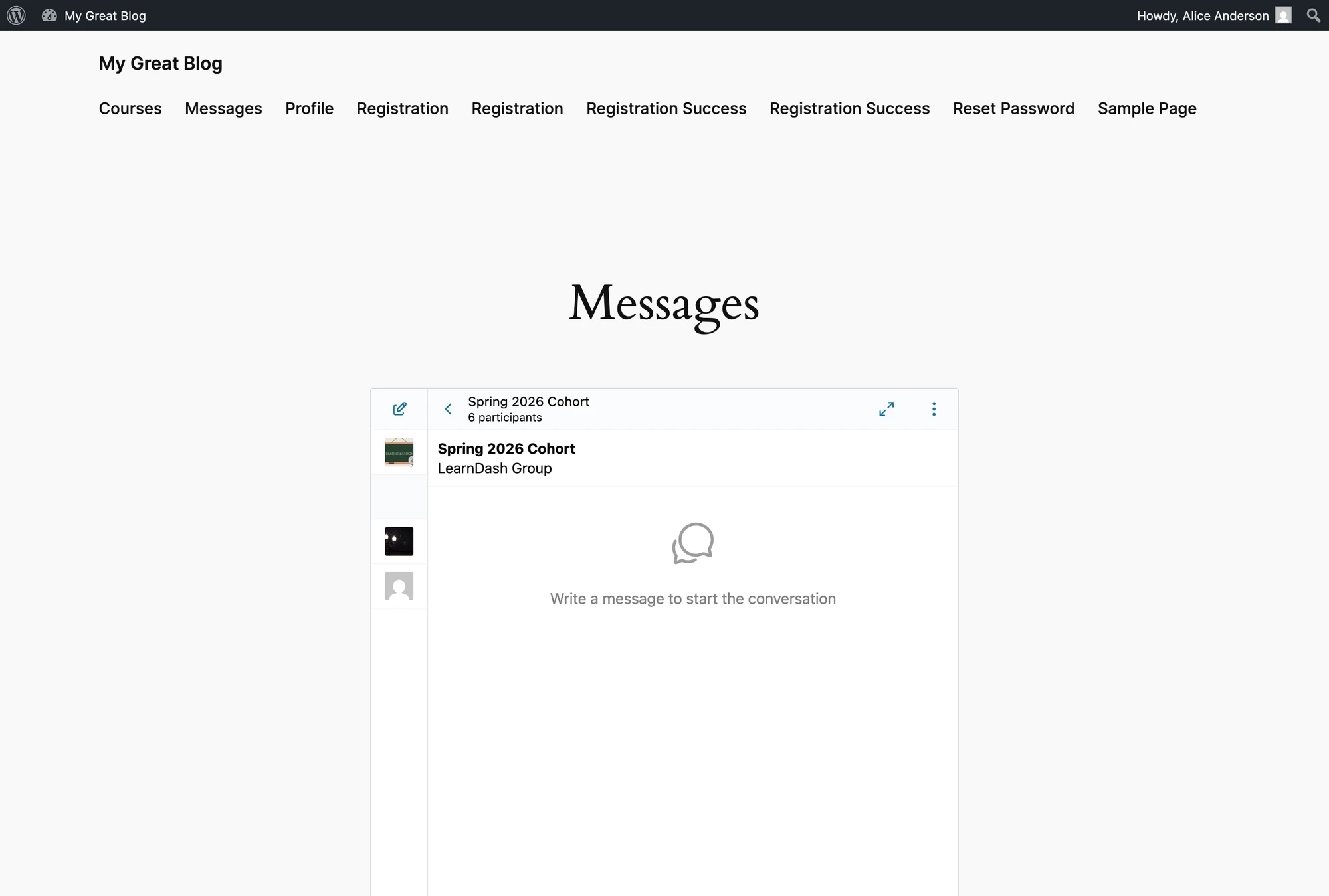
Group members are kept in sync via ld_added_group_access and ld_removed_group_access, and every Group Leader assigned to the cohort is auto-joined as an instructor of the chat.
Enable in Better Messages → Settings → Integrations → LMS → LearnDash Integration → LearnDash Group Chat.
Send Message button on Instructor profile#
If you run the LearnDash Instructor Role add-on, every instructor gets a public profile at /instructor/<username>/. With this toggle on, Better Messages adds a Send Message button to that profile, positioned right under the instructor's name.

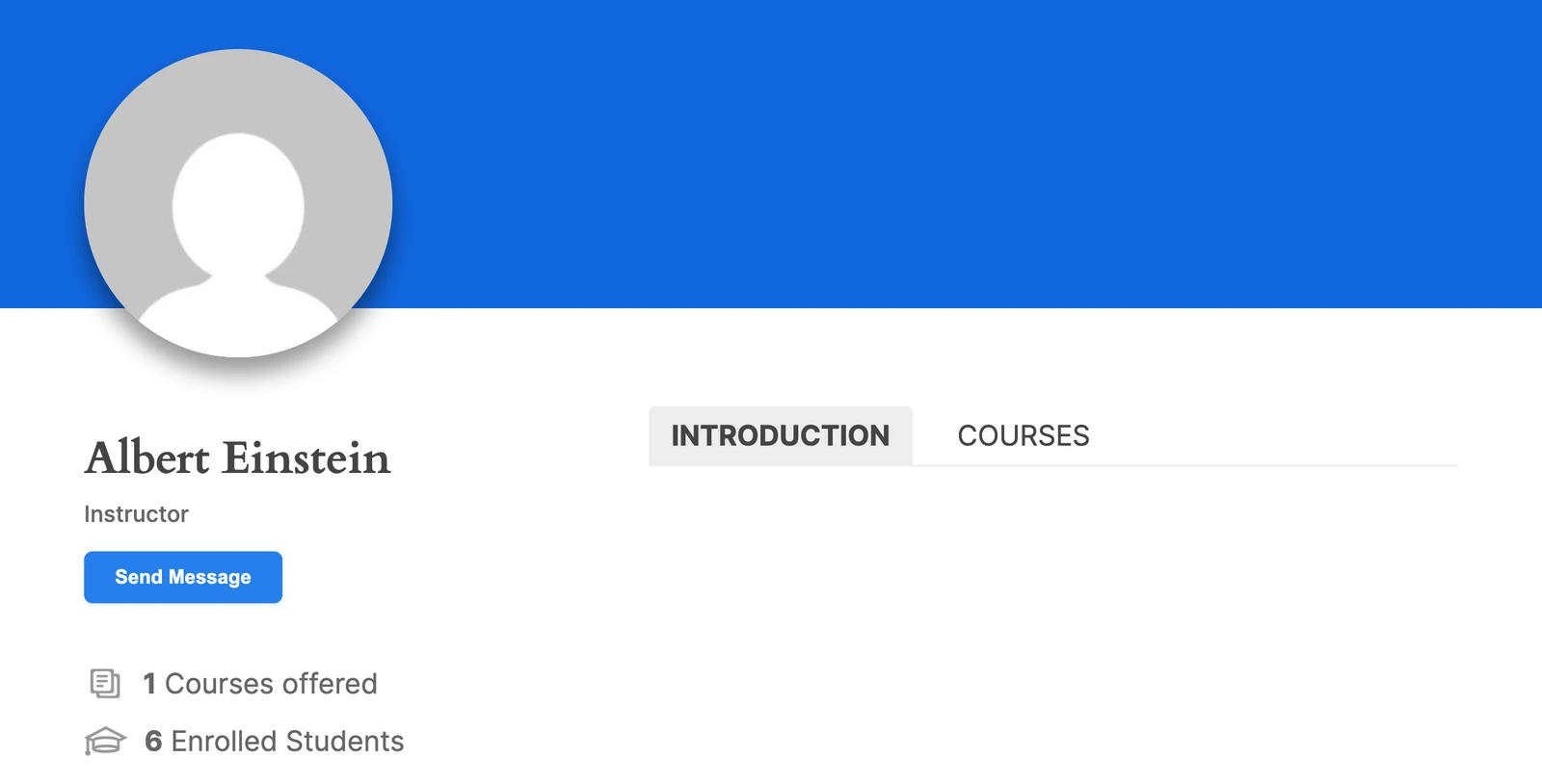
Clicking the button opens a private conversation with that instructor — the same flow as the Message Instructor button on a course page, but available from anywhere on the site that links to the instructor's profile.
This toggle is only available when the LearnDash Instructor Role add-on is active. It is a separate, paid LearnDash add-on and is not bundled with Better Messages.
Enable in Better Messages → Settings → Integrations → LMS → LearnDash Integration → Send Message Button on Instructor Profile.
Courses widget#
Once Course Group Chat or LearnDash Group Chat is enabled, the user's courses and LearnDash Group cohorts surface in the dedicated Courses widget on the Mini Widgets bar, Side Panel, and Mobile bar — separate from the social Groups widget so academic chats and friend cohorts don't mix in one list.

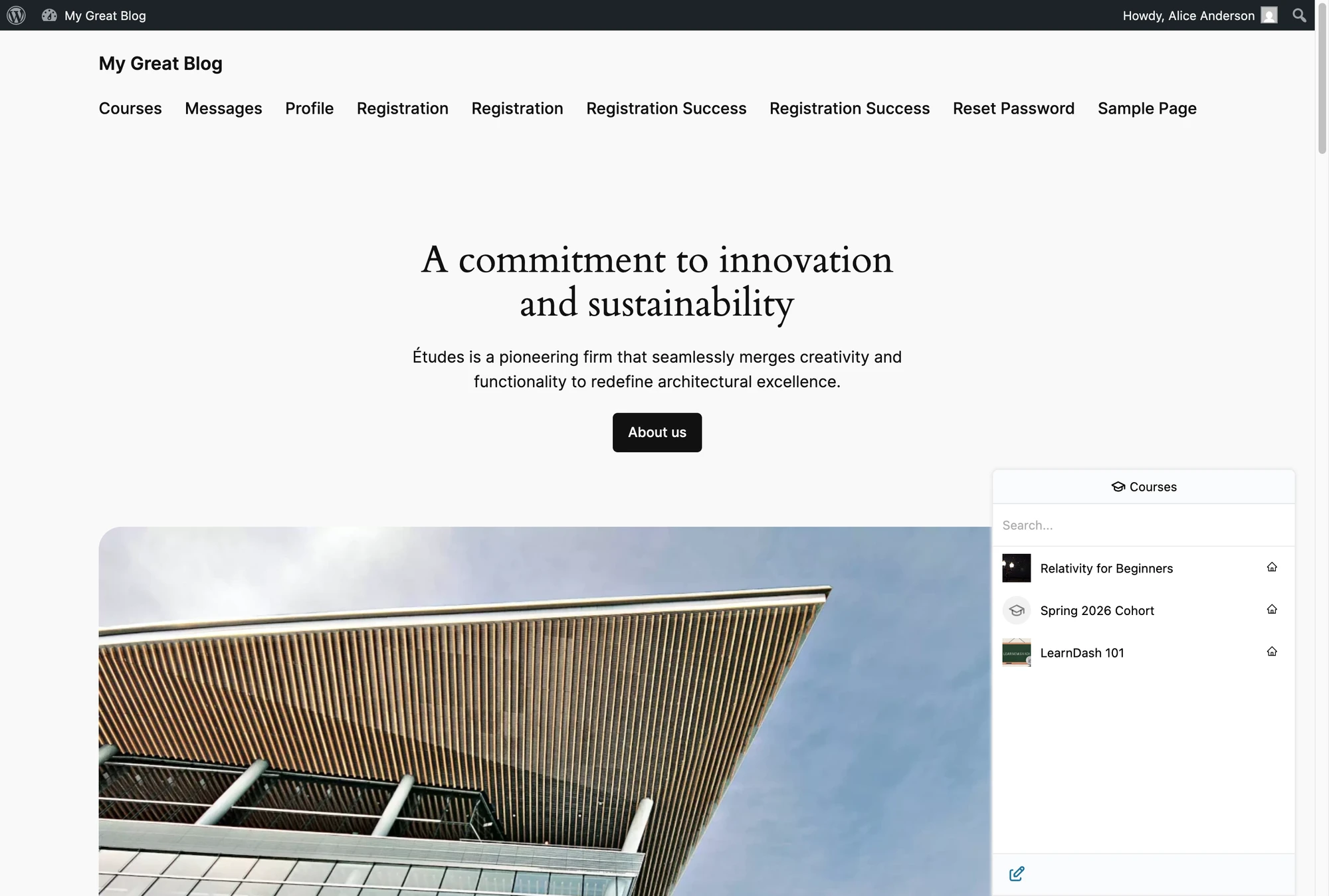
Configure the icon, role restrictions and "Hide Tab When Empty" behaviour under Better Messages → Settings → Mini Widgets → Courses.
Shared course settings#
Three toggles under Better Messages → Settings → Integrations → LMS → Shared Course Settings apply to every LMS course conversation across LearnDash, LearnPress, Tutor LMS, MasterStudy LMS and FluentCommunity Courses:
- Course Info Card (on by default) — show the title, image and instructor name banner above each course conversation, including the private DM opened by Message Instructor. Turn off to hide the banner everywhere.
- Email Notifications (on by default) — send the standard "new message" email to participants when activity happens in a course chat. Turn off if your students do not rely on email or you want to reduce traffic.
- Push Notifications (off by default) — send browser and mobile push notifications for new course messages. Requires a WebSocket license.
Changing any of these toggles propagates across all four LMS integrations.
Shortcodes for custom placement#
If the auto-injected buttons don't land where you want them (custom layout, sidebar widget, page builder, etc.), drop the matching shortcode wherever you need.
Disable the corresponding toggle (Message Instructor Button / Send Message Button on Instructor Profile) before placing the shortcode, otherwise the button will be rendered twice — once auto-injected and once by the shortcode.
[better_messages_learndash_course_button]#
Renders the Message Instructor button for a LearnDash course. Falls back to the current course post when no course_id is supplied.
| Attribute | Default | Notes |
|---|---|---|
course_id | current post | Override the course the button targets |
user_id | course author | Override the message recipient (instructor) |
class | LearnDash button classes | Override CSS classes |
text | Message Instructor | Override the button label |
[better_messages_learndash_course_button]
[better_messages_learndash_course_button course_id="123"]
[better_messages_learndash_course_button text="Ask the instructor"]
[better_messages_learndash_instructor_button]#
Renders a Send Message button targeted at a LearnDash instructor. Resolves the instructor from the LearnDash Instructor Role profile (/instructor/<username>/) by default, or from the standard WordPress author archive.
| Attribute | Default | Notes |
|---|---|---|
user_id | profile owner | Override the message recipient |
class | LearnDash button classes | Override CSS classes |
text | Send Message | Override the button label |
[better_messages_learndash_instructor_button]
[better_messages_learndash_instructor_button user_id="42"]
Frequently asked questions#
Will students from different courses end up in the same chat?#
No — each LearnDash course has its own Course Group Chat. Students enrolled in multiple courses see one thread per course, surfaced together in the Courses widget.
What happens when a student's enrollment is revoked?#
LearnDash fires learndash_update_course_access on revoke; Better Messages removes the student from the Course Group Chat immediately. Previous messages stay readable in the thread history.
Does it work with LearnDash Groups (cohort feature)?#
Yes — each LearnDash Group gets its own paired chat, separate from the per-course chat. Group Leaders are auto-joined as instructors of the chat.
Does the Send Message button require the LearnDash Instructor Role add-on?#
Yes — the Send Message Button on Instructor Profile option is only available when the paid LearnDash Instructor Role add-on is active. Other LearnDash integrations (Message Instructor button, Course Group Chat) work without it.
Will the AI Chat Bot work in a LearnDash course chat?#
Yes — add an AI bot as a participant in the course chat. The bot answers when mentioned with @botname. Useful for handling FAQ-style student questions automatically.
See also#
- LearnDash student messaging plugin — full feature write-up with screenshots
- WordPress LMS chat plugin — comparing LearnDash, LearnPress, Tutor LMS, MasterStudy LMS, FluentCommunity Courses
- LearnPress integration — for LearnPress sites
- Tutor LMS integration — for Tutor LMS sites
- MasterStudy LMS integration — for MasterStudy sites
- Group conversations — underlying group chat feature
- Mini widgets — Courses widget configuration
- AI Chat Bots — adding bots to course threads