Profile Name and Photo
Members change their name and their photo right in the messenger. They do not need to open the WordPress dashboard, and the site does not need a profile plugin. The photo a member uploads becomes their avatar on the whole site.
What it adds#
- Edit profile in the messenger, with the name and the photo of the member
- A photo editor: crop, rotate, flip and zoom before the photo is saved
- Take a photo with the camera of the device
- The photo is the avatar on the whole site, wherever WordPress shows an avatar
- Two switches for the administrator: one for the name, one for the photo
A site that already has a profile plugin keeps using it. See Sites with a profile plugin.
Where a member finds it#
A member presses their own name at the foot of the conversation list and chooses Edit profile.
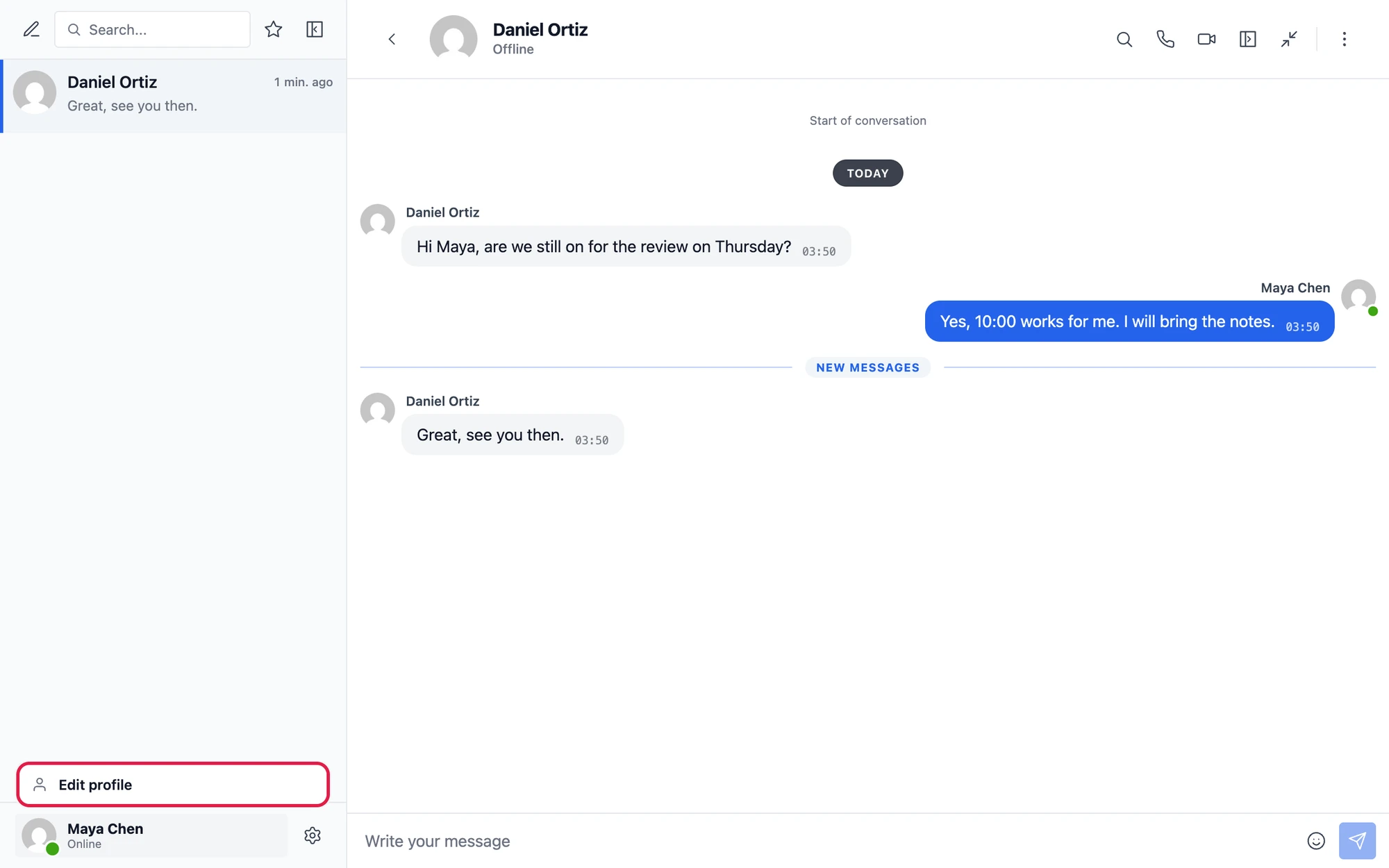
The same dialog opens from the Settings screen of the messenger, where the Profile row at the top shows the photo and the name with an Edit button. The mini widget has the same menu.
The dialog#

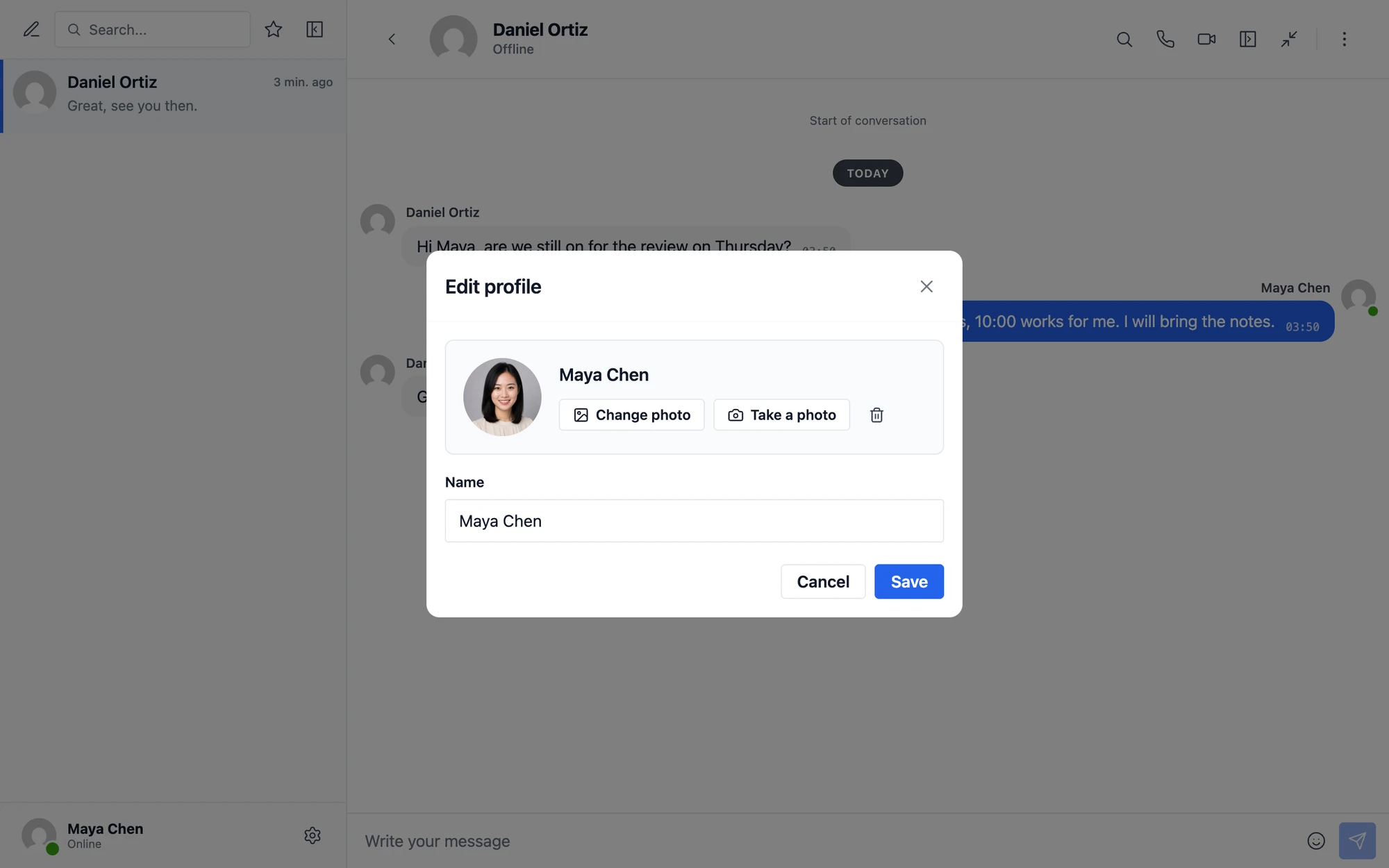
- The card at the top shows the member as everyone else sees them: the photo and the name, as they are typed and chosen
- Add a photo, or Change photo once there is one, opens the pictures of the device
- Take a photo opens the camera
- The bin removes the photo
- Name is the name shown in conversations
- Nothing changes until Save is pressed
Changing the name#
The name is the display name of the member in WordPress, the same name the rest of the site shows.
- It can be up to 100 characters long
- An empty name is not accepted
- The new name shows in the messenger at once
Changing the photo#
Add a photo takes any picture the browser can open, from 64 pixels on each side. On a phone the same button offers the camera and the photo library.
The picture opens in the photo editor before it is used.

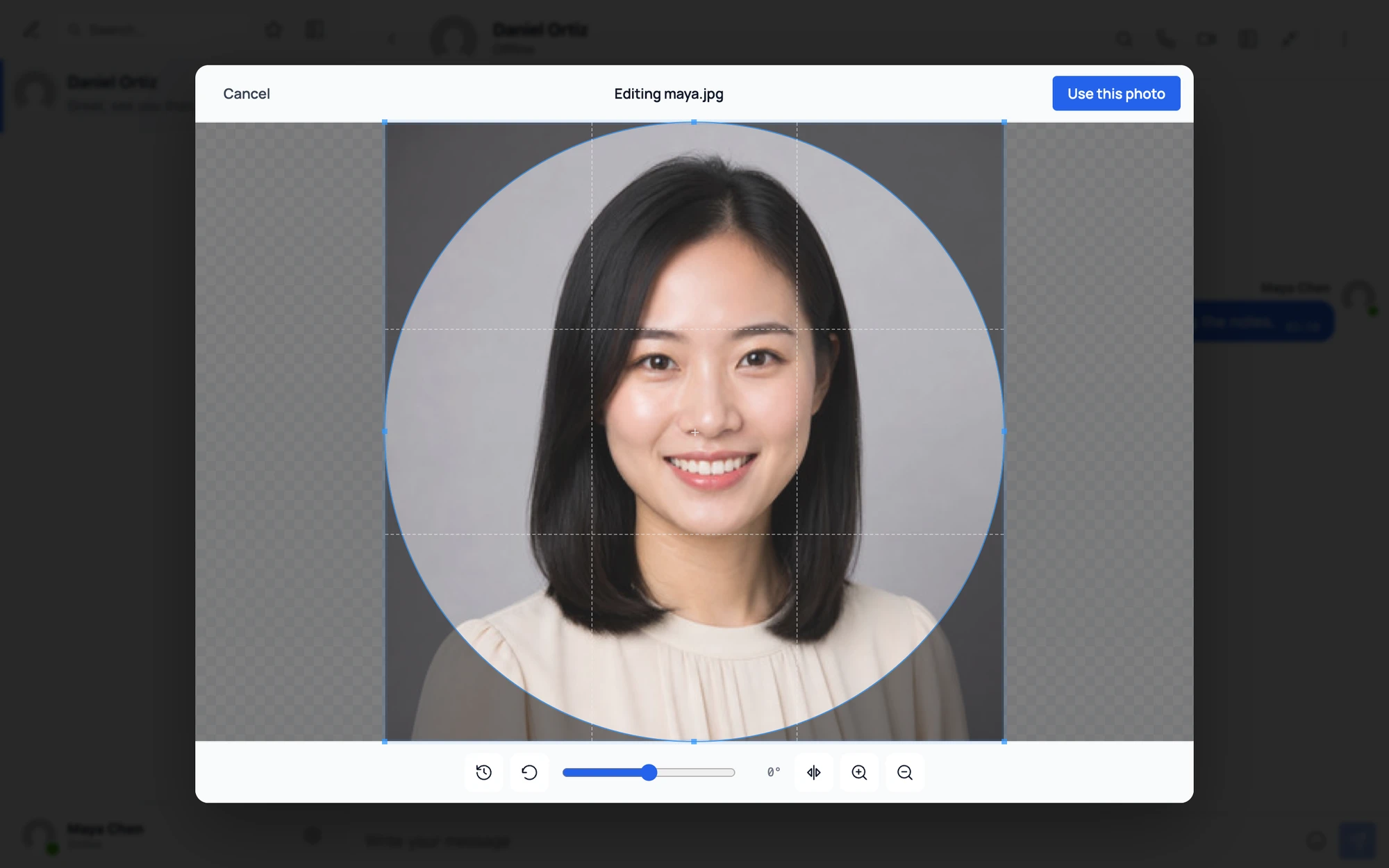
- The frame is a square, shown round, as the photo will look. Drag the picture to place the face in it
- Rotate by 90 degrees or freely with the slider, flip and zoom
- Revert undoes every change made in the editor
- Use this photo returns to the dialog with the photo in the card, and Save keeps it
Taking a photo#
Take a photo shows the live picture of the camera with a round guide and a shutter button. The photo then opens in the same editor.
- The browser asks for permission to use the camera the first time
- A device with several cameras shows a list to choose from, and the choice is remembered for the next photo
- A phone has a button to switch between the front and the back camera
- The button is shown only on a secure page (https) in a browser that has a camera
After saving#

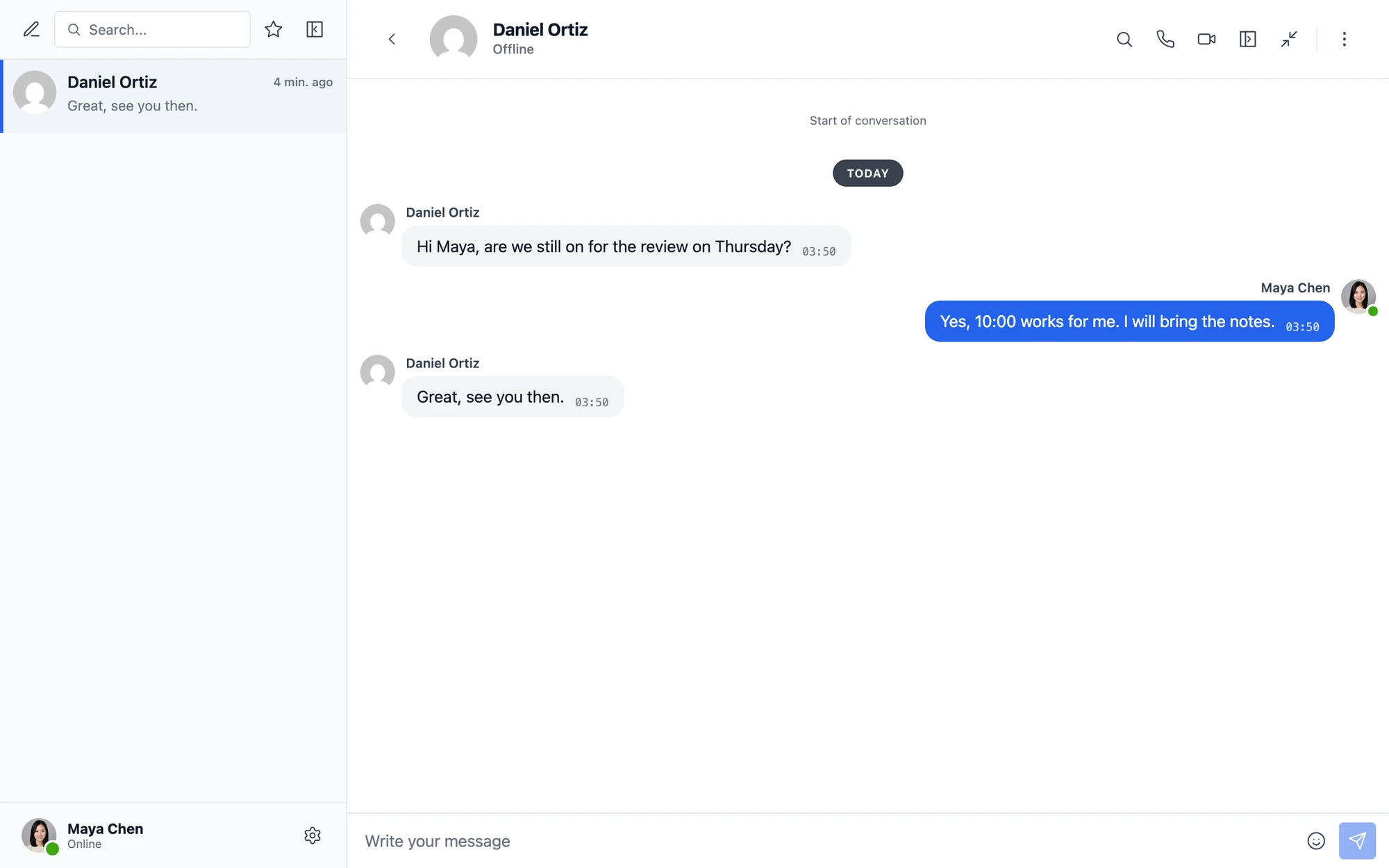
- The member sees the new name and photo at once
- Other people see them without reloading the page with the WebSocket version, and the next time the messenger loads with AJAX
- The photo is the avatar of the member on the whole site: in comments, in the author box, in the admin bar and anywhere else WordPress shows an avatar
Settings#
Navigate to WP Admin → Better Messages → Settings → General. The switches are in the Profiles card.

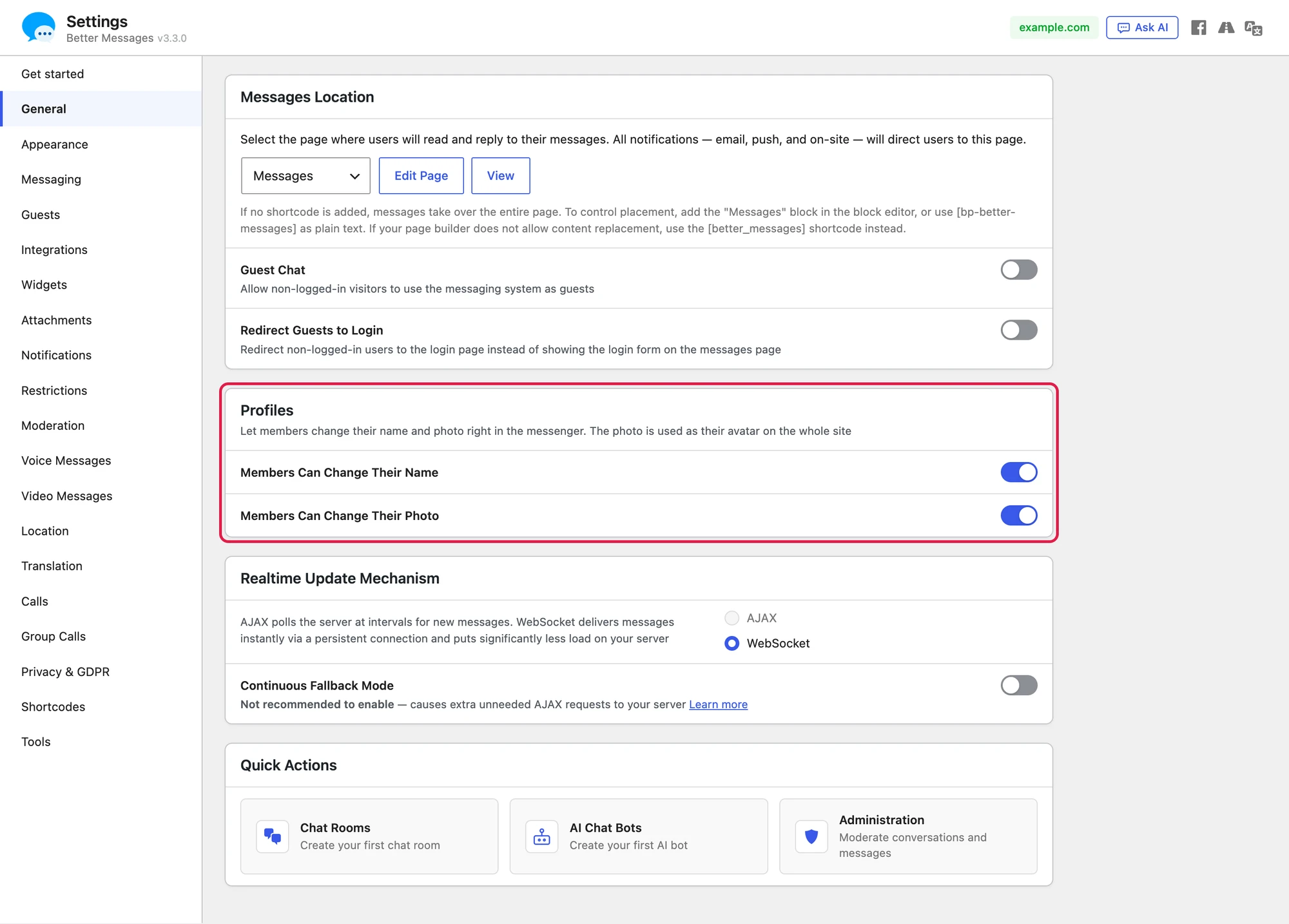
| Setting | What it does | Default |
|---|---|---|
| Members Can Change Their Name | Shows the Name field in the dialog | On for a new site, off on a site updated from a version before 3.3.0 |
| Members Can Change Their Photo | Shows the photo buttons in the dialog | On for a new site, off on a site updated from a version before 3.3.0 |
With both off, Edit profile is not shown.
The card is shown only on a site with no profile plugin, where these switches have something to do.
Sites with a profile plugin#
A profile plugin keeps the names and the photos of the members itself, and members change them in its profile. On such a site Better Messages shows what the plugin has, offers no Edit profile, and the Profiles card is not in the settings.
This is the case with BuddyBoss, BuddyPress, PeepSo, Ultimate Member, UsersWP, ProfileGrid, WP User Manager, wpForo and FluentCommunity.
An avatar plugin keeps the photos alone. With One User Avatar, Simple User Avatar, ProfilePress or Basic User Avatars active, the photo stays theirs and members change the name only.
The same applies when a theme or another plugin replaces the avatars or the names the messenger shows: what it replaced cannot be changed from the messenger.
Removing a photo#
- The member removes their own photo with the bin in the dialog
- An administrator removes the photo of a member on the Edit User screen of WordPress. The Profile Picture row says the photo was uploaded on this site, with a Remove photo link
Without a photo the member has the avatar WordPress gives them, as before.
What is stored#
- Two sizes of the photo, 512 and 128 pixels square, in
wp-content/uploads/wordplus/profiles/. They are saved as WebP where the server can write it - The picture a member picked is never stored. The browser sends the square made in the editor, and the server writes it again from scratch
- Each new photo gets a new random file name, and the files of the photo it replaces are deleted
- Up to 10 photos an hour for one member
- Deleting a member deletes their photo
Guests#
Guests have a profile too, with a name, an optional photo and an email. See the profile of a guest.
Frequently asked questions#
Does the photo replace Gravatar?#
For the members who upload one, yes. A member with no uploaded photo keeps the avatar WordPress gives them, which is Gravatar unless the site changed it.
Can members change their username or email here?#
No. The dialog changes the display name and the photo. The username, the email and the password stay in the account settings of the site.
Can I allow the photo and not the name?#
Yes. Turn Members Can Change Their Name off and leave Members Can Change Their Photo on.
I use BuddyPress. Where do members change their photo?#
In their BuddyPress profile, as before. Better Messages shows the BuddyPress avatar and name everywhere.
Why is there no Take a photo button?#
The browser has no camera to offer, or the page is not served over https.
For developers#
// Tell Better Messages that another plugin keeps the names and photos of members.
// Return its name to hide Edit profile, or an empty string to offer it.
add_filter( 'better_messages_profile_plugin', function ( $plugin ) {
    return 'My Membership Plugin';
} );

// Decide what one person may change. $user_id is negative for a guest.
add_filter( 'wordplus_profile_editable', function ( $editable, $user_id ) {
    if ( user_can( $user_id, 'manage_options' ) ) {
        $editable['name'] = false;
    }

    return $editable;
}, 20, 2 );

// Refuse a name. Return true to allow it, or a WP_Error with the reason.
add_filter( 'wordplus_profile_name_allowed', function ( $allowed, $name, $user_id ) {
    if ( false !== stripos( $name, 'admin' ) ) {
        return new WP_Error( 'name_reserved', 'This name is reserved.', array( 'status' => 403 ) );
    }

    return $allowed;
}, 10, 3 );

// Runs after a name or a photo was changed. $fields lists what changed: 'name', 'photo'.
add_action( 'wordplus_profile_updated', function ( $user_id, $fields ) {
    // Clear your own cache of the member here.
}, 10, 2 );
wordplus_profile_avatar_plugintells whether an avatar plugin keeps the photos, so no photo is offered
See also#
- Guest access — the profile of a guest and guest photos
- Mini widgets — the messenger at the corner of every page
- Privacy & GDPR — what is stored about guests and members