Better Messages for FluentCommunity: Real-Time Spaces and Course Chat
The FluentCommunity integration adds a real-time messenger to your FluentCommunity portal. It plugs straight into the parts of FluentCommunity people already use — Spaces, Courses, member profiles, and the portal header.
You get:
- Paired group chats for every Space with messaging enabled.
- Auto-managed Course group chats and a Message Instructor button on every course page.
- Voice and video call buttons on every profile (WebSocket version).
- Automatic dark-mode mirroring — the messenger follows your portal theme.
Works on both the free and the WebSocket version of Better Messages.
If you already use Fluent Messaging, deactivate it after you install Better Messages. Running both at once causes a double-messenger conflict.
To install the plugin ensure that your website running:
- WordPress 5.9 or newer
- PHP 7.4 or newer
Installation#
How to install FluentCommunity#
Download FluentCommunity from official website and install following standard WordPress installation process
How to install Better Messages with FluentCommunity#
- Install the plugin through the WordPress plugins screen directly or upload the plugin files to the
/wp-content/plugins/bp-better-messagesdirectory. - Activate the plugin through the Plugins screen in WordPress
- Use the Better Messages -> Settings menu to configure the plugin
- Set Show in FluentCommunity in Better Messages location settings.
- If you are using Fluent Messaging - disable it as it makes no sense to use it together with Better Messages
- Go to WP Admin -> Better Messages -> Settings -> Integrations -> FluentCommunity and configure integration
The FluentCommunity tab in Better Messages integration settings only appears when the FluentCommunity plugin is installed and active.
Supported features#
When you install the FluentCommunity plugin with Better Messages:
-
Automatically place messages page button to header menu and mobile bottom menu
-
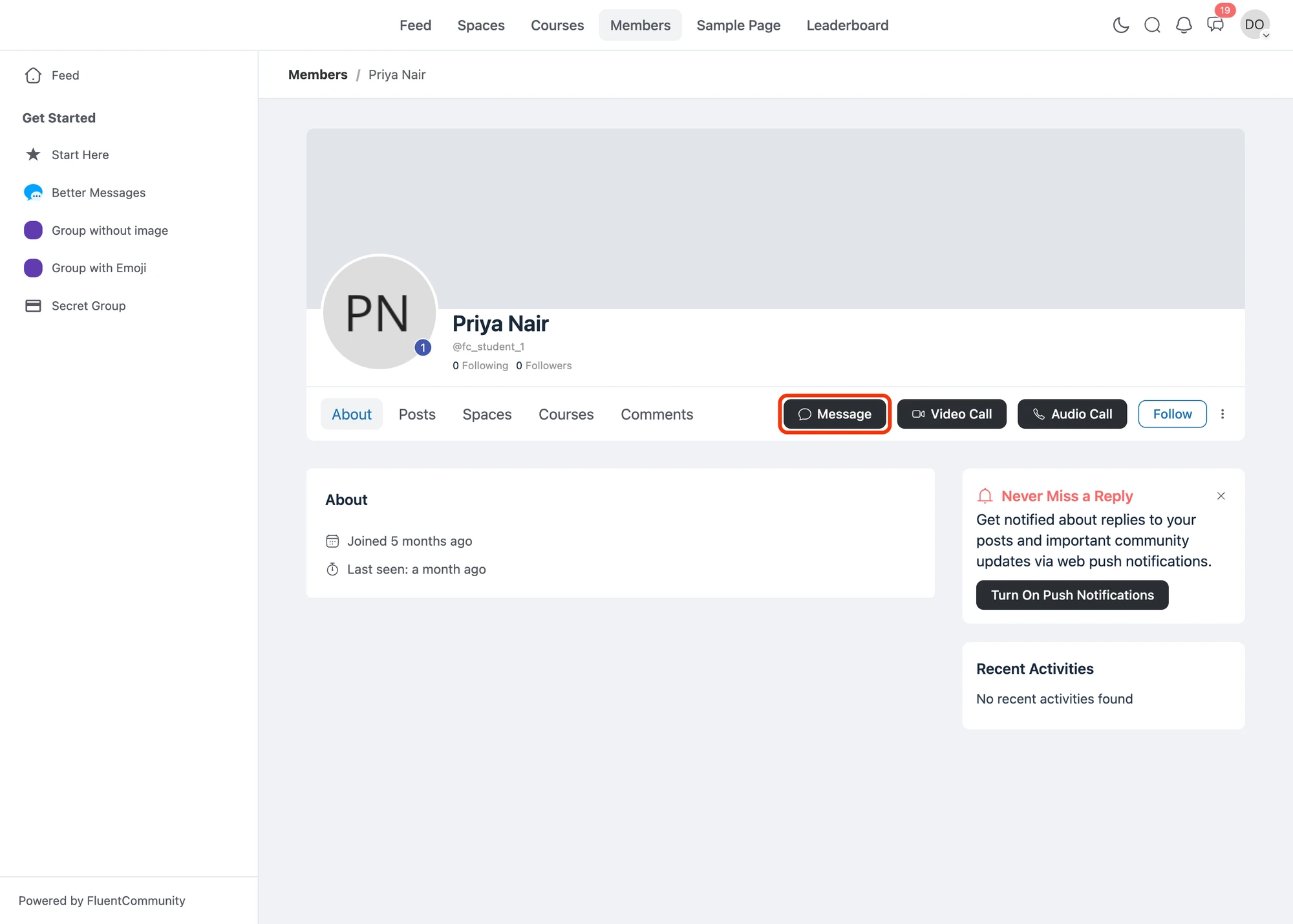
Automatically adds private message, video and audio call buttons to user profiles
-
All avatars in Better Messages interface are automatically displayed from FluentCommunity user profiles
-
All links to user profiles in Better Messages interface automatically point to FluentCommunity user profiles
-
Automatic switch between dark and light modes based on FluentCommunity settings
-
Automatically integrated to FluentCommunity Spaces with ability to create Spaces List directly in plugin interface
The feature also allows to create Better Messages Group chats automatically based on Space members, with automatic removal and adding users from chat, when they're leaving or joining the Space.
-
Automatically integrated to FluentCommunity Courses — auto-managed Course Group Chats, a "Course Chat" button next to "Continue Course", and a "Message Instructor" button on the course creator card
Profile page#
Spaces Integration#
Better Messages integrates with FluentCommunity Spaces to provide group messaging for Space members.
How it works#
- Each Space with messaging enabled automatically gets a group chat thread
- When users join or leave a Space, they are automatically added to or removed from the group chat
- Space admins can enable or disable messaging per Space from the Space settings
Spaces settings#
You can configure Spaces messaging from WP Admin -> Better Messages -> Settings -> Integrations -> FluentCommunity:
- Space Messages — enable or disable group messaging for Spaces globally
- File Uploading — allow or disallow file uploads in Space messages
- Email Notifications — send email notifications for new messages in Spaces
- Push Notifications — send push notifications for new messages in Spaces (requires WebSocket license)
Spaces widgets#
Spaces can be displayed in multiple widget locations within Better Messages:
- Mini Widgets — small widget fixed to the bottom of the browser window showing the list of Spaces
- Side Panel Tab — a "Spaces" tab in the side conversations panel
- Mobile Tab — a "Spaces" tab at the bottom of the screen in mobile full screen mode
These can be enabled from WP Admin → Better Messages → Settings → Widgets.
Per-Space settings#
Each Space has its own messaging toggle. Space admins and moderators can enable or disable group messaging from the Space settings page within FluentCommunity.
Courses Integration#
Better Messages also integrates with FluentCommunity Courses — a separate post type from Spaces, with its own enrollment model and creator-as-instructor concept. Course chats are kept distinct from Space chats: they live in the dedicated Courses widget, alongside LearnDash, LearnPress, Tutor LMS and MasterStudy LMS courses.
Course page buttons#
When a student opens a published course, two buttons appear on the course detail page:
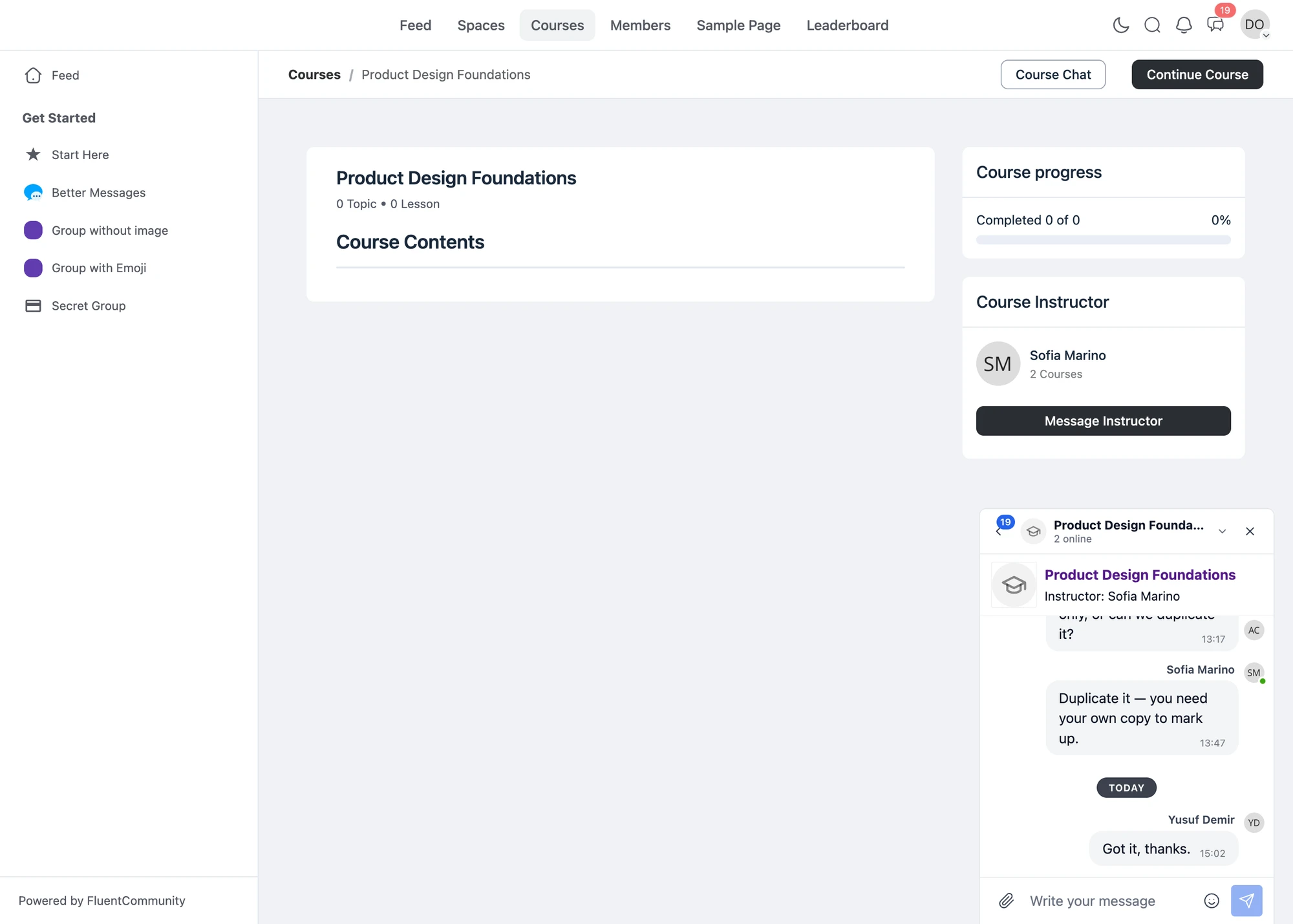
- Course Chat — sits next to Continue Course at the top right of the course page. Opens the auto-managed group chat that includes the course creator and every active student.
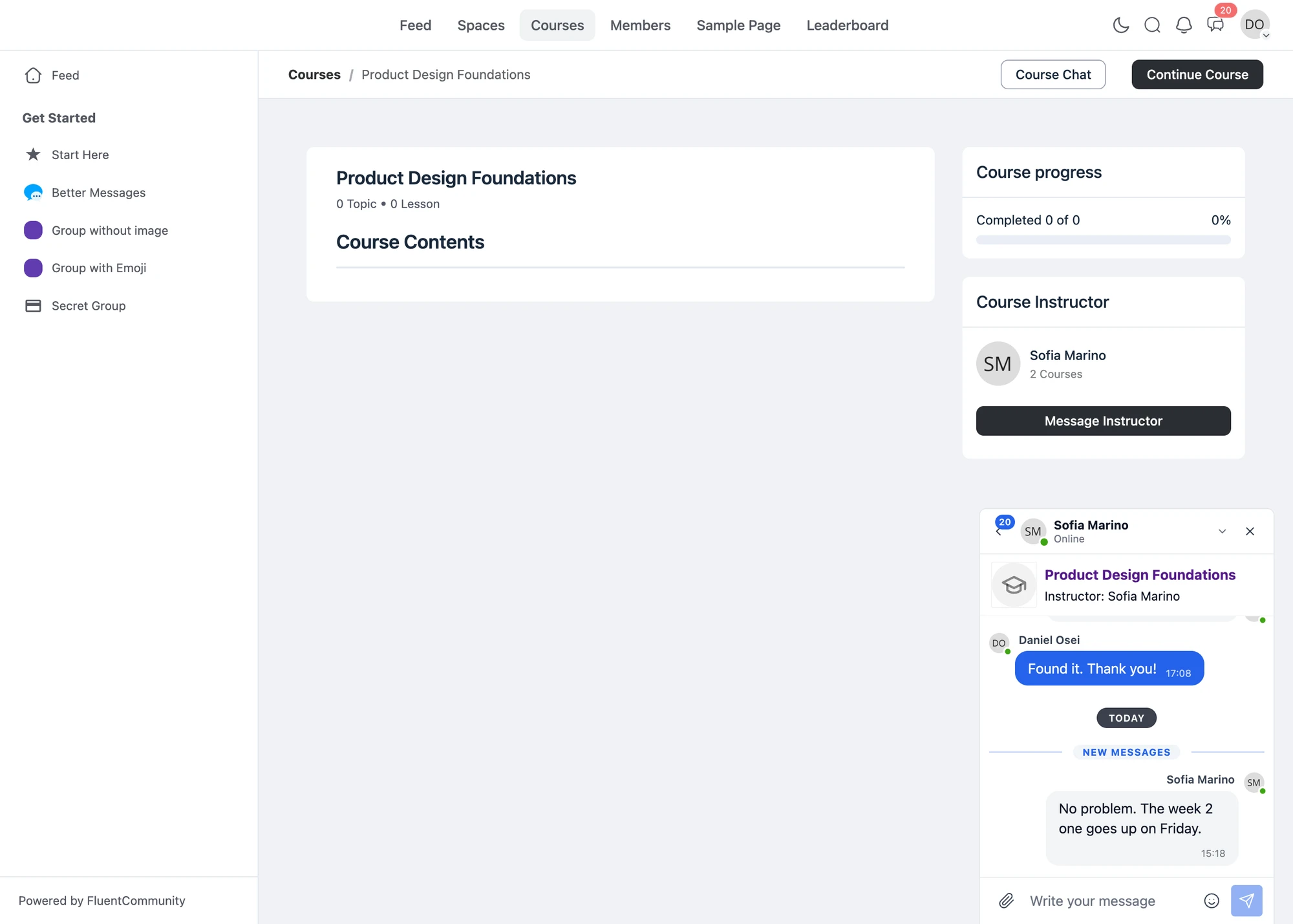
- Message Instructor — appears under the course creator card in the right sidebar. Opens a private one-on-one conversation with the course creator. Hidden when the current user is the creator (you don't need a button to message yourself).

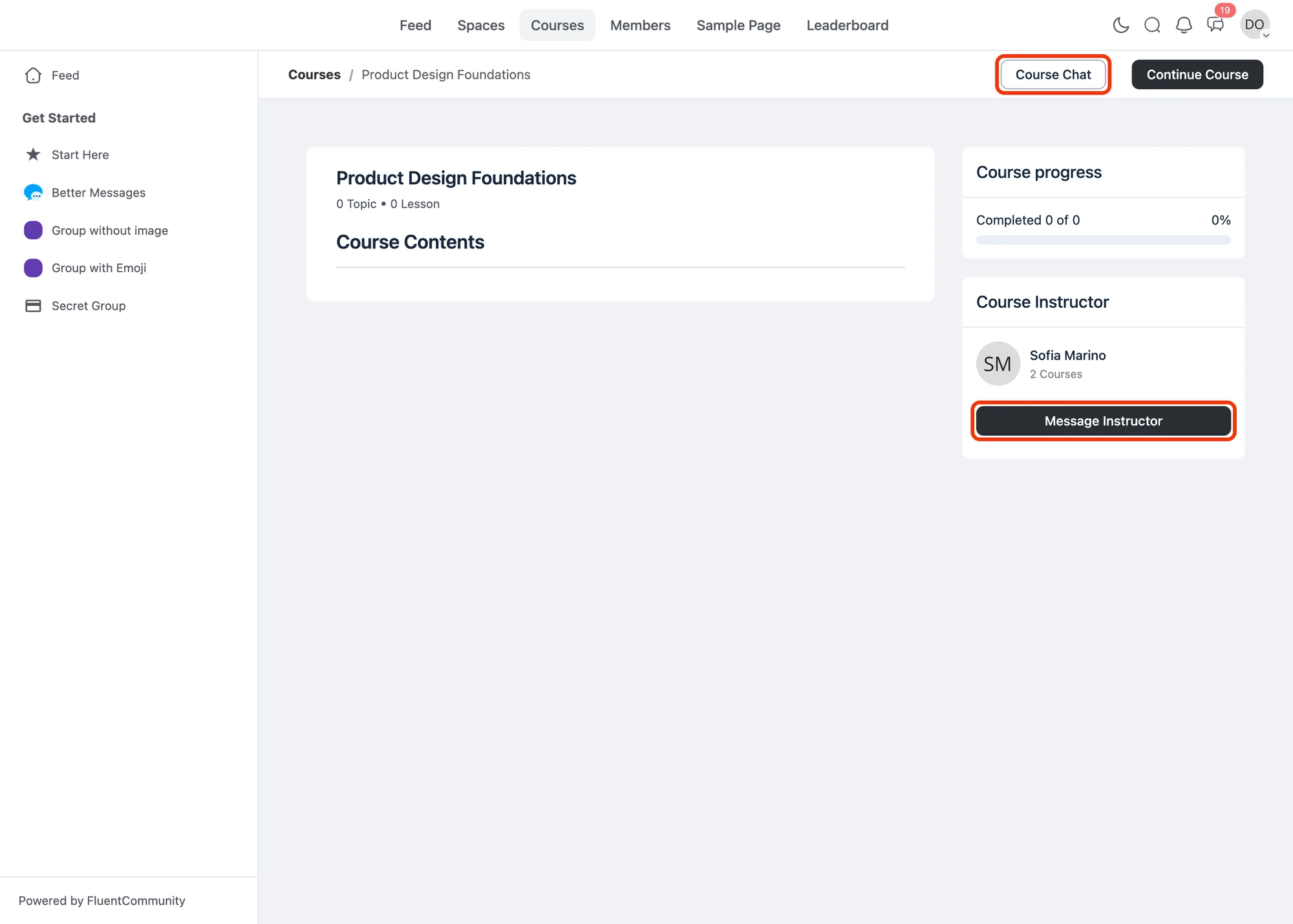
Clicking Course Chat opens the auto-managed Course Group Chat:

Clicking Message Instructor opens a private conversation with the course creator:

Course Group Chat#
Each Course gets its own Better Messages thread.
- The course creator is the instructor in the chat.
- Students join the chat on enrollment and leave on un-enrollment.
- Membership stays in sync through FluentCommunity's
course/enrolledandcourse/student_lefthooks. - A self-healing diff sync runs on every event, so one missed hook will not leave the chat out of sync.
The conversation header shows the course title and image. Better Messages uses the course logo first, then cover_photo, and falls back to a graduation-cap icon if neither is set.
A course info card with title, image, and instructor name appears above the conversation. The same card shows on the private DM opened by Message Instructor — so the creator can see which course the question is about. This card is shared with LearnDash, LearnPress, Tutor LMS, and MasterStudy LMS integrations. To hide it everywhere, turn off Better Messages → Settings → Integrations → LMS → Shared Course Settings → Course Info Card.
Courses widget#
Once Course Group Chat is enabled, the user's enrolled and authored courses surface in the dedicated Courses widget on the Mini Widgets bar, Side Panel and Mobile bar — separate from the social Spaces widget so academic chats and community spaces don't mix in one list.

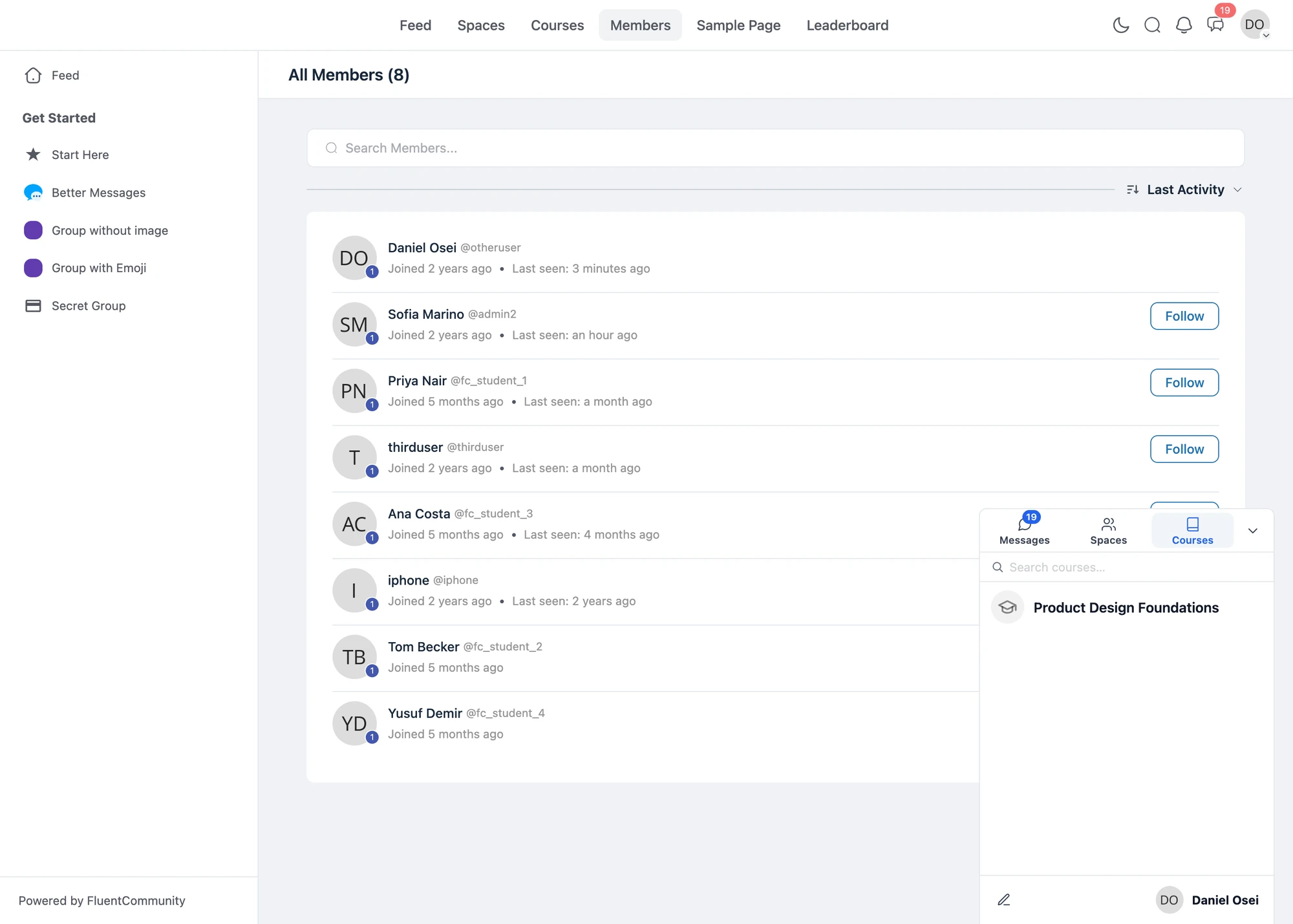
The Courses widget is shared with the LearnDash, LearnPress, Tutor LMS and MasterStudy LMS integrations: if your site has both FluentCommunity Courses and an LMS plugin, all courses appear in the same widget.
Courses settings#
Configure courses messaging from WP Admin -> Better Messages -> Settings -> Integrations -> FluentCommunity:
- Course Group Chat — master toggle for the FluentCommunity Courses integration. Enables the auto-managed Course Group Chats and the Courses widget entries.
- Course Chat Button — show the Course Chat button next to Continue Course on FluentCommunity course pages. Requires Course Group Chat enabled.
- Message Instructor Button — show the Message Instructor button under the course creator card. Hidden automatically when the current user is the course creator.
Shared course settings#
Three toggles under Better Messages → Settings → Integrations → LMS → Shared Course Settings apply to every LMS course conversation across LearnDash, LearnPress, Tutor LMS, MasterStudy LMS and FluentCommunity Courses:
- Course Info Card (on by default) — show the title, image and instructor name banner above each course conversation, including the private DM opened by Message Instructor. Turn off to hide the banner everywhere.
- Email Notifications (on by default) — send the standard "new message" email to participants when activity happens in a course chat. Turn off if your students do not rely on email or you want to reduce traffic.
- Push Notifications (off by default) — send browser and mobile push notifications for new course messages. Requires a WebSocket license.
Changing any of these toggles propagates across all four LMS integrations.
Per-Course settings#
Each Course has its own messaging toggle. Course creators can enable or disable group messaging from the Course settings page within FluentCommunity, in the same way Spaces have a per-Space toggle.
Developer filters#
The integration exposes PHP filters for programmatic control — the complete list lives in the PHP filters reference. Two of them let you exclude specific users from the automatic membership sync of Space and Course chats:
better_messages_fluent_community_group_chat_members— filters the member list the Space chat sync is about to apply. Receives the member IDs, the Space ID and the thread ID.better_messages_fluent_community_course_chat_members— the same for Course chats, receiving the Course ID instead of the Space ID.
Both membership sync filters are available since Better Messages 2.15.25.
User IDs removed from the array are not just skipped — the self-healing diff sync actively removes them from the chat on every run, so the exclusion survives later enrollment events:
To be able to implement this guide, you need to learn how to insert PHP snippets to your website.
You can find guide here: WP Beginner
add_filter( 'better_messages_fluent_community_group_chat_members', function( $members, $space_id, $thread_id ) {
    if ( $space_id === 12 ) {
        $members = array_diff( $members, array( 34, 56 ) );
    }
    return $members;
}, 10, 3 );
Excluded users no longer receive the chat in their messenger, but they could still open it directly, because chat access is checked live against FluentCommunity membership on every request. For a complete lock-out, also deny them via better_messages_fluent_community_group_chat_user_has_access or better_messages_fluent_community_course_chat_user_has_access.
Frequently asked questions#
Does it replace Fluent Messaging?#
Yes — Fluent Messaging should be deactivated when Better Messages is installed. Better Messages takes over the portal's Messages surfaces.
Will Space chats persist if the Space is deleted?#
The paired chat thread remains in the database for record-keeping. Members lose access via the Space, but Better Messages preserves the history.
Can I have a Space chat without enabling messaging globally?#
No — Space group messaging is a global toggle. Once enabled globally, individual Spaces can opt in or out.
Does it work alongside other LMS plugins?#
Yes — FluentCommunity Courses, LearnDash, LearnPress, Tutor LMS, and MasterStudy LMS share the Courses widget and shared course settings (Info Card, Email, Push).
Can FluentCommunity members message each other 1-on-1?#
Yes — every FluentCommunity profile gets a Private Message button. With the WebSocket version, Audio Call and Video Call buttons can be enabled.
See also#
- FluentCommunity chat plugin — full feature write-up
- WordPress community chat plugin — comparing community platforms
- WordPress LMS chat plugin — comparing every LMS integration
- BuddyPress integration
- BuddyBoss integration
- Group conversations — underlying group chat feature
- FluentNotify integration — Firebase web push for chat, from the same team