Better Messages for Simply Schedule Appointments: a Chat and a Call for Every Appointment
The Simply Schedule Appointments integration gives every appointment booked with Simply Schedule Appointments (SSA) a private conversation between the customer and your team. The customer and the team can talk before the appointment, and in the WebSocket version they can call each other from the same conversation around the appointment time.
- A conversation per appointment. It is created the first time the customer or the team opens it, so appointments nobody writes about make no empty conversations.
- A group conversation for group appointment types. Every customer booked on the same time slot is in one conversation with your team.
- Calls around the appointment. The customer can call from a few minutes before the start until the end. Your team can call at any time.
- Customers without an account. A customer who booked with only a name and an email reaches the conversation by a signed link in the SSA emails, and is signed in as a guest by that link. No registration and no password.
- Free and WebSocket versions. Chats work in both versions. Calls need the WebSocket version.
To install the plugin ensure that your website running:
- WordPress 5.9 or newer
- PHP 7.4 or newer
Setup#
Turn it on#
- Install and activate Simply Schedule Appointments and Better Messages.
- Open Better Messages → Settings → Integrations → Bookings.
- In the Simply Schedule Appointments Integration card, turn on Booking Conversations.
- In the Bookings card above it, choose a Support User (see below).
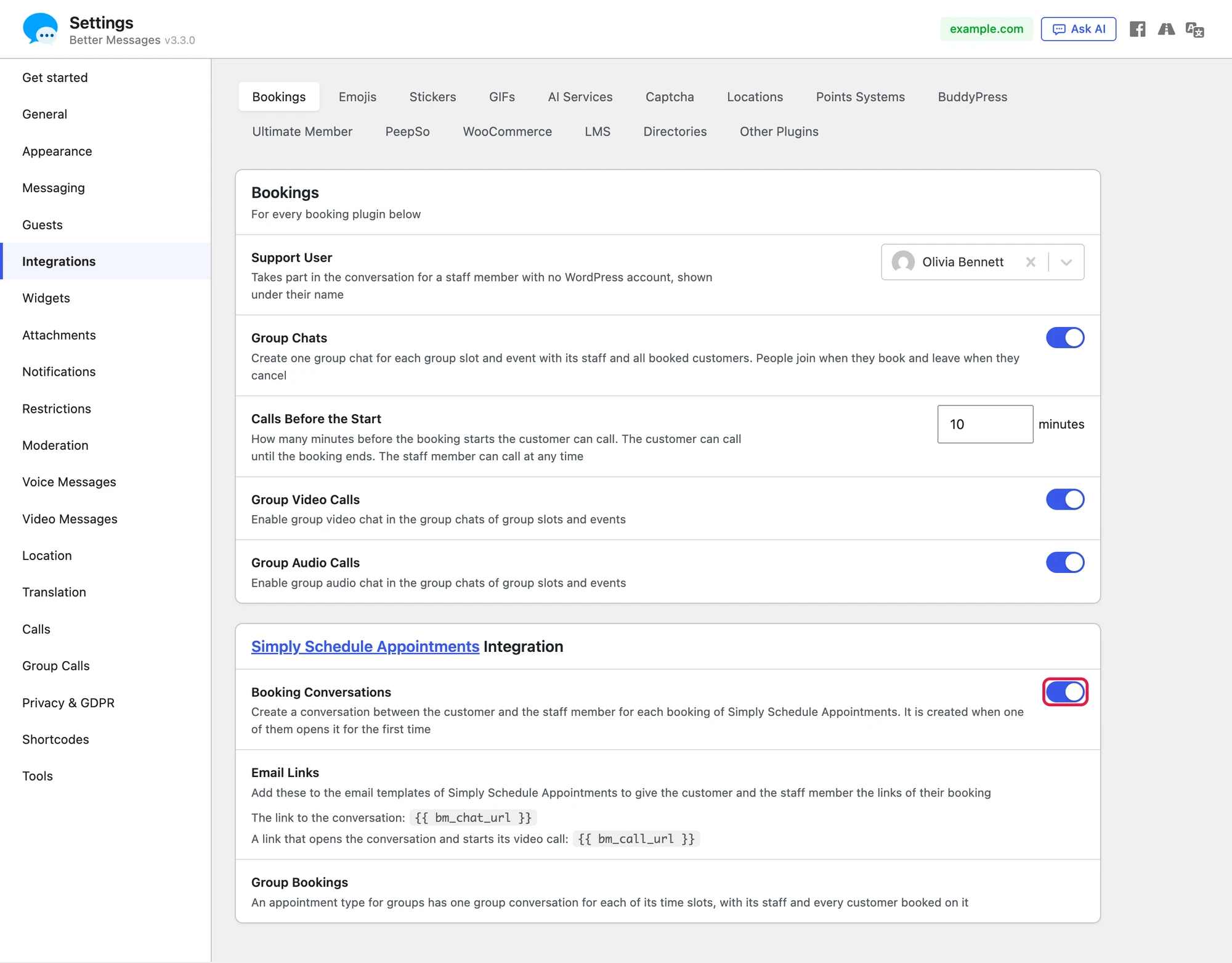
The Simply Schedule Appointments Integration card also lists the two variables for the SSA emails under Email Links, and says what makes a group conversation under Group Bookings.
Who answers for your team: the Support User#
Simply Schedule Appointments has no staff members in its free and Pro editions. The admin email of SSA receives the notifications of every appointment, and nothing links an appointment to a WordPress user on the team side.
So the Support User takes part in every appointment conversation for your team. Choose the WordPress user who answers your customers, for example the account of the site owner or of the front desk. Without a Support User an appointment has nobody on the team side, and no conversation can be created for it.
If your SSA edition has staff members, a staff member with a WordPress account takes part in the conversations of their own appointments, and the Support User stands in for a staff member without one.
The shared settings#
The Bookings card holds the settings that every booking plugin shares:
| Setting | What it does |
|---|---|
| Support User | Takes part in the conversation for a staff member with no WordPress account. With SSA it is the team side of every appointment |
| Group Chats | One group conversation for each time slot of a group appointment type, with the team and every customer booked on it. On by default |
| Calls Before the Start | How many minutes before the start of an appointment the customer can call. 10 by default. The customer can call until the appointment ends, and the team at any time |
| Group Video Calls | Group video calls in the group conversations of group appointment types |
| Group Audio Calls | Group audio calls in the group conversations of group appointment types |
Calls Before the Start, Group Video Calls and Group Audio Calls need the WebSocket version. The one-to-one calls of an appointment also follow Video Calls and Audio Calls in Better Messages → Settings → Calls: when both are off, the settings page warns that appointment conversations have no call buttons.
Customers without an account read their messages on the Messages page of the site. Choose a page in Messages Location, or a guest page. Without one, the Bookings card shows a warning and the links in the emails have nowhere to open.
The links in the SSA emails#
SSA notifications use variables in double braces. Better Messages adds two of them:
| Variable | What it prints |
|---|---|
{{ bm_chat_url }} | The link to the conversation of the appointment |
{{ bm_call_url }} | A link that opens the conversation and starts its video call |
Open Appointments → Settings → Notifications in the WordPress admin, choose Edit on a notification and add the variables to its Message, for example under the link that SSA gives to change or cancel the appointment:
Chat about this booking: {{ bm_chat_url }}
Video call: {{ bm_call_url }}

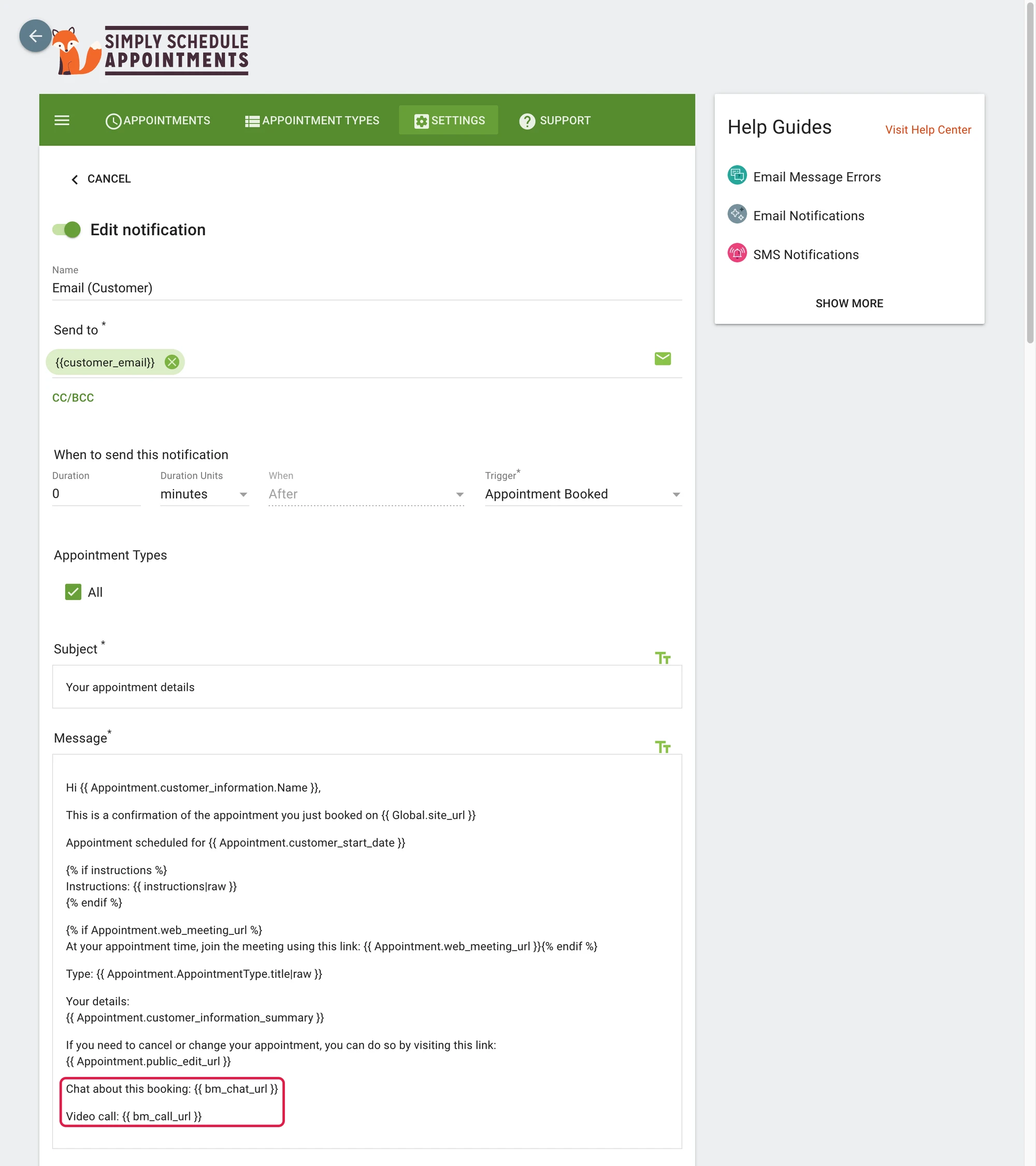
Each person gets the link that fits them:
- A customer without an account gets a signed link. Opening it signs the browser in as a guest with the name and email of the appointment and opens the conversation. The same email gets the same guest across all of its appointments.
- A customer with an account gets a plain link. It opens the conversation after they log in.
- A notification sent to the admin email gets the plain link too, never the signed link of the customer. The Support User logs in and lands in the conversation.
- SMS keep the signed link only in a message to the phone number of the customer. Any other number gets the plain link.
The variables print in Notifications only. SSA renders its Calendar Events without saying who they go to, so a calendar event gets no link.
If the site cannot have a call (the free version, or video calls turned off), {{ bm_call_url }} prints the plain conversation link, so an email never carries a call link that does nothing.
This is what the customer receives:

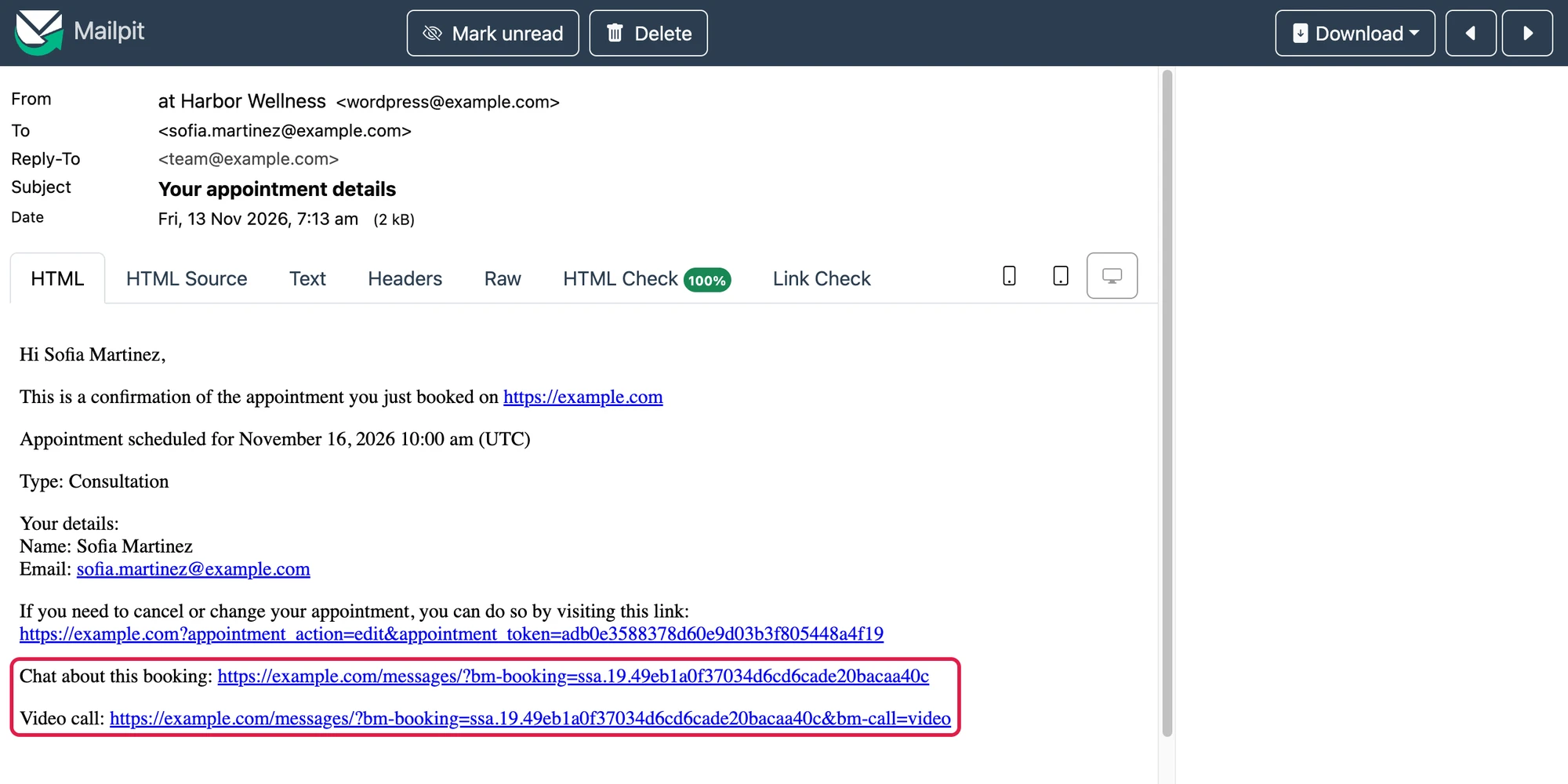
When a customer without an account has unread messages, Better Messages also sends them its unread messages email, and its View Conversation link is the signed link of their appointment.
The Message button on the manage page#
SSA emails each customer a link to a page where they can change or cancel their appointment. Better Messages adds a Message button under it, in the accent color of the SSA booking app (Appointments → Settings → Styles). It opens the conversation of the appointment, with the same signed or plain link as the emails.

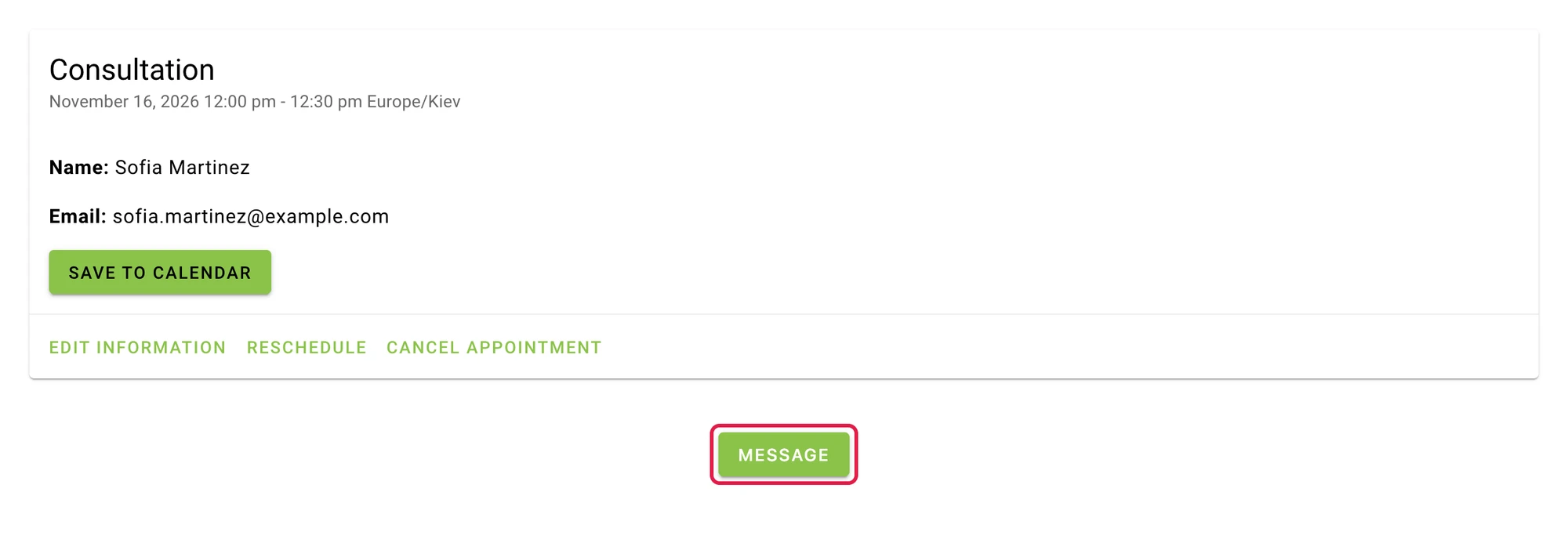
SSA draws the confirmation screen of its booking form in a frame with no place for another plugin, so the button is on the manage page only.
The conversation#
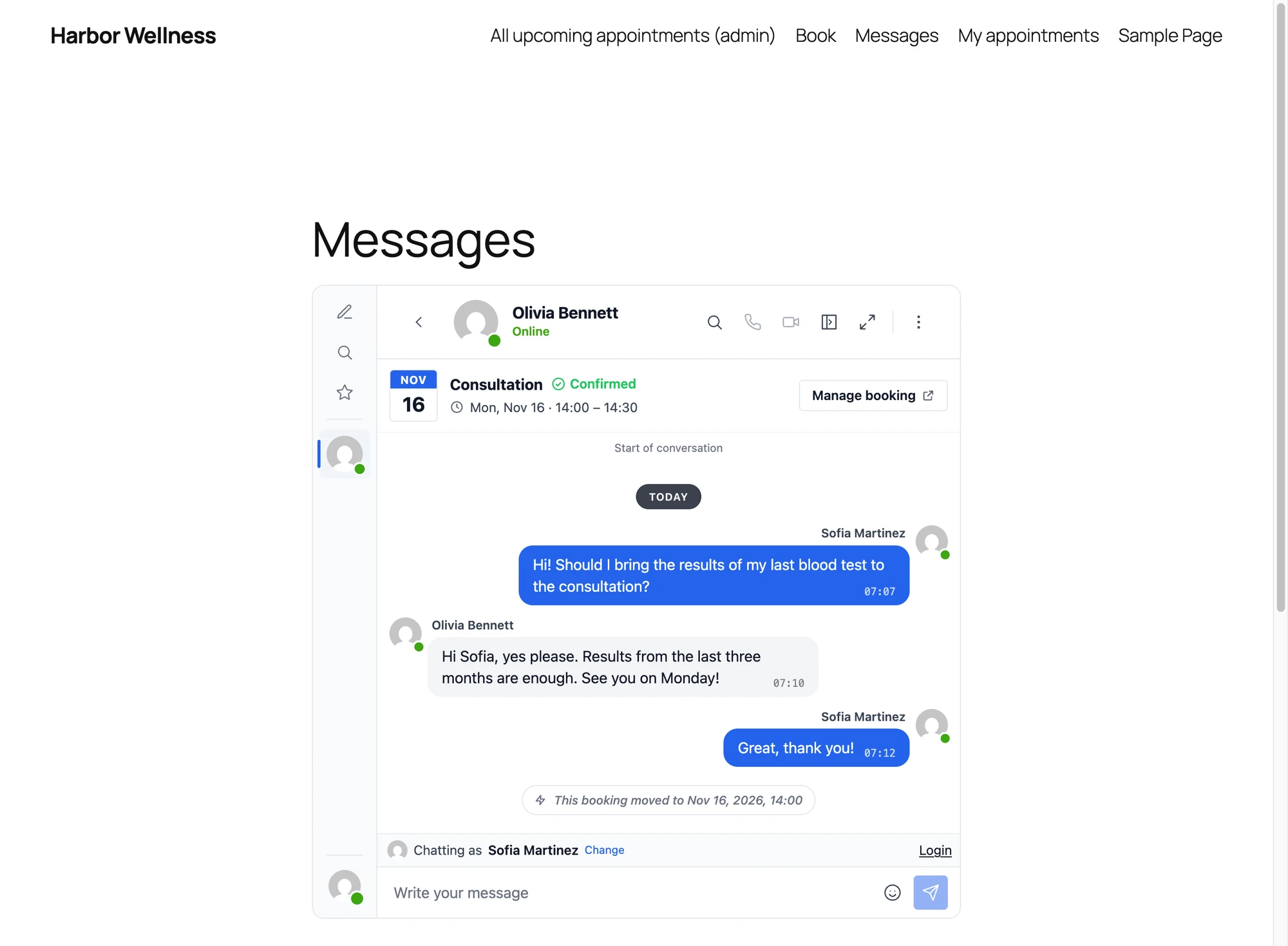
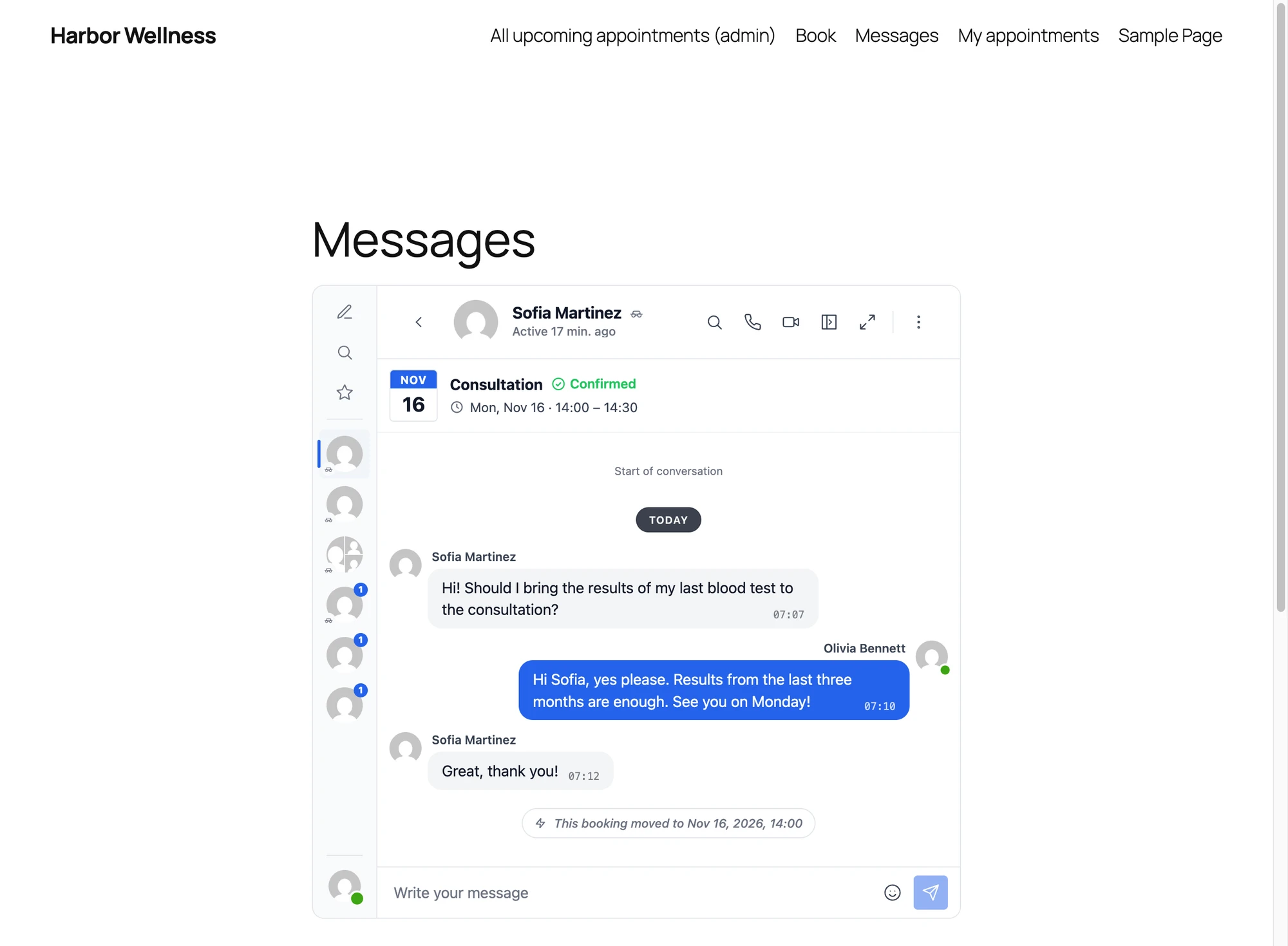
The conversation is in the Messages page of both sides, beside any other conversation. Its title is the name of the other person. A card at its top shows the appointment:
- The day as a calendar leaf, with the month above the day.
- The appointment type with its status as an icon and a word in its color: Confirmed for a booked appointment, Pending while SSA waits for a payment or a form, Cancelled in red, or No show.
- The time from the start to the end, in the time zone of the viewer, for example "Mon, Nov 16 · 14:00 – 14:30".
- Online when the appointment has a web meeting, and the staff member when the appointment has one (the Business edition of SSA).
- Manage booking, a button for the customer alone. It opens the page of SSA where they change or cancel the appointment. Your team does not get it, since that page belongs to the customer.
This is the side of the customer, signed in by the link in the email:

And the side of your team, the Support User:

When the appointment changes#
The conversation hears of every change SSA makes to the appointment and posts a system message that counts as unread and reaches both sides like a message:
- Rescheduled: "This booking moved to" the new date and time.
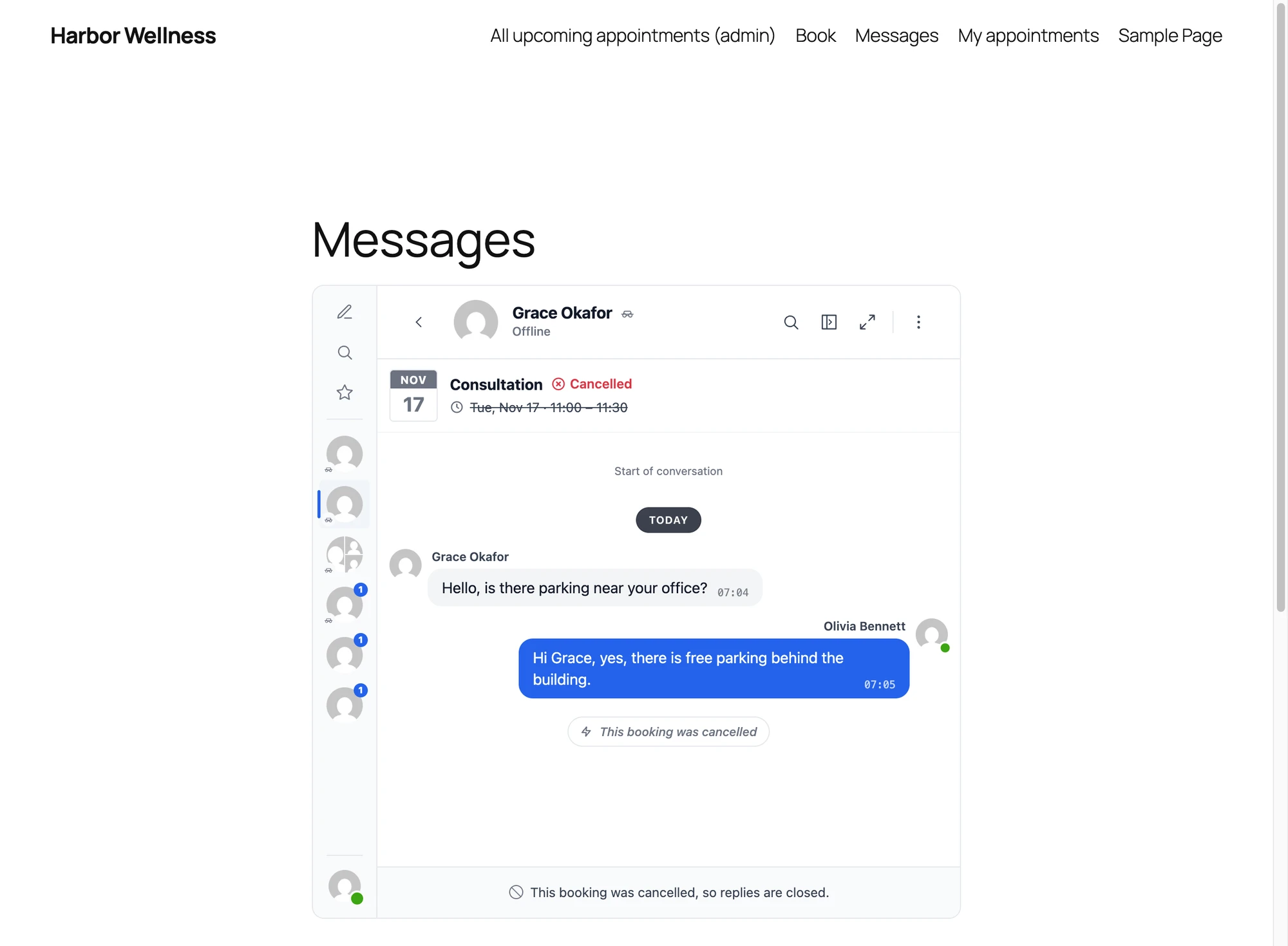
- Cancelled: "This booking was cancelled". An appointment deleted in SSA is told the same way.
- Booked after a pending payment or form: "This booking was approved".
An open conversation follows the change at once, with no reload: the card, the call buttons and the reply box change as the system message arrives.
After a cancel, the conversation stays readable for both sides, but replies and calls are closed. The card marks the appointment Cancelled in red, strikes through its time and greys the calendar leaf.

Calls around the appointment#
In the WebSocket version the call buttons of the conversation follow the time of the appointment:
- The customer can call from the minutes set in Calls Before the Start before the appointment starts until it ends. Outside that time the buttons are greyed, and hovering them says when calls open, or that the booking has ended. They light up at the minute the window opens, without a reload. The server refuses a call outside the window too.
- Your team can call at any time.
- A cancelled appointment has no calls.

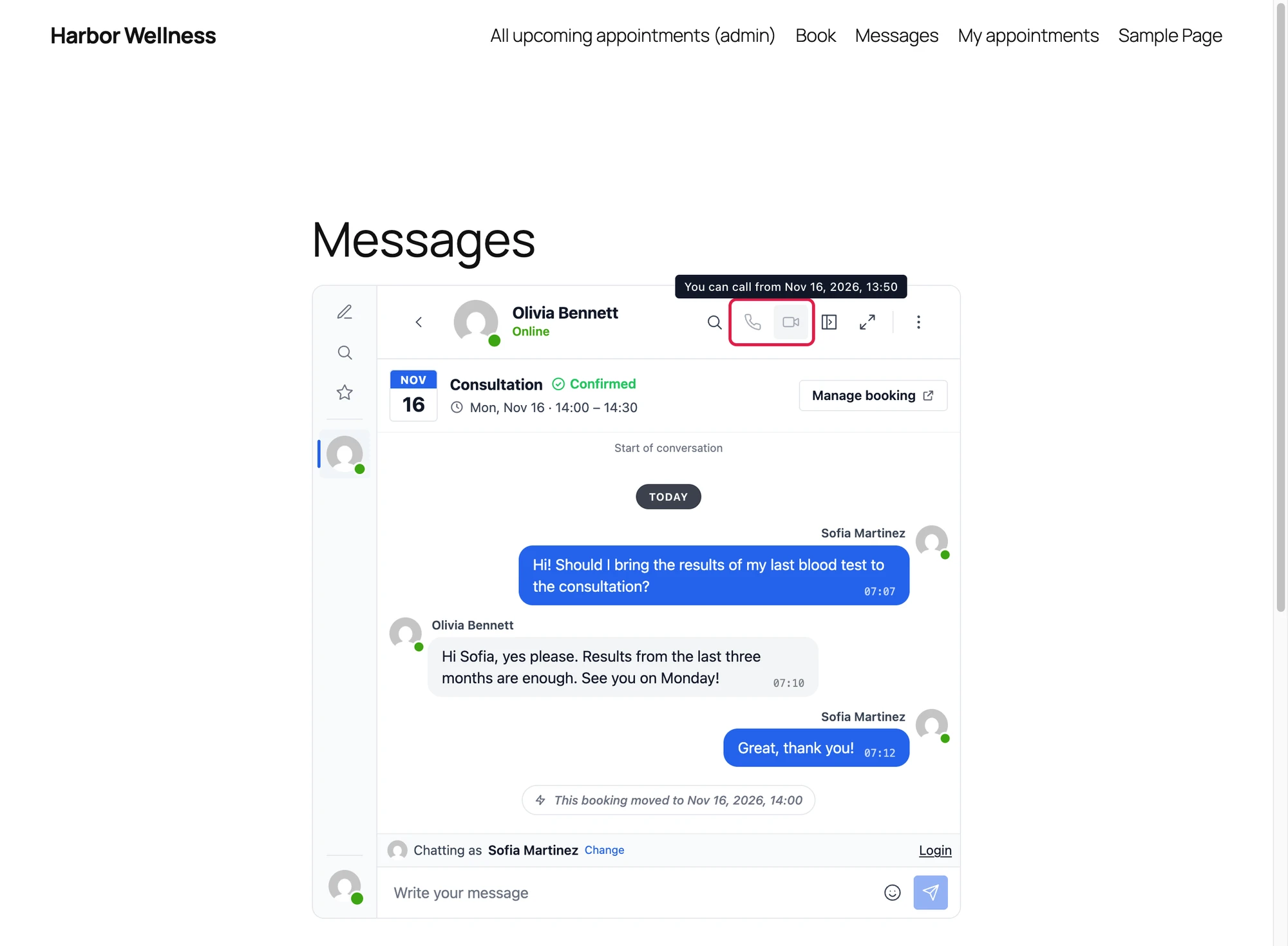
The {{ bm_call_url }} link from the email opens the conversation and starts the video call. Opened before the window, it opens the conversation and shows a notice with the time calls open, without starting a call.
Group appointment types#
An appointment type with Group capacity takes several customers at the same time. With Group Chats on, each time slot of such a type has one group conversation instead of a conversation per appointment:
- Its members are your team and every customer booked on that slot.
- A customer joins when they book and leaves when they cancel.
- The conversation stays open when one customer cancels, since the slot goes on for the others.
- Its calls are group calls, turned on by Group Video Calls and Group Audio Calls. They have no time window.
- Its card shows the day and the time of the slot, without a status and without Manage booking, since each customer of the slot has an appointment of their own.

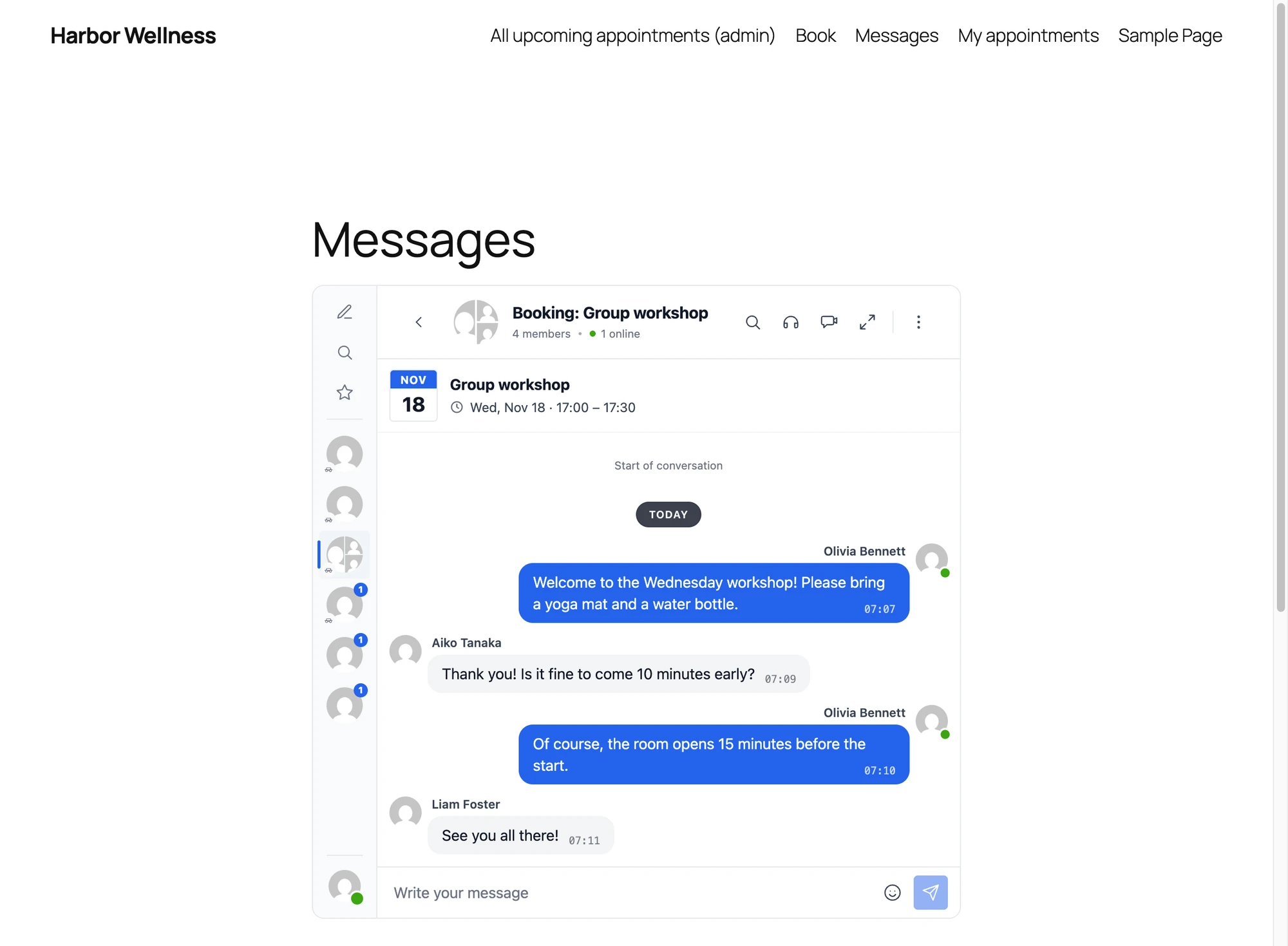
Customers in the group conversation see each other by name, as in any group conversation.
Frequently asked questions#
Does it work with the free version of Simply Schedule Appointments?#
Yes. The conversations, the email variables and the Message button work with the free edition of SSA and with its paid editions. Only the Business edition has staff members, so in every other edition the Support User answers every appointment.
Does the customer need an account?#
No. A customer who booked with only a name and an email gets a signed link in the SSA emails, which signs them in as a guest for their own appointments. Guest chat for the rest of the site can stay off: the signed link works anyway, and strangers still cannot start a guest chat. While it is off, such a customer gets the messenger on the Messages page and wherever it is placed with a shortcode, but not the mini widgets, the mini chats or the floating chat button on the other pages.
Who can open a signed link?#
Whoever has the email can open the conversation, the same as with the link that SSA already emails to change or cancel the appointment. Open it in a browser where nobody is logged in to the site: a browser logged in to another account opens the Messages page of that account instead.
Is a conversation created for every appointment?#
No. It is created the first time the customer or your team opens it, from an email link, the Message button or the Messages page. A system message is posted only into a conversation that exists.
Does the conversation survive a reschedule?#
Yes. A rescheduled appointment keeps its conversation, which tells both sides the new time. This holds for the old booking app of SSA too, which moves an appointment by creating a new one.
Can the customer call at any time?#
No, only around the appointment, from the minutes set in Calls Before the Start until the end. Your team can call at any time.
Do I need the WebSocket version?#
For calls, yes. The chats, the email links, the Message button and the group conversations work in the free version of Better Messages too.
See also#
- Amelia integration — the same conversations for Amelia appointments and events
- LatePoint integration — the same conversations for LatePoint bookings
- FluentBooking integration — the same conversations for FluentBooking meetings
- Video calls — how calls work in Better Messages