Better Messages for Amelia: Chat and Video Calls for Every Booking
The Amelia integration gives every booking of Amelia a private conversation between the customer and the employee who takes the appointment. The customer reaches it from a link in the Amelia booking email, with or without an account on the site. In the WebSocket version the same conversation holds the video call of the appointment, open to the customer from a few minutes before the start until the end.
- A conversation per booking. The customer and the employee of the booking, with a card at its top that shows the day, the service, the status, the time and the employee.
- Made on the first click. Nothing is created until the customer or the employee opens the link of the booking.
- Customers without an account. A visitor who booked with an email address gets a signed link in the Amelia email. One click signs them in to the conversation, even when guest chat is off on the site.
- Group bookings. An event, and an appointment that takes more than one customer, has one group conversation. Customers join when they book and leave when they cancel.
- Changes are told in the conversation. A new time, an approval, a rejection and a cancellation each post a line in the conversation, and a cancelled booking closes its replies.
- Calls around the slot (WebSocket version). The employee can call at any time. The customer can call from a set number of minutes before the start until the end of the booking.
Chats work in both the free and the WebSocket version. Calls need the WebSocket version, as every Better Messages call does.
To install the plugin ensure that your website running:
- WordPress 5.9 or newer
- PHP 7.4 or newer
Setup#
Turn the integration on#
- Install and activate Amelia (Lite or Pro) and Better Messages.
- Go to Better Messages → Settings → Integrations → Bookings.
- In the Amelia Integration card, turn on Booking Conversations.
- Click Save Settings.
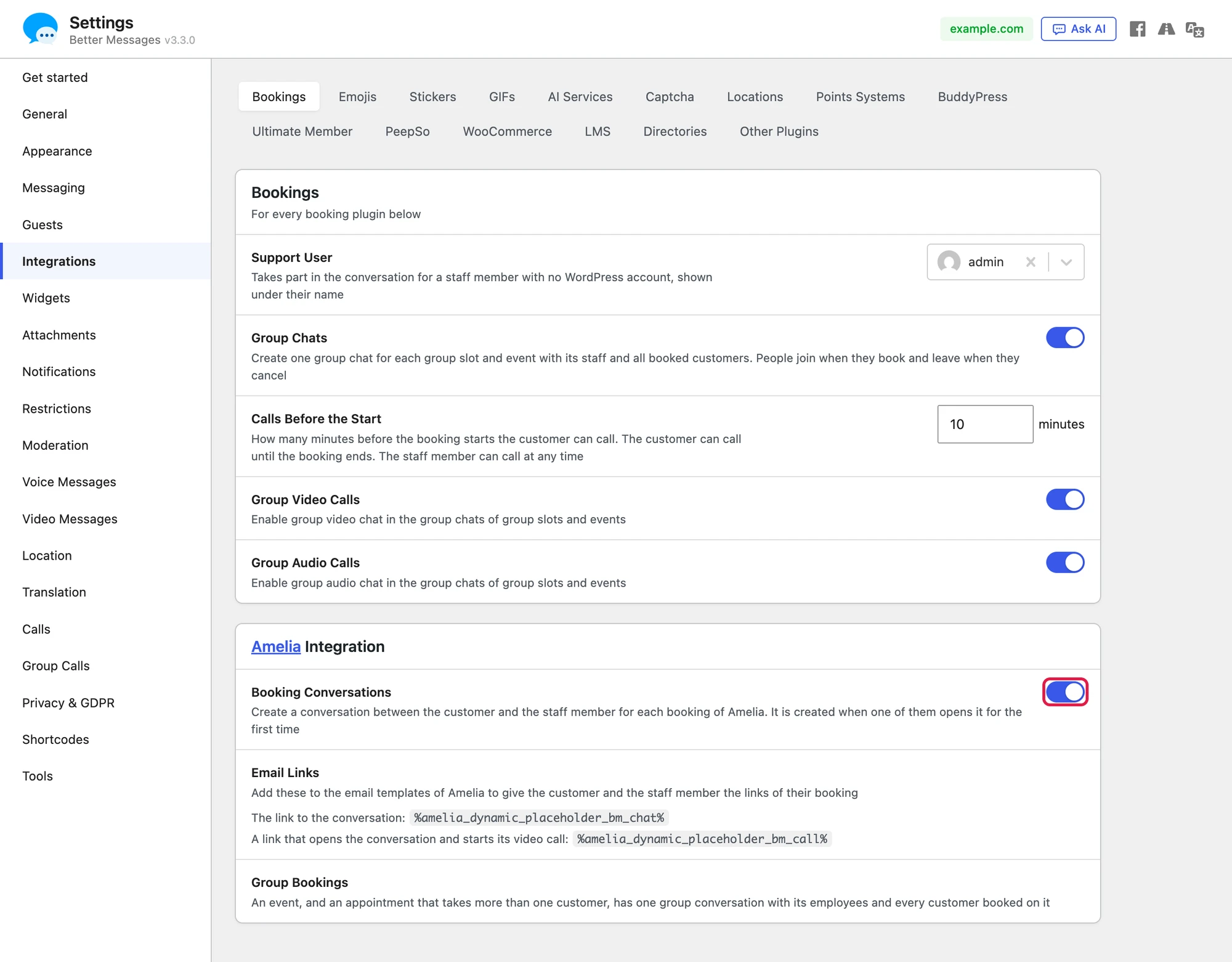
The Amelia Integration card shows the two placeholders for the Amelia emails under Email Links and says what makes a group conversation under Group Bookings. The cards of LatePoint, FluentBooking and Simply Schedule Appointments follow it, and stay inactive while those plugins are not on the site.
Shared settings#
The Bookings card at the top holds the settings that every booking plugin shares:
| Setting | What it does |
|---|---|
| Support User | Takes part in the conversation for an employee who has no WordPress account, shown under the name of the employee. Without it, a booking whose employee has no account gets no conversation. |
| Group Chats | One group conversation for each group appointment and event, with its employees and every booked customer. On by default. |
| Calls Before the Start | How many minutes before the booking starts the customer can call (10 by default, from 0 to 1440). WebSocket version only. |
| Group Video Calls | Video calls in the group conversations of group appointments and events. Off by default. WebSocket version only. |
| Group Audio Calls | Audio calls in the same group conversations. Off by default. WebSocket version only. |
An Amelia employee takes part as the WordPress user that the employee is linked to in Amelia. For employees without a WordPress user, choose a Support User: that user answers in their place and the conversation shows the name of the employee.
Every link of a booking lands on the page of the messenger. A customer who booked without an account has nowhere to read the conversation when the site has no such page, and the Bookings card warns about it. Choose a page in Better Messages → Settings → General → Messages Location, or a Guest Messages Page in the same tab.
The email links#
Amelia lets other plugins add placeholders to its email templates. Better Messages adds two:
| Placeholder | What it prints |
|---|---|
%amelia_dynamic_placeholder_bm_chat% | The address of the conversation of the booking |
%amelia_dynamic_placeholder_bm_call% | The address that opens the conversation and starts its video call |
Where to put them#
Go to Amelia → Notifications → Email, choose To customer or To employee, and open a notification under Appointments, for example Approved. Switch the Message content editor to HTML and use the placeholders as the address of a link:
<a href="%amelia_dynamic_placeholder_bm_chat%">Message %employee_full_name%</a> about this booking.<br><br>
At the time of the booking: <a href="%amelia_dynamic_placeholder_bm_call%">join the video call</a>.
Click Save. Add the links to every notification that should carry them: Approved, Pending, Rescheduled and Details changed are good places for both, and Canceled for the chat link alone.

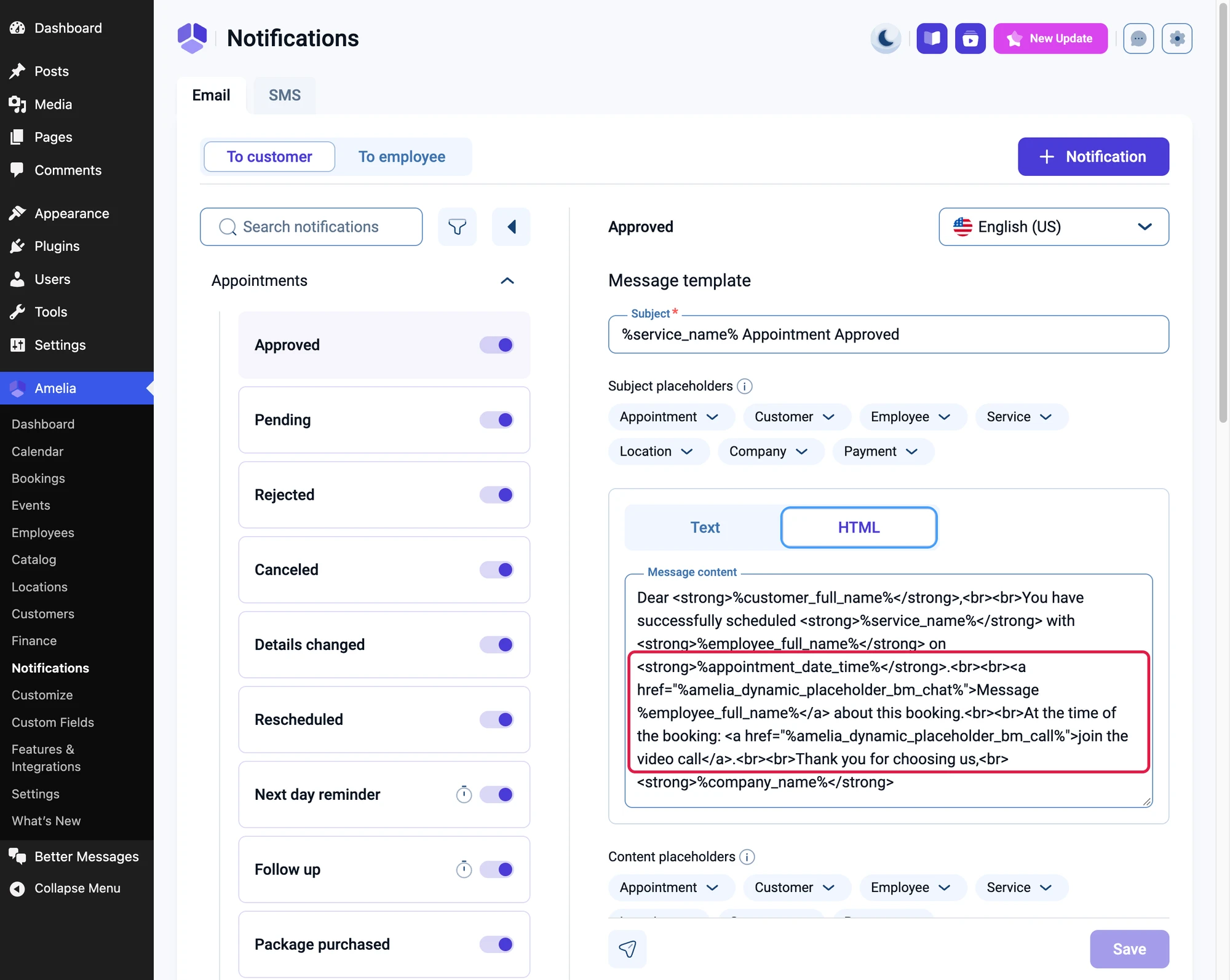
Amelia leaves a later placeholder empty when one of these placeholders appears twice in the same template. Put each of them in a template once, as the address of one link, as in the example above.
What the customer receives#
The customer gets the Amelia email with two working links. For a customer who booked without an account, the links are signed: they sign the browser in to the conversation of that booking, without a password. A customer with an account gets a plain link and signs in on the login page first.

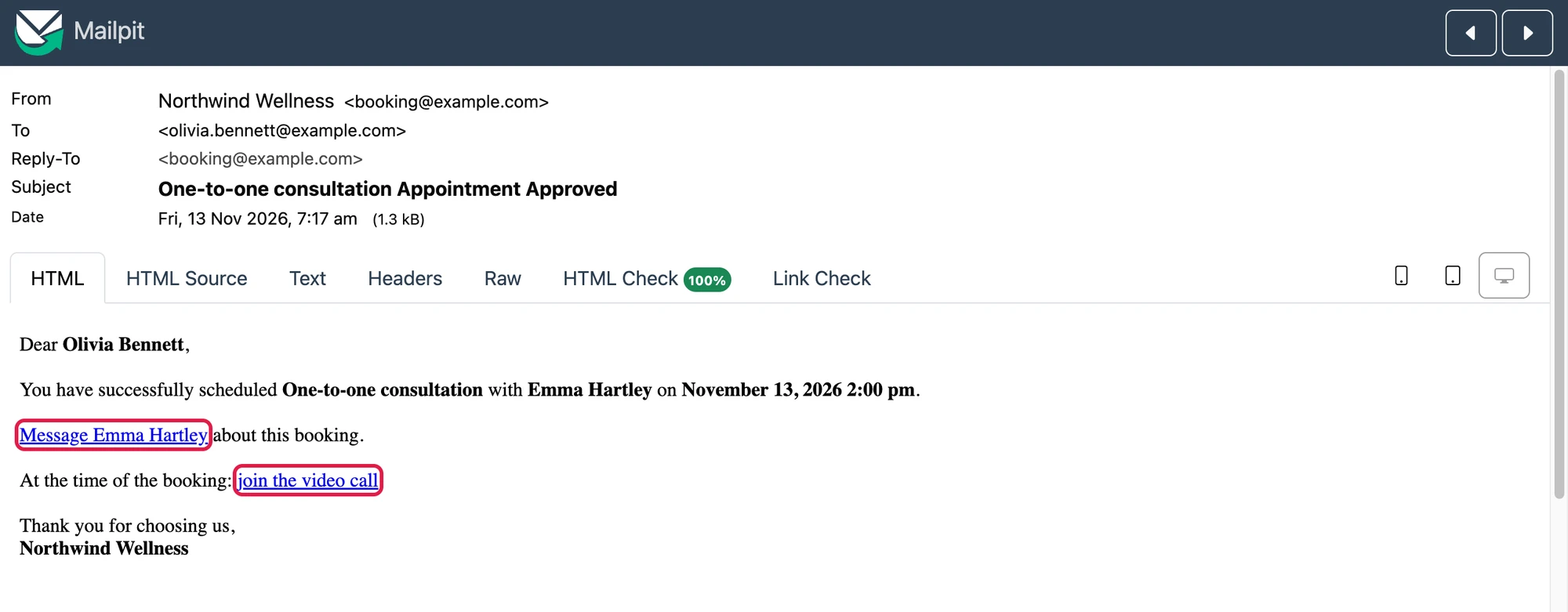
In an email To employee, the same placeholders print the link of the conversation for the employee, who signs in with their own account. In an email about a group appointment or an event, the links open its group conversation.
When the site has no calls (the free version, or video calls turned off), %amelia_dynamic_placeholder_bm_call% prints the plain conversation link, so a template never holds a call link that leads nowhere.
The conversation#
The first click on a link of the booking, by the customer or by the employee, creates the conversation and opens it. From then on it is in the conversation list of both people, like any other conversation.
What the customer sees#
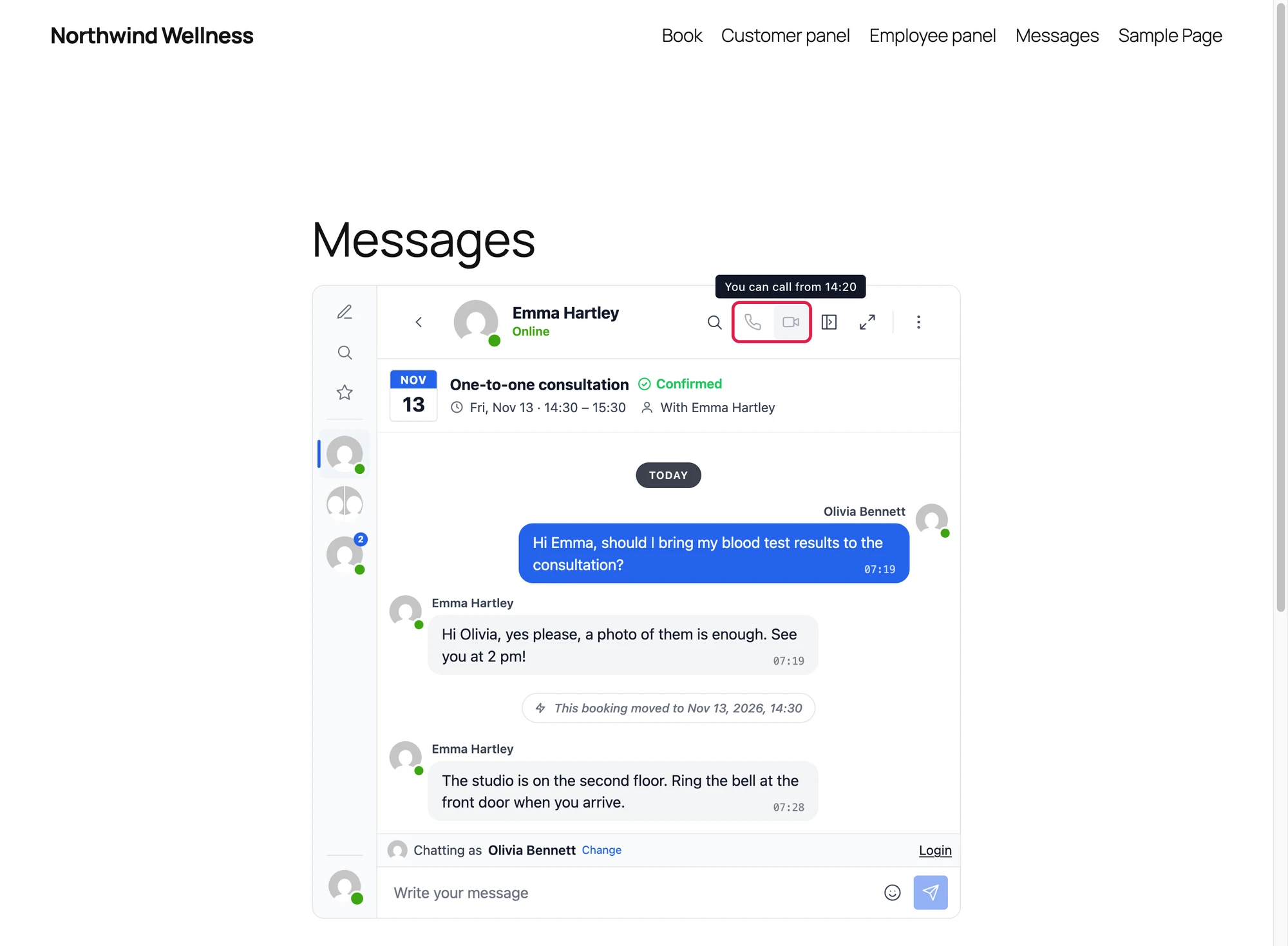
The card at the top shows the day of the booking as a calendar leaf, the service with its status (Confirmed for an approved booking, Pending, Waiting list, Cancelled or Rejected), the time from start to end in the time zone of the viewer, the employee, and Online or the location when the booking has one. A customer who booked without an account chats as a guest under the name of the booking.

The customer gets notified of new messages as members do. A customer without an account who has unread messages gets the unread email of Better Messages, and its link is the signed link of the booking.
What the employee sees#
The employee sees the same conversation in their messenger, with the same card. The call buttons are active for the employee at any time.

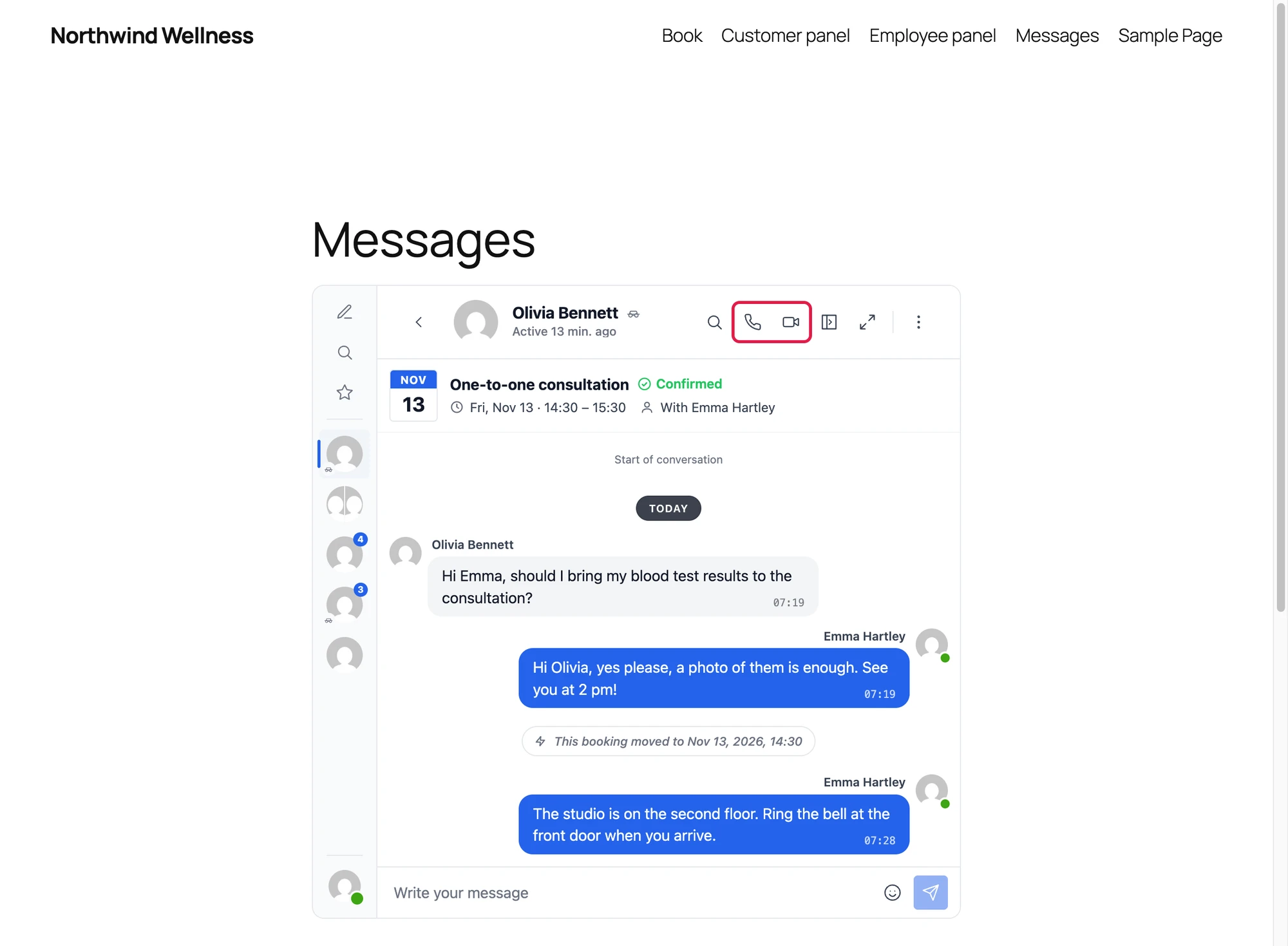
The card of an Amelia booking has no Manage booking button. That button opens the page where a customer manages their booking, and Amelia has no such page for one booking that the card could open. In the integrations that have one, it is shown to the customer alone.
Changes to the booking#
When the booking changes in Amelia, the conversation says so with a line that counts as unread and reaches both people as a notification:
| Change in Amelia | Line in the conversation |
|---|---|
| New time | This booking moved to the new date and time |
| Approved | This booking was approved |
| Rejected | This booking was rejected |
| Canceled, or the appointment deleted | This booking was cancelled |
An open conversation follows the change at once, without reloading the page: the card shows the new time or status, the call buttons follow the new time, and a cancelled booking closes its composer.
A cancelled booking#
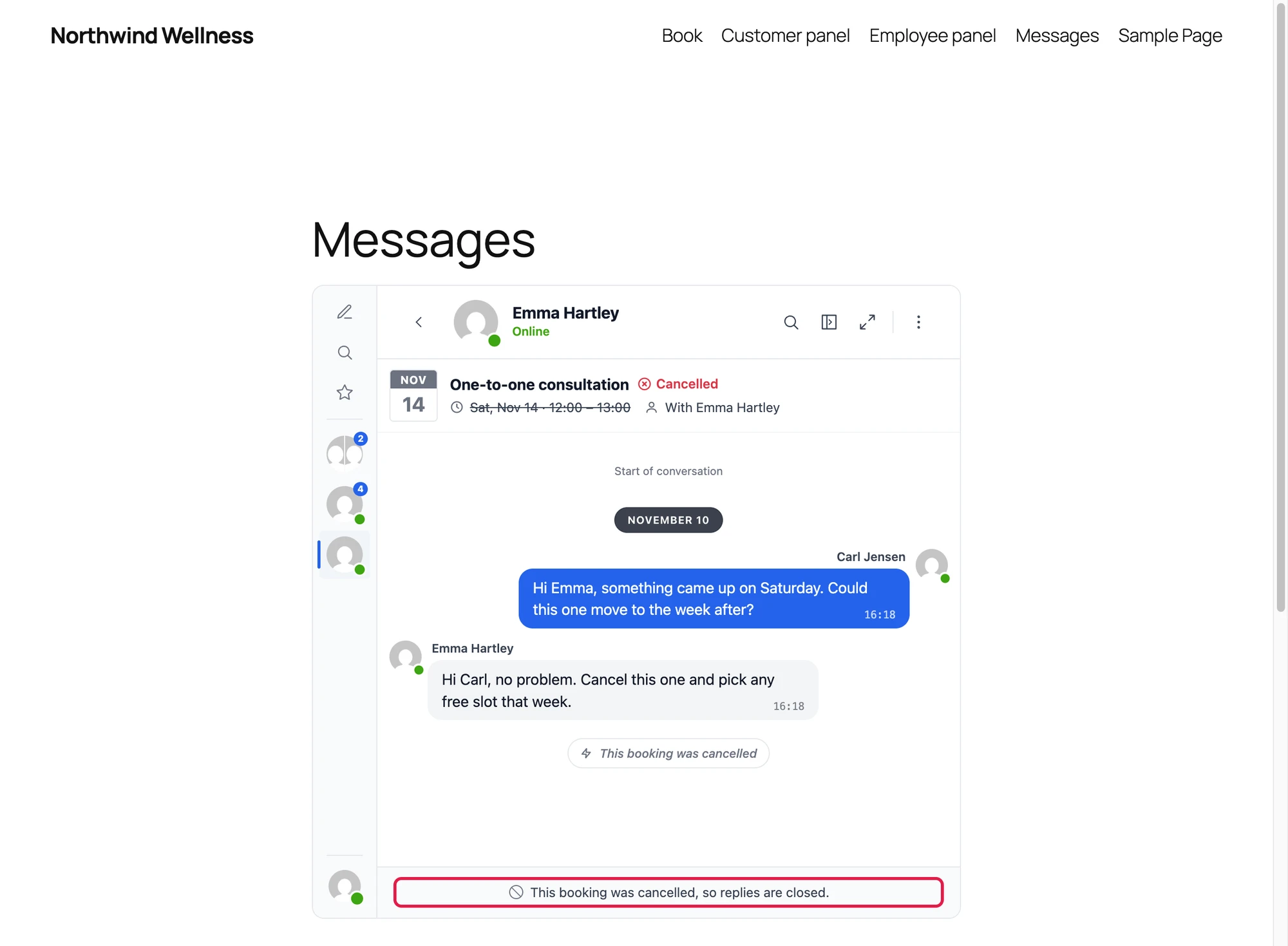
A cancelled or rejected booking keeps its conversation readable, and closes it for new messages. The card shows Cancelled in red with the time struck through, the composer gives way to "This booking was cancelled, so replies are closed." ("This booking was rejected" for a rejected one) and the call buttons are gone.

Calls around the booking#
In the WebSocket version the call buttons of a booking conversation follow the time of the booking:
- The employee can call the customer at any time.
- The customer can call from Calls Before the Start minutes before the start (10 by default) until the end of the booking.
- Outside that window the customer sees the call buttons greyed. Hovering them says "You can call from time", or "This booking has ended, so calls are closed" after the end. The buttons light up on their own when the window opens, without reloading the page.
- A call link opened too early opens the conversation and says from when the customer can call, instead of starting the call.
- A cancelled or rejected booking has no calls.
The server applies the same rule, so a customer cannot start a call outside the window by any other means.
Calls need Video Calls or Audio Calls turned on in Better Messages → Settings → Calls. The Bookings card warns when both are off.
Group bookings#
Amelia has two kinds of bookings with several customers, and each gets one group conversation:
- An event, with its organizer, its staff and every customer booked on it, across all its periods.
- An appointment that takes more than one customer, when the capacity of the service or of the employee for that service is above one, or when the appointment holds more than one booking.
The card of a group conversation shows the day, the time and the employees, without a status, as every customer in it has a booking of their own. People join the group conversation when they book and leave it when their booking is cancelled or rejected. Customers on the waiting list join only once their booking is approved. A group conversation stays open for the others when one customer cancels, so it gets no lines about the status of one booking. A new time of the event or appointment is told to everyone.

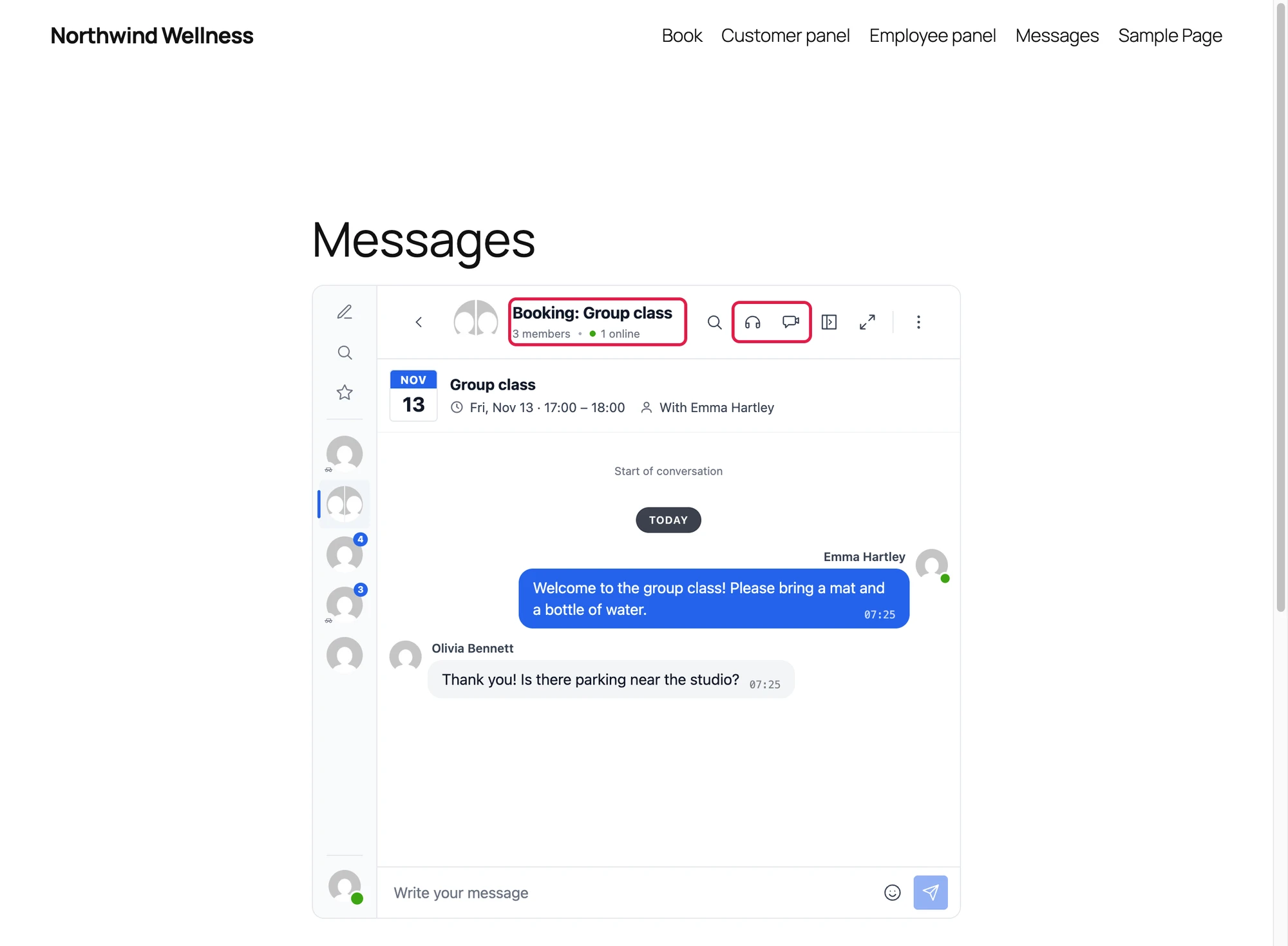
The calls of a group conversation are the group calls of Better Messages, turned on with Group Video Calls and Group Audio Calls in the Bookings card. They have no time window.
Turn off Group Chats to give group bookings no conversation at all.
Frequently asked questions#
Do customers need an account on the site?#
No. A customer who booked with an email address gets a signed link in the Amelia email, and the link signs them in as a guest under the name of the booking. Guest chat does not have to be on for the site: only the customers of bookings can sign in this way. While it is off, such a customer gets the messenger on the Messages page and wherever it is placed with a shortcode, but not the mini widgets, the mini chats or the floating chat button on the other pages. Whoever holds the email holds the link, which is the same trust as the cancel link that Amelia already puts in its emails.
Where does the employee find the conversation?#
In the messenger, once the conversation exists, and through the link in the email To employee when the template carries the placeholder. The employee can open the conversation before the customer does: the first click from either side creates it.
Is there a Message button on the Amelia booking form or in the Amelia panels?#
No. The Customer Panel and the Employee Panel of Amelia have no place where another plugin can add a button, so the conversation is reached from the email links and from the messenger.
Does Better Messages fill the Google Meet, Microsoft Teams or Zoom fields of Amelia?#
No. The call of a booking is offered through %amelia_dynamic_placeholder_bm_call% only, and the meeting fields of Amelia stay as Amelia and its integrations set them. A booking with an online meeting shows "Online" on its card.
What happens when the booking moves to another employee?#
The conversation follows the booking: the new employee joins it, and the previous employee leaves it.
What about recurring appointments?#
All dates of a recurring appointment of one customer share one conversation. The card shows the current or next date and how many dates the series has, the call window follows that date, and a date that moves or is cancelled is told in the conversation.
A customer opened the link while signed in to another account. Why is the conversation missing?#
A browser signed in to an account cannot be signed in as the guest of a booking at the same time. The link then opens the messenger of that account without the conversation. Signing out and opening the link again shows it.
Does it work in the free version?#
The conversations, the card, the lines about changes and the email links work in both versions. Calls, and with them Calls Before the Start, Group Video Calls and Group Audio Calls, need the WebSocket version.
See also#
- LatePoint integration for LatePoint bookings
- FluentBooking integration for FluentBooking bookings
- Simply Schedule Appointments integration for Simply Schedule Appointments bookings
- Video calls for how the calls of Better Messages work