FluentBooking Chat and Video Calls
The FluentBooking integration gives every booking its own private conversation between the guest and the host. The guest reaches it from the booking page or from a link in the booking emails, even without an account on the site. The host finds it in the Better Messages inbox like any other conversation. With the WebSocket version the conversation also has video and audio calls, and its call can be the location of a FluentBooking event, named Video call, so the call link lands in every place FluentBooking shows a meeting link.
To install the plugin ensure that your website running:
- WordPress 5.9 or newer
- PHP 7.4 or newer
What the integration does#
- One conversation per booking. The guest and the host of the booking are its members. It is created the first time one of them opens it, so bookings nobody writes about leave nothing behind.
- A card with the booking at the top. The day of the booking as a calendar leaf, the event with its status, the time from start to end in the time zone of the viewer, the host and the place (or "Online"). The guest also gets a Manage booking button to the FluentBooking page of the booking.
- Messages about changes. When a booking moves to another time or is cancelled, the conversation gets a system message about it. A cancelled or rejected booking keeps its conversation readable, with replies and calls closed.
- Guests without an account. A guest who booked with only a name and an email gets a signed link in their emails. Opening it signs the browser in as that guest and opens the conversation, even when guest chat is off for the rest of the site.
- Group and collective events get a group conversation, and a recurring or multi-slot booking shares one conversation for all its dates.
- Calls around the time slot in the WebSocket version: the guest can call from a few minutes before the start until the end, the host at any time.
Chats work in the free and the WebSocket versions. Calls need the WebSocket version.
Setup#
- Install and activate FluentBooking and Better Messages.
- Open Better Messages → Settings → Integrations → Bookings.
- In the FluentBooking Integration card, turn on Booking Conversations.
- Make sure the site has a Messages page (Messages Location in General, or a guest page). Guests who booked without an account read their messages there, and the panel shows a warning when there is no such page.
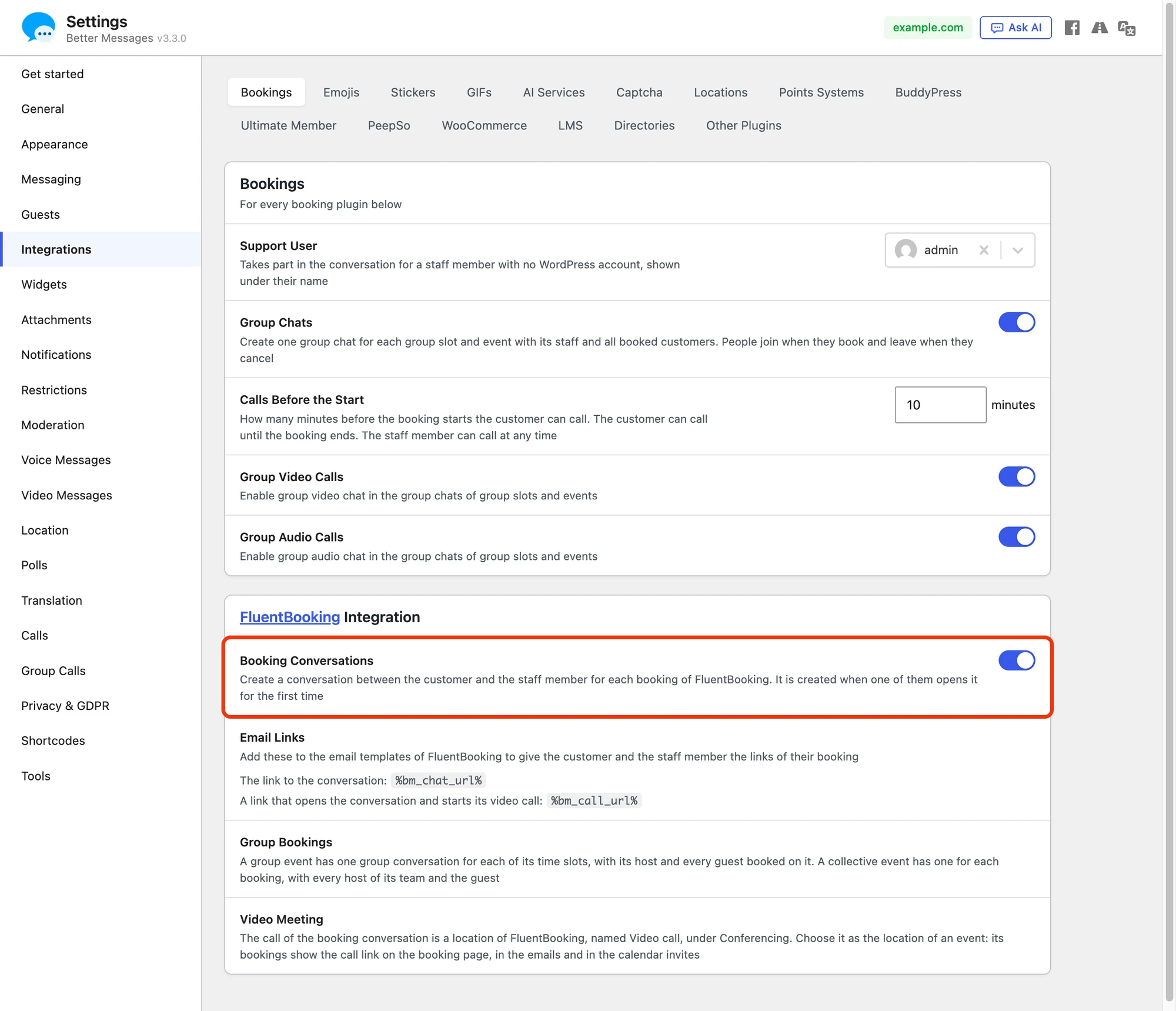
The Bookings card at the top holds the settings every booking plugin shares:
| Setting | What it does |
|---|---|
| Support User | Takes part in the conversation for a staff member with no WordPress account and is shown under their name. FluentBooking hosts are always WordPress users, so a FluentBooking site needs it only when other booking plugins run beside it. |
| Group Chats | Creates one group conversation for each group slot and event, with its staff and every booked customer. People join when they book and leave when they cancel. On by default. |
| Calls Before the Start | How many minutes before the start the guest can call (10 by default, from 0 to 1440). The guest can call until the booking ends, the host at any time. WebSocket version. |
| Group Video Calls / Group Audio Calls | Calls in the group conversations of group slots and events. Off by default. WebSocket version. |
The FluentBooking Integration card lists the two email placeholders, explains what makes a group conversation in FluentBooking and where to pick the video meeting. Cards for Amelia, LatePoint and Simply Schedule Appointments follow it.
Video call as the event location#
The call of the booking conversation is one of the locations of FluentBooking, named Video call, in the Conferencing group next to Google Meet, MS Teams and Zoom. The name carries no plugin name, so guests see it as a call of the site itself. Open the event in FluentBooking → Calendars, go to Event Details and choose Video call under Location.

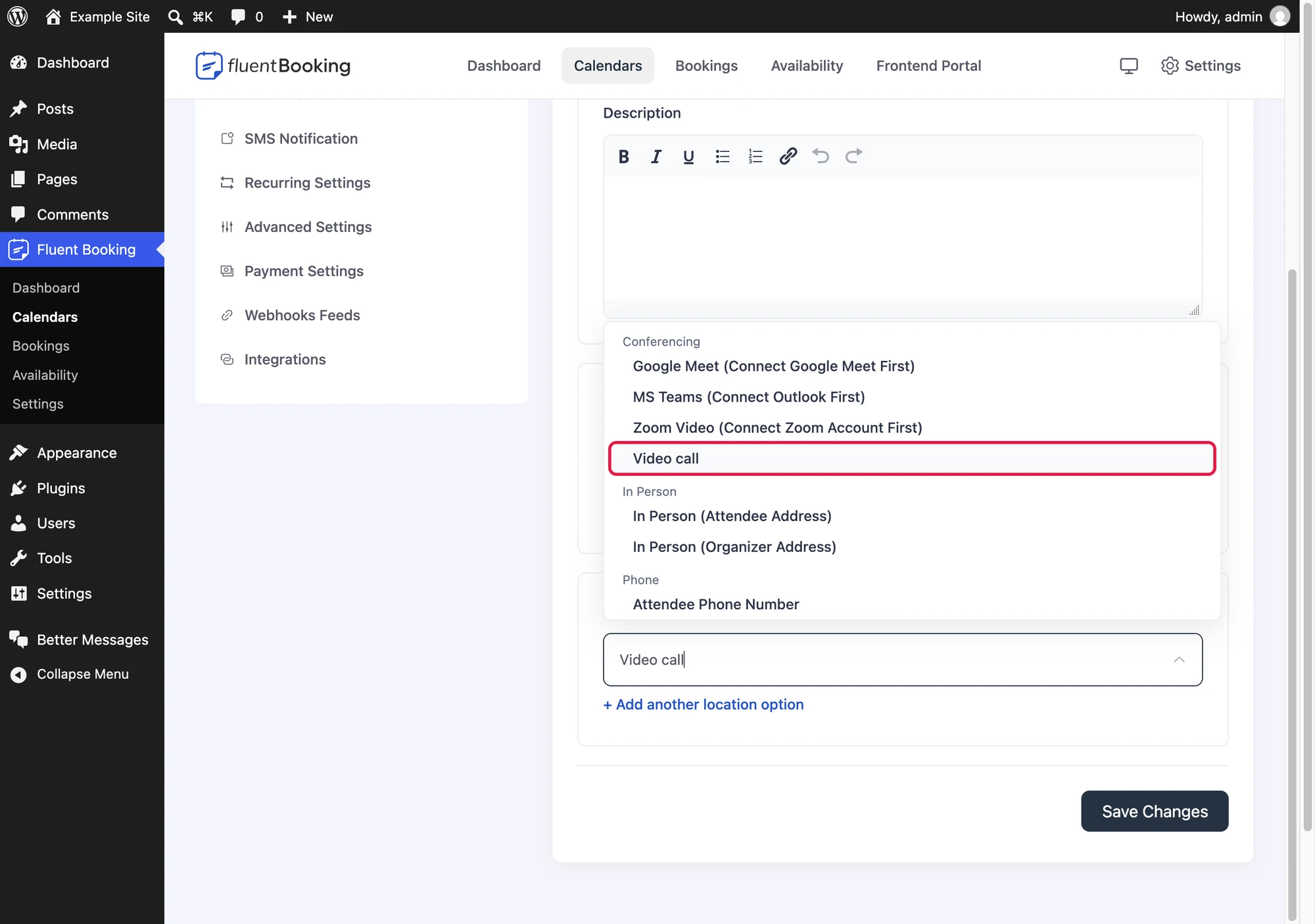
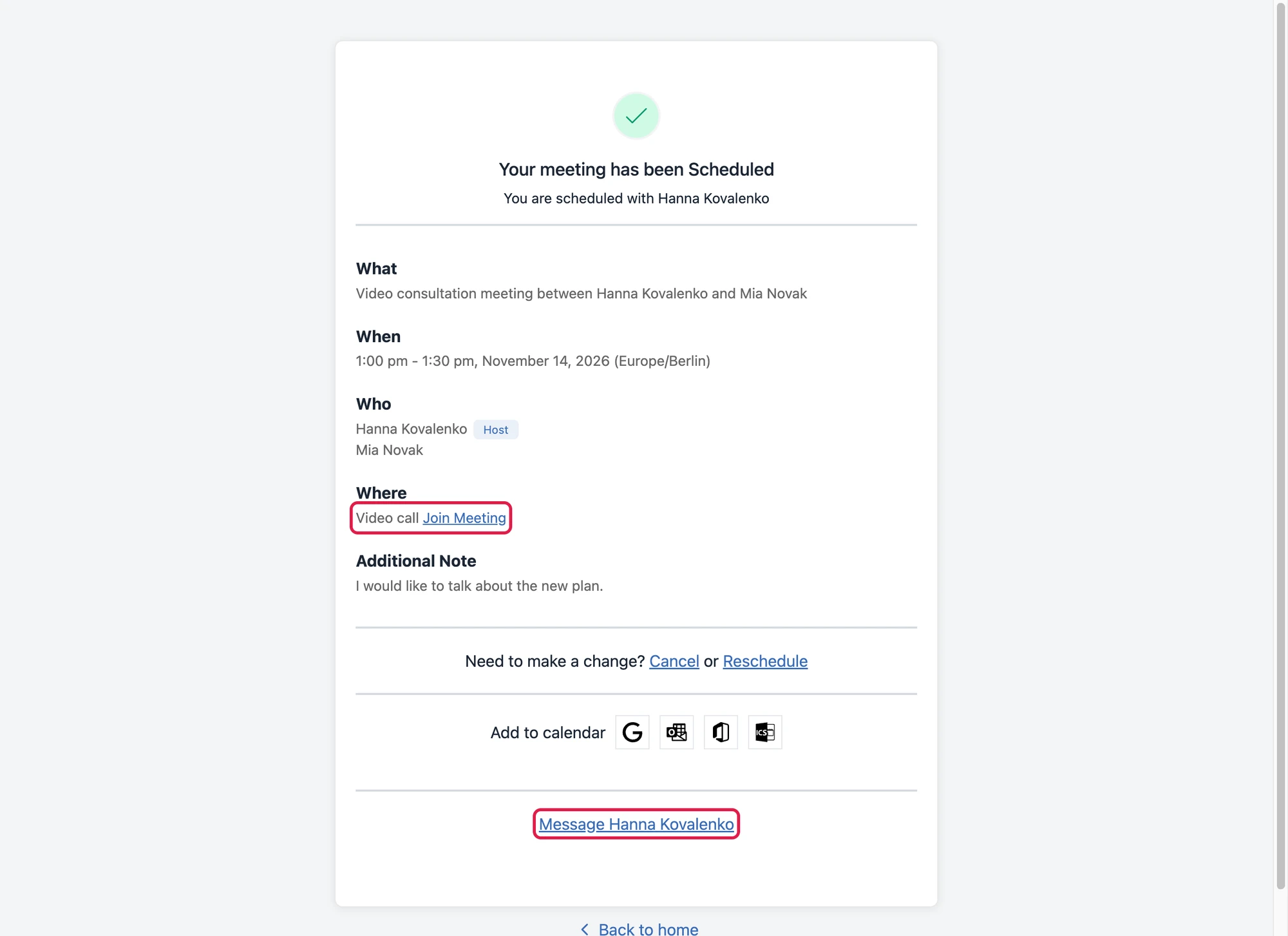
Every booking of that event then carries the call link as its online meeting. FluentBooking shows it as "Video call" with a Join Meeting link in all its usual places:
- The booking confirmation and the attendee page
- The booking emails, through
{{booking.location_details_html}} - The Add to calendar links and the
.icsfile
The guest sees their own signed link on the attendee page and in their emails, so Join Meeting signs them in and starts the call even when they have no account. The host emails, the host view of the booking and the .ics file carry the plain link, which opens the conversation for the signed-in host.
The location is written only for events where Video call is chosen. A booking with any other location keeps it as FluentBooking wrote it.
Links in the booking emails#
Two placeholders work in every FluentBooking email template:
| Placeholder | What it prints |
|---|---|
%bm_chat_url% | The link to the conversation of the booking |
%bm_call_url% | The link that opens the conversation and starts its video call |
Open the event, go to Email Notification and click Edit on a template, for example Booking Confirmation Email to Attendee. Both placeholders are listed under Add Shortcodes, in the booking group. Put them in a link, as in the Code view below.

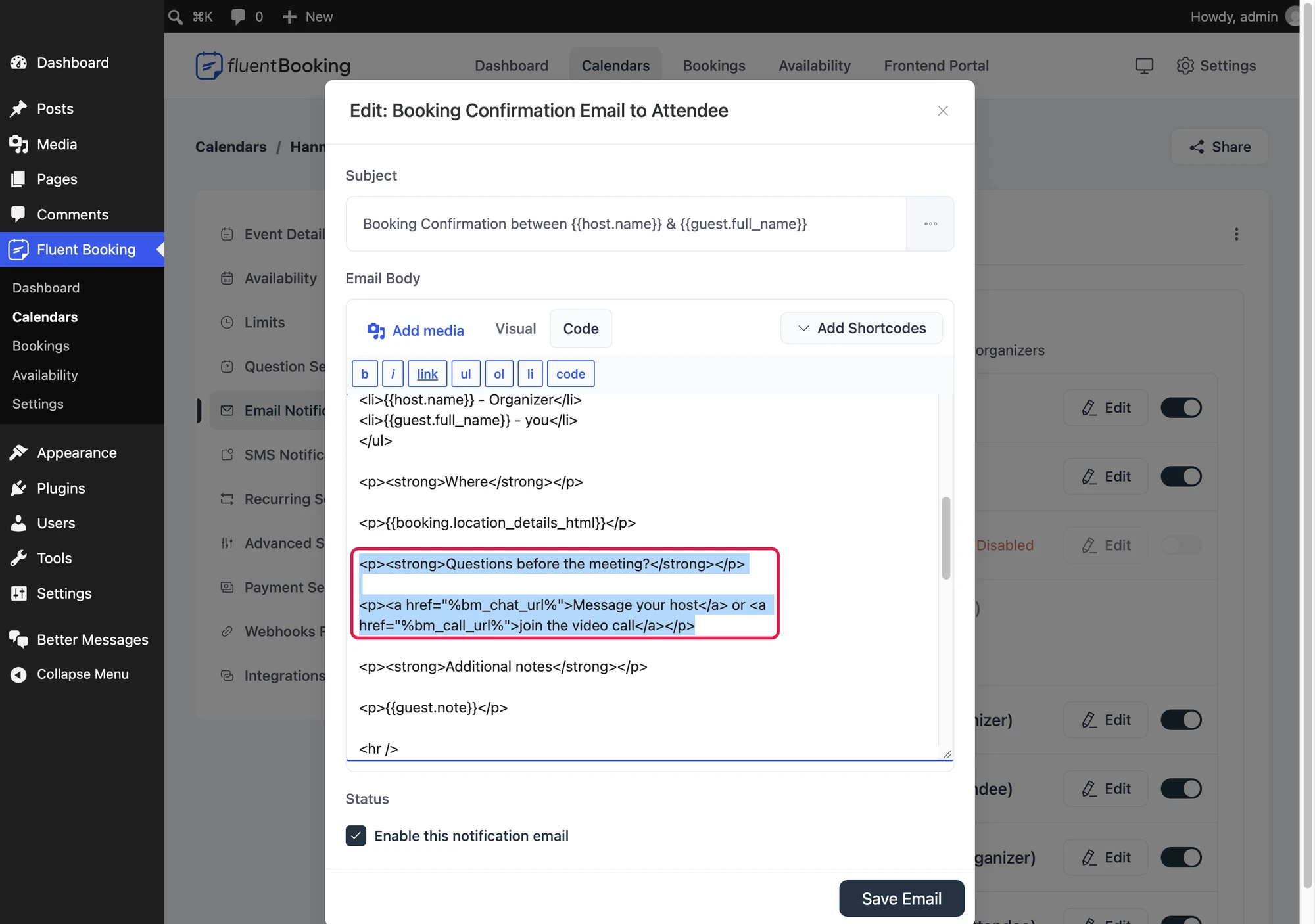
<p><strong>Questions before the meeting?</strong></p>
<p><a href="%bm_chat_url%">Message your host</a> or <a href="%bm_call_url%">join the video call</a></p>
Each recipient gets the link that fits them:
- The guest without an account gets a signed link that signs the browser in as that guest.
- The guest with an account and the host get the plain link. A signed-out visitor goes through the login page first.
- Additional guests named on a booking get a copy of their own with the plain link, so a link signed for the person who booked never reaches anyone else.
- On a site without calls (the free version, or video calls turned off),
%bm_call_url%prints the conversation link, so a template never holds a dead call link.
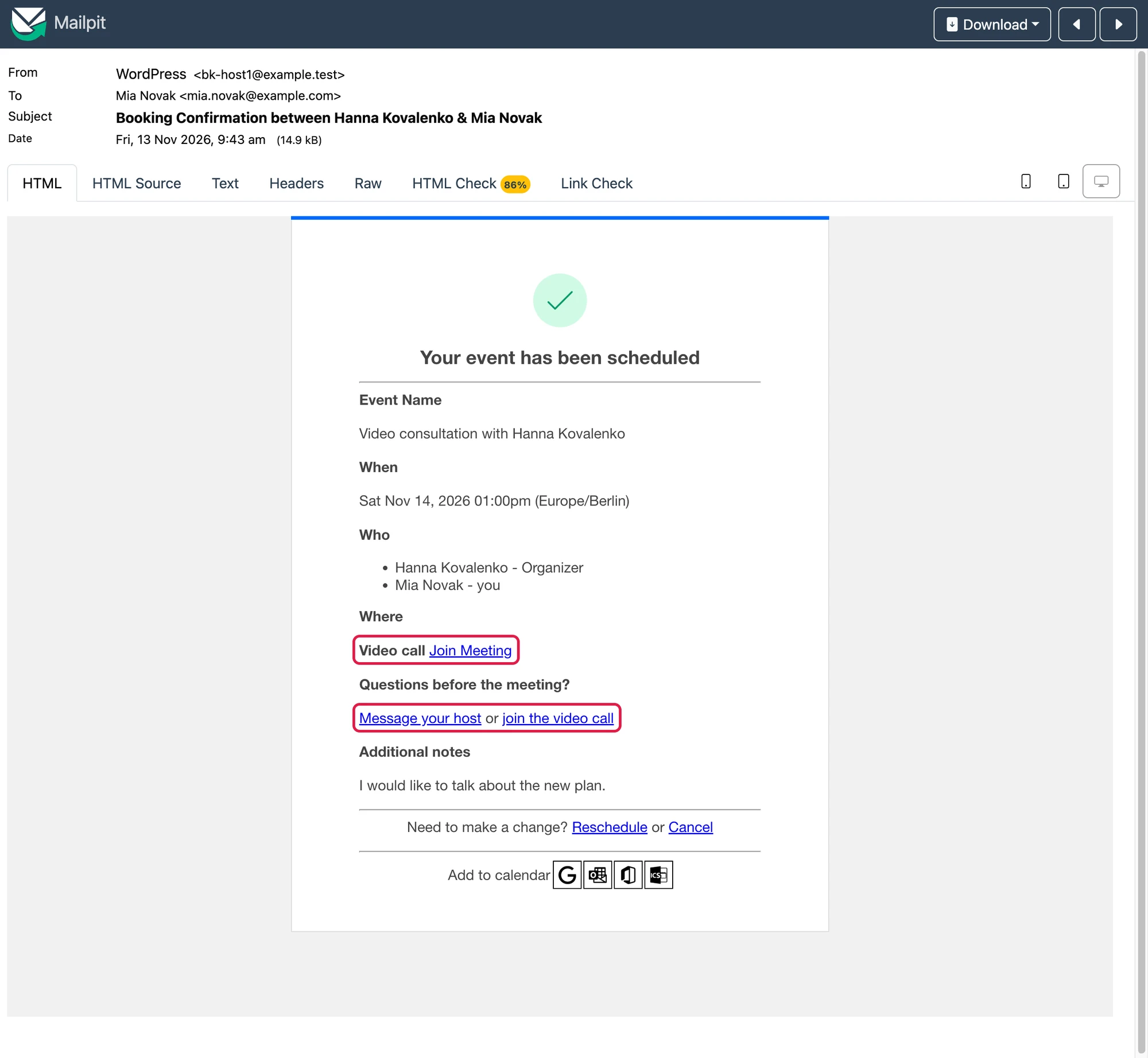
This is the confirmation the guest of the event above receives. The location line carries the call link of the event, and the paragraph from the template carries the chat and call links.

Message button on the booking page#
The attendee page of FluentBooking, which the guest sees after booking and reaches from the links in their emails, gets a row at its foot with a Message button. For a one-to-one booking it names the host, as in "Message Hanna Kovalenko". The button opens the conversation, creating it on the first click, and signs a guest without an account in.

The host view of a booking, in wp-admin and in the Frontend Portal of FluentBooking Pro, gets a Messages card with a link to the conversation. It shows only for the hosts of the booking, not for an admin who is not one of them.
The conversation#
The guest side#
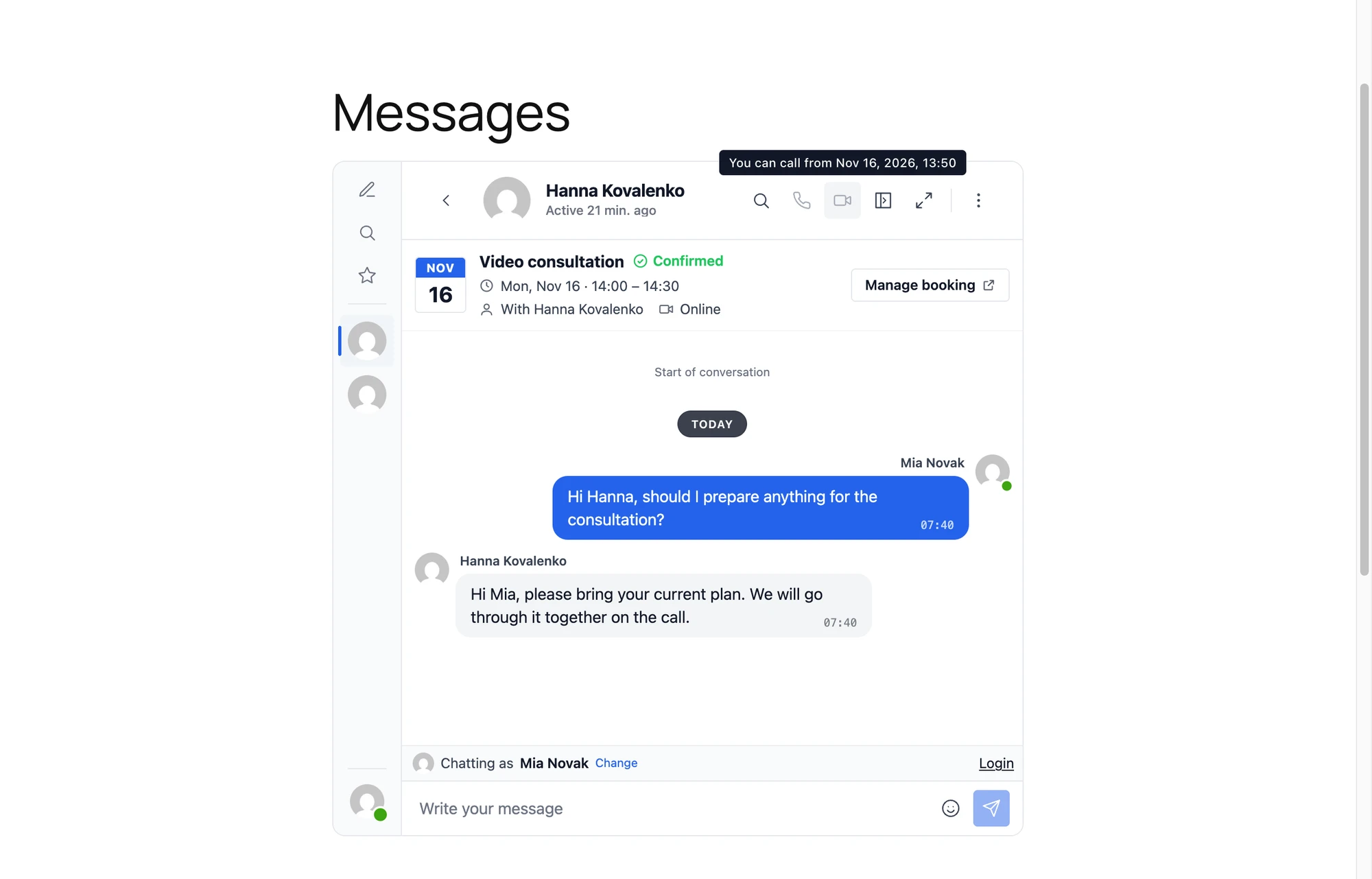
A guest who opened a signed link is signed in as a guest with the name and the email of the booking ("Chatting as" at the bottom). Their inbox holds the conversations of their bookings.
The card at the top of the conversation shows:
- The day of the booking as a calendar leaf, with the month and the day
- The event and its status, as an icon and a word in its colour: Confirmed (a check), Pending (an hourglass), Cancelled or Rejected (a red cross), Completed or No show (a grey dash)
- The time from start to end in the time zone of the viewer, for example "Mon, Nov 16 · 14:00 – 14:30"
- "With" and the name of the host, and Online or the place
- For a series, the number of dates
The Manage booking button opens the FluentBooking page of the booking, where the guest can reschedule or cancel it. Only the guest of the booking sees it. The call buttons stay greyed until the call window opens, and hovering one says when the guest can call.

The guest keeps using the same guest across bookings made with the same email, so all their booking conversations stay in one inbox.
The host side#
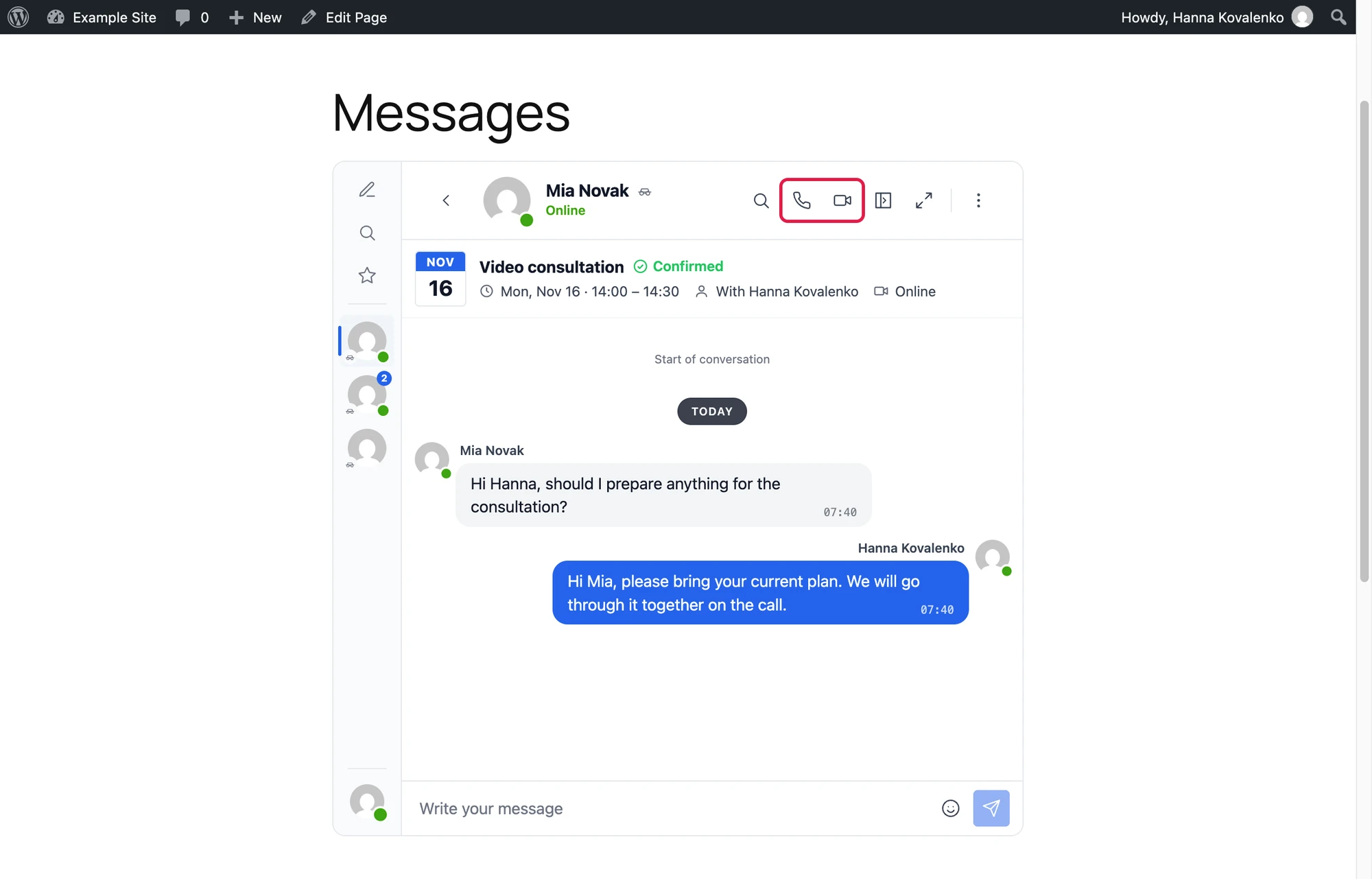
The host finds the conversation in the inbox like any other conversation, with the same booking card at the top but without the Manage booking button, which belongs to the guest. The host manages the booking in FluentBooking as usual. The call buttons work at any time for the host.

Rescheduled and cancelled bookings#
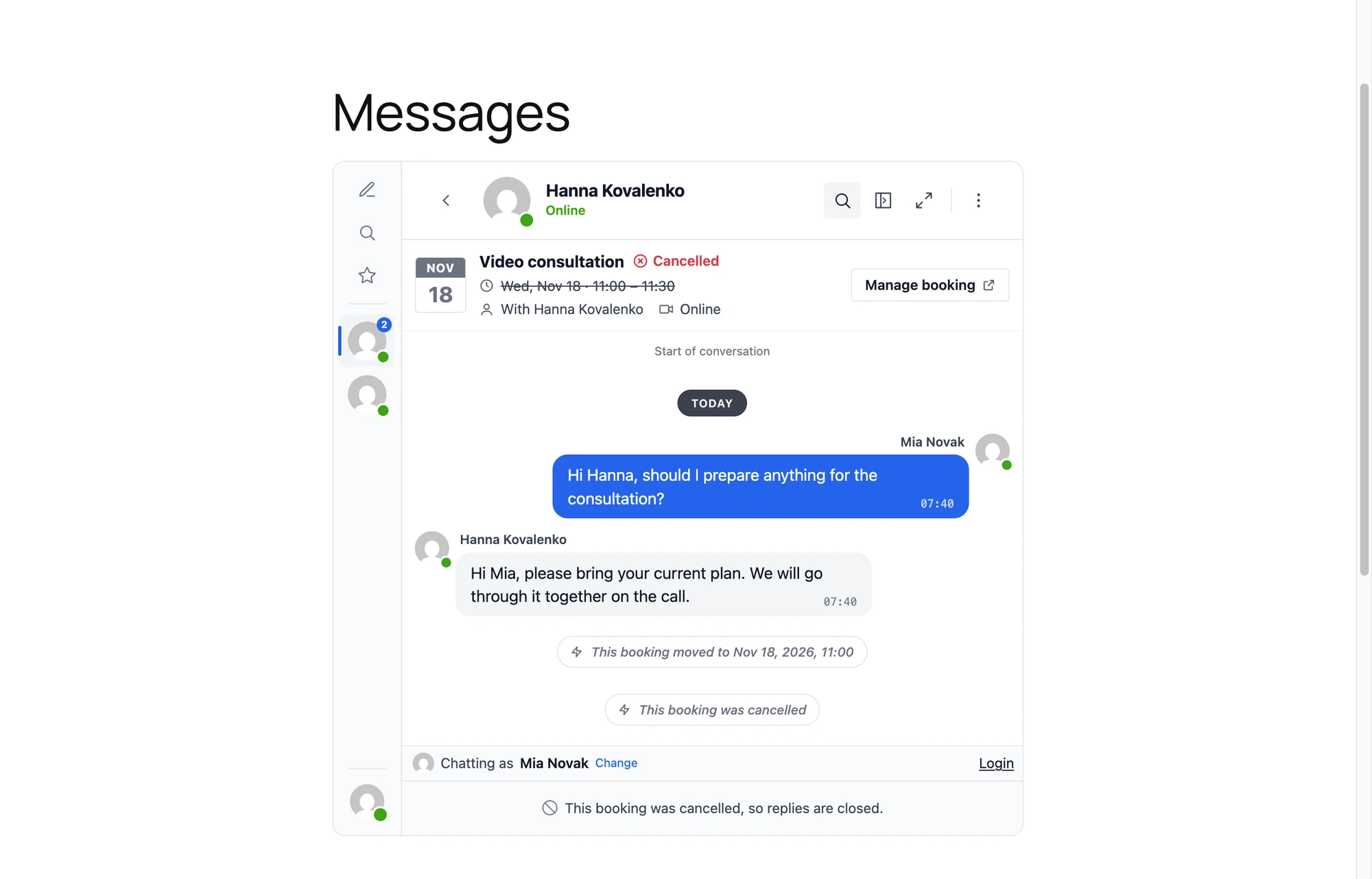
When the booking moves, the conversation gets "This booking moved to" with the new date and time, and the card shows the new day and time. When it is cancelled, the conversation gets "This booking was cancelled". The card shows Cancelled in red with the time struck through and the calendar leaf greyed, the call buttons go away and the reply box says "This booking was cancelled, so replies are closed." The messages stay readable for both sides. A rejected booking closes the same way, with "This booking was rejected, so replies are closed."
A conversation that is open at that moment updates by itself, the card, the call buttons and the reply box included. Nobody has to reload the page.

Calls around the booking#
Calls need the WebSocket version and video or audio calls turned on in Better Messages → Settings → Calls.
- The guest can call from the number of minutes set in Calls Before the Start before the booking starts (10 by default) until the booking ends. Outside that window the call buttons stay greyed with the reason, and they light up the minute the window opens, without a reload. The server refuses a call outside the window too.
- The host can call at any time.
- A cancelled or rejected booking has no calls.
- The call link (
%bm_call_url%, or Join Meeting of the Video call location) opens the conversation and starts a video call. Opened before the window, it shows when the guest can call instead.
Group conversations of group and collective events use the group calls of Better Messages, turned on with Group Video Calls and Group Audio Calls in the Bookings card. They have no time window.
Group events, collective events and series#
| FluentBooking booking | Conversation |
|---|---|
| One-to-one event | A private conversation between the host and the guest, one per booking |
| Group event (several guests at one time) | One group conversation for each time slot, with the host and every guest booked on it. Guests join when they book and leave when they cancel or move to another time |
| Collective event (several hosts) | One group conversation for each booking, with every host of the team and the guest |
| Round robin event | A private conversation with the host the booking was given. When a reschedule moves the booking to another host, the conversation follows |
| Recurring or multi-slot booking | One conversation for the whole series. The card, the call window and the email links follow the current date of the series, and the card shows the number of dates, and each date that moves or is cancelled gets its own system message |
Group conversations need Group Chats on in the Bookings card. With it off, group bookings have no conversation. The card of a group conversation shows no status and no Manage booking button, as each guest in it has a booking of their own.
Frequently asked questions#
Does the guest need an account?#
No. A guest who booked with only a name and an email opens the conversation from the Message button on the booking page or from %bm_chat_url% in their email. The signed link works even when guest chat is off for the rest of the site, and it opens only the conversations of that email. While guest chat is off, such a guest gets the messenger on the Messages page and wherever it is placed with a shortcode, but not the mini widgets, the mini chats or the floating chat button on the other pages.
Does it work in the free version?#
Yes, the conversations, the card, the system messages, the email links and the Message button all work in the free version. Calls, including the Video call location, need the WebSocket version.
What happens to the meeting link when a booking moves?#
The link stays the same, because it points at the conversation of the booking. FluentBooking sends its reschedule emails with the same link.
Can the host and the guest talk before the booking?#
Yes, the conversation is open from the moment the booking is made until it is cancelled or rejected. Only calls from the guest wait for the call window.
Who sees the conversation of a group event?#
The host and every guest booked on that time slot. A guest who cancels leaves the conversation.
See also#
- Amelia integration - the same booking conversations for Amelia
- LatePoint integration - the same booking conversations for LatePoint
- Simply Schedule Appointments integration - the same booking conversations for Simply Schedule Appointments
- Video calls - how calls work in Better Messages