Scheduled Messages
A member writes a message now and chooses when it is sent: tomorrow morning, on Monday, or at any date and time within a year. Until then only they see it. At its time it is sent as if they pressed Send, so it notifies, counts as unread and reaches every member as any other message.
It is useful for reminders, announcements to a group or a chat room, and replies that should arrive in working hours. Scheduled messages are in both the free version and the WebSocket version, and are off until an administrator turns them on.
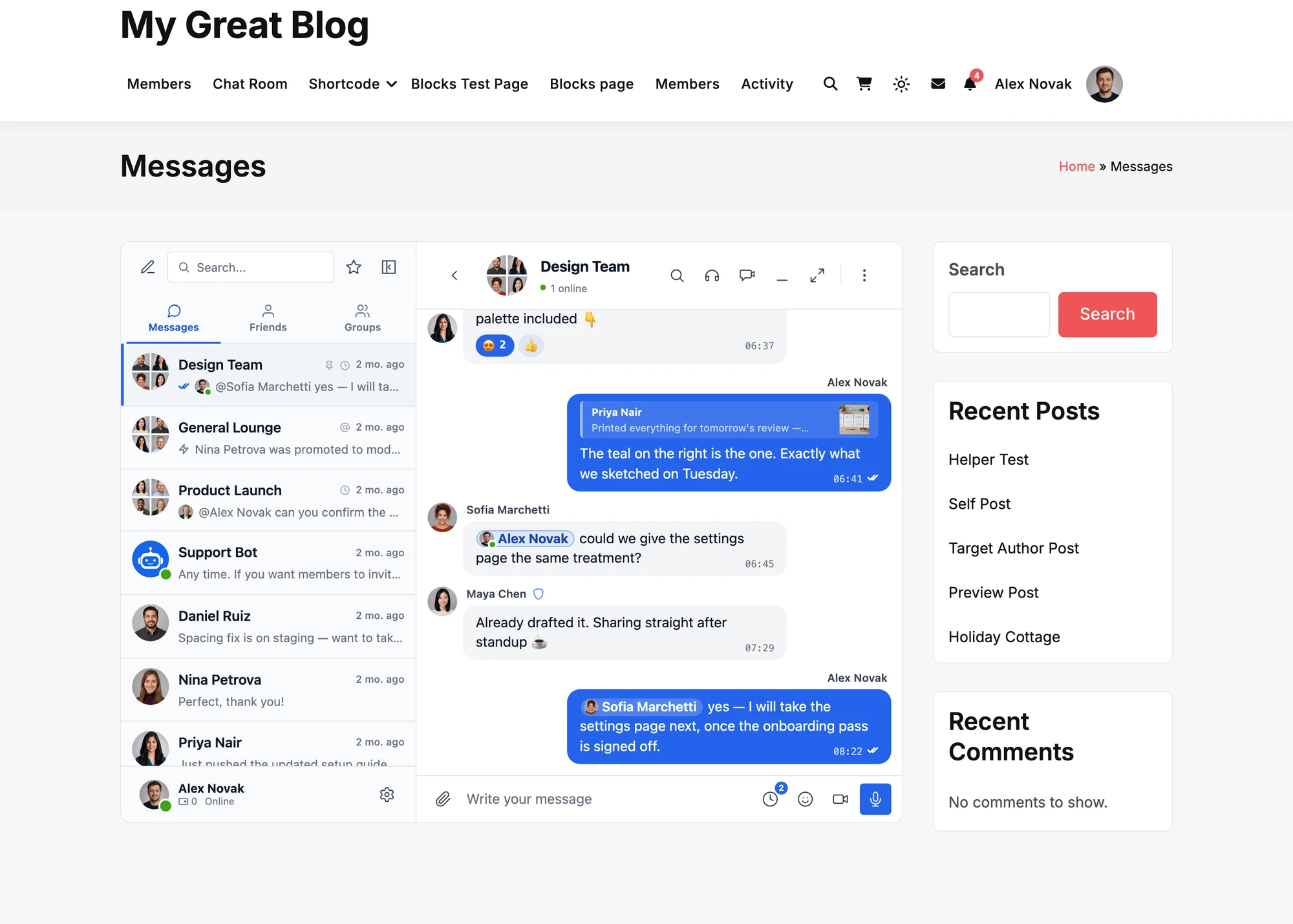
Scheduling a message#
- Write the message in a conversation, with formatting, mentions, files or as a reply to a message.
- Open the menu of the Send button: a right click on a computer, a long press on a phone or tablet. Or open the + attachment menu.
- Pick Schedule message.

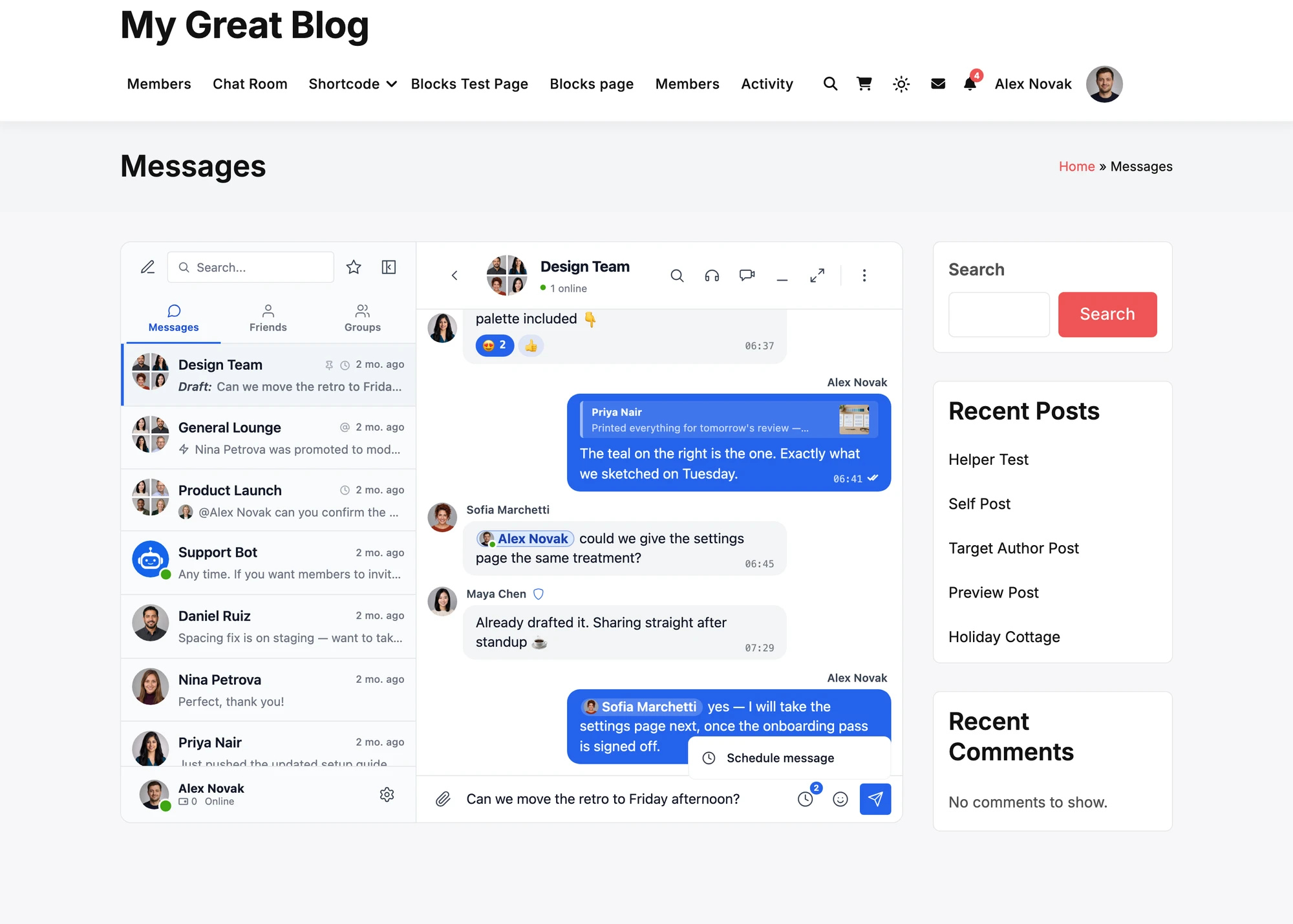
The dialog offers Later today, Tomorrow morning and Monday morning, each with its time, or a date and a time of their own. The times are in the time zone of the device of the member, which the dialog names under them. The time must be at least a minute ahead and within a year.

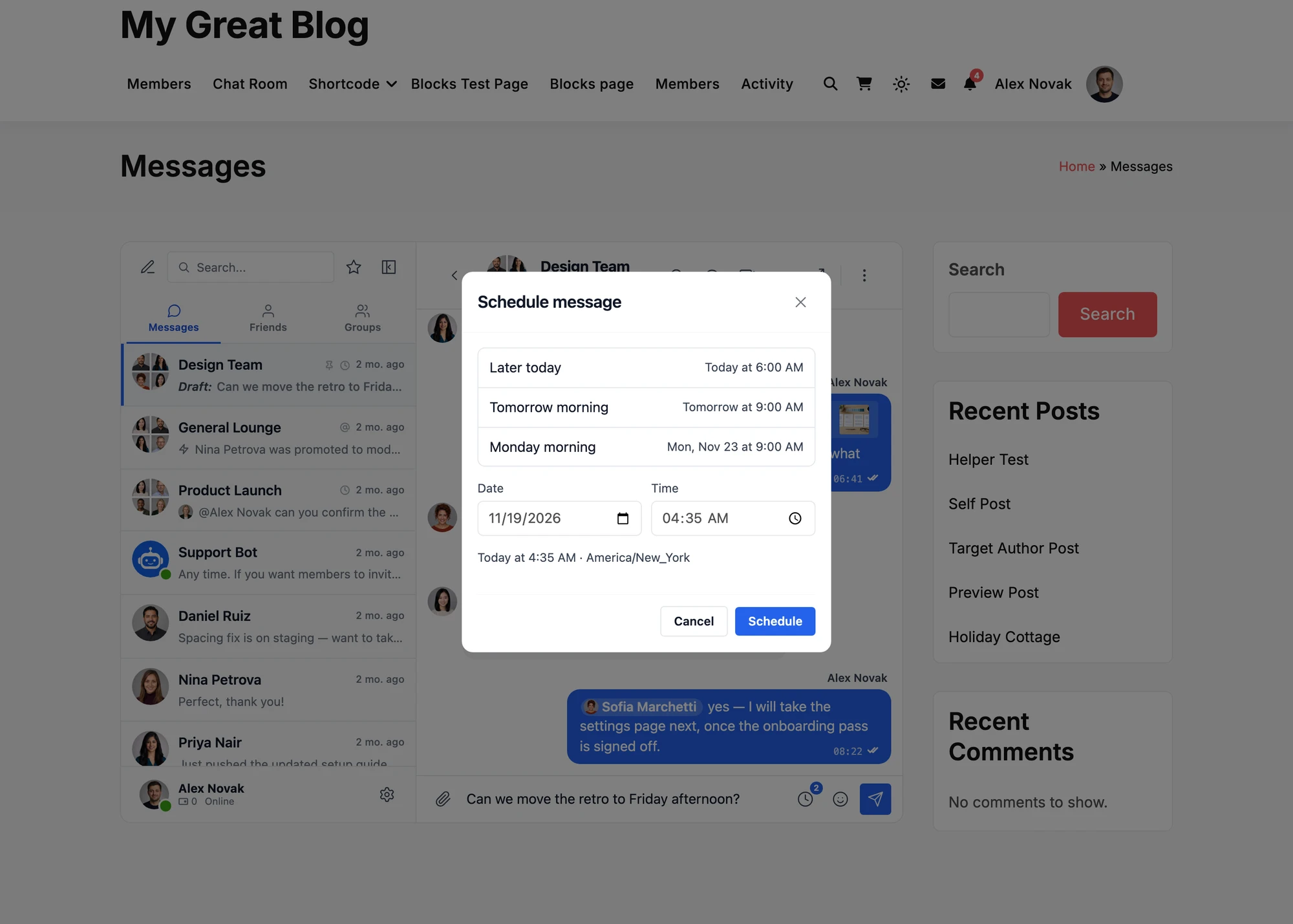
The reply area empties. A clock beside its buttons counts the scheduled messages of the member in that conversation, and the conversation shows a small clock beside its time in the list of conversations.
What can be scheduled#
| Message | How to schedule it |
|---|---|
| Text, with formatting, mentions and a reply | The menu of Send, or Schedule message in the + menu |
| Files and pictures | Add them as usual, then schedule the message. They upload now and wait with it |
| A location | Pick the place with Share location in the + menu, then schedule the message as above |
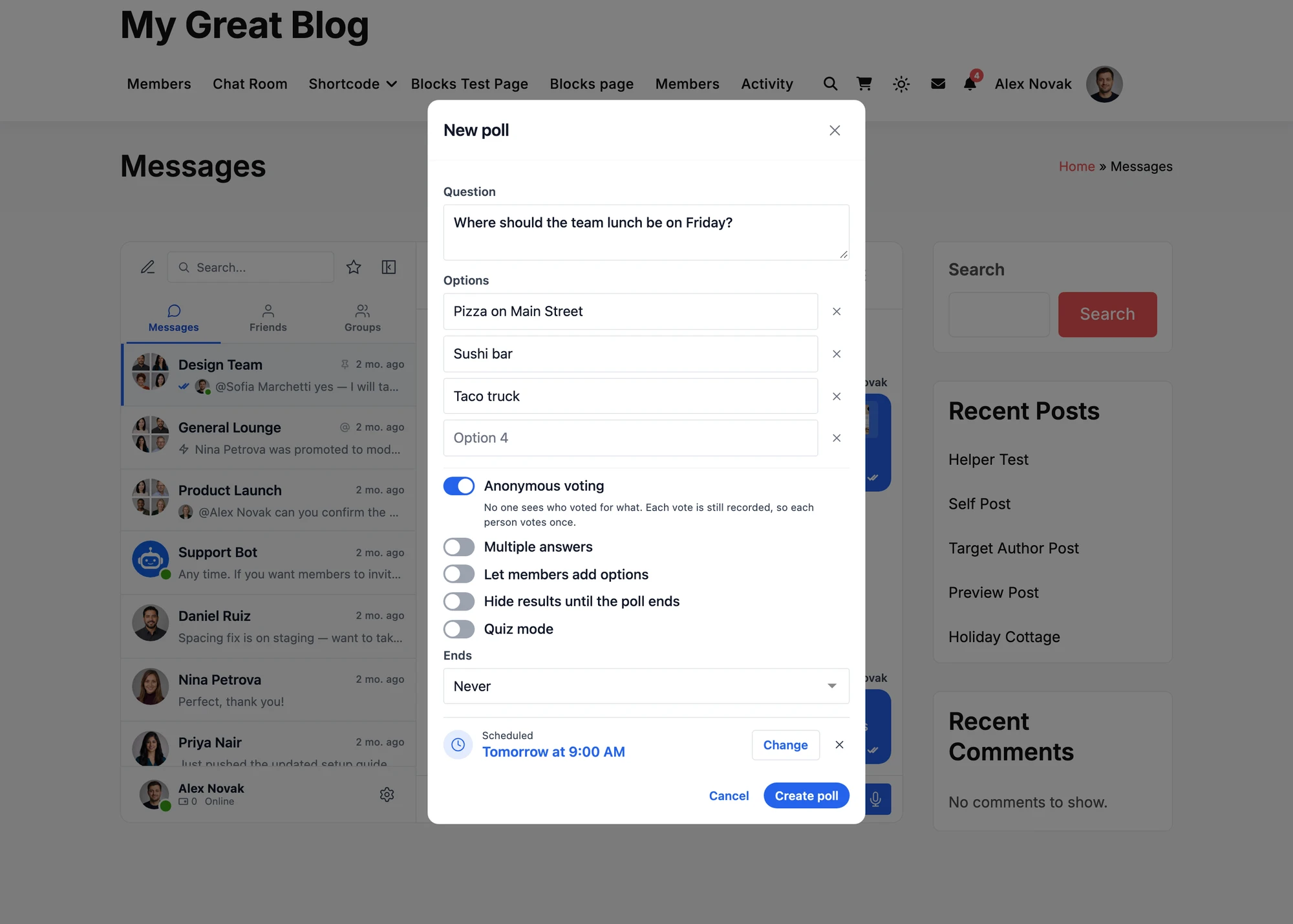
| A poll | Poll in the + menu, then Send later above the buttons of the dialog, a time, and Create poll |
| A voice message | Record it, then open the menu of Send in the recorder and pick Schedule message |
| A video message | Record it, then open the menu of Send video message and pick Schedule message |
A scheduled poll stays open as long after it is sent as was chosen in the dialog: a poll set to end in one day ends one day after it goes out, not one day after it was written. Polls, voice messages and video messages need their features to be on and allowed for the role of the member, and they are checked again when the message is sent.

Managing scheduled messages#
The clock opens the list of scheduled messages of the conversation. Each one shows when it is sent and the message exactly as it will stand in the conversation, drawn the same way as the messages of the conversation: files, pictures, link previews, replies, polls, places and players. It has four actions:
| Action | What it does |
|---|---|
| Edit | Puts the message back in the reply area. Change it and press Send to save, or close the Edit scheduled message bar over the reply area to leave it as it was. Polls, voice messages and video messages have no Edit, only their time can be changed |
| Reschedule | Chooses another time |
| Send now | Sends it at once |
| Delete | Deletes it after a confirmation. It is never sent |

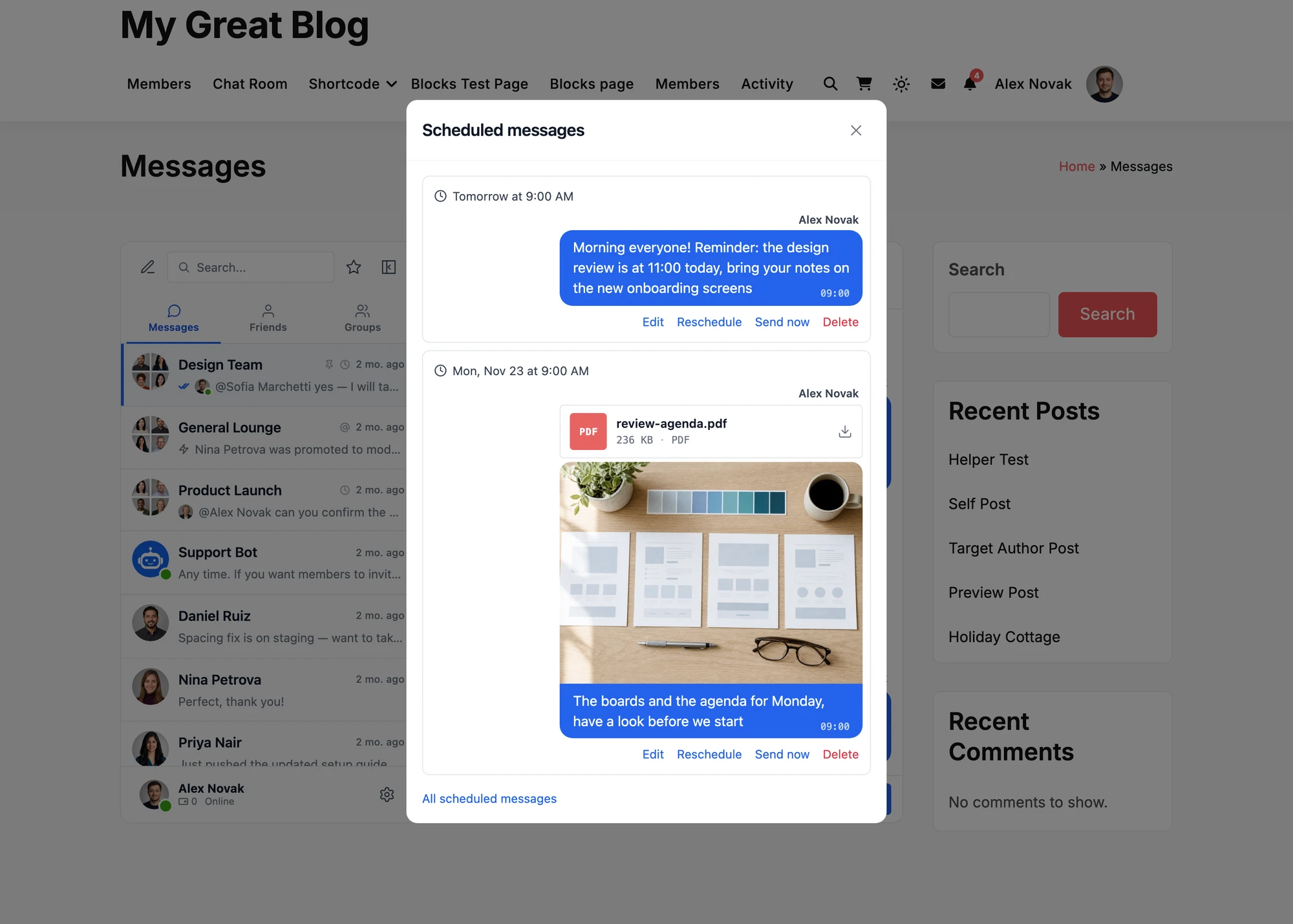
A poll shows its question and options with how long after it is sent it ends, a voice or video message its player, and a location its map. Nothing in the list can be voted on or replied to before the message is sent.

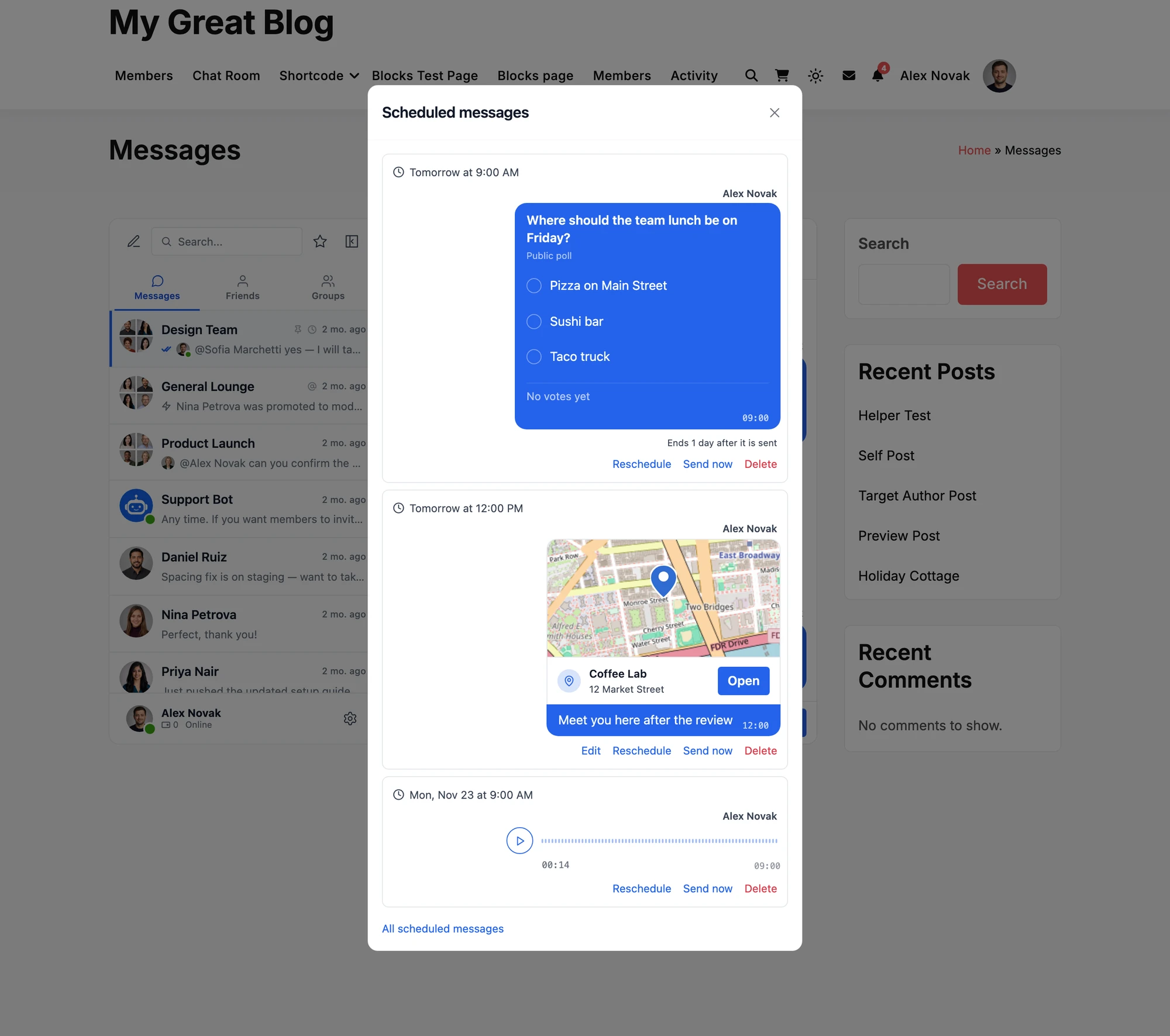
All scheduled messages, under the list and in the menu of the name of the member at the bottom of the messenger, lists every scheduled message the member has, grouped by conversation, with the same actions and a link to each conversation.

When a message cannot be sent#
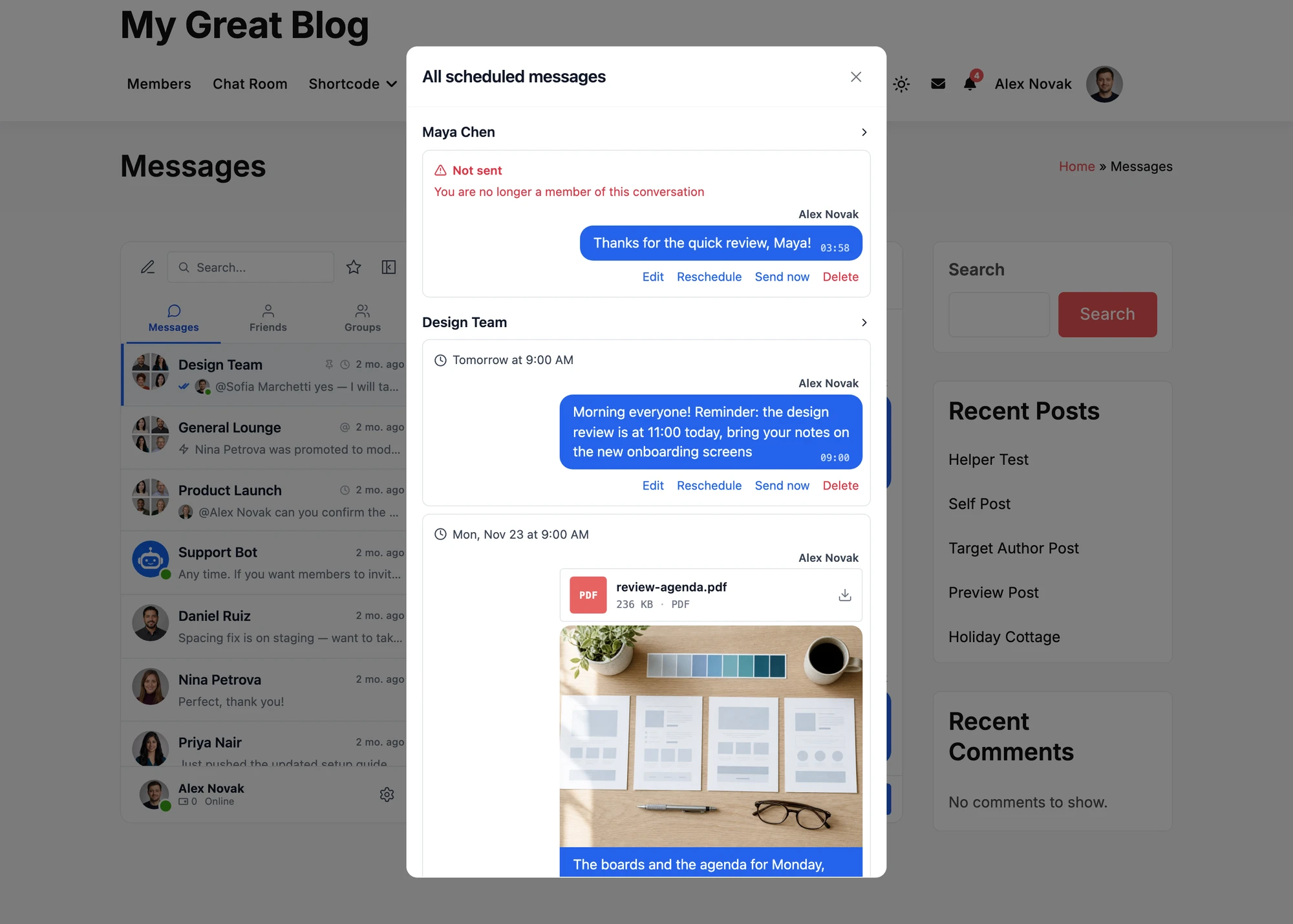
A scheduled message goes through every check a message sent by hand goes through, at the time it is sent. If the member can no longer send it, it is not sent and stays in their lists as Not sent, with the reason:
- They are no longer a member of the conversation, or were removed from the chat room
- They can no longer send messages there: they were blocked or banned, or the conversation was closed to replies
- The conversation was deleted
- Their role may no longer schedule messages
- The site could not send it within a day of its time, for example because its scheduled tasks did not run
The other members never see a message that was not sent. The member can edit it, reschedule it, send it now or delete it. A message held back by the reply rate limit is tried again every five minutes, for up to a day.
A message that was not sent is deleted after 30 days.
What the other members see#
Nothing until the message is sent. There is no notice that a message is scheduled, and the clocks and the lists are for the sender alone. Once sent, the message is dated the time it was sent, not the time it was written.
Where it is offered#
| Place | Scheduled messages |
|---|---|
| Private and group conversations | Yes |
| Chat rooms, groups, courses and booking conversations | Yes |
| A new conversation, before its first message | No |
| End-to-end encrypted conversations | No |
| Guests and AI chat bots | No |
How to turn it on#
WP Admin → Better Messages → Settings → Messaging → Conversation Features → Scheduled Messages

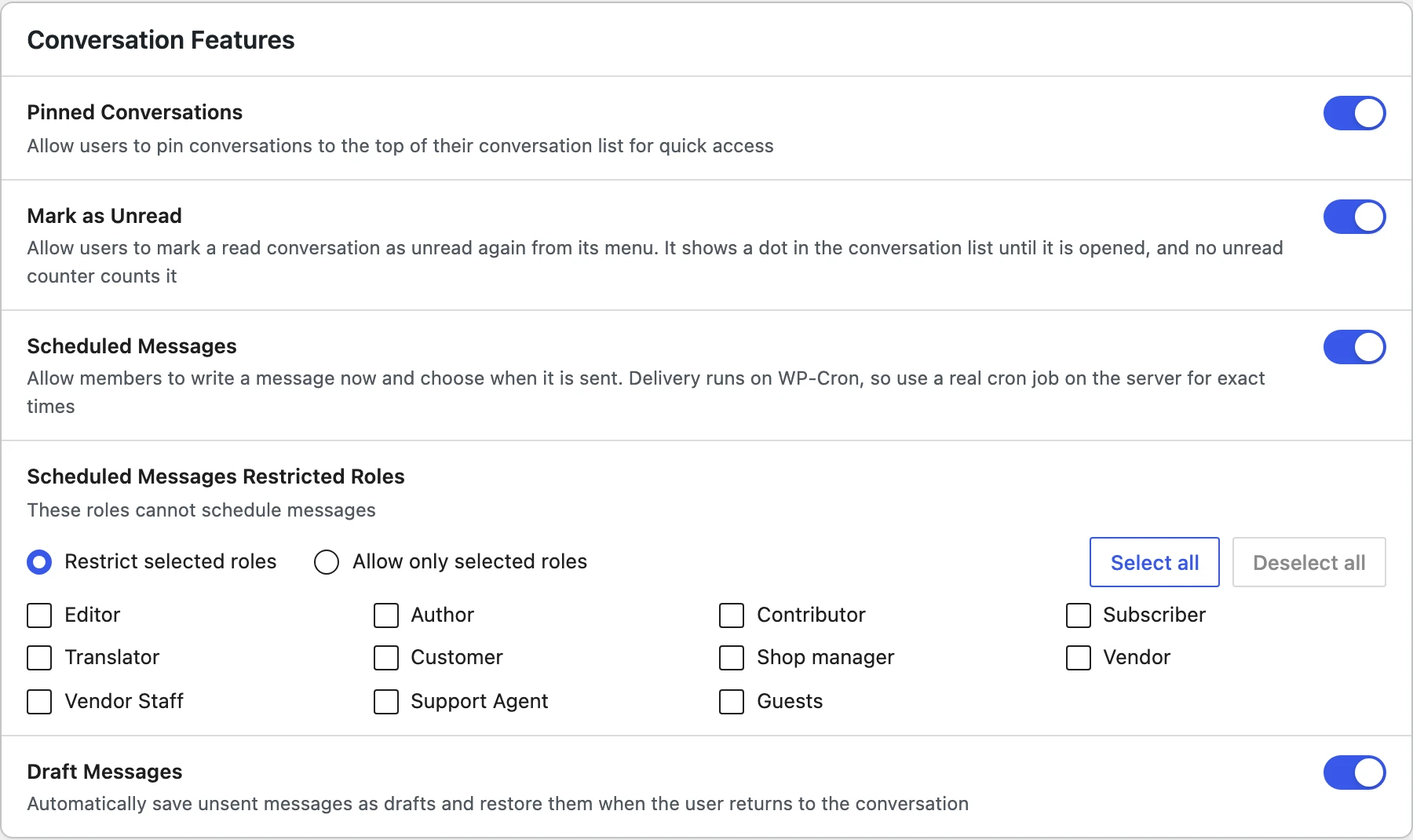
- Scheduled Messages turns the feature on for every member.
- Scheduled Messages Restricted Roles keeps the roles you tick from scheduling. Switch the list to Allow only selected roles to let only the ticked roles schedule, for example only moderators who post announcements.
Turned off, nothing can be scheduled and nothing scheduled is sent. The messages that wait are kept, and are sent when it is turned on again, unless their time passed more than a day before. Until then the clock beside the reply area still shows them, and members can delete them.
A member whose role is restricted later keeps the clock and can delete what waits, but cannot schedule, edit or send it. Such a message is not sent at its time and shows as Not sent.
Sending on time#
Scheduled messages are sent by the background task of the plugin, which runs every minute through WP-Cron. WP-Cron runs when the site has visitors, so on a quiet site a message can go out a few minutes late. For exact times, run WP-Cron from the cron of the server every minute, as described in Hooking WP-Cron into the system task scheduler.
For developers#
POST /wp-json/better-messages/v1/thread/{id}/scheduleschedules a message:message,send_at(Unix seconds),files(attachment ids uploaded to the conversation),meta.reply_to,meta.poll(a poll as the poll route takes it) andmeta.location, orkind(voiceorvideo) with the uploaded recording infilesand itsmedia(duration,waveform). It answers the scheduled message, withpreview, the message as the conversation will draw it, and the count of the member for the conversation.GET /wp-json/better-messages/v1/scheduledlists the scheduled and failed messages of the current member, all of them or of one conversation withthread_id.POST scheduled/{id}changes the text orsend_at,POST scheduled/{id}/sendsends it now andPOST scheduled/{id}/deletedeletes it. Each answers only the member who scheduled the message.- The conversation object carries
permissions.canScheduleandscheduled, how many messages of the member wait there or were not sent. Neither is sent to anyone else. - A delivered message carries the message meta
scheduled_id. - The
better_messages_message_scheduled,better_messages_scheduled_message_sentandbetter_messages_scheduled_message_failedactions fire as a message is scheduled, sent and not sent. better_messages_can_schedule_messagedecides per conversation and member, andbetter_messages_scheduled_min_delay,better_messages_scheduled_max_ahead,better_messages_scheduled_max_per_user(100) andbetter_messages_scheduled_overdue_seconds(a day) change the limits.
Frequently asked questions#
Can a member schedule a message to someone they have no conversation with yet?#
Not yet. The conversation has to exist: send the first message, then schedule the next ones.
Can a message repeat, every Monday for example?#
No. Each scheduled message is sent once.
Is a scheduled message stored encrypted?#
With stored data encryption on, its text is stored encrypted like any message.
Are the files of a scheduled message deleted by the attachment cleanup?#
No. They are kept until the message is sent or deleted, and Delete old attachments counts from the time the message was sent.
See also#
- Message drafts — keep an unsent message in the reply area
- Mark as unread — keep a read conversation in front of you with a dot
- Mass messaging — send one message to many members at a time an administrator chooses